
Updated on 2026-10-21 / iPhone tips
If Photos Clean Up is no longer working on your iPhone, first check whether it is stuck preparing, fails on every photo, or only struggles with a particular edit. Those symptoms do not necessarily have the same cause. Restarting Photos can help a frozen session, while missing downloads, feature availability, and processing limits need different checks.
If Clean Up fails across photos after Photos freezes, that pattern alone does not establish a universal cause.
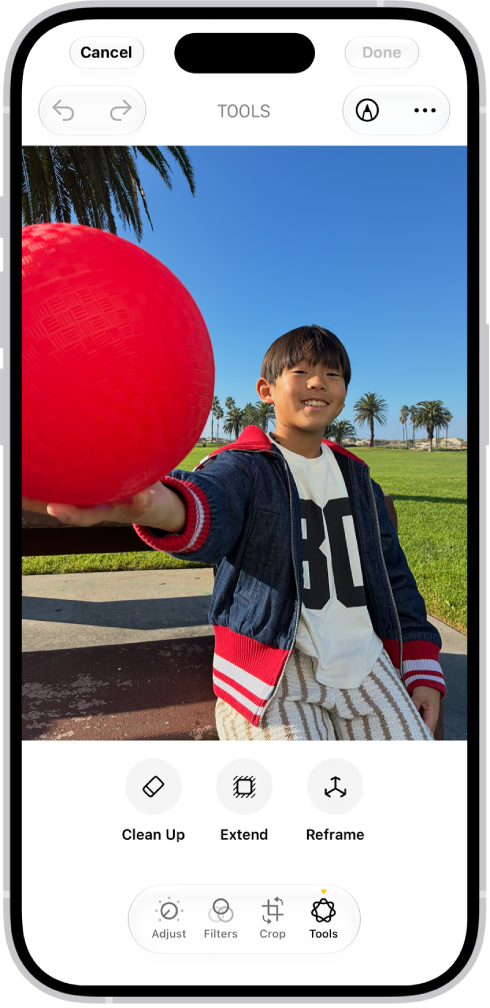
Part 1. Is Clean Up Missing, Stuck Preparing, or Failing on Photos?
If Clean Up is missing, check compatible Apple Intelligence hardware, software, language, and region. An update cannot add missing hardware. Check availability before considering repair.
If it stays on Preparing, check downloads and the editing session. Language changes may leave resources downloading; try a new photo to exclude an older photo still loading.
If an edit fails, compare one photo with several. Poor results differ from freezing. Follow temporary-unavailability notices. Repeated crashes across apps suggest, but do not prove, a local software fault.
Part 2. Choose the Right Fix for Photos Clean Up
Use this quick comparison to match the symptom to a practical next step. Eligibility issues, a stalled edit, and wider iOS problems call for different responses.
| Option | Use When | Limit |
|---|---|---|
| Restart Photos | Photos freezes or remains on Preparing. | Does not fix eligibility or processing limits. |
| Tenorshare Reiboot | Freezes or wider iOS glitches persist. | Requires a Windows or Mac computer and USB cable. Steps may vary slightly by iOS version. |
| Apple Intelligence Check | Clean Up is missing or stays on Preparing. | Availability varies by model, language, region, and iOS. |
| iOS Update | A public iOS update is available. | May not fix this specific issue. |
Part 3. How to Fix Photos Clean Up Not Working
Start with a small test edit and check the result after each change. Keep your original photo, and avoid deleting your library or erasing the phone just to troubleshoot one editing tool.
Method 1. Restart Photos and Refresh a Stalled Session
Best for: Photos that has stopped responding or remains on Preparing Clean Up. Refresh the session before changing feature settings; unsaved edits may be lost when you close the app.
-
If Photos is frozen, close it from the app switcher and reopen it. Unsaved edits may be lost.
-
Turn Airplane Mode on and back off. Reconnect to a working Wi-Fi network and try a small edit.
-
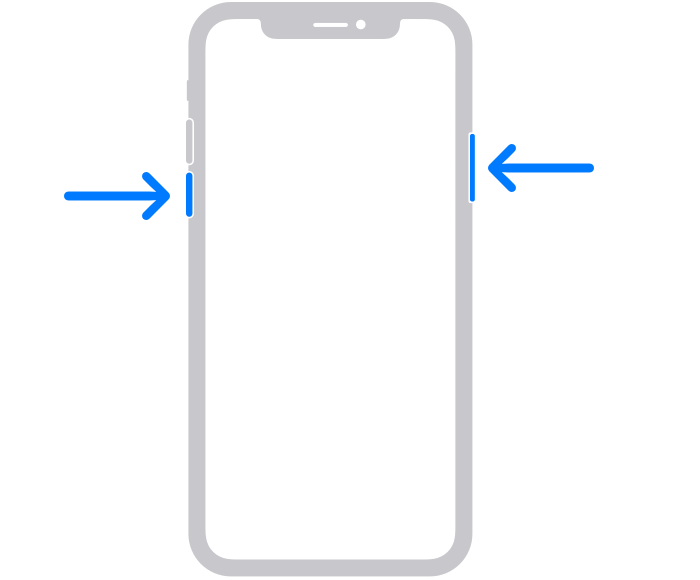
If it still stalls, restart the iPhone and test again. On a Face ID model, hold a volume button and the side button to display the power-off slider.
Restarting cannot change feature eligibility or remove a service-side usage limit. If the tool remains unavailable, check its settings and any displayed message.
Method 2. Repair Persistent iOS Problems with Tenorshare Reiboot
If Clean Up failures occur alongside recurring freezes or wider iPhone glitches after the checks above, consider an iOS repair. Tenorshare Reiboot provides a guided desktop workflow for supported system faults. Its repair mode is designed to preserve device data, making it an option to assess before an erase-and-restore workflow.
-
A repair mode targets supported iOS problems while retaining data.
-
A guided interface walks through device detection and firmware download.
-
Recovery-mode assistance is available when a device cannot be detected normally.
-
Windows and Mac versions provide a computer-based repair route.
Back up first, confirm device and iOS compatibility, and review the paid repair license. Downloading the installer does not make repair free.
-
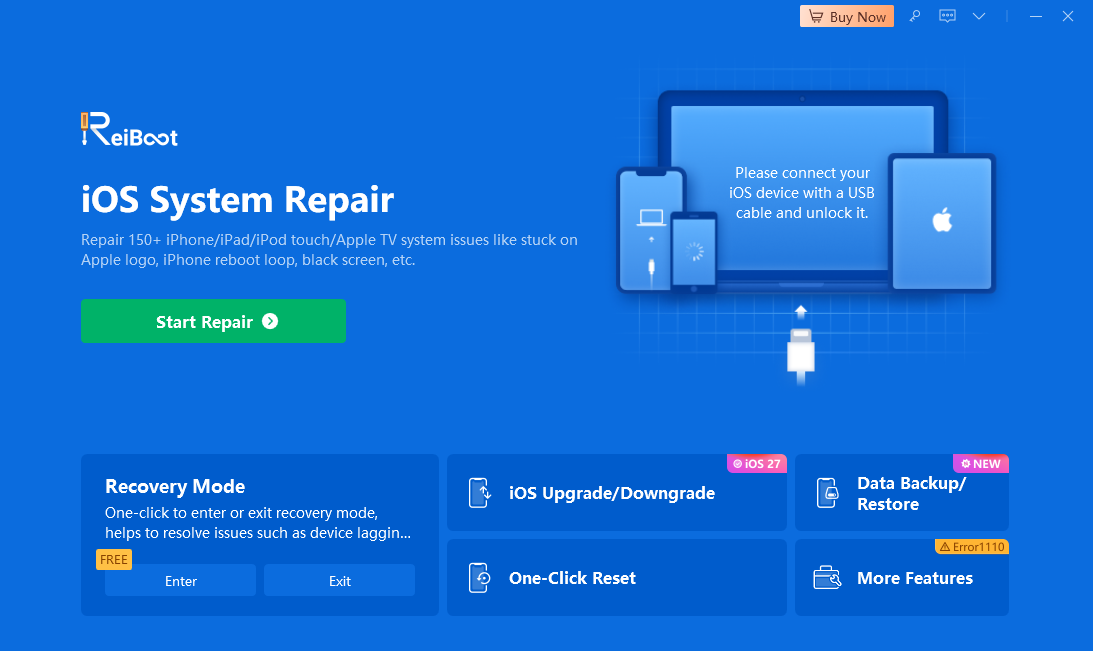
Connect the iPhone to your computer, launch Tenorshare Reiboot, and select Start Repair.
-
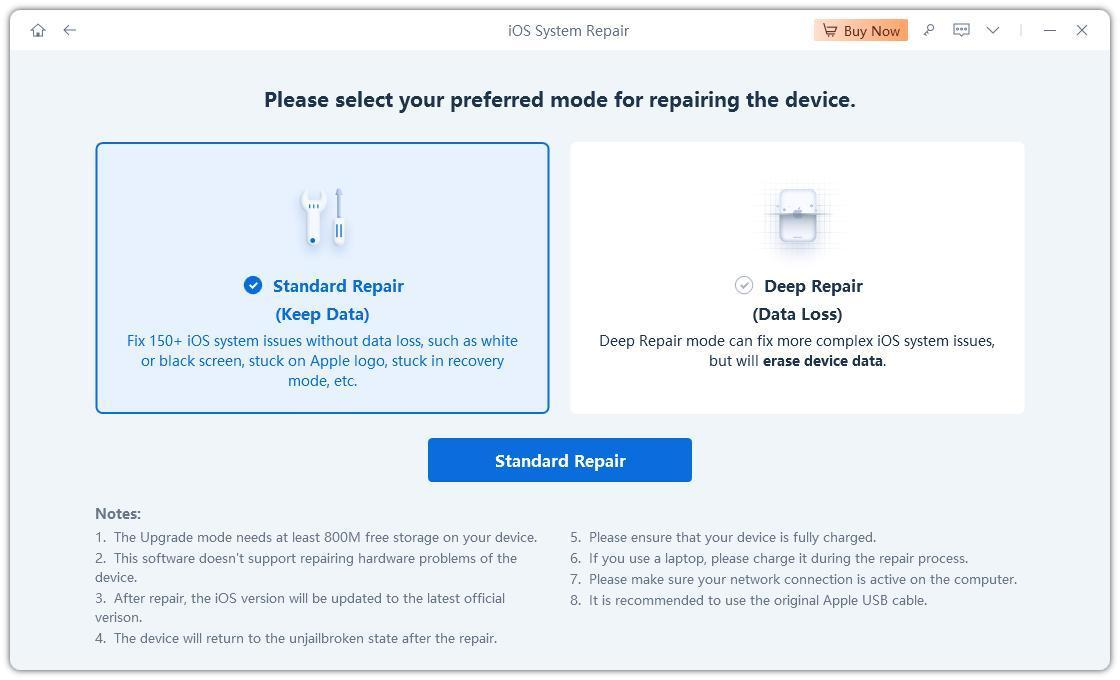
Choose the mode designed to retain data and read the requirements. Do not select Deep Repair merely to troubleshoot Clean Up.
-
Check the detected device and download the compatible firmware package offered by the program.
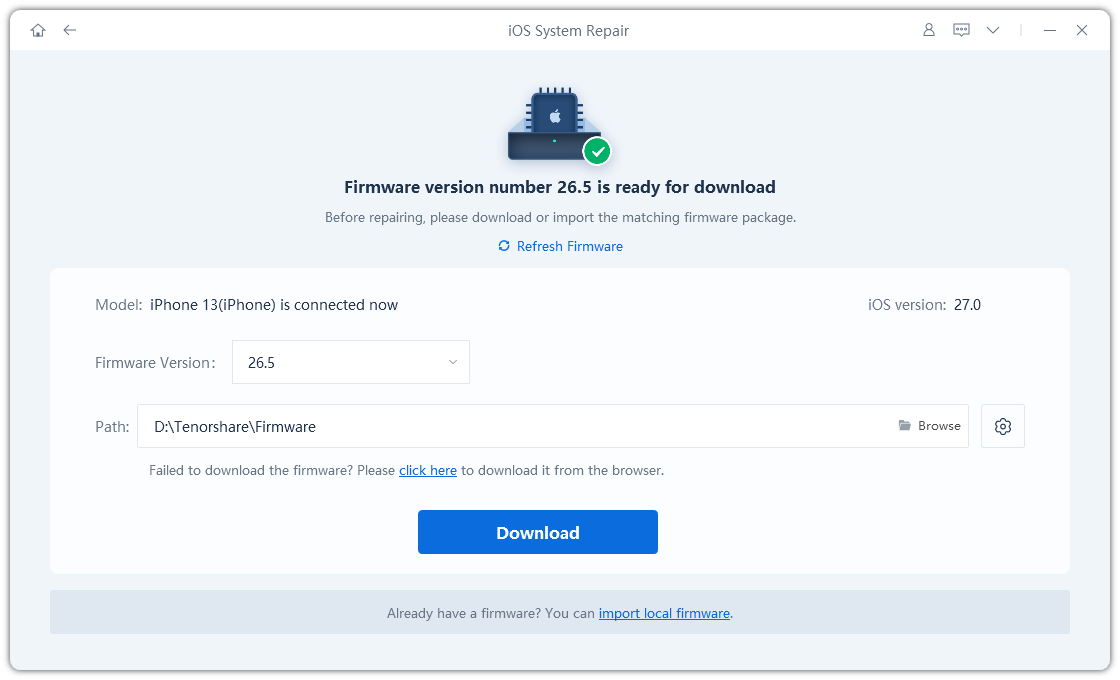
-
Start the repair in the mode designed to retain data, keep the cable connected, and test Photos after the iPhone restarts.
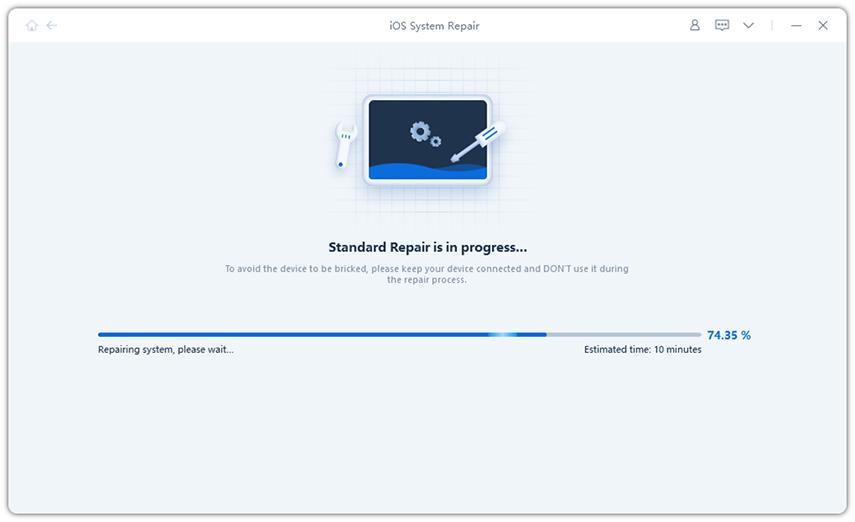
Pros: A repair mode offers a guided route for supported iOS instability while aiming to retain data. Cons: Repair requires a paid license and cannot improve an AI edit, remove usage limits, or change regional eligibility.
Method 3. Check Apple Intelligence and Try Another Processing Option
If Clean Up previously worked, check recent language changes and unfinished downloads before repeatedly restarting. Test the processing options available on your device.
-
Review Apple Intelligence settings. Confirm that the device and Siri languages match a supported language and that your device and region qualify.
-
Connect to reliable Wi-Fi and allow any displayed downloads to finish. Open a newly taken photo so you are not waiting for an older cloud photo.
-
Open Edit, then Tools and Clean Up where shown. If Auto, Fast, and High Quality are available, try Fast on a small object. If a limit or temporary-unavailability notice appears, follow it and retry later.
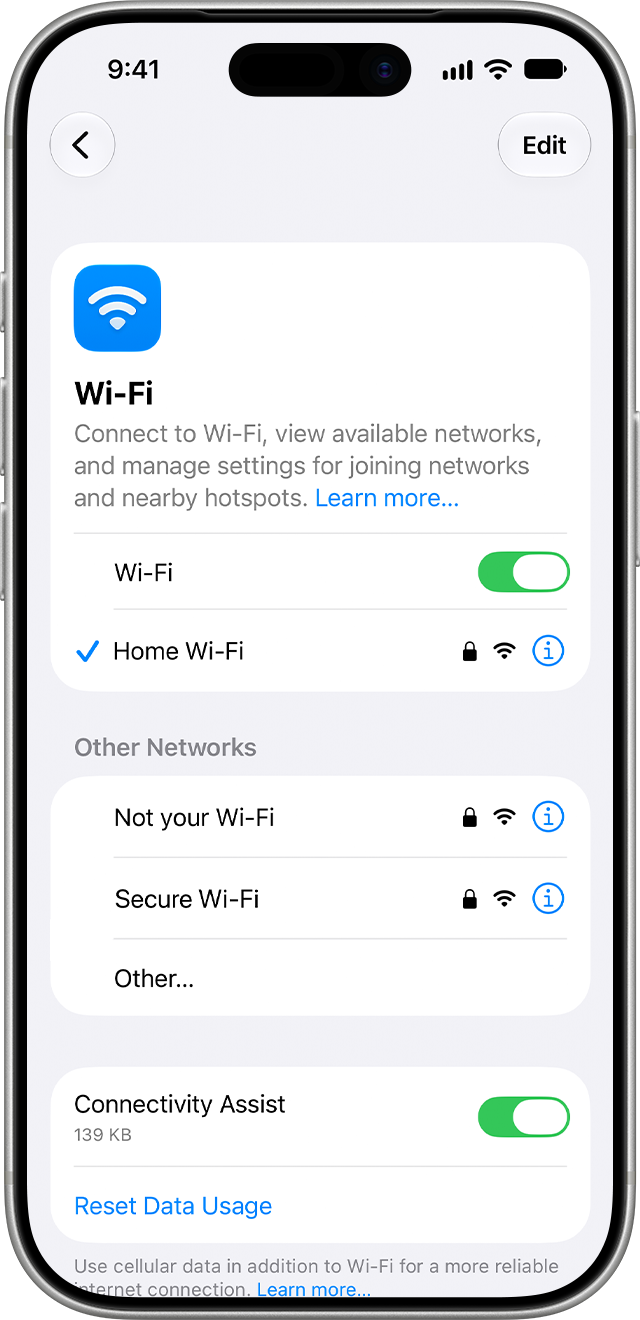
Limitation: processing choices vary by software version. Switching modes is a diagnostic test, not a guaranteed workaround for an unavailable feature.
Video Tutorial: Clean Up and Photo Editing on iOS 27
Tenorshare’s quick demonstration covers object removal and other iOS 27 photo-editing features; use it as a feature overview when testing a small edit.
Method 4. Install an Available iOS Update
Check for an available public iOS update. Do not assume it addresses this specific failure unless Apple documents the correction.
-
Back up the iPhone, connect to Wi-Fi, and plug it into power.
-
Open Settings > General > Software Update. Install an available public update after reviewing its requirements.
-
Let setup finish, reopen Photos, and repeat the same small test edit.
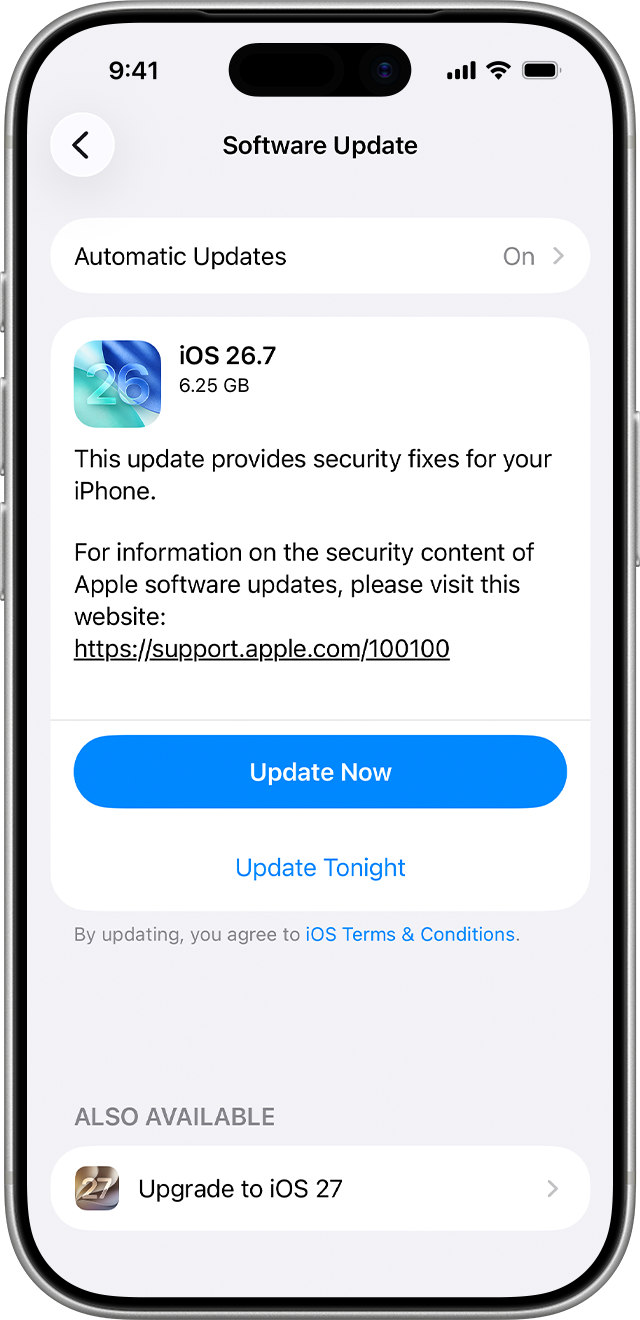
Pros: An available update may address software defects without resetting the phone. Cons: There is no guarantee that it fixes this particular Clean Up failure.
Part 4. FAQs About Photos Clean Up Not Working
1. Why Has Clean Up Suddenly Stopped Working?
A frozen editing session, incomplete resource download, or temporary processing restriction could explain it. First note whether the failure affects one image or every image. If it also happens on a new photo after restarting, the original picture alone is unlikely to explain the problem.
2. Does Clean Up Need Wi-Fi?
Wi-Fi can be needed for downloads and is useful when testing processing failures. Avoid assuming every Clean Up operation has identical connectivity requirements. Use a reliable connection for troubleshooting, then check the behavior of the processing options available on your software version.
3. Can I Use Clean Up on Every iPhone?
No. Clean Up depends on Apple Intelligence compatibility and feature availability. Check the exact iPhone model, installed software, and supported region. A third-party system-repair tool cannot turn an unsupported phone into an Apple Intelligence-compatible device.
4. Will Restarting Delete My Photos?
A normal restart does not erase saved photos. However, closing an unresponsive Photos session can discard an edit that has not been saved. Keep originals and maintain a backup before broader troubleshooting, especially before any repair mode or restore operation that can erase data.
5. What If Clean Up Still Fails on Every Photo?
Contact Apple with the error text, device model, software version, and results of your test edits. Mention whether Photos freezes and whether different processing modes work. Avoid repeatedly resetting the phone when the issue is confined to this one feature.
Conclusion
When Photos Clean Up is no longer working, separate an app freeze from eligibility, download, and processing problems. Try the targeted checks first. If broader iOS instability persists, review Tenorshare Reiboot’s mode designed to retain data as a supported system-repair option. For an isolated Clean Up failure, Apple support is the more relevant next step.