
Updated on 2026-08-25 / iPhone Tips
An iOS update should make your iPhone better, not leave your favorite apps crashing every few minutes. Yet after updating to iOS 27, some apps may freeze, close unexpectedly, or stop opening altogether.
Thankfully, most app crashes can be fixed without wiping your iPhone. This guide covers 8 practical fixes to help you get apps working again and enjoy a smoother iOS 27 experience.
Part 1: Why Do Apps Keep Crashing After the iOS 27 Update?
iOS 27 app compatibility issues can appear when apps have not yet been fully optimized for the new iOS version. Before trying a more advanced iOS 27 update problems fix, it helps to identify what may be causing the crashes.
Common Reasons Apps Crash After the iOS 27 Update
-
Outdated apps: Older app versions may not work properly with iOS 27.
-
Temporary iOS glitches: Minor system bugs can cause apps to freeze or close unexpectedly.
-
Corrupted app data: Damaged files may prevent an app from opening or working correctly.
-
Low storage: Limited storage can affect overall app performance.
-
Incomplete updates: Pending app or iOS updates may cause compatibility problems.
-
Background software conflicts: System processes can sometimes interfere with apps after an update.
Part 2: How to Fix App Crashes on iOS 27
App crashes after an iOS 27 update can often be resolved with a few simple troubleshooting steps. Start with the basics, such as restarting your device and updating apps, before moving on to more advanced fixes.
Method 1: Restart Your iPhone/iPad
A quick restart can clear temporary system glitches that may be causing apps to freeze or close unexpectedly. It is also worth trying if iPhone apps keep closing in background after the iOS 27 update.
Steps:
-
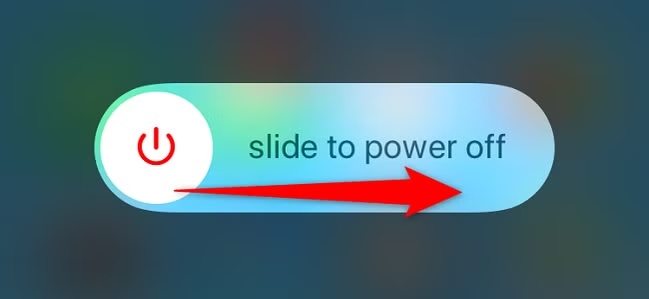
Press and hold the Side button + either Volume button until the power-off slider appears.
Drag the slide to power off slider.
-
Wait about 30 seconds for your device to turn off completely.
-
Press and hold the Side button until the Apple logo appears.
-
Open the affected app and check whether it still crashes.
Method 2: Force Close and Reopen the App
A problematic app may simply be stuck in the background. Force closing it and opening it again can refresh the app and may help resolve apps not working iOS 27 issues.
Steps:
-
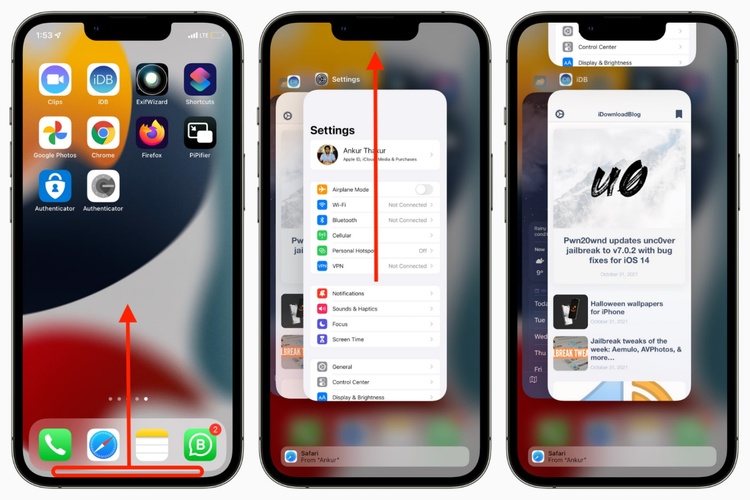
Swipe up from the bottom of the screen and pause in the middle.
Find the app that keeps crashing.
Swipe up on the app preview to close it.
Return to the Home Screen.
-
Tap the app to open it again and check its performance.
Method 3: Update Apps to the Latest Version
App developers often release updates to improve compatibility with new iOS versions. Installing the latest updates can help fix crashes caused by outdated app versions.
Steps:
Open the App Store.
Tap your profile picture in the top-right corner.
Scroll to App Updates.
-
Tap Update All or update the affected app individually.
Open the app again after the update finishes.
Method 4: Check for a Newer iOS 27 Update
Installing the latest iOS version can often help fix app crashes on iOS 27, especially when Apple has released a follow-up update with bug fixes. A newer version may also address iOS 27 app compatibility issues affecting certain apps.
Steps:
Open Settings.
Tap General > Software Update.
Check whether a newer iOS 27 version is available.
Tap Update Now or Download and Install.
-
Restart your iPhone after the update and check the affected app.
Method 5: Offload or Reinstall the Problem App
A fresh app installation can help fix corrupted files that may be causing apps not working on iOS 27. Offloading is a good first option, while reinstalling the app completely can provide a deeper refresh.
Steps to offload the app:
Go to Settings > General > iPhone Storage.
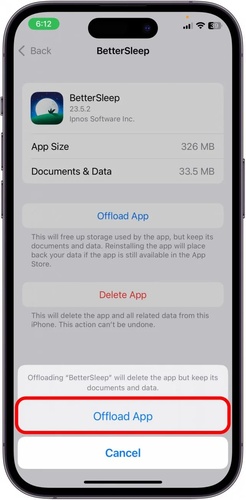
Select the app that keeps crashing.
-
Tap Offload App.
Tap Reinstall App.
Open the app and check whether it works normally.
To reinstall the app completely:
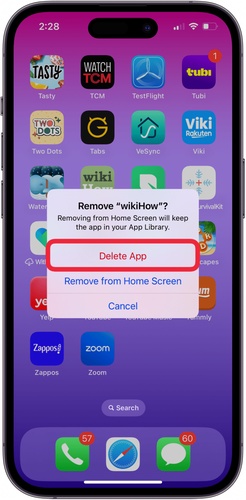
Touch and hold the app icon.
-
Tap Remove App > Delete App.
Open the App Store.
Search for the app and reinstall it.
Launch the app and test it again.
Method 6: Reset Network or System Settings
Incorrect settings can sometimes contribute to app problems, particularly for apps that rely on an internet connection. Resetting the relevant settings can be a useful iOS 27 update problems fix without deleting your personal files.
Steps to reset network settings:
Open Settings > General.
Tap Transfer or Reset iPhone.
Select Reset.
Tap Reset Network Settings.
Enter your passcode and confirm.
Note: This removes saved Wi-Fi networks, passwords, VPN settings, and other network settings.
Method 7: Free Up Storage Space
Running out of storage can affect iPhone performance and may cause apps to crash or stop responding. Freeing up some space is a simple step to fix app crashes on iOS 27 and improve overall performance.
Steps:
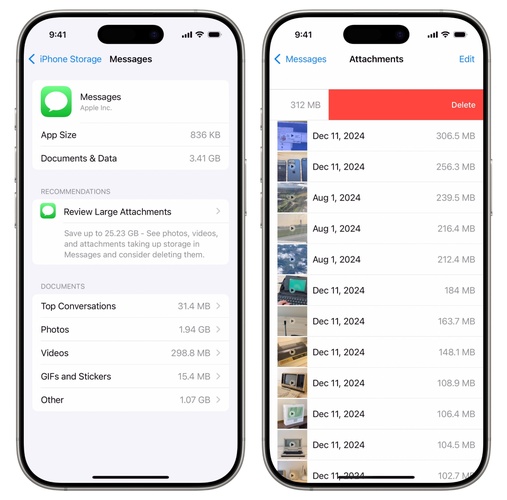
Go to Settings > General > iPhone Storage.
-
Check which apps and files are taking up the most space.
-
Delete unnecessary videos, downloads, and apps.
-
Use Offload Unused Apps to free space while keeping their documents and data.
Part 3: Fix Persistent iOS 27 App Crashes \One-Click ReiBoot Repair
Still facing crashes after restarting, updating, and reinstalling apps? The issue may lie deeper within iOS. Tenorshare ReiBoot can repair common iOS system problems that may affect app stability, making it a useful option for persistent apps not working on iOS 27 issues.
It can also help when multiple apps start crashing after an iOS update. The tool offers a simple repair process, so you can troubleshoot deeper system issues without immediately resorting to a factory reset.
What Can ReiBoot Help Fix?
-
Apps freezing, crashing, or refusing to open
-
iPhone stuck on the Apple logo
-
iOS update or downgrade problems
-
iPhone stuck in recovery mode
-
Black or frozen screen issues
-
Boot loops and other startup problems
-
Various software-related iOS glitches
-
Common system issues that can cause apps to stop working properly
How to fix app crashes iOS 27 with ReiBoot:
-
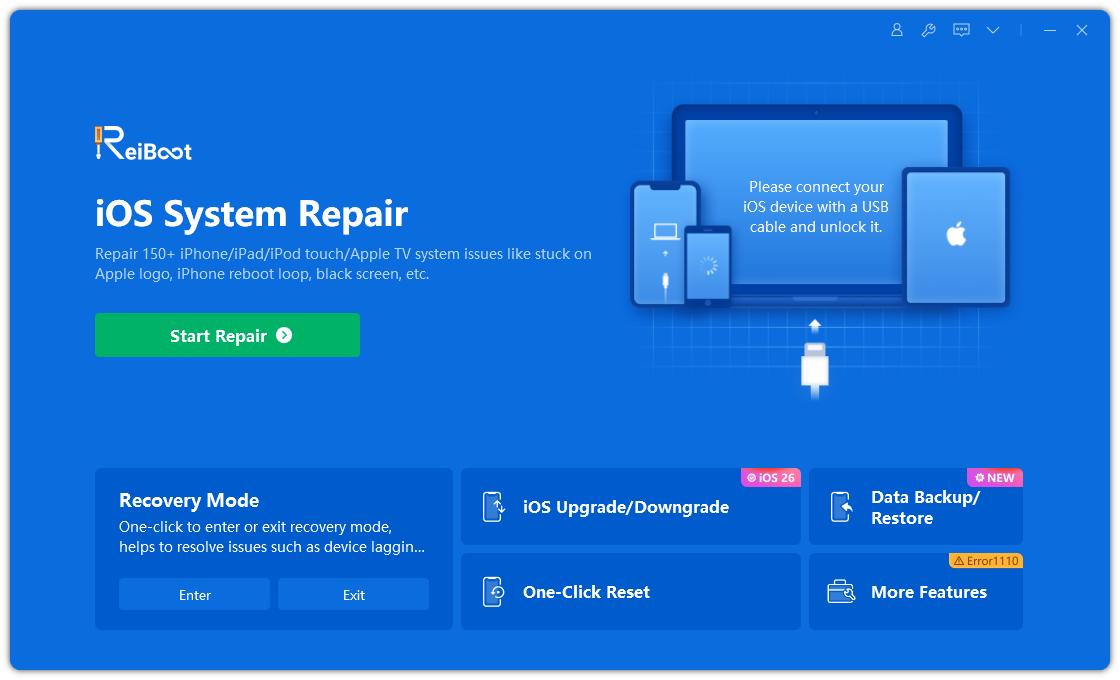
Download and launch ReiBoot on your Windows PC or Mac. Connect your iPhone to the computer with a compatible USB cable.
-
From the ReiBoot home screen, select Start Repair to begin troubleshooting your iPhone's iOS system.
-
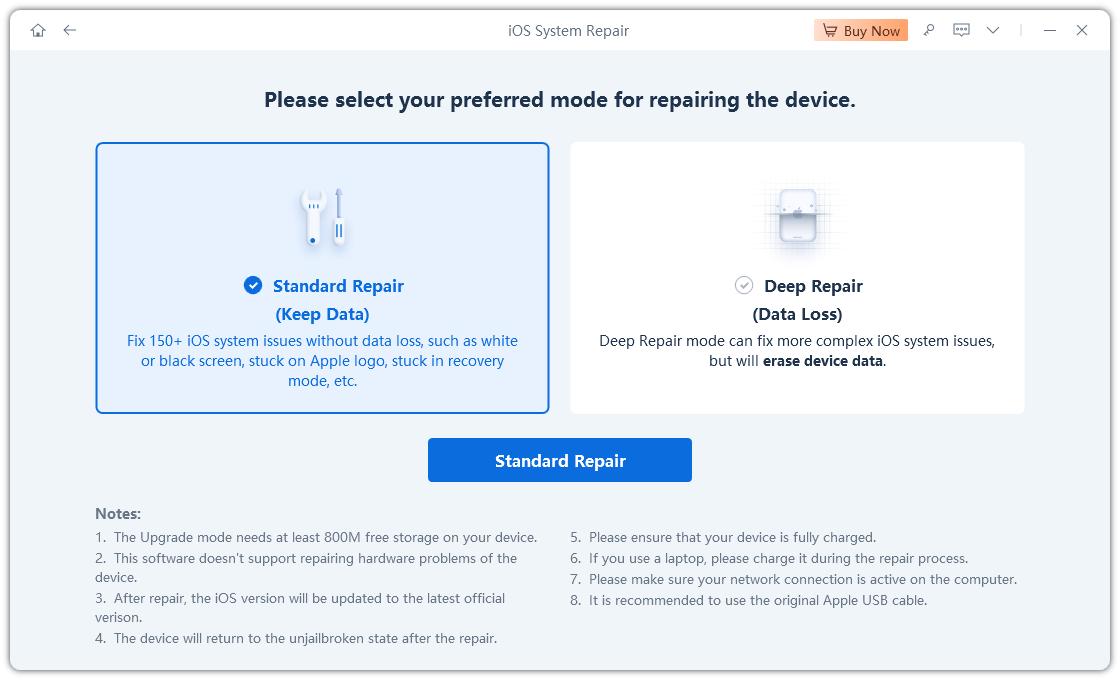
Click Start and choose Standard Repair. ReiBoot will display information about the repair process and the firmware package required for your device.
-
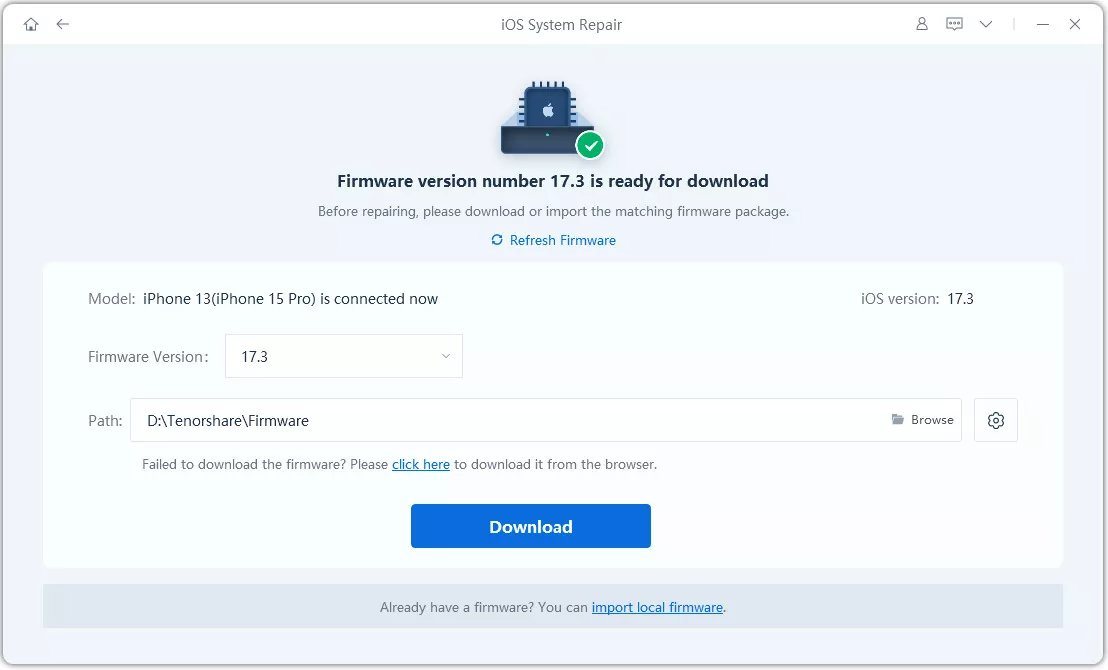
Confirm the firmware details and click Download. Keep your iPhone connected while ReiBoot downloads the appropriate firmware package.
-
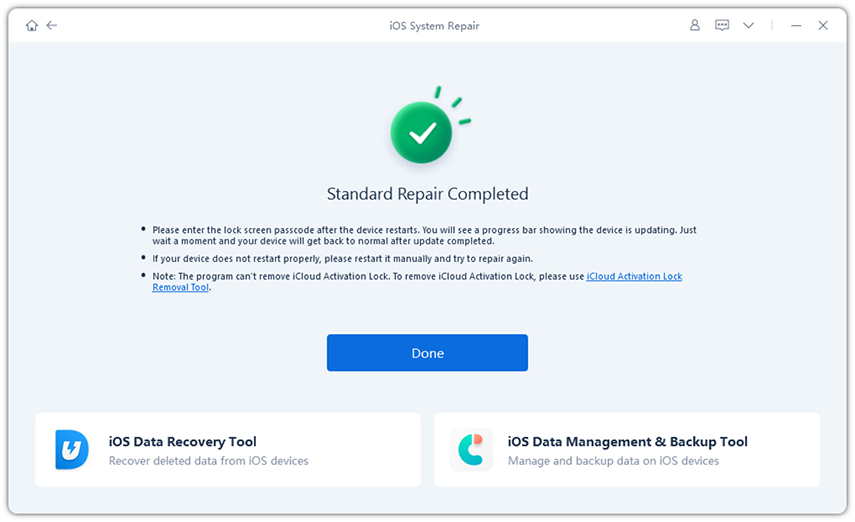
Once the firmware is ready, click Start Standard Repair. ReiBoot will use the downloaded firmware to repair the iOS system. Keep the iPhone connected and avoid using the device during the process.
FAQs About Apps Keep Crashing After iOS 27 Update
1. Why does an app keep crashing on iOS?
An app may keep crashing because it is outdated, incompatible with the current iOS version, has corrupted data, or is affected by a temporary system glitch.
2. What are some common issues with iOS 27 updates?
Common issues can include app crashes, freezing, battery drain, connectivity problems, overheating, and apps not working properly after the update.
3. Is the new iOS update causing problems?
It can. Major iOS updates may sometimes introduce temporary bugs or compatibility issues, especially with apps that have not yet been updated for the latest iOS version.
Final Words
App crashes can quickly turn an exciting iOS 27 update into a frustrating experience. If apps keep crashing after iOS 27 update, start with simple fixes like restarting your iPhone, updating apps, and freeing up storage. When the problem may be deeper within iOS. Tenorshare ReiBoot can help fix persistent iOS system issues with its Standard Repair mode. It gives your iPhone a fresh start without going straight to a factory reset.
