
Updated on 2026-07-21 / iPhone Tips
iOS 27 is one of Apple's biggest updates in recent years, with a new design, deeper Apple Intelligence features, and improved performance announced at WWDC 2026. However, users who installed the developer on supported devices like the iPhone 17 are noticing lag and performance issues.
The system can feel slow, with stuttering while scrolling, delayed keyboard response, glitches when closing apps, and even a slight delay when unlocking the phone. But these issues can usually be reduced or fixed. Here we'll explain why the iOS 27 is laggy and how you can fix it in 9 ways according to your situation!
- Part 1: Quick Comparison: iOS 27 Laggy Solutions
- Part 2: Why Is iOS 27 So Laggy?
- Part 3: How to Fix iOS 27 Lag?
Part 1. Quick Comparison: iOS 27 Laggy Solutions
Here's a brief glance at all the 9 proven solutions for iOS 27 lag issues, explained in detail in the latter section:
| Solution | Success Rate | Data Loss | Ease of Use | Time Required |
|---|---|---|---|---|
| Reduce Motion & Transparency | Medium | None | Very easy | 2 min |
| Reset All Settings | High | None (only settings) | Easy | 5-10 min |
| ReiBoot | Very high | None | Very easy | 5-10 min |
| Keep iPhone Cool | Low | None | Very easy | 30 min |
| Restart Your iPhone | Medium | None | Very easy | 2 min |
| Wait 24–48 Hours | Low | None | Very easy | 24-48 hours |
| Free Up Storage Space | Medium | None | Easy | 15-30 min |
| Update Your Apps | Medium | None | Easy | 5-10 min |
| Turn Off Background App Refresh | Low | None | Very easy | 2 min |
Part 2. Why Is iOS 27 So Laggy?
If your iOS 27 is laggy on iPhone 17, there are specific reasons it happens, such as the following:
-
Unfinished software and animations: iOS 27 is still in development, so some animations and effects aren't fully optimized yet, which can cause lag when opening or closing apps and switching screens.
-
Background system setup after update: After installing the update, your iPhone works in the background to index files, update Spotlight search, and organize photos and apps. This heavy activity can slow the device for a while.
-
App compatibility issues: Many third-party apps are not fully updated for iOS 27 yet, so they may run less efficiently and cause slowdowns or keyboard lag.
-
Low storage space: If your iPhone has very little free storage, iOS may struggle with memory management, leading to more noticeable lag and slow performance.
-
Device heating and throttling: Background processes and AI features can heat up the phone. When it gets too hot, the system reduces performance to protect hardware, causing extra lag.
-
iOS 27 laggy on keyboard: The improved autocorrect system is still adjusting to your typing style, which can temporarily make the keyboard feel slow or less responsive.
-
New lock screen animations: The redesigned lock screen uses new visual effects that may not be fully optimized yet, causing slight stuttering when unlocking the device.
Part 3. How to Fix iOS 27 Lag?
Now that you know why your iPhone is slow and laggy after the iOS 27 update, here are 9 targeted solutions to fix it. Start from the top for the quickest wins, or jump to Fix #3 if you want the quickest, and most thorough repair without losing your data:
1. Reduce Motion and Transparency
iOS 27 uses more advanced visual effects like blur, motion, and smooth animations, which put extra load on the GPU and can slow down the system. Turning down or reducing these effects can quickly make the system feel faster without affecting how it operates.
This is the best first step if you notice lag while navigating, opening Control Center, or switching apps, especially on older supported devices like the iPhone 12 and later. Here's how to reduce motion and transparency on your iPhone:
-
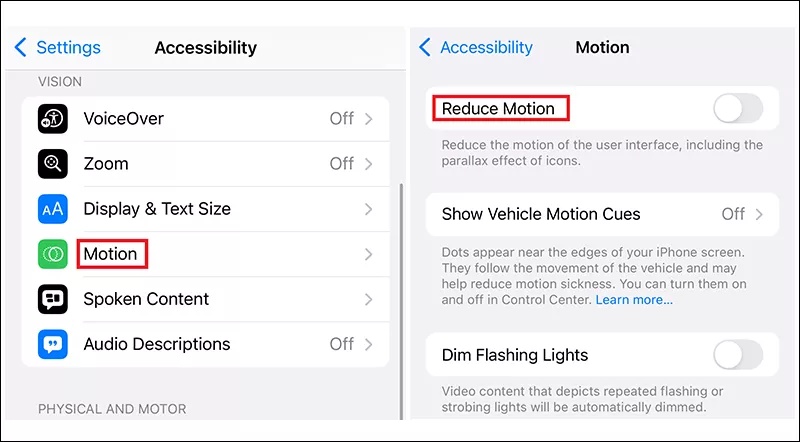
Step 1: Open the "Settings" app on your iPhone. Tap "Accessibility." Click "Motion."
-
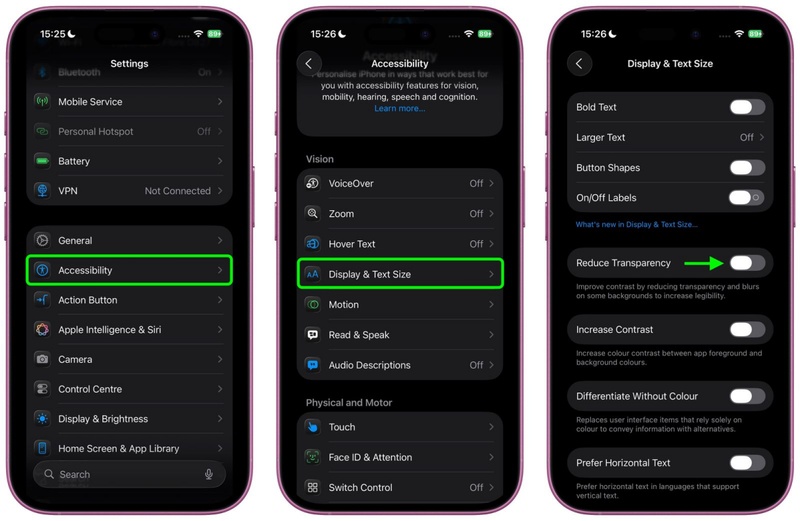
Step 2: Toggle on "Reduce Motion." Head back to "Accessibility." Next, click "Display & Text Size."
-
Step 3: Move down and toggle on "Reduce Transparency." Return to your home screen and test responsiveness.
2. Reset All Settings
Resetting all settings returns your iPhone's system settings (like network, display, privacy, notifications, and accessibility) back to default. It does not delete your apps, photos, or personal data.
This helps fix hidden setting conflicts or bugs that may have carried over after updating to iOS 27, causing lag. If your phone was already slow right after updating, or if restarting and basic fixes didn't improve performance, here's how to reset all settings:
-
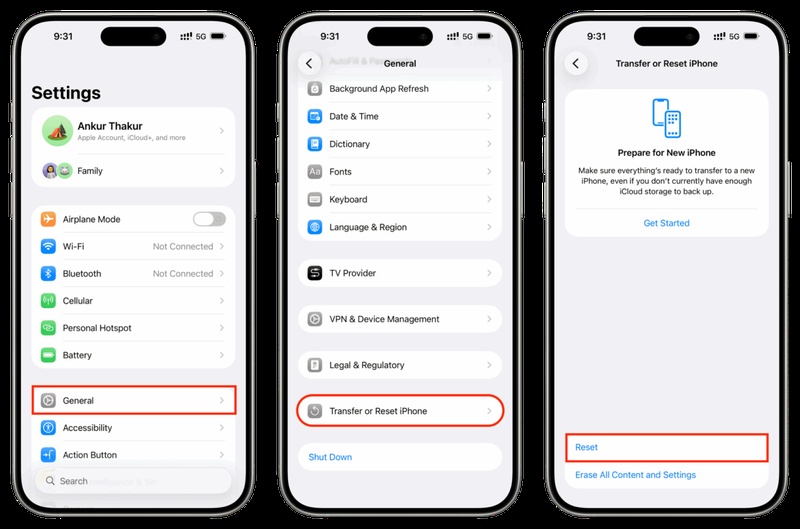
Step 1: Open "Settings." Tap "General." Move to the bottom. Click "Transfer or Reset iPhone."
-
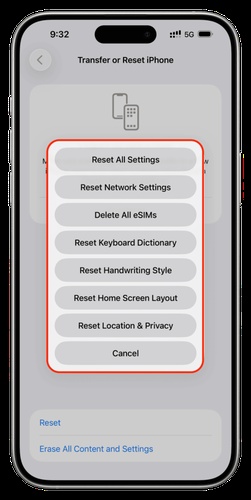
Step 2: Click "Reset." Next, select "Reset All Settings" from the list. Enter your passcode when prompted.
-
Step 3: Confirm by tapping "Reset All Settings" again. Your iPhone will restart. This takes 2--3 minutes.
-
Step 4: After restarting, you'll need to re-enter Wi-Fi passwords and adjust preferences like brightness and notification settings
3. Fix iOS 27 Lag with ReiBoot
When the iOS 27 lag is caused by deeper iOS system problems that regular settings changes can't solve, instead of just adjusting settings, you'll need to repair the system. In such a case, an iOS Repair tool like Tenorshare ReiBoot can repair the system by fixing corrupted files, and clearing stuck processes.
It can do this without resetting your iPhone or deleting your personal data. ReiBoot is most useful when you're unable to fix the lag or have multiple issues like lag, app crashes, keyboard delays, and unlock glitches.
Main Features of ReiBoot:
-
Fixes 150+ iOS system problems, including lag, freezing, boot loops, and black screens.
-
Performs a deep firmware-level repair without touching your photos, messages, or app data.
-
Simple, guided interface, with no technical experience needed.
-
Fully supports iOS 27 builds.
-
Compatible with iPhone 17, and earlier versions.
How to Use ReiBoot:
Here's how to fix the iOS 27 lag issue with ReiBoot:
- Step 1: Execute ReiBoot on Your Computer
Download and install Tenorshare ReiBoot on your computer. Open the program and connect your iPhone experiencing lag after installing iOS 27.

- Step 2: Click "Standard Repair"
Click on "Standard Repair" when ReiBoot detects your device to fix iOS 27 lag and performance issues without data loss.

- Step 3: Download Firmware Package
Download the latest firmware package when prompted. ReiBoot will automatically prepare the correct firmware package for your iPhone.

- Step 4: Start Standard Repair
Once the firmware is ready, click “Start Standard Repair” to repair iOS 27 lag and slow performance issues. Wait for the process to complete.

- Step 5: iPhone Running Smoothly Again
Your iPhone will restart automatically after repair. Check whether the lag issue is fixed and the device performance improves.

4. Keep iPhone Cool
Modern Apple chips like the A18 Pro slow down when the phone gets hot to prevent damage. iOS 27 can create extra heat due to background tasks, which leads to lag and reduced performance. This is most noticeable when charging, using the phone in hot weather or sunlight, or after long use. Keeping your device cool helps it run faster. Here's how:
-
Step 1: Remove your iPhone case to let heat escape more easily.
-
Step 2: Avoid using your phone heavily while charging, as it increases heat.
-
Step 3: Keep your device out of direct sunlight or hot places.
-
Step 4: Close apps and let it rest for 5--10 minutes to cool down.
-
Step 5: Skip wireless charging if your phone is already warm, since it adds extra heat.
-
Step 6: Disconnect MagSafe during heavy use to prevent overheating.
-
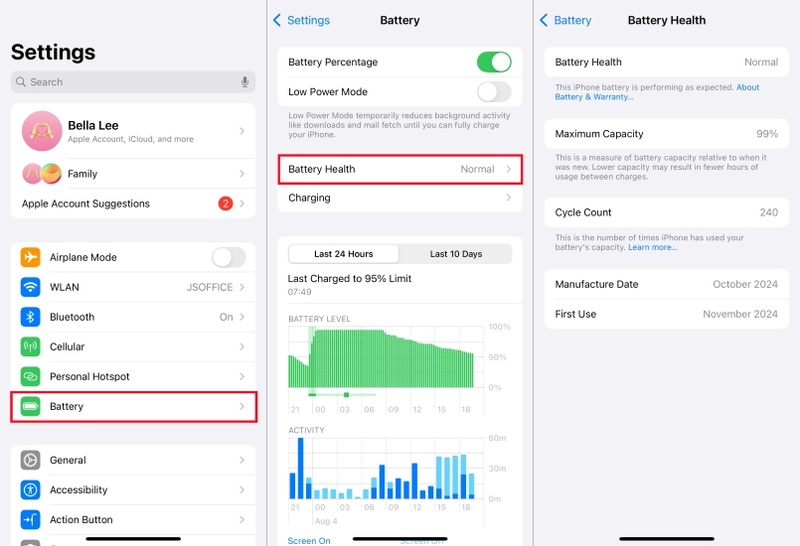
Step 7: Head to "Settings." Tap "Battery." Select "Battery Health." If your iPhone's battery health is below 80%, degraded battery performance can also contribute to thermal issues.
5. Restart Your iPhone to Fix iOS 27 Lag
Restarting your iPhone clears temporary memory and stops background tasks, giving the system a fresh start. It's an easy fix that often helps reduce iOS 27 lag, especially when the phone suddenly becomes slow after some use. Try this first when performance drops during the day or after installing apps or updates, as it can fix iOS 27 unlock laggy issues. Here's how to restart your iPhone:
-
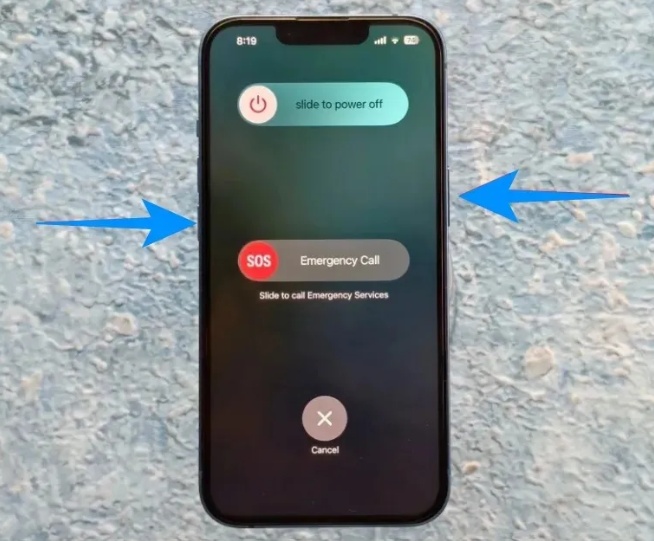
Step 1: Press and hold the "Side" button and either "Volume" button simultaneously.
-
Step 2: Drag the "slide to power off" slider. Wait 30 seconds for the device to fully shut down.
-
Step 3: Press and hold the "Side" button until the Apple logo appears. Let your iPhone finish booting before testing performance.
-
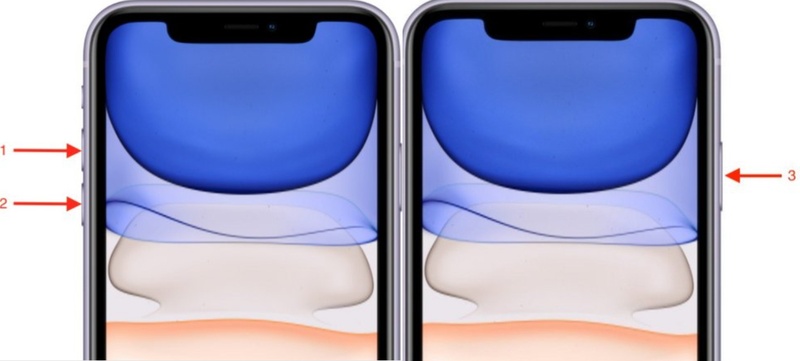
Step 4: For a force restart (if the device is frozen):
- Press and release the "Volume Up." Then, press and release the "Volume Down." Next, press and hold the "Side" button until the Apple logo appears.
6. Wait 24--48 Hours After iOS 27 Update
After installing the iOS 27, your iPhone does background work like indexing files, organizing photos, updating features, and syncing data. This uses a lot of resources and can temporarily slow the phone, but it usually finishes within 1--2 days.
If your phone was fine before the update but slow afterward, it's often best to wait, since performance usually improves after a day or two. Here's what to make sure of while you wait:
-
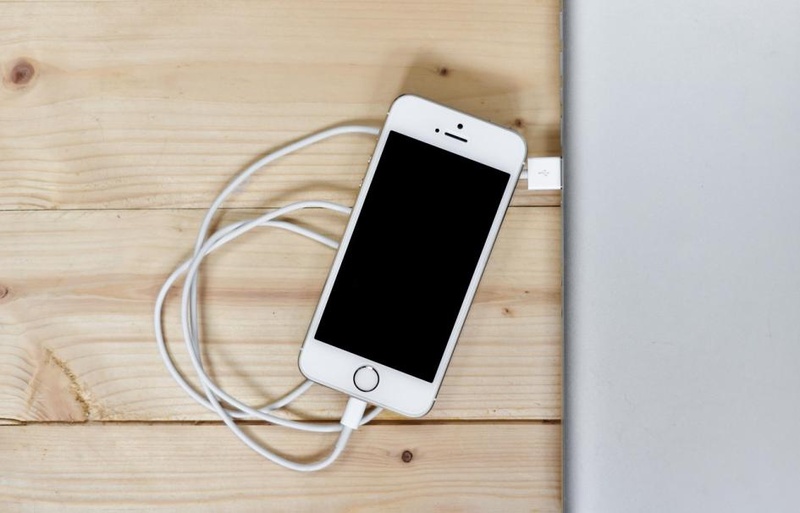
Step 1: Keep your iPhone charging overnight so background tasks can finish faster.
-
Step 3: Stay connected to Wi-Fi so syncing and updates can complete properly.
-
Step 4: Don't keep force-closing apps or restarting, as it can slow down the process.
-
Step 5: Wait 1--2 days, then check if performance has improved before trying other fixes.
7. Free Up iPhone Storage Space
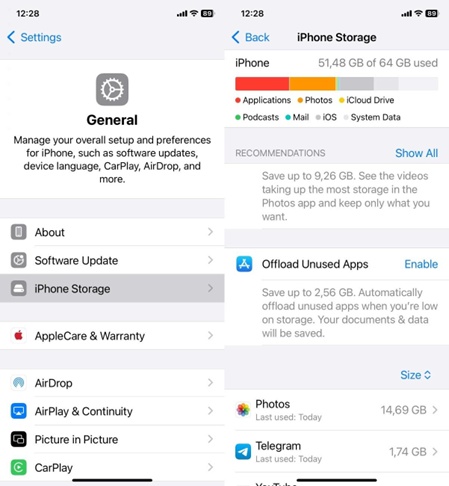
iOS 27 runs better when your iPhone has enough free storage. If you have less than 2--3 GB free, the system may slow down because it struggles to manage memory. Clearing space can help improve performance. This is important if your iPhone 17 has under 5 GB free. Follow the steps beneath to check storage, and free it if it's running low:
-
Step 1: Head to "Settings." Tap "General." Click "iPhone Storage."
-
Step 2: Check for large apps you don't use and either delete or offload them (offloading keeps data but removes the app).
-
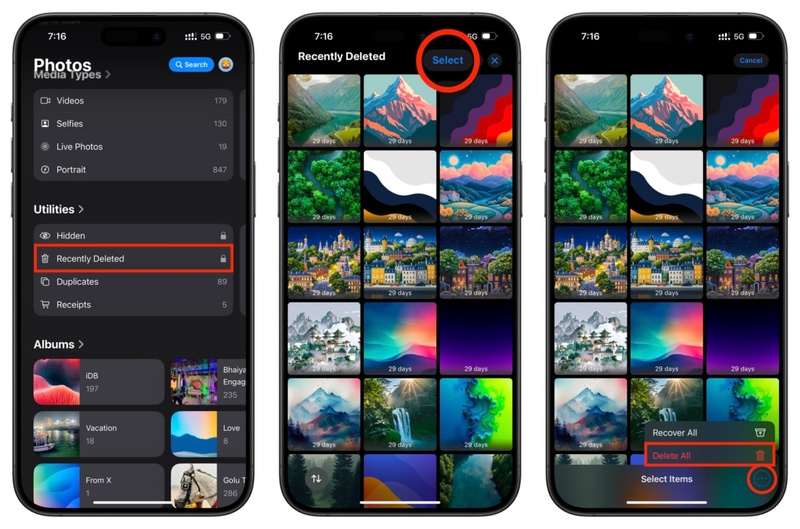
Step 3: Review large files like attachments or videos and delete unnecessary ones. In "Photos," click "Recently Deleted." Hit "Delete All" to permanently remove them.
-
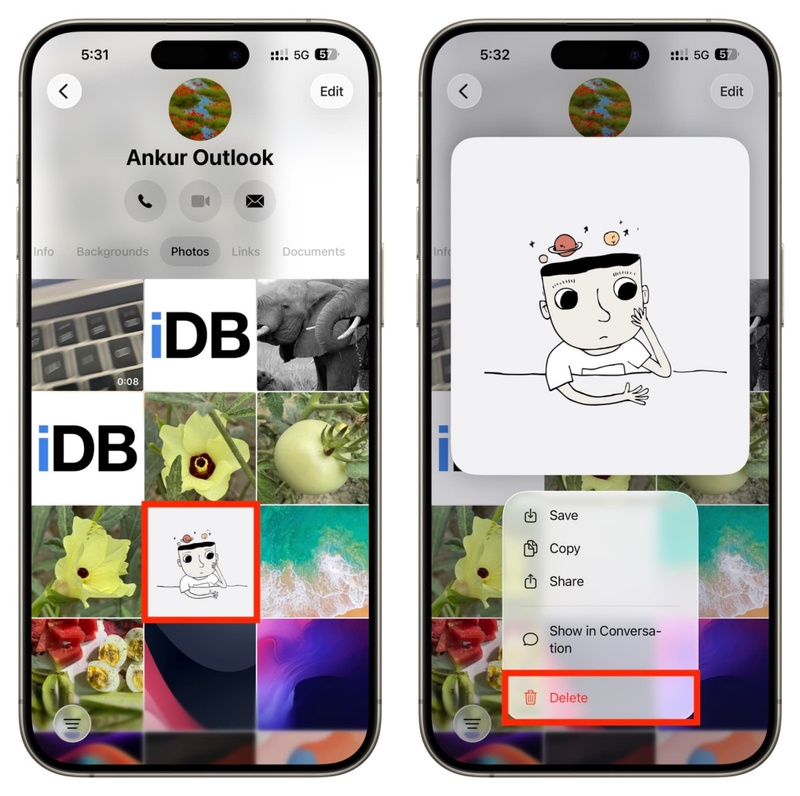
Step 4: In iMessage, open chats, and delete old photos and attachments.
-
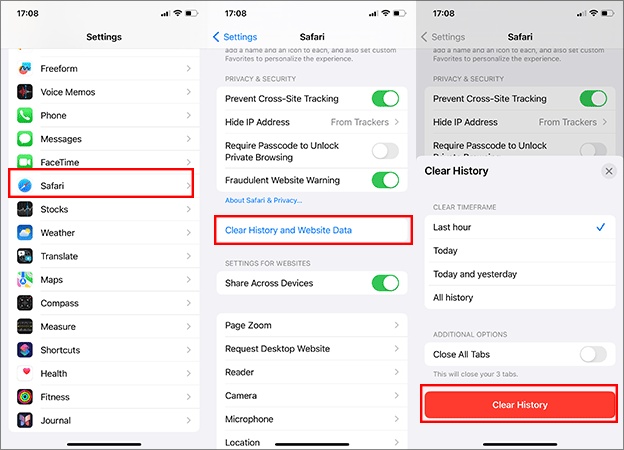
Step 5: Also, clear Safari data. Head to "Settings." Choose "Safari." Tap "Clear History and Website Data."
-
Step 6: Try to keep at least 5--8 GB of free space for better performance.
8. Update Your iPhone Apps
Old apps that aren't updated for iOS 27 may run in compatibility mode, which makes the system do extra work to support them. This can cause an issue like iOS 27 laggy when closing apps, especially with the keyboard inside those apps.
Updating apps helps them run better on iOS 27, and is helpful if lag only happens in specific apps, not in the overall system. Follow the instructions beneath to update your iPhone apps:
-
Step 1: Open the "App Store" on your iPhone. Tap your profile photo in the top-right corner.
-
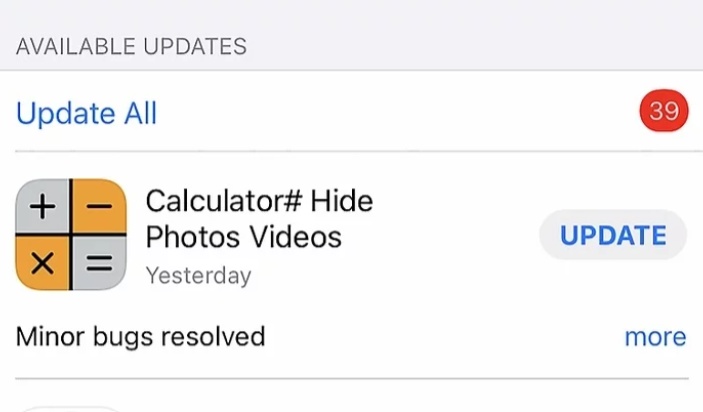
Step 2: Move down to "Available Updates." Click "Update All" to update every app at once.
-
Step 3: If a specific app is causing lag, tap "Update" next to it individually.
-
Step 4: After updates finish, restart your iPhone to let the OS register the new app binaries.
-
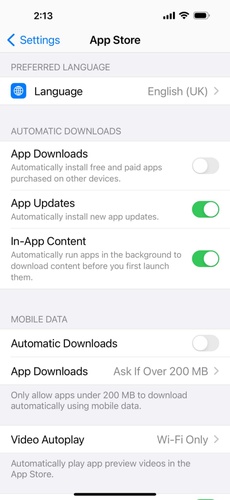
Step 5: Going forward, enable automatic updates. To do this, head to "Settings." Tap "App Store." Toggle on "App Updates."
9. Turn off Background App Refresh
Background App Refresh lets apps update even when you're not using them. On iOS 27, this can slow your phone down because many apps run background tasks at once. Turning it off frees up system resources and improves speed. It helps most if your phone is slow all the time, especially in apps like Messages, Mail, or WhatsApp. Here's how to switch off the Background App Refresh:
-
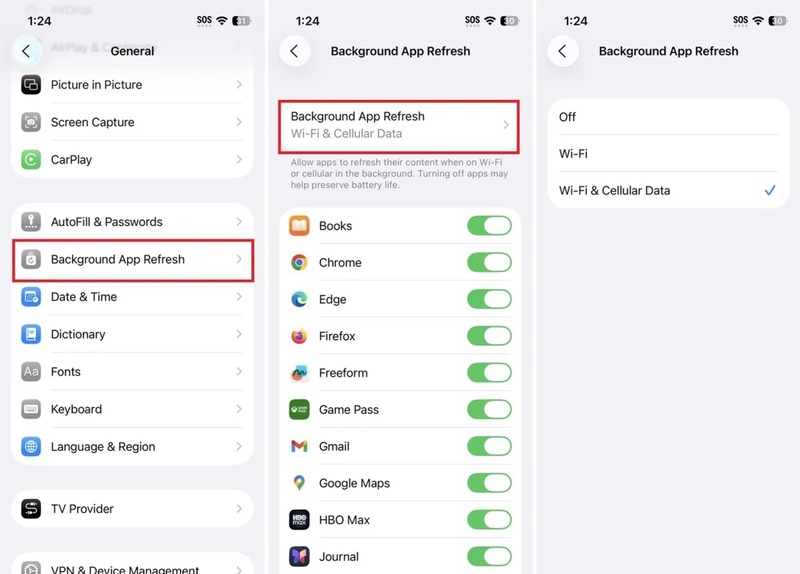
Step 1: Head to "Settings." Choose "General." Tap "Background App Refresh." Tap it again at the top.
-
Step 2: Choose "Off" to turn it off for all apps, or "Wi-Fi" to limit it to Wi-Fi only. You can also manually turn it off for heavy apps like social media, news, and email.
-
Step 3: Restart your iPhone after changing the settings.
Tip: If you don't want to turn it off completely, keep it on only for important apps like Mail or Calendar and disable it for the rest.
Conclusion
Facing an iOS 27 laggy issue is not a good experience, especially when you expect things to run smoother after an update. Reasons for the lag could be a slow keyboard, delays when unlocking, and stuttering animations. But they are often easy to sort out with basic fixes.
However, if you're feeling the lag in the entire system, at that point, it's time to pull out a more powerful tool, like Tenorshare ReiBoot. It repairs deeper system issues without resetting or needing a backup, and won't erase your data.
