
Updated on 2026-07-21 / iPhone Tips
Upgraded to the iOS 27 only to watch your battery percentage pull a disappearing act? You aren't alone. While the new features are exciting, updates often come with background processes, unfinished optimizations, and temporary bugs that can quickly reduce battery life.
Stop hunting for a charging cable. Whether it's a hidden app issue or just a few wrong settings, we have 10 quick and easy ways to save your battery life. Let's get started and fix ios 27 battery drain issues in minutes.
Part 1. Comparison Table: iOS 27 Battery Drain Solutions
| Solutions | Success Rate | Data Loss | Ease of use | Time Required |
|---|---|---|---|---|
| Wait for background indexing to finish | High | No | Easy | 1–2 days |
| Remove power-hungry apps | Medium–High | No | Easy | 10–20 minutes |
| Use ReiBoot to fix system issues | Very High | No | Very Easy | 5–10 minutes |
| Disable Always On Display | Medium | No | Easy | 2–3 minutes |
| Restart iPhone | Medium | No | Easy | 2 minutes |
| Enable Low Power Mode | High | No | Easy | 1 minute |
| Turn off Background App Refresh | Medium | No | Easy | 5–10 minutes |
| Turn off Location Services | Medium | No | Easy | 5–10 minutes |
| Lower brightness & enable Dark Mode | Medium | No | Easy | 2–5 minutes |
| Reset All Settings | High | No personal data loss | Medium | 10–15 minutes |
Part 2. Why Is iOS 27 Causing Battery Drain?
iOS 27 battery drain is common because updates are still being tested and optimized. Your iPhone may run extra background tasks, syncing, and indexing after the update, which uses more battery than usual.
Common reasons for battery drain after ios 27 update include:
-
Background indexing starts after the update
-
software is not fully optimized yet
-
Apps may not be compatible with iOS 27
-
Increased background app activity and syncing
-
Location services running continuously
-
High screen brightness and refresh rate settings
-
Widgets updating too frequently
-
Bugs causing overheating and battery usage spikes
-
Poor network signals increasing power consumption
-
New features constantly running in the background
Part 3. 10 Solutions to Fix iOS 27 Battery Drain
iOS 27 battery drain issues usually appear after installing a new update. There are several methods that can help improve battery life.
Solution 1: Wait for iOS 27 Background Indexing to Finish
One common reason for iOS 27 battery drain is background indexing after the update. Your iPhone starts organizing photos, syncing iCloud data, updating apps, and rebuilding search results, which uses extra battery power.
This is normal and usually gets better within one or two days. During this time, your iPhone may also feel warm or slower than usual.
-
Connect your iPhone to a charger and stable Wi-Fi connection. Leave the device charging overnight whenever possible.
-
Avoid heavy gaming, video editing, or multitasking for some time.
-
Do not force-close apps repeatedly because it can slow down indexing.
-
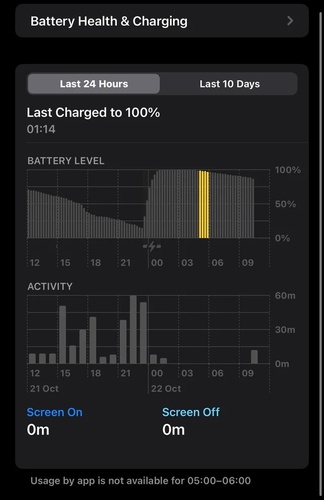
Open Settings > Battery and check if system processes or Photos are using high battery.
-
Keep screen usage limited while the background tasks finish. Wait around 24 to 48 hours for the process to complete properly.
Solution 2: Remove Power Hungry Apps
Some apps are not fully optimized for the latest software yet. These apps may keep refreshing in the background, overuse location services, or crash repeatedly without you noticing. This can cause iOS 27 battery drain faster, especially on devices like the iPhone 17 series.
Apps like social media platforms, streaming apps, navigation apps, and email clients are often responsible for abnormal battery usage after a update.
Open Settings on your iPhone.
Tap Battery.
-
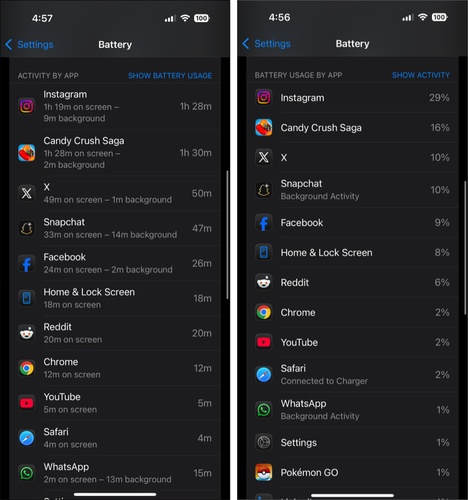
Wait for the battery usage details to load completely.
-
Review which apps are consuming the highest percentage of battery.
-
Look for apps using too much battery even when rarely used. Update those apps from the App Store.
-
Remove unnecessary apps causing excessive battery drain.
Solution 3: Fix iOS 27 Battery Drain Easily with ReiBoot
Hidden system bugs or stuck background processes can cause iOS 27 battery drain and make your iPhone 17 battery drain fast. ReiBoot is a simple iOS repair tool designed to fix these system issues without deleting your photos, apps, or personal data.
It repairs the iOS system, removes software glitches, and helps improve battery performance in just a few clicks. The tool is beginner-friendly and usually takes only a few minutes to complete the repair process.
Key Features of ReiBoot
-
Fixes iOS 27 battery drain and other iPhone system issues
-
Repairs boot loops, frozen screens, and update problems
-
Standard Repair works without data loss
-
Easy Recovery Mode entry and exit with one click
-
Supports iOS 27 and iPhone 17 series
-
Simple interface that anyone can use
-
Allows safe iOS downgrade if needed
-
Uses official Apple firmware for secure repair
Step-by-Step: How to Fix iOS 27 Battery Drain with ReiBoot
- Step 1: Launch ReiBoot on PC/Mac
Download and install Tenorshare ReiBoot on your computer. Open the program and connect your iPhone experiencing battery drain after installing iOS 27.

- Step 2: Click Standard Repair
Click on "Standard Repair" when ReiBoot detects your device to fix iOS 27 battery drain without affecting your data.

- Step 3: Download the Firmware Package
Download the latest firmware package when prompted. ReiBoot will automatically prepare the correct firmware for repair.

- Step 4: Start Standard Repair
Once the firmware is ready, click “Start Standard Repair” to repair system issues that may cause iOS 27 battery drain.

- Step 5: Fix iOS 27 Battery Drain Successfully
Your iPhone will restart after repair. Check whether battery life returns to normal and drains less after using iOS 27.

Solution 4: Disable Always-On Display
Always-On Display keeps a part of the screen active even when the phone is locked. While it is a useful feature, it can increase iOS 27 battery drain iPhone 17 Pro models because the display never fully turns off.
Disabling this feature can help reduce unnecessary power usage throughout the day.
Open the Settings app on your iPhone 17.
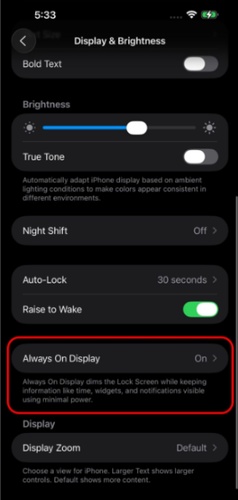
Scroll down and tap Display & Brightness.
-
Look for the Always On option near the top of the display settings.
-
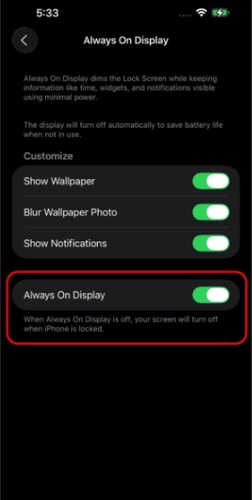
Tap the toggle next to Always On to switch it off. The toggle will turn gray when disabled.
-
Lock your phone and verify that the screen is now completely dark when idle.
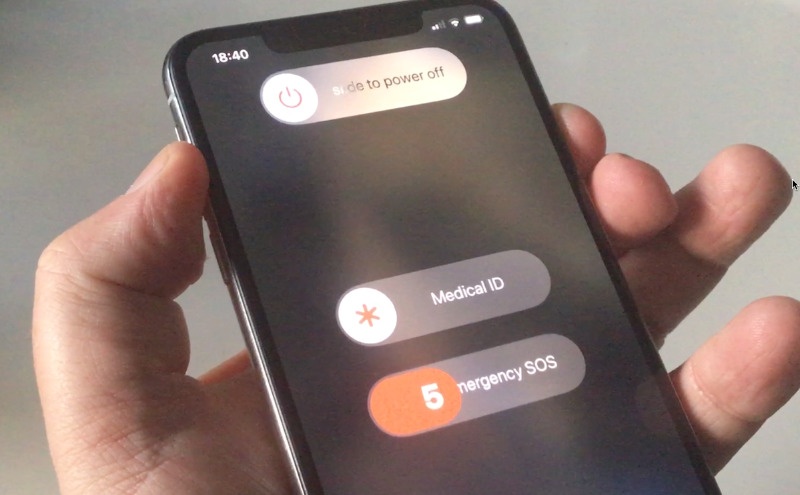
Solution 5: Restart Your iPhone
A simple restart is one of the most underrated fixes for iOS 27 battery drain. It also refreshes the operating system, which can instantly improve battery performance after a update.
Press and quickly release the Volume Up button.
Press and quickly release the Volume Down button.
-
Press and hold the Side (Power) button until the Apple logo appears on screen.
-
Release the Side button and wait for your iPhone to fully restart this usually takes about 30 to 60 seconds.
Solution 6: Enable Low Power Mode
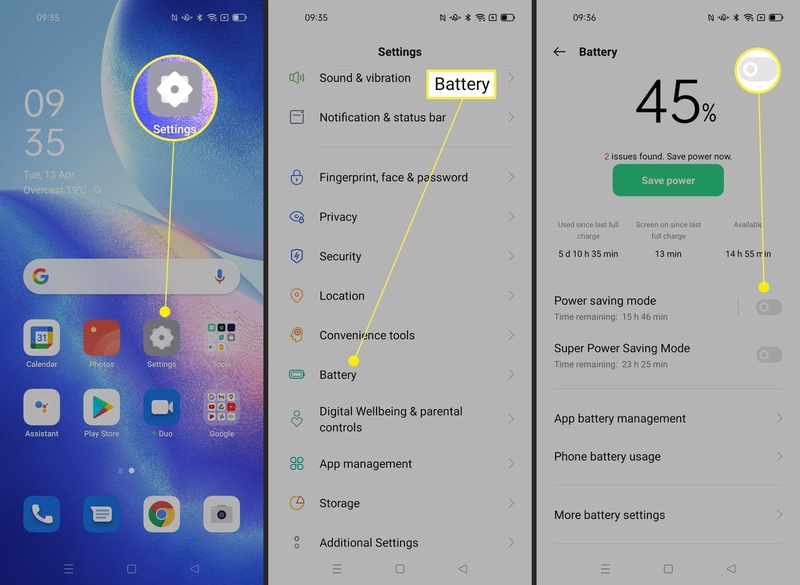
Low Power Mode is one of Apple's built-in tools to directly combat iOS 27 battery draining fast. Low Power Mode reduces background activity, lowers brightness, and limits some features to help your iPhone 17 battery last longer.
Open the Settings app.
-
Tap Battery (or Battery and device care on Samsung devices).
-
Tap Battery Saver or Power Saving and switch it to On.
Solution 7: Disable Background App Refresh
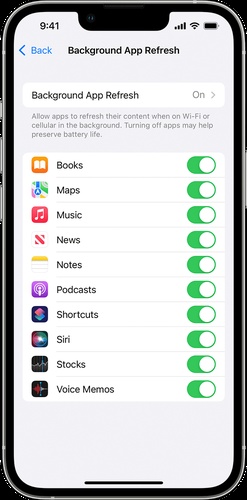
Background App Refresh allows apps to update their content in the background, even when you are not actively using them. This keeps apps up to date, but it also uses a lot of battery. During iOS 27 , some apps are not fully optimized. They may consume extra power while refreshing in the background, leading to faster battery drain.
Open the Settings app on your iPhone 17.
-
Tap General, then scroll down to find and tap Background App Refresh.
-
At the top of the screen, tap Background App Refresh again to open the global setting options.
-
Turn Off to stop background refresh for all apps and save battery.
Solution 8: Turn Off Location Services
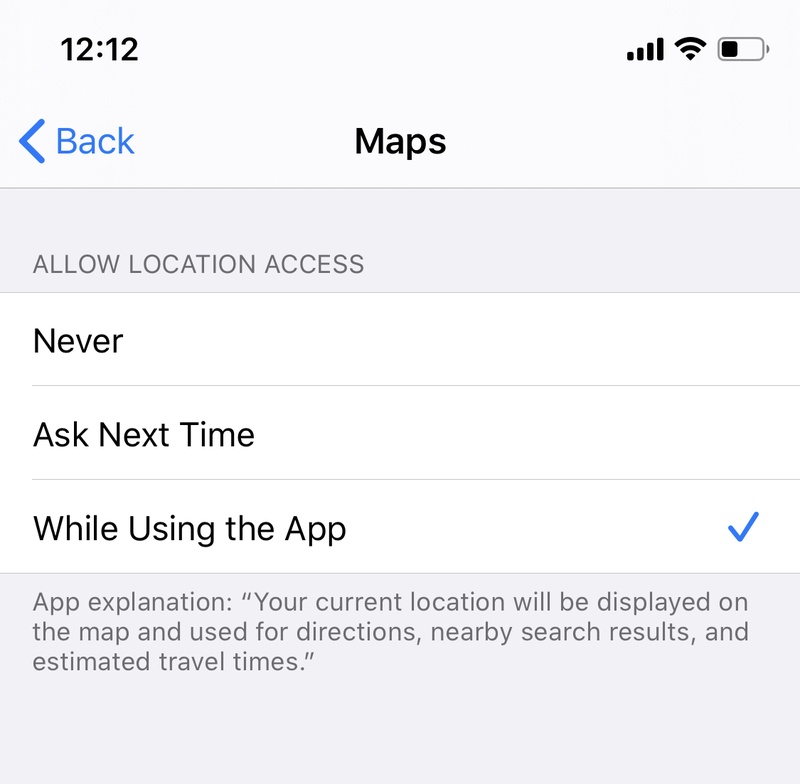
Location Services allow apps to continuously access your iPhone's GPS, which is one of the most power-intensive features on any smartphone. During the iOS 27, several apps may default to "Always" location access, quietly running your GPS in the background around the clock and causing your iPhone 17 battery to drain faster.
Open Settings on your iPhone 17.
-
Tap Privacy & Security, then open Location Services.
Review which apps are using your location.
-
Change any app set to Always to While Using the App or Never.
-
For a quick fix, you can turn off Location Services completely (this may affect Maps and Weather).
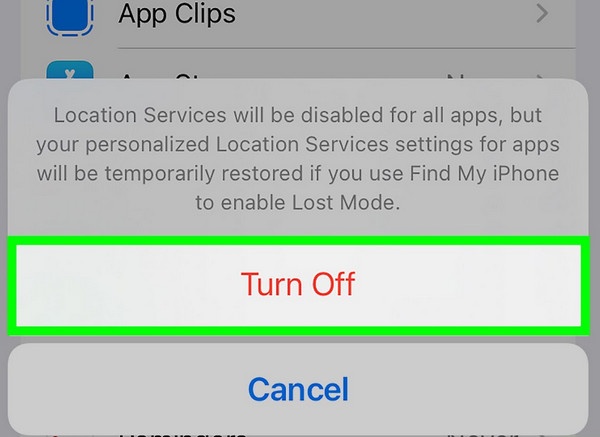
-
Scroll down and open System Services. Turn off unnecessary options like Significant Locations, iPhone Analytics, and Routing & Traffic.
-
This reduces background GPS use and helps improve battery life and performance.
Solution 9: Lower Screen Brightness and Use Dark Mode
Your iPhone display is one of the biggest battery consumers. Keeping brightness too high can quickly worsen iOS 27 battery draining fast, especially on OLED displays used in newer iPhone models.
Dark Mode helps save battery because dark pixels consume less power on OLED screens.
-
Open Control Center. Lower the brightness slider to a comfortable level.
-
Open Settings > Display & Brightness.
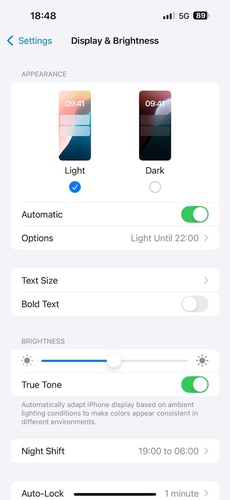
Select Dark Mode under Appearance.
Enable Auto-Brightness if needed.
Reduce Auto-Lock time for faster screen turn-off.
Solution 10: Reset All Settings to Fix Battery Drain
Resetting all settings can help fix persistent iOS 27 battery drain issues. It restores system settings to default without removing your apps, photos, or personal data.
-
Before you begin, note down your Wi-Fi passwords and any important custom settings, as these will be erased.
-
Open the Settings app on your iPhone 17 and tap General.
-
Scroll to the bottom and tap Transfer or Reset iPhone.
-
Tap Reset, then choose Reset All Settings from the menu.
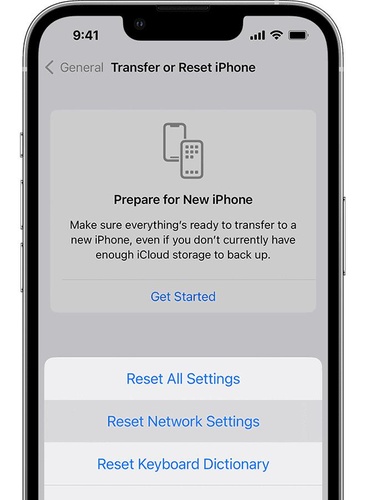
-
Enter your iPhone passcode when prompted to confirm your identity.
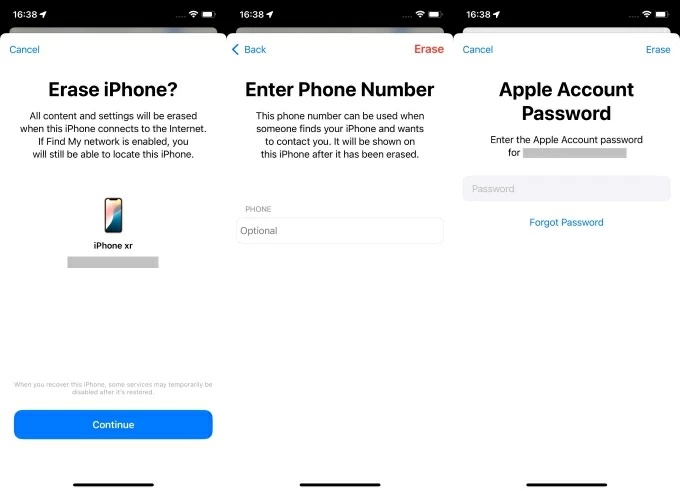
-
Confirm the reset by tapping Reset All Settings again. Your iPhone will restart automatically this process takes a few minutes.
Part 4. FAQs About iOS 27 Battery Drain
Q1. How to improve battery life on iOS 27?
To improve battery life on iOS 27, turn on Low Power Mode and reduce background activity on your iPhone 17. Close unused apps, lower screen brightness, and turn off Background App Refresh and Location Services for apps you don't need.
Q2. Is iOS 27 battery drain bad?
No, iOS 27 battery drain is normal. It happens because software is still being tested. Your iPhone may use more power for background tasks and new features. In most cases, the battery gets better after a few days or simple fixes.
Conclusion:
iOS 27 battery drain is common on iPhone 17 due to background processes, system bugs, and early-stage optimization. Most issues improve with simple tweaks and time as the system stabilizes. If the drain continues, deeper iOS glitches may be responsible. ReiBoot can help repair system issues safely and restore smooth performance, improving battery life without deleting your data or affecting personal files.
