
Updated on 2026-09-15 / iPhone Tips
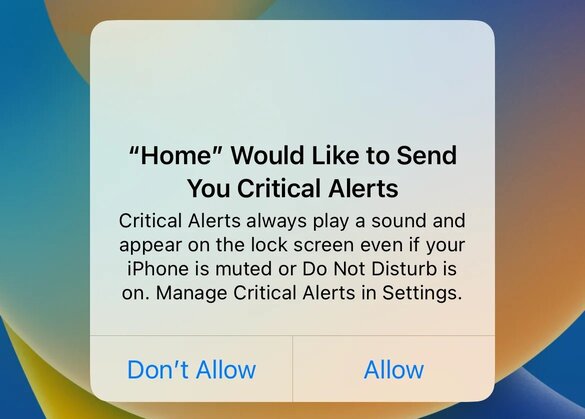
The home would like to send you critical alerts freeze can lock your iPhone screen and stop it from responding. This problem often occurs after an iOS update, including iOS 27, or because of a minor system error.
Luckily, it’s easy to fix. This guide explains simple and effective methods to repair your iPhone, remove the alert, and get your device working normally again.
Part 1: What Does the “Home Would Like to Send You Critical Alerts” Message Mean
This message shows up when the Home app asks permission to send important alerts, even if your iPhone is on silent or Do Not Disturb. These alerts come from HomeKit devices like alarms, cameras, or door sensors that need to notify you right away. The message is safe, but sometimes your iPhone may freeze or get stuck on this screen because of a small software problem.
Why Is My iPhone Stuck on Home Critical Alerts?
Here are some common reasons why critical alerts iphone stuck happens:
- iOS Bug: A small glitch after an iOS update can cause the screen to freeze.
- Home App Error: The Home app or its data may have a temporary problem.
- iCloud Sync Issue: If your Home data doesn’t sync properly with iCloud, it can cause the screen to hang.
- Low Storage or Memory: When your iPhone runs out of space or memory, it may stop responding.
- Network Problem: A weak Wi-Fi or Bluetooth connection can interrupt the Home app.
- App Conflict: Another app using HomeKit might interfere and make your iPhone freeze.
Part 2: Simple Fixes to Unfreeze iPhone on Home Critical Alerts
You shouldn't panic if your iPhone is stuck on home wants to send you critical alerts. It’s usually a temporary system issue that can be fixed at home. Below are simple methods that have worked for many users, including those facing the iPhone 17 stuck on home critical alerts issue.
Fix 1: Restart Your iPhone Normally
Restarting may sound too simple, but it’s often the quickest way to clear temporary glitches. When your iPhone restarts, it reloads the system memory, shuts down buggy background processes, and re-establishes stable communication between apps.
- Hold down the Side and Volume buttons together until the Power Off slider shows up.
- Drag the slider and wait until your iPhone turns off completely.
- After about 30 seconds, press and hold the Side button again until the Apple logo appears.
Fix 2: Force Restart iPhone (When It Doesn’t Respond)
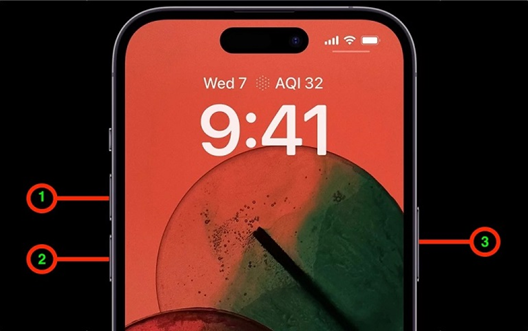
If your iPhone is completely frozen no touch, no swipe then a force restart can help. It works by cutting the power momentarily and restarting system components from scratch. This method fixes deeper freezes where the regular restart fails.
Steps for iPhone 8 and later (including iPhone 17):
Press and release Volume Up, then Volume Down, and immediately hold the Side button until the Apple logo shows up.
For iPhone 7/7 Plus:
Hold the Volume Down and Power buttons together until you see the Apple logo.
For iPhone 6s or earlier:
Hold the Home and Power buttons together until the phone restarts.
Fix 3: Free Up Storage Space
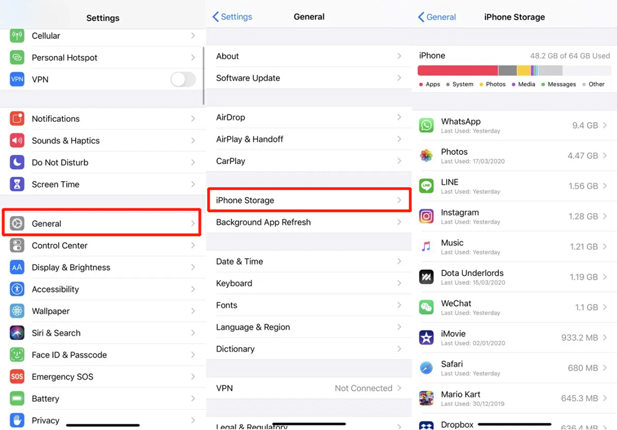
When your iPhone storage is full, the system starts struggling to handle tasks like app updates, notifications, and background syncs. This can lead to lag or even freezes, including the critical alerts iPhone stuck issue. Clearing up some space gives your device breathing room to operate normally.
- Open Settings, then General, and select iPhone Storage.
- Check how much space is left and which apps are taking the most storage.
- Delete unused apps, old videos, or offload large files to iCloud.
- Restart your phone after clearing at least a few gigabytes of space.
Fix 4: Disconnect iCloud and Reconnect Home App
Sometimes the problem isn’t with your phone but with how your Home app syncs with iCloud. A broken sync link or outdated data can stop the alert from clearing. Disconnecting and reconnecting iCloud refreshes your HomeKit data and fixes permission loops that cause the screen to freeze.
- Open Settings, tap your Apple ID name, and select iCloud.
- Scroll down to find Home under “Apps Using iCloud.”
- Turn it off for a moment to disconnect the Home app.
- Restart your iPhone.
- After restarting, go back and turn Home back on.
Fix 5: Check for Pending iOS Updates
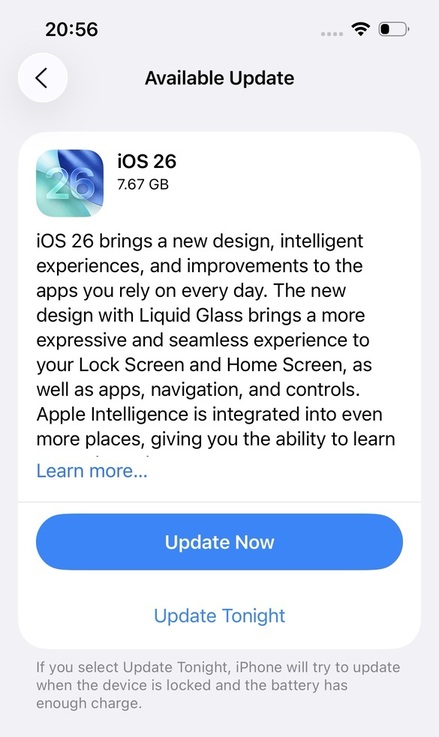
Apple frequently releases patches to fix bugs in notifications and HomeKit integration. If you're running iOS 27, make sure your iPhone is updated to the latest available version, as newer updates may include fixes for these types of system glitches.
- Open Settings and go to General, then tap Software Update.
- Wait a few seconds for the system to check for updates.
- If an update is available, tap Update Now.
- Keep your phone connected to Wi-Fi and a charger during installation.
Part 3: Advanced Methods to Fix Frozen iPhone
It's time to switch to more advanced repair techniques if you've tried simple solutions and you see home would like to send critical alerts frozen iphone. The deeper iOS-level bugs that typically result in these freezes are the focus of these alternatives.
Fix 6: Repair iOS System Without Losing Data (Best Way to Unfreeze iPhone)
Your iPhone might get stuck on home would like to send you critical alerts because of a system problem. Using an iOS repair tool is the easiest and safest way to fix it. Tenorshare ReiBoot is a trusted tool designed for this purpose. It repairs iOS without deleting personal files, giving your iPhone a clean system refresh.
The program uses an intelligent repair engine that detects abnormal system behavior and restores normal performance automatically. From iPhone stuck on home critical alerts to frozen or black screens, ReiBoot handles all these issues in a few clicks safely and accurately.
Advantages of Using ReiBoot System Repair:
- Keeps your photos, contacts, and app data completely safe.
- Identifies the exact cause of software failure for targeted repair.
- Fixes frozen screens, system loops, update errors, and more.
- Designed for effortless repair without technical knowledge.
- Fully Compatible with iOS 26/27 and iPhone 17
Steps to Repair iOS System Using Tenorshare ReiBoot"
- Step 1: Download and Install ReiBoot
Get the latest version for Windows or Mac. Launch ReiBoot and connect your iPhone using the original USB cable. Click on Start.

- Step 2: Start the Repair Process
Once your iPhone is detected, select Standard Repair from menu.

- Step 3: Choose “Standard Repair”
Choose Standard Repair to fix your iPhone without losing data.

- Step 4: Download the Firmware
The tool will show your iPhone model and iOS version. Click Download to get the latest firmware package.

- Step 5: Begin the Update
Click Start Standard Repair and wait while ReiBoot fixes your iPhone. Your iPhone will restart automatically, and your data will stay safe.

Fix 7: Use Recovery Mode to Restore iPhone
When your iPhone is stuck on Home critical alerts, there’s a good chance that a software malfunction is blocking the system from running properly. This mode resets faulty software components that prevent iOS from starting up correctly, helping your iPhone recover from system crashes, stuck screens, or alert loops.
Steps to Enter Recovery Mode Easily:
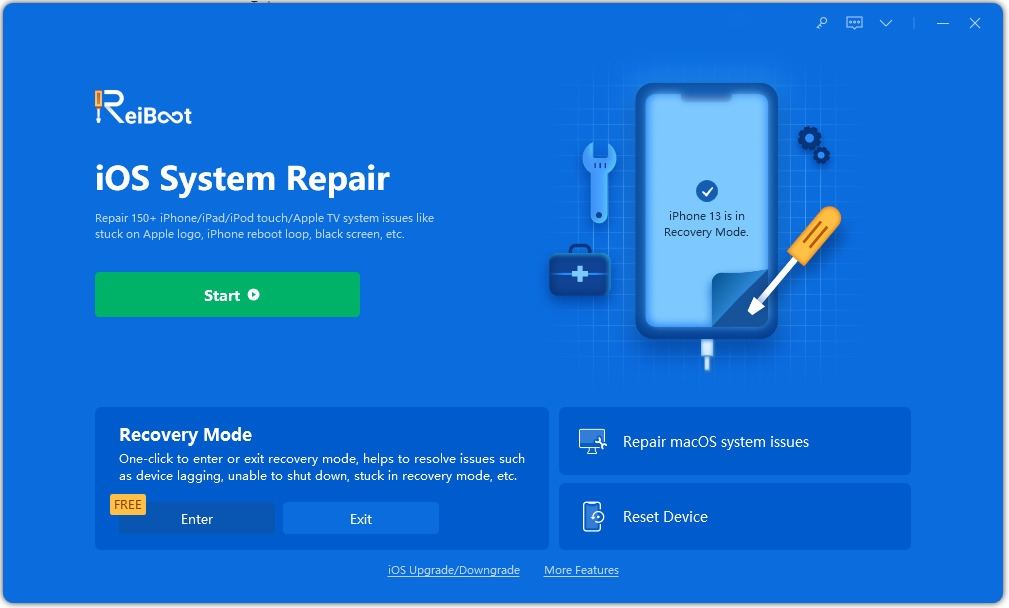
Step 1: Download and Install ReiBoot
Install Tenorshare ReiBoot on your Windows or Mac computer, then connect your iPhone to the computer using a USB cable. Click on Recovery mode exit.
Step 2: Select 'Exit' on the interface
Once ReiBoot detects your device in Recovery Mode, simply click the 'Exit' button on the interface.
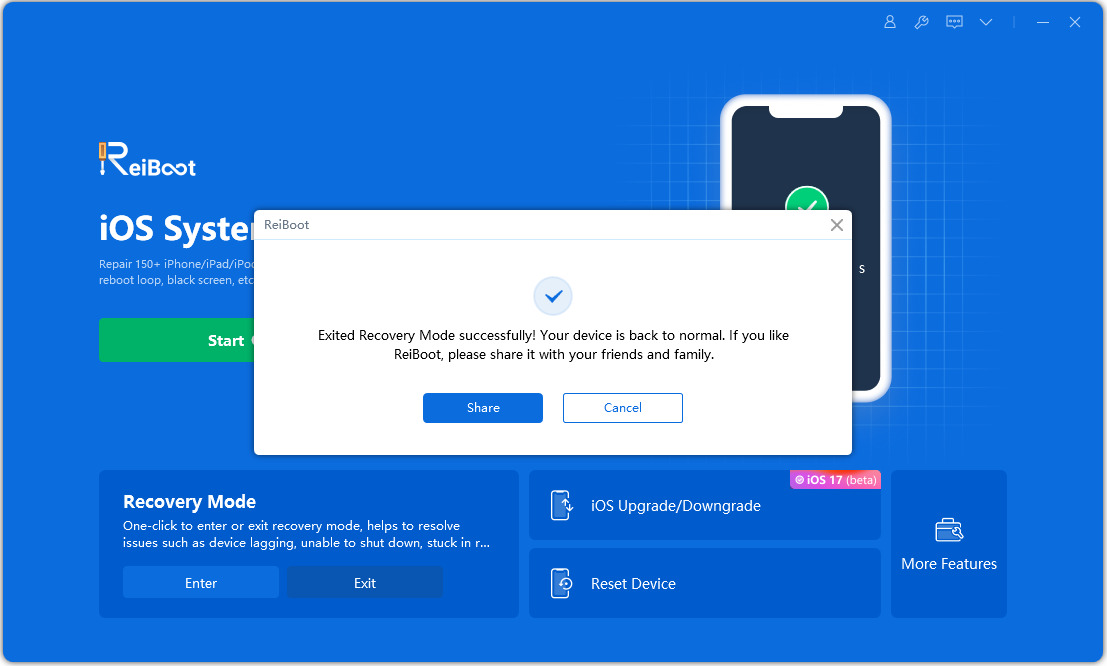
Step 3: Exit Recovery Mode Smoothly
Within a minute, your iPhone will restart and return to normal operation, with all data safe.
Fix 8: Use DFU Mode for Deep System Repair
You can try putting your device into DFU mode if the Home would like to send critical alerts frozen iPhone issue still persists. This is the most powerful restore method. DFU Mode bypasses the regular boot process, allowing a clean reinstallation of iOS. It removes hidden bugs, corrupted files, and system errors that even recovery mode can’t fix.
Steps to Restore iPhone in DFU Mode:
- Turn off your iPhone completely and connect it to your computer via USB.
- Press and hold the Volume Down and Power buttons together for about 5 seconds.
- Release the Power button but keep holding the Volume Down button for another 10 seconds.
- If the screen stays completely black, your iPhone has successfully entered DFU mode.
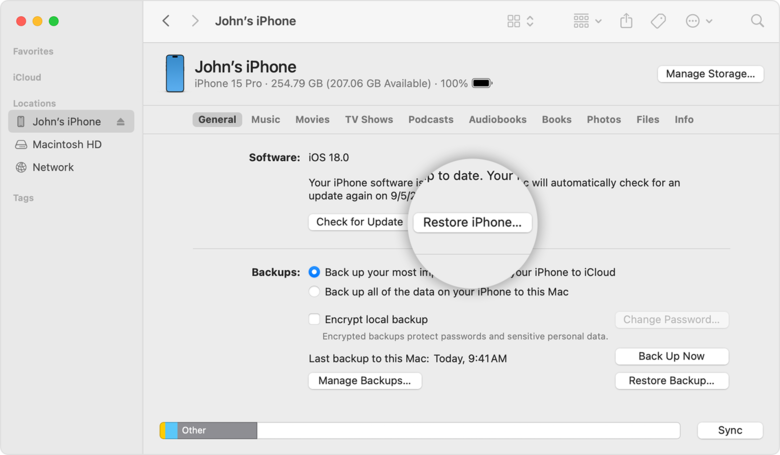
- Open iTunes or Finder on Mac and click Restore iPhone when prompted.
- Confirm to begin reinstalling iOS this will give your device a fresh start and remove the “critical alerts” freeze.
Final Words:
Nothing’s worse than your iPhone freezing on home would like to send you critical alerts. It feels stuck for good but don’t worry, it’s an easy fix. The methods above can help you unfreeze your device and stop the alert from coming back. For a faster, one-click repair, Tenorshare ReiBoot is your best choice. It fixes iOS problems instantly and gets your iPhone running smoothly again without losing any data.
