How to Turn On & Off iOS 27 Scam Prevention on iPhone: 2026 Guide


iOS 27 introduces Impersonation Risk Detection, an anti-scam feature designed to help compatible apps assess potential social engineering risks. Depending on the app and its supported features, this may help users recognize suspicious activity before taking sensitive actions.
Here's how to turn on or off iOS 27 scam prevention on your iPhone, understand how Impersonation Risk Detection works, and troubleshoot common settings issues.
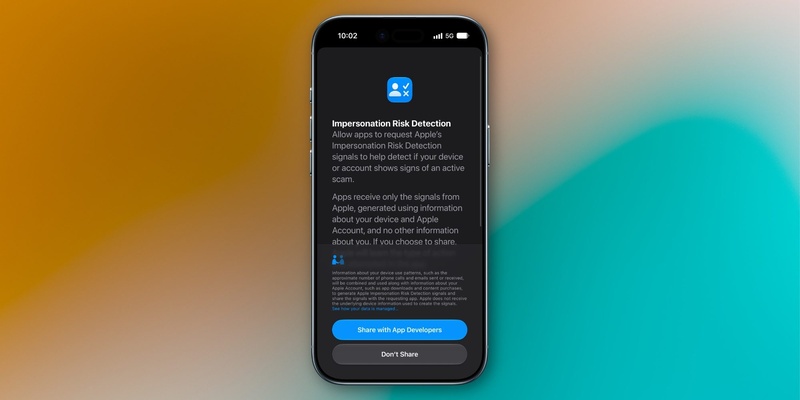
Open Settings > Privacy & Security > Impersonation Risk Detection. Turn on Share with App Developers to enable the feature, or turn it off to disable access for compatible apps. You may need to sign in to the App Store with your Apple Account. Changes can take up to 24 hours to take effect.
How to Turn On iOS 27 Scam Prevention
Follow these steps to enable Impersonation Risk Detection on your iPhone:
-
Open the Settings app on your iPhone.
-
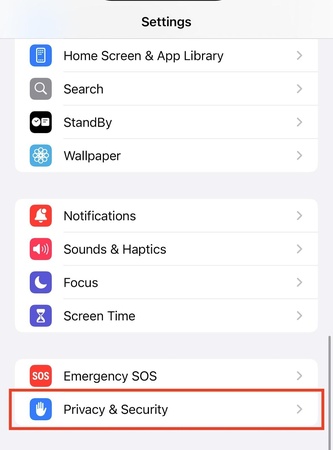
Tap Privacy & Security.
-
Scroll down and select Impersonation Risk Detection.
-
Turn on Share with App Developers.
-
If prompted, sign in to the App Store with your Apple Account.
Once enabled, compatible third-party apps can request a risk assessment when you perform certain sensitive actions. Depending on the app and the assessment, you may see a warning, be asked to verify your identity, or need to wait before continuing.
Apple notes that changes to this setting can take up to 24 hours to take effect.
How to Turn Off iOS 27 Scam Prevention
If you no longer want compatible apps to request scam risk assessments, you can turn off Impersonation Risk Detection through the same settings menu.
-
Open Settings on your iPhone.
-
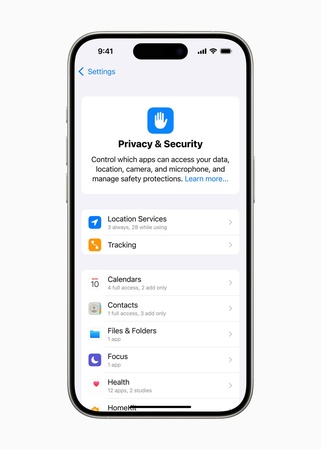
Tap Privacy & Security.
-
Select Impersonation Risk Detection.
-
Turn off Share with App Developers.
If you only want to restrict a specific app, check the list of apps in the same settings menu. Select the relevant app and turn off its individual access toggle if available.
Changes may take up to 24 hours to take effect, including changes to individual app access.
Important(tips): If someone on a phone call or in a message pressures you to disable this protection before making a payment or changing account details, treat the request as a potential scam. Verify the person's identity through a trusted contact method before proceeding.
What Does iOS 27 Impersonation Risk Detection Do?
Impersonation Risk Detection is designed to help protect against active social engineering scams. For example, a scammer might pretend to be a bank employee or government official and pressure you into transferring money or changing your account information.
When a compatible app requests an assessment during a potentially risky action, the iPhone analyzes relevant signals related to device activity and the user's Apple Account. The app receives a risk level rather than the underlying information used to generate the assessment.
There are two important limitations to understand:
-
It doesn't automatically block every scam. The app decides how to respond to the assessment, such as displaying a warning, requesting additional verification, or delaying an action.
-
It doesn't work in every app. Only third-party apps that support Impersonation Risk Detection can request assessments. Enabling the setting does not activate scam detection across all apps.
Apple also states that the feature does not analyze the contents of your Photos, Messages, or Mail to generate its risk assessment.
Why Can't I Find iOS 27 Scam Prevention?
If you cannot find Impersonation Risk Detection in Settings, check the following:
-
Check your iOS version: Make sure your iPhone is running iOS 27 or later. The setting is not available on earlier versions.
-
Look in the correct menu: Go to Settings > Privacy & Securityand scroll down to findImpersonation Risk Detection.
-
Check your Apple Account: If prompted, sign in to the App Store with your Apple Account, then return to the setting.
-
Allow time for changes to take effect: After enabling or disabling the feature, wait up to 24 hours before checking the result.
-
Check app compatibility: The setting can be enabled even if none of your installed apps currently support the feature. This does not necessarily indicate a problem with your iPhone.
If the option is still missing, consult Apple's official iPhone user guide for the latest availability information.
FAQs About iOS 27 Scam Prevention
Is iOS 27 scam prevention turned on by default?
No. Impersonation Risk Detection is an opt-in feature. You need to enableShare with App Developersin Settings before compatible apps can request risk assessments.
Does iOS 27 scam prevention work in every app?
No. Only third-party apps that support Impersonation Risk Detection can use it. Turning on the setting alone does not activate scam detection in every app.
Can I turn off scam prevention for just one app?
Yes. OpenSettings > Privacy & Security > Impersonation Risk Detection, select the relevant app if it appears in the list, and turn off its individual access toggle if available. This lets you manage app access without necessarily disabling the feature for every compatible app.
Does Impersonation Risk Detection guarantee that a payment is safe?
No. A risk assessment is not a guarantee of safety. Continue to verify payment requests independently, avoid sharing verification codes, and contact banks or organizations through trusted channels if a request seems suspicious.
Bottom Line
Enabling Impersonation Risk Detection adds another layer of protection for iPhone users running iOS 27. Turn it on under Privacy & Security if you want compatible apps to request risk assessments, or turn it off if you no longer want to share those assessments with apps. Either way, remember that the feature depends on app support and does not replace careful judgment when handling unexpected payment or account requests.

If your iPhone continues to experience system glitches after updating to iOS 27, such as freezing, getting stuck during startup, or restarting unexpectedly, Tenorshare ReiBoot can help repair certain iOS system issues. Its Standard Repair mode is designed to fix system problems without erasing your data. Back up your iPhone before attempting any system repair.

