
Updated on 2026-09-15 / iPhone Tips
After an update, an iPhone can lie silent on a desk while ios 27 optimizing search and siri crawls across Settings. The screen barely changes, yet the processor is sorting messages, faces in photos, contact names, mailboxes, and app data. Usually, the phone is rebuilding the map that makes Search and Siri useful.
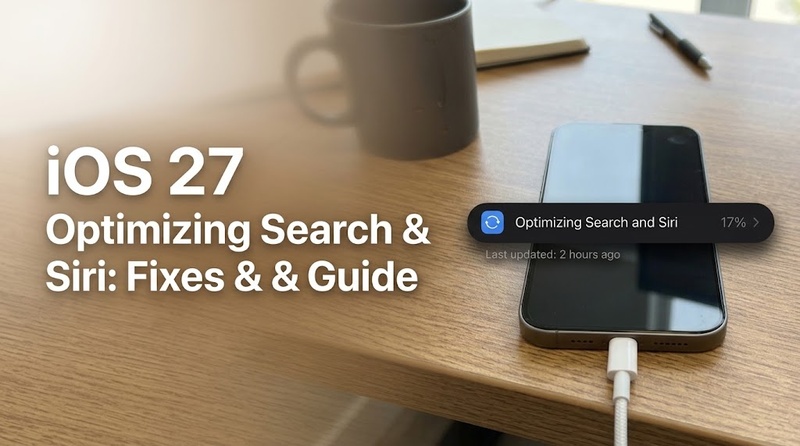
Apple says
Spotlight indexing
may take hours or days. Leave the iPhone locked, charging, and connected
to stable Wi-Fi. Troubleshoot when the percentage and timestamp remain
unchanged overnight and other parts of iOS also begin to fail.
Spotlight uses a local index to find messages, photos, apps, and
other content quickly. The optimizing search and siri ios 27 notice
means iOS is rebuilding this index after setup, an update, or data
changes. The process happens on the device.
A new message adds one small entry. A major iOS update can trigger a
much wider inspection. One phone may hold a few months of photos;
another may carry a decade of conversations and several mailboxes.
Search can therefore return unevenly, with a recent contact
appearing before an old attachment. Warmth and faster battery use
should ease when indexing ends.
Apple says how long does optimizing search and siri take depends on
the amount of data and may range from hours to days. Leave the
iPhone locked, charging, and connected to Wi-Fi overnight.
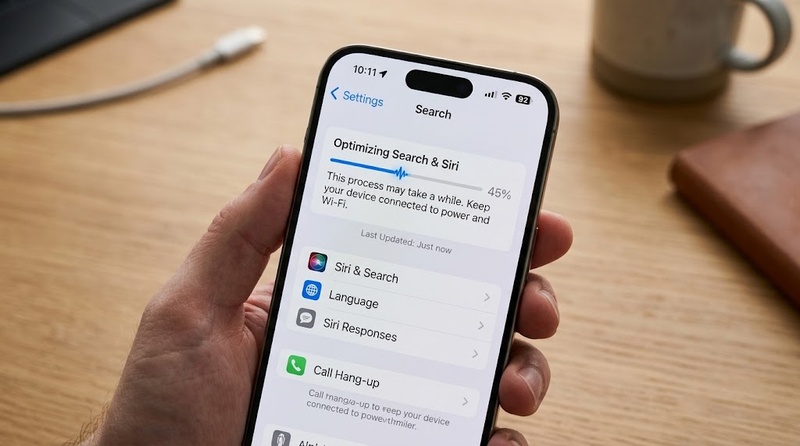
A paused percentage does not always mean a frozen process. When the
"last updated" time continues to change, the indexer is still
working. Wait while the timestamp advances and the phone behaves
normally. Investigate when both indicators remain fixed overnight or
Settings repeatedly crashes.
Healthy indexing moves in bursts. It may slow while the screen is
active and resume when the phone is locked. Gaming, video recording,
large downloads, or an iCloud restore can extend the job.
The banner becomes more concerning when it appears with failed
updates, repeated restarts, a black screen, Recovery Mode, or an
Apple logo loop. Here,
optimizing search and siri may be a visible symptom
of an unstable iOS installation.
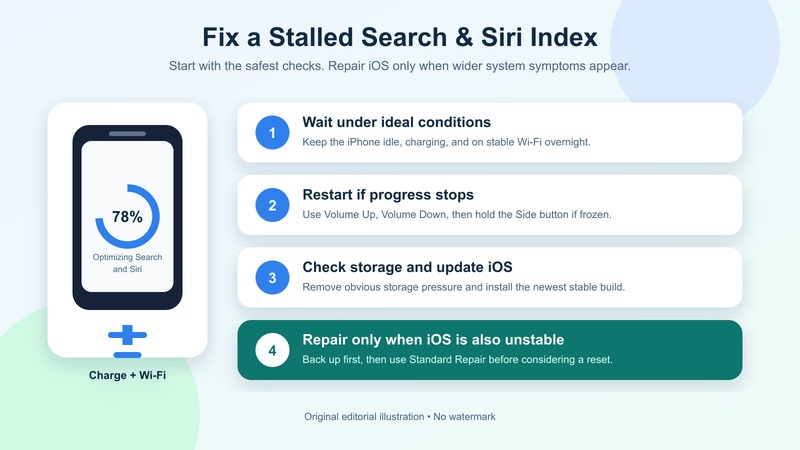
Indexing works best when the iPhone is idle. For optimizing search
and siri ios 27 , give the system one quiet night to process its
data.
Connect the iPhone to a reliable charger. Join a stable Wi-Fi network.
Open Settings > Battery and turn off
Low Power Mode.
Lock the screen and avoid using the phone overnight.
Check the percentage and "last updated" time the next morning.
Continued progress means the indexer is still working. Move to other
fixes only when both indicators remain unchanged.
Temporary system errors, limited storage, or disabled Search
settings can interrupt optimizing search and siri. Check these items
before using a repair tool.
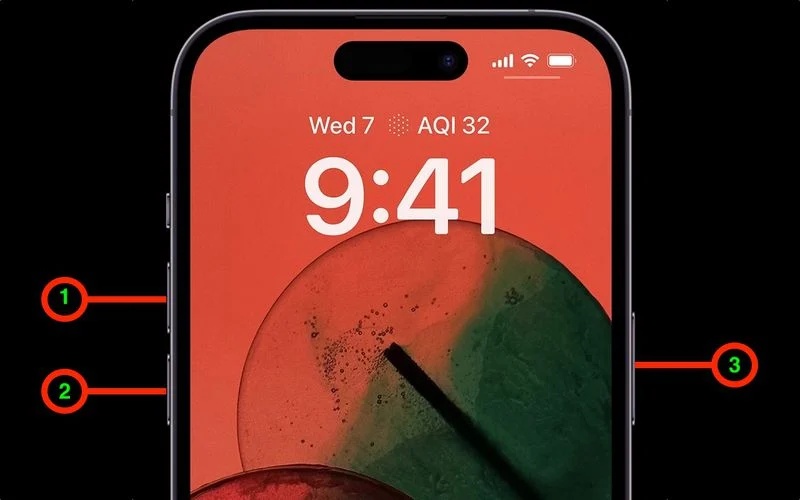
Restart the iPhone normally.
When it is unresponsive, press and release Volume Up, then
Volume Down.
Hold the Side button until the Apple logo appears.
Open Settings > General > iPhone Storage and remove large
downloads or offload unused apps.
Go to Settings > Search and enable the missing app or content
categories.
Back up the iPhone
through iCloud or a computer.
Open Settings > General >
Software Update
and install the latest iOS 27 update.
After restarting, leave the iPhone locked, charging, and connected
to Wi-Fi so indexing can continue
A frozen optimizing search and siri process can
accompany an update that will not install, a black screen, Recovery
Mode, an Apple logo loop, or
iTunes error 4013
or 1110.
Tenorshare ReiBoot
addresses these wider system failures and can be tried before a
factory reset.
For a frozen
optimizing search and siri ios 27 process, ReiBoot
offers:
Fix 150+ iOS issues, including black screens and Apple logo
loops.
Upgrade or downgrade iOS 27 without iTunes or jailbreaking.
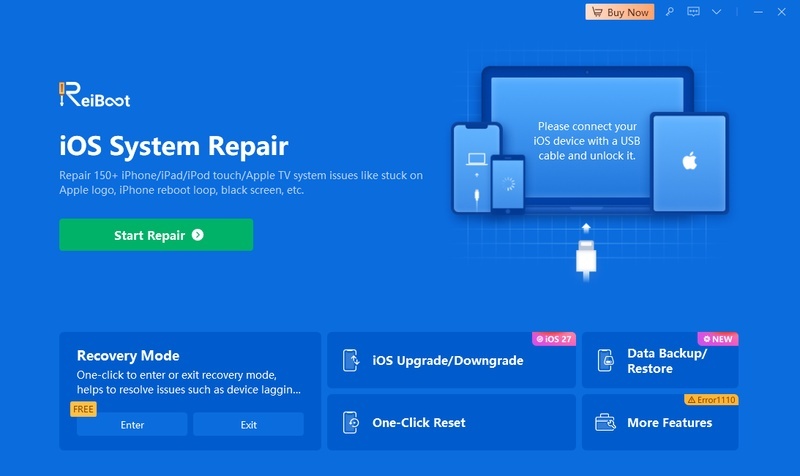
Enter or exit Recovery Mode and repair iTunes errors. Back up, restore, reset, or permanently erase an iPhone. How to use ReiBoot: Install ReiBoot on a Windows PC or Mac.
Connect the iPhone with a reliable USB cable, then unlock and
trust the computer if prompted.
Open ReiBoot and select Start Repair.
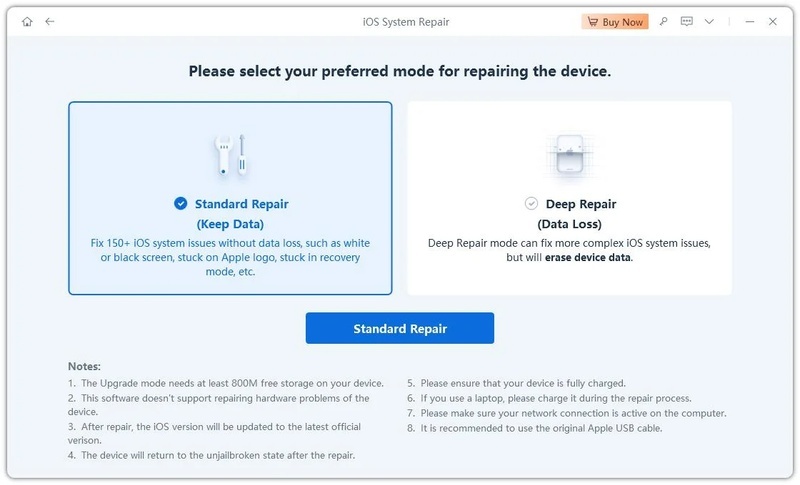
Confirm the detected model and download the recommended firmware
package.
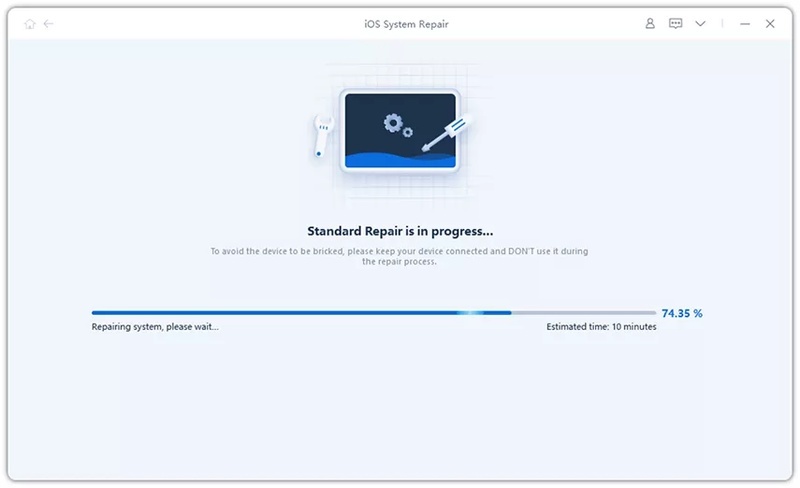
Select Start Standard Repair and keep the cable
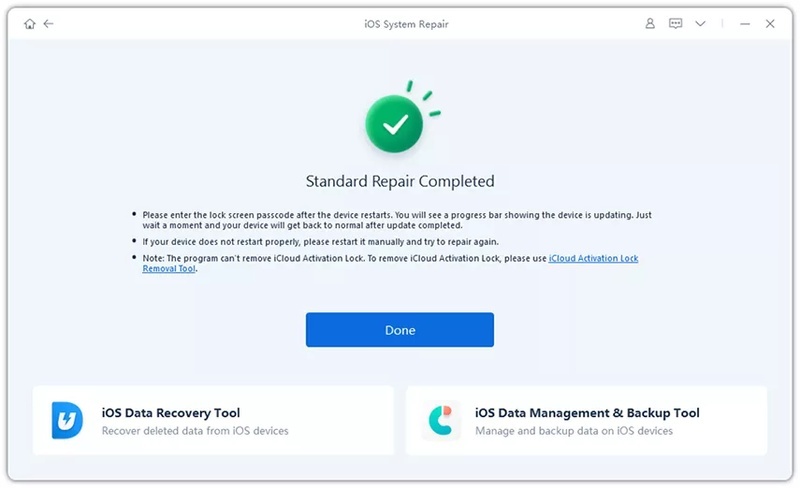
connected until the iPhone restarts.
Return the phone to power and Wi-Fi, lock the screen, and allow
Search and Siri to rebuild the index.
The siri ai waitlist controls access to Siri AI
Beta; Search indexing organizes information already stored on the
iPhone. One runs locally, while the other depends on Apple's servers
and eligibility rules. Finishing one does not accelerate the other.
Apple says wait times vary. Eligible users can open Settings >
Siri > Try
Siri AI Beta
and complete enrollment. The device and Siri languages must match a
supported language, and the Apple Account must belong to an eligible
region.
As of September 2026, Apple lists iPhone 15 Pro and Pro Max, iPhone
16 models or later, and iPhone Air as compatible. Siri AI is
available in English. Apple says it is unavailable on iPhone in the
European Union and for Apple Accounts registered in mainland China.
No restart or repair utility can bypass those limits. When Settings
confirms that the request joined the
siri ai waitlist, wait for Apple's notification.
The process may take several hours or a few days, depending on
storage size and the amount of content. Keep the iPhone locked,
charging, and connected to Wi-Fi overnight.
Low storage, heavy phone use, or an unstable iOS update may
interrupt indexing. Restart the iPhone, free some storage, and
install the latest update.
Yes, indexing can temporarily increase battery use and make the
iPhone feel warm. This should improve after processing finishes.
Keep the device charging and avoid heavy apps while optimizing
search and siri runs.
Check whether the timestamp is moving and the iPhone remains stable.
Give ios 27 optimizing search and siri time to finish, but when
crashes, failed updates, or boot loops appear, use
Tenorshare ReiBoot
to repair the underlying iOS issue before considering a factory
reset.
Quick Answer
Part 1. What the Optimizing Message Means
1. Spotlight Is Mapping the Phone
2. A Major Update Creates a Larger Job
Part 2. How Long Search and Siri Optimization Takes
1. How Long Does Optimizing Search and Siri Take
2. Read the Percentage With the Timestamp
Part 3. Normal Delay or Wider iOS Failure
1. Signs That the Phone Still Needs Time
2. Signs That Point Beyond Indexing
Related Reading : How Long Is the iOS 27 Siri Waitlist
Part 4. Fixes From Low Risk to System Repair
1. Give the Indexer an Uninterrupted Night
2. Restart and Check the Basics
3. Repair the Underlying iOS Issue With ReiBoot
Part 5. Why the Siri AI Waitlist Is Different
1. Local Indexing and Server Approval Use Different Clocks
2. Check Eligibility Before Trying Repairs
FAQ about iOS 27 Optimizing Search and Siri
1. How Long Does iOS 27 Optimizing Search and Siri Take?
2. Why Is Optimizing Search and Siri Stuck?
3. Does Optimizing Search and Siri Drain the Battery?
In conclusion
