
Updated on 2026-10-10 / iPhone Tips
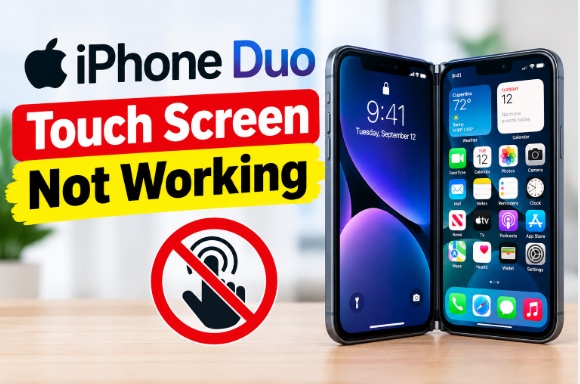
When your iPhone Duo touch screen is not working, you may struggle to unlock your phone, open apps, or answer calls. The screen may freeze, ignore taps, or stop responding after charging or an iOS update. Start by checking whether the display turns on, whether touch fails across the entire screen or only in one area, and whether the problem started after a drop, update, or charging session. These eight fixes can help you identify the cause and choose the right solution without erasing your data unnecessarily.
- Part 1: Why Is the iPhone Duo Touch Screen Not Working?
- Part 2: iPhone Duo Touch Screen Not Working? Try These Safe Fixes First
- Part 3: Touch Still Fails After a Restart? Repair iOS Before Erasing the iPhone
- Part 4: How to Tell If the iPhone Duo Touch Screen Problem Is Hardware
- Part 5: FAQs About iPhone Duo Touch Screen Not Working
Part 1. Why Is the iPhone Duo Touch Screen Not Working?
Several problems can stop an iPhone screen from responding to touch. Identifying the likely cause helps you avoid unnecessary repairs or data loss.
-
Software freeze: iOS or an app may stop responding, even when the display remains on.
-
Charging interference: A faulty charger, damaged cable, or unstable power source may interfere with touch input.
-
Screen or protector problems: Moisture, dirt, a thick screen protector, or a tight case may affect touch response.
-
Update-related issues: A software bug or incomplete update may cause the screen to freeze or behave incorrectly.
-
Hardware damage: A damaged display, digitizer, or internal connection may prevent the phone from detecting your finger.
Your symptoms can provide useful clues. For example, if the screen stops responding only while charging, test the charger first. If one section never detects touch, physical screen damage becomes more likely.
Quick Diagnosis Table
| Symptom | Likely cause | First action |
|---|---|---|
| Screen turns on but touch does not work | Software freeze or display problem | Force restart the phone |
| Cannot unlock the phone | Frozen iOS or touch failure | Force restart the device |
| Touch fails while charging | Charger or cable interference | Disconnect the charger |
| Touch stopped working after an update | Possible iOS software issue | Restart and check for updates |
| One screen area never responds | Possible digitizer damage | Remove the case and any outer-display protector (not the inner layer), then test again |
| Touch remains dead after a force restart | Hardware or deeper software problem | Connect the phone to a computer |
Part 2. iPhone Duo Touch Screen Not Working? Try These Safe Fixes First
Try these four basic fixes before using a repair tool or considering a factory reset.
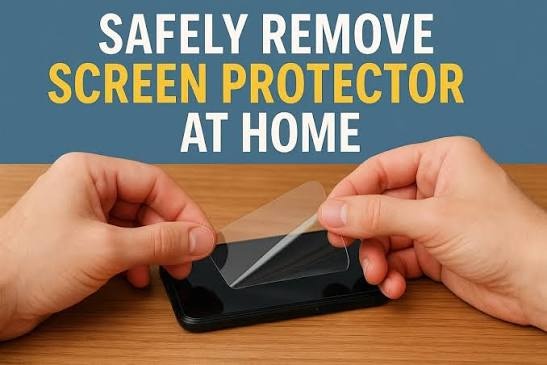
1. Clean and Dry the Screen, Then Remove the Case and Outer-Display Protector
A dirty or wet screen may not detect your fingers correctly. A poorly fitted protector or tight case can also interfere with touch response.
Follow these steps:
-
Disconnect the charging cable and any connected accessories.
Wipe the screen with a soft, lint-free cloth.
-
Dry your hands and make sure the screen has no moisture.
-
Remove the case and any third-party screen protector on the outer display.
-
Do not peel the nano-texture cover layer on the inner display. Apple describes it as part of the display, and it is serviced by Apple.
Test different areas of the display.
Check the glass for cracks, deep scratches, or visible damage. If the screen has cracks or raised edges, avoid pressing hard on it. If you suspect water has entered the phone, disconnect it from power and let a qualified technician inspect it. If touch works after removing the case or protector, replace the accessory with one that fits the device correctly.
2. Disconnect the Charger and Test the Screen Again
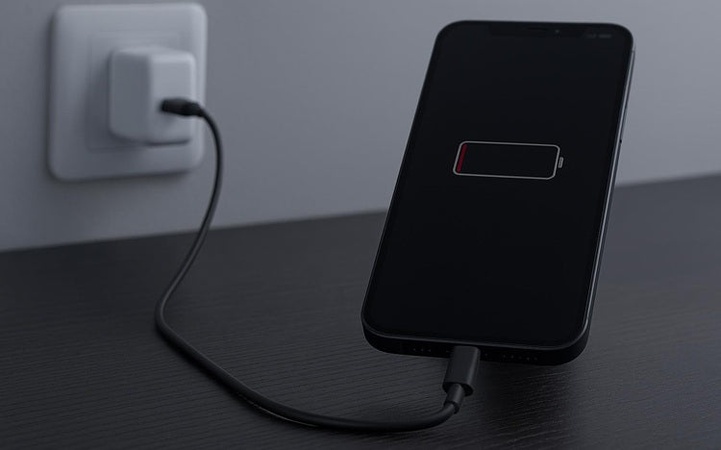
If your iPhone 18 touch screen is not working while charging, the charger or cable may be causing the problem. This symptom does not automatically mean that iOS has a fault.
Use this simple test:
Unplug the charger from the phone.
Wait a few seconds.
-
Test the screen by opening an app or scrolling through a page.
-
If touch works again, try a known-good, compatible charger and cable.
Test another suitable power outlet if needed.
If the screen works normally with another charger, stop using the faulty accessory. Replace damaged cables and avoid cheap, uncertified charging equipment.
If touch still fails with the charger disconnected, continue to the next fix. The problem may involve software or hardware rather than charging.
3. Force Restart the iPhone Duo
A force restart can help when your iPhone Duo screen freezes and won't respond to touch. It forces the phone to restart even when you cannot use the screen normally.
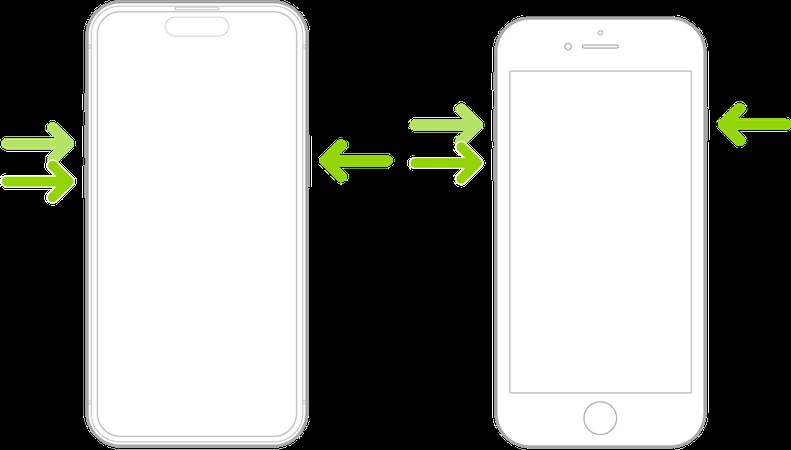
For an iPhone with Face ID and the standard modern button layout, follow these steps:
Quickly press and release the Volume Up button.
Quickly press and release the Volume Down button.
Press and hold the Side button.
-
Release the Side button when the Apple logo appears.
The logo may take several seconds to appear. Keep holding the Side button while the phone restarts. These steps follow Apple's standard instructions for compatible iPhone models. Button combinations vary by model, so check Apple's instructions if your device has a different layout. A force restart does not erase your personal data. Apple Support After the phone restarts, test the screen before opening multiple apps. If touch works again, a temporary system freeze may have caused the problem.
4. Check Whether a Computer Detects Your iPhone
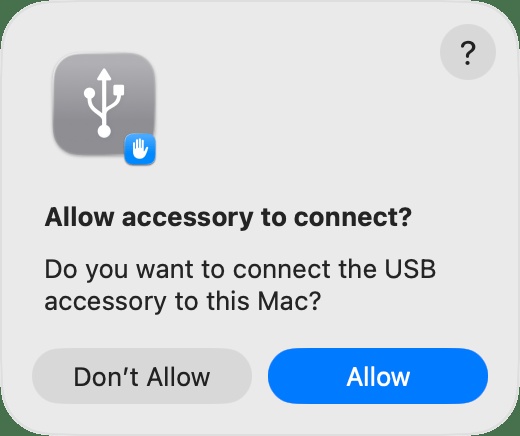
If the iPhone Duo screen is not working but the phone is on, check whether a computer can recognize it. This test can help you decide whether to investigate software problems or seek hardware service. Connect your iPhone to a Mac or Windows computer with a compatible cable. Open Finder on a supported Mac or the Apple Devices app on Windows. Depending on your computer setup, iTunes may also support device management. If the computer detects the phone, you may be able to check its connection or access available software recovery options. However, a successful connection does not prove that the display hardware works correctly. If the computer requests that you unlock the phone or trust the computer, you may need to complete that step on the iPhone.
Part 3. Touch Still Fails After a Restart? Repair iOS Before Erasing the iPhone
If your iPhone Duo touch screen is not working after an update, a software problem may be responsible. The issue may also come from a frozen system or an interrupted update. Before erasing your phone, consider a system-repair option. Tenorshare ReiBoot is an optional iOS system-repair utility for Windows and Mac. It offers Standard Repair for supported software problems and tools to enter or exit Recovery Mode. Its Standard Repair process is designed to preserve user data when supported, but no repair process guarantees success in every case.
ReiBoot may help when a software issue causes the phone to freeze or behave incorrectly after an update. However, it cannot repair cracked glass, a faulty digitizer, a damaged internal connection, or a failed battery.
Key Features of Tenorshare ReiBoot
-
Standard Repair: Fix supported iOS system problems while aiming to preserve your personal data during the repair process.
-
iOS System Repair: Address certain software issues that may cause your iPhone to freeze or stop responding after an update. It may also help when an iPhone Duo not charging problem has a software cause, though it cannot fix a damaged charging port or battery.
-
Recovery Mode Support: Enter or exit Recovery Mode to help troubleshoot supported iPhone software problems, such as an iPhone Duo boot loop, without relying entirely on physical buttons.
-
Windows and Mac Compatibility: Use ReiBoot on a compatible Windows PC or Mac to connect your iPhone and follow the available repair instructions.
-
Simple Repair Process: Follow on-screen instructions to select a repair option, download the required firmware, and complete the supported repair process.
How to Fix iPhone Duo Touch Screen Not Working in ReiBoot
-
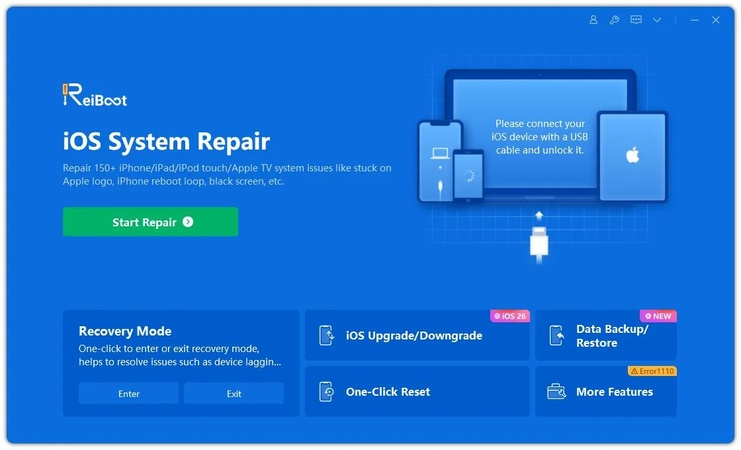
Step 1: Download ReiBoot on your Windows PC or Mac. After installation, open the software and connect your iPhone Duo using a data-capable USB-C cable.
-
Step 2: Once ReiBoot detects the device, click the Repair Operating System option from the main screen.
-
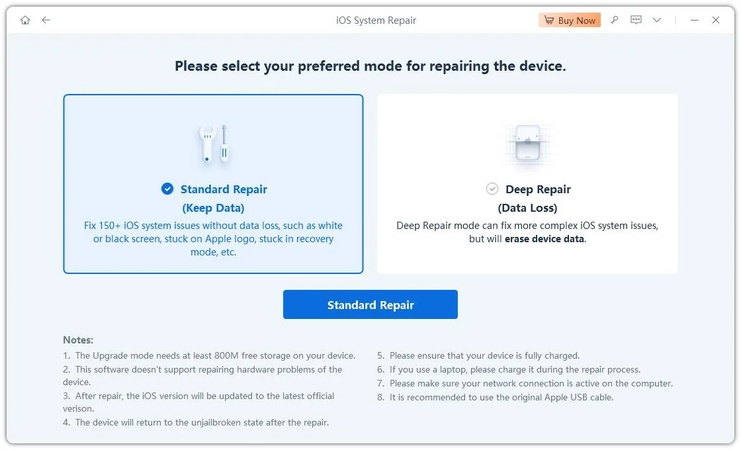
Step 3: Select Standard Repair to fix iOS system problems that may cause freezing or an unresponsive screen. This option is designed to keep your photos, apps, and personal data.
-
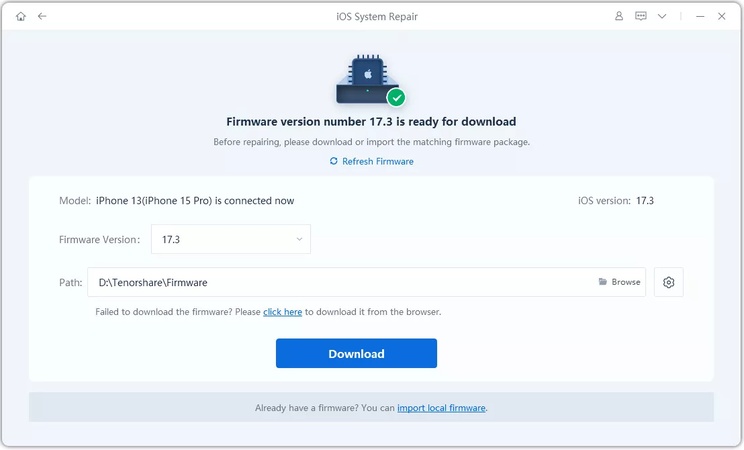
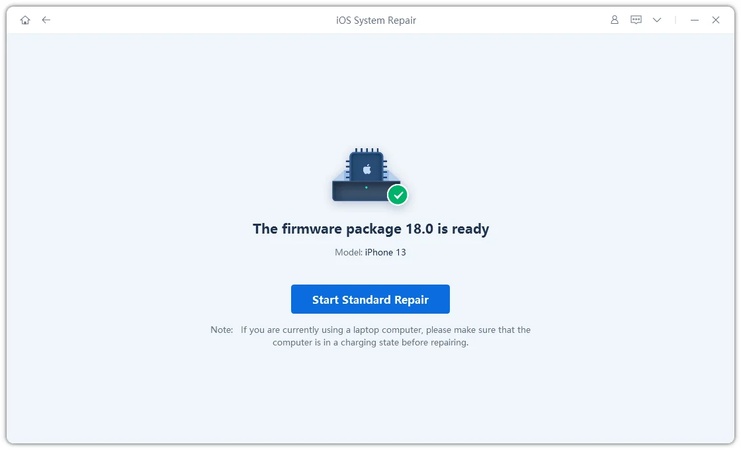
Step 4: ReiBoot will automatically detect the correct iOS firmware for your iPhone. Click Download and wait for the firmware package to finish downloading.
-
Step 5: Click Start Standard Repair and keep your iPhone connected during the process. ReiBoot will repair damaged iOS system files. Keep your iPhone connected.
-
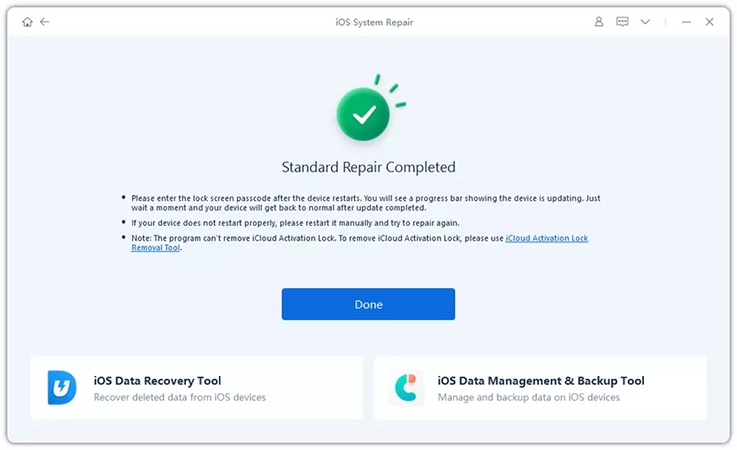
Step 6: After the repair finishes, your iPhone Duo will restart. Test touch once it reaches the Lock Screen.
Part 4. How to Tell If the iPhone Duo Touch Screen Problem Is Hardware
Sometimes, software troubleshooting cannot fix an unresponsive display. Watch for these signs before deciding what to do next.
One Section of the Screen Never Responds
If one part of the display consistently ignores taps while other areas work, the digitizer or display assembly may have a fault. First, remove the case and any outer-display protector (not the inner cover layer), clean the screen, and restart the phone. If the same area remains unresponsive, especially after a drop or impact, arrange a professional inspection. Repeated software repairs are unlikely to help a physically damaged component.
The Phone Is On, but Touch Remains Completely Dead
Your phone may ring, vibrate, play sounds, or receive notifications even when you cannot use the screen. This suggests that some phone functions still work, but it does not confirm whether the display or digitizer has failed. Try a force restart and a computer connection. If the screen still ignores every touch, a technician should check the display, internal connections, and related components.
When Should You Stop Troubleshooting?
Stop testing the phone and seek professional service if you notice:
-
Cracked glass with sharp edges or visible internal damage.
-
Signs of liquid entering the device.
-
Unusual heat, battery swelling, or a lifting screen.
-
Persistent touch failure after a force restart and basic checks.
Do not open the phone or press hard on the display. If the battery appears swollen or the device becomes unusually hot, disconnect it from power and stop using it until a qualified technician inspects it.
Which Method Is Best for You?
| Situation | Best next step |
|---|---|
| Screen is dirty or wet | Clean and dry the screen |
| Touch fails only while charging | Test another compatible charger |
| Phone has frozen | Force restart the device |
| Problem began after an update | Check software and consider Standard Repair |
| One area remains unresponsive | Arrange a display inspection |
| Phone remains completely unresponsive | Seek professional diagnosis |
Choose the method that matches your symptoms instead of trying every repair option at once.
Part 5. FAQs About iPhone Duo Touch Screen Not Working
1. Why Is My iPhone Duo Touch Screen Not Working While Charging?
A faulty cable, charger, or power source may interfere with touch response. Disconnect the charger and test the screen. If touch returns, try a known-good, compatible charging accessory. If the issue continues with different chargers, investigate other possible causes.
2. Why Can't I Unlock My iPhone Duo Because the Touch Screen Is Not Responding?
A software freeze or a damaged touch sensor may prevent you from entering your passcode. Force restart the phone using the correct button sequence for your model. If the screen remains unresponsive, connect the phone to a computer if possible and consider professional service.
3. Can an iOS Update Cause the iPhone Duo Touch Screen to Stop Responding?
Yes, a software issue related to an update may cause temporary freezing or other system problems. Restart the phone first. If the issue continues, check for an available update through supported methods or consider a system-repair tool. A display problem that started around the same time may still have a hardware cause.
4. What If the iPhone Duo Touch Screen Is Still Not Working After a Hard Reset?
If a force restart does not restore touch response, check the charger, screen condition, and computer connection. If software problems seem likely, consider ReiBoot's Standard Repair after reviewing the data risks. If the phone still ignores touch, seek a hardware inspection rather than repeatedly restarting or erasing the device.
Conclusion
If your iPhone Duo touch screen isn't working, find out which display is affected, clean it, disconnect the charger and accessories, and force restart. If the problem began after an iOS update, try Update through a computer or Recovery Mode before erasing the phone.
Tenorshare ReiBoot's Standard Repair is an optional route for software problems. It can't fix a cracked or damaged display. If one display stays dead, or the fold or inner layer looks damaged, book Apple service. Back up your data whenever possible.
