
Updated on 2026-07-21 / iPhone Tips
Do you keep checking Software Update but still see iOS 26 on your iPhone 11/SE while others already have iOS 27? Since the iOS 27 Developer launched after WWDC 2026, many users have faced the same issue where the update doesn't show. This can happen for different reasons depending on your device or settings. In this post, we'll share reasons for iOS 27 not showing up on your iPhone, and 9 fixes to make it appear!
Part 1. Quick Comparison: Fixes for iOS 27 Not Showing Up
Here's a snapshot of 9 fixes for iOS 27 not showing on iPhone SE, 11, or other iPhones, to help you pick the right solution for your situation:
| Solution | Success Rate | Data Loss | Ease of Use | Time Required |
|---|---|---|---|---|
| Check iPhone Compatibility | Very high | No | Very easy | 1-2 min |
| Restart Your iPhone | Low | No | Very easy | 2-3 min |
| Select the Correct Channel | High | No | Very easy | 1-2 min |
| Enroll Apple ID in Program | High | None | Very easy | 3-5 min |
| Upgrade with ReiBoot | Very high | None | Very easy | 5-10 min |
| Remove Old Profiles | Moderate | None | Moderate | 5-10 min |
| Update to the Latest iOS 26 First | Moderate | None | Easy | 15-30 min |
| Update via Finder/iTunes | Moderate | None | Moderate | 20-40 min |
| Reset Network Settings | Low | Yes, settings only | Moderate | 5-10 min |
Part 2. Why Is iOS 27 Not Showing Up on My iPhone
If you're asking, "Why is iOS 27 not showing up on my iPhone 17, 11, SE, or any other iPhone," the answer comes down to these:
-
Your iPhone isn't supported: iOS 27 only supports iPhone 12 or newer. iPhone 11 models and iPhone SE (2nd gen) are not eligible.
-
Wrong option selected: Make sure you choose the correct channel (Developer or Public ) in Settings.
-
Apple ID isn't enrolled: Your Apple ID must be registered in Apple's Software Program and signed in on your iPhone.
-
Rollout delay: Apple releases updates in stages, so it may take some time before it appears on your device.
-
Old profile conflict: A leftover iOS 26 profile could prevent the iOS 27 from showing up.
-
The iOS version is outdated: Update to the latest stable iOS version first (such as iOS 26.5).
-
Network or server issues: Busy Apple servers or connection problems can delay the update.
-
Software Update cache issue: iOS sometimes holds on to outdated Software Update data.
Part 3. 9 Proven Ways to Fix iOS 27 Not Showing Up
Here are 9 solutions to fix iOS 27 not showing on iPhone 11/iPhone 11 Pro Max, SE, or the latest iPhones:
1. Check iPhone Support for iOS 27
Before trying any fixes, first check if your iPhone supports iOS 27. It needs at least an A14 Bionic chip, so only iPhone 12 and newer, and iPhone SE (3rd gen) are supported. Older models like the iPhone 11 series and iPhone SE (2nd gen) won't get iOS 27 because they don't meet the requirements. If your device isn't supported, the update simply won't show up, no matter what you do.
2. Restart Your iPhone
It may sound simple, but restarting your iPhone can fix update issues by clearing the system cache and reconnecting to Apple's servers. Many users find that the iOS 27 appears after a quick restart. This is especially useful right after joining the or if the Software Update page isn't updating properly. To restart your iPhone, follow the steps beneath:
-
Step 1: Press and hold the "Side" button and either "Volume" button simultaneously until the power slider appears.
-
Step 2: Drag the slider to turn off your iPhone. After 30 seconds, press and hold the "Side" button until the Apple logo appears.
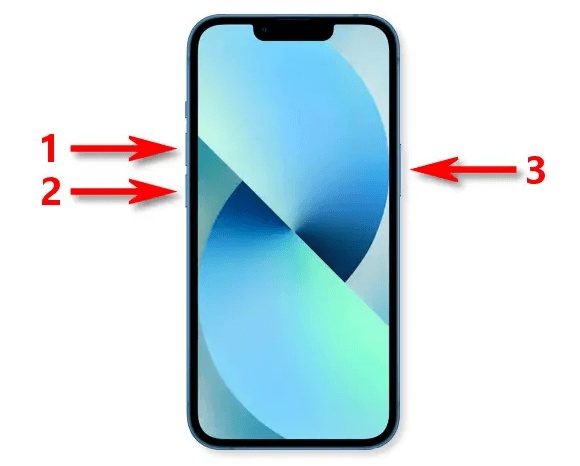
Note: Press only the "Side" button to switch off and restart iPhone SE (3rd gen).
3. Go to Updates and Select the Correct Channel
Since iOS 16.4, Apple has replaced profiles with a Updates option in Settings. If iOS 27 isn't appearing in Software Update, the most popular reason is that the wrong channel is selected. This often happens if you recently joined the program or your device is still set to the iOS 26 Public track. So, what you can do is choose the correct channel. Here's how:
-
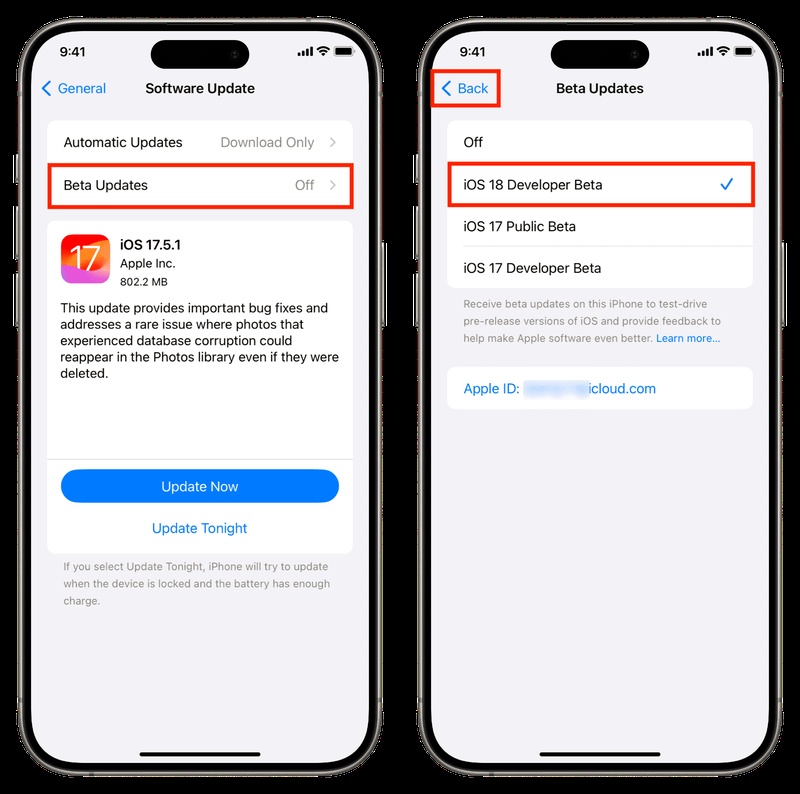
Step 1: Open "Settings" on your iPhone. Choose "General." Then, click "Software Update."
-
Step 2: Tap "Updates" at the top of the screen. Select either "iOS 27 Developer" (if you're enrolled in the Apple Developer Program) or iOS 27 Public (available from mid-July 2026 for anyone enrolled at Apple Support).
-
Step 3: Return to the "Software Update" screen. iOS 27 should now appear.
4. Make Sure Your Apple ID Is Enrolled in the Program
To access iOS 27, your Apple ID must be enrolled in Apple's program. Developer access is now free, so no paid developer account is needed. If you've never joined the program or recently created a new Apple ID, your account may not be enrolled for access. So, check that your Apple ID is properly enrolled in Apple's program. Here's how to do that:
-
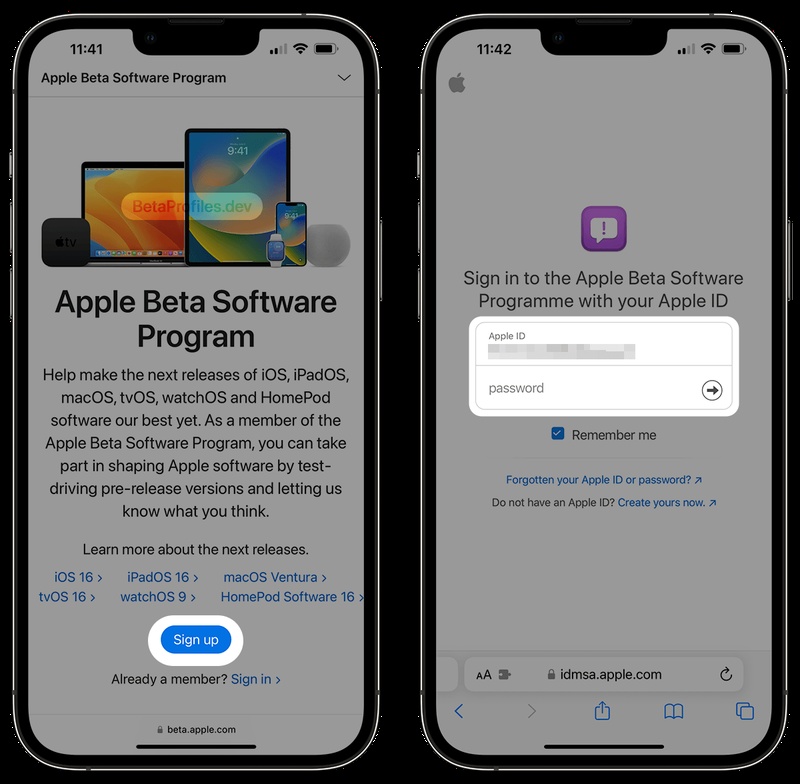
Step 1: Open "Safari" and visit "Apple's "Developer" or "Program" website. Sign in with the same Apple ID you use on your iPhone.
-
Step 2: Complete the enrollment process or accept the required agreement. Head to "Settings." Choose "General."
-
Step 3: Click "Software Update." Tap " Updates." Choose the iOS 27 channel you want.
-
Step 4: Return to "Software Update" and wait a few minutes for the iOS 27 update to appear.
5. Upgrade to iOS 27 with ReiBoot (Safe & Easy)
If the normal iOS update doesn't work due to server issues, enrollment problems, or glitches, Tenorshare ReiBoot lets you install iOS 27 using a computer. It downloads the firmware directly and installs it on your iPhone without relying on Apple's servers, and it doesn't require iTunes or cause data loss. ReiBoot is also useful when OTA updates fail, or the doesn't show up even after correct setup.
Key Features of ReiBoot:
-
One-click iOS upgrade/downgrade with no manual IPSW file management or iTunes required.
-
Supports iOS 27 installation without a Developer account or manual profile.
-
You can pick your desired iOS version to upgrade/downgrade.
-
Fixes 150+ iOS system issues, including stuck screens, recovery mode loops, and update failures.
-
Allows you to enter/exit Recovery Mode with a single tap.
-
You can back up, restore, reset, and permanently erase iDevices.
-
Compatible with all iPhone models that iOS 27 supports.
Steps to Use ReiBoot:
Here's how to upgrade your iPhone to iOS 27 with ReiBoot:
-
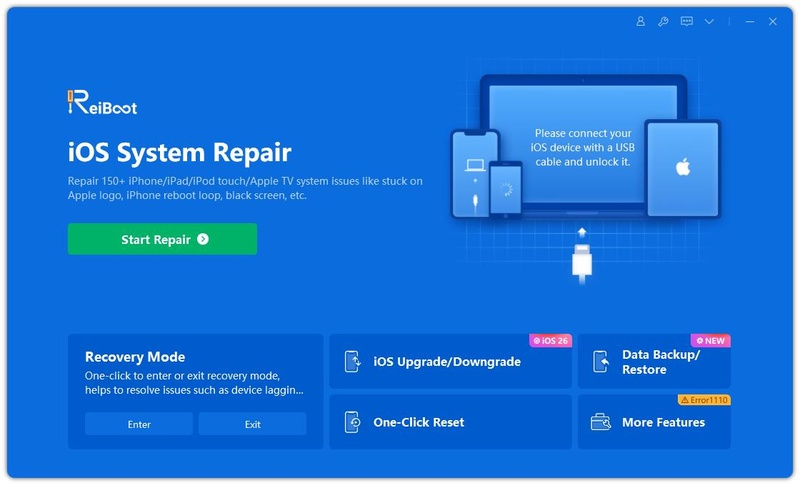
Step 1: Install ReiBoot on your Windows or Mac computer. Then, connect your iPhone that's not showing iOS 27 to the computer.
-
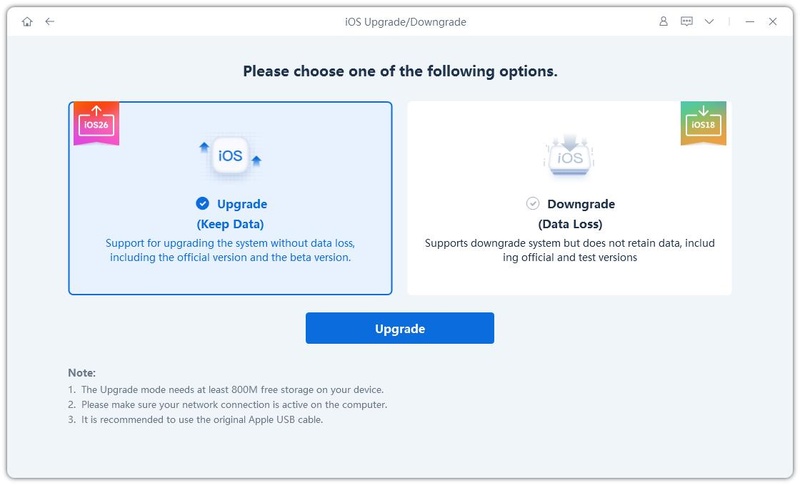
Step 2: Open ReiBoot. Then, click "iOS Upgrade/Downgrade" on the main screen. Select "Upgrade iOS."
-
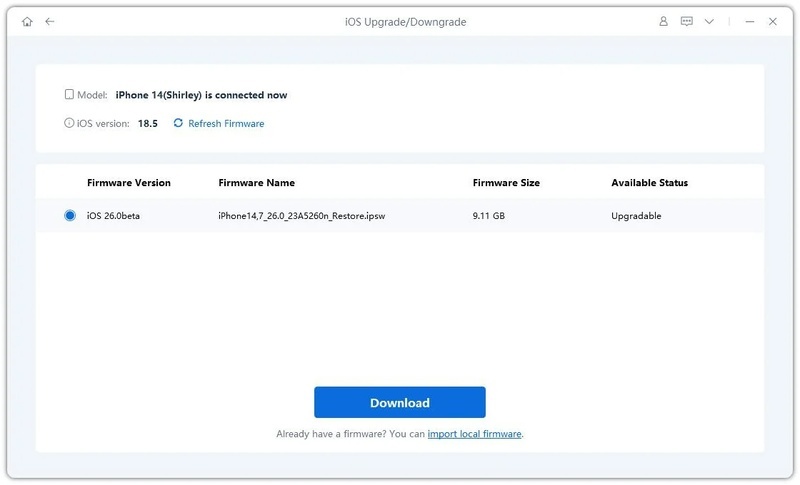
Step 3: Click "Download" to get iOS 27, and wait for the firmware to finish downloading.
-
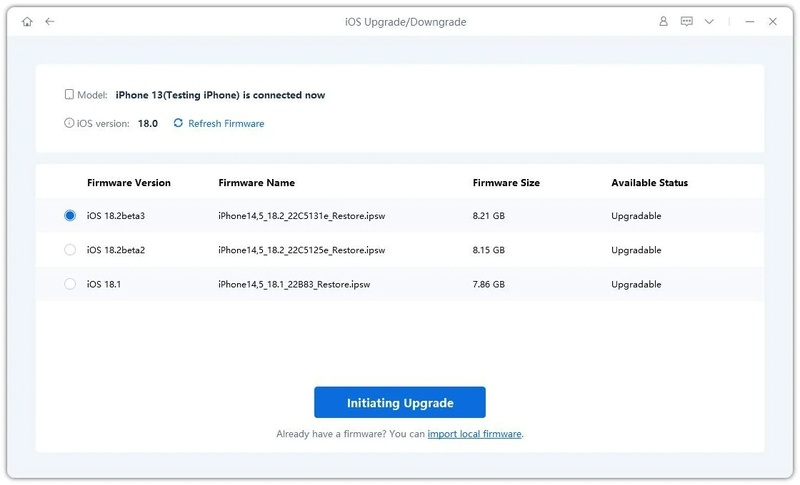
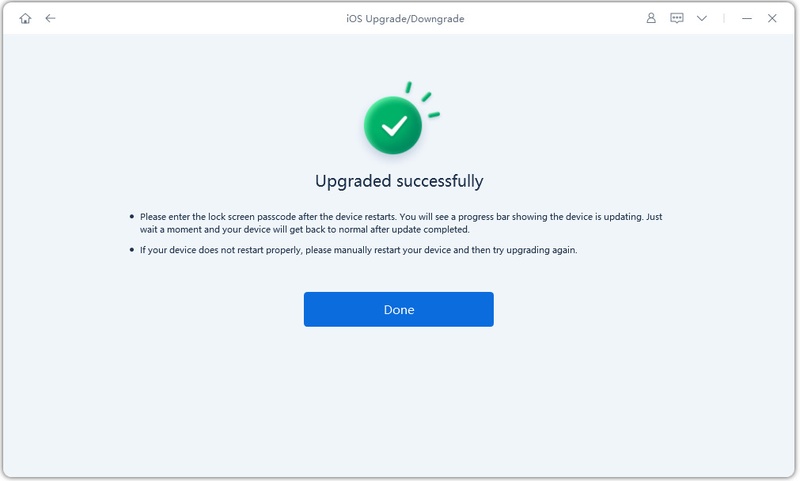
Step 4: Click "Initiating Upgrade." Keep your iPhone connected until the installation process is done, and it restarts automatically.
6. Remove Old Profiles and Re-Enroll
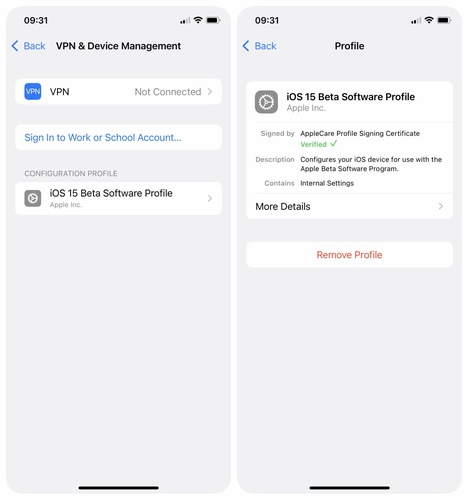
Your iPhone may have the iOS 27 Profile installed, but it's corrupted. This can result in iOS 27 not showing up in Software Update or the settings not functioning correctly. So, remove the old Profile and re-enroll. To do so:
-
Step 1: Head to "Settings." Choose "General." Tap "VPN & Device Management." If you see an old Profile, tap it and remove it.
-
Step 2: Restart your iPhone. Sign in again at Apple Support or developer.apple.com to re-enroll.
-
Step 3: Head to "Settings." Select "General." Tap "Software Update." Next, click "Updates." Choose the iOS 27.
-
Step 4: Head back to "Software Update" and check for the update.
7. Update to the Latest Public iOS First
Apple usually requires your iPhone to be on the latest stable iOS version before showing updates. If your device is still on an older version of iOS 26, it may not display the iOS 27. Therefore, if you haven't updated your iPhone in a while or are several updates behind the current iOS 26.5, update it. To do so:
-
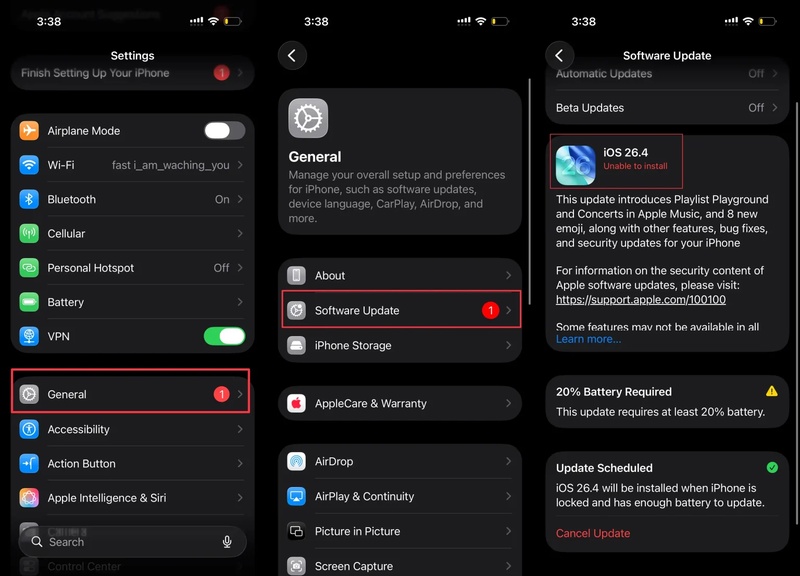
Step 1: Connect your iPhone to Wi-Fi and make sure it has at least 50% battery (or plug it in).
-
Step 2: Head to "Settings." Choose "General." Next, click "Software Update." If an iOS 26 update is available, download and install it.
-
Step 3: After updating to the latest version (like iOS 26.5), head to "Updates" and select the iOS 27 .
-
Step 4: Move back to "Software Update" and check again. The should appear.
8. Update iOS 27 with Finder or iTunes
When your iPhone isn't getting the update over the air, you can install it using a computer with Finder/iTunes. This method downloads the full firmware and installs it via a USB connection rather than using Apple's wireless update system. Here's how to get iOS 27 on iPhone 11 using iTunes/Finder:
-
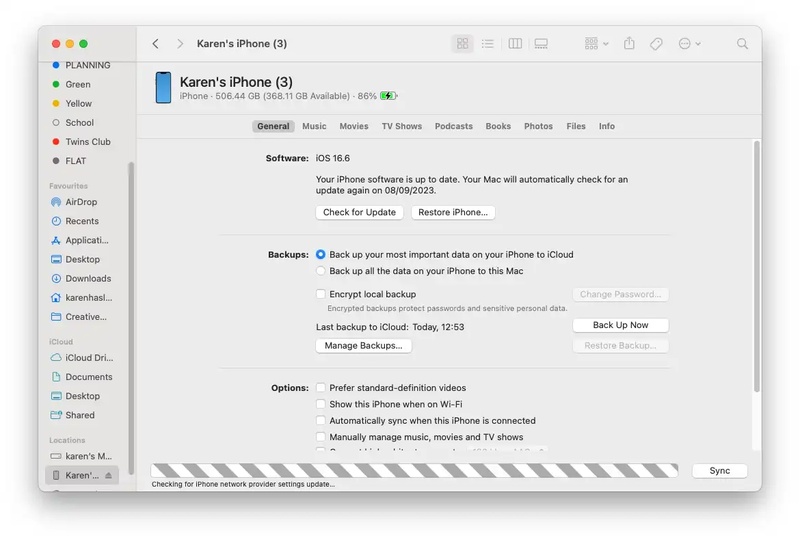
Step 1: Download the iOS 27 IPSW file for your iPhone from Apple's developer site. Then, connect your iPhone to your computer. Open Finder/iTunes.
-
Step 2: Select your iPhone, then hold "Option" for Mac or "Shift" for iTunes and click "Check for Update."
-
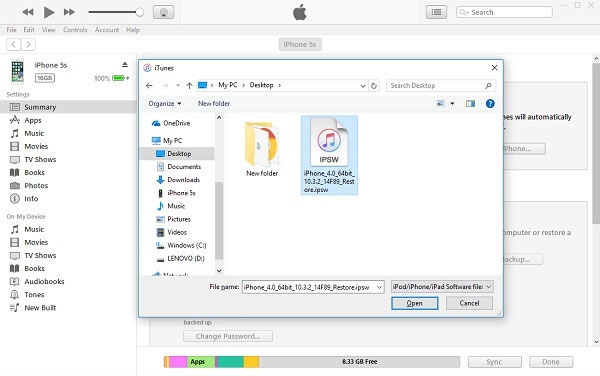
Step 3: Choose the downloaded IPSW file and click "Update." Confirm and wait for the installation to finish.
9. Reset Network Settings
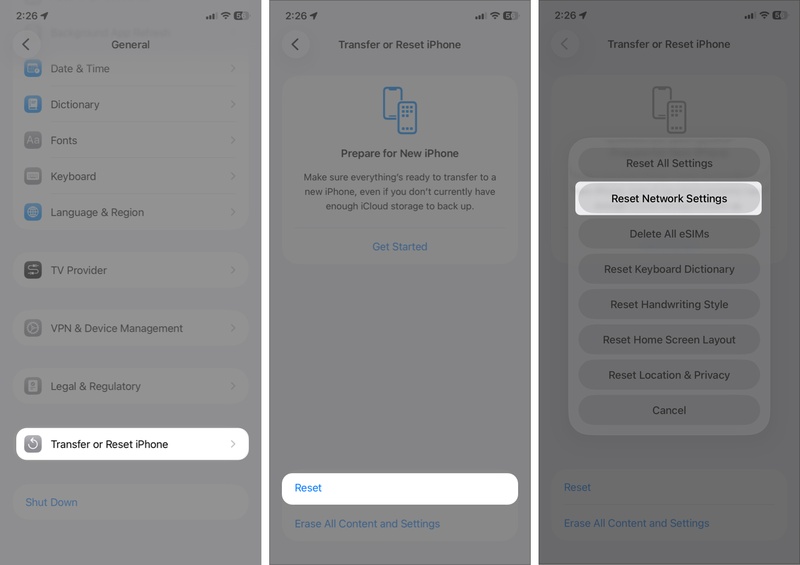
Sometimes Wi-Fi issues, DNS problems, or VPN settings can stop your iPhone from connecting to Apple's update servers. Resetting network settings clears saved Wi-Fi passwords, Bluetooth connections, and VPN settings, but it doesn't delete your apps or personal data. This is helpful if your internet works normally, but the iOS 27 still won't appear or download in Software Update. Here's how to reset network settings:
-
Step 1: Head to "Settings." Choose "General." Tap "Transfer or Reset iPhone." Next, click "Reset."
-
Step 2: Choose "Reset Network Settings." Enter your passcode if prompted. Confirm the reset.
-
Step 3: Your iPhone will restart. Reconnect to your Wi-Fi network (you'll need to re-enter the password). Check for the iOS 27 again.
Conclusion
The iOS 27 not showing up on iPhone 11/SE usually has a clear cause. iPhone 11 and iPhone SE (2nd gen) can't run iOS 27 because they don't meet the A14 chip requirement, so no fix will make the update appear. You would need a newer iPhone, like the iPhone 12 or later.
For supported devices, most problems are solved by choosing the correct channel, properly enrolling your Apple ID, or updating with iTunes/Finder. But if OTA updates are slow or failing, a tool like Tenorshare ReiBoot can bypass Apple's servers and install the directly without data loss.
