
Updated on 2026-10-08 / iPhone Tips
An iPhone Duo boot loop means the phone keeps showing the Apple logo, shutting off, and restarting without ever reaching the Home Screen. Try the fixes in this order: force restart, charge the phone, then connect it to a computer, enter Recovery Mode, and choose Update (not Restore) to reinstall iOS without erasing your data. If the loop started after liquid exposure, or survives a Recovery Mode update, it may be a hardware fault that needs professional service.
- Part 1: Why Is My iPhone Duo Stuck in a Boot Loop?
- Part 2: How to Stop an iPhone Duo Boot Loop Without a Computer
- Part 3: iPhone Duo Boot Loop After an iOS Update: What to Try Next
- Part 4: iPhone Duo Boot Loop Still Not Fixed? Try System Repair
- Part 5: iPhone Boot Loop Repair Cost: When Is Service Necessary?
- Part 6: FAQs About iPhone Duo Boot Loop
Part 1. Why Is My iPhone Duo Stuck in a Boot Loop?
An iPhone Duo can get stuck in a boot loop when iOS cannot complete the startup process. The phone may repeatedly show the Apple logo and restart. Software errors, failed updates, power problems, storage issues, or liquid damage can trigger this behavior.
Boot Loop vs. Stuck on the Apple Logo
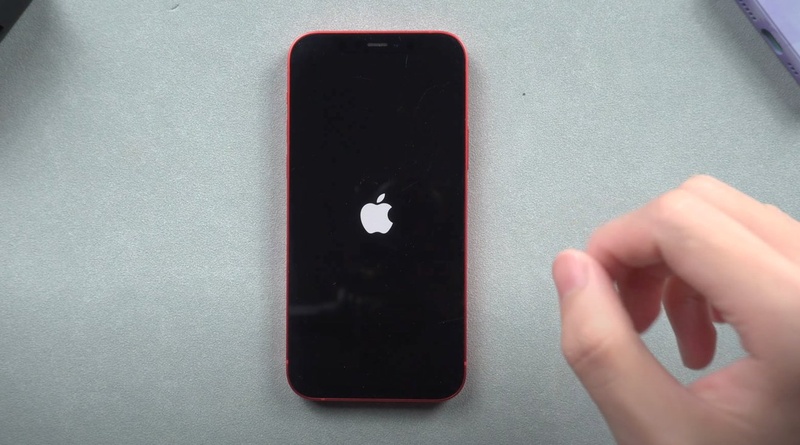
These two problems can look similar, but they behave differently. During a boot loop, the iPhone shows the Apple logo, restarts, and shows the Apple logo again. The same cycle continues without opening the Home Screen. This repeated cycle explains why many users search for iPhone Duo flashing Apple logo fixes. A phone that simply stays on the Apple logo may have a different problem; see Apple's guide for when your iPhone freezes on the Apple logo. If you see an Apple logo with a progress bar after an update or restore, the process may still be running. Apple says the progress bar can move slowly and may even appear unchanged for some time. If the progress bar has not moved for more than an hour, Apple recommends using Recovery Mode.
What Can Trigger a Boot Loop?
Several issues can cause an iPhone to restart repeatedly.
-
Failed or interrupted iOS update: An update may fail because of a software error, an interrupted connection, or another installation problem.
-
System corruption: Damaged or incomplete iOS files can prevent the phone from completing startup.
-
Low or unstable power: A very low battery or charging problem can stop the iPhone from completing the startup process. Apple recommends charging an iPhone that does not turn on before trying the restart process again.
-
Low storage or app conflicts: Too little free space during an update, or a conflicting app, can leave iOS unable to finish startup.
-
Physical or liquid damage: Damage to internal components can also cause repeated restarts.
Does Water Damage Cause a Reboot Loop?
Yes. Even with an IP68 rating, liquid can damage internal components and cause a reboot loop. If the iPhone Duo reboot loop water damage problem started after the phone became wet, treat it as a possible hardware issue. Do not keep charging or repeatedly restarting a phone that has suffered liquid exposure. Continued power can increase the risk of further damage. Instead, stop using the device and arrange professional inspection.
Quick Fix Comparison
| Method | Computer Needed | Data Risk | Best Use |
|---|---|---|---|
| Force Restart | No | Very low | First troubleshooting step |
| Charging | No | Very low | Low or unstable battery power |
| Recovery Mode + Update | Yes | Lower than Restore | Failed iOS update or system problem |
| Recovery Mode + Restore | Yes | High | When Update does not work |
| ReiBoot Standard Repair | Yes | Designed to preserve data | iOS system and boot-loop problems |
| Professional Service | No | Depends on repair | Liquid or hardware damage |
| DFU Restore | Yes | High (erases data) | Last software option when Recovery Mode fails |
Part 2. How to Stop an iPhone Duo Boot Loop Without a Computer
You can try a few simple methods to stop an iPhone Duo boot loop without a computer. Start with a force restart and check the battery. These steps may fix temporary software problems and help your iPhone start normally without losing data.
1. Force Restart the iPhone Duo
A force restart should be your first step because it does not normally erase your personal data.
For iPhone 8 and later (including iPhone Duo):
Press and quickly release the Volume Up button.
Press and quickly release the Volume Down button.
-
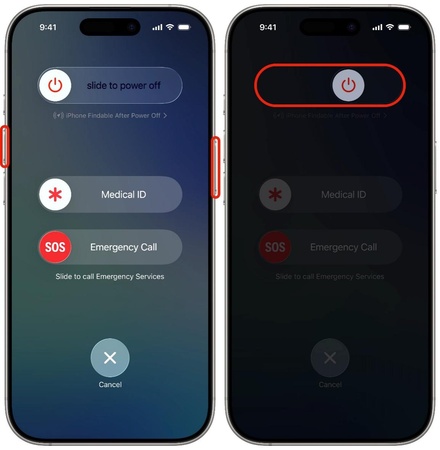
Press and hold the side button (the Touch ID button on iPhone Duo's right edge) until the Apple logo appears, then release it.
The Apple logo may take more than 10 seconds to appear, so do not release the Side button too quickly. If the phone starts normally, wait a few minutes before opening apps. Then check whether the issue started after a recent app installation, update, or unusual shutdown.
2. Charge It Before Repeating the Restart
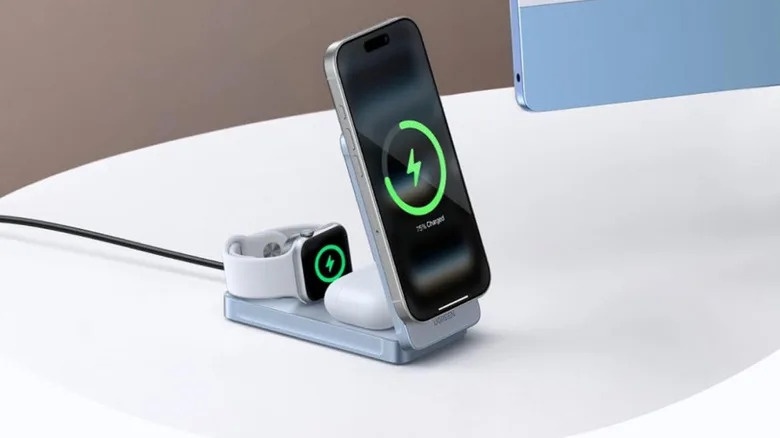
If the iPhone does not start after the force restart, connect it to a reliable charger and allow it to charge. Use a known-good cable and power adapter if you do not suspect liquid damage. Apple recommends charging an iPhone that will not turn on and then trying the restart process again. If the phone became wet, however, do not continue charging it as a troubleshooting step. Liquid exposure changes the situation and may require service.
3. When an Apple Logo Loop Needs More Than a Restart
If the phone continues showing the Apple logo and restarting after a force restart and adequate charging, the problem may involve iOS rather than a temporary freeze. Without a computer, your options are limited to force restarting and charging, and neither reinstalls damaged system files. If the loop continues, borrow a Mac or PC, or visit an Apple Store or Apple Authorized Service Provider, to use Recovery Mode.
Part 3. iPhone Duo Boot Loop After an iOS Update: What to Try Next
An iPhone Duo boot loop after an iOS update can occur when the installation fails or iOS cannot start properly. Before trying advanced repairs, check the update status. If the problem continues, use Recovery Mode and choose Update, which reinstalls iOS and is designed to keep your data.
1. Check Whether the Update Is Actually Still Running
An iPhone Duo boot loop after iOS update can sometimes happen while the device is completing software changes. If you see an Apple logo and progress bar, give the process time to finish. Apple explains that the progress bar can move slowly and may appear static. If it remains unchanged for more than an hour, recovery steps become appropriate.
2. Use iOS Recovery and Choose Update Before Restore
Recovery Mode gives a computer a way to communicate with an iPhone that cannot complete normal startup. If you run into trouble, Apple explains what to do when you can't update or restore your iPhone.
For an iPhone 8 or later:
Connect the iPhone to a Mac or Windows PC.
-
Open Finder on a compatible Mac or Apple Devices on a Windows PC.
Press and quickly release Volume Up.
Press and quickly release Volume Down.
Press and hold the Side button.
-
Keep holding it until the Connect to Computer screen appears.
-
When the computer gives you the option, choose Update first.
The difference between Update and Restore matters. Apple says Update reinstalls iOS while keeping personal data, whereas Restore reinstalls iOS and erases the device. If Update fails, you may need to consider Restore. Before choosing Restore, make sure you understand that the process erases the iPhone.
3. When a Failed Update Points to Hardware
Software recovery may not solve every boot loop. Consider professional service if the phone becomes unusually hot, refuses to charge, repeatedly disconnects from the computer, has suffered liquid exposure, or continues restarting after successful software recovery attempts. Apple also recommends service when an iPhone cannot be updated or restored through Recovery Mode.
Part 4. iPhone Duo Boot Loop Still Not Fixed? Try System Repair
If your iPhone Duo still restarts after a force restart or Recovery Mode Update, you may need another repair method. Tenorshare ReiBoot offers a software-based option for common iOS problems, including a stuck Apple logo and boot loops. Its Standard Repair aims to fix these issues without erasing personal data. The tool also provides Recovery Mode and firmware options. However, Standard Repair cannot fix every problem, especially hardware damage. Always back up your data when possible and understand the risks before starting any repair.
Key Features for a Boot Loop
-
Standard Repair: Fixes common iOS problems, such as boot loops and a stuck Apple logo, while aiming to preserve personal data. The same repair mode applies when an update leaves other system features failing, such as eSIM not working on iPhone Duo.
-
Recovery Mode Tools: Helps users enter or exit Recovery Mode when an iPhone cannot start normally or remains stuck during startup.
-
Firmware Download: Downloads the required iOS firmware to reinstall or repair the system when software errors prevent normal startup. This is the same approach used for update-related glitches such as iOS 27 CarPlay not working.
-
Deep Repair: Addresses more serious iOS problems when Standard Repair fails, but it may erase personal data during the process.
Steps: How to Repair the Boot Loop with ReiBoot
-
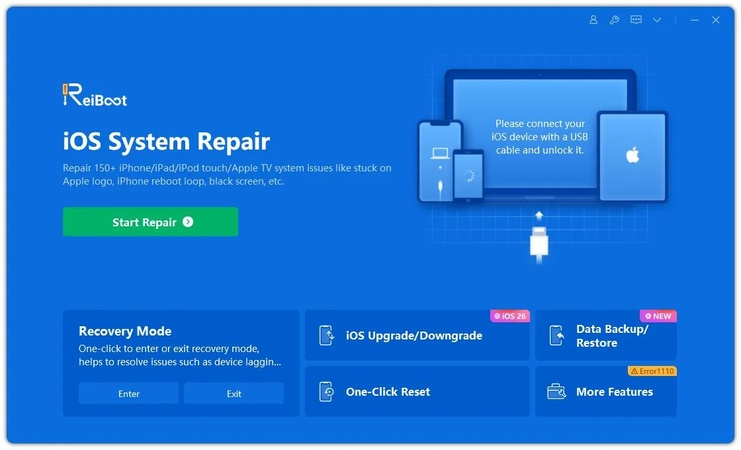
Step 1: Download ReiBoot on your Windows PC or Mac. After installation, open the software and connect your iPhone Duo using a working USB cable.
-
Step 2: Once ReiBoot detects the device, click the Repair Operating System option from the main screen.
-
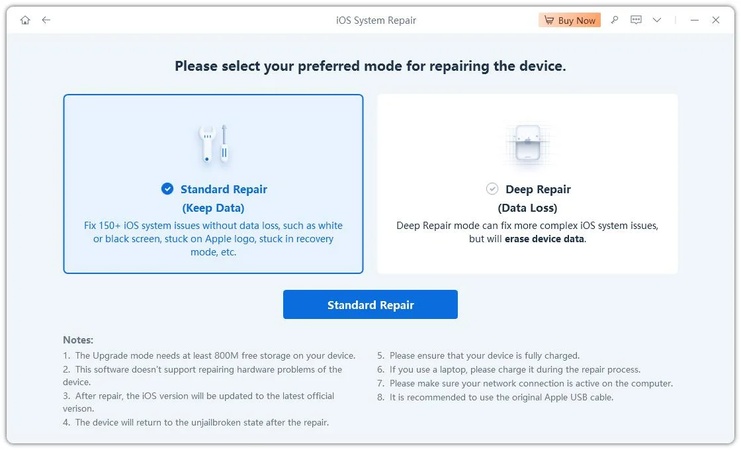
Step 3: Select Standard Repair to fix the boot loop without deleting your photos, apps, or personal data.
-
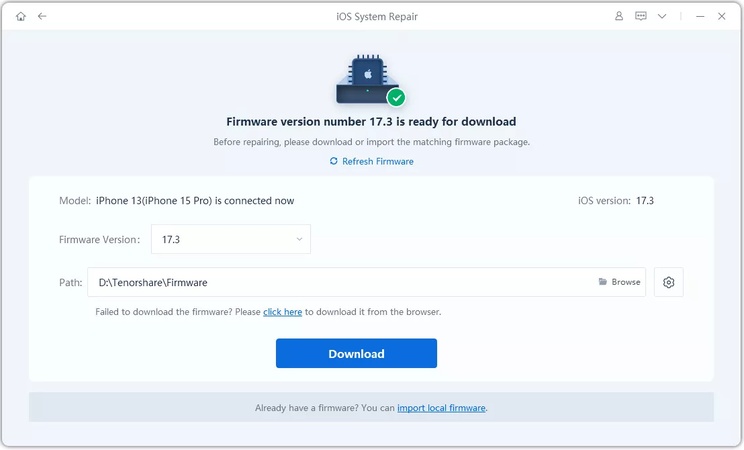
Step 4: ReiBoot will automatically detect the correct iOS firmware for your iPhone. Click Download and wait for the firmware package to finish downloading.
-
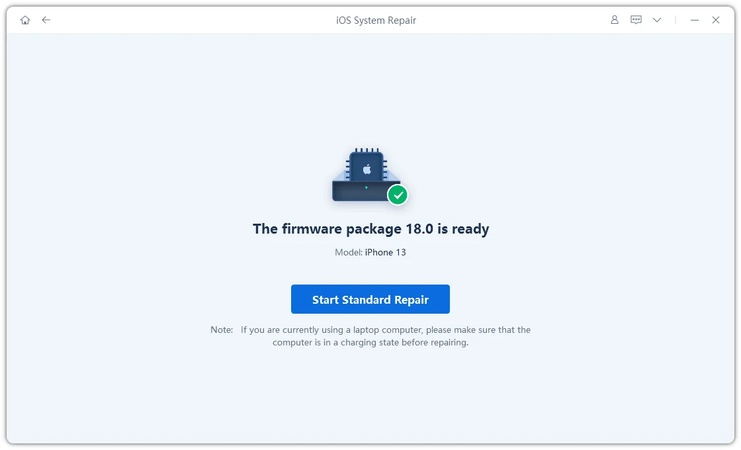
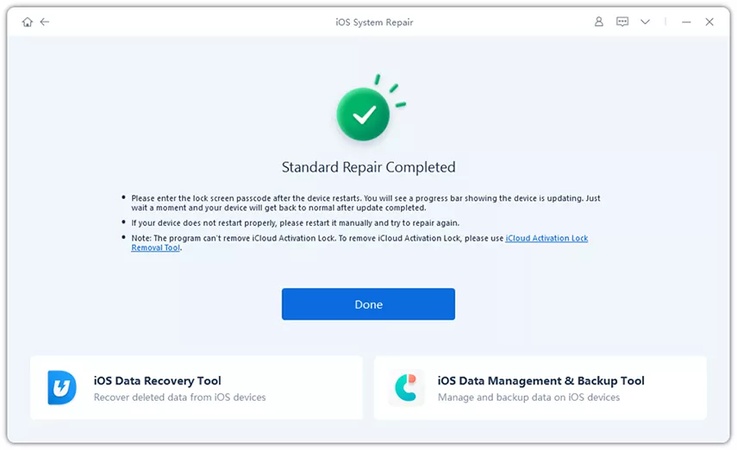
Step 5: Click Start Standard Repair and keep your iPhone connected during the process. ReiBoot will repair the damaged system files and repair the damaged system files that cause the boot loop.
-
Step 6: After the repair finishes, your iPhone will reboot normally. Once the Apple logo appears, your iPhone Duo should restart and reach the Home Screen or setup screen.
Which Method Should You Choose?
-
If the Apple logo appears and the phone keeps restarting: Start with a force restart.
-
If the battery may be low: Charge it first and then try the force restart.
-
If the problem started after an iOS update: Use Recovery Mode and choose Update before Restore.
-
If Update fails but you want another software repair option: Consider ReiBoot Standard Repair.
-
If the phone suffered water damage or shows hardware symptoms: Stop repeated troubleshooting and seek professional service.
-
If you have important data and no backup: Avoid Restore until you have considered data-preserving options.
Part 5. iPhone Boot Loop Repair Cost: When Is Service Necessary?
The iPhone boot loop repair cost depends on what caused the problem. A simple software issue may require no paid repair if a force restart or software update fixes it. A more serious iOS problem may require software repair. Hardware or liquid damage can cost more because a technician may need to inspect or replace internal components.
Signs of Water or Hardware Damage
Look for these warning signs:
-
The boot loop started immediately after liquid exposure.
-
The iPhone becomes unusually hot.
-
The phone does not charge normally.
-
The charging connection repeatedly fails.
-
The device shows other hardware problems.
-
Recovery Mode cannot complete an update or restore.
-
The phone continues looping after software repair.
Apple says service may be necessary when Recovery Mode cannot update or restore the device or when the buttons prevent entry into Recovery Mode.
When DIY Repair Is a Bad Idea
Do not keep forcing restarts or charging the phone after liquid exposure. Water damage can involve internal components, and continued power can increase the risk. Likewise, avoid opening the iPhone yourself if you do not have the right repair tools and experience. A qualified technician can inspect the device and identify whether the problem comes from the battery, charging system, display-related components, or the main board.
iPhone Duo's two halves each contain a battery (managed as one), and Apple's service information points to Apple or an Authorized Service Provider for repairs such as the cover layer, so don't open it yourself.
Part 6. FAQs About iPhone Duo Boot Loop
1. Can a boot loop phone be fixed?
Yes. Many boot loops come from software problems and may respond to a force restart, Recovery Mode Update, or system repair. Hardware or liquid damage may require professional service.
2. How much to fix an iPhone boot loop?
There is no single price. The iPhone boot loop repair cost depends on whether the cause involves iOS, the battery, charging hardware, liquid damage, or another internal component. A software fix can cost less than hardware repair.
3. How to backup an iPhone stuck in a recovery loop?
If the iPhone cannot reach the Home Screen, you may not be able to create a new normal iCloud or computer backup from the device. If an existing iCloud or computer backup exists, you can use it after recovery or restore. Before choosing Restore, try Update or another data-preserving repair option when appropriate.
4. How to stop boot loop iPhone Duo without losing data?
Start with a force restart. If that does not work, use Recovery Mode and choose Update rather than Restore. Apple specifically recommends trying Update before Restore because Restore erases the device.
Conclusion
An iPhone Duo boot loop doesn't always mean an expensive repair. Force restart first, charge the phone, then use Recovery Mode and choose Update before considering Restore. If Apple's recovery options fail, a third-party tool such as Tenorshare ReiBoot Standard Repair is another software option. If the loop followed liquid exposure, the phone overheats, or Recovery Mode can't finish, contact Apple Support or an Authorized Service Provider.
