
Updated on 2026-08-25 / iPhone Tips
Apple CarPlay makes it easy to use maps, music, calls, and messages while driving. But after updating to iOS 27, you may find that CarPlay won't connect, keeps disconnecting, or shows a black screen.
This guide covers 10 practical ways to fix iOS 27 CarPlay not working, whether you use a wired or wireless connection. Start with the quick checks and work through the fixes until CarPlay is back to normal.
Part 1: Why Is My Apple CarPlay Suddenly Not Working After iOS 27 Update?
iOS 27 CarPlay not working after update has become a common complaint, and in most cases, nothing is actually broken. Your iPhone and car are still connected, but the CarPlay interface just fails to load due to a software bug or outdated infotainment system.
Common symptoms include:
-
Black screen right after connecting
-
CarPlay freezing on load
-
Touchscreen responds but shows nothing
-
Audio plays, but display stays black
-
Wireless CarPlay fails while wired still works
Part 2: Basic Checks Before Troubleshooting iOS 27 CarPlay Issues
A few quick checks can help identify the problem before you try more advanced solutions. Go through these first:
-
Check for the latest iOS 27 update:
Go to Settings > General > Software Update and make sure your iPhone is up to date. An incomplete or outdated update can cause CarPlay issues.
-
Make sure your car supports CarPlay:
Check your car's manual or the manufacturer's website to confirm that Apple CarPlay is supported.
-
Try a different USB cable:
For wired CarPlay, a damaged or low-quality cable can cause black screens, connection failures, or random disconnections. Use an original Apple cable or a certified alternative.
-
Check Bluetooth and Wi-Fi:
Wireless CarPlay needs both Bluetooth and Wi-Fi. Make sure they are turned on before trying to connect your iPhone again.
Part 3: How to Fix iOS 27 CarPlay Not Working --- 10 Effective Methods
1. Disconnect and Reconnect Your iPhone
A simple reconnect can often fix iOS 27 CarPlay not working when the connection fails after an update. Disconnect your iPhone completely, wait a few seconds, and then connect it again.
For wired CarPlay:
Unplug the USB cable from your iPhone.
Wait about 30 seconds.
-
Plug the cable back into the correct USB port in your car.
-
Unlock your iPhone and check whether CarPlay appears.
-
Tap Allow if your iPhone asks for permission.
For Wireless CarPlay:
Turn Bluetooth and Wi-Fi off on your iPhone.
Wait a few seconds, then turn them back on.
-
Start your car and make sure its infotainment system is ready.
-
Go to Settings > General > CarPlay.
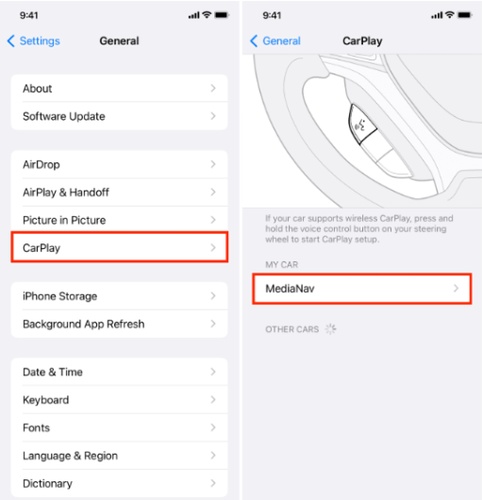
Select your car and wait for CarPlay to connect.
2. Restart Your iPhone
After a major update like iOS 27, background services can get stuck or fail to initialize properly. A full restart clears these processes and often Ios 27 carplay not working iphone 11 that appear right after updating.
-
Press and hold the Side button and either Volume button until the power-off slider appears.
-
Drag the slider to turn off your iPhone.
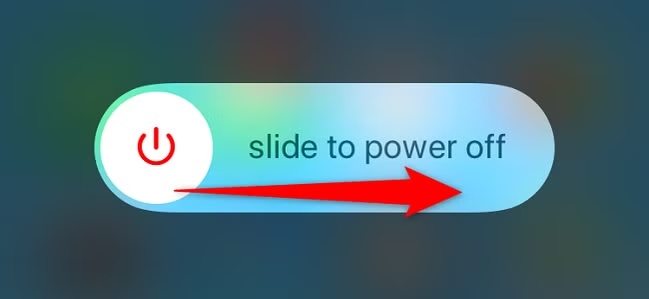
Wait 30 seconds.
-
Press and hold the Side button again until the Apple logo appears.
3. Restart Your Car's Infotainment System
Sometimes the problem isn't your iPhone at all it's the car's system holding onto a bad connection state. Restarting the infotainment unit gives it a clean slate to reconnect with your iPhone.
-
Turn off your car completely (remove the key or press the engine stop button).
-
Wait 20--30 seconds for the system to fully power down.
-
Start your car again and let the infotainment screen fully load.
Tip: Some vehicles have a dedicated way to restart the infotainment system, such as holding the power or volume button. Check your vehicle's manual for the correct method.
4. Forget This Car and Reconnect
A damaged or outdated CarPlay pairing can stop your iPhone from connecting properly after an iOS update. Removing the saved connection and pairing your car again gives CarPlay a fresh start and can fix iOS 27 CarPlay not working.
-
Go to Settings > General > CarPlay on your iPhone.
Tap on your car's name from the list.
-
Select Forget This Car and confirm.
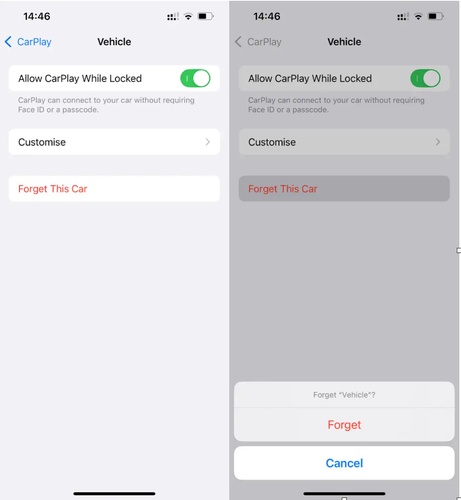
-
Plug in your cable for wired CarPlay, or go to Settings > General > CarPlay > Available Cars for wireless.
5. Professional Fix: Tenorshare ReiBoot for iOS 27 CarPlay Issues
CarPlay problems can sometimes go beyond connection settings. In such cases, Tenorshare ReiBoot offers a simple way to repair common iOS system issues. It can help with problems such as carplay not working, failed updates, frozen screens, recovery mode errors, and Apple logo loops.
It supports 150+ iOS system issues and various iPhone models. ReiBoot provides a quick and simple way to repair iOS issues without losing your personal data.
Key Features:
-
Fixes 150+ iOS issues, including CarPlay not working or freezing
-
Fully supports iOS 27 and earlier versions
-
Standard Repair mode keeps all your data safe no data loss
-
Works with all iPhone models, old and new
-
Simple interface no technical skills required
-
Also resolves related issues like Siri not responding, boot loops, and frozen screens
How to Fix iOS 27 CarPlay Issues with ReiBoot
-
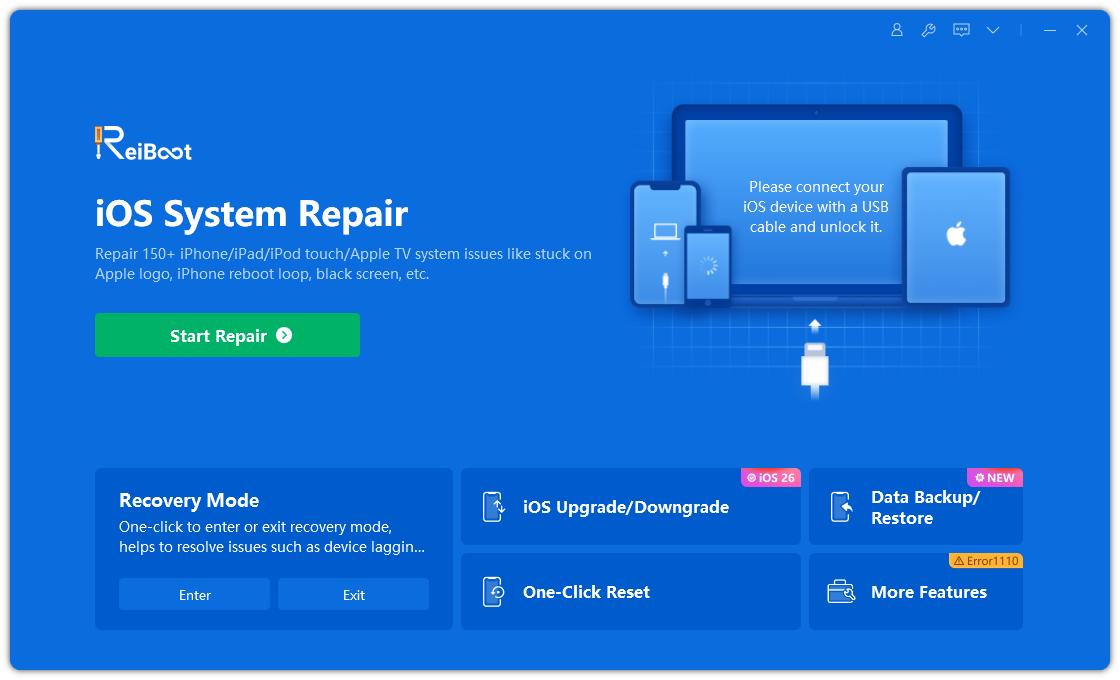
Download and open ReiBoot on your computer, then connect your iPhone with a USB cable. Click Start Repair on the main screen.
-
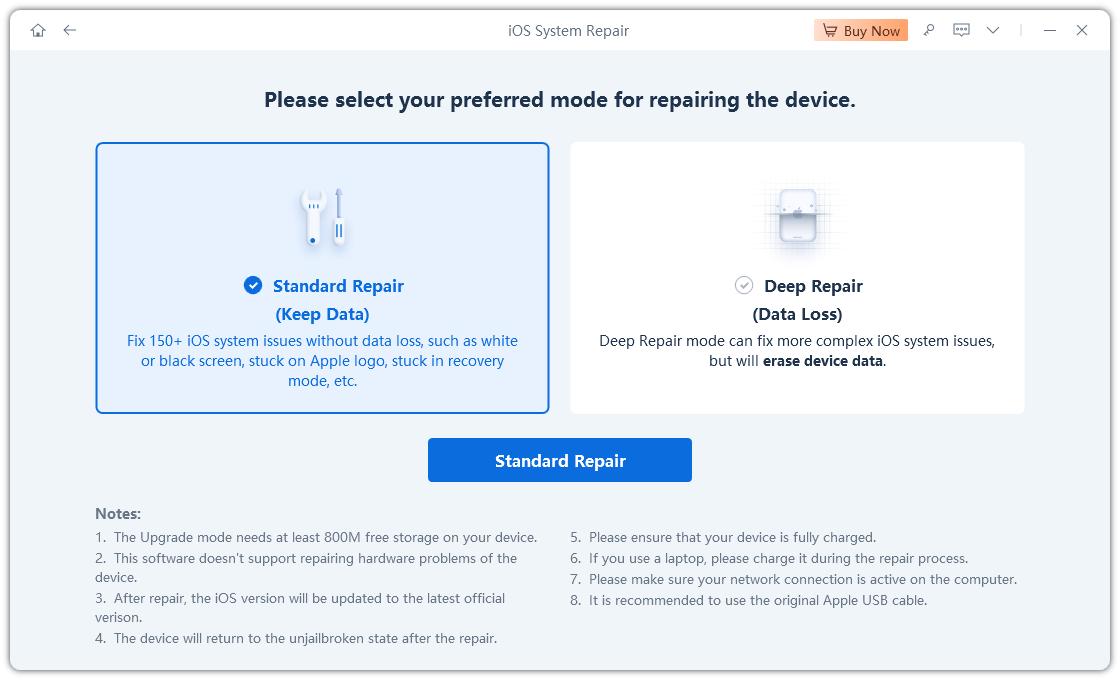
Choose Standard Repair from the available repair options. This mode is intended to repair iOS system issues without erasing your personal data.
-
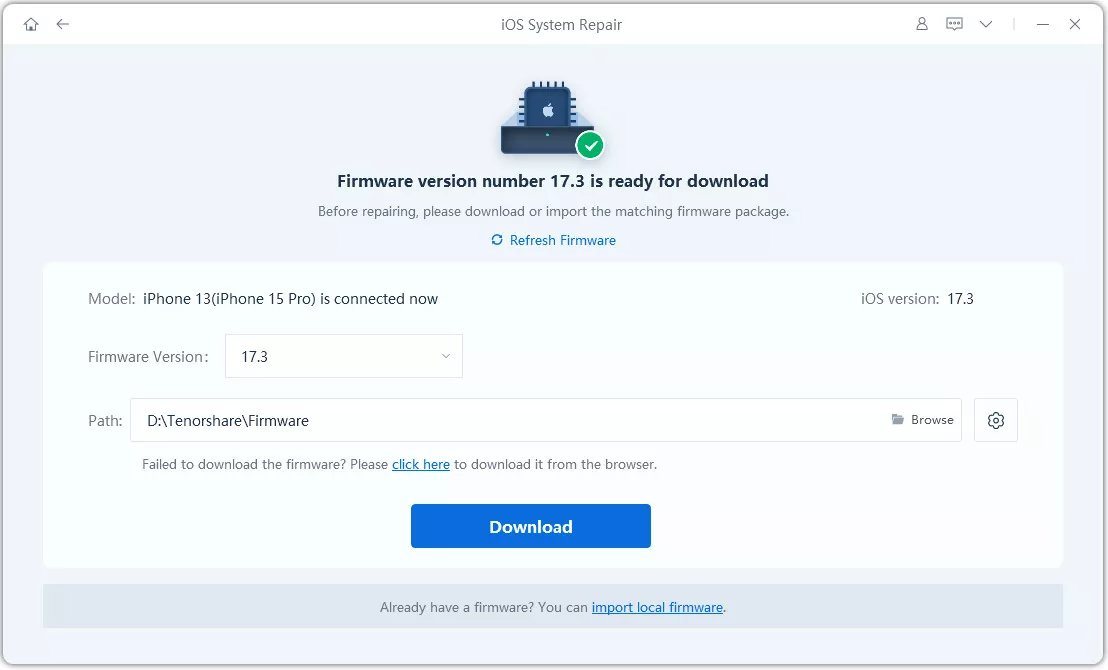
ReiBoot will detect your iPhone and show the compatible firmware package. Click Download and wait for the firmware to finish downloading.
-
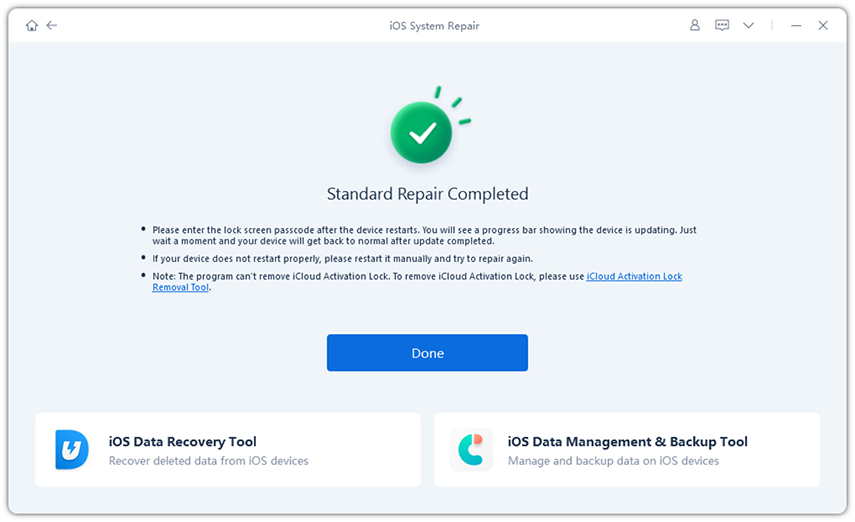
Your iPhone will restart after the repair. Once it turns on, reconnect it to your car and check whether CarPlay is working normally again.
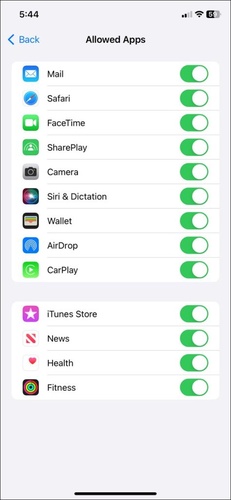
5. Check CarPlay Settings (Allow While Locked, Screen Time Restrictions)
A setting that changed after an iOS update can stop CarPlay from connecting or working properly. Check these options to make sure your iPhone is allowing CarPlay to run.
Open Settings and tap General > CarPlay.
Select your car from the list.
Make sure Allow CarPlay While Locked is turned on.
Go back to Settings > Screen Time.
-
Tap Content & Privacy Restrictions > Allowed Apps & Features.
Make sure CarPlay is enabled.
6. Confirm Siri Is Enabled (Required for CarPlay)
Siri is required for Apple CarPlay, so a disabled Siri setting can prevent CarPlay from working correctly. This is worth checking if Apple CarPlay not working after iOS 27 update.
Open Settings on your iPhone.
-
Tap Siri or Apple Intelligence & Siri, depending on your iOS version.
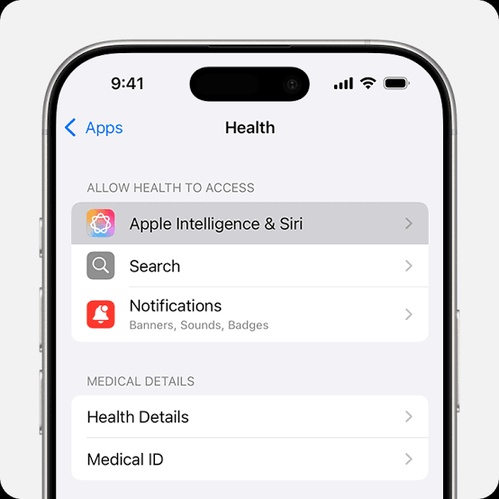
Make sure Siri is enabled.
Turn on Allow Siri When Locked.
7. Reset Network Settings
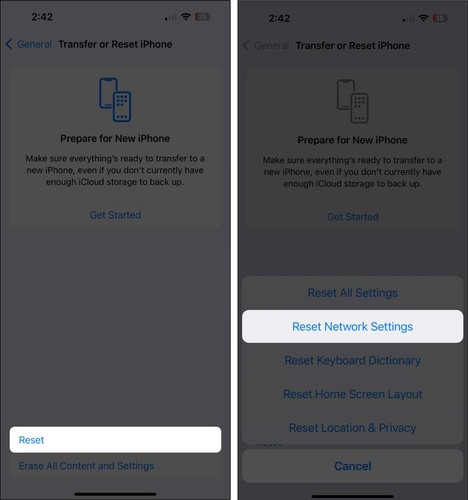
Wireless CarPlay relies on your iPhone's network connections, so corrupted Wi-Fi or Bluetooth settings can sometimes cause connection problems. Resetting the network settings gives these connections a fresh start.
Open Settings > General.
Scroll down and tap Transfer or Reset iPhone.
Tap Reset.
-
Select Reset Network Settings.
-
Enter your passcode if asked. Tap Reset Network Settings to confirm.
Note: This removes saved Wi-Fi networks and passwords, so you will need to connect to them again.
8. Try a Different USB Cable or Port
A faulty cable or USB port can make CarPlay fail even when your iPhone is charging normally. This is especially useful to check if Apple CarPlay is not working after the iOS 26 update or after moving to iOS 27.
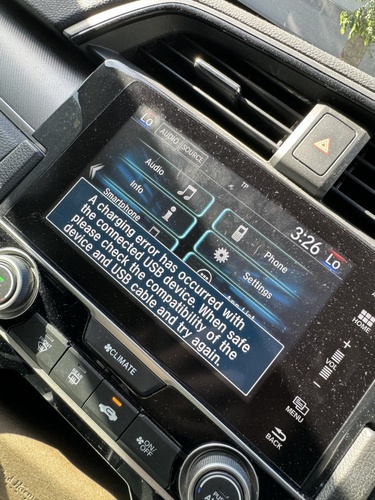
Unplug the USB cable and check for damage.
Try a different Apple-certified cable or USB port.
-
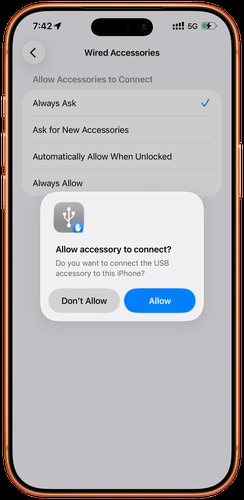
Unlock your iPhone, reconnect it, and tap Allow if asked.
9. Check for a Car Firmware/Infotainment Update
Your car's infotainment software also needs to work with the iPhone's CarPlay system. An older firmware version can cause connection or compatibility problems, particularly after a major iOS update such as iOS 27 Beta 2.
-
Check your car manufacturer's website or owner's manual for available updates.
-
Open your car's infotainment settings and look for a Software Update option.
-
Install the update according to the manufacturer's instructions.
10. Update to the Latest iOS 27 Build
Apple may release newer builds to fix bugs and improve compatibility. This can be especially important for users running an early beta such as iOS 27 Beta 2, where some features may not work as expected.
Open Settings > General > Software Update.
-
Wait while your iPhone checks for an available update.
-
Tap Update Now or Download and Install if a new version is available.
-
Enter your passcode if prompted. Keep your iPhone connected to power and Wi-Fi while the update finishes.
FAQs About iOS 27 CarPlay Not Working
1. Does iOS 27 Beta 2 have CarPlay problems?
Yes, beta versions can have bugs that affect CarPlay. Try updating to a newer iOS version if one is available.
2. Why does CarPlay show a black screen after an iOS update?
An iOS glitch, connection problem, or outdated car software can cause a black screen. Restart your iPhone and car, then reconnect CarPlay.
3. Why does wireless CarPlay keep disconnecting?
Wireless CarPlay uses both Bluetooth and Wi-Fi. Make sure both are turned on and try reconnecting your iPhone to the car.
4. How do I reset Apple CarPlay on my iPhone?
Go to Settings > General > CarPlay, select your car, and tap Forget This Car. Then reconnect your iPhone to CarPlay.
Final Words
CarPlay should make every drive easier, not leave you troubleshooting your iPhone. If iOS 27 CarPlay not working still keeps you stuck after trying the usual fixes, Tenorshare ReiBoot is worth a try. Its Standard Repair feature offers a quick and simple way to tackle common iOS system problems without wiping your personal data. It can help get your iPhone back on track so you can use CarPlay smoothly again.
