
Updated on 2026-09-22 / iPhone Tips
If you are dealing with eSIM Not Working on iPhone Duo, the cause is often carrier activation, an incomplete eSIM installation, an expired or invalid QR code, a carrier lock, or incorrect line settings. Common signs include an eSIM stuck on "Activating," a greyed-out plan, "No Service," a missing eSIM in Settings, or an eSIM QR code that will not scan.
Dual SIM lets you use two phone numbers on one iPhone, such as separate personal and work lines. Supported iPhones can use a physical SIM with an eSIM, while iPhone 13 and later models can support two active eSIMs. Before deleting your eSIM or resetting the device, use the troubleshooting steps below to check compatibility, activation status, QR-code validity, carrier support, and Dual SIM settings.
Part 1. Why Is eSIM Not Working on iPhone Duo?
Several things can stop an eSIM from working. First, check whether the eSIM actually appears on your iPhone. Then check the carrier, device lock status, and Dual SIM settings.
Check Whether the eSIM Plan Was Added at All
Open: Settings > Cellular
Or Settings > Mobile Data
Look under the SIMs or Cellular Plans section. You should see the lines installed on your iPhone.
Use this quick guide:
| Symptom | Likely cause | Next check |
|---|---|---|
| eSIM does not appear | Installation did not finish | Try Add eSIM again |
| eSIM shows “Activating” | Carrier activation is incomplete | Connect to Wi-Fi and contact carrier if it remains stuck |
| eSIM shows “No Service” | Network, coverage, or carrier issue | Check carrier and network settings |
| eSIM is greyed out | Line may be disabled or activation failed | Open the line and check its status |
| QR code does not scan | Invalid, expired, or poorly displayed code | Request another activation method |
| One line works but second does not | Dual SIM or carrier problem | Check both plans and carrier support |
| eSIM disappears after setup | Installation did not complete correctly | Restart and check Cellular settings |
If the second plan does not appear at all, the iPhone may not have installed the eSIM profile. Apple supports several ways to set up an eSIM on iPhone, including carrier activation, eSIM Quick Transfer, QR codes, carrier links, carrier apps, and manual entry, depending on the provider.
Is the iPhone Duo Unlocked and Does the Carrier Support the Plan?
Do not confuse iPhone eSIM capability with carrier approval. Your iPhone may support two eSIMs, but your carrier still needs to support eSIM service. Apple says that when you use two different carriers, the iPhone must be unlocked. If both plans come from the same carrier, the carrier-lock requirement works differently.
To check the lock:
-
Open Settings.
-
Tap General.
-
Tap About.
-
Find Carrier Lock.
-
Look for No SIM Restrictions.
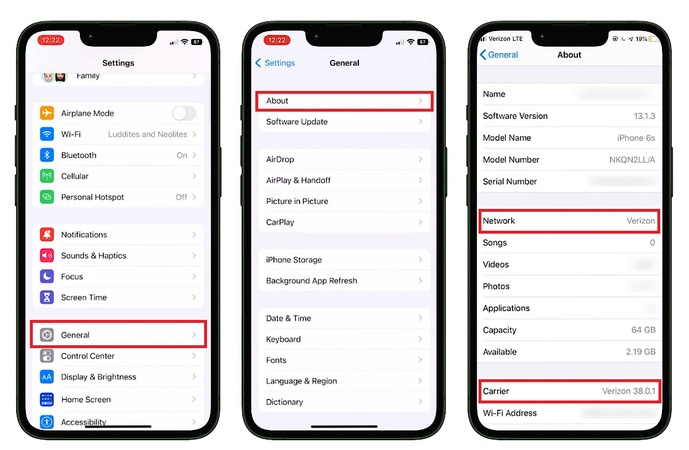
If you see No SIM Restrictions, the phone is unlocked for other carriers. You should also confirm that your carrier supports eSIM for your country and your specific plan. Apple maintains a current list of carriers and the activation methods they support.
Part 2. Fix the Most Common iPhone Duo eSIM Activation Problems
Most iPhone Duo eSIM activation problems come from a disabled line, incomplete carrier activation, a failed QR code, network issues, or incorrect Dual SIM settings. Start with basic checks before deleting the eSIM or resetting your iPhone. The steps below cover the most common activation problems and what to do next.
At a Glance: eSIM Troubleshooting Checklist
Before trying specific fixes, work through these quick checks:
-
Connect to stable Wi-Fi: eSIM activation may require an internet connection during setup.
-
Toggle Airplane Mode: Turn it on for about 10 seconds, then turn it off to refresh the cellular connection.
-
Restart your iPhone: A restart can clear temporary software or network issues affecting the eSIM.
-
Check both lines: Go to Settings > Cellular or Settings > Mobile Data and make sure both plans appear.
-
Turn on the affected line: Select the eSIM and check that Turn On This Line is enabled.
-
Check for carrier updates: Open Settings > General > About and wait briefly for any available carrier update prompt.
-
Update iOS: Go to Settings > General > Software Update and install an available update.
iPhone Duo eSIM Stuck on Activating
If your iPhone Duo eSIM stays on Activating, first connect to Wi-Fi and make sure the affected line is turned on. If it continues after basic troubleshooting, the carrier may need to complete the activation or provision the eSIM again.
Follow this decision path:
-
Step 1: Go to Settings > Cellular or Settings > Mobile Data, select the affected eSIM, and make sure Turn On This Line is enabled.
-
Step 2: Turn Airplane Mode on, wait about 10 seconds, and turn it off. Then check whether the eSIM begins connecting.
-
Step 3: Restart the device and return to Settings > Cellular to check the eSIM status.
-
Step 4: Go to Settings > General > Software Update and install an available update if one is listed.
-
Step 5: If the eSIM still says Activating, contact your carrier. The carrier may need to confirm that the plan is assigned to the correct device or provide a new eSIM activation method.
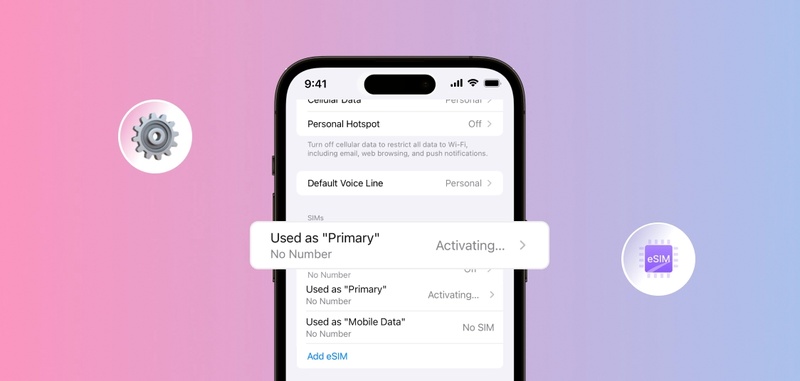
Avoid deleting the eSIM repeatedly while troubleshooting. Once an eSIM profile is removed, you may need your carrier to issue a new QR code or complete another activation process.
iPhone Duo eSIM QR Code Not Scanning
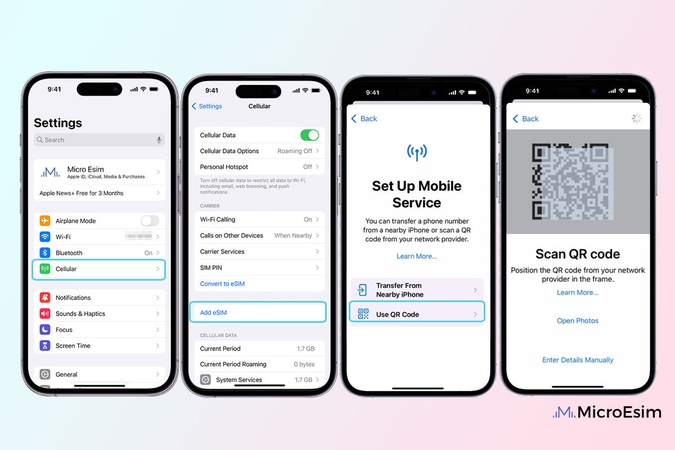
If your iPhone Duo eSIM QR code is not scanning, the code may be difficult for the camera to read, expired, already used, or not supported for your current activation process. Try these checks before requesting a replacement.
-
Step 1: If the code is displayed on another screen, increase that screen's brightness and make sure the complete QR code is visible.
-
Step 2: Clean the camera lens and hold the iPhone steady so the entire QR code stays inside the camera frame.
-
Step 3: Make sure the QR code came from your carrier. Ask the carrier whether it has expired or has already been used.
-
Step 4: Depending on the carrier, eSIM setup may also be available through carrier activation, an activation link, a carrier app, manual entry, or eSIM Quick Transfer.
-
Step 5: If the same QR code continues to fail, ask the carrier for another supported activation method or a new eSIM profile rather than repeatedly scanning the same code.
iPhone Duo eSIM Is Greyed Out
A greyed-out eSIM can indicate that the line is not fully active, the eSIM installation did not complete correctly, or the carrier has not finished the transfer or activation.
Go to Settings > Cellular or Settings > Mobile Data, then select the affected eSIM. Check whether the line can be turned on or whether its settings are unavailable.
If the eSIM remains greyed out:
Restart the iPhone and check the line again.
-
Confirm carrier support for eSIM on your iPhone model and region.
-
Check for an iOS update under Settings > General > Software Update.
-
Check carrier information under Settings > General > About.
-
Contact the carrier if the eSIM was recently transferred or activated and still cannot be enabled.
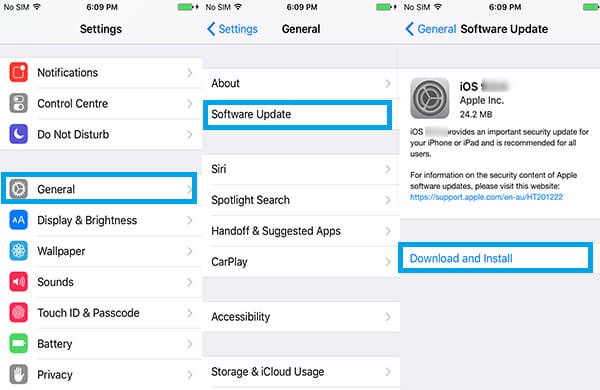
If the carrier confirms that the plan is active but the eSIM remains unavailable, the issue may be related to the iPhone's software or eSIM installation.
Why One eSIM Works but the Other Shows No Service
When one line works normally but the second eSIM shows No Service, the iPhone itself can still connect to a cellular network, so the issue may be specific to the second line, its carrier, coverage, or activation.
Go to Settings > Cellular or Settings > Mobile Data and select the second line. Check that:
-
The line is turned on.
-
The correct carrier appears.
-
The plan is active.
-
The iPhone has network coverage.
-
The line is configured correctly for calls and messages.
-
The correct line is selected under Cellular Data if you want the second plan to provide mobile data.
An iPhone can use two active numbers, but cellular data uses one line at a time. If switching the selected data line does not resolve the issue and the second eSIM continues to show No Service, review Apple's steps for when Dual SIM with eSIM isn't working, then contact the carrier to check the plan, network coverage, and eSIM activation status.
Part 3. What to Do If iPhone Duo eSIM Still Won't Activate
If you have checked the carrier, QR code, SIM settings, and network connection but the problem continues, an iOS software issue may be involved. At this point, you may consider Tenorshare ReiBoot as an optional third-party iOS system repair tool, particularly after your carrier has confirmed that the eSIM plan is active.
Tenorshare ReiBoot is designed to address certain iPhone software issues that can affect normal operation, including freezes, boot loops, black screens, update failures, and recovery mode problems. For an eSIM issue, it may be relevant when the carrier confirms that the plan is active but the iPhone continues to show unusual system behavior. Its Standard Repair mode is intended to resolve supported iOS issues without removing personal data.
Key Features
• Standard Repair: Repairs supported iOS system problems while aiming to keep your personal data and settings intact. It can be an option when system-level glitches affect normal iPhone features, including cases where the Control Center is not working.
• iOS System Repair: Helps address software problems that may continue after restarting or updating the iPhone, including issues associated with iOS 27 bugs. For eSIM troubleshooting, this may be relevant only after the carrier has confirmed that the eSIM plan and activation are valid.
• Wide Device Support: Supports many iPhone models and iOS versions, depending on the version of ReiBoot you use. Check the current product compatibility information before starting a repair.
• Recovery Mode Support: Helps put a compatible iPhone into recovery mode when normal methods do not work properly. This can be useful if the device is unresponsive or affected by an iPhone 18 boot loop.
• Firmware Installation: Downloads the required iOS firmware package and uses it during the selected repair process. Keep the iPhone connected to a stable internet connection and avoid interrupting the installation.
How to Use ReiBoot for a Persistent iOS-Level eSIM Problem
-
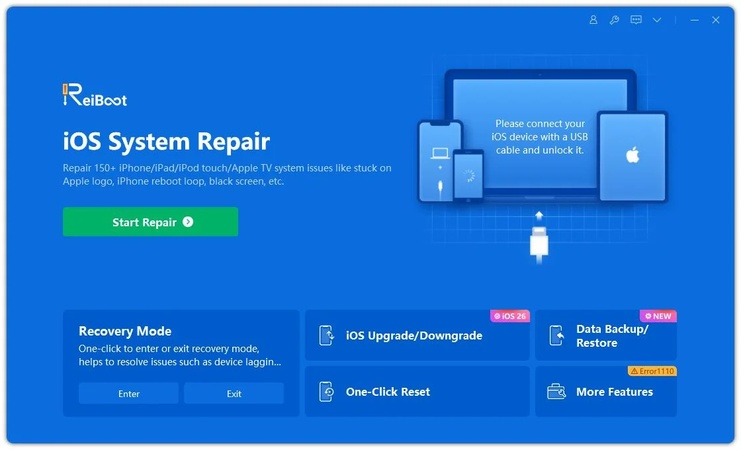
Step 1: Download ReiBoot on your Windows PC or Mac. After installation, open the software and connect your iPhone Duo using a working USB cable.
-
Step 2: Once ReiBoot detects the device, click the Repair Operating System option from the main screen.
-
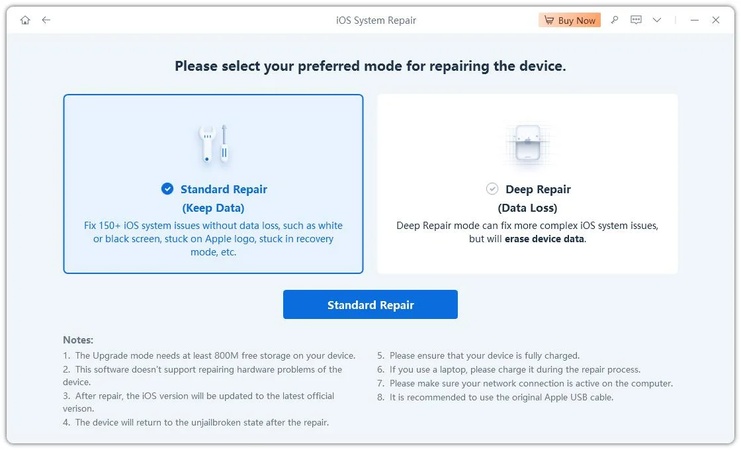
Step 3: Select Standard Repair to fix the underlying iOS problem behind the eSIM error without deleting your photos, apps, or personal data.
-
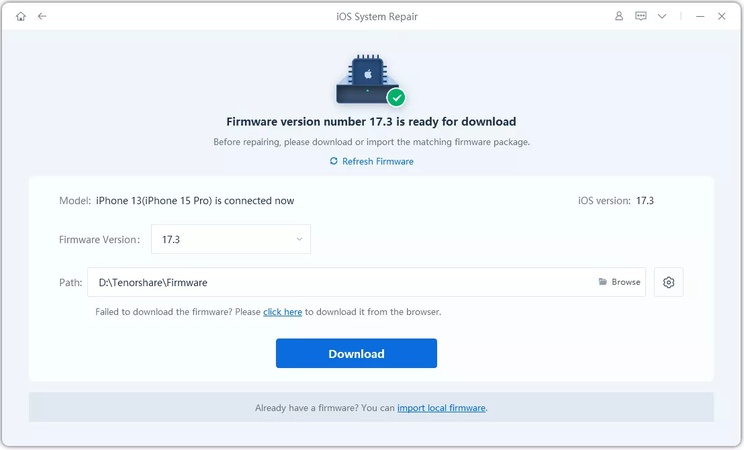
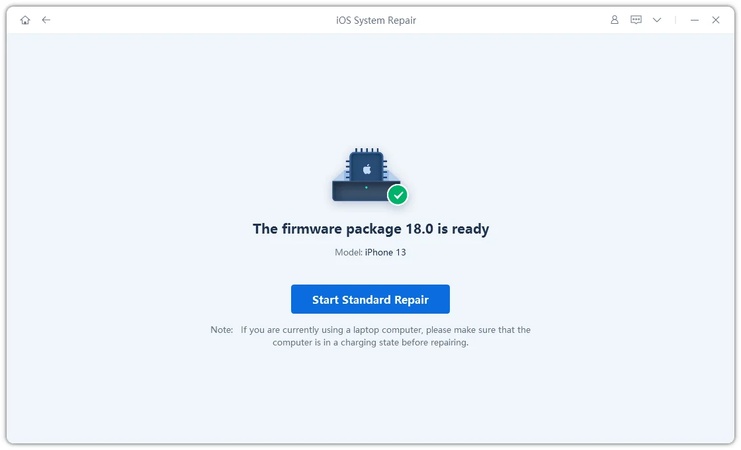
Step 4: ReiBoot will automatically detect the correct iOS firmware for your iPhone. Click Download and wait for the firmware package to finish downloading.
-
Step 5: Click Start Standard Repair and keep your iPhone connected during the process. ReiBoot will repair the damaged system files that may be blocking eSIM activation.
-
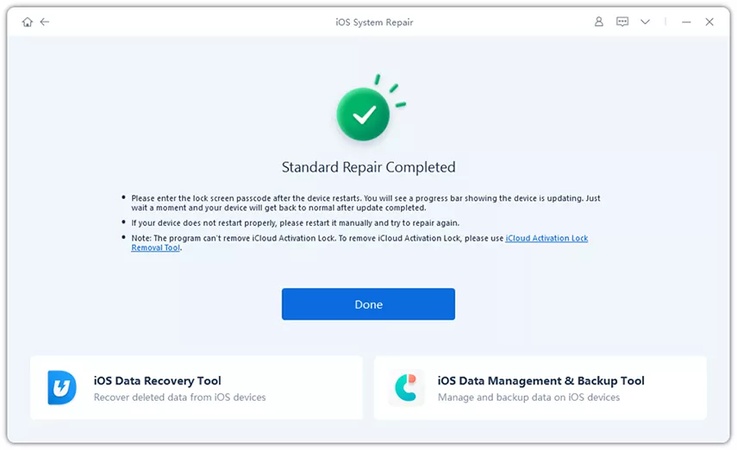
Step 6: After the repair finishes, your iPhone will reboot normally. Once the Apple logo appears, restart your iPhone Duo and check Settings > Cellular to confirm the eSIM now shows as active.
Part 4. FAQs About eSIM Not Working on iPhone Duo
1. Why is my eSIM suddenly not working on my iPhone Duo?
Your eSIM may stop working because of a carrier outage, account issue, network problem, disabled line, failed activation, or iOS problem. First check Settings > Cellular, restart the iPhone, toggle Airplane Mode, and check your carrier connection. If the line still shows no service, contact your carrier.
2. Why can't I activate eSIM on my iPhone Duo?
The carrier may not support eSIM for your plan, the iPhone may have a carrier lock, or the activation information may not work correctly. Check whether your phone shows No SIM Restrictions under Settings > General > About > Carrier Lock. Also confirm that your carrier supports the eSIM activation method you are using.
3. How to check if an iPhone is carrier locked for eSIM?
Open: Settings > General > About > Carrier Lock If the phone shows No SIM Restrictions, it is unlocked. If the phone shows a carrier restriction, contact that carrier to ask about unlocking requirements.
4. How to transfer an eSIM from a previous iPhone model to iPhone Duo?
If your carrier supports eSIM Quick Transfer, you can transfer a number from your previous iPhone during setup or through the Cellular settings. Apple also supports carrier activation and other transfer methods depending on the provider. With newer iOS versions, some supported carriers and devices also support eSIM transfer between Android and iPhone. If your carrier does not support direct transfer, you may need a carrier activation process or a new QR code.
Conclusion
When eSIM Not Working on iPhone Duo becomes an issue, start with the simple checks before moving to advanced repairs. Confirm that the eSIM plan appears in Settings > Cellular, verify that your carrier supports eSIM and your specific plan, check whether your iPhone must be unlocked, and use the activation method provided by your carrier, such as a QR code, carrier app, or manual activation details.
If your carrier confirms that the eSIM and account are active but the iPhone still shows activation errors, no service, or other abnormal behavior, an iOS system repair tool such as Tenorshare ReiBoot may be an optional next step.
