
Updated on 2026-09-15 / iPhone Tips
An iPhone stuck on preparing update is a common issue that frustrates many users during iOS upgrades. Whether you’re installing iOS 15, iOS 17, iOS 18, or even iOS 26/27, the screen may freeze on “Preparing Update” for longer than expected.
But don’t worry this problem is usually easy to fix. In this guide, we’ll explain what “Preparing Update” actually means, how long it should take, and the best ways to fix your iPhone when it gets stuck.
Part 1. What Does “Preparing Update” Mean?
When your iPhone says “Preparing Update,” it means the device is getting everything ready before installing the new iOS version. During this stage, your iPhone checks the downloaded update file, verifies it with Apple’s servers, and unpacks it to prepare for installation. This step makes sure there are no errors or corrupted files before the update begins.
How Long Should Preparing Update Take?
Under normal conditions, the Preparing Update stage takes 5 to 15 minutes. The time can vary based on the iOS version, Wi-Fi strength, available storage, and device model.
For newer updates like iOS 18 or iOS 26/27, it might take a little longer around 20 to 30 minutes especially when Apple’s servers are busy during global rollouts.
If your iPhone has been stuck on “Preparing Update” for over 40 minutes, it’s no longer normal.
Part 2. Why Is My iPhone Stuck on Preparing Update?
Your iPhone can get stuck on preparing update for several simple reasons. This issue often appears on newer versions like iOS 18 or iOS 26/27, and it usually happens because something interrupts the update process. Here are the most common causes:
Weak or unstable Wi-Fi: A poor network can stop the update from downloading or verifying properly.
Low storage space: When your iPhone runs out of space, it can’t unpack or install the update files.
Apple server overload: When many users update at the same time, Apple’s servers may slow down.
Corrupted update file: A damaged or incomplete update file can cause your iPhone to freeze on “Preparing Update.”
Software glitches: Minor system errors or background apps can interfere with the update process.
Battery too low: Updates may pause or fail if your iPhone battery drops below 50%.
Outdated settings or network configuration: Old network settings can prevent your iPhone from connecting properly during an update.
Part 3. How to Fix iPhone Stuck on Preparing Update (All iOS Versions)
Method 1: Use an iOS System Repair Tool [Fast& No Data Loss]
ReiBoot is a professional iOS repair tool that makes updating your iPhone simple and stress-free. It can fix over 150 iPhone issues, including stuck updates, black screens, boot loops, and other software glitches.
Unlike just re-downloading the update, ReiBoot works on the system level to make sure your iPhone completes the update smoothly, safely, and without losing any data.
Key Features of Tenorshare ReiBoot:
- Fixes 150+ iOS system issues, including iPhone stuck on Apple logo, black screen, iPad boot loop, and more.
- Works on iPhone, iPad, iPod Touch, and iTunes.
- Supports iOS upgrades and downgrades without data loss.
- Offers a one-click repair mode for easy use.
- Helps resolve stuck updates and other common iOS problems efficiently.
Steps to Fix iPhone Stuck on Preparing Update Using ReiBoot:
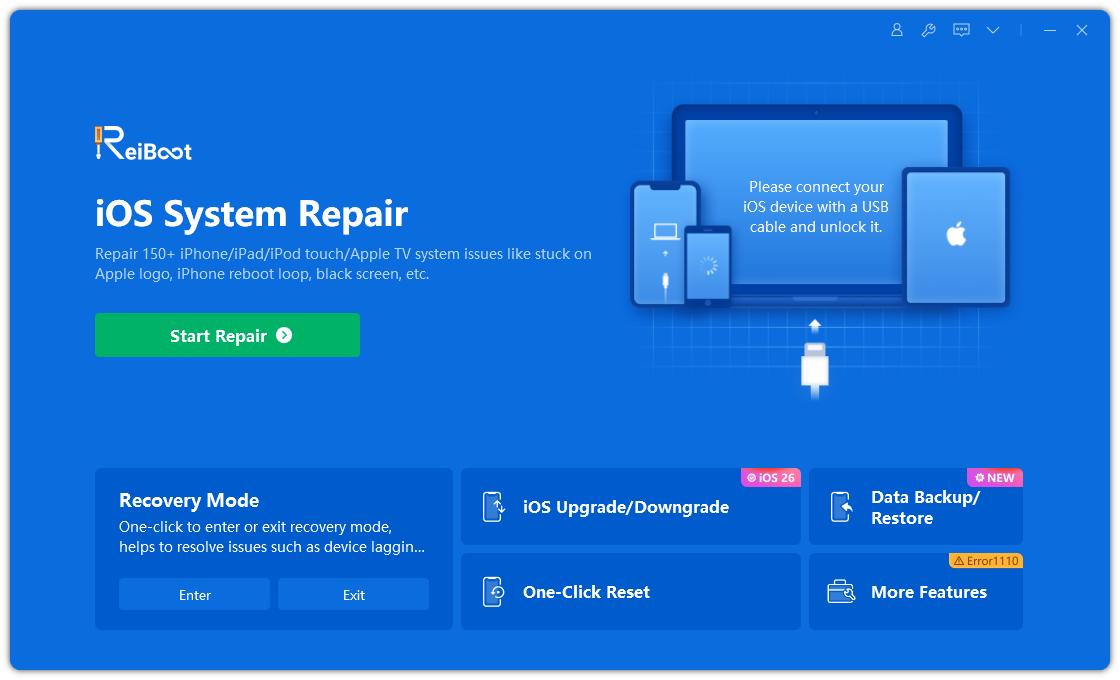
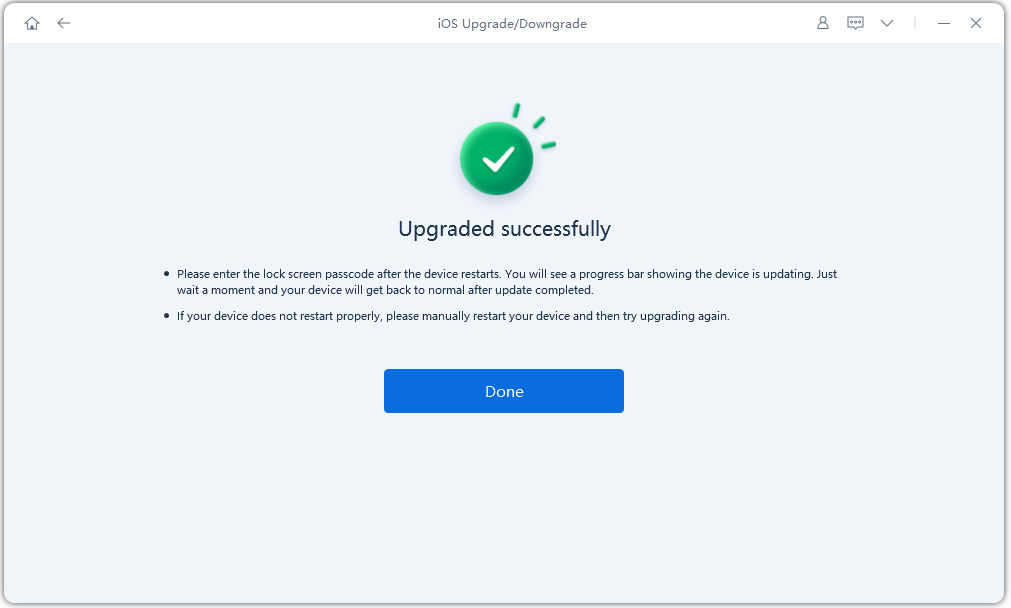
- Install Tenorshare ReiBoot on your computer and open it.Select the iOS Upgrade/Downgrade option.
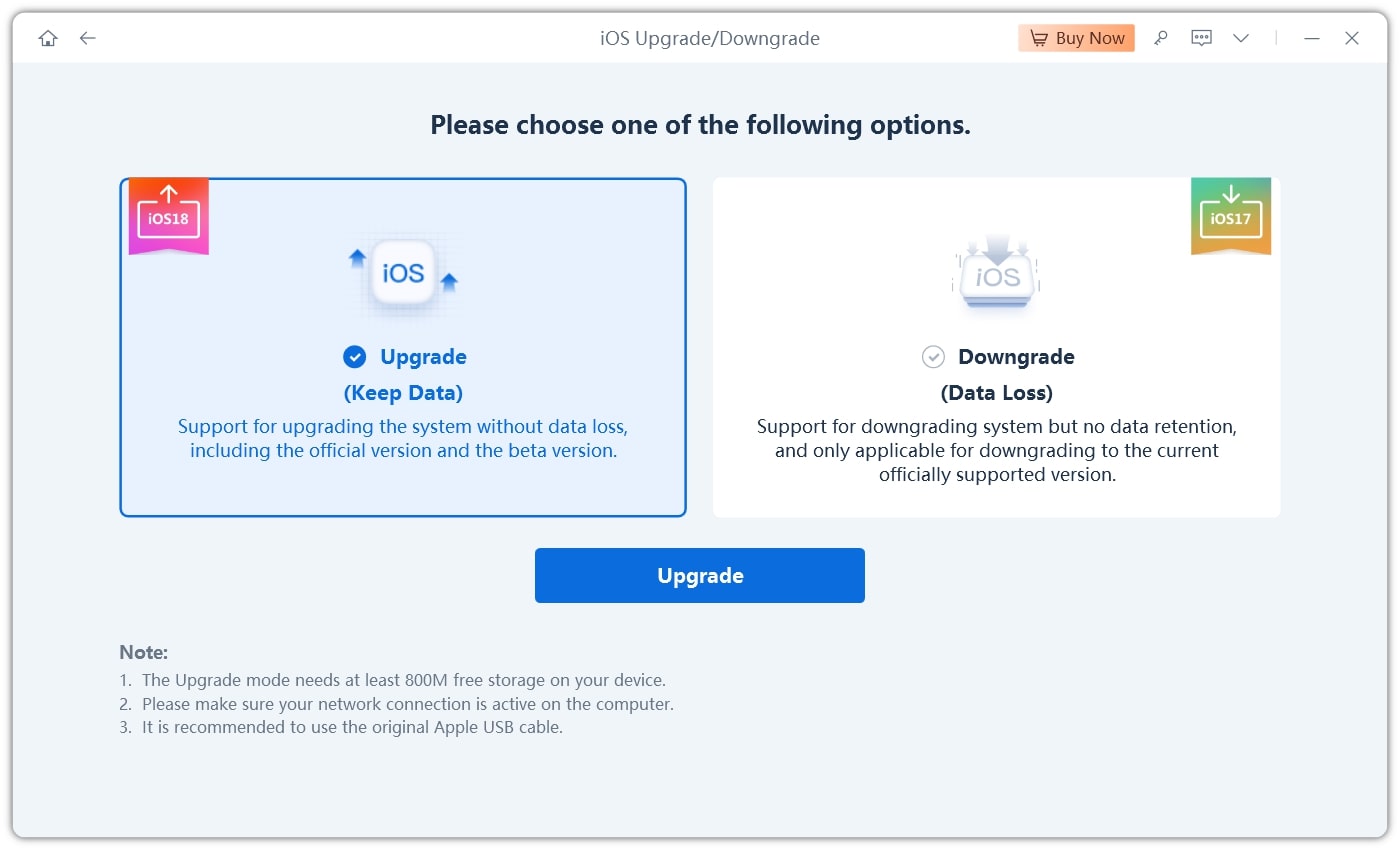
- Use a compatible cable to connect your iPhone to the computer. Choose the Upgrade option to proceed.
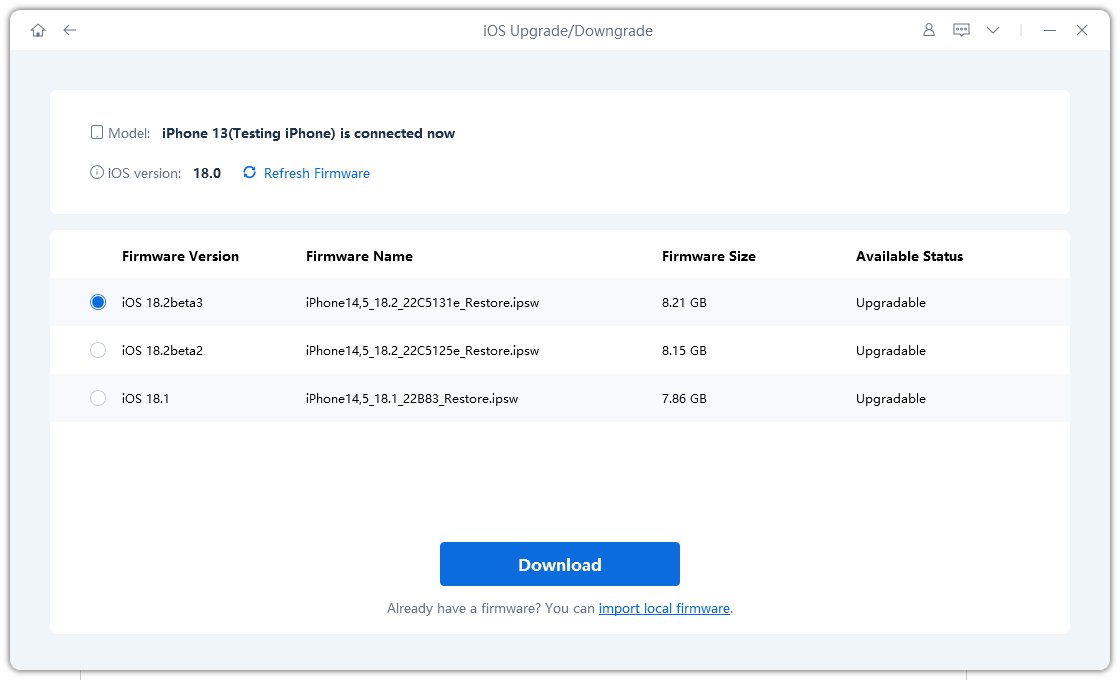
- Click the Download button to get the iOS 18/26 firmware package. If you’ve already downloaded the firmware, click Browse to select it.
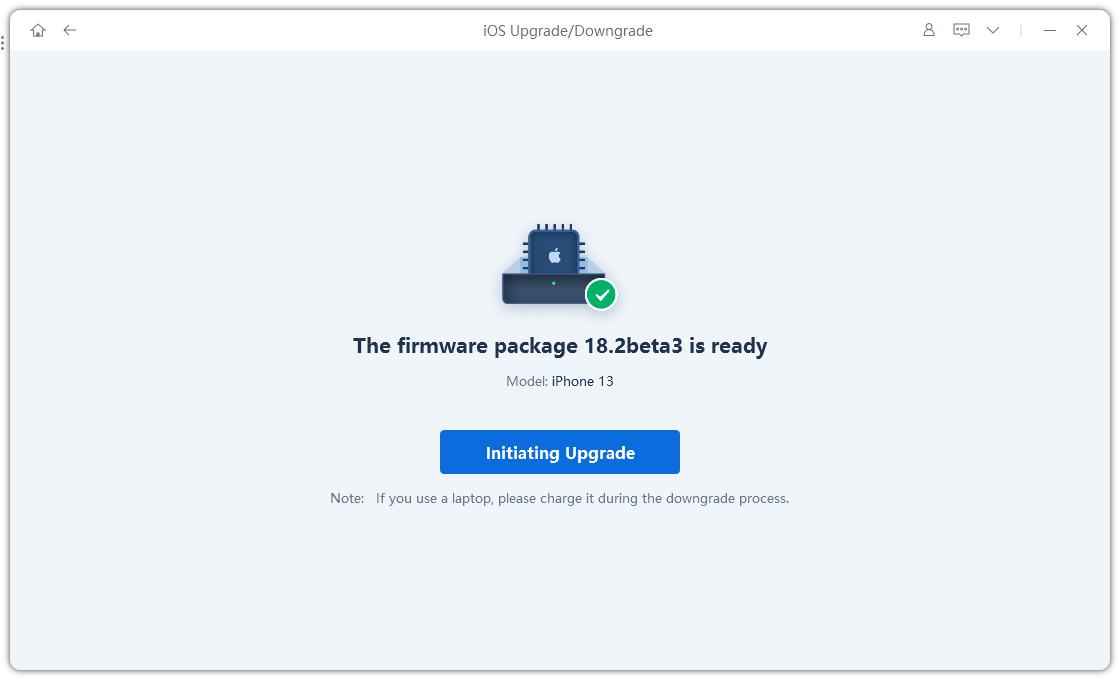
- After the firmware is ready, click Initiate Upgrade. The tool will start installing the update on your iPhone.
- The process usually takes a few minutes. Do not disconnect or interrupt your iPhone until it restarts automatically.
Method 2: Check Wi-Fi Network
A common reason your iPhone is stuck on preparing update is an unstable or weak Wi-Fi connection. iOS updates rely heavily on a stable internet connection to download and verify the update file.
Even a brief drop in connectivity can prevent your iPhone from moving past the “Preparing Update” screen. If the connection seems weak, try moving closer to the router or restarting the Wi-Fi router.
Method 3: Reset Network Settings
Corrupted configurations, old networks, or vpn settings may prevent the device from connecting properly to Apple’s servers. Resetting network settings refreshes all Wi-Fi, cellular, and VPN configurations, which can remove hidden glitches that cause your iPhone to get stuck on preparing update.
Steps to Reset Network Settings:
- Open the Settings app on your iPhone.
- Go to General, then Transfer or Reset iPhone, and tap Reset.
- Select Reset Network Settings and confirm your choice.
- Your iPhone will restart automatically, clearing all previous network configurations.
- Reconnect to a stable Wi-Fi network and return to Software Update to continue the update.

Method 4: Force Close the Settings App
Sometimes, the problem is not the update itself but the Settings app, which manages the update process. When the Settings app malfunctions or consumes too many resources, it can interrupt the preparation process. Closing it gives your iPhone a fresh start to resume the update.
Steps to Force Close Settings:
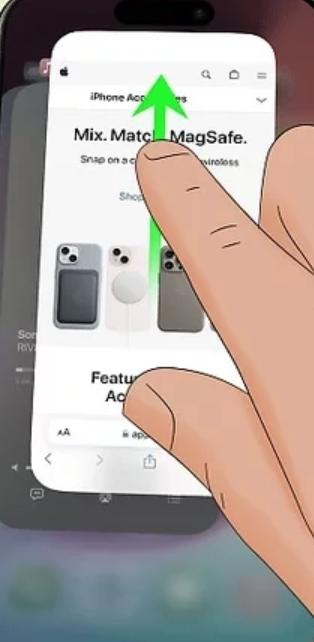
- On iPhone X or later, swipe up from the bottom of the screen and pause in the middle. On iPhone 8 or earlier, double-tap the Home button.
- Locate the Settings app among the running apps.
- Swipe up on the Settings app to close it completely.
- Reopen Settings and navigate to Software Update to see if the update resumes.
Method 5: Update via iTunes or Finder
If your iPhone repeatedly gets stuck, especially iPhone 11 or older models, updating through iTunes or Finder is a reliable solution. Using a computer bypasses potential OTA (over-the-air) issues such as unstable Wi-Fi or background app conflicts. Updating this way ensures your device communicates directly with Apple servers, often speeding up the update and preventing the “Preparing Update” freeze.
Steps to Update via iTunes/Finder:
- Install the latest version of iTunes on Windows or macOS Mojave and earlier, or open Finder on macOS Catalina and later.
- Connect your iPhone to the computer using a certified USB cable.
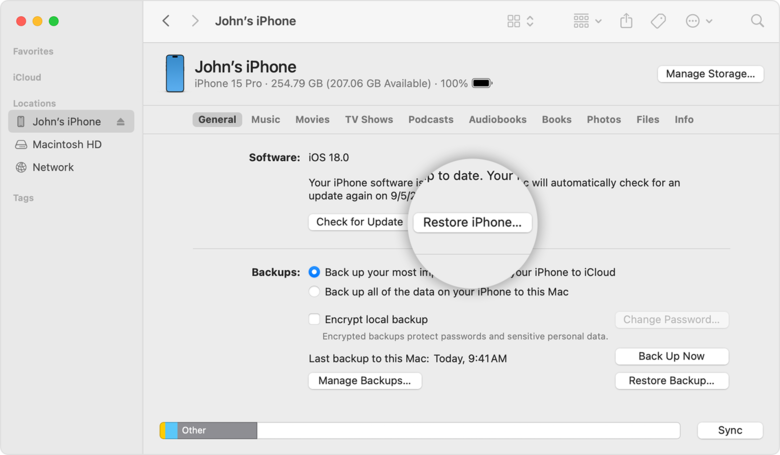
- In iTunes or Finder, select your device by clicking the iPhone icon or locating it in the sidebar.
- Click Check for Update, and if a new iOS version is available, select Install Update.
- Follow the on-screen instructions carefully. Make sure your iPhone stays connected throughout the update process.
- Once completed, your iPhone will automatically restart, and the preparing update issue should be resolved.
Method 6: Restore iPhone via Recovery Mode
When all else fails, restoring your iPhone via Recovery Mode can completely resolve the issue. This method is particularly useful if iTunes fails to detect your device or if the update keeps freezing. It will reinstall iOS and remove any corrupted files causing the iPhone stuck on preparing update problem.
Important: Restoring via Recovery Mode will erase all data, so make sure you have a backup via iTunes or iCloud before proceeding.
Steps to Restore via Recovery Mode:
- Open iTunes on Windows or Mac, or use Finder on macOS Catalina or later, and connect your iPhone.
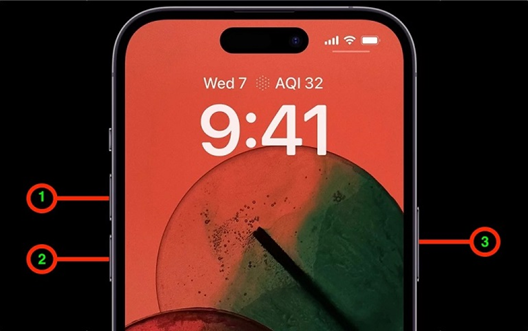
- Enter Recovery Mode depending on your iPhone model:
- Once detected, iTunes/Finder will show options. Click Restore to reinstall iOS.
- Wait for the process to complete. Your iPhone will restart and be updated to the latest iOS version.
iPhone 8 and later: Press and quickly release Volume Up, then Volume Down. Press and hold the Side button until the Recovery Mode screen appears.
iPhone 7 / 7 Plus: Press and hold Volume Down and Side buttons together until Recovery Mode appears.
iPhone 6 and earlier: Press and hold both Home and Side/Top buttons until Recovery Mode appears.
Part 4. FAQs about iPhone Stuck on Preparing Update
Q1: Why is preparing an update so long?
The preparing update process can take longer than expected due to several factors. Large iOS updates like iOS 18 or iOS 26/27 take more time to verify and unpack. Slow or unstable Wi-Fi, low storage on your iPhone, or minor software glitches can also delay the process.
Q2: Can I cancel an iPhone update in progress?
Yes, you can cancel an update if your iPhone is stuck. Go to Settings, then iPhone Storage, find the iOS update file, and tap Delete Update. After deleting it, you can try updating again.
Conclusion
Watching your iPhone stuck on preparing update can be frustrating, but most of the time, the issue can be resolved quickly with the right steps. When the update still refuses to move forward, Tenorshare ReiBoot becomes the easiest and safest solution. It can repair system glitches, fix stuck updates, and complete iOS upgrades without losing your data.
