
Updated on 2026-07-21 / iPhone Tips
Apple's iOS 27 is now available. But many users are complaining that their iPhones start overheating after the update. This also comes with faster battery drain and slower performance. While this is normal with software, cooling your iPhone may not always fix the iOS 27 overheating issue. There are many causes for this problem, and the solution might be different depending on the situation. In this guide, we explain the reasons and share 12 ways to fix it accordingly!
Part 1. Quick Summary: How to Fix iOS 27 Overheating
Here's a bird's-eye view of all 12 solutions shared in this article so you can pick the method that fits your situation right away:
| Solution | Success Rate | Data Loss | Ease of Use | Time Required |
|---|---|---|---|---|
| Restart iPhone | Medium | No | Very easy | 2 min |
| Wait 24–48 Hours | Medium-High | No | Very easy | 1-2 days |
| Tenorshare ReiBoot | Very high | No | Very easy | 5-10 min |
| Close Heavy Background Apps | Medium | No | Very easy | 2 min |
| Update All Apps | Medium | No | Easy | 10-15 min |
| Disable Background App Refresh | Medium | No | Easy | 5 min |
| Turn Off Unused Location Services | Medium | No | Easy | 5 min |
| Lower Brightness / Enable Auto Brightness | Low-Medium | No | Easy | 2 min |
| Avoid Charging During Heavy Use | Medium | No | Very easy | Ongoing habit |
| Remove the Phone Case | Low-Medium | No | Very easy | Instant |
| Free Up Storage Space | Medium | Selective | Moderate | 10-30 min |
| Downgrade to Stable iOS | High | Yes | Moderate | 30-60 min |
Part 2. Why Is iOS 27 Overheating Your iPhone?
Understanding why iOS 27 is making iPhone hot helps you pick the right fix instead of blindly trying everything. Here are the most popular reasons iOS 27 overheating issues materialize:
-
Post-update indexing: After installing iOS 27 , the phone does background setup like scanning files and photos, which can make it warm for 24--48 hours.
-
iOS 27 bugs: Early software can have glitches that cause processes to run too much and heat the phone.
-
App issues: Some apps aren't fully compatible with iOS 27 and may use extra CPU or GPU power, causing overheating.
-
Background App Refresh: If many apps refresh in the background, the phone stays active even when not in use.
-
Location services: Apps using "Always" location access can keep GPS running in the background and increase heat.
-
Charging + heavy use: Using the phone while charging adds extra heat from both the battery and processor.
-
High brightness: Keeping the screen brightness high for long periods increases power use and warmth.
-
Low storage: Very little free storage makes the system work harder, which can increase heat.
-
Thick case: Heavy or rubber cases trap heat and stop the phone from cooling properly.
Part 3. 12 Ways to Fix iOS 27 Overheating
There's no single magic solution here. What works depends on why your phone is overheating after iOS 27 update in the first place. Go through these 12 fixes in order, starting from the quickest and least disruptive, and escalate only if needed:
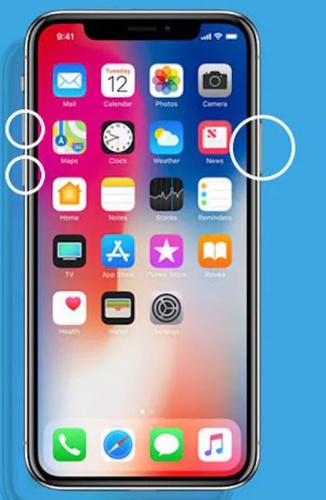
1. Restart iPhone to Fix Temporary Overheating
Restarting your iPhone is a simple but effective fix for certain overheating issues. It can stop stuck processes or temporary system glitches that may cause iOS 27 to run hot. Restarting is best if the overheating started suddenly right after the update, without any other changes. Follow the steps beneath to restart your iPhone:
-
Step 1: Press and hold the "Side" button and either "Volume" button together until the power slider appears.
-
Step 2: Drag the slider to the right to power off completely. Wait 30 seconds.
-
Step 3: Then, press and hold the "Side" button again until the Apple logo appears.
-
Step 4: After the reboot, monitor your device temperature for the next 10--15 minutes.
2. Wait 24--48 Hours After Updating
Sometimes, iOS 27 overheating and battery drain happen right after the update. This is because the phone is doing background setup tasks like indexing files, analyzing photos, and adjusting system processes.
If your phone feels warm but not dangerously hot, just leave it plugged in on a flat, open surface and avoid using heavy apps. Give it time to finish these background tasks and check again after about 24-48 hours, as the heat usually goes down on its own.
3. Fix iOS 27 Overheating with ReiBoot (Quick & Easy)
When your iPhone is still overheating because of a system bug, broken update, or unstable software, simple fixes may not help. In this case, a tool like Tenorshare ReiBoot can fix deeper iOS issues without deleting your data.
It's designed to repair system problems that may be causing overheating and supports iOS 27. This is useful if you've restarted your phone and the heat is still not going away, and you suspect a software glitch.
Key Features of ReiBoot:
-
Fixes 150+ iOS system issues, including overheating-causing bugs, stuck processes, and boot loops.
-
Enter/exit Recovery Mode in one tap for free.
-
Downgrades iOS 27 to a stable iOS version without iTunes or data loss.
-
Supports all iPhones compatible with iOS 27, including iPhone 17.
-
Compatible with both Windows and Mac.
-
Simple 3-step process, with no technical knowledge required.
Steps to Repair Your iPhone with ReiBoot:
Here's how to do an iOS 27 overheating fix with ReiBoot:
- Step 1: Launch ReiBoot on Your Computer
Download and install Tenorshare ReiBoot on your computer. Open the program and connect your iPhone experiencing overheating issues after installing iOS 27.

- Step 2: Click on "Standard Repair"
Click on "Standard Repair" when ReiBoot detects your device to fix iOS 27 overheating issues without losing any data.

- Step 3: Download Firmware Package
Download the latest firmware package when prompted. ReiBoot will automatically prepare the correct firmware package for repair.

- Step 4: Start Standard Repair
Once the firmware is ready, click “Start Standard Repair” to fix system issues that may be causing iOS 27 overheating. Wait for the repair process to finish.

- Step 5: iPhone Temperature Back to Normal
Your iPhone will restart automatically after repair. Check whether the overheating issue has been resolved and the device runs at a normal temperature.

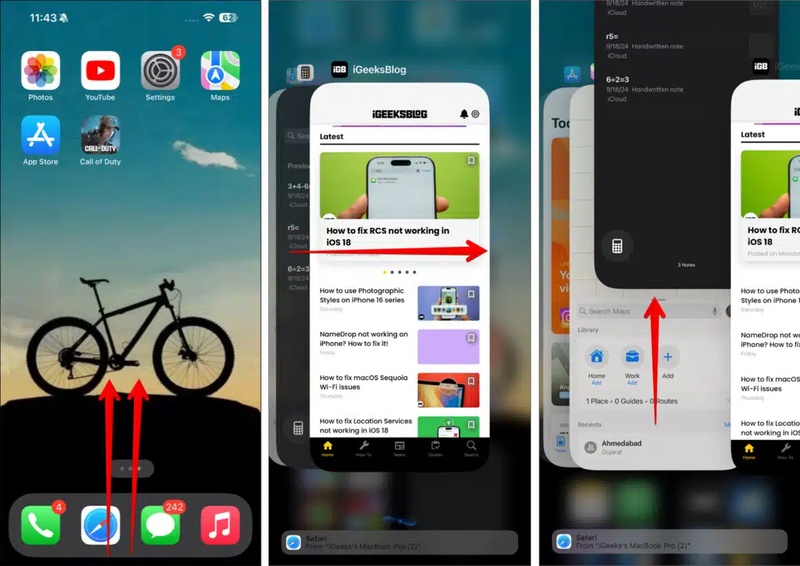
4. Close Heavy Background Apps
iOS usually manages background apps well, but on versions, some apps can get stuck and still use system power, which can cause extra heat. Closing these apps can help quickly with no risk. This is more likely if your phone heats up after using apps like games, video editors, or social media with autoplay videos. So, here you can close heavy background apps:
-
Step 1: Swipe up from the bottom of the screen. Look for heavy apps like games, the camera, streaming, or social media.
-
Step 2: Swipe up on each app to close it. Close all unnecessary apps, then check if your phone cools down in a few minutes.
5. Update All Apps
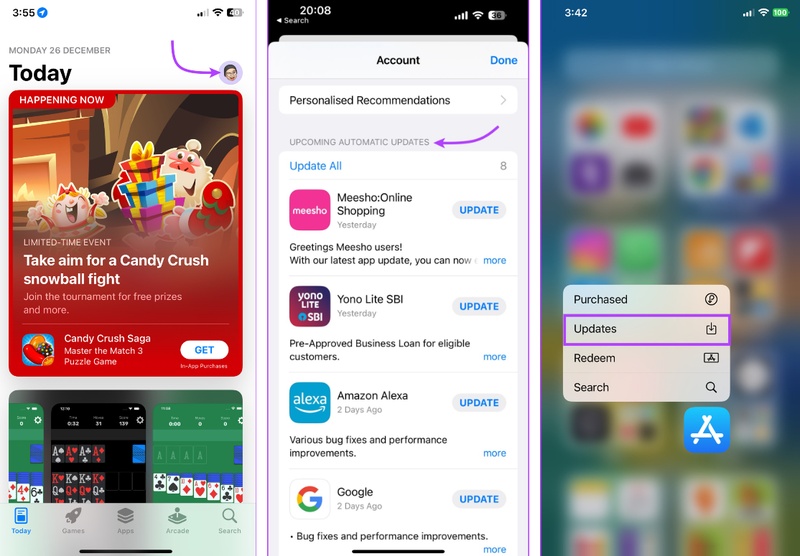
If iOS 27 overheating issues continue after the first 48 hours, some third-party apps may not be fully compatible with iOS 27. Developers often release updates to fix this, but they won't install unless you update them manually or have auto-updates turned on. This is likely if your phone gets hot when using certain apps or if the issue started shortly after installing the. Here's how to update all apps manually:
-
Step 1: Open the "App Store" and tap your profile icon at the top right. Move to "Available Updates."
-
Step 2: Click "Update All" to install every update at once. You can also update apps one by one if you prefer.
-
Step 3: After updating, restart your iPhone and check if it still heats up.
6. Disable Background App Refresh
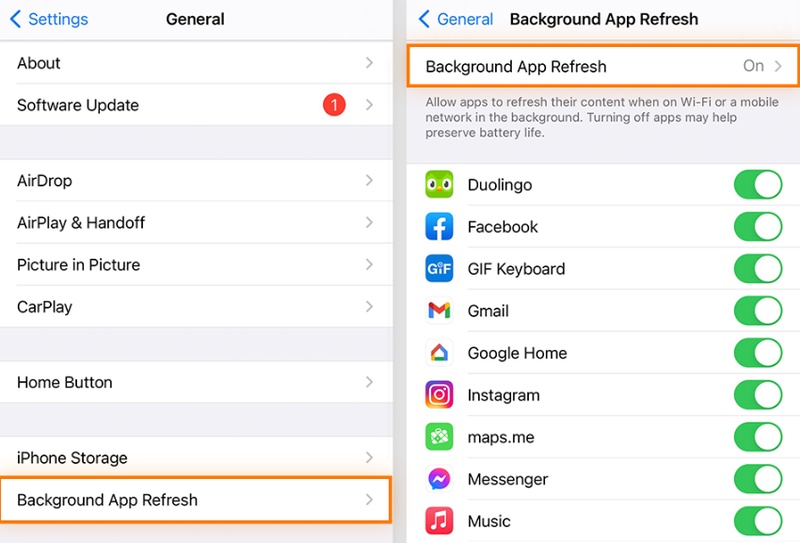
Background App Refresh lets apps update content in the background even when you're not using them. On iOS 27, this can cause extra heat and battery drain because more background processes are running. If your phone feels warm even when idle, this feature may be part of the cause. So, here's how you can disable it:
-
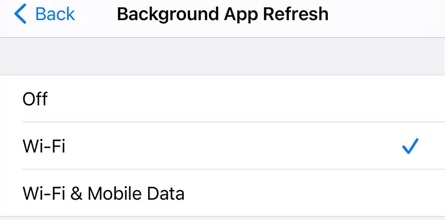
Step 1: Head to "Settings." Choose "General." Tap "Background App Refresh." Click "Background App Refresh" again at the top.
-
Step 2: Choose "Wi-Fi only" to reduce activity, or switch off "Background App Refresh."
-
Step 3: You can also turn it off for specific apps, especially social media and news apps that use it the most.
7. Turn Off Unused Location Services
Location Services use a lot of battery and can make your iPhone heat up. If apps are allowed to access your location "Always," they keep using GPS in the background, which increases power use and temperature, especially on iOS 27. This is more noticeable if your battery is draining quickly and you use apps like social media, weather, or food delivery often. So, here you can change location access or turn off Location Services:
-
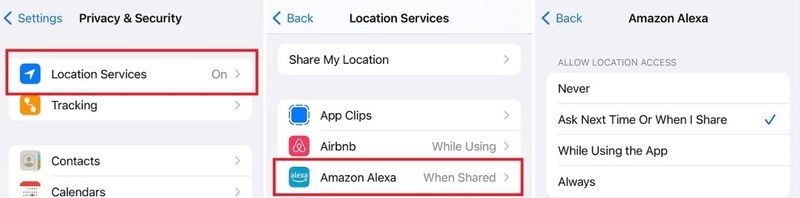
Step 1: Head to "Settings." Choose "Privacy & Security." Tap "Location Services."
-
Step 2: Check each app and change location access from "Always" to "While Using the App," except for apps like navigation that need it.
-
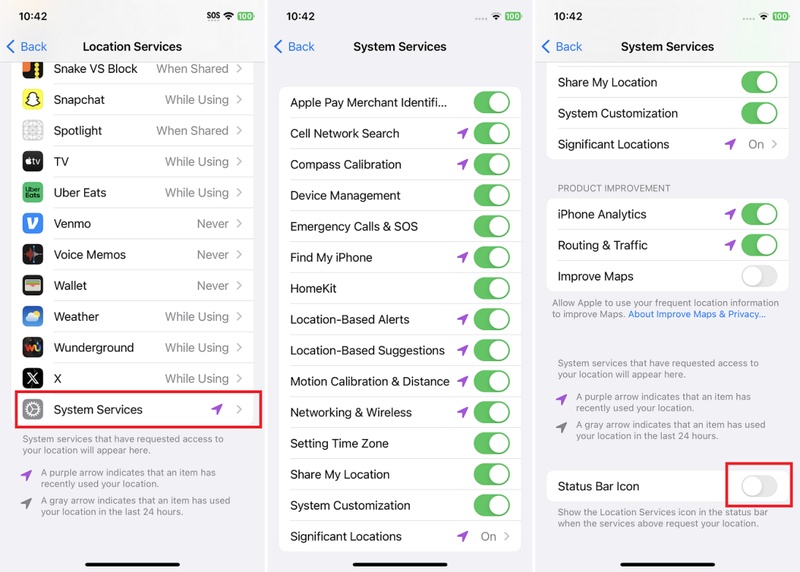
Step 3: Move to "System Services." Turn off non-important options like "iPhone Analytics" and "Routing & Traffic" if needed.
-
Step 4: You can also temporarily turn off "Location Services" to see if it reduces overheating.
8. Lower Brightness or Enable Auto-Brightness
Using your iPhone at full brightness for long periods makes it work harder and produces extra heat. It increases battery use and adds to overall warmth, especially during long watching or reading sessions. This is not a major cause of overheating, but lowering brightness is an easy way to reduce heat without any downside. To do so:
-
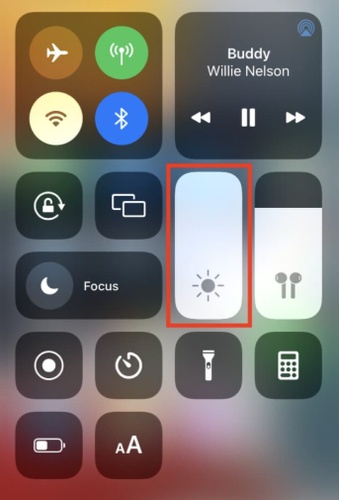
Step 1: Swipe down from the top-right to open "Control Center." Lower the brightness slider to a comfortable level (about 50--70% indoors).
-
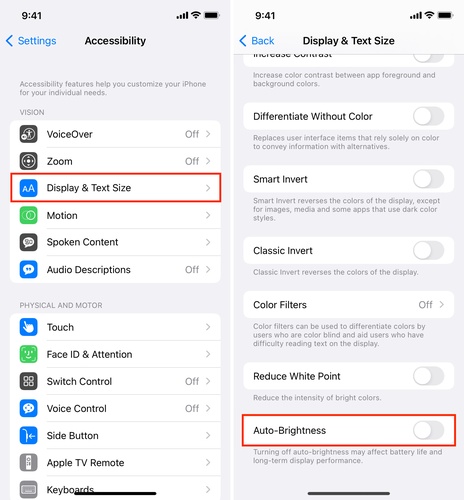
Step 2: Next, turn on automatic brightness. To do this, head to "Settings." Choose "Accessibility."
-
Step 3: Click "Display & Text Size." Enable "Auto-Brightness." Your iPhone will adjust screen brightness based on lighting, helping reduce heat.
9. Avoid Charging During Heavy Use
Charging your phone while using it can cause extra heat, and doing both at the same time makes the phone even hotter. This is worse on iOS 27 because it runs more background tasks.
If possible, avoid heavy use like gaming or navigation while charging. Use a wired charger instead of wireless since it produces less heat. If the phone gets too hot, unplug it and let it cool for about 10--15 minutes before using it again.
10. Remove the Phone Case
iPhones are designed to release heat through their frame, but thick cases can trap that heat and make the device warmer. This is especially frequent with rugged, wallet, or folio-style cases.
If your iPhone feels hot on the back while using a thick case, remove the case. Then, place the phone on a flat, hard surface like a desk or table (not fabric, which also insulates) and wait for 10-15 minutes to let it cool down.
11. Free Up Storage Space
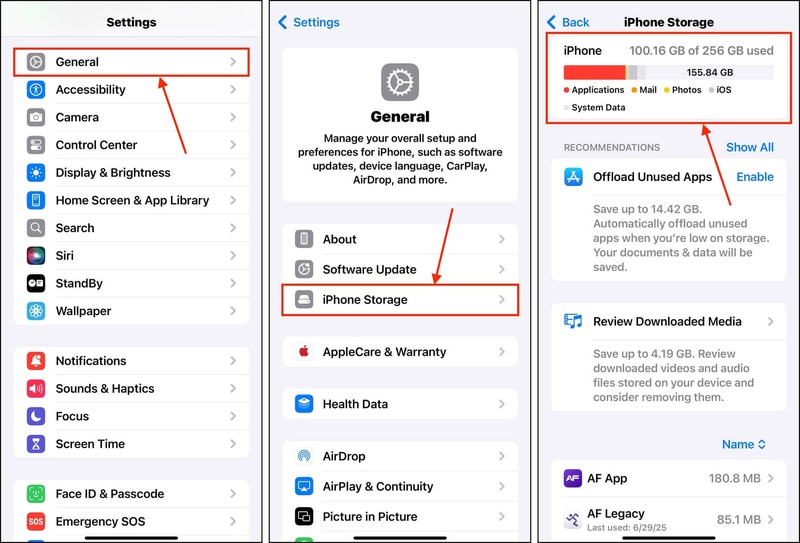
When your iPhone has less than 1--2GB of available storage, the system has to work harder to manage files and temporary data. This can increase CPU usage and cause overheating. The iOS 27's Apple Intelligence 2.0 (system-level multimodal AI) also uses more storage than earlier versions. If your iPhone storage is nearly full, here's how to free up space to reduce overheating:
-
Step 1: Head to "Settings." Choose "General." Tap "iPhone Storage" to see what's using space.
-
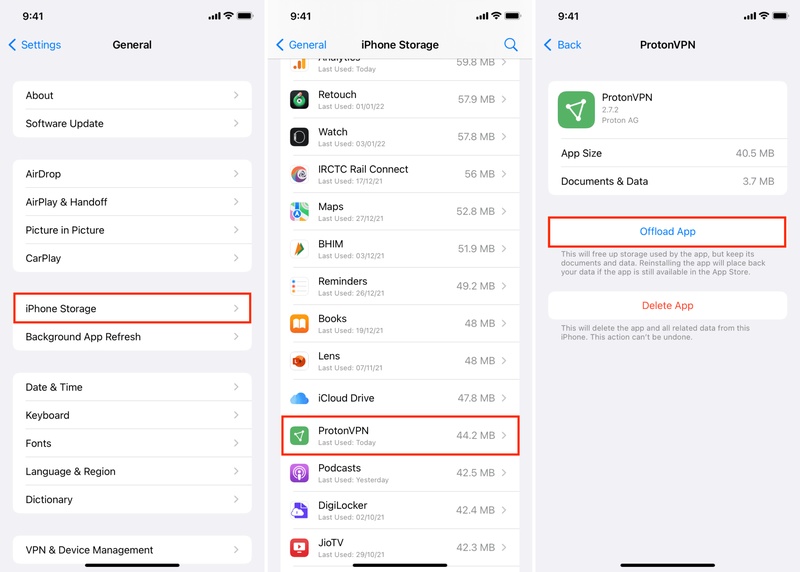
Step 2: Remove or use "Offload App" for unused apps to free space without deleting app data.
-
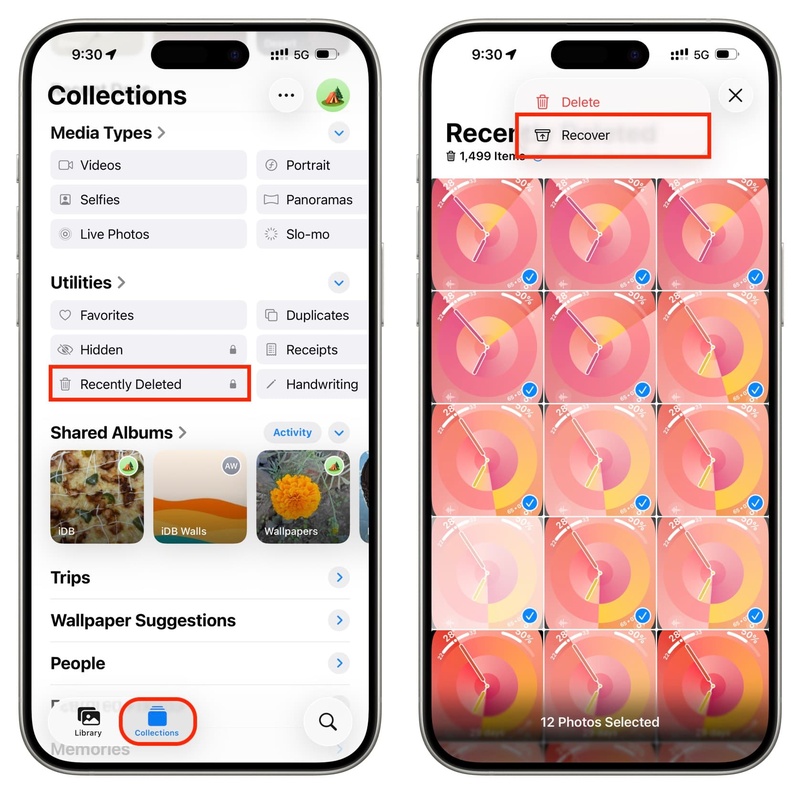
Step 3: Delete unwanted or duplicate photos and videos. Empty the "Recently Deleted" folder in the "Photos" and "Files" apps.
-
Step 4: Try to keep at least 2--3 GB of free storage, or about 10% of your device's capacity, especially when using a version of iOS.
12. Downgrade to Stable iOS
If iPhone 17 iOS 27 overheating is still a major problem after trying other fixes, consider downgrading to the latest stable iOS 26 version. But before downgrading, back up your iPhone, as the process will erase your device and may cause data loss. Here's how to downgrade your device with iTunes/Finder:
-
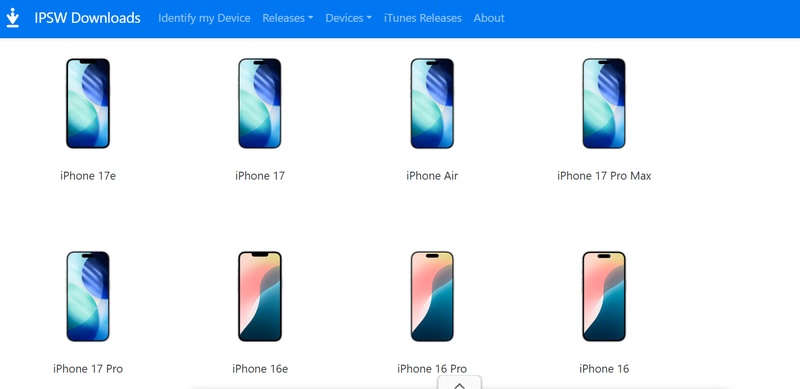
Step 1: Back up your iDevice using iCloud or a computer before you start. Download an IPSW file for the iOS version you wish your device to downgrade to.
-
Step 2: Open "Finder" (Mac) or "iTunes" (Windows) and connect your iDevice.
-
Step 3: Place your device into Recovery Mode:
- Press "Volume Up." Then, the "Volume Down" button. Next, press and hold the "Side" button until you see the Recovery Mode screen.
-
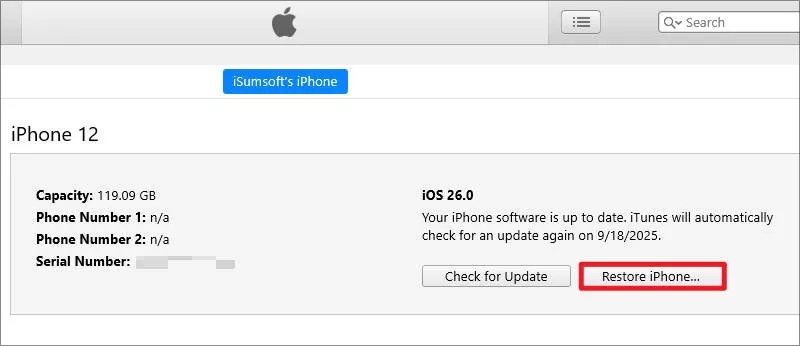
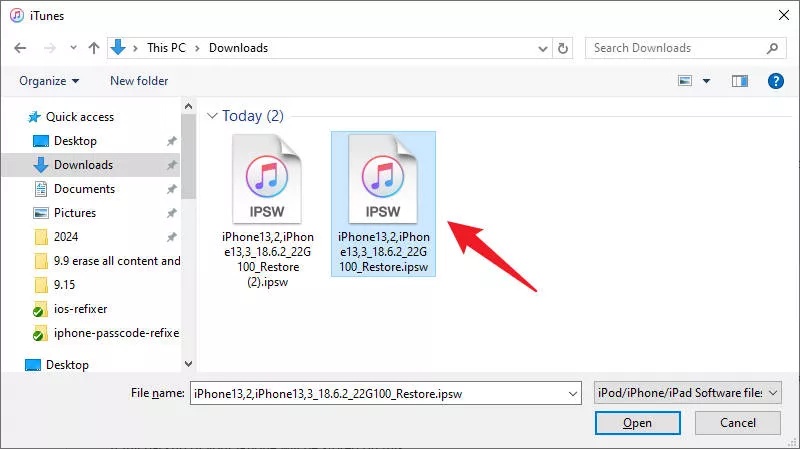
Step 4: Then, hold "Option" (Mac) or "Shift" (Windows). Click "Restore iPhone" and select the IPSW file you've downloaded.
-
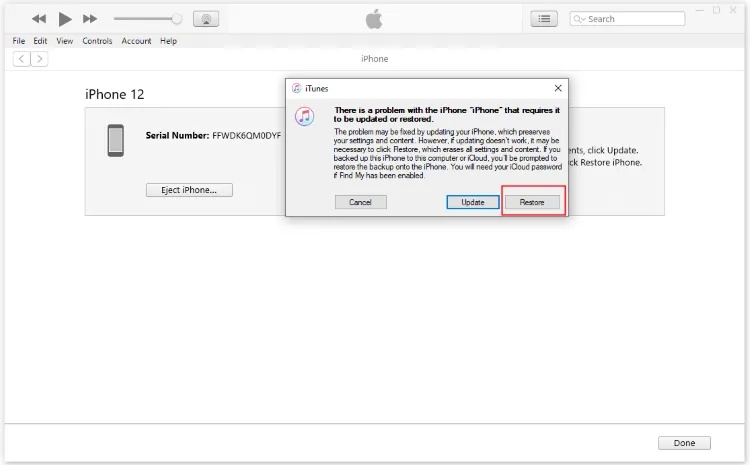
Step 5: Complete the restore process and wait for your device to restart.
-
Step 5: Set up your iDevice and restore your data from the backup.
Conclusion
iOS 27 overheating is usually expected with major releases. But it can often be fixed with basic solutions like restarting, removing the case, and waiting 24--48 hours for background setup to finish. However, if the issue is caused by a deeper system bug, basic fixes may not be enough. In that case, Tenorshare ReiBoot can repair the iOS bugs without deleting data.
