
Updated on 2026-10-08 / iPhone Tips
If your iPhone Duo is not charging, first test a different USB-C cable, adapter, and wall outlet, then clear visible debris from the port, let the phone cool down, and force restart it. If charging stops at 80%, that is often by design: Optimized Battery Charging, the Charge Limit setting (Settings > Battery > Charging), or heat can hold the battery below 100%. If charging still fails with known-good accessories, or you see a liquid alert, swelling, or unusual heat, stop and get service.
Part 1. Why Is My iPhone Duo Not Charging?
Your iPhone Duo may stop charging for several reasons. Sometimes, the problem comes from the charging accessories, while other times, the phone's settings or software cause it. Identifying the exact symptom can help you choose the right solution.
No Charging Icon vs. Battery Percentage Not Increasing
When you connect your iPhone Duo to a charger, you should usually see a charging symbol near the battery icon. If the symbol does not appear, the phone may not receive power. A faulty cable, a damaged adapter, or a dirty charging port can cause this problem. However, your iPhone may show the charging symbol while the battery percentage remains unchanged. This situation can occur when the charger supplies less power than the phone uses. Background apps, high screen brightness, and demanding tasks can also slow down charging. Sometimes, the battery indicator may take a little time to update. Therefore, leave your phone connected to a working charger for 30 minutes before checking the percentage again, as Apple recommends.
Common Causes of iPhone Duo Charging Problems
Several issues can prevent your iPhone Duo from charging properly.
-
Faulty cable: A damaged or worn charging cable may interrupt the power supply.
-
Adapter problems: A faulty or incompatible adapter may not provide enough power.
-
Power outlet: A loose connection or a faulty wall outlet can prevent charging.
-
Dirty charging port: Dust and lint can block the cable's connection.
-
High temperature: Your iPhone may pause charging when its temperature becomes too high.
-
Software problems: An iOS error may affect battery readings or charging behavior.
-
Battery or hardware fault: On a new phone this is rare, but a defective battery or charging circuit can still cause charging problems.
Why Is My iPhone Duo Stuck at 80%?
If your iPhone Duo stops at 80%, it is usually not a fault. With iPhone 15 models and later, Apple lets you set a Charge Limit between 80% and 100% in 5% steps (Settings > Battery > Charging), and the phone stops within a few points of that limit. Optimized Battery Charging is available only when the limit is set to 100%, and it needs about 14 days to learn your routine, so on a brand-new Duo, a Charge Limit or heat is the likelier cause.
Heat matters too: Apple says software may limit charging above 80% when the battery gets too warm, and charging resumes when the temperature drops. Check the Charging screen before assuming a hardware problem.
Quick Fix Comparison
The following table compares common solutions for an iPhone Duo that is not charging.
| Fix | Problem it addresses | Difficulty |
|---|---|---|
| Test another cable | Faulty or damaged cable | Easy |
| Change the adapter or outlet | Insufficient power | Easy |
| Clean the charging port | Dust or loose debris | Easy, with care |
| Cool your iPhone | Temperature-related charging limits | Easy |
| Force restart | Temporary software errors | Easy |
| Check charging settings | 80% charging limit | Easy |
| Update iOS | Possible software bugs | Easy |
| Use system repair | Persistent iOS problems | Moderate |
Part 2. How to Fix iPhone Duo Not Charging When Plugged In
Try these methods in order, following the same sequence as Apple's iPhone charging troubleshooting guide: check the accessories first, then the port, then restart.
1. Test a Known-Good Cable, Adapter, and Wall Outlet
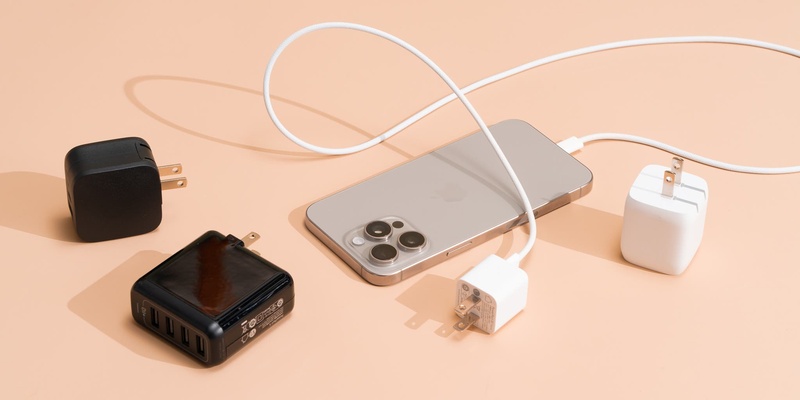
A faulty cable or power adapter is a common reason an iPhone Duo may not charge. Before changing any settings, check your charging accessories.
-
Disconnect your current cable and inspect it for cuts, bends, or damaged connectors.
-
Connect your iPhone to a different, compatible charging cable.
-
Try another working power adapter that supports your iPhone.
-
Plug the adapter into a different wall outlet.
-
Leave your phone connected for 30 minutes and check the battery percentage.
-
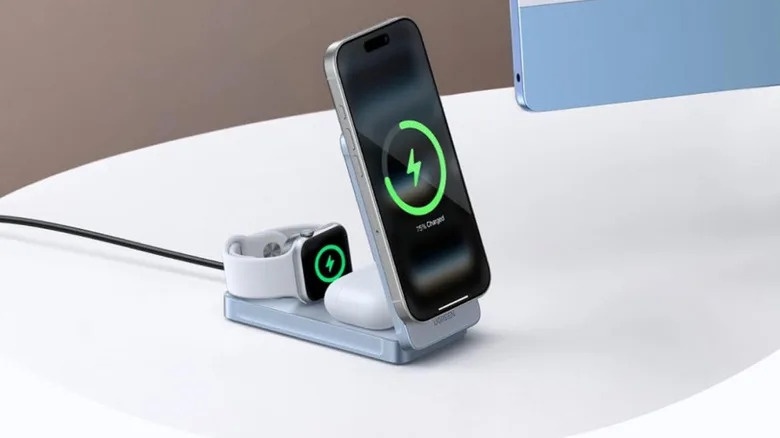
If you have a MagSafe or Qi2 charger, try it too. If wireless charging works but wired charging doesn't, suspect the cable or USB-C port.
Change only one component at a time. For example, keep the same adapter and outlet while testing another cable. This approach helps you identify the faulty accessory without replacing everything.
2. Check and Clean the Charging Port Safely
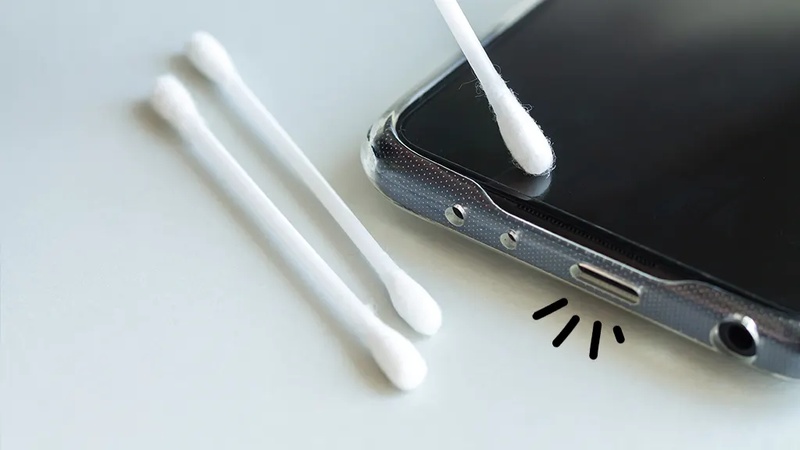
Dust, lint, and other small particles can collect inside the charging port. This debris may prevent the cable from connecting properly. If your iPhone Duo only charges when you move the cable, inspect the port for visible damage or dirt.
Follow these steps:
-
Disconnect the charging cable and turn off your iPhone.
Use a bright light to inspect the charging port.
Look for dust, lint, or visible damage.
-
If you see debris, avoid inserting metal objects or applying liquid.
-
Ask an Apple-authorized service provider to clean the port if debris remains inside.
Never force a cable into the port. Avoid using sharp tools, liquids, or compressed air that could damage the connectors. If the cable feels loose or the port looks damaged, seek professional help.
3. Cool the iPhone Duo and Retry Charging
High temperatures can temporarily stop your iPhone from charging. Intensive gaming, video recording, direct sunlight, and demanding apps can increase its temperature.
If your iPhone Duo feels hot, follow these steps:
Disconnect the charger.
Close demanding apps and stop intensive activities.
Remove the phone case if it traps heat.
Move your iPhone to a cool, shaded place.
-
Wait until the phone returns to a normal temperature.
-
Connect it to a working charger and check the battery.
Do not put your iPhone in a refrigerator or freezer to cool it quickly. Sudden temperature changes can cause additional problems. Apple confirms that charging can pause temporarily in extreme temperatures and resume when the device returns to its normal operating range.
4. Force Restart Your iPhone Duo
A temporary software error can sometimes interfere with charging. A force restart can refresh the system without deleting your personal data.
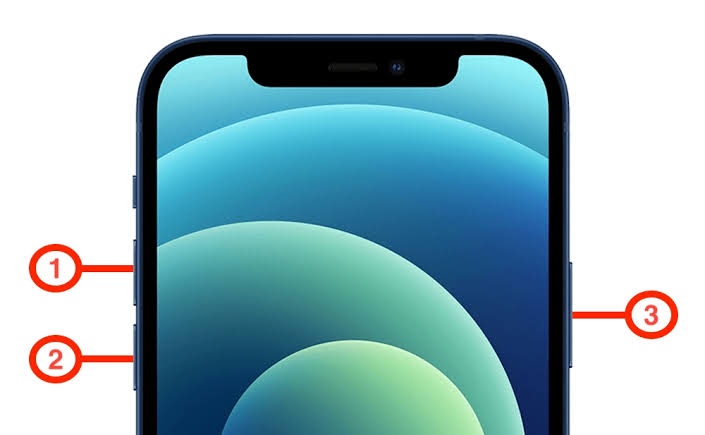
For an iPhone with Face ID (iPhone 8 and later, including iPhone Duo), follow this exact sequence:
Press and quickly release the Volume Up button.
Press and quickly release the Volume Down button.
Press and hold the Side button.
-
Release the Side button when the Apple logo appears.
Do not press all three buttons together. After the iPhone restarts, connect it to a known-working charger and check whether the battery percentage increases.
Part 3. iPhone Duo Not Charging After an iOS Update? Check These First
An iOS update may coincide with charging problems, but the timing alone does not prove that the update caused them. Check the accessories, charging settings, and software before considering system repair.
Did the Update Actually Cause the Charging Problem?
First, think about when the problem started. If your iPhone Duo charged normally before the update but stopped immediately afterward, a software issue may be involved. However, a damaged cable or a dirty port can cause the same symptoms. Test your phone with another compatible cable, adapter, and outlet. Also, restart your iPhone and check whether it charges normally. If the problem continues with different accessories, investigate the software settings and available updates.
Check Charging Settings and Install Any Available Update
Your iPhone's charging settings may explain why the battery stops at 80%. Open Settings, select Battery, and tap Charging, if your model offers this menu. Check the selected Charge Limit. If it is set to 80%, change it to 100% if you need a full charge. You should also check Optimized Battery Charging, where available. This feature may delay charging beyond 80% based on your charging habits. Apple's charging guide explains how these features help reduce battery wear. If the problem continues, open Settings, select General, and tap Software Update. Install an available update if your iPhone supports it. Back up your important data before making major software changes.
When Software Repair Is Reasonable
Consider system repair only after you have tested working accessories, checked the charging port, restarted your iPhone, and reviewed its settings. If charging problems started after an update and continue despite these checks, an iOS repair tool may help address a software-related issue. However, software repair cannot fix a physically damaged charging port, battery, or charging circuit.
Part 4. iPhone Duo Still Not Charging? Try These Fixes
If your iPhone Duo still does not charge after testing the cable, adapter, outlet, charging port, temperature, and basic settings, you can investigate possible iOS software problems. Tenorshare ReiBoot is a computer-based iOS system repair tool that provides several options for troubleshooting certain software-related issues. Its Standard Repair mode is designed to repair supported iOS system problems while attempting to preserve user data. ReiBoot also includes Recovery Mode tools and firmware downloads. However, it cannot repair physical damage to the charging port, battery, or internal charging components.
Key Features of Tenorshare ReiBoot
-
Standard Repair: Attempts to repair supported iOS system problems without intentionally erasing your personal data. It is the first option to try when a software glitch affects a normal feature, such as eSIM not working on iPhone Duo after an update.
-
Recovery Mode Tools: Lets you enter or exit Recovery Mode when your iPhone gets stuck during an update or startup.
-
iOS System Repair: Addresses software problems that continue after a restart or update, including iPhone Duo battery draining fast when Settings > Battery shows no clear cause. It can't fix a worn battery or a damaged charging port.
-
Firmware Download: Downloads the iOS firmware that matches your iPhone and uses it during repair. This can help when an update leaves system features misbehaving, such as iOS 27 CarPlay not working or accessory connection problems.
-
No Hardware Repair: ReiBoot focuses on software problems and cannot physically repair a damaged charging port, battery, or charging circuit. If your phone fails to charge with several known-good accessories, contact Apple or an Apple Authorized Service Provider.
How to Use ReiBoot for a Possible iOS Charging Issue
-
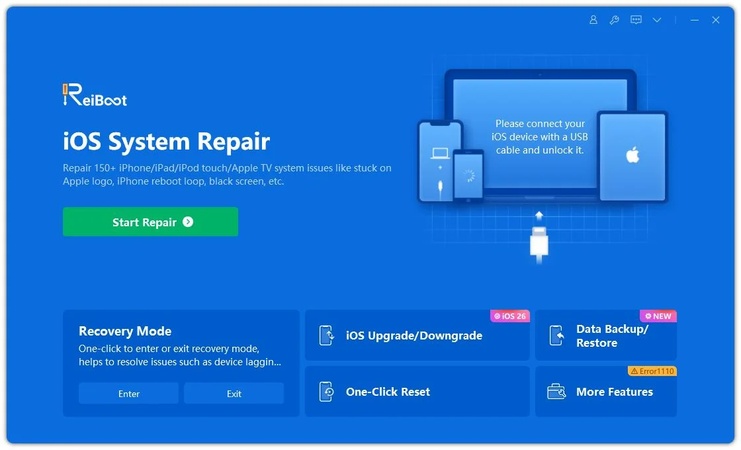
Step 1: Download ReiBoot on your Windows PC or Mac. After installation, open the software and connect your iPhone Duo using a working USB cable.
-
Step 2: Once ReiBoot detects the device, click the Repair Operating System option from the main screen.
-
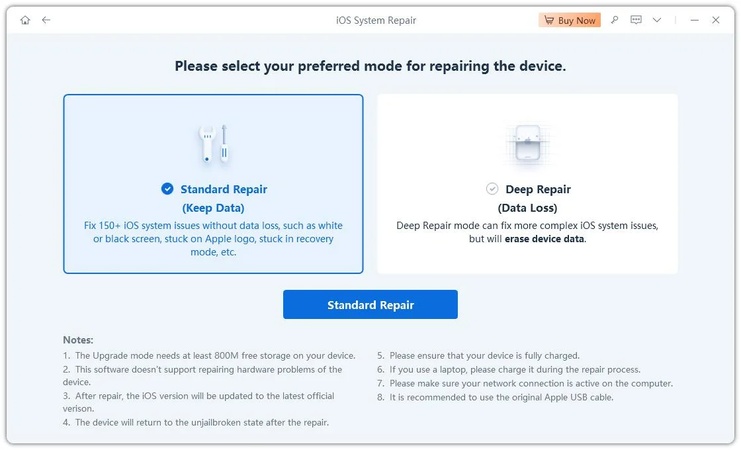
Step 3: Select Standard Repair to repair iOS system problems that may affect charging without deleting your photos, apps, or personal data.
-
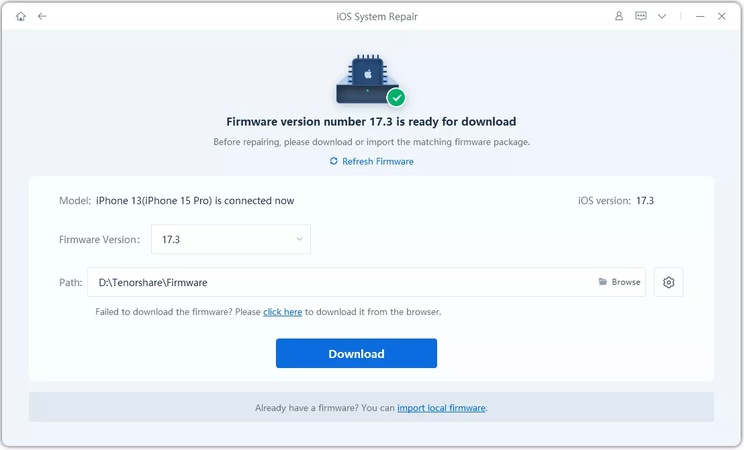
Step 4: ReiBoot will automatically detect the correct iOS firmware for your iPhone. Click Download and wait for the firmware package to finish downloading.
-
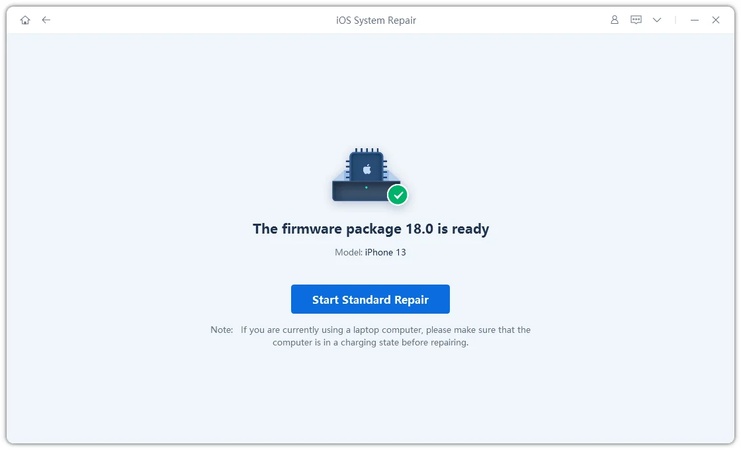
Step 5: Click Start Standard Repair and keep your iPhone connected during the process. ReiBoot will repair the damaged system files and repair damaged system files.
-
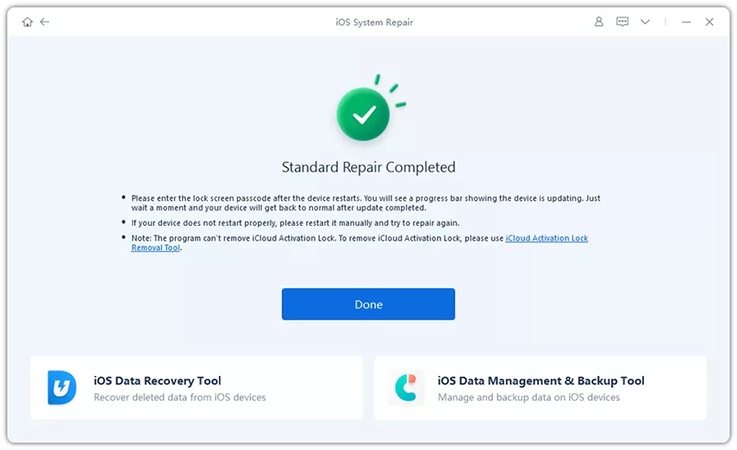
Step 6: After the repair finishes, your iPhone will reboot normally. Once the Apple logo appears, your iPhone Duo should restart normally, then check whether charging works.
Know When Your iPhone Duo Needs Professional Service
Sometimes, charging problems come from damaged hardware rather than software. Contact an Apple-authorized service provider if you notice any of these signs:
-
Your iPhone does not charge with multiple working cables and adapters.
-
The charging port looks bent, damaged, or loose.
-
Your phone has suffered liquid exposure.
-
Your iPhone becomes unusually hot during charging.
-
Neither wired nor supported wireless charging works.
-
The battery swells or the screen begins to lift.
Stop charging your phone if you notice swelling, burning smells, or unusual heat. Do not open the device yourself. A qualified technician can inspect the battery, port, and internal charging components.
Which Method Should You Choose?
| Situation | Suggested method |
|---|---|
| Your iPhone shows no charging icon | Test another cable and adapter |
| Charging works intermittently | Inspect the cable and port |
| Your iPhone feels hot | Let it cool before charging |
| Battery stops at 80% | Check the Charge Limit |
| Charging problems began after an update | Restart and check for updates |
| Persistent software-related problems | Consider ReiBoot Standard Repair |
| Visible port damage or battery swelling | Seek professional service |
| Wireless charging works but wired doesn't | Suspect the cable or USB-C port; test another cable |
| Liquid Detected" alert appears | Disconnect, dry the port, wait at least 30 minutes |
Part 5. FAQs About iPhone Duo Not Charging
1. Why Won't My iPhone Duo Charge Even Though It's Plugged In?
Your iPhone Duo may not charge because of a damaged cable, faulty adapter, dirty charging port, or software problem. Try another working cable and adapter, check the power outlet, and force restart your phone. If the problem continues, inspect the port and seek professional help if necessary.
2. How Do I Tell If My iPhone Charging Port Is Damaged?
A damaged charging port may cause intermittent charging, a loose cable connection, or no charging response. You may also notice visible damage or corrosion. If different working cables produce the same problem, ask a technician to inspect the port.
3. Why Is My iPhone Duo Charging but the Battery Isn't Going Up?
Your iPhone may receive less power than it uses, especially when you run demanding apps. High temperatures can also slow or pause charging. Try a compatible wall charger, close demanding apps, and let your phone cool down. If the percentage still does not increase, check the battery settings.
4. How to Force an iPhone to Charge?
You cannot force an iPhone to charge if its hardware or charging conditions prevent it. Instead, connect it to a working charger, check the port, let it cool, and force restart it. If it stops at 80%, review the charging limit rather than repeatedly reconnecting the cable.
5. What to Do If iPhone Is Not Charging Because of Water?
Disconnect the cable right away. If you see a liquid-detection alert, Apple says to gently tap the iPhone against your hand with the connector facing down, then wait at least 30 minutes before charging again. If the alert returns, there is still liquid in the port or on the cable. In an emergency, iPhone lets you override the alert to charge, but charging a wet connector can corrode the pins, so wireless charging is the safer option.
6.Why does my iPhone Duo stop charging at 80%?
It is usually a setting, not a fault. Check Settings > Battery > Charging: if Charge Limit is below 100%, the phone stops near that level. If it's at 100%, Optimized Battery Charging may hold at 80% when it expects a long charge, and heat can also limit charging above 80%
7. Does iPhone Duo support fast charging?
Yes. Per Apple's announced specs, it can reach 50% in about 20 minutes over USB-C with a 60W or higher adapter, and supports MagSafe and Qi2 wireless charging at up to 25W.
Conclusion
When your iPhone Duo not charging problem occurs, first check the cable, adapter, power outlet, and charging port. Next, let the phone cool down, force restart it, and review the charging settings. If the problem started after an iOS update, check for available software updates before considering system repair.
Tenorshare ReiBoot can help address certain iOS software problems when basic troubleshooting fails, but it cannot repair physical damage. If several known-good chargers fail or you notice signs of hardware damage, seek professional service to identify the cause and restore normal charging.
