
Updated on 2026-09-22 / iPhone Tips
If your iPhone Duo battery is draining fast, first check Settings > Battery to see which apps or system activities are using the most power. Common causes include heavy use of the 7.6-inch inner display, background activity, weak cellular coverage, heat, and temporary background tasks after an iOS update. If the drain continues without a clear software or usage-related cause, check Battery Health for signs of battery wear.
iPhone Duo uses a dual-battery system, with one battery on each side of the foldable device. Apple rates it for up to 24 hours of typical use, up to 31 hours of video playback on the inner display, or up to 44 hours on the outer display. These are Apple's test-based figures, not a guarantee of real-world runtime.
Part 1. Why Is iPhone Duo Battery Draining So Quickly?
An iPhone Duo battery draining fast is usually related to screen usage, background activity, cellular signal, temperature, an iOS update, or battery condition. The quickest way to narrow it down is to open Settings > Battery and check which apps or system activities are consuming the most power.
1. High Inner-Screen Usage
The iPhone Duo has a large 7.6-inch inner display. Using this screen for video streaming, gaming, social media, photo editing, or other demanding tasks can consume more power than light use.
Clue: Battery usage shows long on-screen activity, especially from video, gaming, or other demanding apps.
What to do: Lower screen brightness, reduce long viewing sessions, and use the outer display when you do not need the larger screen. Apple's Battery screen identifies long on-screen activity as a possible reason for higher battery use.
2. Background Activity
An app can continue working when you are not actively using it. Photo syncing, location services, music playback, mail fetching, and other background tasks can increase battery use.
Clue: Battery details show a large amount of "Background" activity for an app.
What to do: Check the app's battery usage first. If one app regularly shows unusual background activity, update it or reduce the features that allow it to work in the background.
3. Weak Cellular Signal
Your iPhone can use more power when it searches for or maintains a cellular connection in a weak-signal area.
Clue: Battery details show "Cellular Coverage" or "No Mobile Coverage" around the time of the drain.
What to do: Move to an area with better coverage or connect to reliable Wi-Fi when possible. Apple's Battery Usage screen can identify low-signal activity.
4. Heat During Use or Charging
Heat can affect battery performance and long-term battery health. Heavy gaming, video recording, direct sunlight, or intensive use while charging can make the iPhone Duo warmer.
Clue: The phone feels unusually warm or charging slows or pauses.
What to do: Move the phone to a cooler place and avoid demanding apps while charging. Apple recommends charging iPhones between 0°C and 35°C and warns that high temperatures can reduce battery lifespan.
5. Activity After an iOS Update
Battery drain can temporarily increase after an iOS 27 update while the iPhone completes background tasks. If the drain starts immediately after updating, give the device some time to finish these tasks, then check Battery Usage again.
Clue: Battery drain starts immediately after updating to iOS 27, and Battery settings show ongoing update or background activity.
What to do: Give the device some time to finish its background tasks. Then check Battery Usage again. If the problem continues without a clear cause, continue with the troubleshooting steps below.
Part 2. How to Fix iPhone Duo Battery Draining Fast? 4 Easy Ways
If you want to fix iPhone Duo battery draining fast, follow these steps in order. Start with the Battery screen because it can help you identify the real source before you change settings.
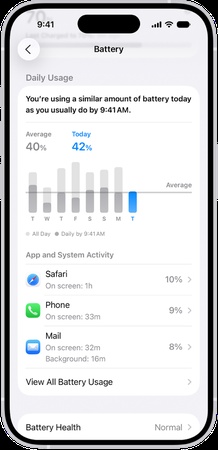
Step 1: Check the Top Battery Users Before Changing Settings
Open: Settings > Battery
Look at the Daily Usage section and review the apps and system activities using the most battery. On iOS 27, you can also tap View All Battery Usage to compare battery use across recent days. Tap an app to see whether its activity happened mainly on screen or in the background.
Look for:
-
Apps with unusually high battery percentages
-
Long on-screen activity
-
High background activity
-
Cellular coverage warnings
-
Recent iOS update or setup activity
This step matters because you may not need to disable several useful features if one app causes the drain.
Step 2: Reduce Display and Background Power Use
The inner screen gives you more space, but long periods of high brightness and heavy use can increase power consumption.
Try these changes:
-
Reduce screen brightness.
-
Use Auto-Lock instead of keeping the screen active.
-
Avoid unnecessary Always-On display use if you prefer longer battery life.
-
Close or limit apps that show unusual background activity.
-
Reduce unnecessary notifications.
-
Keep apps updated.
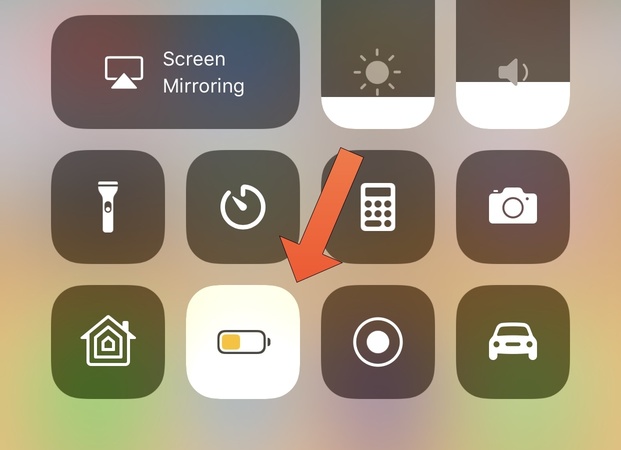
You can also use Low Power Mode when you need the battery to last longer. Apple says Low Power Mode reduces background activity, lowers display brightness, limits some visual effects, and pauses some automatic tasks.
Step 3: Reduce Signal and Temperature-Related Drain
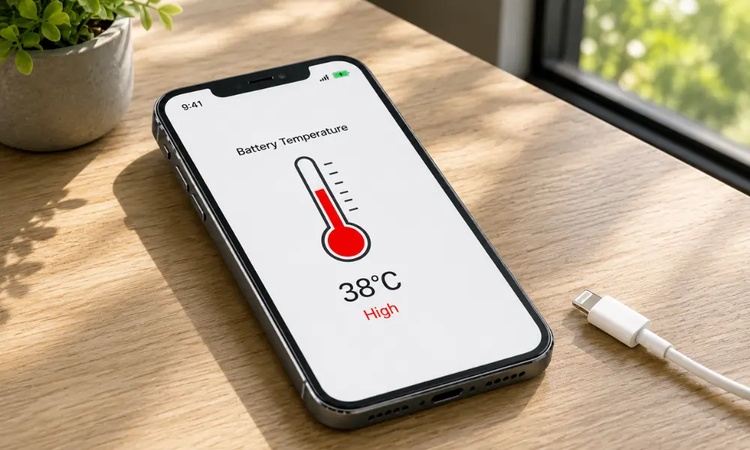
If you notice faster drain in places with poor cellular coverage, use Wi-Fi when available. Apple's Battery Usage screen can show when low cellular coverage contributes to battery use. Also avoid charging the iPhone Duo in direct sunlight, inside a hot car, or in another very hot place. If your iPhone Duo battery draining fast while charging, check whether the phone becomes hot. Heavy games, high-quality video streaming, and other processor-intensive activities can also slow charging while increasing heat.
If the phone gets warm during charging:
-
Stop demanding apps.
-
Move the phone to a cooler place.
-
Remove the case if it traps noticeable heat.
-
Let the phone return to a normal temperature.
-
Check Battery settings for a charging warning.
iPhone can automatically slow or pause charging when temperature conditions become unsafe.
Step 4: Restart, Update Apps, and Use Low Power Mode
A simple restart can help when temporary software activity continues longer than expected. Then open the App Store and install available app updates. Developers regularly release updates that improve compatibility with new iOS versions.
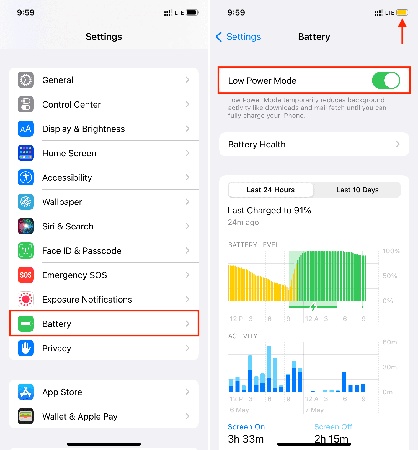
If you still need longer battery life during the day, turn on: Settings > Battery > Power Mode > Low Power Mode Low Power Mode can reduce background activity and other power-consuming functions. For supported iPhone models, iOS also offers Adaptive Power. It can make small performance and background-activity adjustments when your usage is higher than normal.

Part 3. Check iPhone Duo Battery Health Before Replacing Anything
Before assuming that your iPhone Duo needs a new battery, perform an iPhone Duo battery health check.
Go to: Settings > Battery > Battery Health
Apple's current battery settings provide information about battery capacity and health. On supported newer iPhones, Battery Health can also show cycle count, manufacture date, and first-use date.
What to Check
-
Maximum Capacity: This helps show how much capacity the battery can hold compared with when it was new.
-
Cycle Count: A battery cycle represents battery use over time. A high cycle count can help explain normal battery wear.
-
Battery Health Status: Check whether iOS reports a service-related warning or another battery message.
-
Battery Usage: Compare battery health information with actual daily battery use. One percentage cannot explain every battery-drain problem.
When Software Troubleshooting Is No Longer Enough
Get professional help if the iPhone Duo shows:
-
Abnormal or repeated overheating
-
Battery swelling
-
Physical battery damage
-
Charging-port problems
-
Sudden shutdowns
-
A persistent unexplained battery drop
-
Charging problems that continue with different compatible accessories
Do not try to open or physically repair a swollen or damaged battery yourself. Apple recommends battery service through Apple or an Apple Authorized Service Provider.
Part 4. When iOS System Repair Is Worth Trying
If your iPhone Duo is draining battery quickly after the iOS 27 update and Battery Usage does not point to a specific app or unusual usage pattern, it may be worth checking for a software-related system issue before considering a full restore. Tenorshare ReiBoot is an iOS system repair utility that supports iOS 27 and can address certain iOS system problems. Its Standard Repair mode is designed for common system issues while aiming to preserve user data during the repair process.
ReiBoot is intended for software-related problems, not physical battery or hardware damage. It cannot repair a worn-out battery, damaged battery cells, swelling, a damaged charging port, or other physical hardware faults. If the battery itself has degraded or the iPhone shows signs of physical damage, a battery service or hardware inspection is more appropriate.
Key Features of Tenorshare ReiBoot
• iOS System Repair: ReiBoot helps identify and repair certain iOS system problems that may affect normal iPhone performance after an update, including issues such as Screen Time Error.
• iOS 27 Support: Tenorshare lists iOS 27 support, allowing users to use ReiBoot for compatible software issues on updated iPhone devices.
• Standard Repair: Standard Repair targets common iOS problems while aiming to keep your personal data on the device during the repair process.
• Recovery Mode: ReiBoot can help you enter or exit Recovery Mode when your iPhone gets stuck during startup, updating, or other system processes, such as when an iPhone 18 Is Stuck on the Apple Logo.
• System Recovery: The tool provides additional recovery options for more serious iOS software problems that standard troubleshooting may not resolve.
• Backup and Restore: ReiBoot includes backup and restore functions that can help you protect or recover important iPhone data during system troubleshooting.
• Windows and Mac Support: You can use ReiBoot on both Windows PCs and Mac computers, giving you flexibility when repairing compatible iOS system issues.
How to Use ReiBoot for an iOS System Problem
-
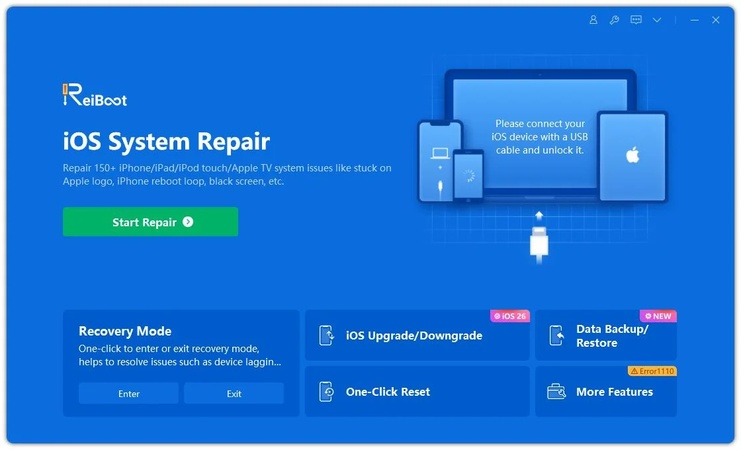
Step 1: Download ReiBoot on your Windows PC or Mac. After installation, open the software and connect your iPhone Duo using a working USB cable.
-
Step 2: Once ReiBoot detects the device, click the Repair Operating System option from the main screen.
-
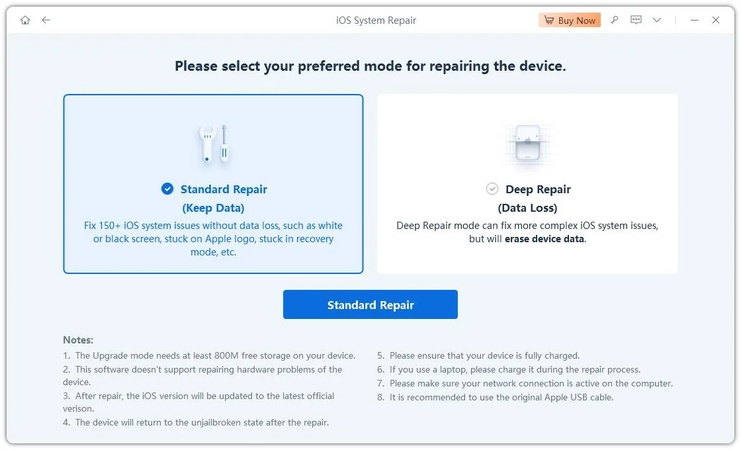
Step 3: Select Standard Repair to attempt to repair the supported iOS system issue without erasing your personal data.
-
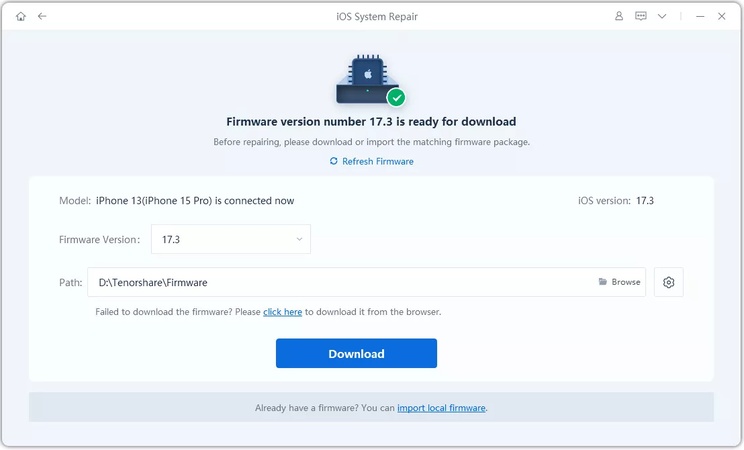
Step 4: ReiBoot will automatically detect the correct iOS firmware for your iPhone. Click Download and wait for the firmware package to finish downloading.
-
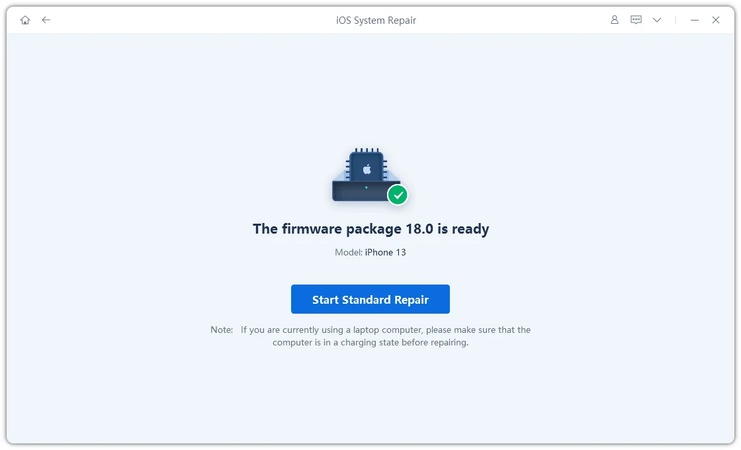
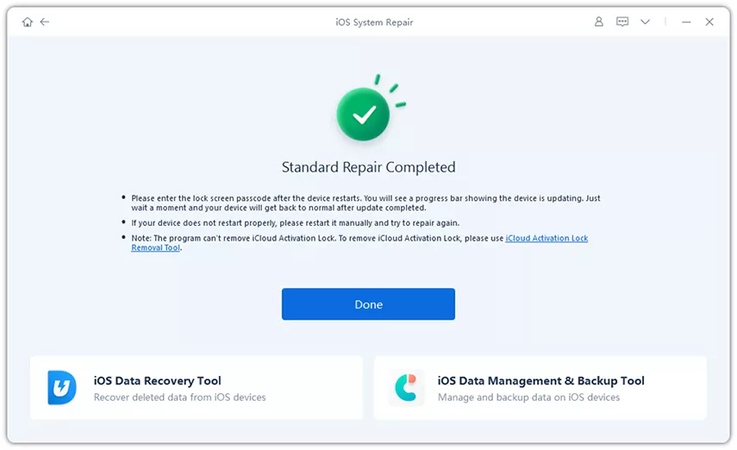
Step 5: Keep your iPhone connected until the Standard Repair process is complete and the device restarts..
-
Step 6: After the repair finishes, your iPhone will reboot normally. Once the Apple logo appears, the device should successfully exit DFU Mode.
Back up important data before performing major system repairs. Also, do not use a software repair tool as a replacement for professional help when you suspect battery or charging hardware damage.
FAQs About iPhone Duo Battery Draining Fast
1. Why is my iPhone Duo battery draining so fast when I'm not using it?
Background activity, notifications, photo syncing, location services, and weak cellular coverage can cause battery use while the phone appears idle. Open Settings > Battery and check whether the Battery Usage screen shows high background activity or low cellular coverage.
2. How much power does the iPhone Duo inner display use?
Apple does not provide a simple percentage showing exactly how much battery the inner display uses. The iPhone Duo has a 7.6-inch inner display, and Apple rates the device for up to 31 hours of video playback using the inner display under its testing conditions. Actual results depend on brightness, apps, network conditions, and other settings.
3. Is it normal for iPhone Duo battery to drain fast after an iOS 27 update?
It can happen temporarily while the iPhone completes background tasks after an update. Apple notes that devices can become warm while completing work after a major software update. If unusual drain continues, check Battery Usage and identify the activity responsible before trying deeper troubleshooting.
4. How do I check what is draining the battery on my iPhone Duo?
Go to Settings > Battery. Review Daily Usage and tap View All Battery Usage for more details. iOS can show battery use from individual apps and system activities, including on-screen activity, background activity, notifications, and cellular coverage.
Conclusion
If your iPhone Duo battery is draining fast, start with Settings > Battery to identify the app or system activity using the most power. Then adjust screen use, background activity, network settings, or Low Power Mode based on what you find. If the problem started after an iOS 27 update and no clear cause appears, a software-related issue may be worth investigating. Tenorshare ReiBoot can help with certain iOS system problems, but it cannot repair battery wear or physical hardware damage.
