
Updated on 2026-07-21 / iOS 27
Not sure if you should downgrade, or already tried and ran into errors? This guide covers both: a decision framework to help you decide, the two working methods (ReiBoot and iTunes), and a troubleshooting section for the most common failure points.
- Part 1: Should You Actually Downgrade?
- Part 2: Can You Still Downgrade? (Understanding the Signing Window)
- Part 3: Downgrade iOS 27 to iOS 26 Using Tenorshare ReiBoot [Recommended]
- Part 4: Downgrade iOS 27 to iOS 26 Using Finder / iTunes [Manual]
- Part 5: Can I Downgrade iOS 27 to iOS 26 Without a Computer?
- Part 6: Common Problems Users Encounter When Downgrading from iOS 27 to 26
Should You Actually Downgrade?
Downgrading isn't always the right move. It permanently erases your device and you cannot restore an iOS 27 backup to iOS 26. Before you start, spend 2 minutes with this decision framework.
- You're on iOS 27 and want to return to stable
- Battery life dropped significantly after upgrading
- Core apps you rely on are broken or crash constantly
- Your device is overheating or throttling under normal use
- You have a recent iOS 26 backup to restore from
- Apple is still signing iOS 26
⌛ Consider waiting if…
- Your main complaint is minor UI bugs — a point update will fix them
- You only have an iOS 27 backup (it won't restore on iOS 26)
- Apple has already closed signing for iOS 26 on your model
- You rely on iOS 27-specific features day-to-day
- Your issues started within the first 24 hrs — may self-resolve
Can You Still Downgrade? (Understanding the Signing Window)
Apple controls which iOS versions can be installed at any given time through a cryptographic signing process. When a version is "signed," Apple's servers will authorize its installation on your device. When signing closes, even a valid IPSW file will return a "firmware not compatible" error — there is no workaround for most users.
How fast does Apple close signing?
Historically, Apple stops signing the previous major iOS version within 2–6 weeks of the next version's public release. For periods specifically, signing for older versions can close faster — sometimes within days of a new dropping. The window is not announced in advance.
What about SHSH2 blobs?
Some advanced users save SHSH2 blobs(cryptographic snapshots tied to a specific device and iOS version) using tools like TSS Saver. In theory, these allow future downgrades after signing closes — but in practice, Apple's current infrastructure makes blob-based downgrades extremely difficult and unreliable for most devices. It's not a recommended path for everyday users.
Ready to start right now? Check real-time iOS signing status before the window closes.
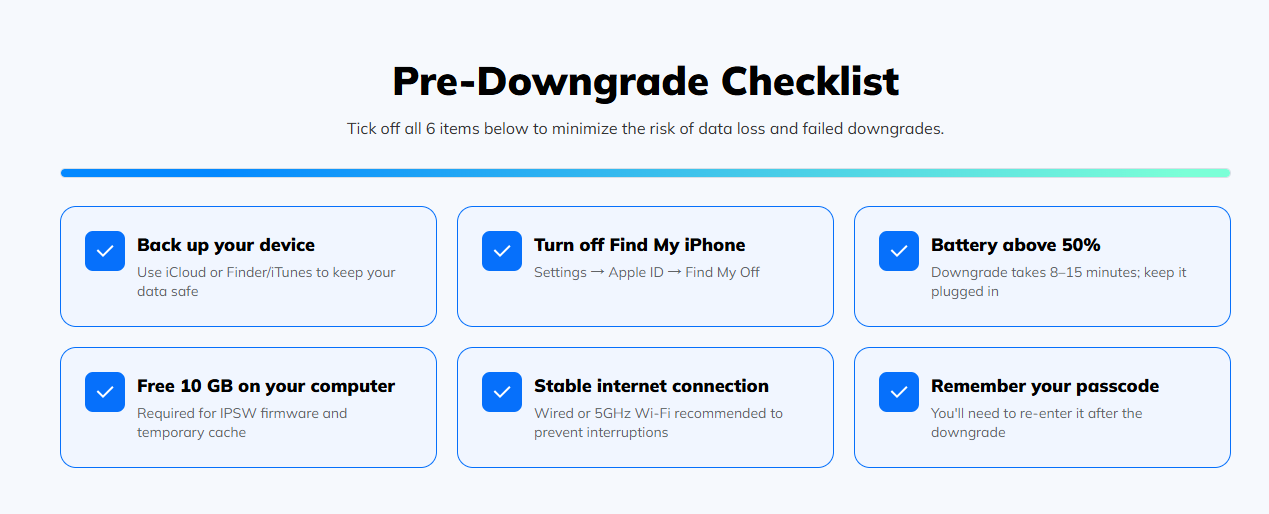
Method 1. Downgrade iOS 27 to iOS 26 Using Tenorshare ReiBoot [Recommended]
If you want the easiest way to downgrade from iOS 27 to iOS 26, Tenorshare ReiBoot is one of the most reliable options. It handles the entire process automatically — no technical knowledge required.
Why Choose Tenorshare ReiBoot?
- One-click downgrade — no manual IPSW hunting or command-line steps
- Automatically downloads the correct firmware for your device
- No risk of bricking your iPhone when used correctly
- Works on both Windows and Mac
- Also fixes common iOS issues: boot loops, stuck on Apple logo, black screen
How to Uninstall iOS 27 Using ReiBoot:
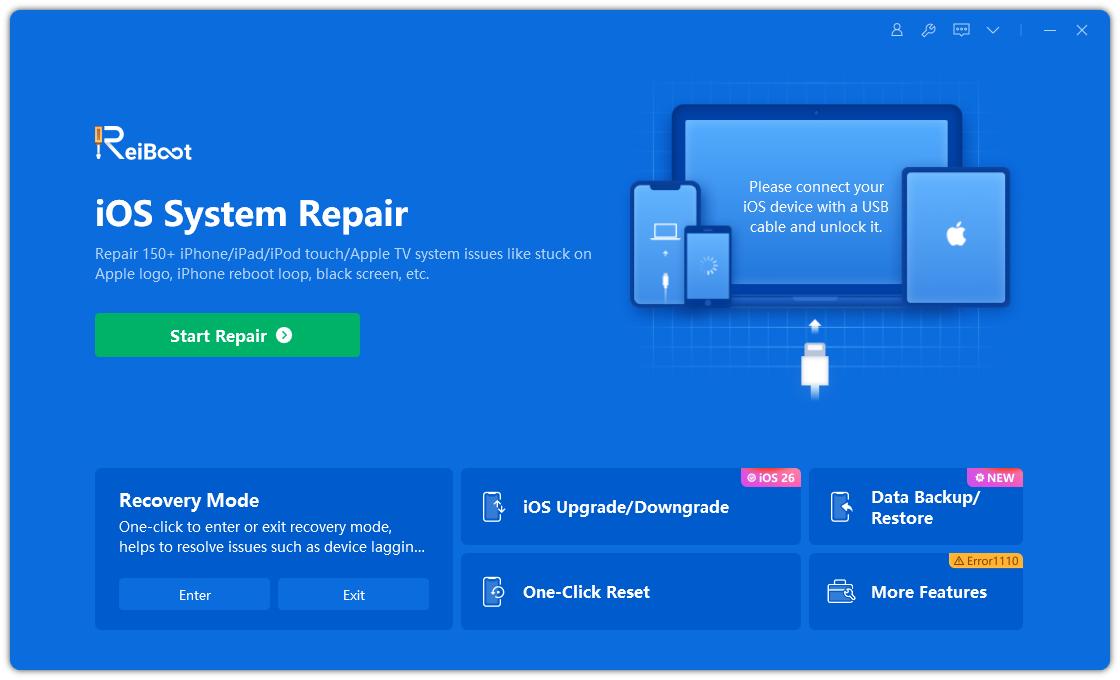
- Download and open ReiBoot on your computer. Then, launch ReiBoot. On the home screen, click "iOS Upgrade/Downgrade".
- Choose Downgrade.
- ReiBoot will automatically detect your device and show compatible firmware. Choose iOS 26 and click Download.
- Once the firmware is downloaded, click "Initiating Downgrade".
- Wait for the process to complete. Your device will automatically restart with iOS 26 installed no errors.
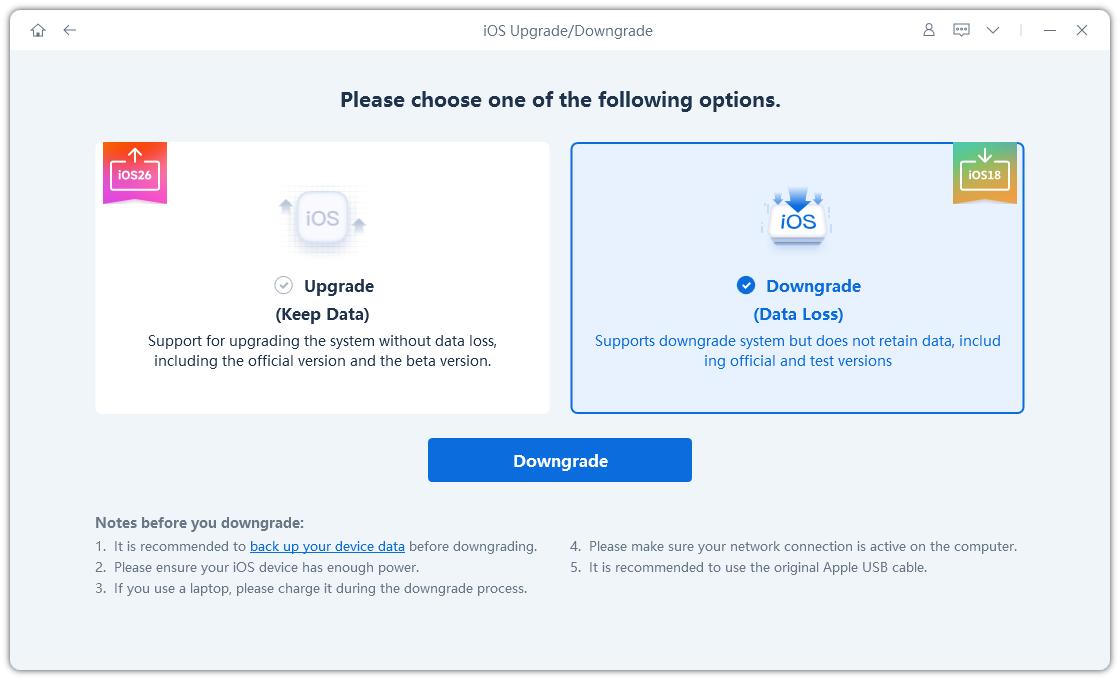
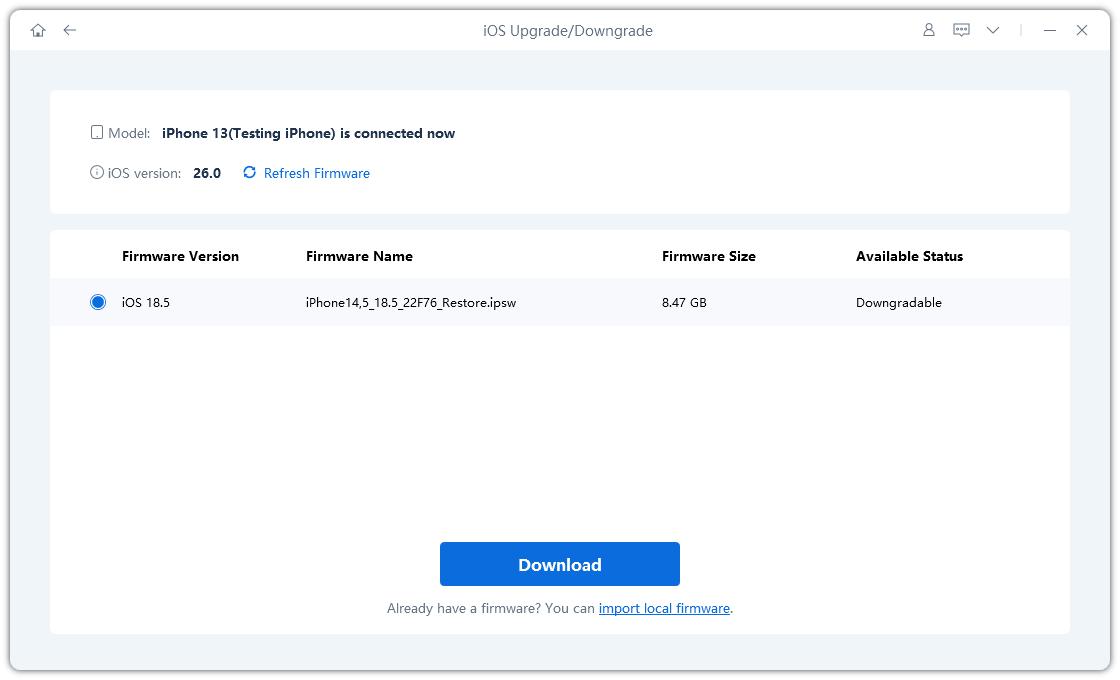
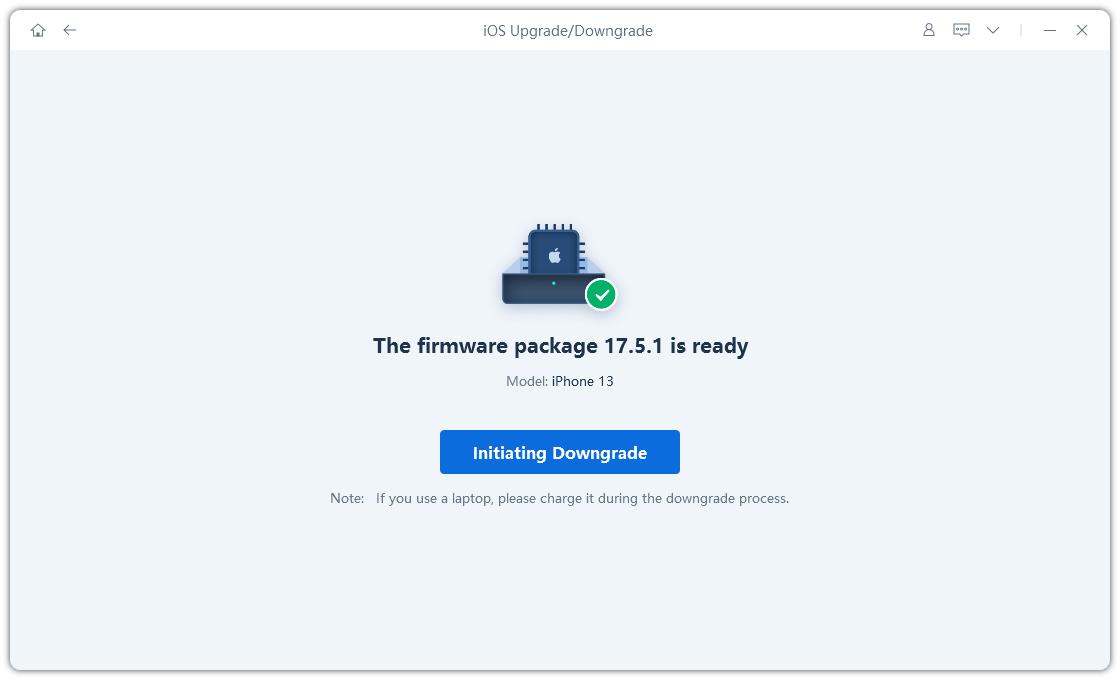
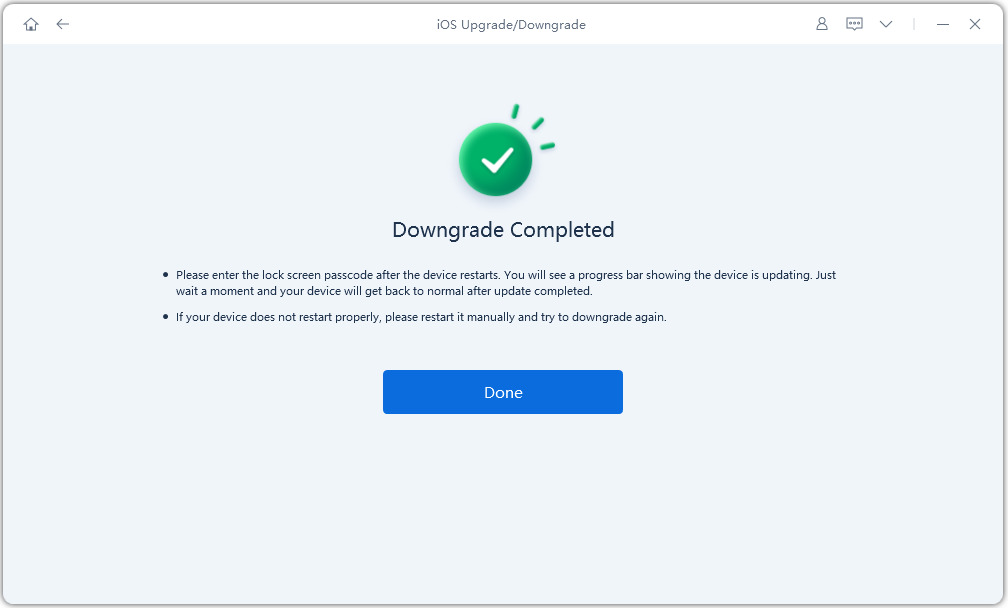
Important Notes Before Downgrading: Make sure to back up your iPhone before downgrading, as the process may cause data loss. Also, you can only downgrade to iOS 26 while Apple is still signing the firmware.
Method 2: Downgrade iOS 27 to iOS 26 Using Finder / iTunes [Manual]
This method restores your iPhone with an IPSW firmware file, but the process is more technical and may not be ideal for beginners.
If you want to avoid the hassle, here is video guide on How to Downgrade iOS 27 with or without iTunes:
What You Need
- A Mac or Windows PC
- The latest version of Finder or iTunes
- A compatible iOS 26 IPSW firmware file
- A stable USB cable
- A full iPhone backup
Step 1: Download the iOS 26 IPSW File
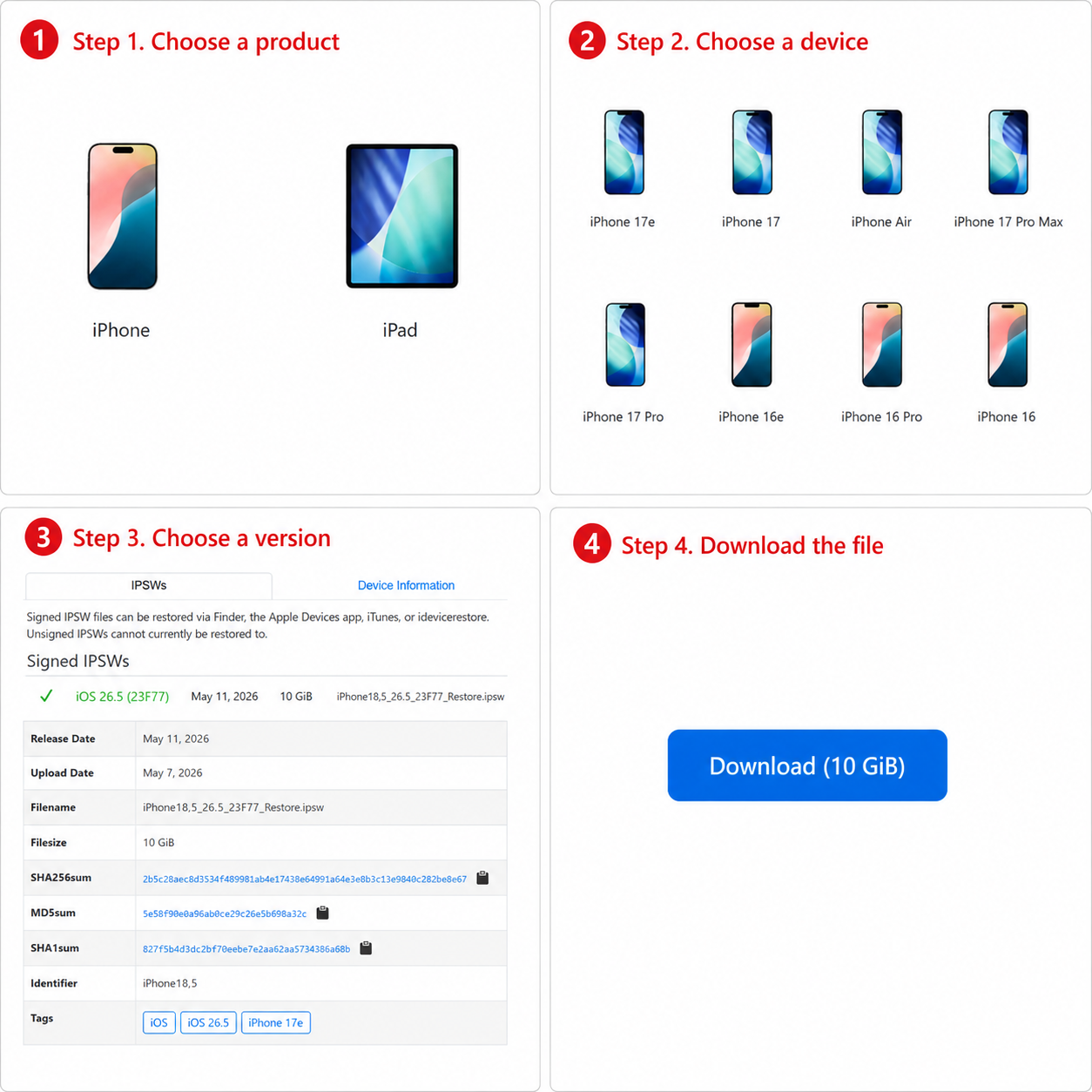
- Go to ipsw.me in your browser
- Select your exact iPhone model (e.g., iPhone 16 Pro, iPhone 15)
- Find iOS 26 in the list and confirm it shows "Signed" in green
- Download the IPSW file and save it to your Desktop
Step 2: Disable Find My iPhone
- Settings > [Your Name] > Find My > Find My iPhone > Toggle OFF
- Enter your Apple ID password when prompted
Step 3: Connect Your iPhone and Open Finder / iTunes
- Connect your iPhone via USB cable
- Mac: Open Finder — your iPhone appears in the sidebar under Locations
- Windows: Open iTunes
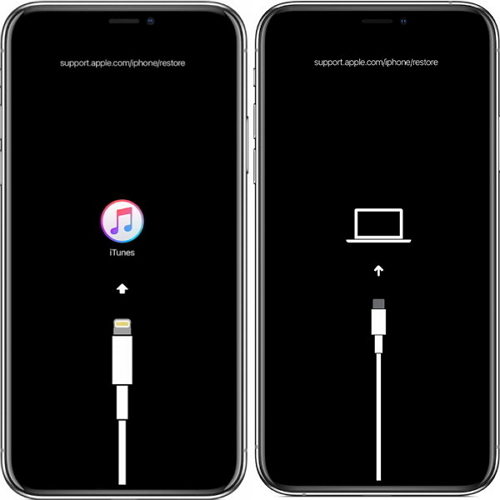
Step 4: Put Your iPhone into Recovery Mode
For iPhone 8 and newer (including all Face ID models):
- Quickly press and release Volume Up
- Quickly press and release Volume Down
- Press and hold the Side button — keep holding even when the Apple logo appears
- Release only when you see the cable + computer icon on screen
Step 5: Restore Using the IPSW File
- On Mac: Hold the Option key and click Restore iPhone
- On Windows: Hold the Shift key and click Restore iPhone
- A file browser opens — navigate to and select your iOS 26 IPSW file
- Confirm and wait 10–30 minutes for the installation to complete
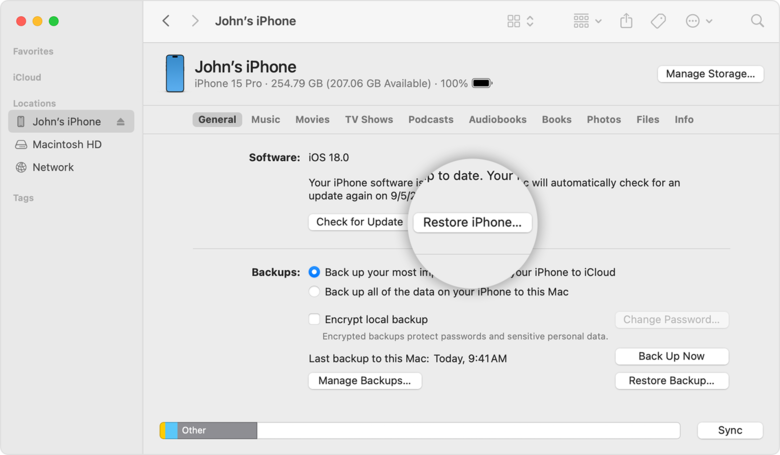
Step 6: Set Up Your iPhone
- Your iPhone will restart and show the "Hello" welcome screen
- Restore from an iOS 26 backup if you have one, or set up as new
Note: If you see the error "firmware not signed" during this process, it means Apple has stopped signing iOS 26 for your device, and this method will no longer work.
Can I Downgrade iOS 27 to iOS 26 Without a Computer?
This is one of the most common questions — and unfortunately, the answer is no reliable method exists for downgrading iOS directly on the device without a computer.
Here's why:
- Apple does not provide an on-device downgrade option
- Without a computer, you cannot use iTunes, Finder, or tools like ReiBoot or 3uTools to install older firmware
- Third-party apps claiming to downgrade iOS wirelessly are typically scams or carry serious risks including device bricking or malware
The safest answer: A computer is required. If you don't have one, consider visiting an Apple Genius Bar or a trusted repair shop.
Common Problems Users Encounter When Downgrading from iOS 27 to 26
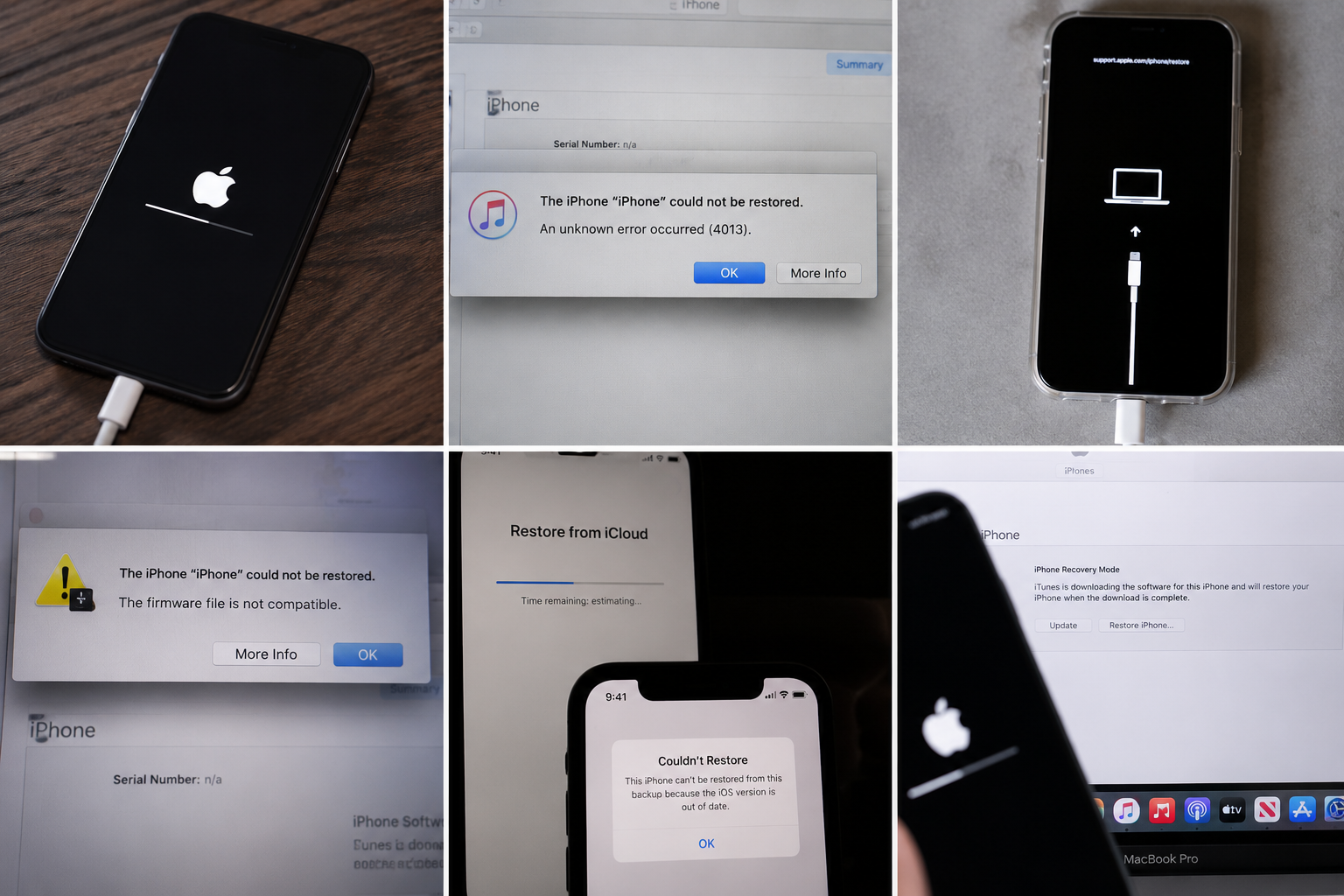
Problem 1: iPhone Gets Stuck on the Apple Logo After Downgrade
Why it happens
- Downgrade process was interrupted
- IPSW file is corrupted
- Finder/iTunes failed during installation
- System files were not written completely
How to fix it
- Force restart the iPhone
- Put the device back into Recovery Mode
- Retry the downgrade using a fresh IPSW file
- If the device still won't boot, use an iOS repair tool to fix the system without restoring again
Problem 2: Finder or iTunes Says the Firmware Is Not Compatible
Why it happens
- Wrong IPSW selected
- IPSW doesn't match the device model
- Apple has stopped signing iOS 26
How to fix it
- Verify your exact iPhone model
- Download the correct IPSW version
- Check whether iOS 26 is still being signed
- If the signing window has closed, downgrade is no longer possible through Finder or iTunes
Problem 3: Backup Cannot Be Restored After Downgrading
Why it happens
Apple normally does not allow a backup created on a newer iOS version to be restored onto an older iOS version.
How to fix it
- Restore from an older iOS 26 backup if available
- Use iCloud syncing to recover contacts, photos, notes, and calendars
- Re-download apps manually from the App Store
- Create a fresh backup before testing future versions
Problem 4: iPhone Keeps Returning to Recovery Mode
Why it happens
- Incomplete downgrade
- Failed restore validation
- Corrupted system partition
How to fix it
- Exit Recovery Mode and restart
- Retry the restore process
- Use DFU Mode for a clean reinstall
- If Recovery Mode loops continuously, repair the system before attempting another downgrade
Problem 5: Downgrade Is Stuck for Hours
Why it happens
- Slow Apple servers
- Large IPSW download
- USB connection instability
- Security software interference
How to fix it
- Wait at least 30–60 minutes before interrupting
- Use a different USB cable or port
- Disable antivirus temporarily
- Re-download the IPSW file if progress never resumes
Problem 6: Data Was Lost After Downgrading
Why it happens
- No backup created before downgrade
- Restore process erased the device
- Newer backup cannot be restored to iOS 26
How to fix it
- Restore from an available backup
- Recover synced data from iCloud
- Re-sign into Apple ID to resync content
- Always create a local backup before installing software
Final Thoughts
Downgrading iOS 27 to iOS 26 is entirely possible — but only while Apple is still signing iOS 26, so don't wait too long. For most users, Tenorshare ReiBoot offers the smoothest experience with automatic firmware detection and a guided process that minimizes the risk of errors. If you prefer a manual approach, the Finder/iTunes + IPSW method is free and reliable.
Whichever method you choose, always back up your data first, verify the signing status at ipsw.me, and disable Find My iPhone before you begin.
