
Updated on 2026-03-25 / iPhone Tips
Trying out the iOS 26 can be exciting, but sometimes you may want to go back to the old version. This can be hard if you're not prepared. That’s why saving SHSH blobs is very helpful. These files let you downgrade your iPhone even after Apple stops signing the old iOS. It’s a simple step that gives you more control over your device. In this guide, we’ll explain everything in a simple way, including how to do the iOS 26 SHSH blobs download and save blobs for free.
- Before You Start: Can SHSH Blobs Be Used for iOS 26 Downgrade?
- Part 2: How to Save or Download SHSH Blobs for iOS 26
- Part 3: How to Use SHSH Blobs to Downgrade iOS 26 Safely
- Top Alternative: Best Way to Downgrade iOS 26 Without SHSH Blobs
Before You Start: Can SHSH Blobs Be Used for iOS 26 Downgrade?
Yes, you can use SHSH blobs with iOS 26, but you must save them while Apple is still signing the version. SHSH blobs store device and iOS info, allowing you to downgrade even after Apple stops signing.
Keep in mind, saving blobs must be done before the signing window closes. Downgrading using SHSH blobs can be complex and may require extra tools—not all devices support it. However, for advanced users, it’s a useful way to control your device’s iOS version.
Part 2: How to Save or Download SHSH Blobs for iOS 26
There are a few simple ways to save SHSH blobs, and doing so helps protect your iPhone's firmware for future use. If you ever plan to downgrade to a specific iOS version, saving blobs is a must. Here are some easy methods you can use to save your SHSH blobs:
Method 1: Use TSS Saver (Online Tool to Save SHSH Blobs)
One of the easiest ways to download SHSH blobs is by using the TSS Saver website. This tool works right from your web browser and doesn’t require any tech skills, making it perfect for beginners. You don’t have to install anything, and the whole process is quick if you follow the right steps.
Before you begin, keep in mind that TSS Saver only saves SHSH blobs—it doesn’t help with restoring or downgrading your device. Also, blobs can only be saved while Apple is still signing the iOS version you want. So, timing is key:
Step 1: Connect your device to your computer, then open iTunes (on Windows) or Finder (on macOS). Go to the device summary page.
Step 2: Go to “tsssaver.1conan.com,” paste your ECID into the box (without any extra spaces), and choose your exact device model from the dropdown menu.
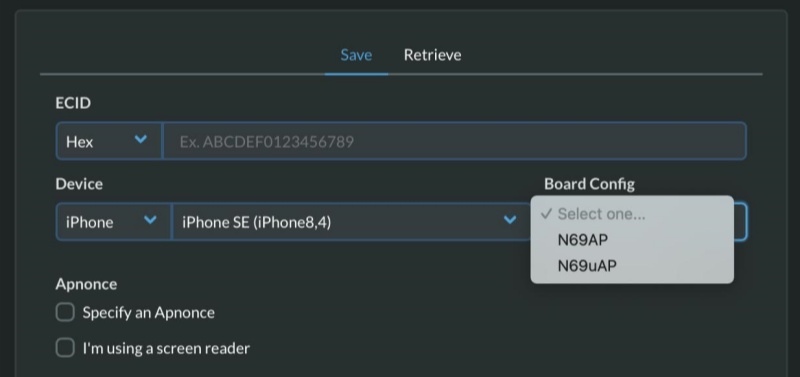
Step 3: See if iOS 26 is listed under the signed versions. Click “Submit” or “Save SHSH.” After that, you’ll get a link to your saved blob.
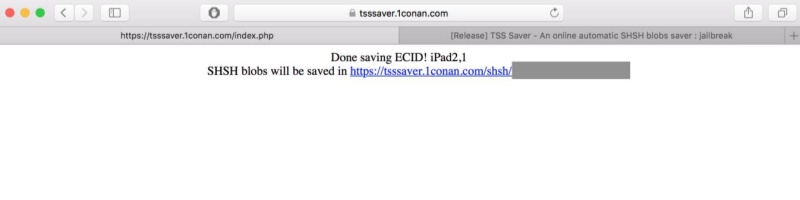
Step 4: Save the link so you can find it later. Download the “.shsh2” file and keep it in a clearly named folder (like “iPhone 15 Pro Max Blobs”).
Method 2: Use FutureRestore or BlobSaver on Desktop (Advanced Users)
BlobSaver is a helpful tool made for saving SHSH blobs on your computer. It’s especially useful if you’re planning to downgrade or upgrade your iPhone using a tool like FutureRestore later. While BlobSaver won’t restore or downgrade your device itself, it does the important job of collecting the SHSH blobs you’ll need for that process.
Here’s how you can use BlobSaver to save SHSH blobs:
Step 1: Go to the BlobSaver GitHub Releases page and download the version that matches your computer’s system—whether it’s Windows, macOS, or Linux.
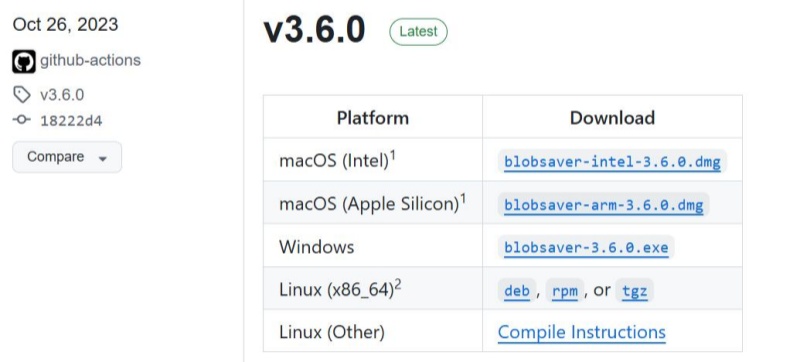
Step 2: To install BlobSaver on Windows, first unzip the downloaded file. Then, double-click on “blobsaver.exe” to open it. If a warning from SmartScreen pops up, just click “More info” and then “Run anyway” to continue.
Step 3: When BlobSaver opens, click “Read from Device” next to ECID. The tool will find your device’s ECID and model automatically.
Step 4: Tick the “Includes” box. If your device is an A12 model, click “Read from Device” next to APnonce. Your device will restart and go into Recovery Mode automatically.
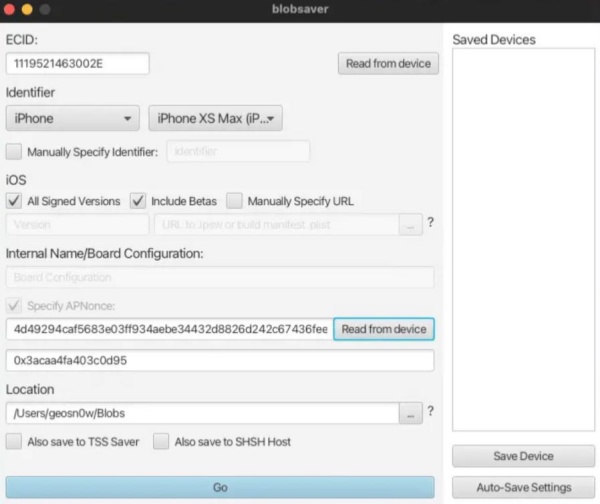
Step 5: Click the “Go” button. BlobSaver will then connect to Apple’s servers and download your SHSH blob.
The saved “.shsh2” file will be placed in the folder you chose earlier.
Part 3. How to Use SHSH Blobs to Downgrade iOS 26 Safely
If you've saved your SHSH blobs and want to downgrade from iOS 26 to a previous version like iOS 18, you’ll need a tool called FutureRestore. It allows you to downgrade or upgrade to unsigned iOS versions — but only under certain conditions.
Tool: FutureRestore
FutureRestore is a command-line tool that uses your saved SHSH blobs to install a specific iOS version that Apple is no longer signing. It gives advanced users more control over their iPhone or iPad firmware.
Here is how to do it:
Step 1: Download FutureRestore and open it. Click on “Select Blob” and choose your saved SHSH blob for iOS 26. Next, visit ipsw.me and download the iOS 18 IPSW file. After that, click “Select Target IPSW File” and pick the one you just downloaded.
Step 2: Click “Next,” then connect your iPhone or iPad to your computer. Then click “Start FutureRestore.” The tool will begin installing the selected iOS firmware on your device.
Step 3: You’ll get a “done” message when the downgrade finishes.
Top Alternative: Best Way to Downgrade iOS 26 Without SHSH Blobs
Downgrading iOS 26 using SHSH blobs can be tricky and confusing, especially for newer devices with the A12 chip or later, where it’s often not possible at all. If you want an easier and faster way to downgrade iOS 26 to 18 unsigned, you might want to try a tool called Tenorshare ReiBoot. Unlike the manual SHSH blobs method that needs technical know-how and extra tools like iTunes or jailbreak, ReiBoot does it automatically with just a few clicks.
Tenorshare ReiBoot offers a simple, user-friendly interface (GUI) that makes downgrading smooth and hassle-free. It not only helps you downgrade your iPhone or iPad without needing to worry about blobsaver download or complicated files but also fixes over 150 iOS problems, such as devices stuck on the Apple logo, update screen, or stuck in Recovery Mode.
Here are some main features of Tenorshare ReiBoot:
- Downgrades iOS safely without jailbreak or SHSH blobs.
- Fixes iOS system crashes, bugs, and iTunes errors.
- Restores devices to factory settings.
- Permanently erase data before selling or giving away your device.
- Supports the latest iPhone 16 series and all iOS versions from 18 to the versions.
Here’s how to downgrade iOS 26 to iOS 18 using Tenorshare ReiBoot:
- Step 1: First, install and open ReiBoot on your computer. Next, connect your iPhone or iPad to the computer. When your device asks if you trust the computer, tap Trust.
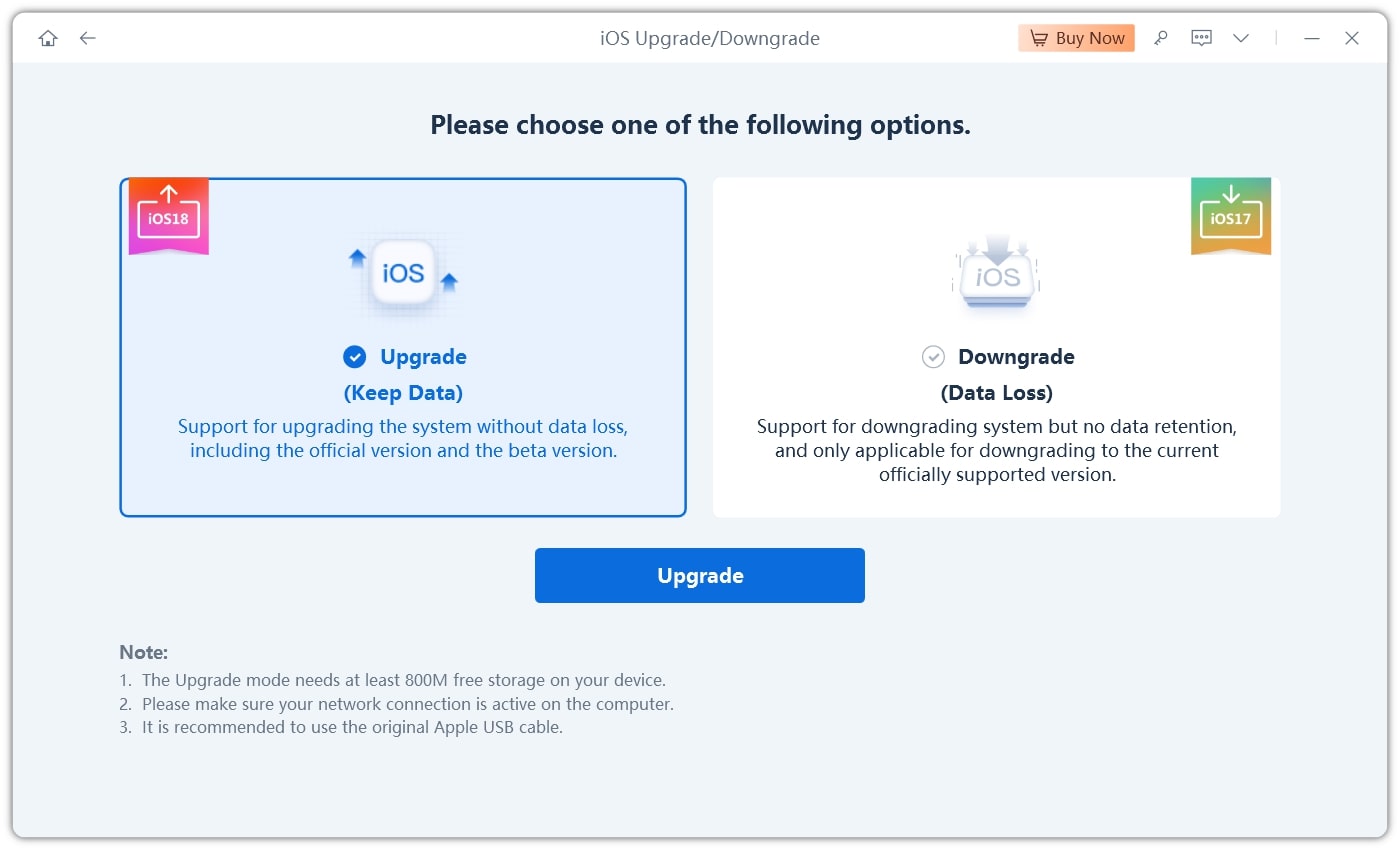
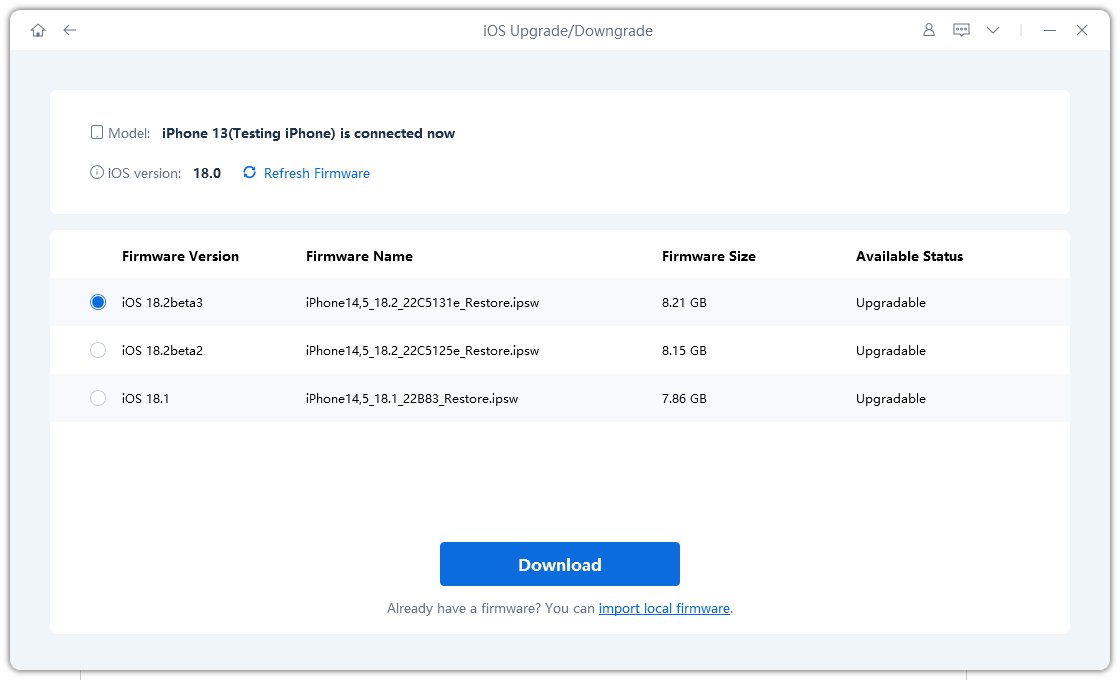
- Step 2: Tap “iOS Upgrade/Downgrade.” Then choose “Downgrade.” Click “Download” to get the latest iOS 18 firmware file.
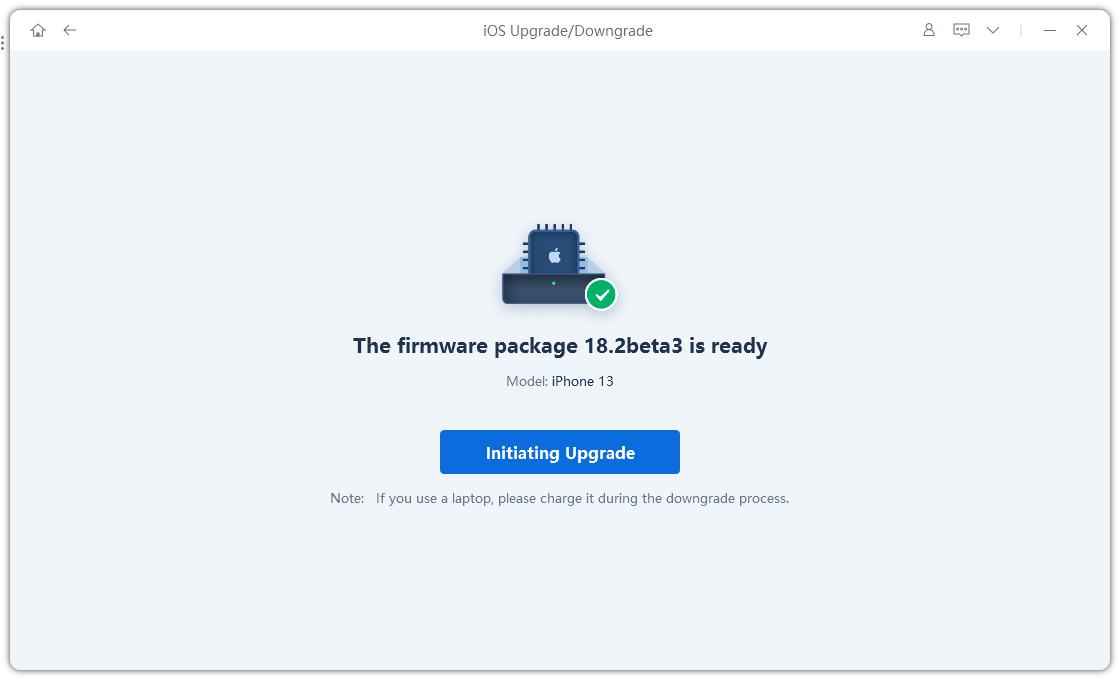
- Step 3: After the download finishes, click “Initiating Downgrade.” Make sure you’ve backed up your data using iCloud or iTunes before starting.
- Step 4: Click “Continue.” Your device will start downgrading to the latest iOS 18 version and will restart when it’s done.

Conclusion
Downgrading from iOS 26 to iOS 18 unsigned can be tricky, especially if you don’t have SHSH blobs saved or if your device is newer. While saving SHSH blobs gives you more control, it’s not always easy or possible to use them. That’s why many people prefer using tools likeTenorshare ReiBoot. ReiBoot makes downgrading simple and fast, without needing technical steps like jailbreaking or managing blobsaver download files. It’s user-friendly and helps fix many iOS problems too. So, if you’re wondering how to downgrade iOS 26 to 18 unsigned without hassle, ReiBoot is a great choice to try. It makes the whole process smooth, even for beginners.
