
Updated on 2026-07-21 / iPhone Tips
After the recent launch of iOS 27, some users have already complained that after updating to the iOS 27, their iPhones suddenly go completely black. The screen won't turn on, but the phone isn't dead, and they can feel it vibrate, hear notifications, or even get Siri responses.
This is a classic software glitch where the display fails while the system stays active. But don't panic. We'll share the reasons why OS 27 is stuck on a black screen, and 8 simple-to-advanced solutions to fix it while the phone is still on. So, keep reading till the end!
Part 1. iOS 27 Black Screen Solutions Compared
Before explaining the 8 solutions, here's a quick-reference table. So, you can choose the right approach based on your situation, technical comfort level, and how much time you have.
| Solution | Success Rate | Data Loss | Ease of Use | Time Required |
|---|---|---|---|---|
| Charge Your iPhone | Low | None | Very Easy | 30-60 min |
| ReiBoot (One-Click Repair) | Very High | None | Very Easy | 5-10 min |
| Force Restart | Moderate | None | Moderate | 5 min |
| Adjust Brightness | Very Low | None | Very Easy | 2 min |
| Remove Problematic Apps | Low | App data only | Easy | 5-10 min |
| Finder/iTunes Restore | High | Yes | Moderate | 15-30 min |
| DFU Mode Restore | High | Yes | Hard | 20-40 min |
| Apple Support | Very High | Depends | Easy | Varies |
Part 2. Why Is My iPhone Screen Black But It Is Still on iOS?
If your iPhone screen is black but it is still on iOS, you can hear notifications, feel vibrations, or Siri responds to "Hey Siri." The problem is almost certainly software-related, not a dead screen, and understanding what causes this issue helps you pick the right fix:
-
software bugs: The early iOS 27 version may have bugs that freeze the screen or cause crashes.
-
Low battery during update: If the battery got too low while updating, the installation may not have finished properly.
-
Corrupted update file: Poor Wi-Fi, low storage, or interrupted downloads can damage the update and cause a black screen.
-
App compatibility issues: Some apps may not support iOS 27 yet and can stop the phone from loading normally.
-
Brightness/display glitch: A bug may set screen brightness to zero, making the display appear black.
-
Boot loop or startup failure: The phone may turn on and vibrate, but fail to load the display system.
-
Not enough storage: iOS 27 needs around 8 GB of free space, and low storage can break the installation.
-
Hardware and software mismatch: On some older iPhones, the new iOS may not communicate properly with the display hardware.
Part 3. Top 8 Solutions for iOS 27 Black Screen
Here are the top 8 solutions to fix iPhone black screen of death. Go through them in order and find the one that works:
1. Charge Your iPhone
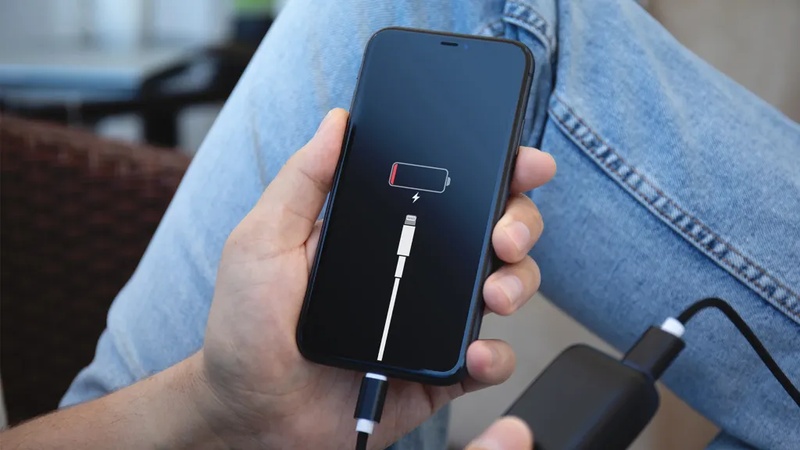
If your iPhone battery died during the iOS 27 update, the phone may look completely dead with a black screen, even though it just ran out of power. Before worrying, connect it to a charger and let it charge for a while.
If your iPhone 17 has a black screen but vibrates after the iOS 27 update, a low battery can still stop the display from turning on properly. For best results, use a 20W or faster charger, since older 5W chargers may not provide enough power to recover the device quickly.
2. One-Click to Fix iOS 27 Black Screen with ReiBoot
When iOS 27 is stuck on a black screen, even after charging your iPhone for an hour, it might be a software problem. In such a case, you'll need an iOS repair tool, like Tenorshare ReiBoot, to fix iOS system problems without deleting your data or requiring technical skills. It can detect an iPhone even when the screen is completely black and supports both iOS 26 and iOS 27 issues. Here are ReiBoot's core features:
Main Key Features:
-
Fix 150+ iOS problems like iDevices stuck on blue/black screen, Apple logo, in a boot loop, etc.
-
Safely upgrade or downgrade iOS without jailbreak or iTunes.
-
Click only once to enter or exit Recovery Mode.
-
Fix frequent iTunes errors like 4013 and 1110 quickly.
-
Reset iPhone to factory settings even without a passcode or iTunes
-
Back up and restore iPhone without iTunes or iCloud.
-
Permanently erase all data before selling or gifting the device.
Steps to Use ReiBoot:
- Step 1: Launch ReiBoot
Download and install ReiBoot on your computer. Open the program and connect your iPhone with a black screen after installing iOS 27.

- Step 2: Click "Standard Repair"
Click on "Standard Repair" when ReiBoot detects your device to fix the iOS 27 black screen issue without data loss.

- Step 3: Download Firmware Package
Download the latest firmware package when prompted. ReiBoot will automatically prepare the required firmware after confirmation.

- Step 4: Start Standard Repair
Once the firmware is ready, click “Start Standard Repair” to repair the iOS 27 black screen issue. Wait a few minutes for the process to finish.

- Step 5: Your iPhone Screen Back to Normal
Your iPhone will restart automatically after repair. Check whether the screen displays normally and the device responds again.

3. Force Restart Your iPhone
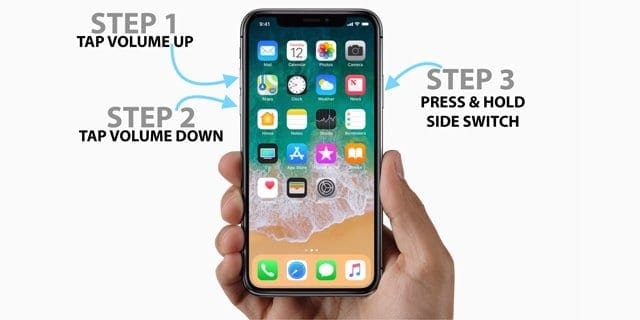
A force restart makes your iPhone reboot completely, even if the screen is frozen or black. It is one of the quickest fixes to try after an iOS update and often solves black screen problems. Here's how to restart your iPhone 8 and later:
-
Step 1: Press and quickly release the "Volume Up" button. Then, press and quickly release the "Volume Down" button.
-
Step 2: Press and hold the "Side" button until the Apple logo appears (around 10 seconds). Ignore the "slide to power off" screen.
-
Step 3: Release the button when you see the Apple logo and wait up to 60 seconds for the phone to start.
-
Step 4: If the Apple logo does not appear, repeat the steps up to 3 times before trying another fix.
4. Adjust Screen Brightness and Disable Auto-Brightness
In some cases, an iOS 27 black screen bug could make auto-brightness turn the screen all the way down, so it looks black even though the phone is still working. If your phone vibrates, makes sounds, or Siri responds, the display may just be at very low brightness instead of being off. Here's how to adjust screen brightness and disable auto-brightness.
-
Step 1: Connect your iPhone to a computer and check the screen using QuickTime (Mac) or a screen mirroring tool (Windows). If it shows on the computer but not the phone, it may be a brightness issue.
-
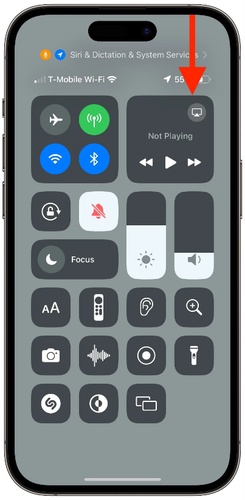
Step 2: Open "Control Center" by swiping up from the bottom (Touch ID iPhones) or swiping down from the top-right of the screen (Face ID iPhones).
-
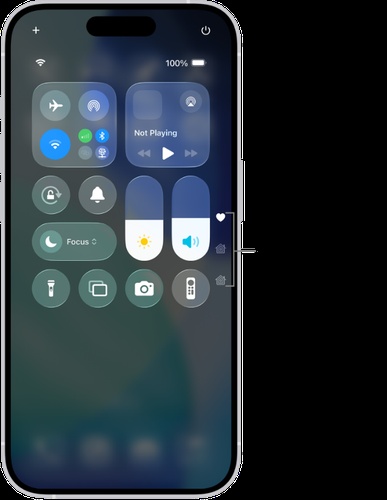
Step 3: Turn the brightness slider all the way up and wait a few seconds to see if the screen returns.
-
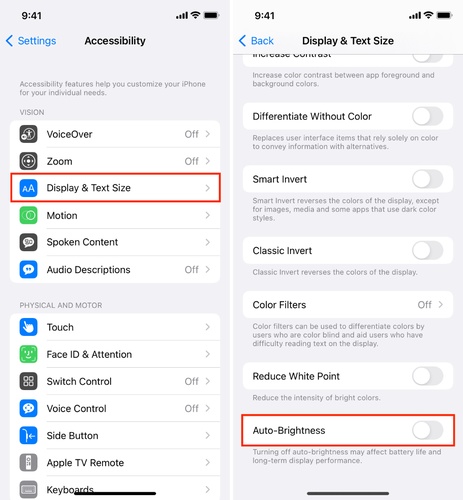
Step 4: Head to "Settings." Then, choose "Accessibility." Tap "Display & Text Size." Switch off "Auto-Brightness."
-
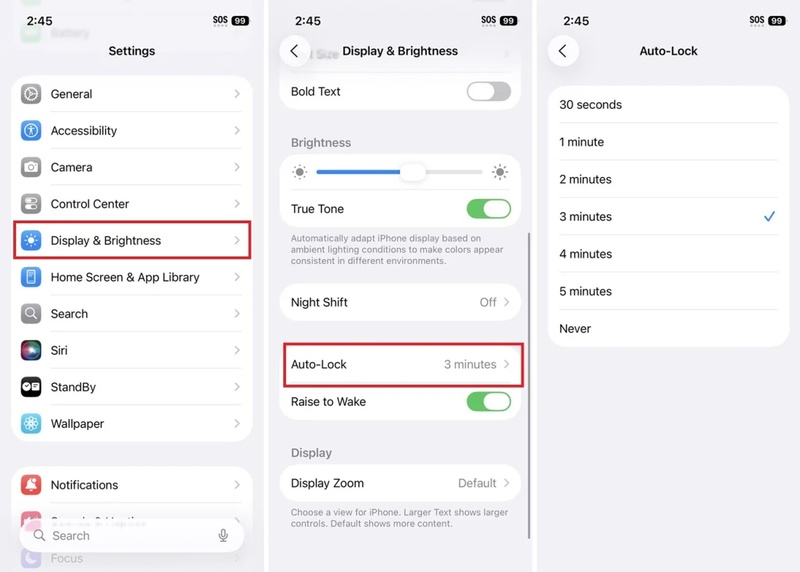
Step 5: Then head to "Settings" again. Pick "Display & Brightness." Set brightness to maximum manually.
5. Remove Problematic Apps
Some apps may not support iOS 27 properly, which can cause the system to crash and display the iOS 27 black screen after update. If the problem started after installing a certain app, or happens when opening it, that app is likely causing the issue. If you can't see the screen, you can try removing the app using Siri or deleting it on a computer with iTunes or Finder. To do so:
-
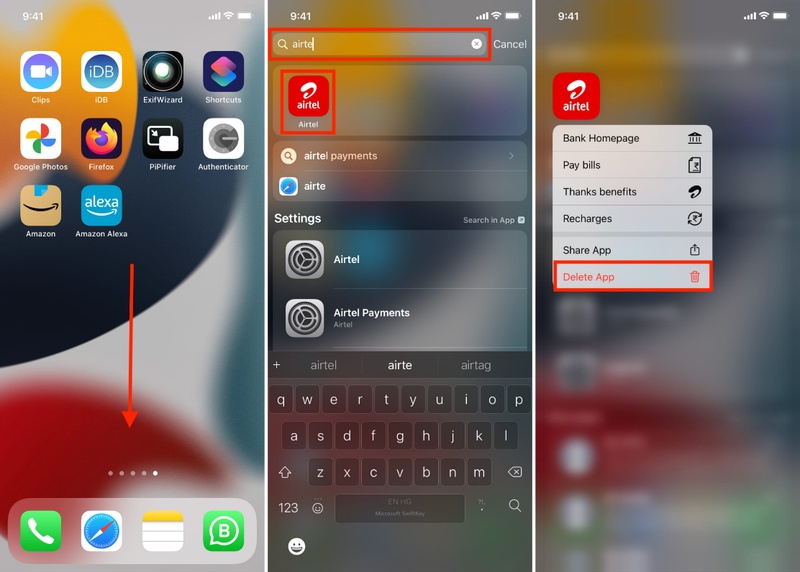
Step 1: If you can't see well but can still use touch, press and hold the app icon, then choose "Remove App." Tap "Delete App."
-
Step 2: You can also use Siri by saying, "Hey Siri, delete \app name" and confirm.
-
Step 3: If the screen is fully black, try a force restart first. If the screen briefly appears, quickly delete the app.
-
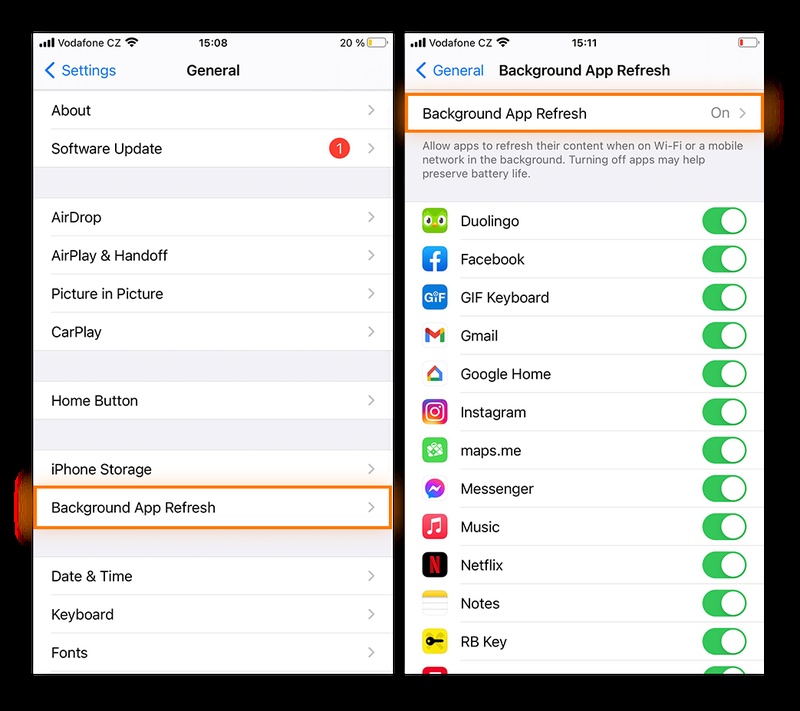
Step 4: iPhone doesn't have Safe Mode, but you can turn off background apps. Head to "Settings." Select "General." Tap "Background App Refresh." Toggle to "Off."
-
Step 5: Restart the phone afterward and check if the screen functions again.
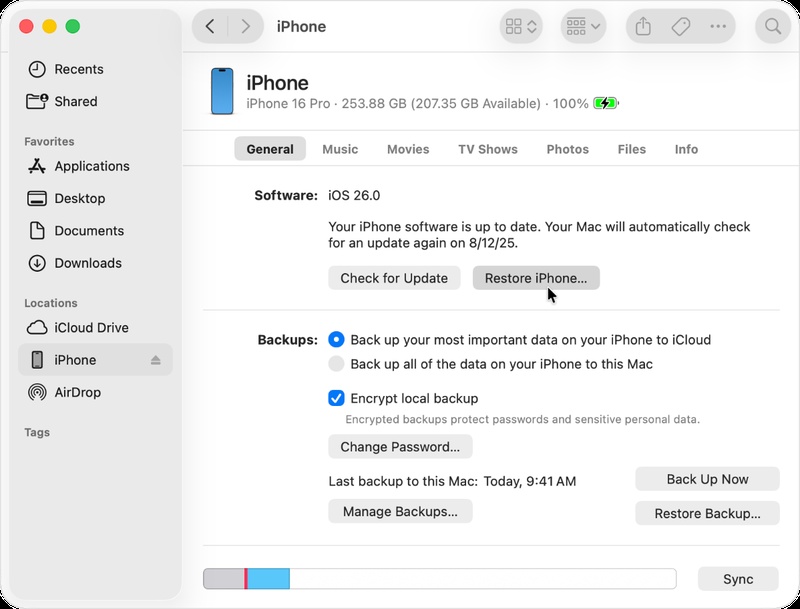
6. Update or Restore iPhone Using Finder or iTunes
If the iOS 27 installation failed or was corrupted due to issues like low storage or an interrupted download, you may need to update or restore your iPhone. You can employ the Finder (Mac) or iTunes (Windows/older Mac) for this purpose.
The update installs a fresh copy of iOS 27 and can fix a broken system, while the restore lets you go back to a stable version. However, this process may erase your data, so it's important to back up your iPhone to iCloud or a computer first if possible. Here's how to update or restore your iPhone:
-
Step 1: Connect your iPhone to a Mac or PC using a USB cable. On Mac (macOS Catalina or later), open "Finder." On Windows or older Macs, open "iTunes."
-
Step 2: If asked, tap "Trust This Computer" on your iPhone. Click "Check for Update" first to try installing iOS without deleting data.
-
Step 3: If that doesn't work, use "Restore iPhone" to reinstall iOS or choose a firmware file.
-
Step 4: Follow the instructions on screen and wait about 15--30 minutes for it to finish.
7. Use DFU Mode Restore
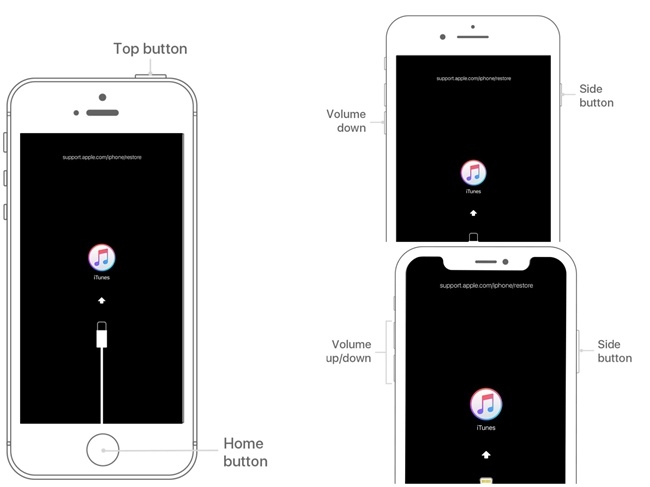
DFU (Device Firmware Update) mode is the deepest type of restore for an iPhone. It's helpful for severe issues, such as the iOS 27 download stuck on a black screen for hours. DFU Mode goes beyond the Recovery Mode and is the best option when the iPhone doesn't show up properly in Finder or iTunes.
However, it will completely erase your device, so it should only be used after trying other fixes. Make sure to back up your data if possible. Here's how to employ DFU Mode to restore your iPhone:
-
Step 1: Connect your iPhone to a computer. Then, open "Finder" or "iTunes."
-
Step 2: Quickly press and release the "Volume Up" button, then the "Volume Down" button. Next, press and hold the "Side" button.
-
Step 3: After 8 seconds, keep holding the "Side" button and also press "Volume Down." After 5 seconds, release the "Side" button but keep holding "Volume Down."
-
Step 4: Hold "Volume Down" for about 10 more seconds. The screen should stay black (no Apple logo). If the Apple logo appears, repeat the steps.
-
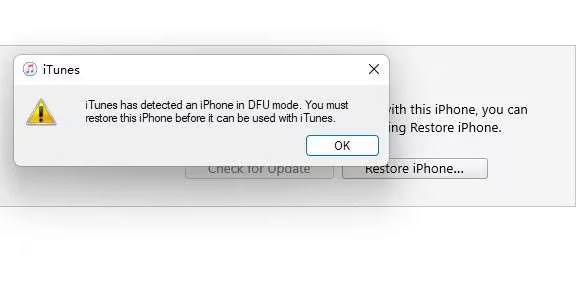
Step 5: When Finder/iTunes detects the iPhone in recovery/DFU mode, click "Restore iPhone." Wait 20--40 minutes for the reinstall to finish.
8. Contact Apple Support
If none of the software solutions can resolve the iOS 27 black screen issue, including DFU mode, the problem may be caused by hardware damage. For instance, it could be because of a faulty screen, a loose display connector, or a logic board issue. This can happen more often if the phone was dropped or exposed to water.
In this case, you should contact Apple Support. They can run remote diagnostics and guide you to a repair option, such as a Genius Bar visit or mail-in service. If you have AppleCare+ or a warranty, repairs may be cheaper or covered.
Conclusion
The "iOS 27 stuck on black screen" is a frequent issue with early software. It may show as a black screen while the phone is still on, or the device may vibrate but not display anything after updating. But simple solutions like charging or force restarting often solve it.
If that doesn't do the job, more advanced fixes like DFU restore may be needed. Though for a quick, automatic iOS repair without losing data, a tool like Tenorshare ReiBoot serves as the best solution. It can resolve 150+ system issues in minutes without technical steps.
