
Updated on 2026-07-21 / iPhone Tips
An iPhone update that never seems to finish is one of the most annoying tech problems. It gets worse when iOS 27 is waiting to install. If your iphone taking forever to update ios 27, your device is facing an issue it cannot solve on its own.
Slow Wi-Fi, low storage, or a stuck download can all be the reason. Instead of waiting endlessly, try these 10 simple fixes. They will help you get iOS 27 installed smoothly without stress or delays.
Part 1. How Long Does iOS 27 Update Take?
iOS updates do not install instantly. The time depends on your internet speed, device model, and Apple servers. versions can also take longer than normal updates.
Here is a simple breakdown of the usual timing:
-
Download time 5 to 30 minutes
-
Preparing update 10 to 25 minutes
-
Verifying update 5 to 15 minutes
-
Installation 10 to 30 minutes
In total, it can take 30 minutes to over 1 hour.
Your iPhone sitting on "Update Requested" for more than 10 minutes with no progress is not normal. It means your device is likely stuck.
The ios 27 stuck on update requested issue usually happens. A slow progress bar can be fine. But a frozen "Update Requested" screen that does not change needs fixing.
Part 2. Why Is My iPhone Taking Forever to Update iOS 27?
There are several real reasons behind slow or stuck updates. versions are more unstable, so delays are common.
Here are the main causes why is my software update taking so long :
-
Weak or unstable Wi-Fi connection slows download speed
-
Low storage space stops proper update processing
-
Apple servers are overloaded during new releases
-
Battery level too low can pause installation
-
Background apps interfere with update performance
-
Corrupted download causes freezing during setup
Part 3. How to Fix iPhone Taking Forever to Update iOS 27?
Knowing the cause is half the battle but fixing it is what actually matters. If your iPhone is taking forever to update iOS 27, no amount of waiting will solve a corrupted file, packed storage, or an unstable network. Work through each fix below one by one every solution targets a specific root cause, and one of them will get your update moving again.
| Solutions | Success Rate | Data Loss | Ease of Use | Time Required |
|---|---|---|---|---|
| Delete and Redownload the Update File | Medium | No | Easy | 10–20 minutes |
| Free Up Storage Space | Medium | No | Easy | 5–15 minutes |
| ReiBoot iOS | Very High | No | Very Easy | 5–10 minutes |
| Update iOS 27 Using Finder or iTunes | High | Maybe | Medium | 20–40 minutes |
| Restart iPhone and Retry Again | Low | No | Very Easy | 1–5 minutes |
| Check Network Speed | Medium | No | Very Easy | 2–10 minutes |
| Pause and Resume the iOS 27 Download | Medium | No | Very Easy | 2–5 minutes |
| Plug In iPhone | Low | No | Very Easy | Immediate |
| Wait Longer | Medium | No | Very Easy | Several hours |
| Close All Background Apps | Low | No | Very Easy | 1–3 minutes |
1. Delete and Redownload the Update File
A corrupted file is silently killing more updates than people realize and your iPhone will never tell you that is the problem. When the downloaded file gets damaged during transfer, your device keeps trying to install a broken update from the start. That's why your software update takes so long and never seems to finish.
Open Settings and tap General.
-
Head into iPhone Storage and scroll through the list until you spot iOS 27 Developer.
-
Tap it, then select Delete Update confirm when prompted.
-
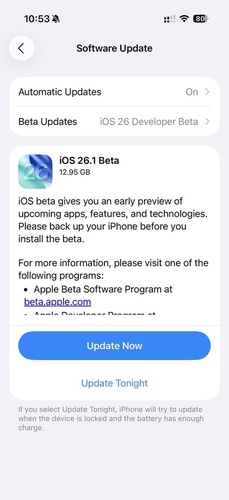
Go back to General and tap Software Update. Give it a moment to check Apple's servers.
-
When the update appears, tap Update now this time you are pulling a brand new, clean file directly from Apple.
-
Keep your iPhone plugged into power and stay connected to Wi-Fi until the download reaches 100%. Once downloading completes, tap Install Now and let the process run without interruption.
2. Free Up Storage Space
Insufficient storage is one of the most common reasons behind update delays and failures. It can also cause issues like ipad update taking forever, especially when the device cannot properly unpack system files. iOS needs room to unpack, stage, and execute the entire installation process safely.
-
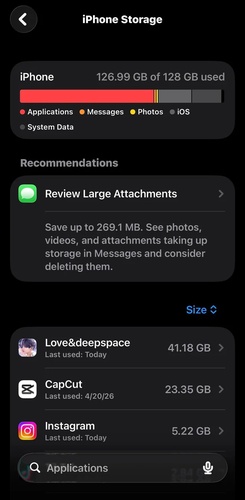
Go to Settings > General > iPhone Storage and check the storage bar at the top. It shows how much free space is left on your iPhone.
-
Try to keep at least 6 to 8GB free before updating. If you have less, the update may stop or slow down.
-
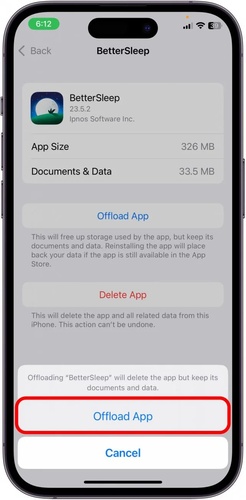
Scroll through your apps and remove any large ones you don't use. Tap Delete App to free space quickly.
-
If you see Offload Unused Apps, turn it on. It removes apps you don't use but keeps their data safe.
-
Open the Photos app and delete unwanted videos and large files. Don't forget to clear the Recently Deleted folder to fully free the space.
3. Fix iPhone Taking Forever to Update iOS 27 Easily with Reiboot
Manual fixes only go so far. If your iPhone is stuck on iOS 27, the issue is likely deeper than storage or settings, and basic fixes usually won't work. This is where ReiBoot by Tenorshare comes in, designed to repair hidden iOS issues and help complete the update smoothly.
With no data loss, no jailbreaking, and no technical expertise required, it safely fixes your iPhone. It helps your device get back on track and install iOS 27 smoothly.
Why Reiboot Stands Out:
-
Fixes 150+ iOS system issues including frozen updates, stuck screens, and boot loops
-
Repairs deep system errors without deleting any personal data
-
Works across all iPhone models including the latest iPhone 17 series
-
Supports iOS 27 and all previous iOS versions without compatibility issues
-
One-click repair process no technical knowledge or jailbreaking required
-
Significantly faster than a full restore through iTunes or Finder
-
Compatible with both Windows and macOS computers
How to fix ios 27 stuck on update requested with reiboot:
- Step 1: Launch ReiBoot on Your Computer
Download and install Tenorshare ReiBoot on your computer. Open the program and connect your iPhone that is stuck during the iOS 27 update.

- Step 2: Click on "Standard Repair"
Click on "Standard Repair" when ReiBoot detects your device to fix the iPhone update issue without data loss.

- Step 3: Download Firmware Package
Download the latest firmware package when prompted. ReiBoot will automatically prepare the required package after confirmation.

- Step 4: Start Standard Repair
Once the firmware is ready, click “Start Standard Repair” to fix the iPhone taking forever to update iOS 27 issue. Wait a few minutes for completion.

- Step 5: Update Issue Fixed
Your iPhone will restart after the repair. Check if the iOS 27 update completes normally and the device works again.

4. Update iOS 27 Using Finder or iTunes
Skipping the over-the-air update removes Apple's busy servers from the process. This can make a big difference in speed. If you are asking how long does iOS 27 update take on iPhone 17 and it feels too slow, using a computer update is a better option.
A direct wired update through a PC or Mac is often faster and more stable than updating over Wi-Fi.
-
On a Mac running macOS Catalina or later, open Finder. On Windows or an older Mac, open iTunes instead.
-
Connect your iPhone to the computer using a USB cable and unlock your device tap Trust on the prompt that appears on your iPhone screen.
-
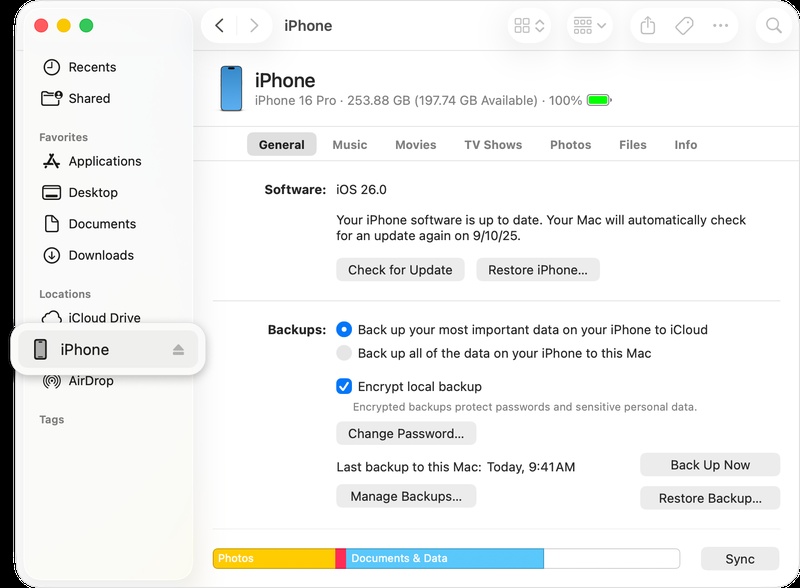
Your iPhone will appear in the Finder sidebar or at the top of the iTunes window click on it to open the device panel.
-
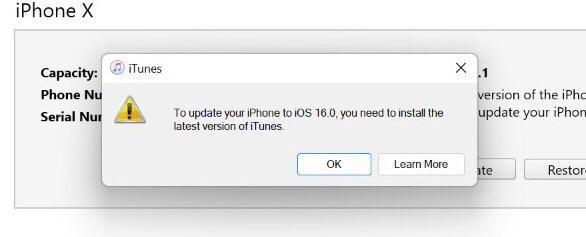
Look for the Check for Update button under the General or Summary tab and click it the computer will now check Apple's servers directly for the latest available update.
-
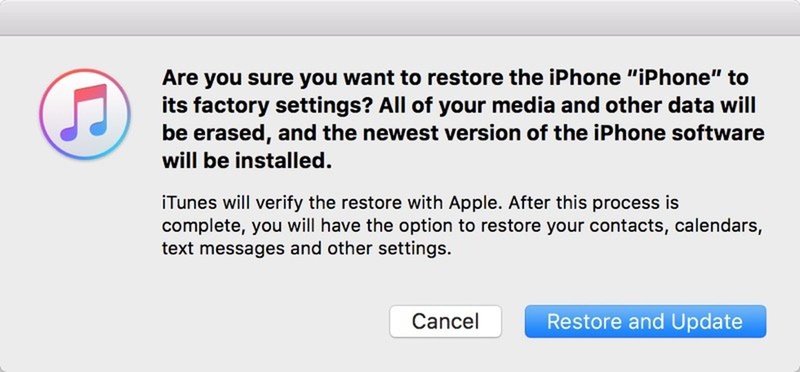
When iOS 27 appears in the results, click Update not Restore, which completely erases your device and starts fresh.
-
Agree to the terms, enter your iPhone passcode if asked, and let the update download and install entirely through the computer.
5. Restart iPhone and Retry Again
A frozen update does not always mean something serious is wrong. Sometimes a background system process crashes without showing any error. This can stop the update from moving forward. Restarting your iPhone removes that stuck process completely.
-
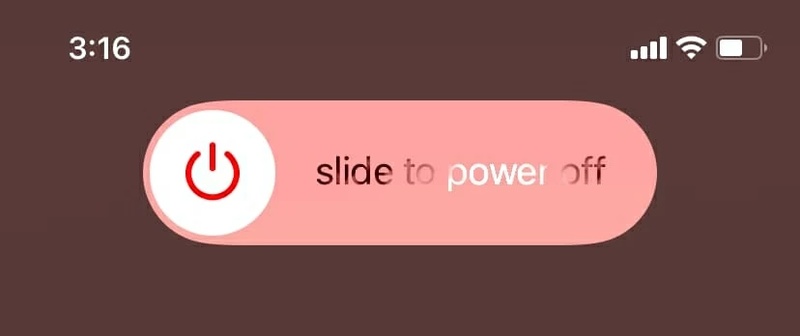
On iPhone X, 11, 12, 13, 14, 15, 16, or 17: Press and hold the Side button and the Volume Down button together until the power slider appears on screen.
-
On iPhone SE (any generation) or iPhone 8 and earlier: Press and hold the Top button until the slider appears.
-
Drag the power slider all the way to the right to shut your iPhone down completely.
-
Wait a full 30 seconds, do not rush this step, as the system needs time to fully clear its memory.
6. Check Network Speed
Your Wi-Fi bars don't tell the whole story; actual download speed and a stable connection are what really matter. A weak network can silently pause your download or force hidden restarts, leaving you stuck with an iphone taking forever to update ios 27.
-
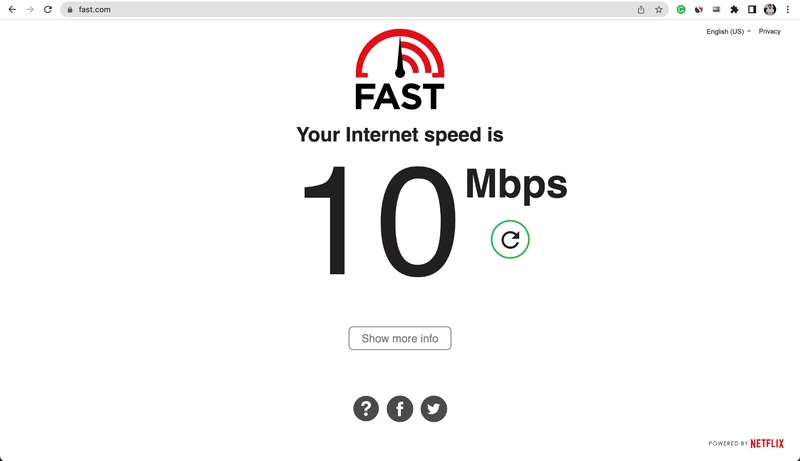
Open Safari, go to fast.com or speedtest.net, and run a quick speed test. Make sure your download speed is at least 10 Mbps to handle large files smoothly.
-
If your speed is low, move closer to your Wi-Fi router to get a stronger signal.
-
Go to Settings > Wi-Fi, tap your network, select Forget This Network, and reconnect.
7. Pause and Resume the iOS 27 Download
Pausing and resuming forces your phone to refresh its connection to Apple's servers. This simple trick is one of the best ways to kickstart the system when your iphone taking forever to update ios 27 and the progress bar won't move.
-
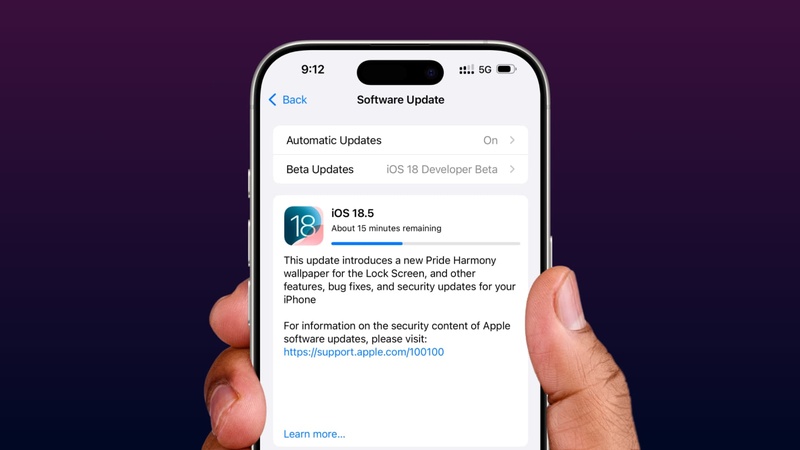
Go to Settings > General > Software Update and check your current status.
-
Tap Pause Download if the button is visible.
-
Lock your screen and leave your phone alone for 60 seconds to let the connection reset.
-
Return to the update screen and tap Resume Download to start a fresh connection.
8. Plug In iPhone
iPhones deliberately slow down major software installations if the battery drops too low to protect your system. If your device is running on battery power, this safety feature might be why your iphone taking forever to update ios 27.
9. Wait Longer
When Apple drops a new release, millions of users download it at the same time, which heavily overloads Apple's servers. If you are wondering why your iphone taking forever to update ios 27, severe server congestion during the first 48 hours is often the main culprit.
-
Check if the progress bar is moving at all an incredibly slow download is still working, so don't cancel it yet.
-
Only assume the update is genuinely stuck if nothing moves after 3 to 4 hours.
-
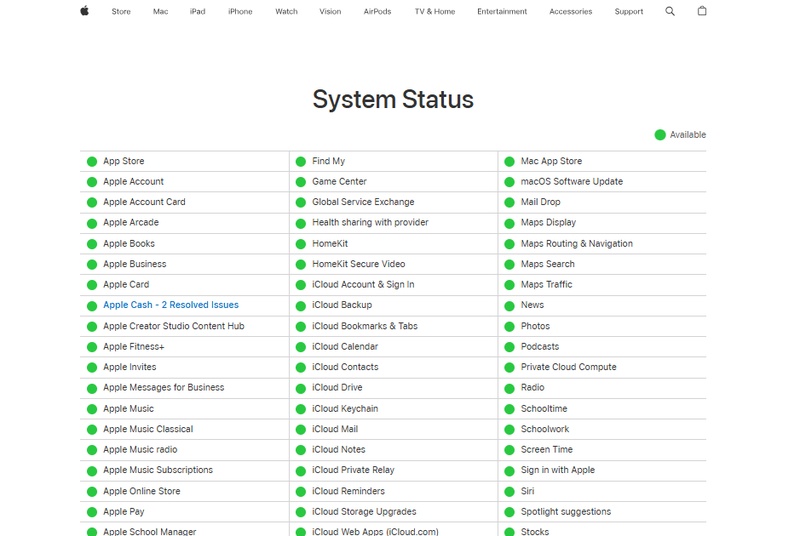
Check apple.com/support/systemstatus to see if Apple's Software Update servers are down.
-
Try downloading during off-peak hours like 2 AM to 6 AM when server traffic drops.
10. Close All Background Apps
Every single application left open in the background competes for the RAM, processor power, and bandwidth your update needs. Closing them frees up the necessary resources to fix an iphone taking forever to update ios 27.
-
On iPhone X and later, swipe up from the bottom of the screen and pause in the middle to open the App Switcher.
-
On iPhone SE, iPhone 8, or earlier models, double-press the Home button to open the App Switcher.
-
Swipe up on each app card to close all running apps completely.
-
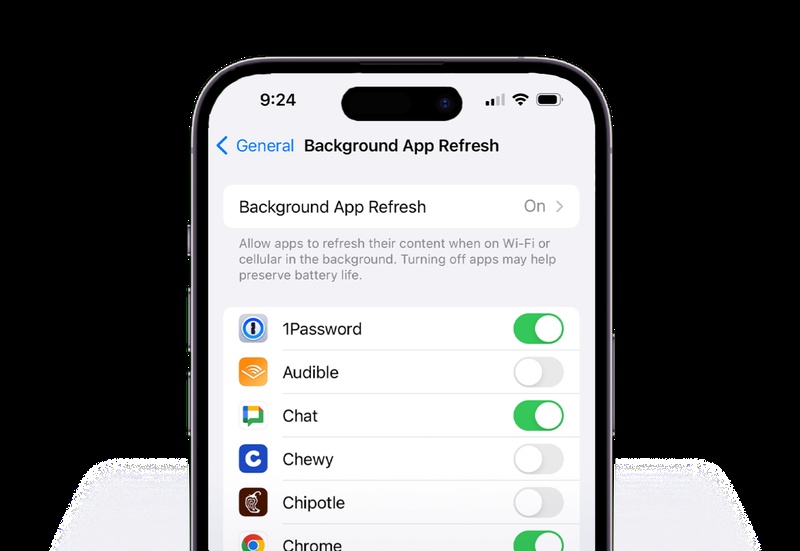
Go to Settings > General > Background App Refresh and turn it off to stop apps from running in the background.
-
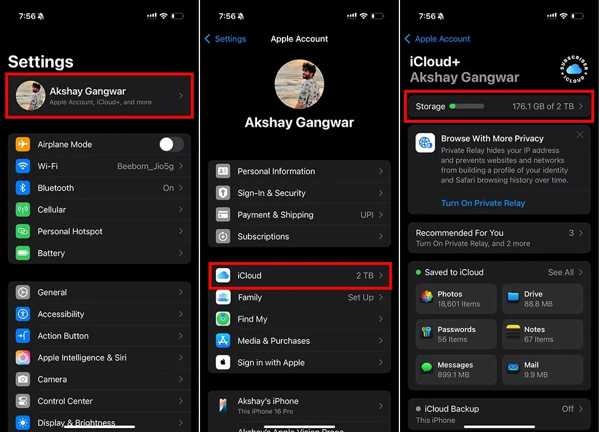
If iCloud syncing is active, open Settings > \Your Name\ > iCloud and temporarily pause services like Photos or iCloud Drive.
-
Turn off Bluetooth, AirDrop, and Personal Hotspot if they are enabled, as they can use network resources during the update.
-
Return to Settings > General > Software Update and start the download again.
Conclusion:
An iPhone taking forever to update iOS 27 is annoying but every problem on this list has a straight fix attached to it. Work through the solutions, start simple, and escalate only if needed. Most users are done within the first few attempts. For stubborn cases that refuse every manual fix, Reiboot helps repair the hidden system issues causing the problem. It gets iOS 27 installed smoothly without affecting your data.
