
Updated on 2026-10-09 / iPhone Tips
iPhone Duo not connecting to Wi-Fi can mean three different things: the phone cannot join a Wi-Fi network, it joins Wi-Fi but cannot access the internet, or Wi-Fi works on every other device but not on your iPhone Duo. Before changing advanced settings, run two quick tests to find out whether the problem comes from the iPhone, router, internet provider, VPN, or iOS.
When an iPhone Duo not connecting to Wi-Fi problem appears, the fastest solution depends on what actually fails. A wrong password, saved network profile, VPN, router restriction, DNS problem, or iOS issue can all produce similar symptoms. This guide walks you through each situation so you can identify the cause and choose the right fix without resetting your phone unnecessarily.
- Part 1: Is the Wi-Fi Problem on Your iPhone Duo or the Network?
- Part 2: iPhone Duo Won't Join Wi-Fi? Start With These Checks
- Part 3: How to Fix iPhone Duo Connected to Wi-Fi but No Internet
- Part 4: Wi-Fi and Cellular Data Both Not Working? Try This Next
- Part 5: When to Contact Apple, Your Carrier, or Your ISP
- Part 6: FAQs About iPhone Duo Not Connecting to Wi-Fi
Part 1. Is the Wi-Fi Problem on Your iPhone Duo or the Network?
Before you change anything, spend a few minutes finding where the problem starts. These tests can tell you whether the iPhone Duo Wi-Fi issue comes from the phone or the network.
Test 1: Do Other Devices Have Internet on the Same Wi-Fi?
Connect another phone, laptop, or tablet to the same Wi-Fi network. Open a website and use an app that needs internet access.
-
If other devices work normally, the router and ISP probably work, so focus on the iPhone.
-
If every device has the same problem, restart the router and check for an ISP outage.
-
If only some devices fail, the router may have device limits, filtering, or another configuration problem.
This test also helps when you see Wi-Fi not working on iPhone Duo but working on other devices. In that case, avoid changing router settings immediately because the problem may stay limited to the iPhone.
Test 2: Can Your iPhone Duo Join a Different Trusted Network?
Try another trusted Wi-Fi network, such as a personal hotspot or another network you are allowed to use. If the phone connects normally elsewhere, the original router may cause the iPhone Duo cannot connect to Wi-Fi problem. If the phone cannot connect to multiple networks, investigate iOS settings, VPN software, network configuration, or possible hardware trouble.
Test 3: Is the Problem Wi-Fi Only, or Are Cellular Data and Wi-Fi Both Failing?
Turn Wi-Fi off and check a website over cellular data. Apple recommends checking Settings > Cellular and confirming that Cellular Data is turned on. If Wi-Fi fails but cellular data works, focus on the iPhone Duo Wi-Fi issue. If both fail, you may have a broader software, eSIM, carrier, or iOS problem.
Choose Your Symptom Before Trying a Fix
| What you see | Most likely area to check | Start with |
|---|---|---|
| iPhone Duo not connecting to Wi-Fi | iPhone settings or router | Wi-Fi, password, Airplane Mode |
| iPhone Duo connected to WiFi but no internet | Router, DNS, sign-in page, ISP | Other devices and another network |
| Wi-Fi not working on iPhone Duo but working on other devices | iPhone settings | Forget network and check VPN |
| iPhone Duo not connecting to internet cellular data | Carrier, eSIM, cellular settings | Cellular Data and line settings |
| iPhone Duo saying no internet connection but there is | DNS, router, captive portal, app | Test website, app, and another device |
| Wi-Fi and cellular both fail | iOS or network configuration | Update iOS, then consider repair/reset |
Part 2. iPhone Duo Won't Join Wi-Fi? Start With These Checks
If your iPhone Duo cannot connect to Wi-Fi, follow these checks in order. Start with basic settings before changing router security or network configuration.
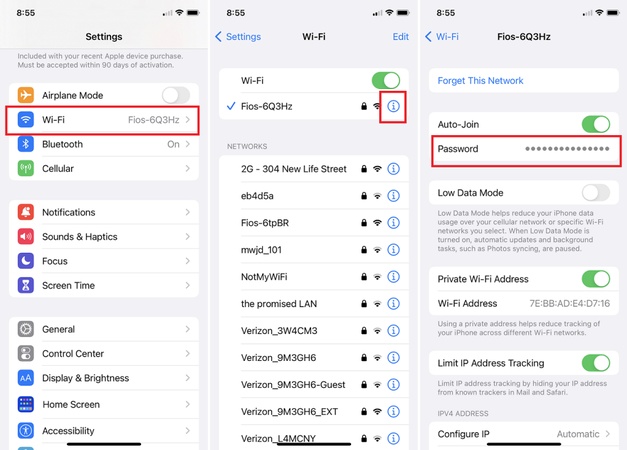
1. Check Wi-Fi, Airplane Mode, Auto-Join, and the Correct Password
Open Settings > Wi-Fi and make sure Wi-Fi is on. Confirm that Airplane Mode is off. Then select the correct network and enter its current password. Apple says a connected network shows a blue checkmark next to its name. If Wi-Fi appears greyed out, Apple recommends restarting the iPhone.
Also check Auto-Join for a known network. A saved network may have an old configuration or password. Apple allows users to turn Auto-Join off or forget a saved network from Wi-Fi settings. If the password recently changed, do not keep trying the old password. Forget the network and join it again with the new one.
2. Forget the Network and Rejoin It Cleanly
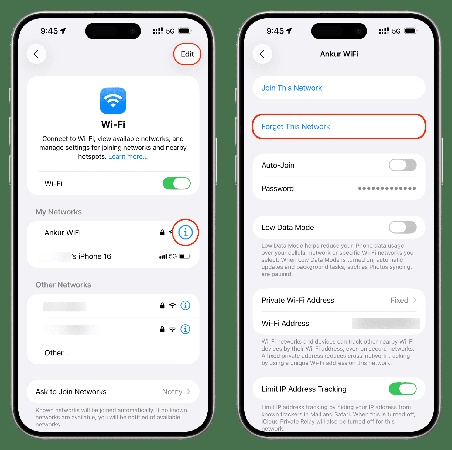
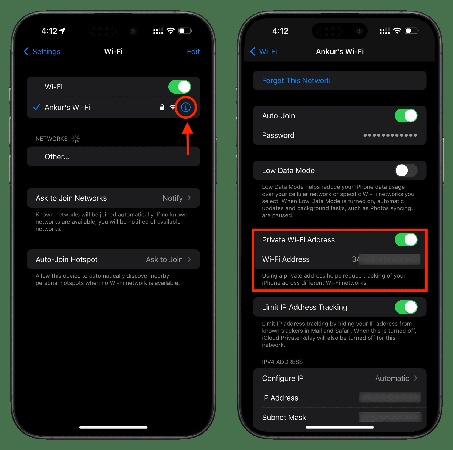
A saved Wi-Fi profile can cause an iPhone Duo not connecting to Wi-Fi problem even when the password looks correct. Go to: Settings > Wi-Fi > tap the information button next to the network > Forget This Network. Confirm the action, then select the network again and enter the password.
Apple notes that forgetting a network also removes its saved password from the device. This step often helps when your iPhone Duo Wi-Fi issue affects one particular router but the phone works on another network.
3. Temporarily Rule Out VPN, Security Apps, and Device Management Profiles
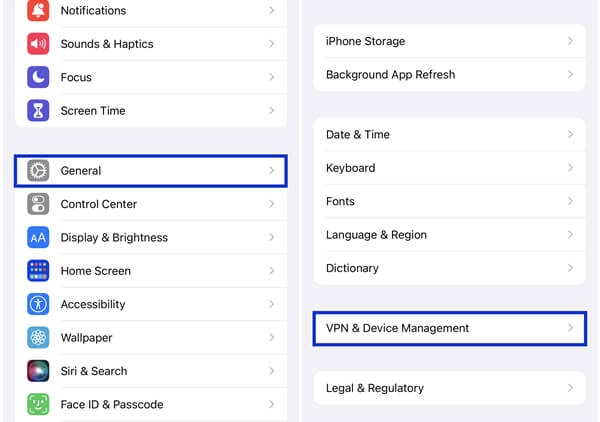
VPNs and security apps can interfere with network traffic. If you recently installed or updated one, temporarily disable it and test Wi-Fi again. Check: Settings > General > VPN & Device Management. Remove or disable a VPN only if you understand its purpose and have permission to change the profile. For a work or school phone, contact the administrator instead. Apple specifically recommends uninstalling VPN and security software temporarily, restarting the device, and testing Wi-Fi again when such software may cause connection problems.
4. Check Private Wi-Fi Address, MAC Filtering, and Router Device Limits
Apple devices use a private Wi-Fi address to improve privacy. Some managed or poorly configured networks may need additional router configuration to accept it. Open: Settings > Wi-Fi > tap the information button next to your network > Private Wi-Fi Address. If your router uses MAC filtering, an allow-list, parental controls, or device limits, check those settings on the router. Do not turn off Private Wi-Fi Address as your first step. Use it as a targeted test when the phone works on other networks but not on one specific router. See Apple's recommended settings for Wi-Fi routers and access points.
Part 3. How to Fix iPhone Duo Connected to Wi-Fi but No Internet
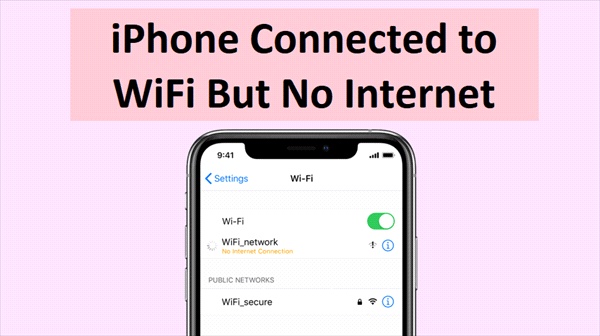
An iPhone Duo connected to WiFi but no internet does not always have a Wi-Fi hardware problem. The phone may connect to the router successfully while the router cannot reach the internet.
1. Check for a Captive Portal or Network Sign-In Page
Public Wi-Fi networks at hotels, airports, schools, offices, and cafés may require a browser sign-in page. Connect to the network, open Safari, and visit a normal website. If the network needs approval, a login or terms page may appear. If you see iPhone Duo saying no internet connection but there is, complete the sign-in process before changing DNS or resetting the phone.
2. Compare a Website, an App, and Another Device
Test three things:
-
Open a website in Safari.
-
Open an app that requires internet.
-
Test the same Wi-Fi network on another device.
If Safari works but one app fails, the problem may belong to that app rather than Wi-Fi.
If nothing loads on the iPhone but other devices work, the iPhone Duo connected to WiFi but no internet problem may involve DNS, VPN, private address settings, or a saved network profile.
If no device can access the internet, focus on the router or ISP instead.
3. Restart the Router and Test Another Band or Network
Restart the router and modem by unplugging them, waiting briefly, and reconnecting them. Apple recommends restarting the router and trying another frequency when the router supports separate bands. For example, try 2.4 GHz if 5 GHz fails, or test another available network. The 5 GHz band can provide higher speeds at shorter range, while 2.4 GHz usually travels farther. A weak signal can therefore make an iPhone Duo cannot connect to Wi-Fi problem look like a software problem.
4. When to Contact Your ISP Instead of Resetting Your iPhone
If other phones, laptops, and TVs also cannot access the internet, do not reset your iPhone repeatedly. Your ISP may have an outage, line problem, account issue, or modem problem. Apple also advises contacting the ISP when other devices cannot get online through the same network.
Part 4. Wi-Fi and Cellular Data Both Not Working? Try This Next
If the problem affects both Wi-Fi and cellular data, look beyond the router. A broader iOS or cellular configuration problem may cause an iPhone Duo not connecting to internet cellular data situation.
Update iOS and Check the Cellular Line First
Go to Settings > General > Software Update and install an available iOS update. Then check Settings > Cellular and confirm that Cellular Data is enabled. If you use more than one line, confirm that the correct line handles cellular data. Apple notes that only one line can serve as the cellular-data line when using Dual SIM. If cellular service itself fails, check whether your eSIM remains active. Apple advises contacting the carrier for cellular service setup and activation issues.
If Wi-Fi Problems Started After an iOS Update, Try System Repair
If the iPhone duo wifi issue started after an iOS update, failed update, system error, or another software problem, Tenorshare ReiBoot can provide another repair option before you consider a full restore. It is designed to address certain iOS system problems without requiring you to erase the device first. Its Standard Repair mode can reinstall the required iOS firmware while aiming to keep personal data intact.
You can use it when basic Wi-Fi checks, router troubleshooting, and network settings do not solve the problem. ReiBoot also includes Recovery Mode tools and firmware support for compatible iPhone models and iOS versions.
Key Features:
-
Standard Repair: Repairs certain iOS system problems while aiming to preserve your personal data during the process. It is the first mode to try for software-related cellular problems, such as eSIM not working on iPhone Duo.
-
iOS System Repair: Helps address software-related problems that may affect Wi-Fi, cellular data, updates, or wireless features that depend on Wi-Fi, such as iOS 27 CarPlay not working over a wireless connection.
-
Firmware Download: Downloads the required firmware package for the connected iPhone before starting the repair process.
-
Recovery Mode Tools: Helps users enter or exit Recovery Mode when the iPhone gets stuck during an update or system issue.
-
Windows and Mac Support: ReiBoot works with both Windows PCs and Mac computers, giving you options for repairing your iPhone.
How to Run a Standard Repair Without Skipping Basic Checks
-
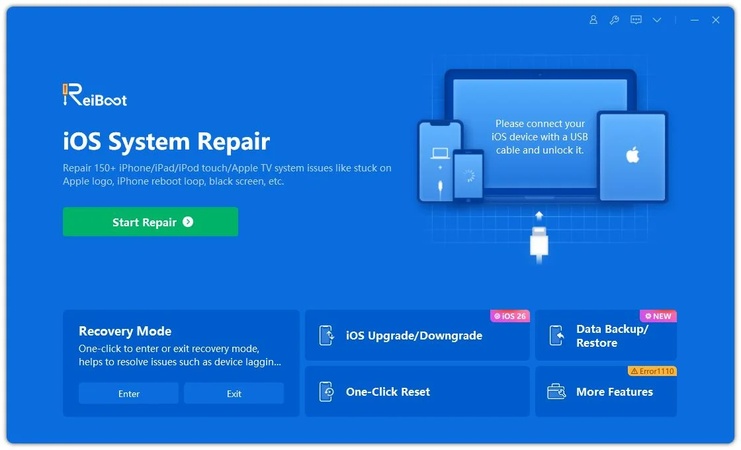
Step 1: Download ReiBoot on your Windows PC or Mac. After installation, open the software and connect your iPhone Duo using a working USB cable.
-
Step 2: Once ReiBoot detects the device, click the Repair Operating System option from the main screen.
-
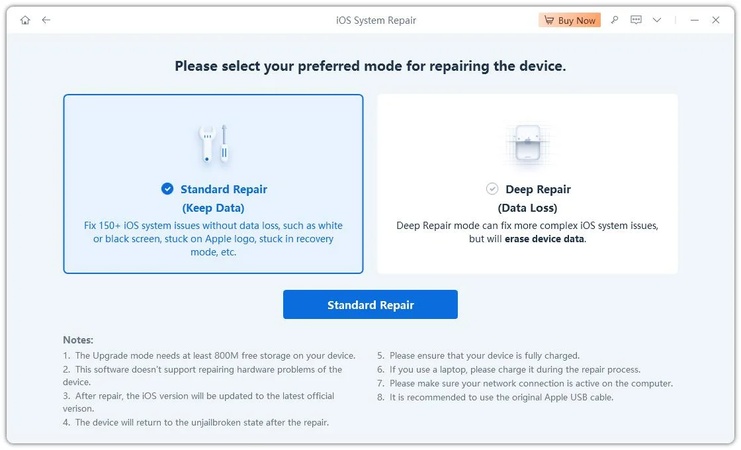
Step 3: Select Standard Repair to repair iOS system problems that may affect Wi-Fi without deleting your photos, apps, or personal data.
-
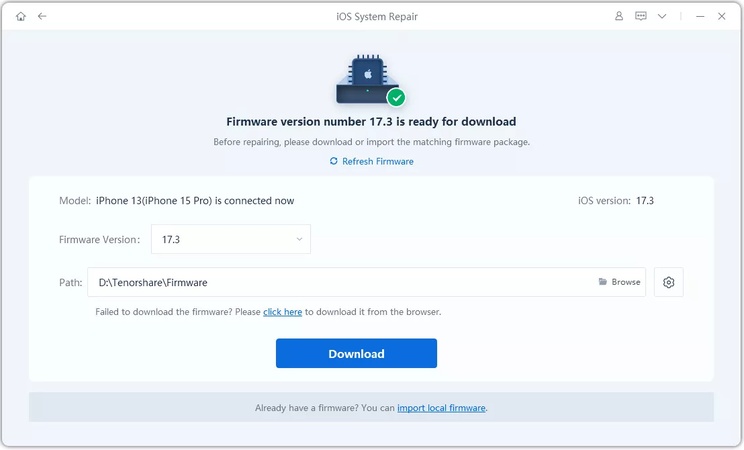
Step 4: ReiBoot will automatically detect the correct iOS firmware for your iPhone. Click Download and wait for the firmware package to finish downloading.
-
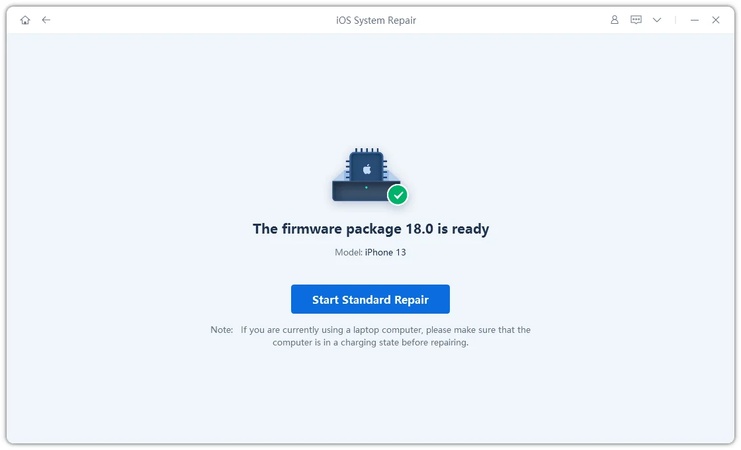
Step 5: Click Start Standard Repair and keep your iPhone connected during the process. ReiBoot will repair the damaged system files.
-
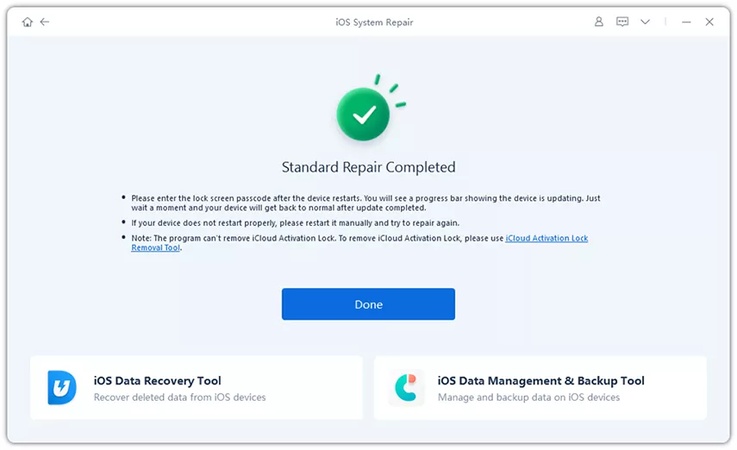
Step 6: After the repair finishes, your iPhone will reboot normally. Reconnect to Wi-Fi and test the connection again.
Reset Network Settings: What It Removes and When It Is Worth Doing
If the iPhone Duo not connecting to Wi-Fi problem continues after the earlier checks, try a network reset. Go to: Settings > General > Transfer or Reset iPhone > Reset > Reset Network Settings. This does not delete your photos or apps. However, it removes saved Wi-Fi networks and passwords and resets cellular, VPN, and APN settings. Apple recommends using this step only after other solutions fail. After the reset, reconnect to your Wi-Fi network and enter the password again.
Part 5. When to Contact Apple, Your Carrier, or Your ISP
Knowing who should handle the problem can save you from repeating the same fixes.
Contact Apple If the iPhone Duo Fails on Every Network or Wi-Fi Is Greyed Out
If the phone cannot connect to any Wi-Fi network, even after restarting, updating iOS, checking settings, and resetting network settings, contact Apple Support. Apple's guide on what to do if you can't connect to Wi-Fi on your iPhone or iPad specifically recommends contacting Apple when an iPhone cannot connect to any Wi-Fi network.
Contact Your Carrier If Cellular Data Also Fails
If you have an iPhone Duo not connecting to internet cellular data problem even after confirming Cellular Data and the correct line, contact your carrier. The carrier can check your account, eSIM activation, network coverage, and cellular service. Apple also directs users to their wireless provider for cellular service problems.
Contact Your ISP for Router-Wide Problems
If multiple devices cannot access the internet, the problem probably does not belong to the iPhone. Contact your ISP after checking the modem and router. This matters especially when you have Wi-Fi not working on iPhone Duo but working on other devices versus when every device has no internet. Those two situations require different troubleshooting paths.
Part 6. FAQs About iPhone Duo Not Connecting to Wi-Fi
1. Why is my iPhone Duo not connecting to WiFi after reset?
A network reset removes saved Wi-Fi networks, passwords, cellular settings, VPN settings, and APN settings. After the reset, reconnect to the Wi-Fi network manually. If the iPhone Duo not connecting to Wi-Fi problem continues on every network, check for an iOS or hardware issue.
2. Why Does My iPhone Duo Say "Unable to Join Network"?
The message can appear because of an incorrect password, router restrictions, a saved network profile, private address settings, weak signal, or network configuration. Forget the network, reconnect, restart the router, and test another trusted network.
3. Why Is Wi-Fi Not Working on My iPhone Duo but Working on Other Devices?
If you have Wi-Fi not working on iPhone Duo but working on other devices, the router probably has internet access. Start by forgetting the network, checking VPN software, checking Private Wi-Fi Address, and testing another Wi-Fi network.
4. Will Reset Network Settings Delete My Photos or Apps?
No. A network reset does not remove your photos or installed apps. It removes saved network information and resets related network settings. Apple recommends this step only after simpler troubleshooting methods fail.
Conclusion
When iPhone Duo not connecting to Wi-Fi appears, do not immediately erase the phone or change advanced router settings. First, test another device on the same network and test the iPhone Duo on another trusted network. These two checks quickly show whether the issue belongs to the iPhone or the network.
For an iPhone duo wifi issue that started after an iOS update or continues after the basic checks, Tenorshare ReiBoot can provide a system-repair option through its Standard Repair mode. If network reset also fails and the phone cannot connect to any network, contact Apple. If cellular data also fails, contact your carrier. The key is to match the fix to the symptom instead of resetting everything at once.
