
Updated on 2026-10-21 / iOS 27
Updated your iPhone but still see the older Screen Time layout? iOS 27 parental controls not showing does not automatically mean the update failed. The new family experience involves more than the organizer’s phone, so the next step is to check the family’s device status and complete the available setup flow.
If parental controls or a setup prompt are missing after updating, check the family configuration before assuming an iPhone fault. This guide separates migration checks from genuine phone-side software troubleshooting.
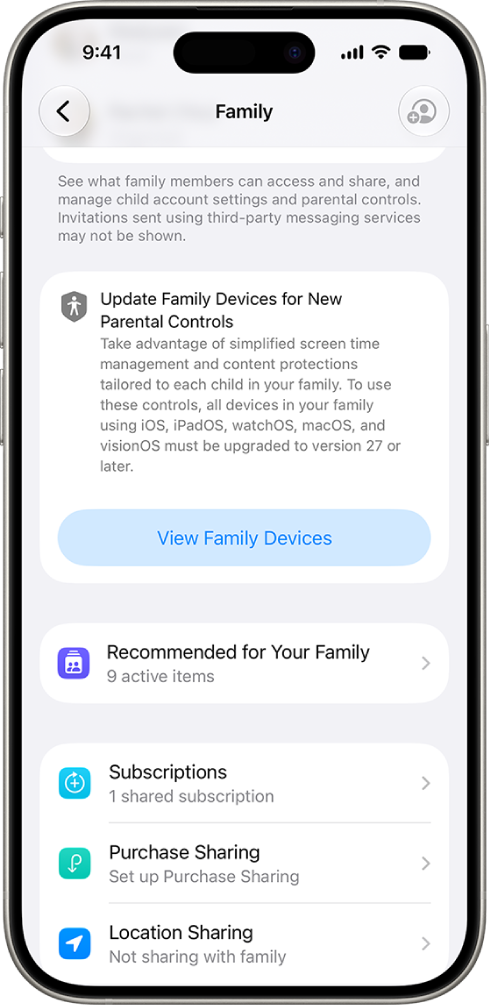
Part 1. Is Your Family Ready for the New iOS 27 Parental Controls?
Check these in order before changing settings:
-
Eligible devices: Check update status across the family, not only the organizer’s iPhone. Separate eligible devices with pending updates from older hardware that cannot install iOS 27.
-
Setup stage: Installing iOS and reviewing a child’s controls are separate. Complete the available family-device review and Get Started flow.
-
Account context: Confirm the parent account and child profile. Follow Apple’s legacy-device guidance; do not remove older hardware or disable existing restrictions just to reveal a menu.
Part 2. Complete the iOS 27 Parental Controls Setup
Keep existing protections in place. Do not change a child’s birth date, remove them from the family, or disable restrictions just to reveal a new interface.
Step 1. Review All Eligible Family Devices
-
Open Settings > Family and look for View Family Devices.
-
Review devices needing updates and install the available compatible system updates on those eligible devices.
-
Check the Legacy Devices information separately rather than treating unsupported hardware as an update failure.
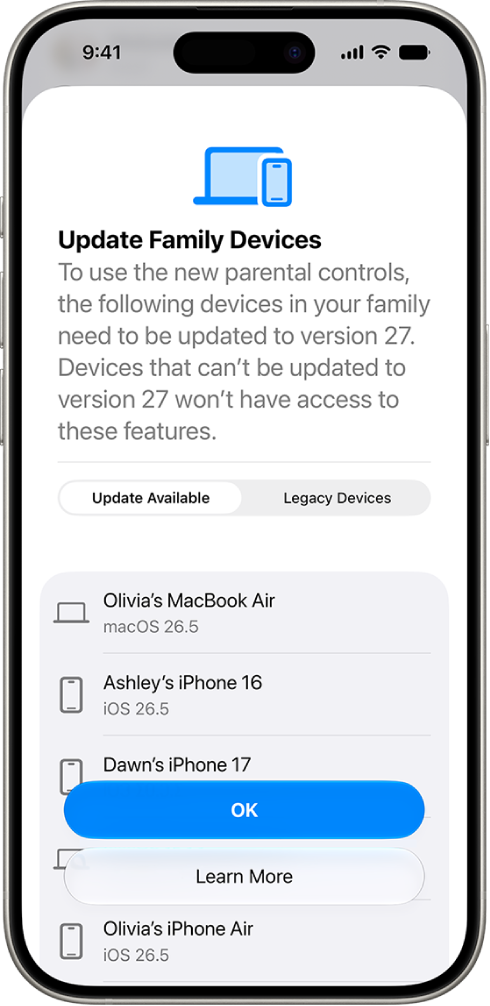
Apple’s current child-safety guidance is more useful here than a blanket forum instruction to update absolutely everything. An older device that cannot install the new system is not the same as an eligible device whose update is pending. If the device review button itself is missing, capture that fact for support rather than searching indefinitely for the exact screen shown above.
An eligible device still awaiting an update and a legacy device need different handling. Resolve the status shown for your actual family rather than applying a blanket removal rule.
Step 2. Open the Available Setup Flow
-
From the parent or guardian’s Family settings, open the relevant child’s entry or the available setup prompt.
-
Choose Get Started when offered and review the controls presented for that child.
-
Finish the setup, then reopen the child’s settings and confirm the intended protections remain enabled.
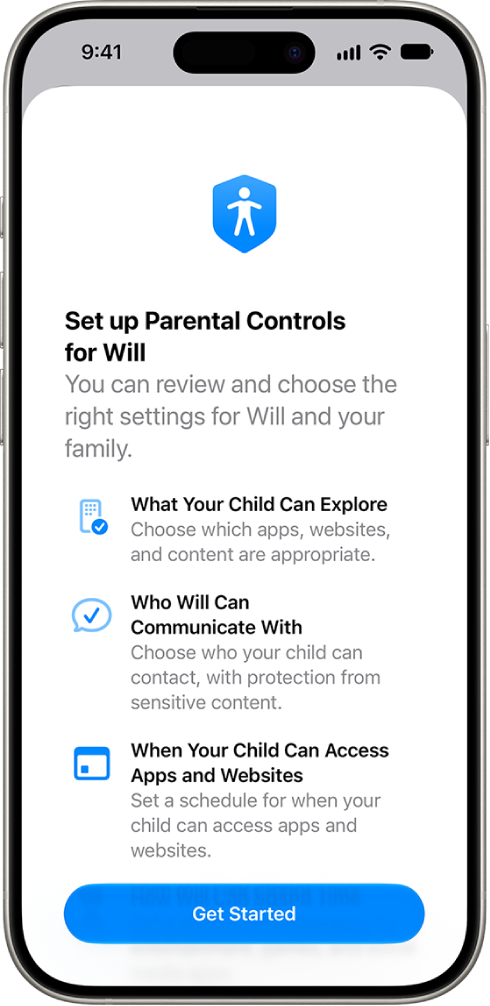
Step 3. Review the Child’s Controls After Setup
Review the migrated choices instead of assuming the new defaults exactly match your old setup. If another parent manages the family, compare which account and child profile each person is viewing. Avoid changing unrelated permissions while checking this: an unexpected account context can look like a missing feature.
If the setup prompt is unavailable across the family, record the missing screen and ask Apple to review the account requirements. Repeatedly repairing individual phones is unlikely to resolve a family-wide availability issue.
Part 3. What If the New Parental Controls Still Do Not Appear?
If One iPhone Keeps Freezing: Consider Tenorshare Reiboot
Use this route only if Family settings repeatedly freeze or crash on one updated iPhone after the earlier checks. If the option is missing across every family device, skip to the family-wide checks below. Tenorshare Reiboot provides a desktop workflow for supported iOS faults; it repairs the phone’s software, not parental-control eligibility, family roles, or Apple’s family migration.
Relevant features include:
-
A repair mode designed to preserve data while addressing supported system problems.
-
Windows and Mac versions with an on-screen repair workflow.
-
Firmware selection and download within the repair process.
-
Separate recovery-mode functions for supported devices experiencing startup trouble.
Before proceeding, back up the phone when possible and verify support for its model and installed build. The mode designed to retain data requires the applicable paid license; do not confuse a free download with free system repair.
-
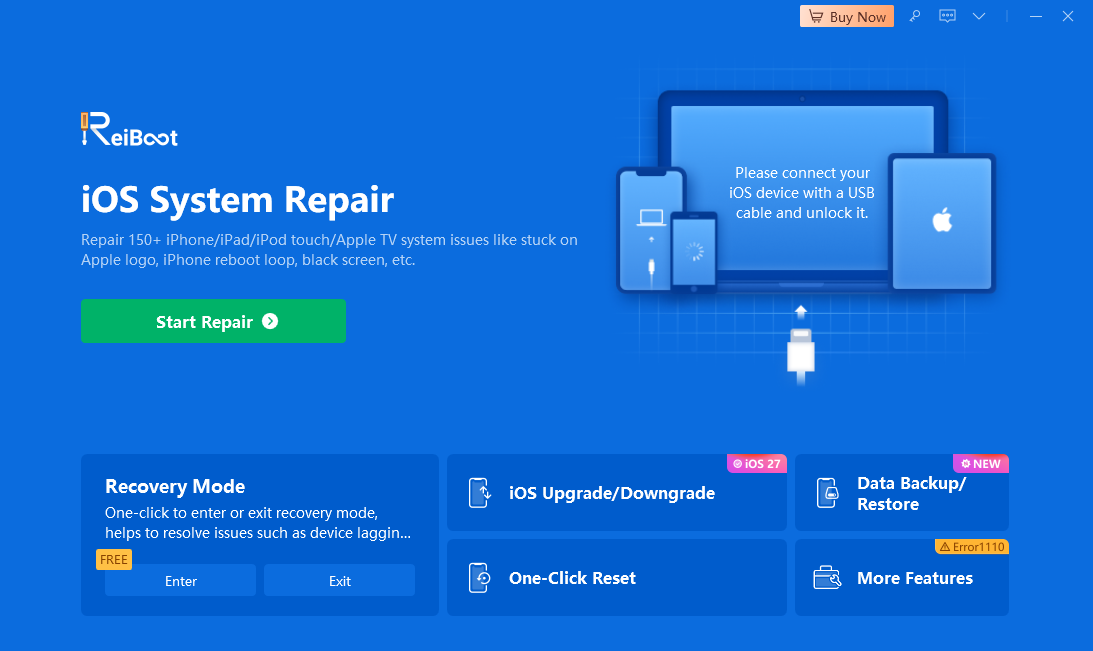
Connect the iPhone to the computer, open Tenorshare Reiboot, and select Start Repair.
-
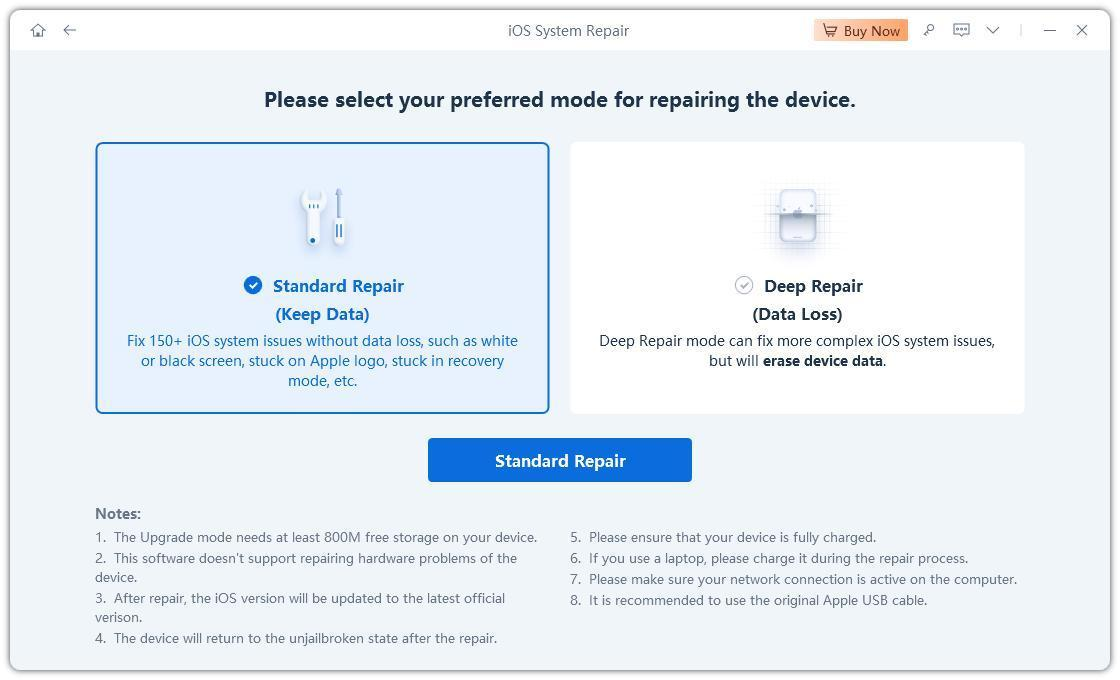
Select the mode designed to retain data and review the requirements before continuing.
-
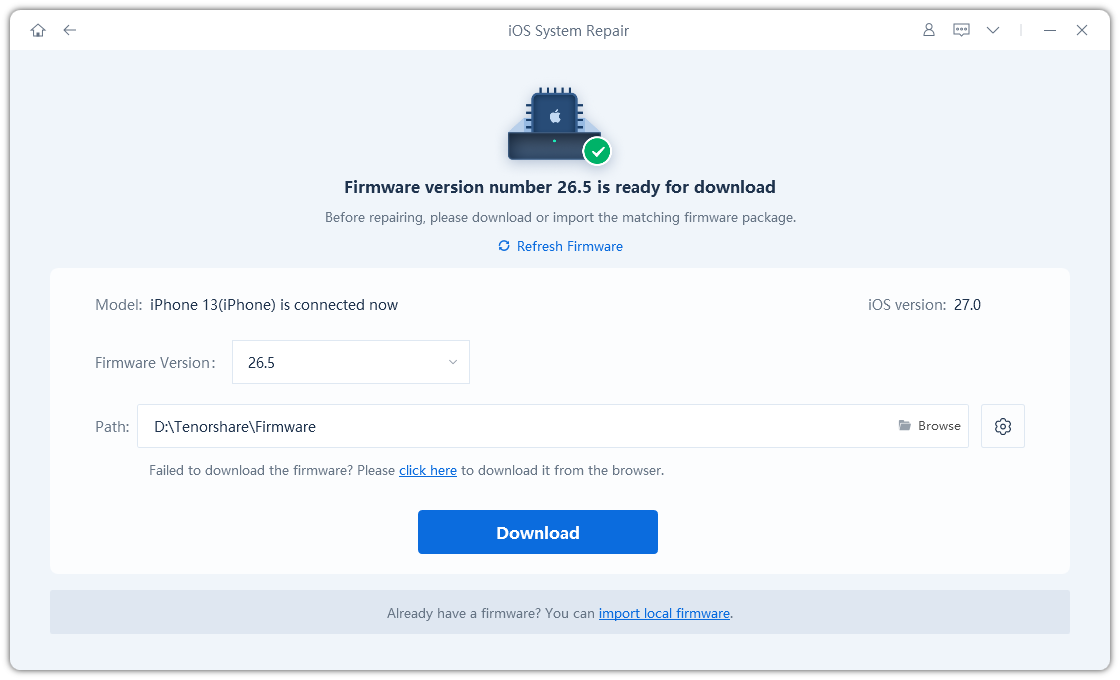
Check the detected device and download its compatible repair firmware.
-
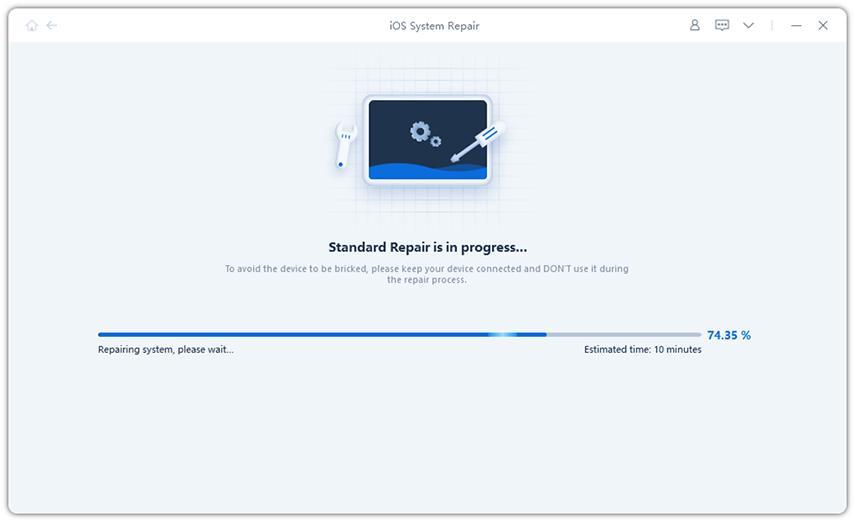
Run the repair without disconnecting, then reopen Family settings after the phone starts.
Limitation: Tenorshare Reiboot cannot add unsupported parental features, change family roles, or resolve an Apple account-side migration issue. Deep Repair erases data and is not interchangeable with a mode designed to retain data.
If the Option Is Missing Across the Family
For an option missing across multiple family devices, continue with setup and account checks rather than repairing iOS on one phone.
-
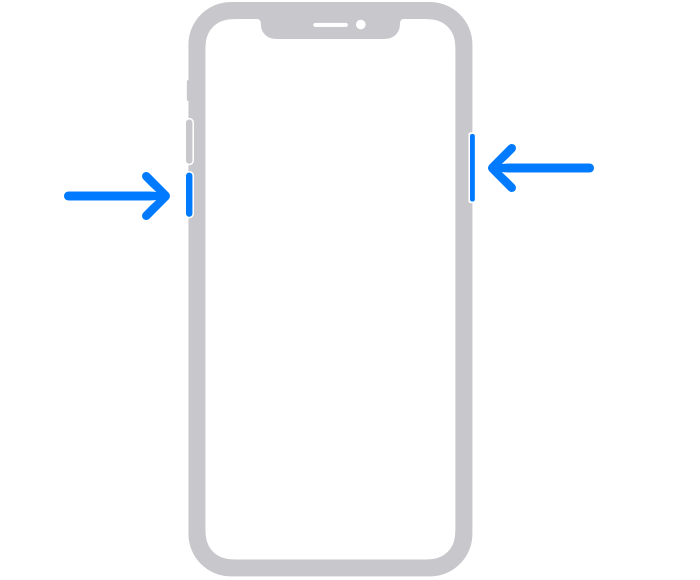
Restart the affected iPhone and reconnect to a working network.
-
Reopen Family settings and compare the same child profile on another authorized parent device, if available.
-
Note whether the problem affects one phone, one child, or the whole family before contacting Apple Support.
This comparison helps keep the next action proportionate. A Settings page that closes only on one phone suggests a different investigation from a setup option missing for every family member. Keep screenshots private because child names and account details may be visible. Do not post a complete family device list publicly to obtain troubleshooting advice.
A family-wide missing option points toward setup or account availability; a Settings page that crashes only on one phone warrants local troubleshooting. A restart cannot change family roles or eligibility.
Part 4. FAQs About Missing iOS 27 Parental Controls
1. Is Updating the Parent’s iPhone Enough?
Not necessarily. Apple’s setup guidance includes the family’s other eligible devices. Review their status before assuming that the organizer’s phone is defective. Completing the available parental controls setup is also separate from installing the update.
2. Must I Remove Every Device That Cannot Update?
No blanket removal rule should be applied. Apple documents legacy-device handling. Read the information for your family’s devices and seek support if it is unclear; removing hardware from an account is not a routine first troubleshooting step.
3. Why Do I Still See Screen Time?
The family may not have completed the new setup, or you may be viewing controls in a different context. Check Family settings, the selected child, and any available setup prompt before concluding that the update did not install.
4. Should I Disable Restrictions and Start Again?
Not simply to expose a new menu. That can remove protections while leaving the underlying setup issue unchanged. Preserve existing controls, document what is missing, and use the supported family setup process or Apple’s account-specific assistance.
5. What If Everything Is Updated but Get Started Is Missing?
Record the eligible-device status, parent account context, and missing screen. If the same issue affects the whole family, contact Apple rather than repeatedly repairing individual phones. A missing family-wide prompt is not proof of local system corruption.
Conclusion
When iOS 27 parental controls are not showing, check eligible family devices and complete the setup before attempting repair. Keep legacy hardware and current restrictions in mind. Tenorshare Reiboot is a conditional option for an affected iPhone that genuinely freezes or crashes, not a shortcut around family requirements.
