
Updated on 2026-07-21 / iPhone Tips
Apple has recently revealed iOS 27 at WWDC 2026 on June 8, 2026, with the developer launched the same day. The version has added some features as well as improved already existing ones. Though it focuses more on performance, stability, and bug fixes rather than major redesigns.
But even with this stability-focused approach, many users are complaining about problems in the version. This guide shares the most frequent iOS 27 bugs users have complained about, along with simple fixes to resolve them.
Part 1. Most Common iOS 27 Bugs Reported So Far
Here's the iOS 27 bugs list, sharing what users have consistently flagged:
-
Fast Battery Drain: Battery drops much quicker than normal after installing the, especially on older iPhones.
-
Phone Overheating: The iPhone gets unusually hot during use or charging in the first couple of days.
-
Apps Crashing: Apps like Instagram, WhatsApp, Safari, or Mail freeze, crash, or don't open properly.
-
Update Installation Problems: Some users get stuck on "Update Requested" or see "Software Update Failed" errors.
-
iOS 27 Safari Bugs: Safari crashes tabs, loads pages slowly, or shows scrolling problems.
-
Wi-Fi & Bluetooth Disconnects: Wi-Fi, Bluetooth devices, or CarPlay randomly disconnect.
-
Lag & Slow Performance: Animations feel choppy, keyboard response lags, and the phone feels slower overall.
-
Face ID Problems: Face ID fails sometimes or asks for a passcode unexpectedly.
-
Black or Frozen Screen: The screen suddenly goes black or stops responding.
-
Notification & Control Center Bugs -- Notifications may act strangely, and Control Center buttons or animations may glitch.
Part 2. What Are iOS 27 Bugs and Fixes
Now that you know what the bugs in iOS 27 are, let's get into the actual solutions. Below are four categories of fixes, starting with the most comprehensive tool available and followed by manual steps for each type of problem:
Fix iOS 27 Bugs without Data Loss via ReiBoot
iOS 27 bugs can go beyond what a simple restart can solve. Think persistent black screens, boot loops, stuck update installations, or total unresponsiveness. In such a case, you need a dedicated iOS system repair tool like Tenorshare ReiBoot.
It can resolve 150+ different iOS system issues without wiping your device. The tool lets you repair deep system-level glitches in iOS that manual fixes simply can't reach. It can also safely downgrade from iOS 27 back to iOS 26 if you need a stable device while waiting for a more polished build.
Main Features of Tenorshare ReiBoot:
-
Fixes 150+ iPhone problems like boot loops, frozen screens, and update failures without deleting data.
-
Standard Repair Mode can solve most iOS 27 issues quickly and easily.
-
Free one-click Recovery Mode entry and exit.
-
Lets you upgrade or downgrade between iOS versions, including iOS 27 and iOS 26.
-
No iTunes, jailbreak, or technical skills needed.
-
Supports earlier to latest iPhone models and iOS versions, including iPhone 17 series, and iOS 26.
Steps to Fix iOS 27 Bugs with ReiBoot:
- Way 1: Execute ReiBoot on Your Computer
Download and install Tenorshare ReiBoot on your computer. Open the program and connect your iPhone experiencing bugs after installing iOS 27.

- Way 2: Click on "Standard Repair"
Click on "Standard Repair" when ReiBoot detects your device to fix iOS 27 system bugs without data loss.

- Way 3: Download Firmware Package
Download the latest firmware package when prompted. ReiBoot will automatically prepare the correct system package for repair.

- Way 4: Start Standard Repair
Once the firmware is ready, click “Start Standard Repair” to fix iOS 27 bugs and system glitches. Wait for the process to complete.

- Way 5: iPhone Running Smoothly
Your iPhone will restart automatically after repair. Check whether system bugs are resolved and the device runs normally.

Fix iOS 27 Update Issues
Getting the iOS 27 onto your device shouldn't be a battle, but for many users, it inevitably is. You might be seeing "Software Update Failed," stuck on the "Update Requested" screen, or simply can't find the iOS 27 option in Settings at all. In any case, proceed with these steps to fix iOS 27 issues and bugs. If one step doesn't work, move to the next one.
Here is iOS 27 Bug & Issues video guide:
Way 1: Free Up Storage
- Head to "Settings." Then, choose "General." Tap "iPhone Storage." Make sure you have at least 5--6GB free.
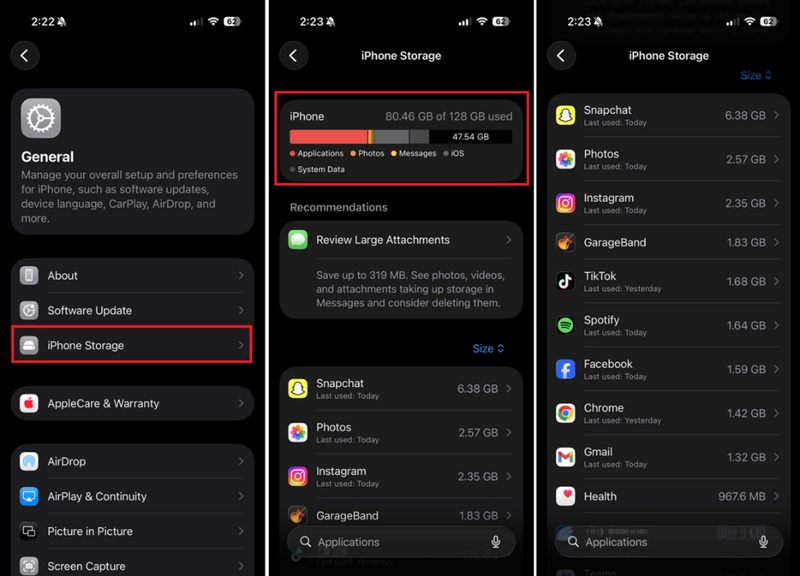
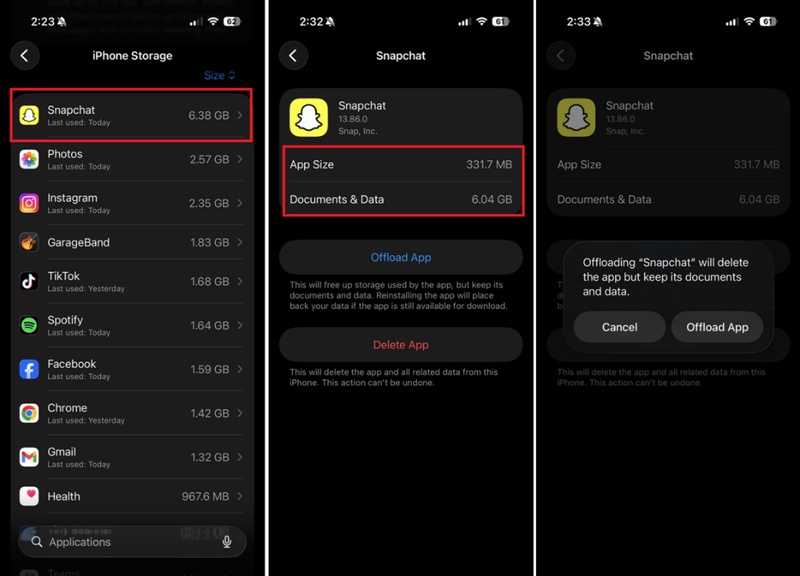
- Offloading unused apps can also free up storage, while retaining their associated files. Tap an app. Then, choose "Offload App." Confirm.
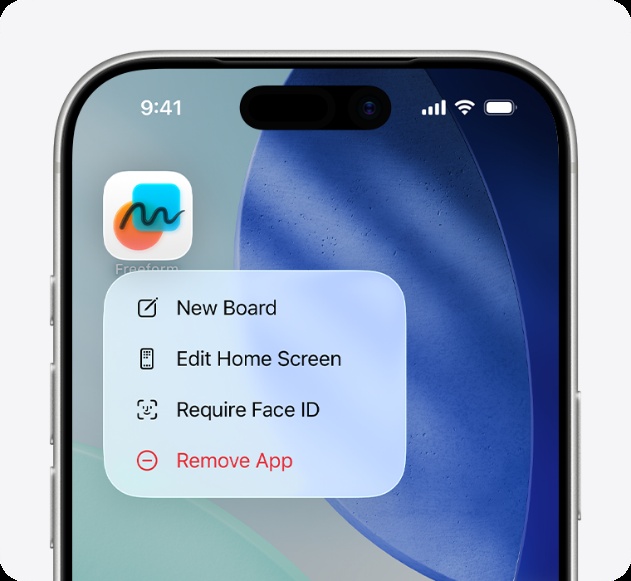
- To remove the unused app completely, head to the "Home screen," long-press the app icon, and choose "Remove app." Then, select "Delete app."
- You can also move photos to iCloud if needed.
Way 2: Check Wi-Fi Connection
-
Use a strong and stable Wi-Fi network.
-
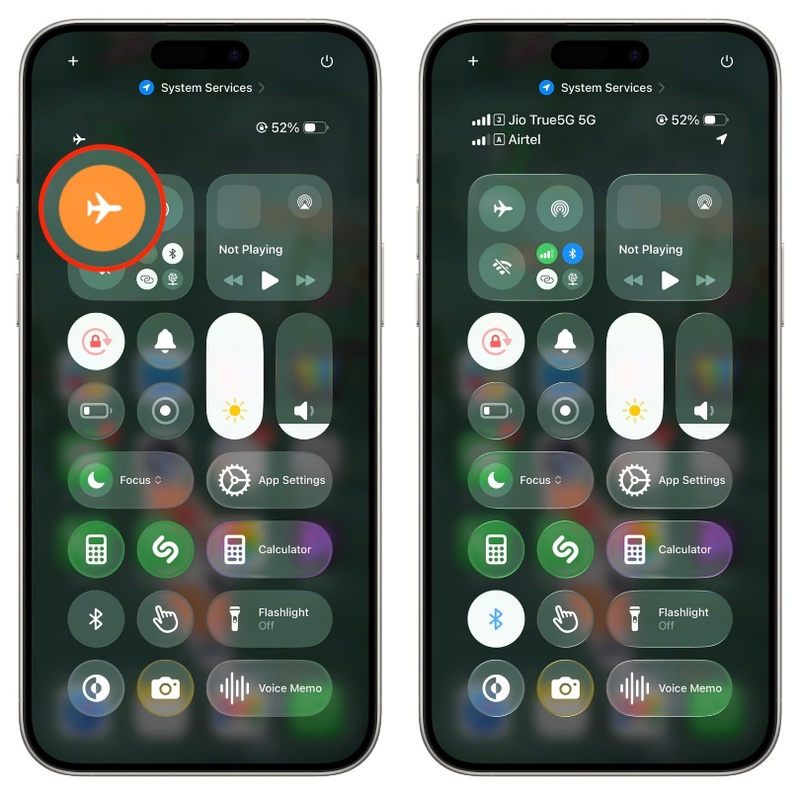
If the connection is weak, switch networks or turn "Airplane Mode' on and off before trying the update again.
Way 3: Delete the Stuck Update File
- In "iPhone Storage," find the downloaded iOS update file and delete it.
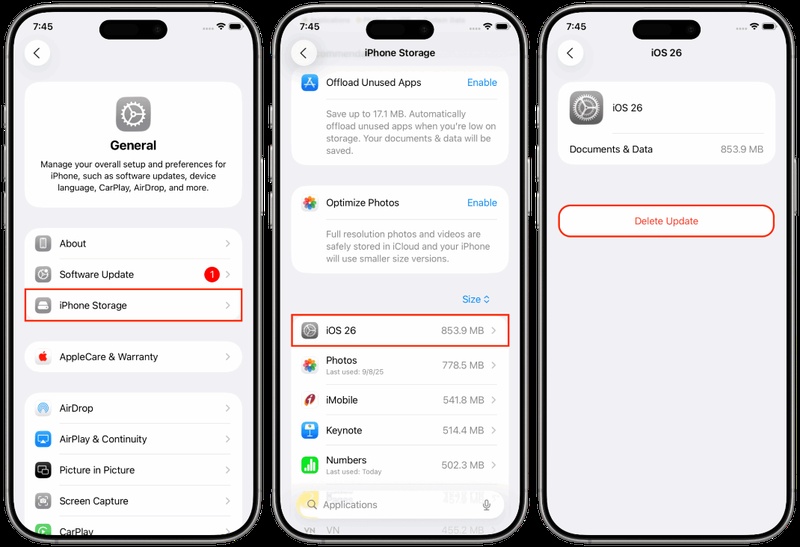
- Restart your iPhone, then download the update again.
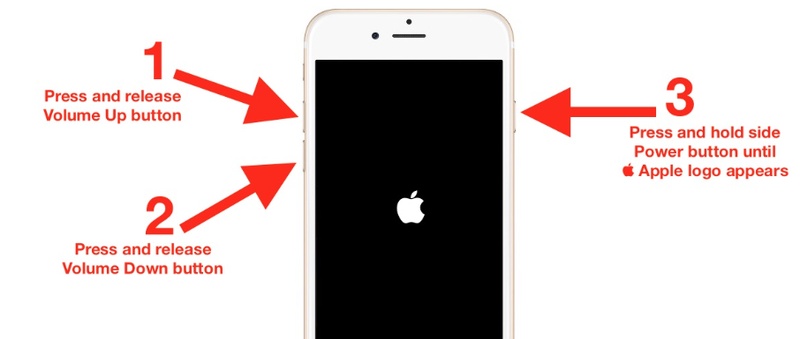
Way 4: Force Restart Your iPhone
-
On iPhone 8 or newer, press "Volume Up," then "Volume Down."
-
Next, hold the "Side" button until the Apple logo appears. After restarting, try updating again.
Way 5: Update Using a Computer
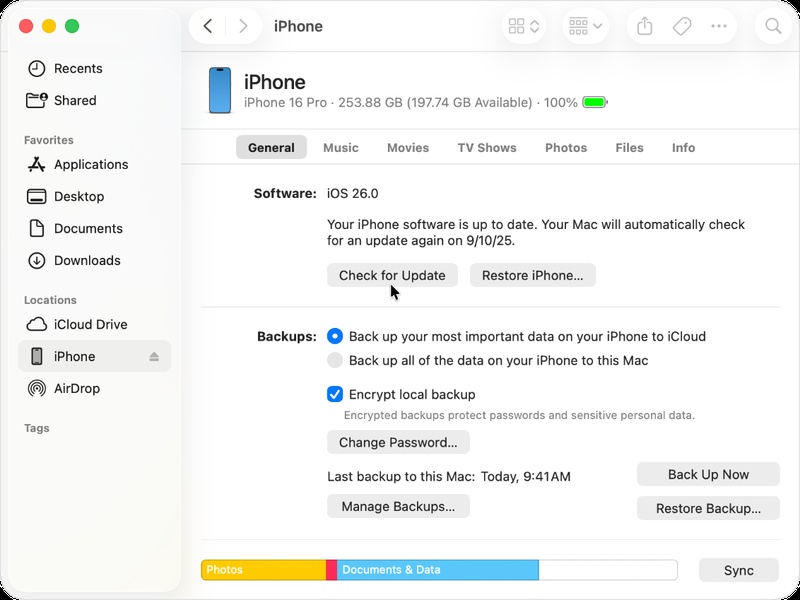
- If the wireless update fails, connect your iPhone to a Mac or PC and use "Finder" or "iTunes" to install the manually.
Way 6: Reinstall the Profile
- If iOS 27 doesn't appear, reinstall the profile from Apple's developer or public website.
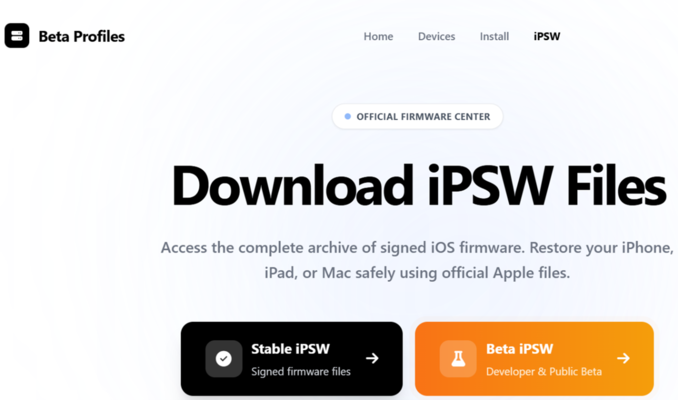
- Then restart your iPhone and check for updates again.
Fix iOS 27 App-Related Bugs
App crashes and freezes are some of the most disruptive iOS 27 problems because they interrupt things you need to do right now. You might have issues sending a message, checking email, or using a work app. But most app-level issues are fixable without drastic action. Here's how to resolve them step by step:
Way 1: Update All Apps
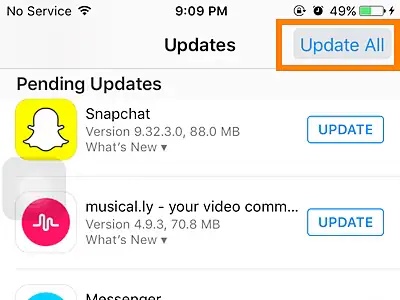
- Open the "App Store," and tap your profile. Then, select "Update All." App updates often include iOS 27 fixes.
Way 2: Force-Close the App
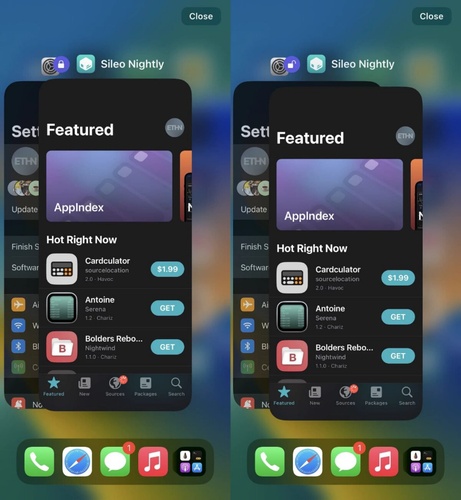
- Open the "App Switcher" and swipe up on the crashing app to close it. Then, reopen it after a few seconds.
Way 3: Reinstall Problematic Apps
- Delete the app and install it again from the "App Store" to clear corrupted files or cache issues.

Way 4: Report Bugs to Apple
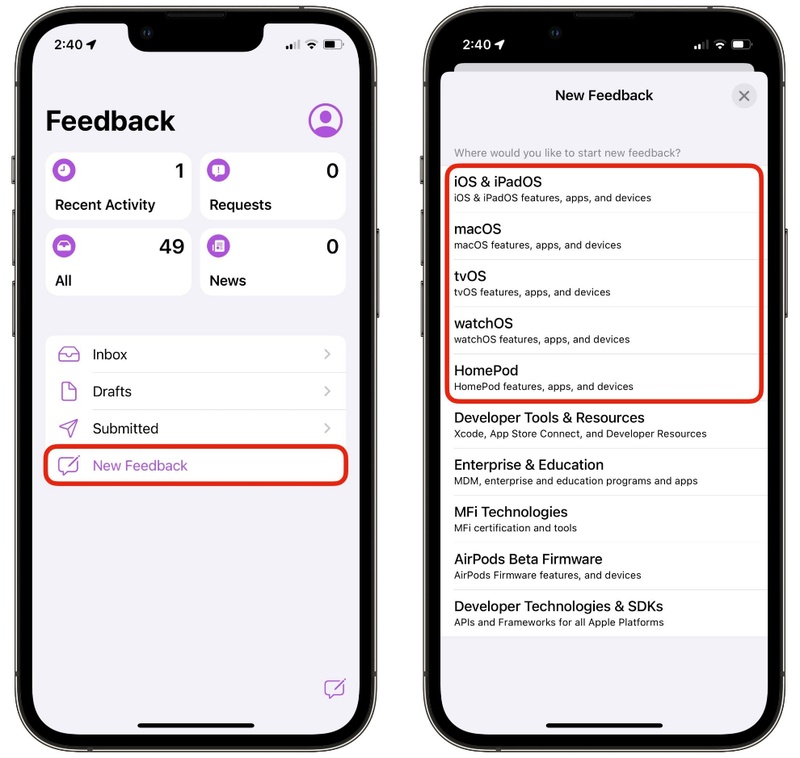
- Use the "Feedback" app to send detailed bug reports. Apple and app developers use these reports to fix issues in future updates.
Way 5: Check for Known Issues
- Search online for an iOS 27 bug report for an app. Developers may already have a workaround or new update available.
Way 6: Use Web Versions Temporarily
- If an important app is still broken, use its browser version in "Safari" until a fix is released.
Fix iOS 27 Performance-Related Bugs
If your iPhone feels noticeably slower, hotter, or more power-hungry after installing iOS 27, you're not imagining it. Performance degradation is one of the most consistent iOS 27 problems, but it improves as iterations progress. But you don't have to just wait it out. Here's how you can fix performance-related bugs in iOS 27 step by step:
Way 1: Wait 24--48 Hours
- After installing the, your iPhone is busy re-indexing data, updating apps, and optimizing features. Battery drain and lag are normal at first. So, wait 24-48 hours before using the phone.
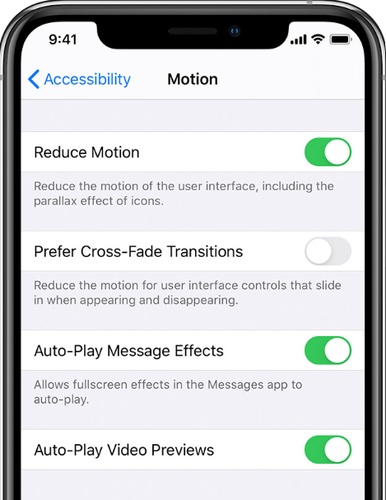
Way 2: Turn On Reduce Motion & Transparency
-
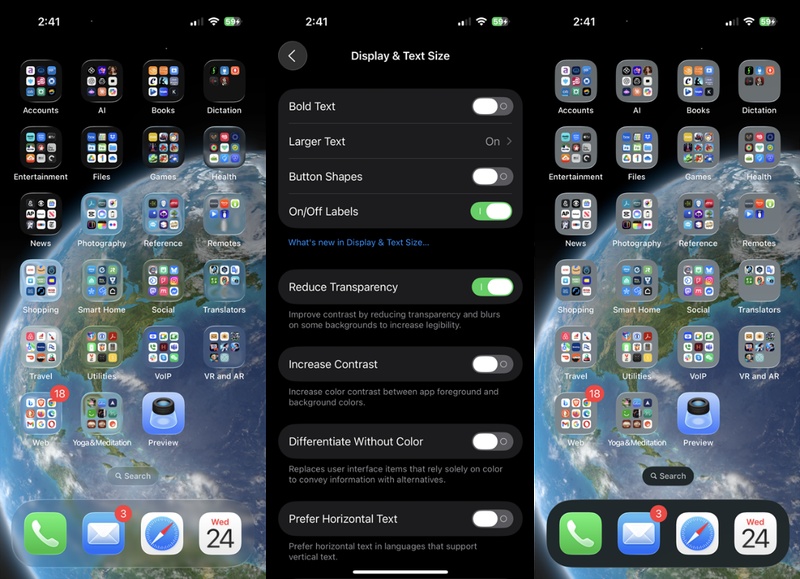
Head to "Settings" on your iPhone. Then, choose "Accessibility." Select "Display & Text Size."
-
Enable "Reduce Transparency" to improve performance, especially on older iPhones.
- In "Accessibility," also choose "Motion." Then, enable "Reduce Motion."
Way 3: Disable Background App Refresh
-
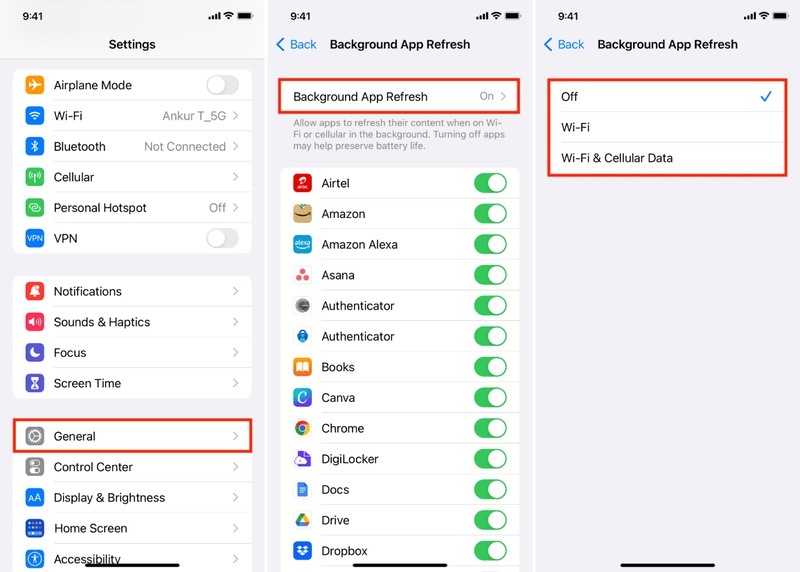
In "Settings," choose "General." Tap "Background App Refresh."
-
Turn it off for all apps, or only keep it on for important ones to reduce heat and battery drain.
Way 4: Reset All Settings
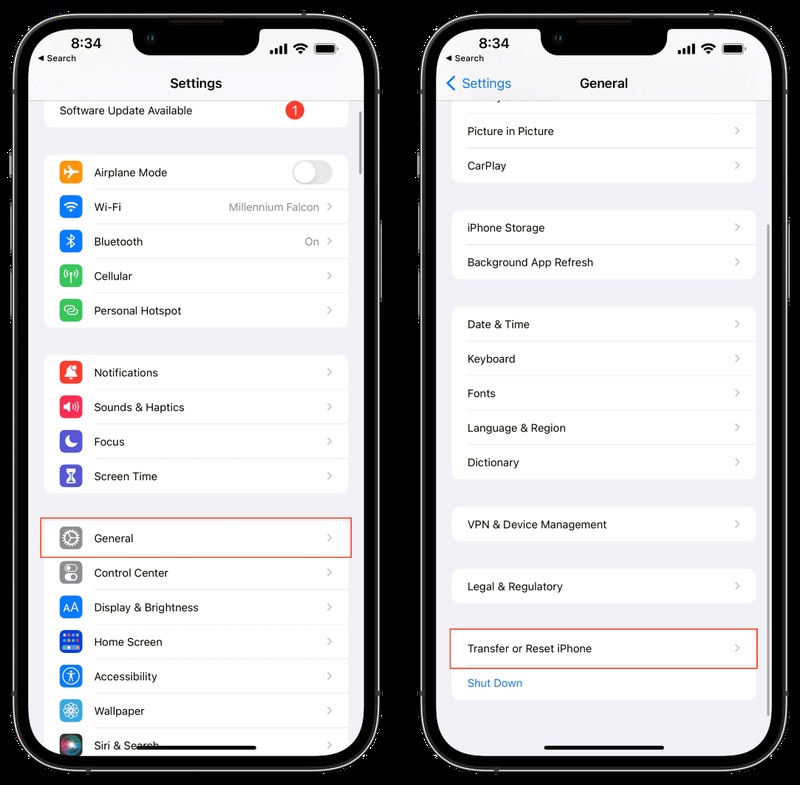
- If problems continue, head to "Settings." Then, select "General." Choose "Transfer or Reset iPhone."
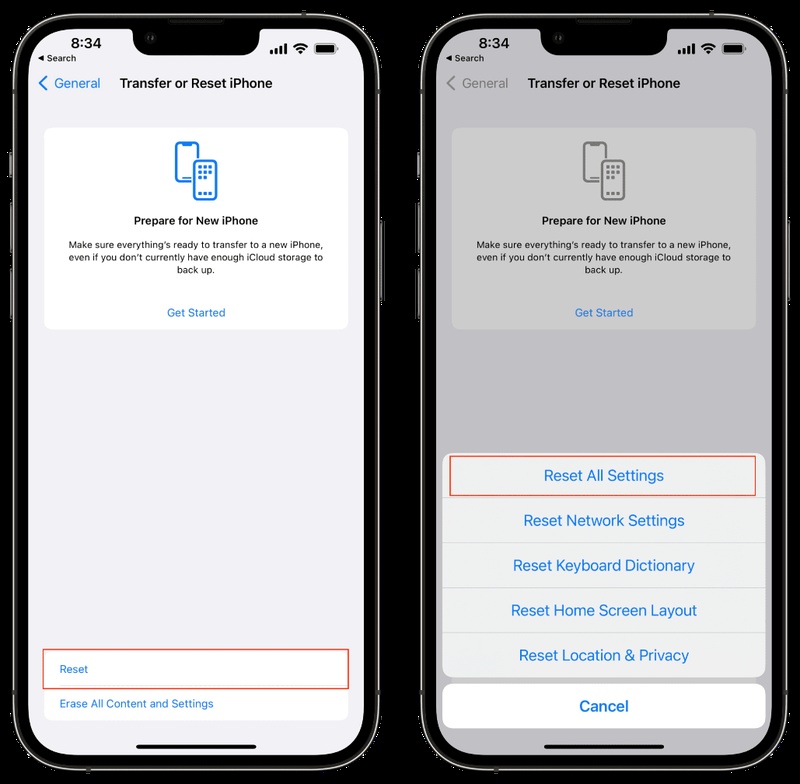
- Click "Reset." Select "Reset All Settings." This will only reset your phone settings, but won't delete your apps or personal data.
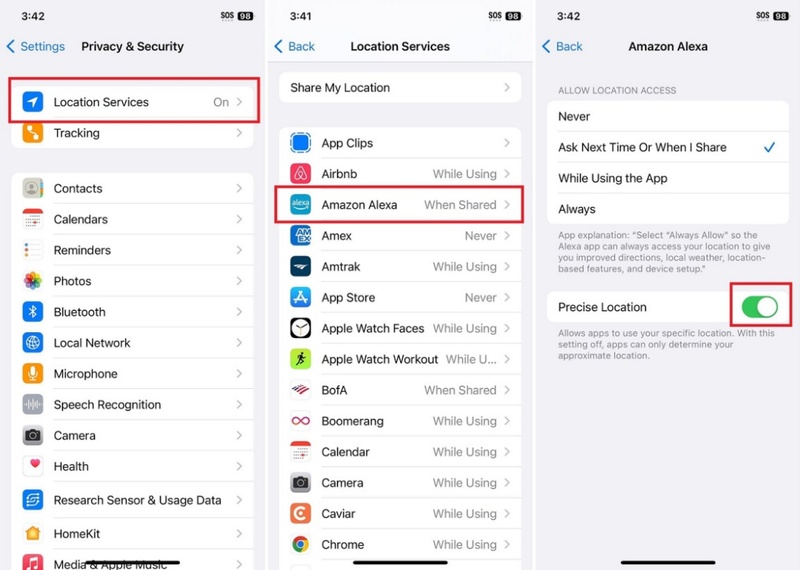
Way 5: Limit Location Services
-
In "Settings," choose "Privacy & Security." Tap "Location Services."
-
Set unnecessary apps to "Never" or "While Using" instead of "Always."
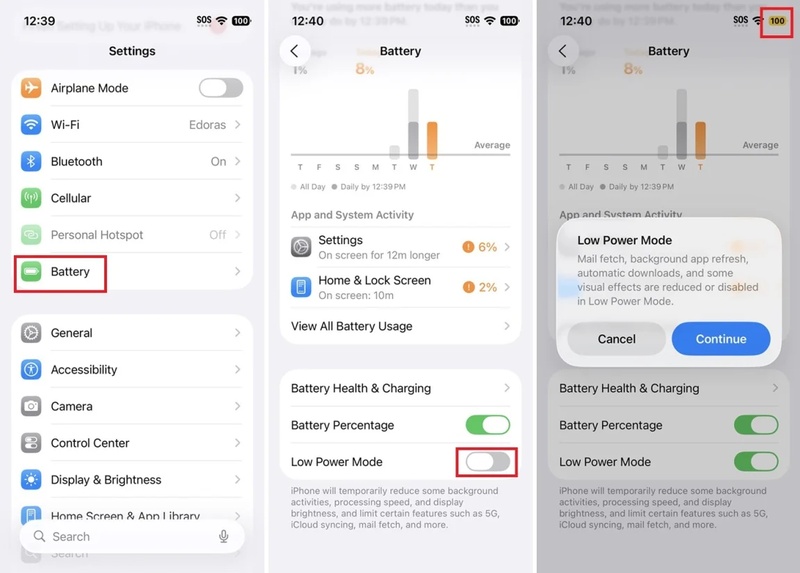
Way 6: Enable "Low Power Mode"
- Head to "Settings." Pick "Battery." Enable "Low Power Mode." This will allow your phone to only perform necessary tasks, so the battery won't heat up or drain faster.
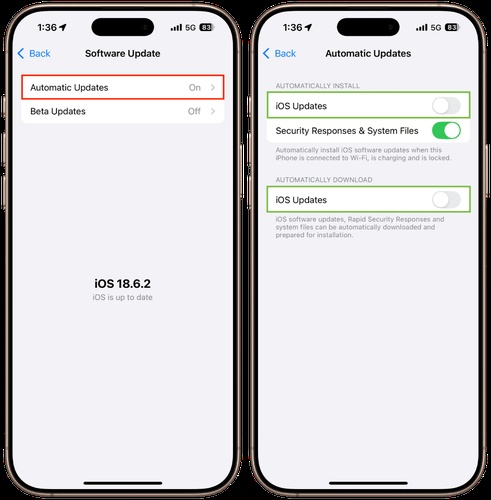
Way 7: Install New Updates
- Apple regularly releases fixes, so keep the automatic updates enabled to improve stability and performance.
Conclusion
iOS 27 looks like a more polished and stability-focused update compared to recent iOS versions. But it still comes with frequent problems like battery drain, app crashes, Safari bugs, update errors, and slow performance. Most of these iOS 27 bugs can be fixed.
You can wait a day or two, change a few settings, and install newer updates as Apple releases them. For more serious problems like boot loops, failed updates, or constant system crashes, Tenorshare ReiBoot can help repair iOS system issues without deleting your data. It can also help downgrade from iOS 27 to a stable iOS 26 version.
