
Updated on 2026-09-17 / iPhone Tips
The ios 26.4/27 age verification uk issue is suddenly showing up for many iPhone users. Apps may stop working, or you might keep seeing annoying age check alerts. This can feel frustrating, especially when everything was fine before the update.
But don't worry, this problem is common and usually easy to fix. In this guide, you'll find simple causes and quick solutions to handle the ios 26.4 age verification uk issue without stress.
- Part 1: What Is iOS 26.4/27 Age Verification in the UK?
- Part 2: Why Am I Seeing Age Verification on iOS 26.4/27?
- Part 3: How to Fix iOS 26.4/27 Age Verification in the UK
- Part 4: Bonus Tip: Fix iOS 26.4/27 Issues Easily with ReiBoot
- Part 5: FAQs on iOS 26.4/27 Age Verification in the UK
- Part 6: Final words:
Part 1. What Is iOS 26.4/27 Age Verification in the UK?
The iPhone age verification in the UK is a new feature in iOS 26.4/27. It asks you to confirm that you are 18 or older before using some apps or features. This check shows on your iPhone and is linked to your Apple ID, not just one app.
Apple added this to keep younger users safe online. If your age is not verified, some apps may not work, and content filters can turn on automatically. To verify your age, you can use a credit card, scan your ID, or confirm your details through your Apple account.
Part 2. Why Am I Seeing Age Verification on iOS 26.4/27?
1. New UK safety rules
Apple added this feature due to growing pressure from UK laws like the Online Safety Act. It helps block adult content for underage users.
2. Your age is not confirmed yet
If your Apple ID does not clearly show you are 18+, your iPhone will ask you to verify your age manually.
3. No valid payment method added
Users without a credit card linked to their Apple account are more likely to see this prompt again and again.
4. Passport or ID not supported properly
Many users try using a passport, but it may fail or not be accepted, causing repeated verification issues.
5. System bugs or update glitches
iOS 26.4/27 still has bugs, so even correct details may not work, leading to verification loops or errors.
6. Automatic safety restrictions applied
If you don't verify, Apple may limit apps, downloads, or content until your age is confirmed.
Part 3. How to Fix iOS 26.4/27 Age Verification in the UK
The ios 26.4 age verification issue is bothering many users in the UK. Some people get stuck during verification, while others don't have the required documents, like a credit card or a driving licence.
In many cases, the problem is caused by system bugs, wrong document use, or slow scanning. There are simple ways to fix it or complete the process without stress.
Method 1: Complete Automatic Age Verification (Fastest Fix)
Apple first tries to verify your age automatically using your Apple ID history and account signals.
Steps of ios 26.4 age verification passport:Open Settings on iPhone
Tap your Apple ID name at the top
Select Confirm You Are 18+
-
Tap Continue
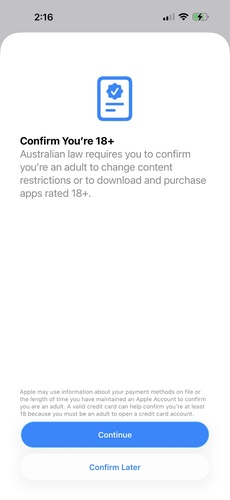
Wait without closing the screen (important)
If successful, you will see "Age Verified" message
-
Do not switch apps while processing
-
Keep internet stable (Wi-Fi preferred)
-
If it fails, retry after 10--15 minutes
Method 2: Fix Credit Card Verification Issues
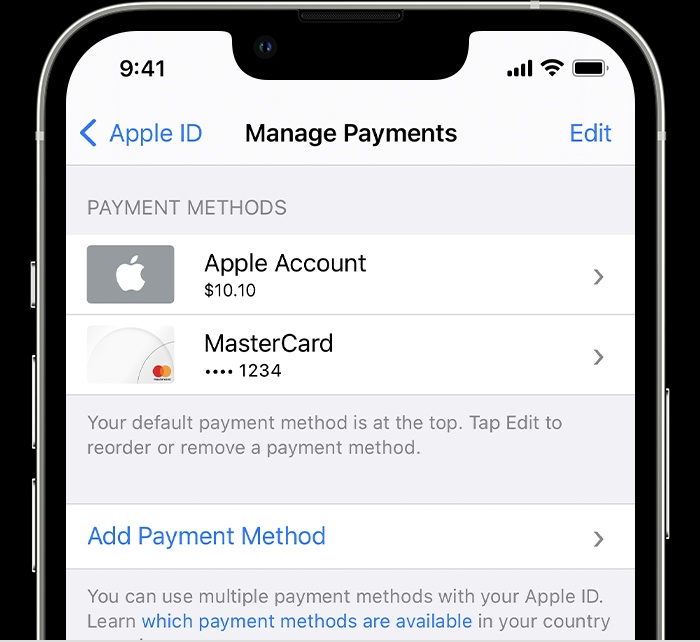
Credit card verification is one of the most reliable methods, but it fails if details are not aligned.
Go to Settings, open your Apple ID payment settings, and make sure a valid credit card is added with correct billing details, then return to the verification screen and continue again, as Apple often accepts credit cards as proof of age in the UK.
-
Card must be active (not expired)
-
Online payments must be enabled
-
Same Apple ID country = UK
Method 3: Scan Your Driving Licence Properly
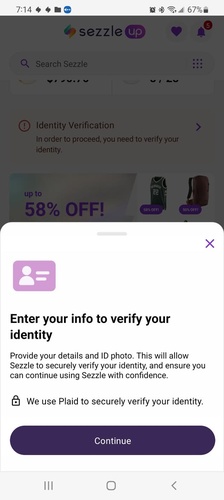
Select the ID verification option, place your driving licence on a flat surface, and scan both front and back sides carefully in good lighting while keeping your phone steady, because unclear images, shadows, or movement can cause the scan to fail.
Method 4: Use PASS ID Card
Choose the ID option, scan a supported PASS card like CitizenCard or TOTUM ID, and make sure all edges and details are clearly visible before submitting.
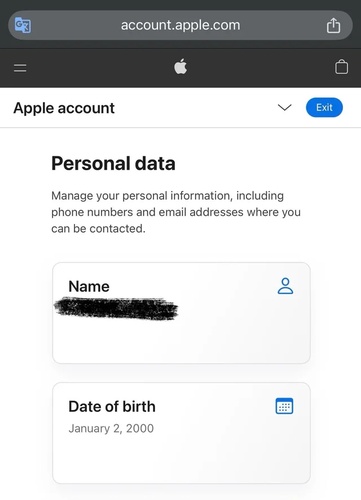
Method 5: Check Apple ID Details
Open your Apple ID settings, confirm that your date of birth and country are correct, save any changes, and retry the age verification process.
Method 6: Remove and Re-login Apple ID
Refreshing your Apple account often clears hidden glitches.
Steps of iphone age verification in the UK:Go to Settings and tap your Apple ID name
Scroll down and tap Sign Out
-
Enter your Apple ID password and confirm sign out
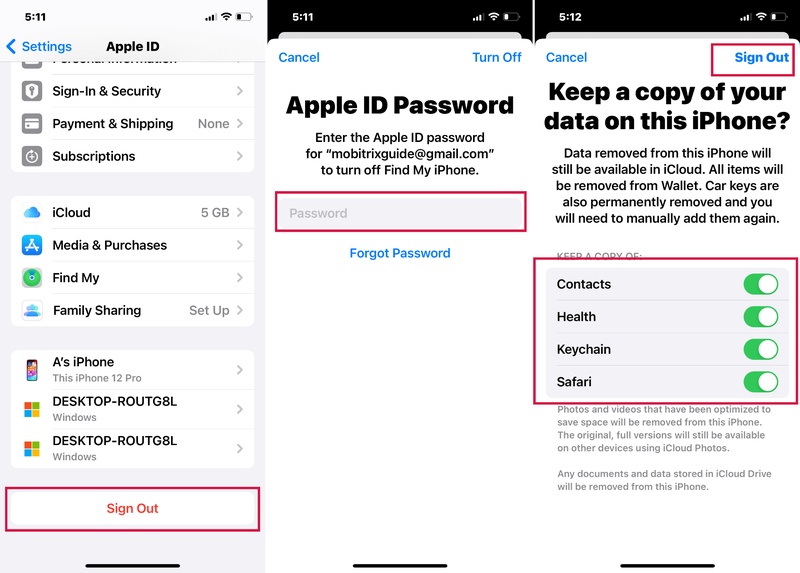
Turn off your iPhone and restart it
-
Go back to Settings and sign in again with your Apple ID
-
Open the age verification screen and retry the process
Method 7: Contact Apple Support if Nothing Works
If none of the above methods work, the final option is to contact Apple Support, as your account may require manual verification or backend correction. In most cases, Apple can review your account details and guide you through a working verification method based on your region and available documents.
Part 4. Bonus Tip: Fix iOS 26.4/27 Issues Easily with ReiBoot
To fix stubborn iOS system errors that may be causing the remove iOS 26.4 age verification issue, you can use Tenorshare ReiBoot. It is a trusted iOS repair tool designed to resolve system glitches without data loss. It works by detecting hidden software issues that normal settings cannot fix.
The tool repairs these problems safely in the background. After repair, it helps restore your iPhone to a stable working state. It is especially useful when age verification keeps failing or looping repeatedly.
Key Features of ReiBoot-
Fixes 150+ iOS system issues like Apple logo stuck, black screen, and update errors
-
Supports iOS/iPadOS 26 repair without data loss
-
Repairs system glitches affecting age verification and Apple ID processes
-
One-click Enter and Exit Recovery Mode without using buttons
-
Offers Standard Repair and Deep Repair modes for different issue levels
-
Works with fast repair speed and high success rate
Step to fix iOS 26.4/27 age verification not working with Reiboot:
-
Step 1: Install and Launch ReiBoot
Download and install Tenorshare ReiBoot on your Windows or Mac computer. Connect your iPhone to the computer using a USB cable. Now, click on the interface "Start Repair".

-
Step 2: Select Standard Repair
On the main screen, click "Standard Repair" and confirm it to begin the iOS repair process.

-
Step 3: Download Firmware Package
Download the required firmware package when prompted, making sure you select the correct iOS version for your device.

-
Step 4: Start Standard Repair
Click "Start Standard Repair", keep the device connected during the process, and wait for your iPhone to restart automatically once the repair is finished.

-
Step 5: Repair Completed
Your iPhone will restart automatically after the repair process is complete, with system issues resolved and performance restored.

Part 5. FAQs on iOS 26.4/27 Age Verification in the UK
Q1. How to turn iOS 26 back to 18?
You cannot change your iOS or Apple ID age to 18 manually. Your age depends on the date of birth in your Apple ID. If it is wrong, you can update it in Settings Apple ID Personal Information Birthday, but Apple may still ask for verification.
Q2. Is iOS 26.4/27 Age Verification only in the UK?
Yes, this feature is mainly for UK users. It is introduced due to UK online safety rules, so users in other countries may not see the same age verification requirement.
Q3. How do I turn SafeSearch off on iOS 26?
SafeSearch is controlled by Google or your browser settings, not iOS. Open Google settings in Safari or Chrome, turn off "SafeSearch filters," and if it is locked, check Screen Time or parental controls in Settings.
