
Updated on 2026-04-30 / iPhone Tips
Are you a parent trying to keep your child away from inappropriate content or an adult who simply wants to cut out distractions during work hours? Blocking websites on an iPad is one of the most practical things you can do.
Apple gives you more control than most people realize, and in 2026, between Screen Time features and third-party DNS tools, the options have never been richer. This guide shares how to block websites on iPad in 6 ways and what each approach is actually good for.
Part 1. Can You Block Specific Websites on iPad?
Beyond the native option, you can also push restrictions through a router-level DNS filter, install a content filtering app, or use a managed configuration profile. You can also use Safari's Focus mode behavior for blocking specific websites on an iPad.
Part 2. 6 Ways to Block Websites on iPad
Here's how to block certain websites on an iPad in 6 ways. But the method you pick should match your casual self-discipline, childproofing, or institutional device management needs, all of which call for different tools:
1. Use Built-In Screen Time
Screen Time is Apple's built-in tool for parental controls, so no extra apps are needed. It lets you block certain websites, automatically filter adult content, or allow only approved sites on an iPad:
If you set a passcode that your child doesn't know, it functions fairly well. While kids might try using different browsers, most browsers still follow Screen Time rules, so this is usually not a big problem. Follow the instructions beneath to use Screen Time to block certain websites on a child's iPad:
-
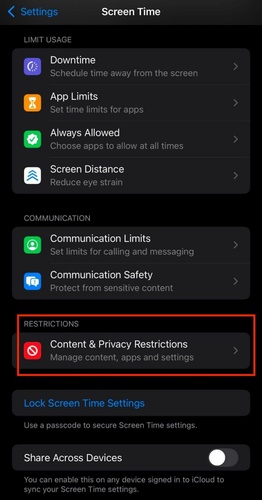
Step 1: Open "Settings" on your child's iPad. Then, tap "Screen Time." Click "Content & Privacy Restrictions." Switch it on.
-
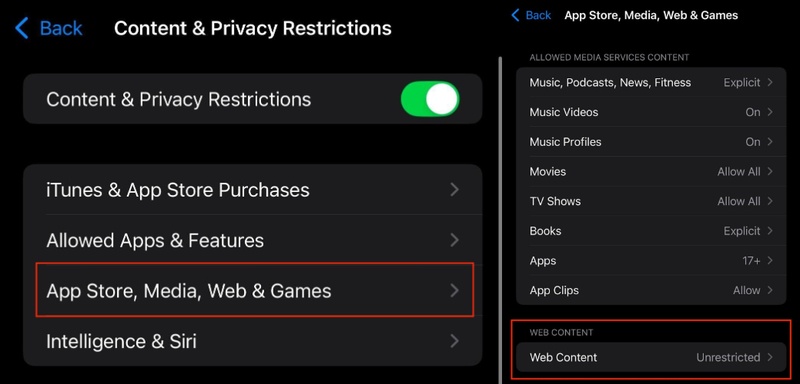
Step 2: Next, tap "App Store, Media, Web & Games." Then, select "Web Content." Choose "Limit Adult Websites" to auto-filter.
-
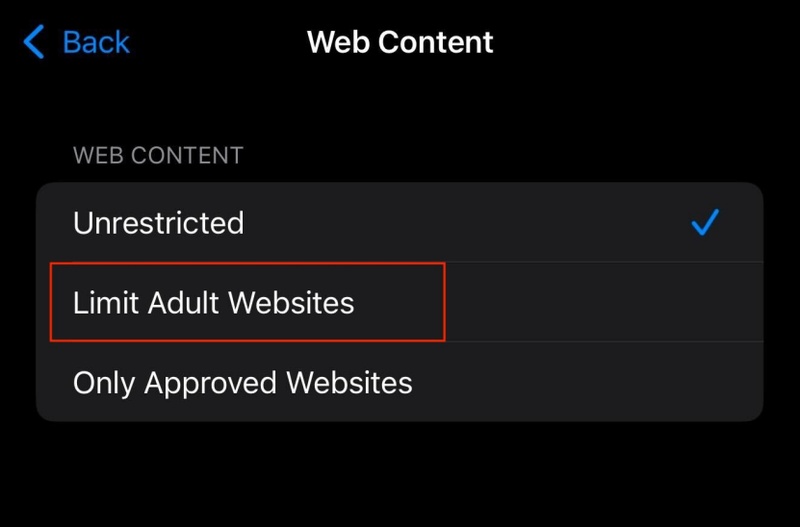
Step 3: Choose "Limit Adult Websites." You can select "Add Website" beneath "Never Allow" to add specific URLs, or choose "Only Approved Websites" and add only the URLs you want accessible.
-
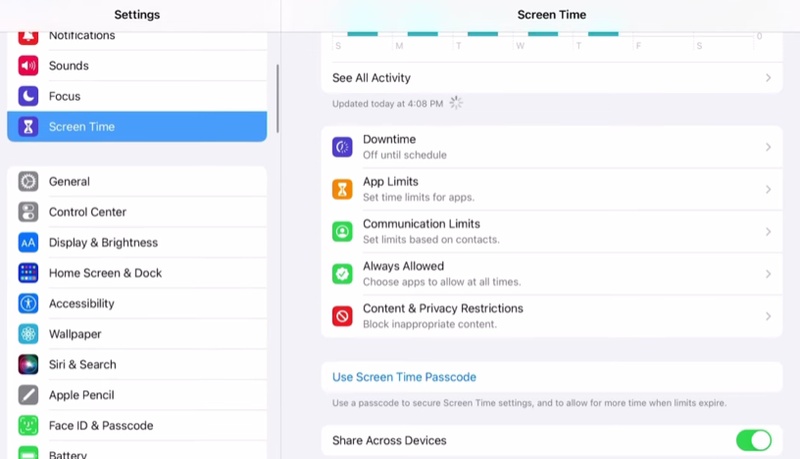
Step 4: Back in "Screen Time" settings, click "Use Screen Time Passcode." Set a code that the child won't know.
2. Family Sharing + Screen Time Remote Management
With Family Sharing and Screen Time, parents can control a child's iPad remotely using their own Apple device, as long as both are signed into iCloud. This lets them set or change restrictions without touching the child's device, and updates are sent through iCloud.
However, it only functions when both devices have an internet connection, and changes won't apply until the child's device comes back online if it is offline. Here's how to block websites on child's iPad with Family Sharing and Screen Time:
-
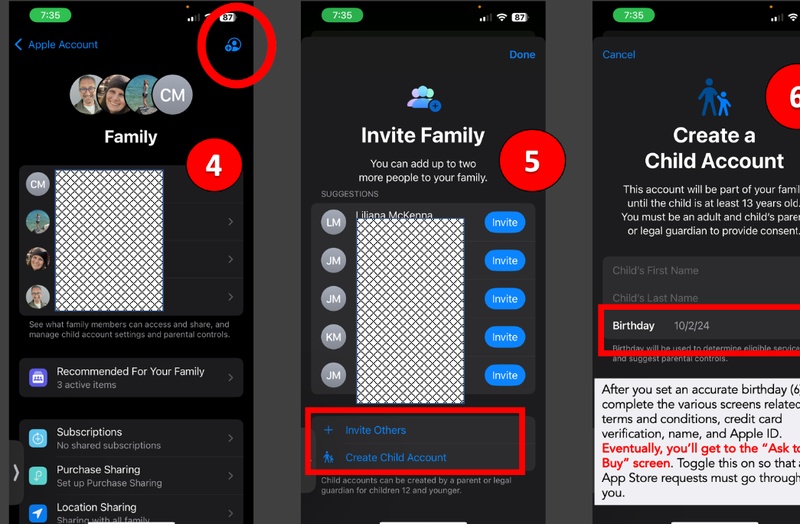
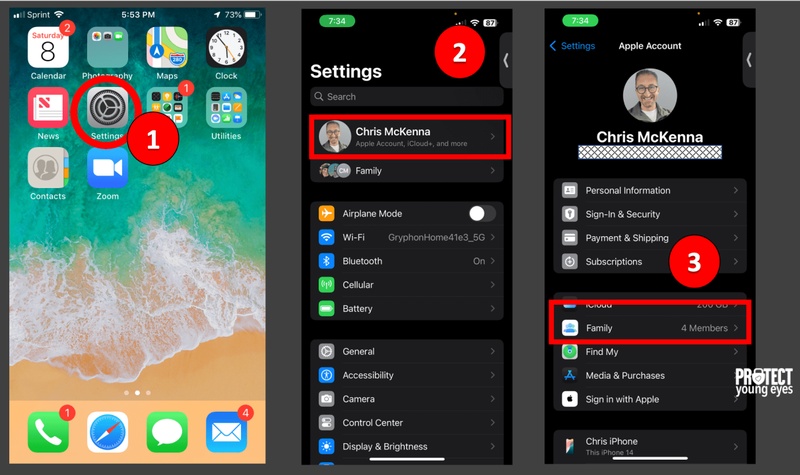
Step 1: On your iPad, head to "Settings." Then, choose "\Your Name." Tap "Family Sharing."
-
Step 2: Add your child's Apple ID (or create a child account if they're under 13). Once linked, head to "Settings."
-
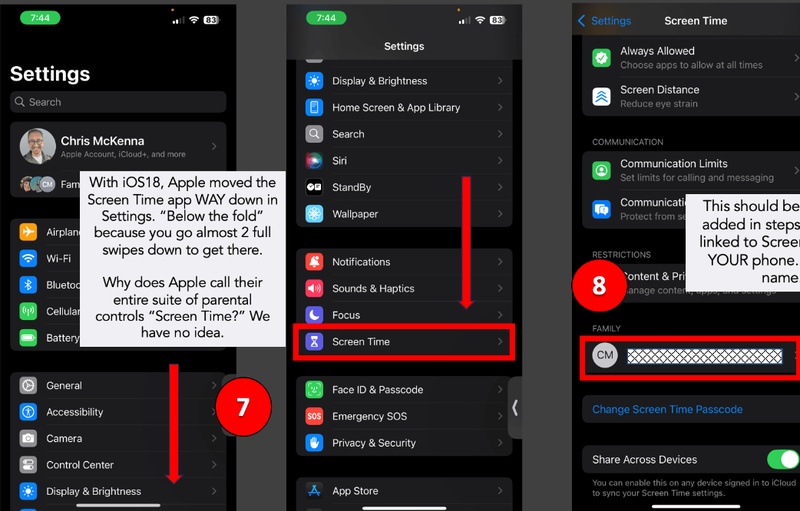
Step 3: Next, select "Screen Time." Then, choose your child's name under "Family."
-
Step 4: Click "Content & Privacy Restrictions." Choose "App Store, Media, Web & Games."
-
Step 5: Tap "Web Content" and configure blocked sites as mentioned in "Method 1." All changes apply to their device without the child being able to override them.
3. Router-Level DNS Filtering (CleanBrowsing / NextDNS)
Using a filtered DNS service, either on your router or directly in the iPad's Wi-Fi settings, blocks websites before they load by stopping them at the DNS level. Services like NextDNS and CleanBrowsing offer free options with filters for things like adult content, malware, and social media.
This method is hard to bypass and can protect all devices on the same network. However, it only functions with Wi-Fi, since cellular data ignores these settings. For full home coverage, it's better to set the DNS on the router instead of just the device. Here's how to block websites on iPad without Screen Time:
-
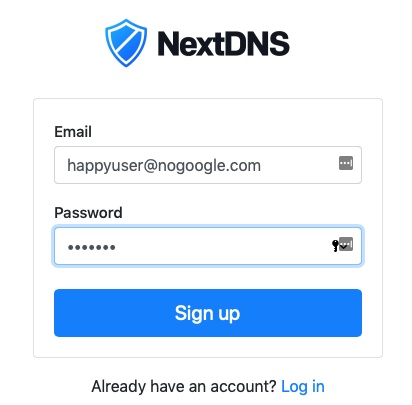
Step 1: Sign up at "nextdns.io." Then, sign in to your router (usually 192.168.1.1 or 192.168.0.1).
-
Step 2: Locate DNS settings (beneath WAN, Internet, or LAN/DHCP).
-
Step 3: Next, change DNS servers to NextDNS ones (copy from your dashboard → Setup → IPv4 addresses).
-
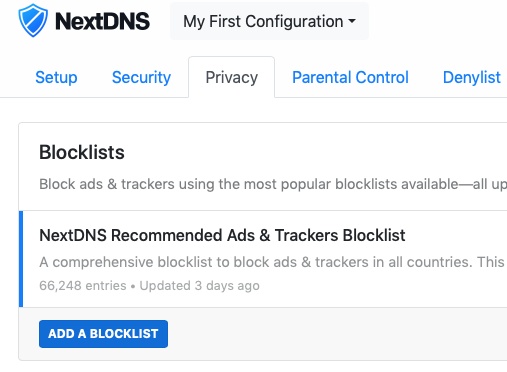
Step 4: [After setup, log in to https://my.nextdns.io/]. Next, you can block adult content, gambling, and social media (TikTok, Instagram, etc.).
-
Step 5: You can also enable Force SafeSearch (Google, YouTube, Bing) and YouTube Restricted Mode.
4. Third-Party Parental Control Apps
You can also employ third-party parental control apps like Bark, Circle, and Qustodio. They use a VPN-based filter on iPads to block websites and monitor activity, no matter which Wi-Fi or mobile network the device uses.
Moreover, they can fix the gap left by DNS filtering and can also send instant alerts when blocked content is accessed. However, these tools usually require a paid subscription to work completely. Here's how to block websites on iPad for kids with Qustodio:
-
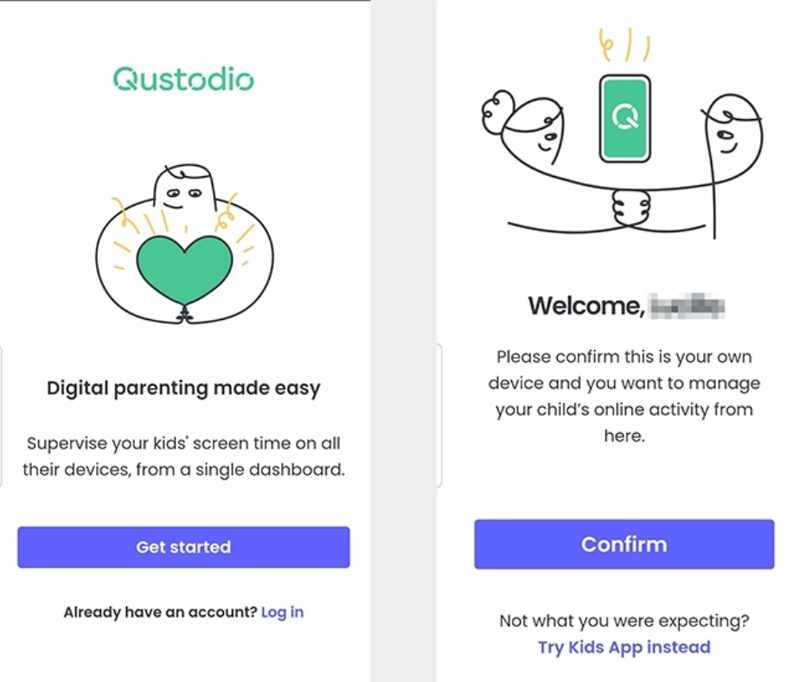
Step 1: Download the Qustodio Parental Control App on your iPad. Then, open the app and tap "Get started."
-
Step 2: Confirm it's your device (parent's iPad). Next, follow the on-screen steps to create your account.
-
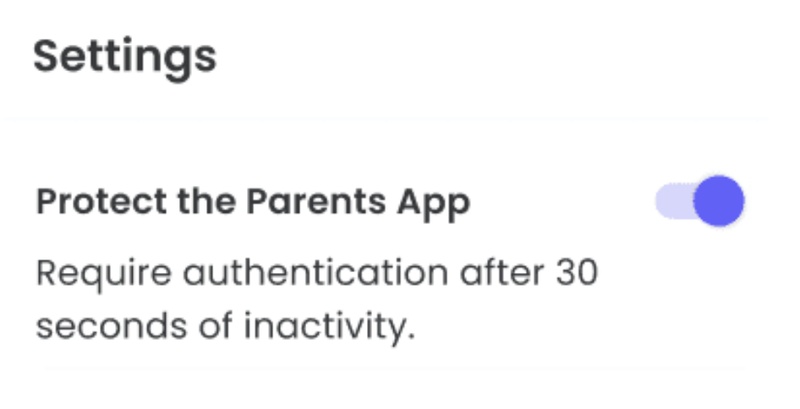
Step 3: Enable "Protect the Parents App" in settings for extra security (uses fingerprint/face lock).
-
Step 4: Next, install the Qustodio Kids app from the App Store or Google Play on the child's iPad.
-
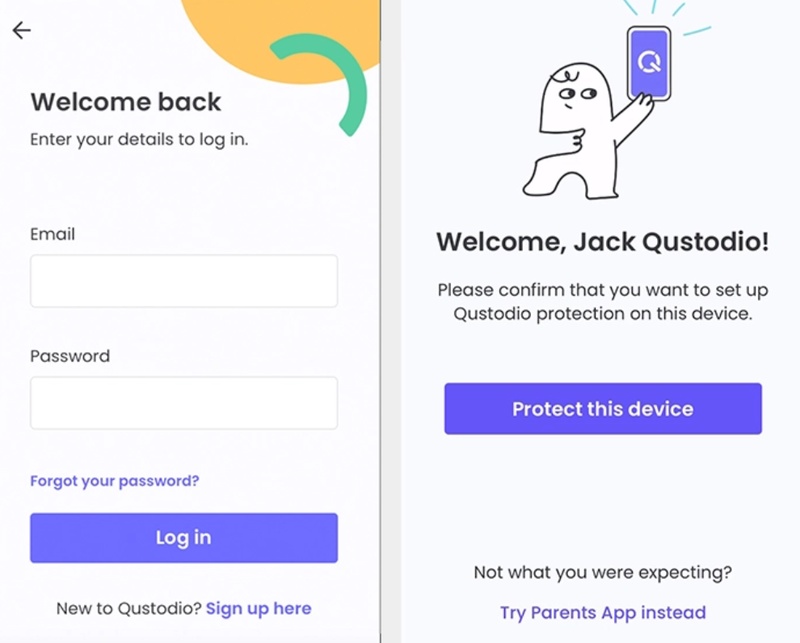
Step 5: Open it and log in with your parent account. Click "Protect this device."
-
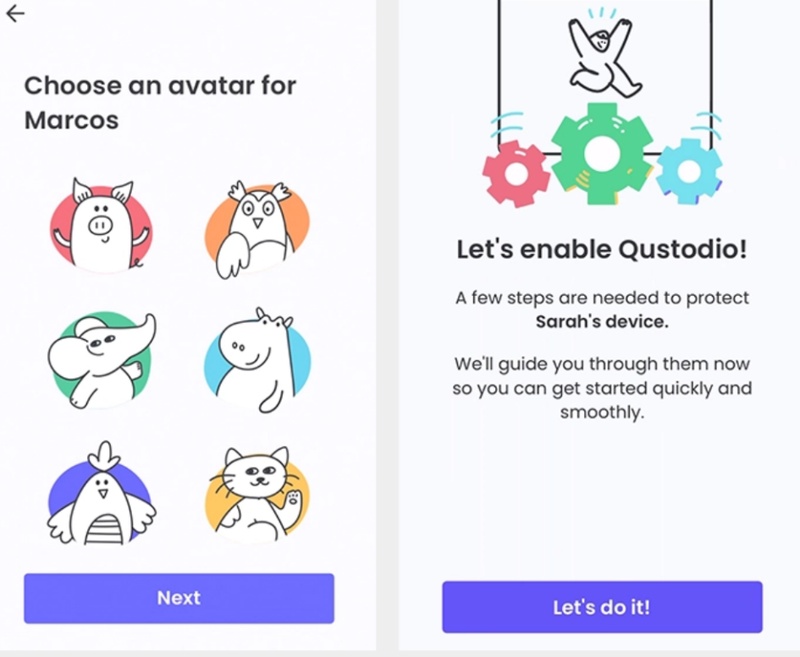
Step 6: Add the device name and your child's details. Choose an avatar and click "Let's do it."
-
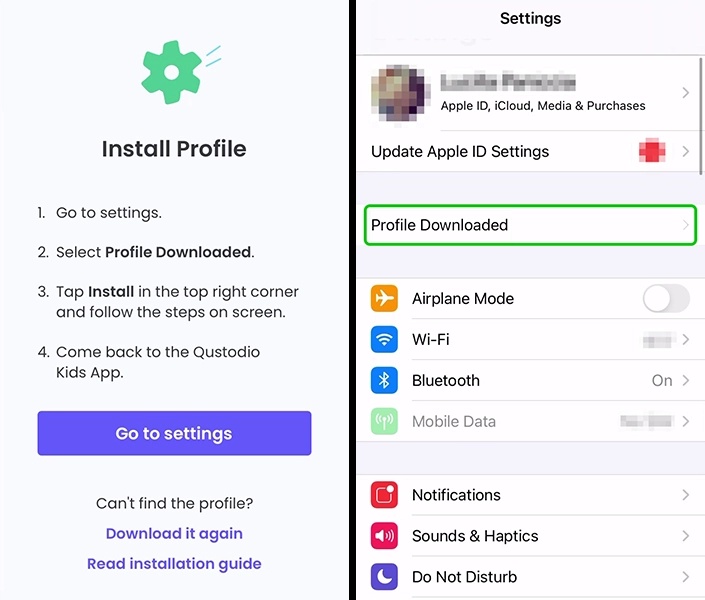
Step 7: Allow notifications and downloads. Then, install the profile (enter passcode if asked).
-
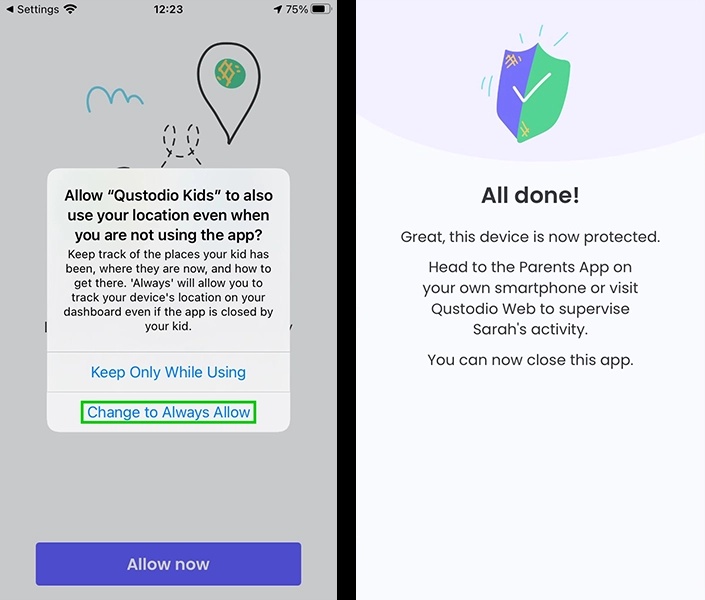
Step 8: Click "Trust" and wait for the setup. Allow app management and permissions. Next, set location access to "Always Allow."
-
Step 9: Setup is complete. You can now control and monitor the child's iPad from your parent app.
5. Safari's Focus Mode + Communication Limits
Adults who want fewer distractions while working can use Safari's Focus Mode with Screen Time App Limits to restrict access to websites or browsers during certain hours. These limits are not strict, since they can be overridden with a tap if you know the passcode, but the small effort required often helps reduce distractions.
However, it's better seen as a tool for building better habits rather than a fully secure way to block access. Here's how to block websites on Safari on iPad without parental controls:
-
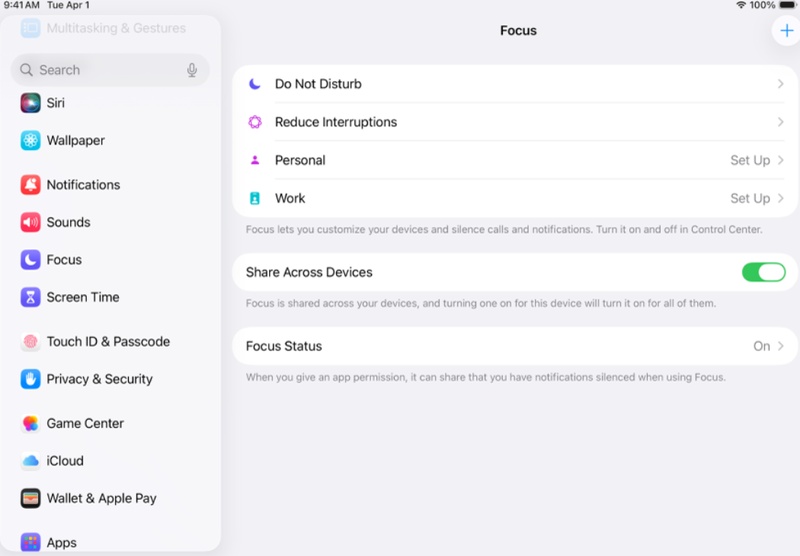
Step 1: Head to "Settings" on the iPad. Then, choose "Focus." Tap "Work" (or create a custom focus).
-
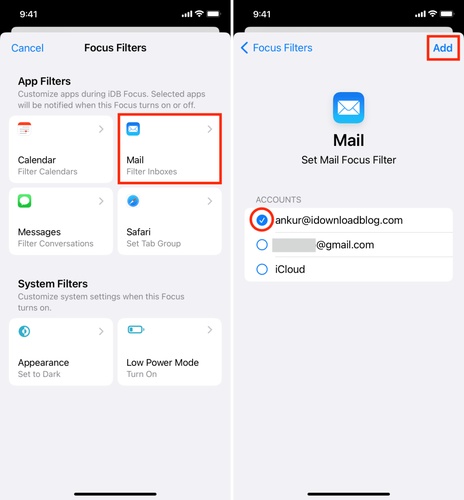
Step 2: Beneath "Focus Filters," tap "Add Filter." Click "Screen Time" filters.
-
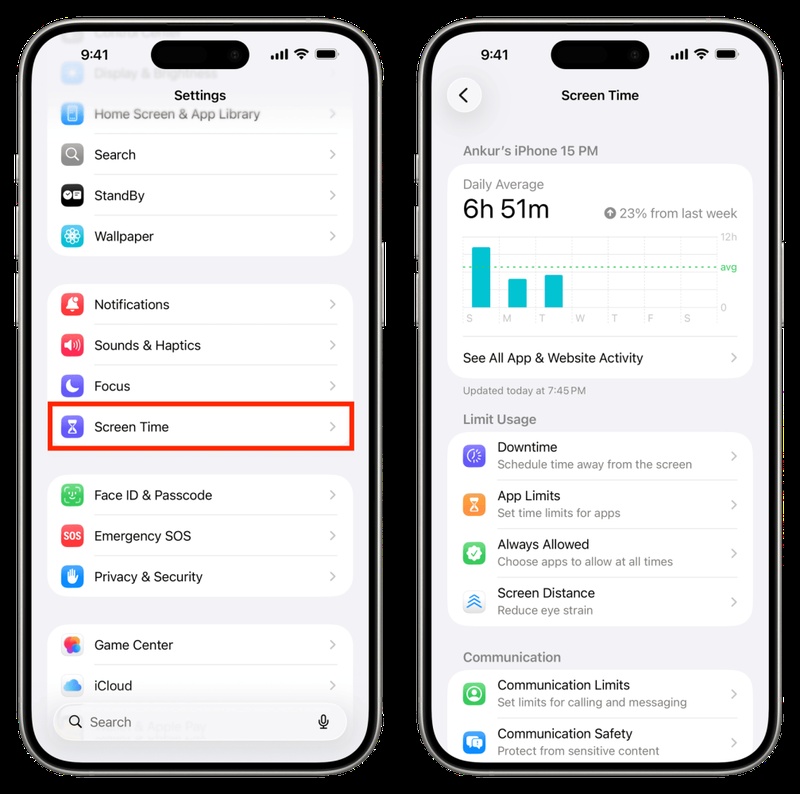
Step 3: Separately, head to "Settings." Then, choose "Screen Time." Tap "App Limits."
-
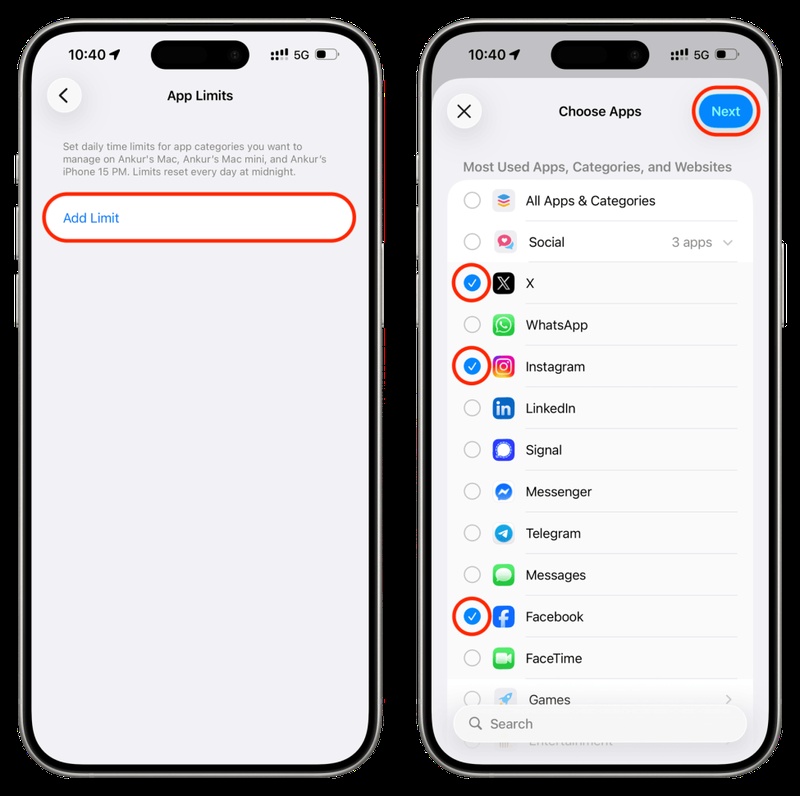
Step 4: Add a limit on Safari or your browser category. Next, set the time allowed to 0 minutes or a short window.
-
Step 5: When the "Focus" is active, the browser limit will also activate.
6. MDM Configuration Profile (For Managed/School Devices)
Mobile Device Management (MDM) tools like Jamf School, Mosyle, or Apple Configurator allow admins to control iPads and set web filtering rules. When a supervised profile is installed, users can't remove or bypass these restrictions unless the device is unenrolled, which usually erases all data.
This setup is mainly used in schools and workplaces, not for home use, because it requires some technical skills and putting the device into supervised mode. Here's how to block websites on iPad in a school or workplace with Apple Configurator:
-
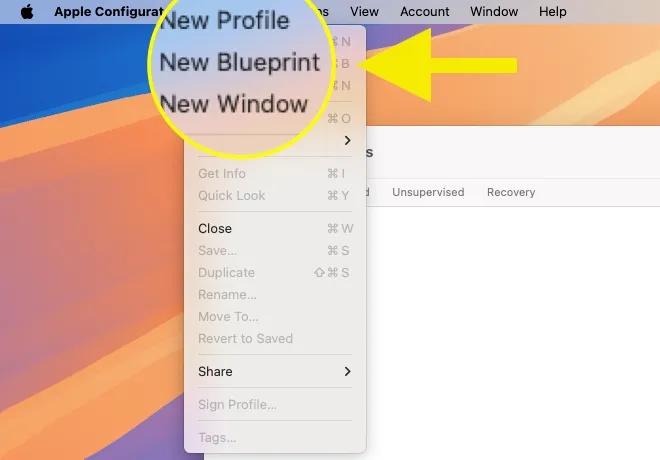
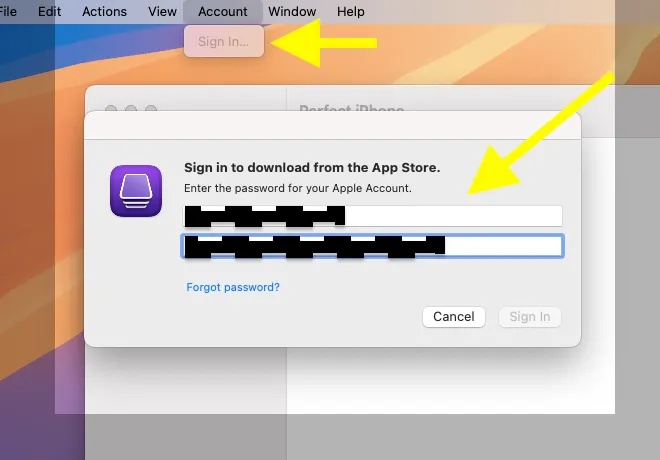
Step 1: Download Apple Configurator 2 from the Mac App Store and execute it. Then, head to "File." Choose "New Blueprint."
-
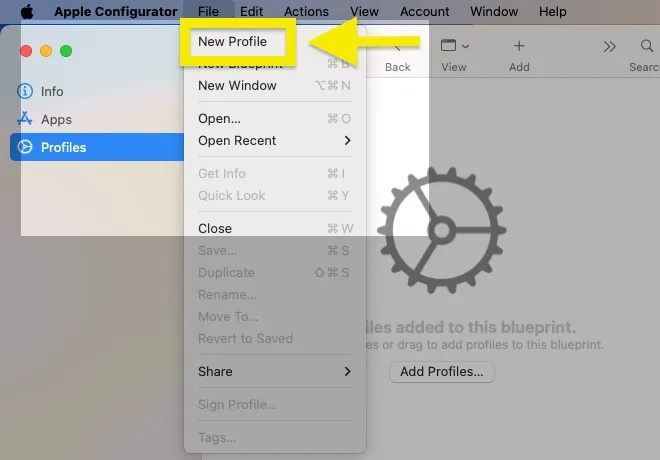
Step 2: Give it a name, then double-click to open. Tap "Profiles." Next, head to "File." Select "New Profile."
-
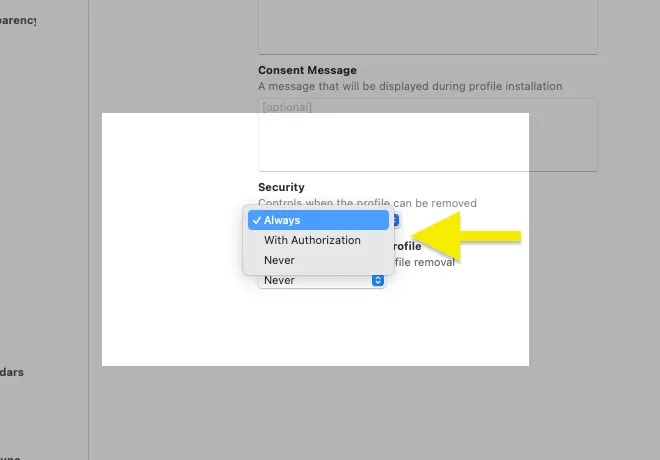
Step 3: Name the profile. In "Security," choose if the profile can be removed: anytime, never, or with a password.
-
Step 4: Head to "Restrictions." Tap "Configure." Beneath "Functionality," leave as default or adjust carefully.
-
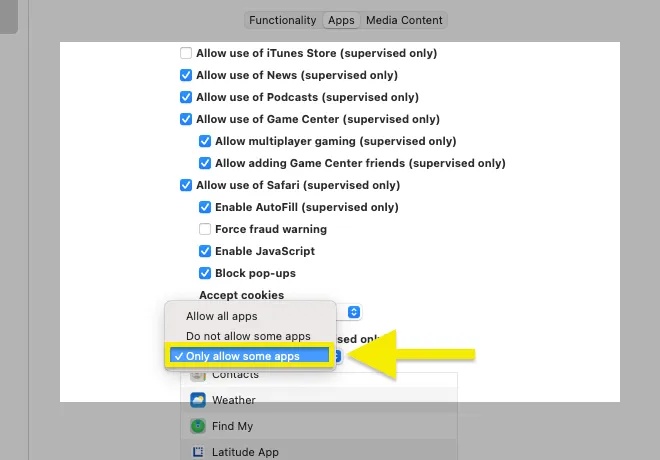
Step 5: Beneath "Media Content," keep "Apps: Allow All Apps." Beneath "Apps change," select "Only allow some apps."
-
Step 6: Add apps using (+). Only these will be visible/usable. Also, add system apps you need, like Phone, Messages, FaceTime, Mail, Safari, etc.
-
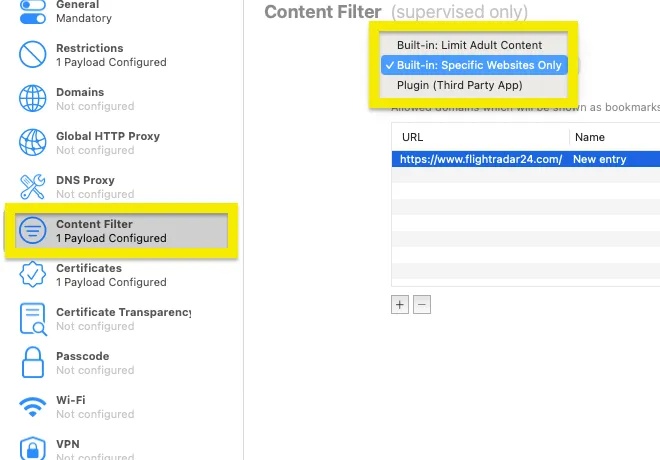
Step 7: Head to "Content Filter." Tap "Configure." Then, choose between:
-
Option 1: No filter (full browsing).
-
Option 2: Limit adult (18+) + block extra sites manually.
-
Option 3: Only specific websites (most strict; only added sites work).
-
-
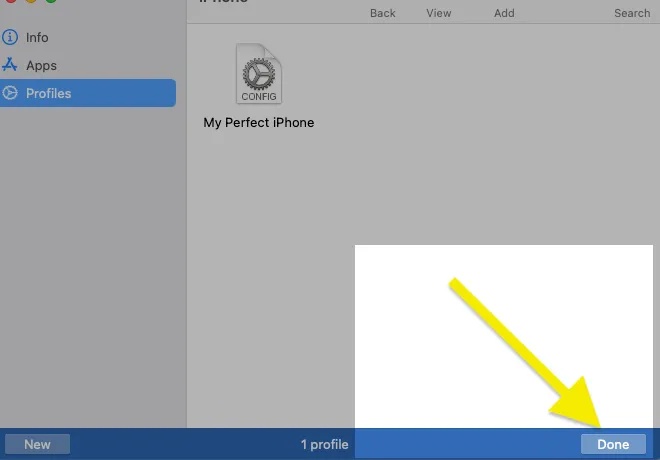
Step 8: Save profile. Add it to your blueprint. Hit "Done." Connect the iPad that requires supervision to the Mac and unlock it.
-
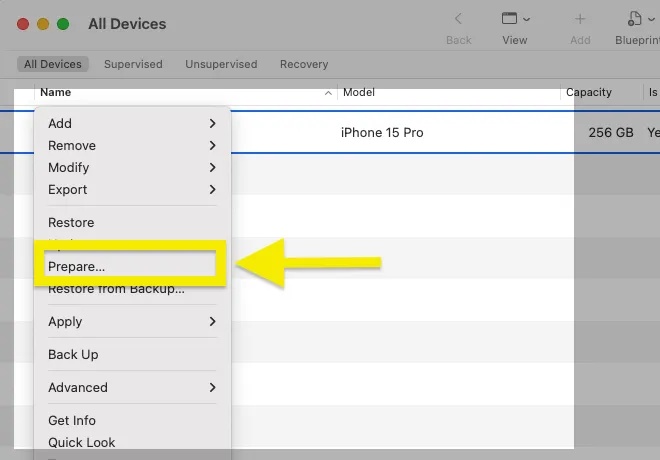
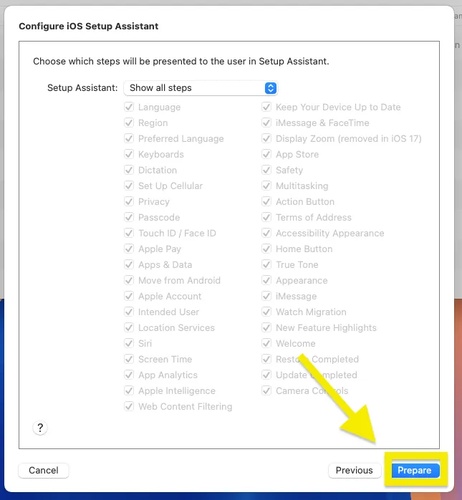
Step 9: Right-click the device. Then, tap "Prepare" (this will factory reset the device). Choose "Manual Configuration."
-
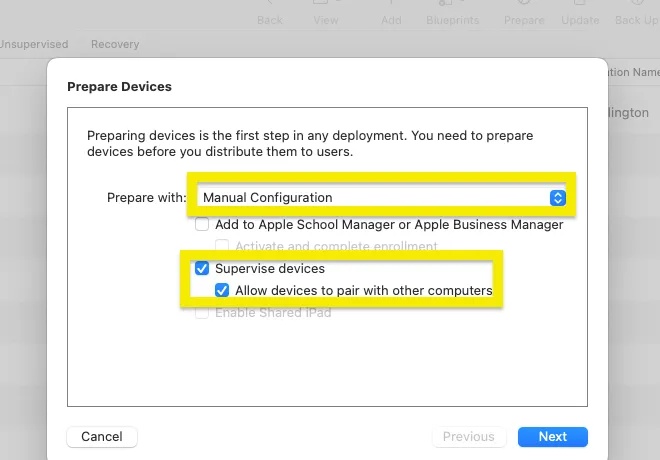
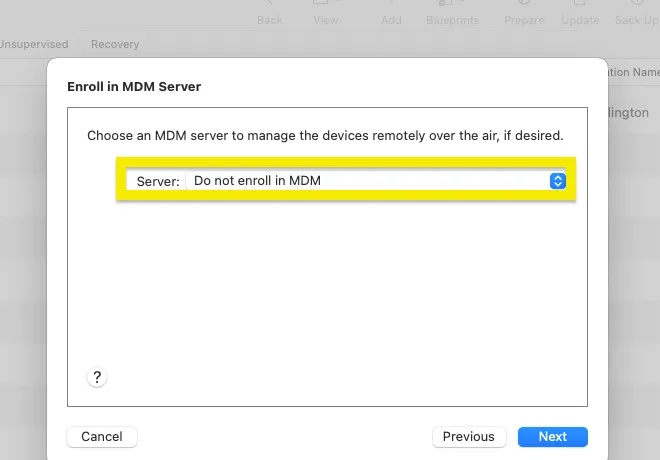
Step 10: Check only: "Supervise Devices + Allow devices to pair." Hit "Next." Select "Do not enroll in MDM."
-
Step 11: Enter your name beneath "Organization." Tap "Next." Skip "Apple School sign-in. Select: "Fill in your details." Hit "Next."
-
Step 12: Choose "Generate a new supervision identity." Hit "Next." Click "Prepare" and wait until setup finishes (the welcome screen appears).
Part 3. Bonus Tip: Fix Website Issues Caused by iPad iOS with Reiboot Easily
If your website is not loading or your browser is glitching on your iPad, your first thought would be to reset the browser settings. But if that doesn't resolve the issue, there might be a problem with your iPadOS. However, there's no need to reset the iOS if you can repair it without data loss with Tenorshare ReiBoot. It can fix 150+ iOS issues, including website and browser glitches, frozen screens, iPad boot loops, etc. Here's what more ReiBoot offers:
Main features of ReiBoot:
- Fix iOS Issues: Solve problems like an iPad stuck on the Apple logo or on a black/blue screen, battery drain, etc.
- iOS Upgrade/Downgrade: Install or remove iOS versions easily without jailbreak or iTunes.
- Recovery Mode: Enter or exit Recovery Mode with one click.
- Backup & Restore: Back up and restore your iPad without iTunes or iCloud.
- Reset Device: Reset your iPad to factory settings without a passcode or iTunes.
- Permanent Data Erase: Fully wipe data before selling your iPad.
- Fix iTunes Errors: Quickly fix frequent iTunes errors like 4013 and 1110.
Here's how to fix the website or browser issues on your iPad with Tenorshare ReiBoot:
-
Step 1: Launch ReiBoot on Your Computer
Download and install Tenorshare ReiBoot on your computer. Open the tool and connect your iPhone using a USB cable.

-
Step 2: Click on "Standard Repair"
When ReiBoot detects your device, click on "Standard Repair" to proceed.

-
Step 3: Download Firmware Package
Download the latest firmware package when prompted. ReiBoot will automatically prepare the correct version for your device.

-
Step 4: Start Standard Repair
Once the firmware is ready, click "Start Standard Repair" to begin the repair process. Please wait a few minutes for it to finish.

-
Step 5: Repair Completed
Your iPhone will restart automatically and return to normal performance without losing any data.

Part 4. FAQs on How to Block Websites on iPad
Q1. Why is website blocking not working on iPad?
This usually happens when Screen Time is set without a passcode, so it can easily be turned off in Settings. Another reason is using a browser or VPN that bypasses iOS content filters and DNS blocking. If a parental control app is installed, it's also important to check that its VPN profile is still active in Settings under VPN & Device Management.
Q2. What is the best way to block websites on iPad?
For most parents, using Screen Time with a strong passcode along with Family Sharing is enough for most situations and doesn't cost anything. If you also need to block internet access on mobile data, apps like Bark or Qustodio can help. For the strictest control, especially in schools or shared devices, an MDM setup is the only method that users can't turn off.
Q3. How do I permanently block a website on iPad?
Head to Screen Time settings, turn on Content & Privacy Restrictions, then set Web Content to "Limit Adult Websites" and add any site you want blocked under "Never Allow." Use a Screen Time passcode that only you know. Once added, the site stays blocked in all major iOS browsers until you remove it with the passcode.
Conclusion
Learning how to block websites on an iPad is usually simple. Screen Time can manage most needs for kids and adults who want fewer distractions. While DNS filters and parental control apps can cover cases where more control is needed. But choose the level of restriction you need and protect it with a passcode.
In case websites are not loading properly on your iPad, Screen Time is malfunctioning, or Safari is crashing, the problem may be an iOS issue. In that case, employ an iOS Repair tool like Tenorshare ReiBoot. It can help fix system glitches or browser problems without deleting your data.
