
Updated on 2026-09-15 / iPhone Tips
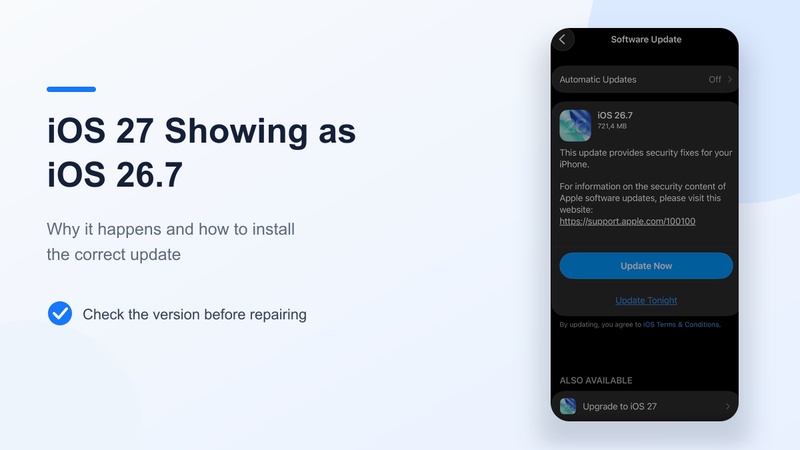
Seeing iOS 27 showing as iOS 26.7 can make a routine update feel like stepping onto a train whose destination changes after the doors close. You selected iOS 27, yet the download card names iOS 26.7. In many reported cases, the label is wrong while the large iOS 27 package is correct. In others, the phone has genuinely loaded the smaller security update. The safest response is not to guess or cancel immediately, but to identify what the iPhone is actually doing.
Part 1. Is Your iPhone Really Installing iOS 26.7?
1. Understand the Two Update Choices
Apple released iOS 27 alongside iOS 26.7, a security update for users staying on iOS 26. On Reddit, many users reported choosing Upgrade to iOS 27 only to see iOS 26.7 on the next screen.
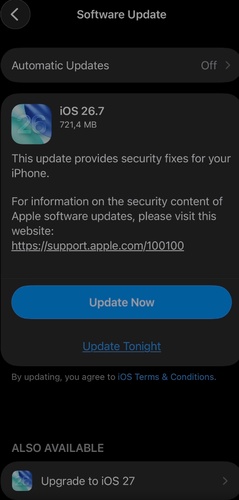
So, is iOS 26.7 actually iOS 27? No---they are separate releases. However, several Reddit users said their phones displayed iOS 26.7 during installation but restarted with iOS 27, suggesting a labeling bug.
2. Check Which iOS Version Is Being Installed
Open Settings and tap General.
-
Select Software Update and wait for the page to refresh.
-
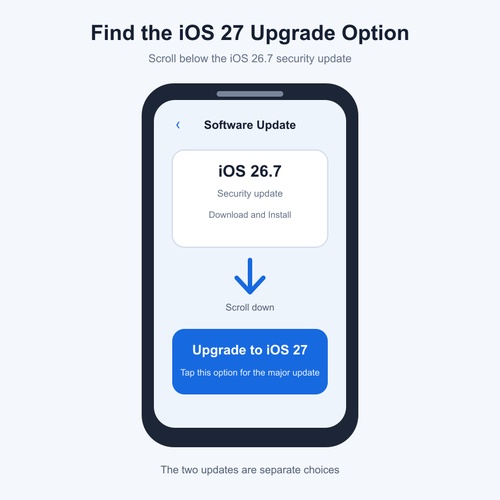
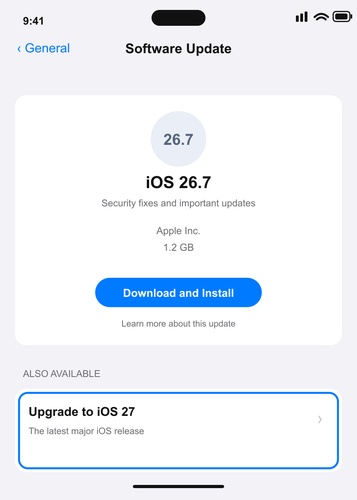
Scroll below the iOS 26.7 card. If Upgrade to iOS 27 appears, tap it instead of the iOS 26.7 update.
-
Allow the installation to finish. Do not identify the update by size alone because it varies by device and current software.
-
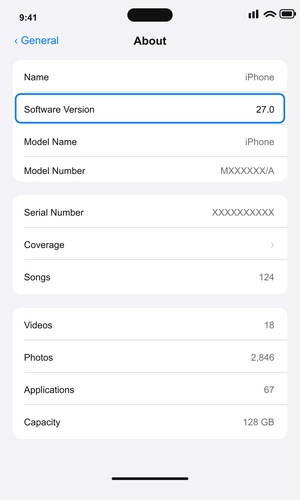
After the iPhone restarts, open Settings > General > About.
-
Check iOS Version. If it says iOS 27, the iOS 27 installing iOS 26.7 message was only a display error.
Part 2. Quick Fixes When the Update Looks Wrong
1.Refresh Software Update
A cached update page may show the wrong version. Refresh it before trying more advanced fixes.
Close the Settings app.
-
Restart the iPhone. Press and hold the side button and either volume button, drag the power-off slider, wait 30 seconds, and turn the phone back on.
Suggested image: restart-iphone-before-ios-update.png
-
Connect to stable Wi-Fi and plug the iPhone into power.
Open Settings > General > Software Update.
-
Wait for the page to refresh, then scroll below the iOS 26.7 card and look for Upgrade to iOS 27.
-
If the iOS 27 update not showing problem continues, open Settings > General > iPhone Storage. Remove unused files or apps if storage is nearly full.
-
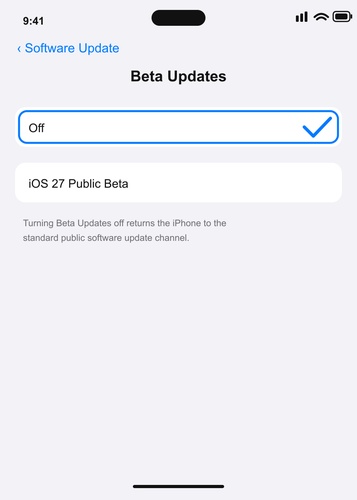
Return to Software Update and tap Beta Updates. Select Off unless you intentionally use an iOS beta version.
-
Check for iOS 27 again. Also confirm that the iPhone model supports the update.
2. Remove a Stale Download
A damaged or incomplete update file can make the wrong version appear repeatedly.
Open Settings > General > iPhone Storage.
Wait for the storage list to load.
-
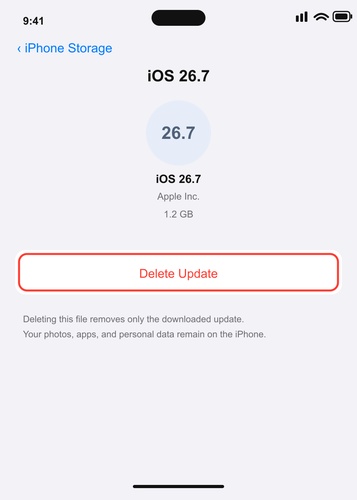
Find and tap the downloaded iOS 26.7 or iOS update file.
-
Tap Delete Update and confirm. Do not delete other apps or personal files.
Restart the iPhone.
-
Connect to stable Wi-Fi, then open Settings > General > Software Update.
Scroll down and select Upgrade to iOS 27 again.
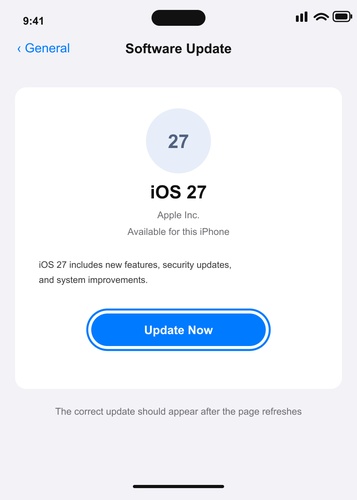
This may resolve the upgrade to iOS 27 but shows iOS 26.7 problem without using a repair tool.
Part 3. Repair a Persistent Update Failure with ReiBoot
1. Know When ReiBoot Is Appropriate
A wrong version label alone does not require system repair. However, if iOS 27 still does not appear, the update remains stuck on Preparing or Verifying, or the iPhone freezes during installation, Tenorshare ReiBoot offers a more direct solution. It can repair update-related system errors and install the correct firmware through a Windows PC or Mac without relying on the stalled update process.
Key ReiBoot features:
-
Install the correct iOS 27 firmware when iOS 26.7 keeps appearing.
-
Fix stuck, failed, or unverified iOS updates.
-
Repair Apple logo and restart-loop problems.
-
Upgrade without iTunes or jailbreaking.
-
Use Standard Repair without erasing data.
2. How to Use Standard Repair
-
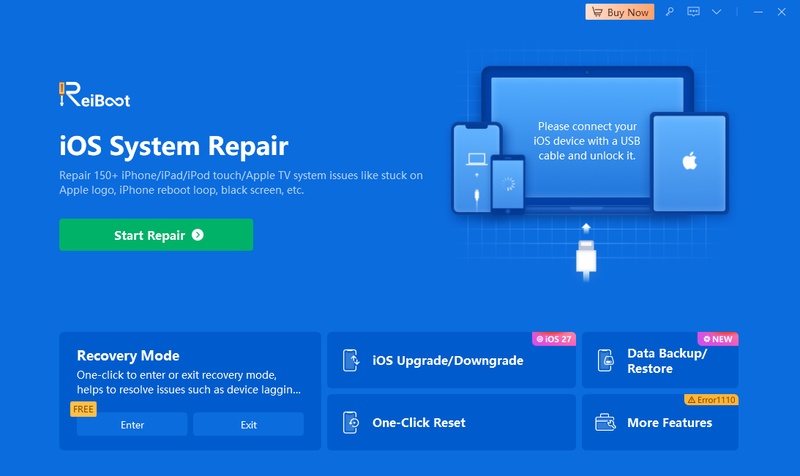
Install ReiBoot on the computer and connect the iPhone with a reliable USB cable.
-
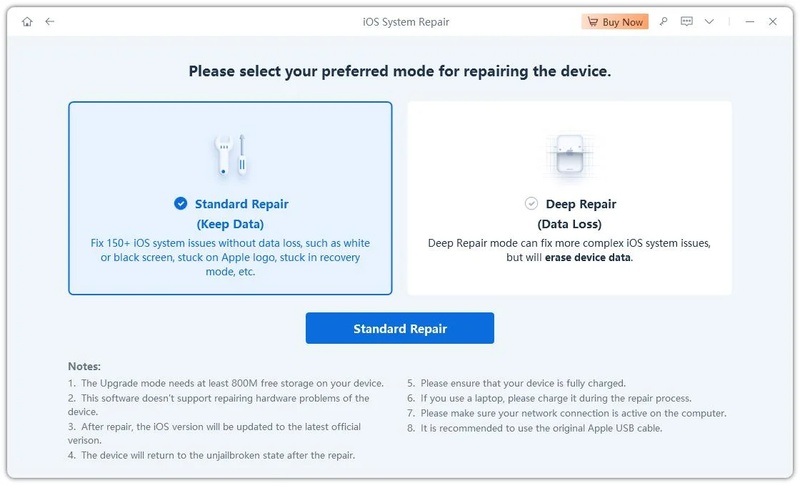
Select Start, followed by Standard Repair.
-
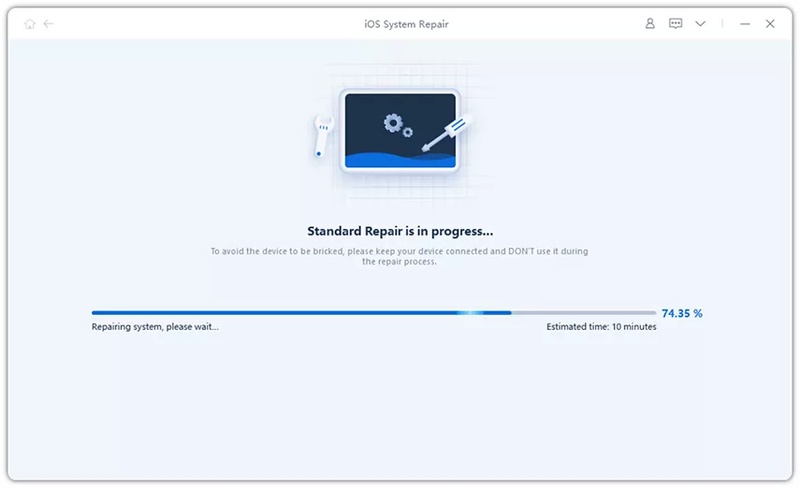
Confirm the detected device information and download the recommended firmware.
-
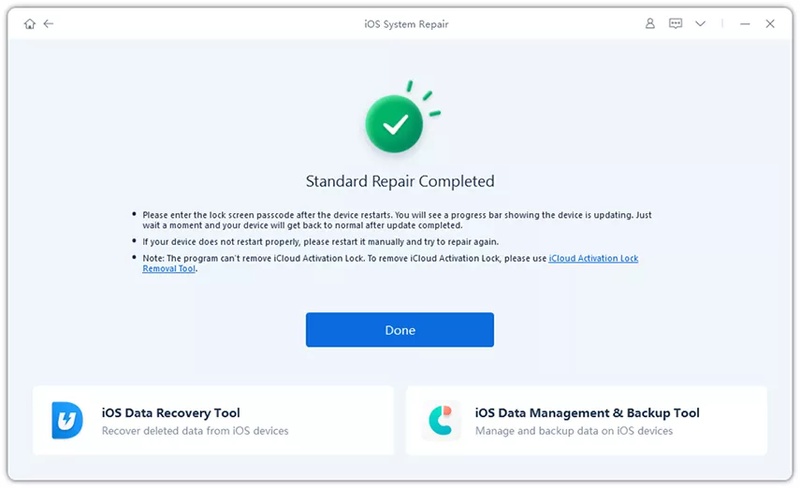
Start the repair and leave the cable connected until the iPhone restarts.
-
Verify the result under Settings > General > About > iOS Version.
Back up your iPhone before using ReiBoot. Start with Standard Repair, which is designed to preserve data; Deep Repair erases the device. ReiBoot can fix device-side iOS 27 update not showing issues, but not unsupported models, hardware faults, or Apple server outages.
Part 4. FAQ about iOS 27 Showing as iOS 26.7
1. Do I Need to Install iOS 26.7 First?
Usually, no. iOS 26.7 is the security-maintenance route for users staying on iOS 26. A compatible iPhone can normally move directly to iOS 27. Installing iOS 26.7 first may refresh Software Update in some cases, but it should not be presented as a required step.
2. Is It Safe to Continue When the Screen Says iOS 26.7?
If your situation matches the search upgrade to iOS 27 but shows iOS 26.7, pause and check the main Software Update page again. Back up the phone before proceeding. After installation, use the About screen---not the earlier download label---to confirm the result.
3. Is iOS 26.7 Actually iOS 27?
No. Anyone searching is iOS 26.7 actually iOS 27 should know that they are separate releases. The confusion comes from a mislabeled transition screen that may appear after choosing the larger upgrade.
Conclusion
Reports of iOS 27 installing iOS 26.7 often point to a display error. If About still shows iOS 26.7 and iOS 27 showing as iOS 26.7 continues with installation errors, use Tenorshare ReiBoot Standard Repair to fix the system issue and install the correct iOS 27 firmware.
