
Updated on 2026-10-21 / iOS 27
iOS 27 update mobile network issues can mean different things: calls fail, mobile data stops loading, or one SIM line disappears while another still works. Before resetting anything, identify which connection is failing. A phone with signal bars but no app access needs different checks from one displaying SOS or Invalid SIM.
An Apple Support Community user reported dual-SIM trouble after iOS 27 despite restarting and resetting network settings. This identifies a symptom, not a confirmed defect affecting every iPhone or carrier.
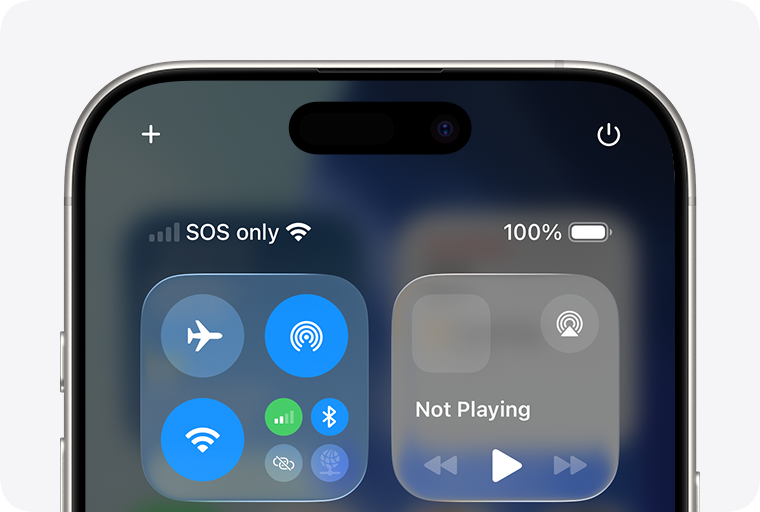
Part 1. Identify Which Mobile Connection Fails After iOS 27
SOS or No Service means the phone is not connected to normal cellular service. Signal bars with apps not loading need different checks. Note whether calls, texts, and data fail together; update timing alone does not establish the cause.
With dual SIM, test each line separately and confirm the selected data line. One working line helps narrow the carrier investigation.
If one app fails on both connections, investigate that app. For wider failures across locations, check carrier provisioning before considering software repair.
Part 2. Compare Fixes for iOS 27 Mobile Network Issues
Test a normal call and webpage after each change. Record unsuccessful steps rather than repeating resets.
| Solution | Useful When | What Changes |
|---|---|---|
| Reconnect and Check SIM | Temporary drop or wrong data line | Connection only; keep eSIM installed |
| Tenorshare Reiboot | Supported iOS fault is suspected after carrier checks | Paid computer repair, designed to retain data |
| Carrier Settings and Service | Plan, provisioning, or update issue | Depends on the update or carrier action |
| Reset Network Settings | Configuration trouble persists | Saved connection settings are reset |
Choose the Least Disruptive Fix for Your Symptom
Method 1. Reconnect and Check the Selected SIM Line
Best for: A temporary disconnection or a dual-SIM phone using the wrong data line. Reconnecting is less disruptive than deleting an eSIM or resetting the phone.
-
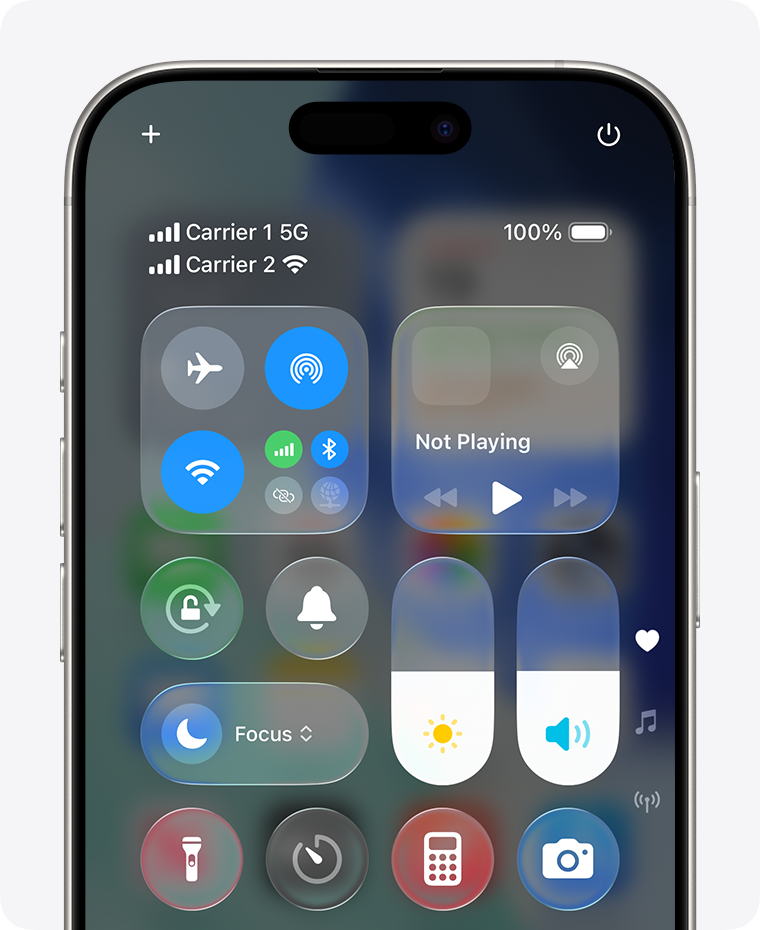
Turn Airplane Mode on for at least 15 seconds, then turn it off. Restart the iPhone if the connection does not return.
-
Open Settings > Cellular or Mobile Data. Confirm that your intended line is turned on and selected for cellular data.
-
Test each SIM separately with Wi-Fi briefly disabled, then restore Wi-Fi.
Limitation: reconnecting cannot restore an inactive plan or fix a carrier outage. Do not delete a missing or failing eSIM unless your carrier provides a reactivation plan.
Method 2. Repair Suspected iOS Faults with Tenorshare Reiboot
After completing Method 3’s carrier and software checks, consider system repair only if wider iOS glitches persist. Tenorshare Reiboot offers a repair mode designed to retain data for supported iOS faults through a guided desktop interface.
-
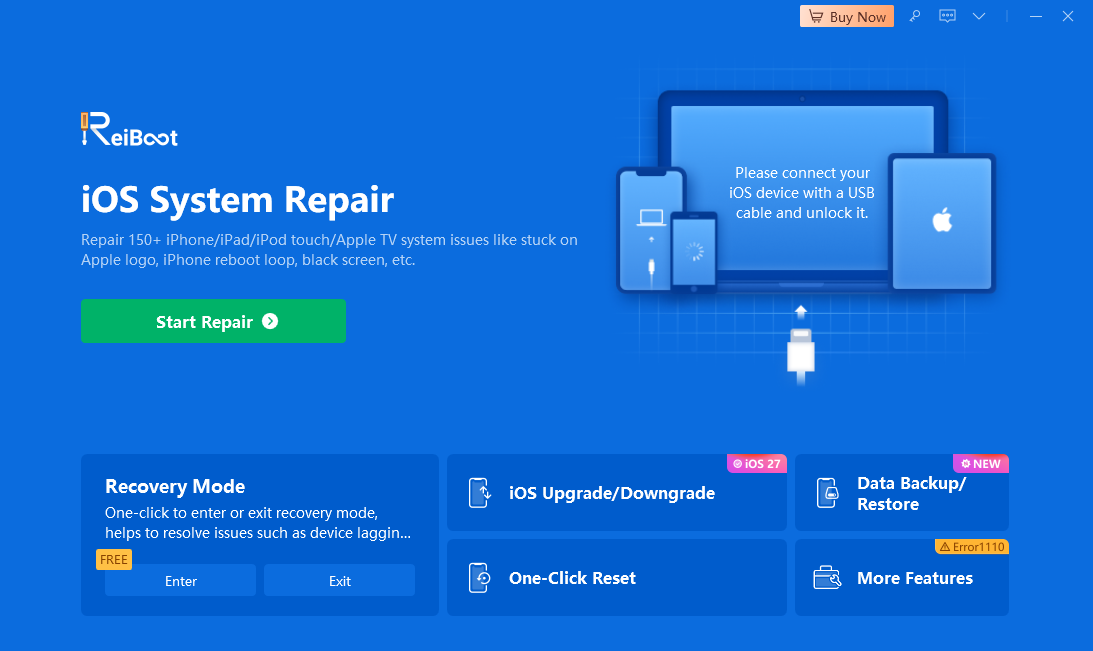
A data-preserving repair mode is available for supported issues.
-
The interface guides firmware selection and the repair process.
-
Recovery-mode guidance helps when normal device detection fails.
-
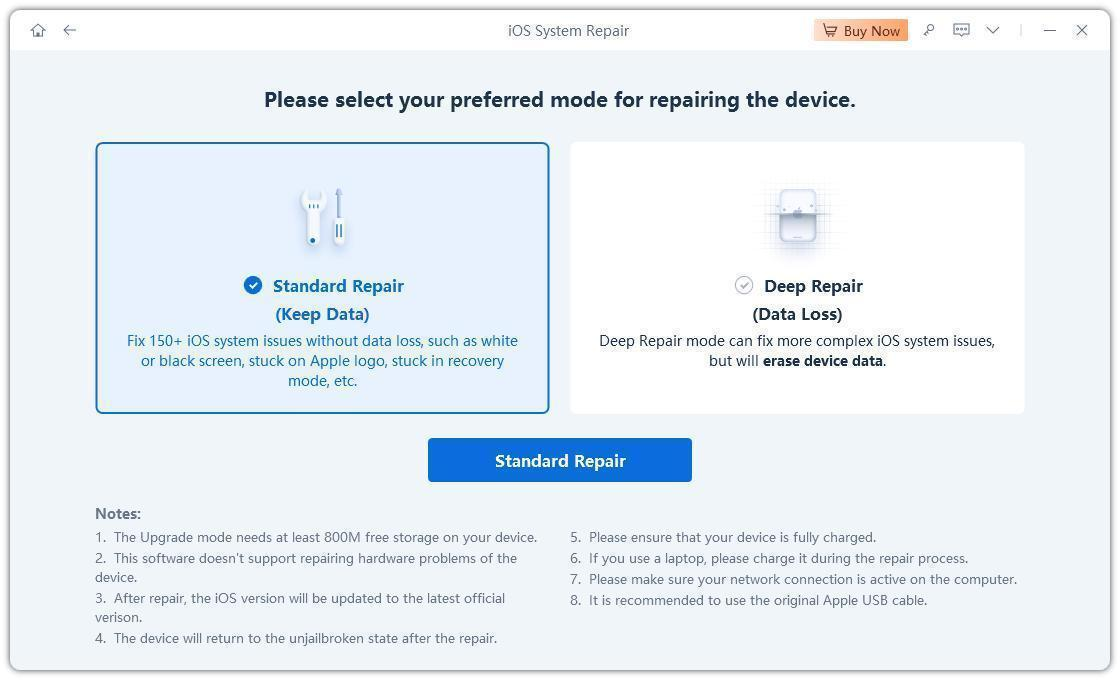
Separate repair modes make their different data consequences visible.
Back up first, verify device and iOS compatibility, and review the paid license. Compatibility does not guarantee a particular carrier or modem issue will be fixed.
-
Install Tenorshare Reiboot on a computer, connect the iPhone, and select Start Repair.
-
Choose the mode designed to retain data. Read the requirements and avoid Deep Repair unless its data-erasure consequences are acceptable.
-
Verify the detected device and download the compatible firmware offered by the software.
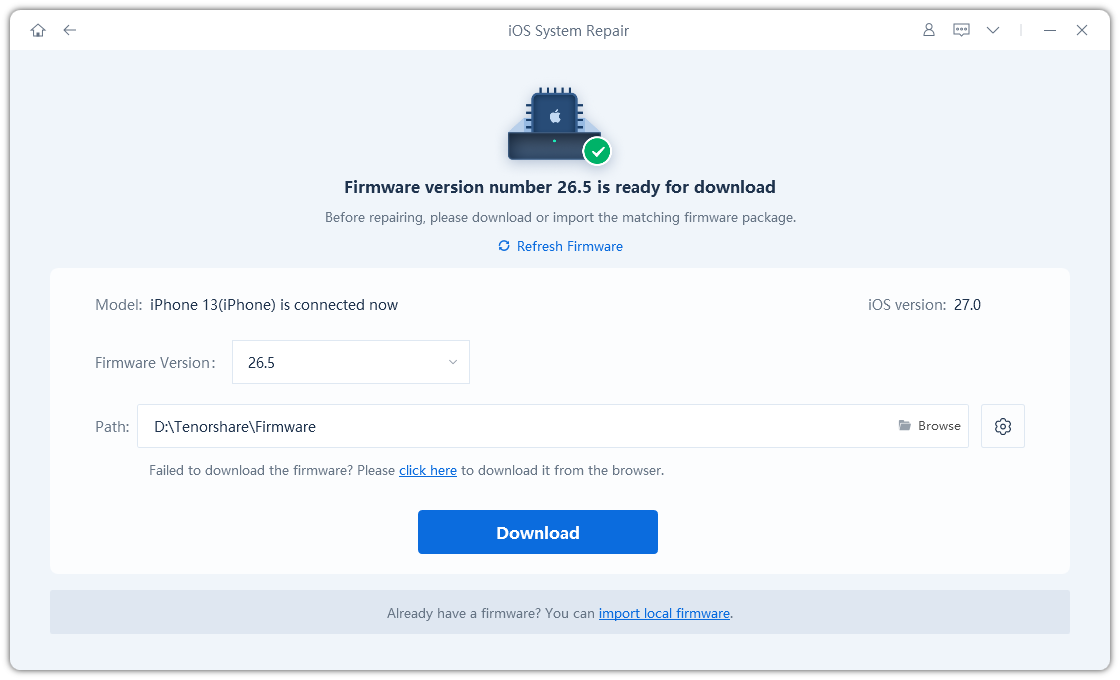
-
Start the repair and keep the phone connected until it finishes. After restarting, test each SIM line again.
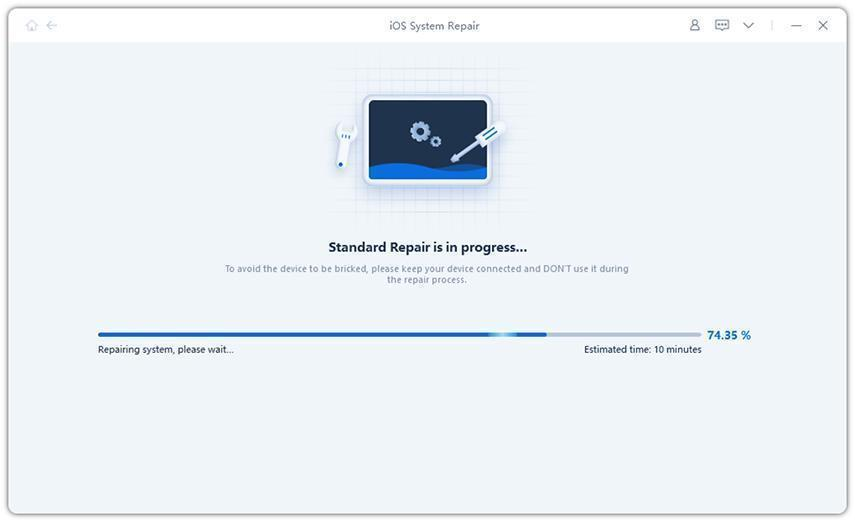
Limitation: Tenorshare Reiboot cannot activate an eSIM, clear a carrier account block, improve coverage, or repair cellular hardware. Use it for suspected supported iOS faults after Method 3’s carrier checks, not as a substitute for service activation.
Method 3. Update Carrier Settings and Check Your Service
Carrier settings and iOS updates are separate. Check both before treating the problem as a system-repair case.
-
Connect to Wi-Fi and open Settings > General > About. Accept a carrier-settings update if a prompt appears.
-
Back up the phone and check Settings > General > Software Update for an available public release.
-
Ask the carrier to check coverage, account status, and SIM provisioning. Identify the failing line and services.
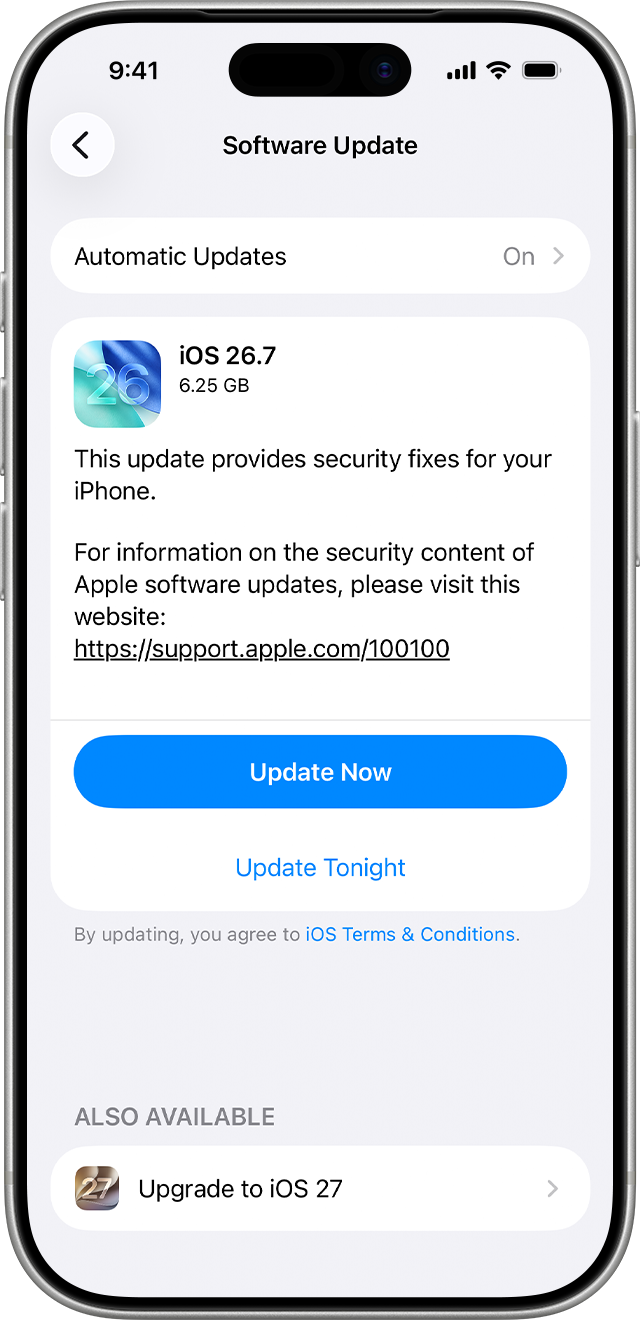
Limitation: No prompt means an update is not currently being offered. Do not assume a forum reply’s predicted release date or carrier fix applies to this phone.
Video Tutorial: Cellular Data Troubleshooting on iPhone
Tenorshare’s guide uses iOS 26 examples to demonstrate cellular-data checks; follow the current steps above for iOS 27 and contact your carrier for activation or service issues.
Method 4. Reset Network Settings If Configuration Is the Problem
Best for: Persistent connection problems after basic checks, where network configuration may be involved. Have Wi-Fi details ready, and ask IT first if the device is managed.
-
Make sure the Wi-Fi password and any required VPN or APN settings can be restored.
-
Go to Settings > General > Transfer or Reset iPhone > Reset > Reset Network Settings, then confirm.
-
Reconnect to Wi-Fi and test mobile data again. Do not choose Delete All eSIMs or Erase All Content and Settings.
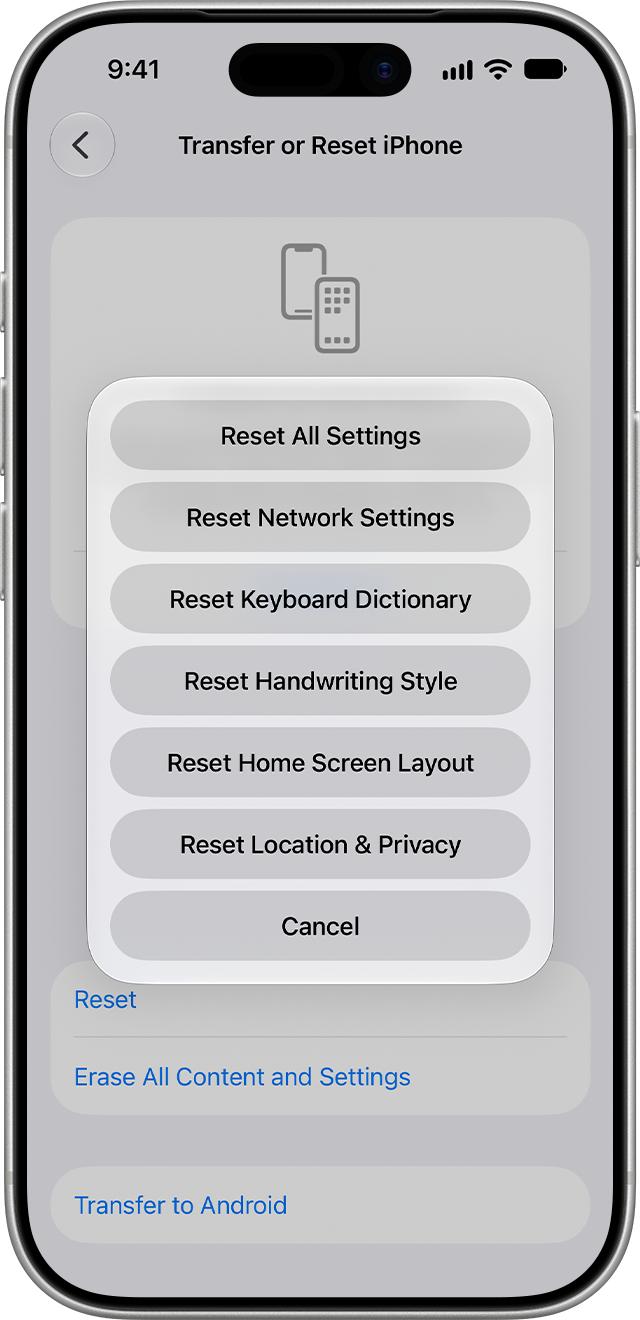
Limitation: Resetting network settings removes saved Wi-Fi passwords and may reset VPN or APN configurations. Have those details available before confirming.
Part 3. Still No Service? Prepare These Details for Your Carrier
Record the affected line, status message, location, failed services, and previous troubleshooting. Say whether the other SIM works. Keep account numbers and verification codes private.
Ask the carrier to check activation and provisioning before deleting an eSIM. If service is cleared but the phone still fails, share those results with Apple for diagnostics.
Part 4. FAQs About iOS 27 Update Mobile Network Issues
1. Is iOS 27 Definitely Causing My Network Problem?
Not necessarily. A problem beginning after an update is an important clue, but it does not exclude carrier or account issues. Record when it began and which services fail. Community reports can help identify patterns; they are not a diagnosis of your individual phone.
2. Why Does Wi-Fi Work but Mobile Data Does Not?
Wi-Fi and cellular service use different connections. Check the active data line, cellular access for the affected app, and your carrier plan. If multiple apps fail only when Wi-Fi is off, focus on the cellular connection rather than resetting your home router.
3. Should I Delete and Reinstall My eSIM?
Not as an initial test. Removing an eSIM can leave you unable to reconnect until your carrier reactivates it. Contact the carrier first, especially if you rely on that line for verification codes. Turning a line off and deleting its profile are different actions.
4. Does Reset Network Settings Delete Photos?
No. It resets network-related settings rather than erasing your photo library or apps. You will need to restore affected connection details, including saved Wi-Fi access. Read the confirmation carefully because the same Reset area also contains other, more disruptive options.
5. What If My iPhone Still Shows SOS or No Service?
Have the carrier verify the account and local network, then contact Apple if service remains unavailable. Provide the status message and troubleshooting results. If you urgently need to communicate, use another available phone or a working connection rather than relying on an untested repair.
Conclusion
For iOS 27 mobile network issues, identify the failing line, complete the carrier checks in Method 3, and reset network settings only when appropriate. Consider Tenorshare Reiboot only for supported iOS faults; provisioning and hardware still require their respective support teams.
