
Updated on 2026-07-21 / iPhone Tips
You just installed the iOS 27 and were excited about new features like upgraded Siri, better performance, and updated system apps. But soon after, your iPhone starts having WiFi problems, like slow speeds, frequent disconnections, or trouble reconnecting.
These iOS 27 WiFi issues are being widely reported on Reddit, Apple Developer Forums, and MacRumors, especially on iPhone 17 models. However, most of these problems can be fixed quickly. This guide shares 11 tested solutions, from simple WiFi resets to a full system repair. So, find a fix that works for you!
Part 1. Best iOS 27 WiFi Fixes Compared
Here's a short side-by-side comparison of all 11 solutions. Choose the right fix for Wi-Fi not working after the iOS 27 update, based on your situation:
| Solution | Success Rate | Data Loss | Ease of Use | Time Required |
|---|---|---|---|---|
| Toggle WiFi Off and On | Low | None | Very easy | 1-2 min |
| Airplane Mode Toggle | Low | None | Very easy | 1-2 min |
| ReiBoot | Very high | None | Very easy | 5-10 min |
| Restart iPhone | Medium | None | Very easy | 1-2 min |
| Forget & Reconnect WiFi | Medium | None | Easy | 3-5 min |
| Disable VPN / Security Apps | Medium | None | Easy | 2 min |
| Turn Off Private WiFi Address | Medium | None | Easy | 2 min |
| Disable WiFi Assist | Low | None | Easy | 2 min |
| Reset Network Settings | High | Saved networks lost | Moderate | 3-5 min |
| Switch WiFi Band (2.4/5GHz) | Medium | None | Moderate | 2-3 min |
| Restart Router & Modem | Medium | None | Easy | 3-5 min |
Part 2. Why Is iOS 27 Causing WiFi Issues
Understanding what's breaking your connection helps you pick the right fix. Here are the most popular reasons behind iOS 27 network issues:
-
Early Bugs: iOS 27 is very unstable, so WiFi features may not function properly yet.
-
Broken Network Settings: Updating from iOS 26 to iOS 27 can corrupt saved WiFi and DNS settings.
-
Wireless Firmware Issues: Some iPhone 17 devices may have conflicts between the new software and wireless hardware.
-
Private WiFi Address Problems: The may wrongly change your device's MAC address, causing routers to disconnect it.
-
VPN or Security App Conflicts: Older VPN and firewall apps may not fully support iOS 27 networking changes.
-
WiFi Assist Bugs: The phone may switch to cellular data even when WiFi is strong, then fail to reconnect.
-
Router Compatibility Issues: Older routers may struggle with the's updated WiFi 6 features.
-
Heavy Background Processes: Extra diagnostics and logging can overload WiFi and make connections seem unstable.
Part 3. 11 Verified Fixes to Fix iOS 27 WiFi Issues (Fast & Easy)
The following are 11 proven solutions to resolve the iOS 27 Wi-Fi issues. Each is suited for a different case, so find the fix that works for your situation:
1. Toggle WiFi Off and Back On
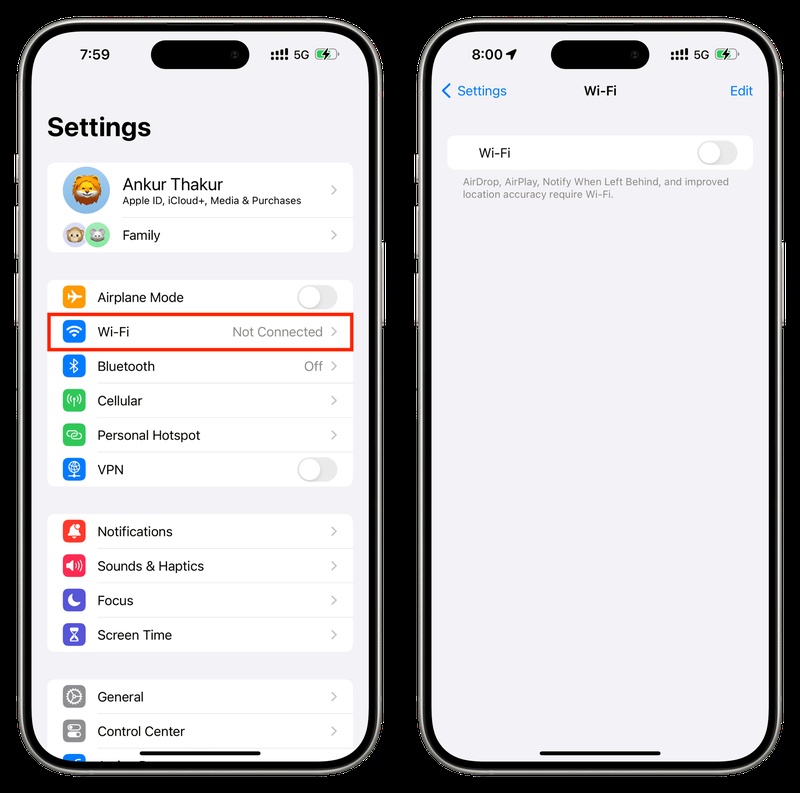
Turning WiFi off and back on is the quickest fix for most iOS 27 WiFi issues. It forces the iPhone to reset the WiFi connection and reconnect from scratch. This can solve problems like no internet access or a WiFi network that won't reconnect automatically. Here's how to toggle WiFi off and back on:
-
Step 1: Open "Settings" on your iPhone. Then, tap "WiFi." Switch off "WiFi" and wait about 10 seconds.
-
Step 2: Turn "WiFi" on again. Then, select your WiFi network and wait until it connects.
Open "Safari" or any app to check if the internet is functioning.
2. Turn Airplane Mode On and Off
Airplane Mode can fix deeper WiFi issues by fully resetting your iPhone's wireless connections, including WiFi, Bluetooth, and cellular. This helps when the phone shows a WiFi signal, but internet data won't work, or when the iOS 27 keeps disconnecting from WiFi and reconnecting repeatedly. Here's what to do:
-
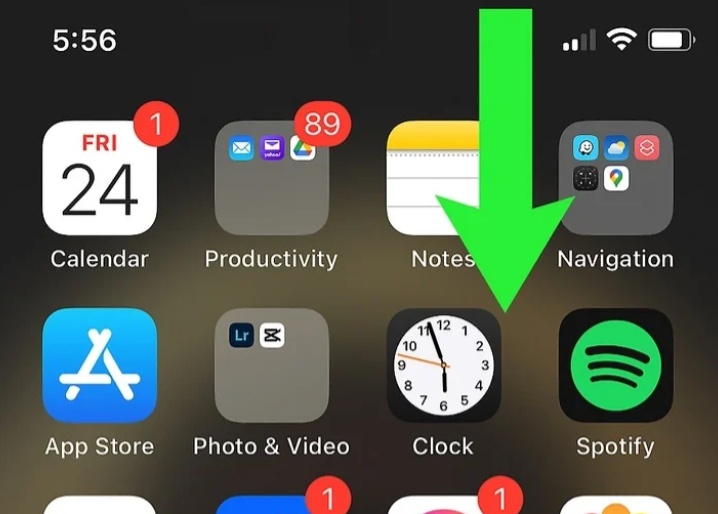
Step 1: Open "Control Center" on your iPhone by swiping down from the top-right corner.
-
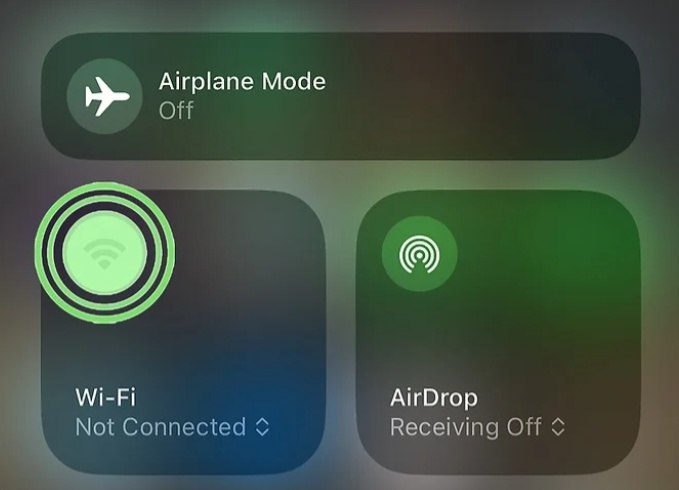
Step 2: Tap the "Airplane Mode" icon to turn it on. Wait about 15--20 seconds. Click the icon again to turn Airplane Mode off.
-
Step 3: Let WiFi reconnect automatically, or reconnect manually in "Settings" and "WiFi."
3. Fix iOS 27 WiFi Issues with ReiBoot
If the WiFi problem keeps coming back every few minutes, it may be due to a deeper iOS system bug or corrupted network files in the . In this case, an iOS repair tool like Tenorshare ReiBoot can help fix 150+ iOS issues without deleting your data. It functions by repairing system files instead of doing a full factory reset.
Main Features of ReiBoot:
-
Repairs 150+ issues like boot loops, black screens, and app crashes.
-
Simple one-click repair with no technical skills needed.
-
Easily upgrade or downgrade iOS without jailbreak or iTunes.
-
One-click enter or exit Recovery Mode for free.
-
Back up and restore iPhone data without iTunes or iCloud.
-
Reset iPhone to factory settings without a passcode or iTunes.
-
Permanently erase data before selling or gifting your device.
-
Supports all iDevices and iOS versions, including iOS 27.
-
Quickly fixes frequent iTunes errors like 4013 and 1110.
Steps to Use ReiBoot:
Here's how to use ReiBoot to resolve iOS 27 WiFi issues with ReiBoot:
- Step 1: Launch ReiBoot on Your Computer
Download and install Tenorshare ReiBoot on your computer. Open the program and connect your iPhone experiencing WiFi issues after installing iOS 27.

- Step 2: Click on "Standard Repair"
Click on "Standard Repair" when ReiBoot detects your device to fix iOS 27 WiFi issues without deleting your data.

- Step 3: Download Firmware Package
Download the latest firmware package when prompted. ReiBoot will automatically prepare the suitable firmware for your device.

- Step 4: Start Standard Repair
Once the firmware is ready, click “Start Standard Repair” to repair iOS 27 WiFi connection problems. Wait for the process to finish.

- Step 5: WiFi Working Normally Again
Your iPhone will restart automatically after repair. Check whether WiFi connects properly and the network issue is resolved.

4. Restart Your iPhone
A full restart clears temporary data and closes all apps, giving the phone a fresh start and fixing the latest iOS 27 WiFi problems caused by glitches or stuck processes. This method is better than locking the screen because it fully reloads the system. Best for when WiFi stops functioning after long use or after waking the device. Follow the steps beneath to restart your iPhone:
-
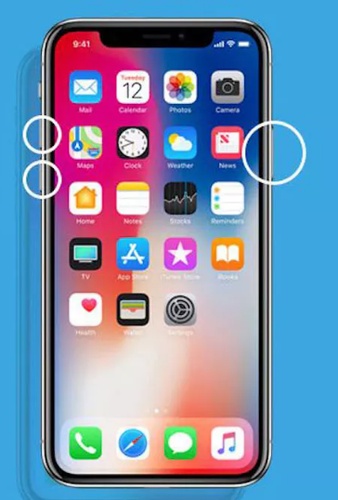
Step 1: Press and hold the "Side" button and either "Volume" button at the same time. Slide to power off.
-
Step 2: Wait 30 seconds. Hold the "Side" button until the Apple logo appears. After a restart, head to "Settings." Tap "WiFi" and reconnect.
5. Forget the Wi-Fi Network and Reconnect
After updating to iOS 27, saved WiFi settings can sometimes get corrupted. This can cause brief connections or repeated drops. Forgetting the network and reconnecting fixes it by creating a fresh connection, especially when WiFi connects for a moment, then disconnects or shows wrong settings. Here's how to forget the Wi-Fi network and reconnect to it again:
-
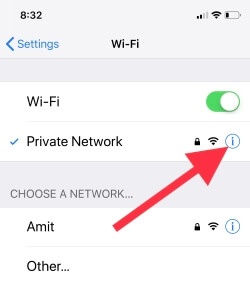
Step 1: Open "Settings" on your iPhone. Then, choose "WiFi." Tap the "(i)" icon next to your network.
-
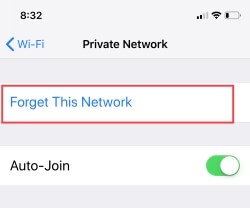
Step 2: Select "Forget This Network" and confirm. Find your WiFi again and tap it.
-
Step 3: Enter the password and join. Wait for it to connect, then check the internet in a browser.
6. Disable VPN or Security Apps
VPN apps route internet traffic through a secure tunnel, but on iOS 27, some older VPNs or security apps may not function properly with the new system. They can connect but fail to pass data, making it look like a WiFi problem when it's actually the VPN. Here's how to disable VPN or security apps if the iOS 27 Wi-Fi connection is dropping:
-
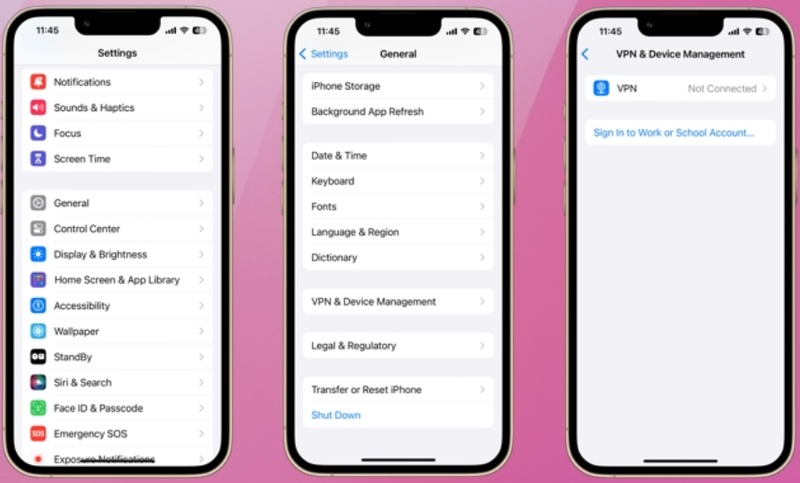
Step 1: Open your VPN app. Turn it off. Then, head to "Settings" on your iPhone.
-
Step 2: Tap "VPN & Device Management." Make sure the VPN shows "Not Connected." If needed, delete the VPN profile.
-
Step 3: Check your WiFi without the VPN. If it functions, update the VPN app or contact support for iOS 27 compatibility.
7. Turn Off Private WiFi Address
A private WiFi address hides your real MAC address for privacy. In iOS 27, it may change during use and confuse some routers, causing WiFi to drop. This often happens on networks with MAC filtering or restrictions. When you see a "Privacy Warning" or frequent disconnections, you can turn off the private WiFi address:
-
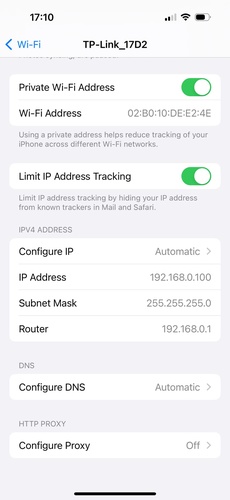
Step 1: Head to "Settings." Then, choose "WiFi." Tap the "(i)" next to your network.
-
Step 2: Find "Private WiFi Address." Turn it off (the phone will reconnect). Wait a few minutes and check if the WiFi stays stable.
8. Disable WiFi Assist
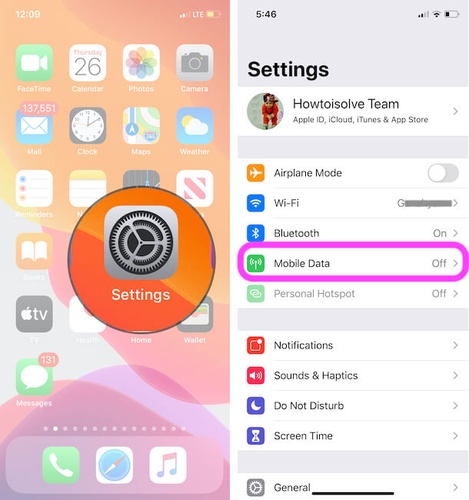
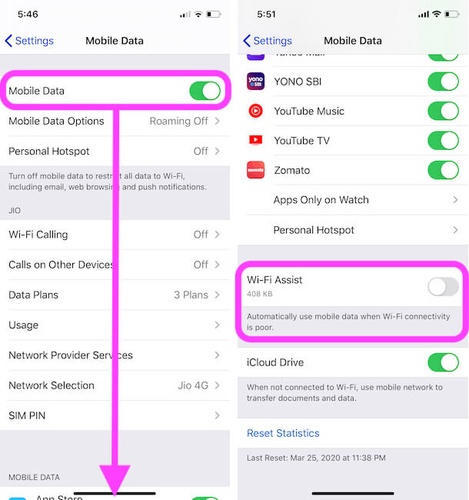
WiFi Assist helps switch your phone to mobile data when WiFi is weak, but in iOS 27, it may trigger too easily even when WiFi is strong. It can switch to cellular unnecessarily and then fail to switch back to WiFi, causing repeated drops. If your WiFi keeps disconnecting at home, and your mobile data usage suddenly increases, you can disable WiFi Assist. To do so:
-
Step 1: Open "Settings." Tap "Cellular / Mobile Data." Move to the bottom.
-
Step 2: Turn "WiFi Assist" off. Check if your WiFi becomes more stable afterward.
9. Reset Network Settings
When multiple WiFi networks don't function, or other fixes haven't helped, reset your network settings. This doesn't erase your personal data, but it deletes saved WiFi passwords, VPNs, and Bluetooth connections.
Then, it rebuilds all network settings from scratch and can fix iOS 27 WiFi problems caused by corrupted data. Here's how to reset network settings to fix the iPhone 17 iOS 27 Wi-Fi issues:
-
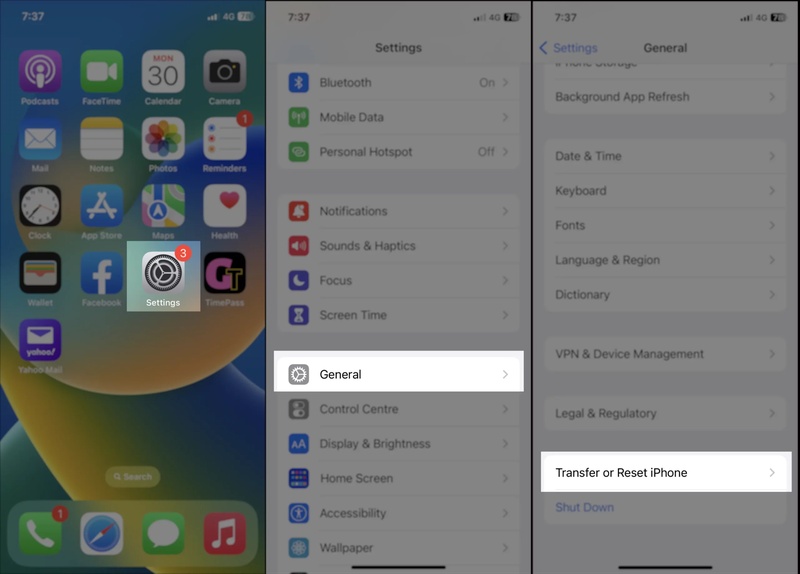
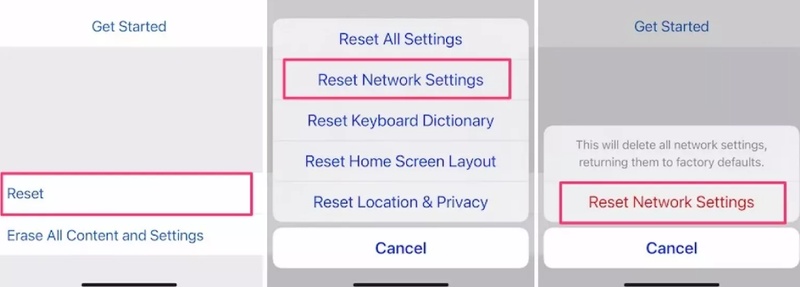
Step 1: Head to "Settings." Choose "General." Tap "Transfer or Reset iPhone." Select "Reset." Then, click "Reset Network Settings."
-
Step 2: Enter your passcode and confirm. Your phone will restart. Reconnect to WiFi by selecting your network and entering the password.
10. Switch Between 2.4GHz and 5GHz Wi-Fi Bands
Modern routers use two bands. 5 GHz (faster but short range) and 2.4 GHz (slower but stronger range). In iOS 27, the phone may pick the wrong band, causing weak or unstable WiFi.
Switching bands manually can fix this. This is best for when WiFi drops as you move around, or both bands use the same network name. Follow the steps beneath to switch between 2.5 GHz and 5 GHz WiFi bands:
-
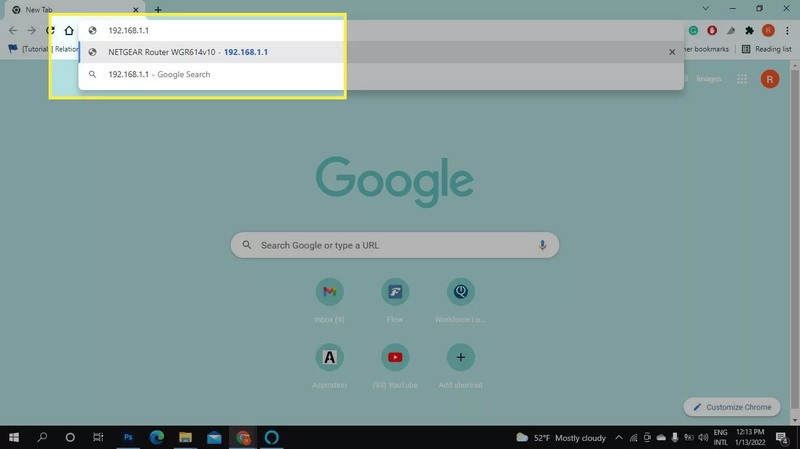
Step 1: Open your router settings in a browser (usually 192.168.1.1 or 192.168.0.1).
-
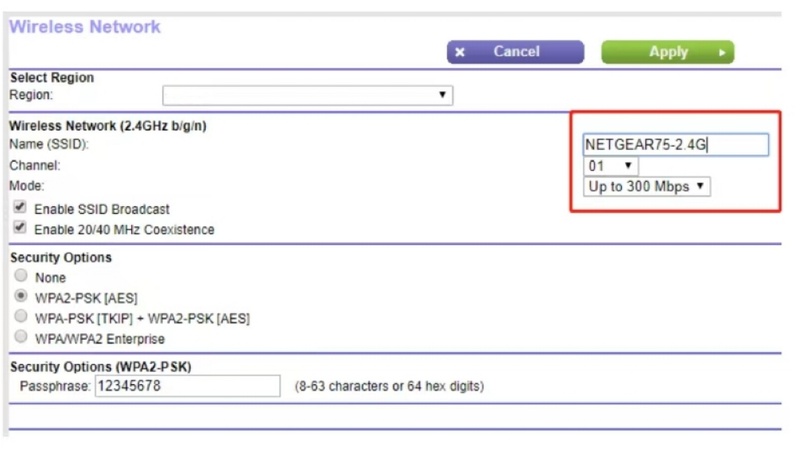
Step 2: Check if 2.4 GHz and 5 GHz use the same WiFi name. If yes, rename them (e.g., Home_2.4 and Home_5).
-
Step 3: On your iPhone, head to "Settings." Choose "WiFi" and forget the current network.
-
Step 4: Reconnect to the other band. Test which one is more stable and keep using it.
11. Restart Your Router and Modem
Sometimes the issue is your router and modem, not iOS 27. If they have been running for a long time, they can get overloaded with old network data, which can cause connection problems.
Restarting the router and modem clears everything and refreshes the connection. This is best when multiple devices have WiFi issues or the equipment hasn't been restarted in weeks or months. Follow the instructions beneath to restart your router and modem:
-
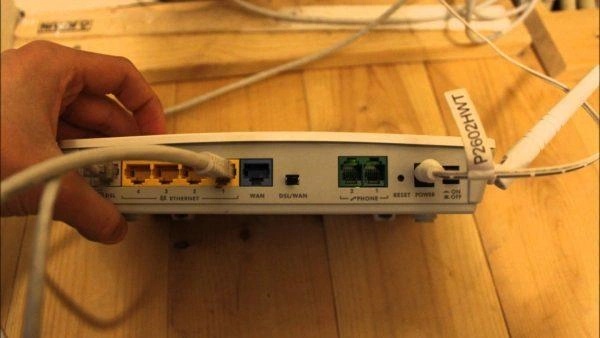
Step 1: Find your modem and router (they may be one or two devices). Unplug the modem first, then the router if it's separate.
-
Step 2: Wait about 60 seconds. Plug the modem back in and wait for its lights to stabilize.
-
Step 3: Then plug in the router and let it fully start. Reconnect your iPhone in "Settings" and "WiFi." Test your internet to make sure it's functioning.
Conclusion
iOS 27 WiFi issues can happen for many reasons, including bugs, broken network settings, VPN conflicts, or router compatibility problems. Simple fixes like reconnecting the WiFi, restarting your iPhone, resetting network settings, or switching WiFi bands can often solve the issue quickly.
However, if the problem keeps coming back, using an iOS repair tool like Tenorshare ReiBoot is a dependable solution. It can fix 150+ iOS system issues, repair WiFi-related bugs without data loss, and supports the latest iOS 27 versions with an easy one-click repair process.
