
Updated on 2026-10-20 / iPhone Tips
Call failed on iPhone does not point to one specific fault, so resetting the phone immediately is rarely the best place to start. You tap a contact, the call ends before anyone answers, and “Call Failed” appears. Sometimes redialing works; sometimes every number fails. First separate a cellular-service problem from a software issue. The checks below cover both, including when an iOS repair tool is worth considering.
Part 1. Why Does My iPhone Say Call Failed?
The message means a call could not be completed, but it does not identify the cause. Notice when and where calls fail:
Network or account trouble: Weak coverage, an outage, or account restrictions can disrupt voice service even when mobile internet works.
SIM or line configuration: A transferred eSIM, inactive line, or outdated carrier settings may interfere with calls.
Settings or iOS problems: Software or network settings may be involved, but timing alone does not prove iOS is responsible. Incoming-call filters address a different problem.
Part 2. How to Fix Call Failed on iPhone
Start with the connection check. If service or SIM activation is uncertain, complete Method 3 before using repair software. Try a test call after each change so you know what helped.
Method 1. Refresh the Cellular Connection
If your iPhone keeps saying call failed in one building or area, test reception before changing system settings.
-
Move somewhere with better reception. Check with your carrier for an outage or account restriction.
-
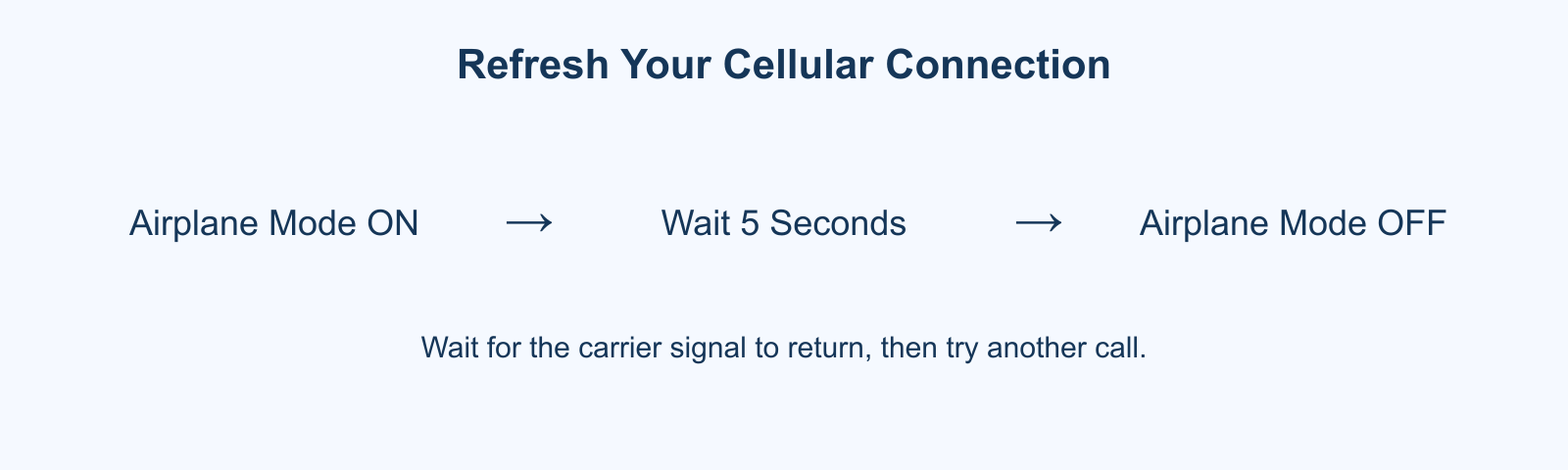
Open Control Center, turn Airplane Mode on for five seconds, then turn it off.
-
Wait for the network name or signal to return. Call another known working number.
Limitation: Refreshing the connection cannot resolve an outage, unpaid-service restriction, or damaged cellular hardware.
Method 2. Repair Persistent iOS Problems with Tenorshare Reiboot
When calls still fail after the carrier confirms service is working, a persistent iOS fault becomes a possibility. Tenorshare Reiboot provides a guided system-repair option, particularly if the calling problem appears alongside freezing or other software symptoms. It is not a replacement for checking your voice line.
Relevant features listed by Tenorshare include:
-
Support for 150+ iOS system issues, including boot loops and frozen screens.
-
A repair mode designed to retain device data.
-
A guided repair workflow on Windows and Mac.
-
Firmware download within the program, without using iTunes.
-
Recovery Mode entry and exit tools for supported devices.
Back up first when possible and check compatibility for your device. The mode designed to retain data requires a paid license; a free download does not mean repairs are free.
-
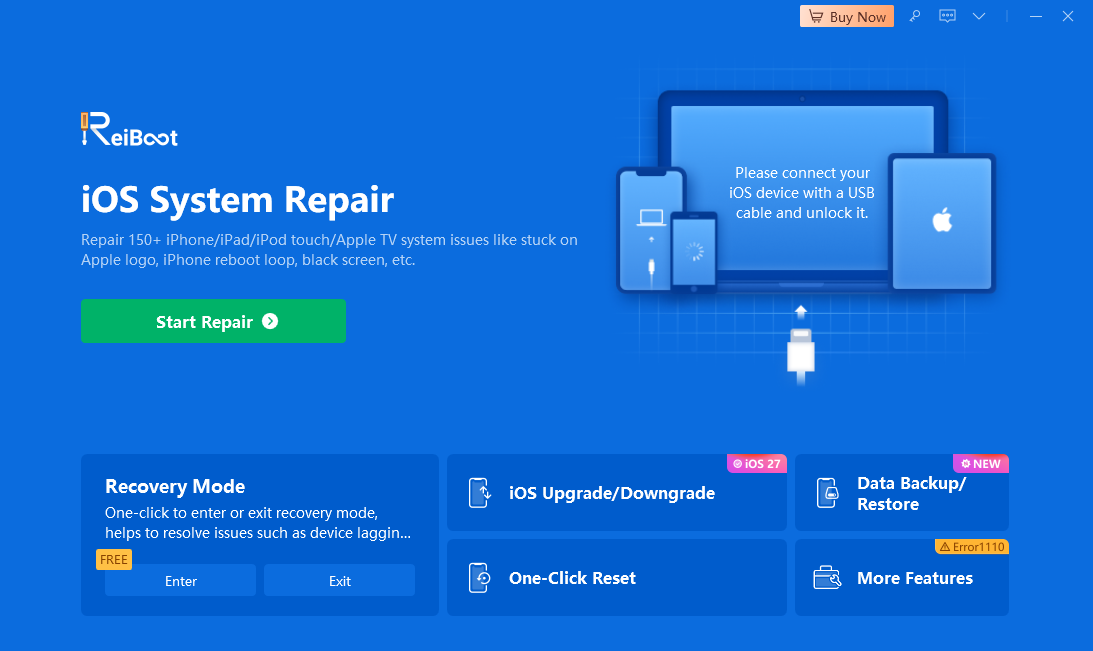
Connect the iPhone to your computer, open Tenorshare Reiboot, and choose Start Repair.
-
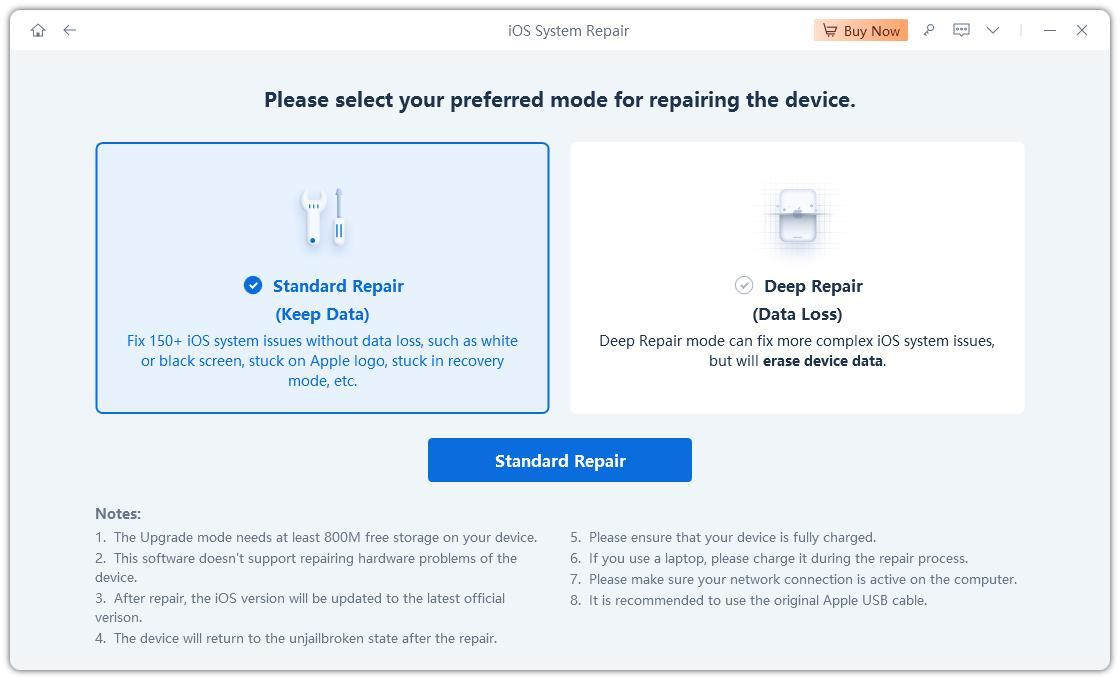
Select the mode designed to retain data and review the displayed requirements. Do not choose the data-erasing Deep Repair mode.
-
Download the compatible firmware offered for your device. Do not copy the version shown in the example image.
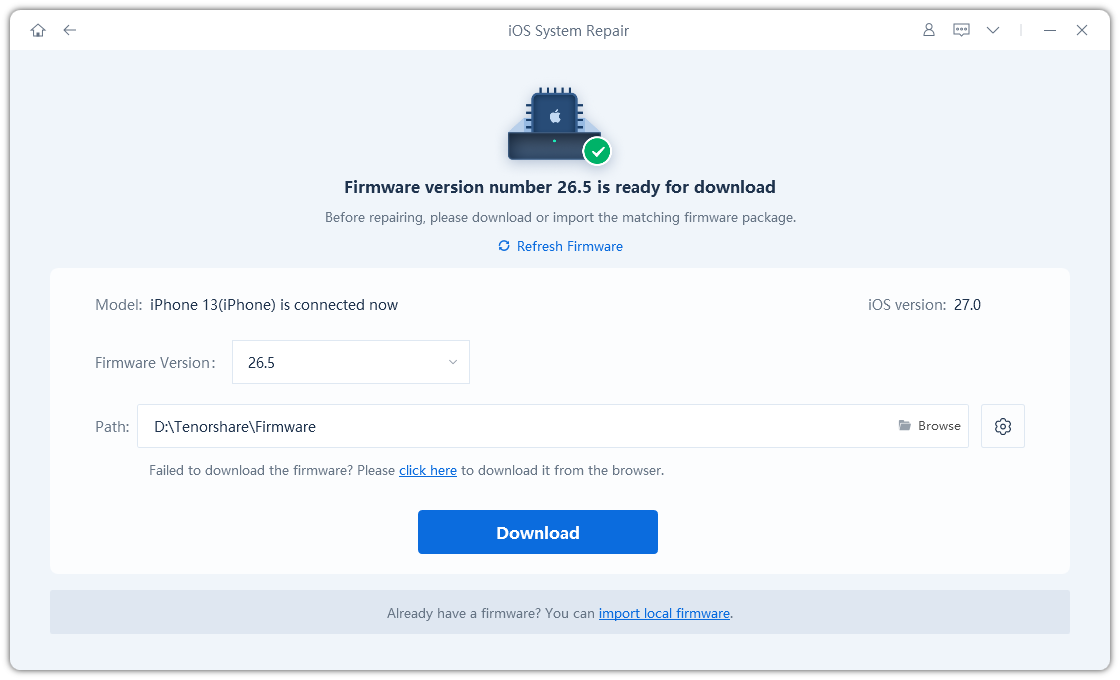
-
Start the repair in the mode designed to retain data and keep the iPhone connected until completion. After it restarts, test a call.
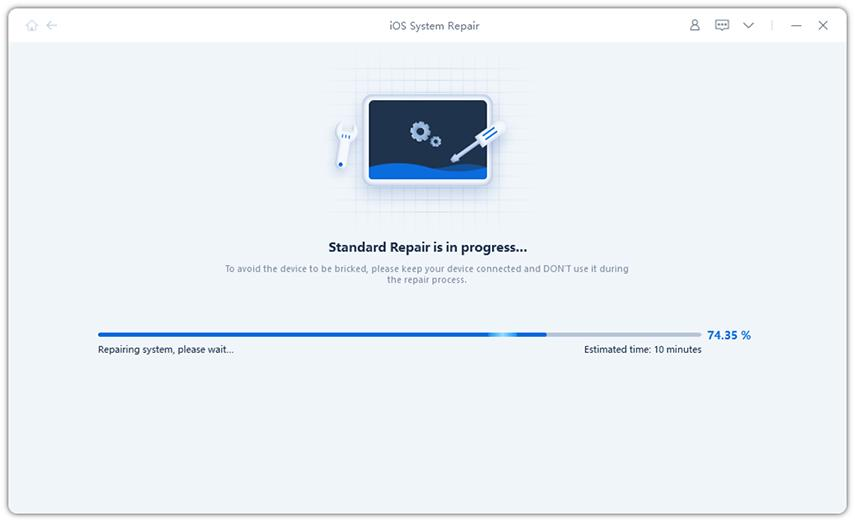
Limitation: Tenorshare Reiboot cannot fix carrier outages, blocked accounts, or hardware damage. Repair results depend on the underlying problem; data retention is not a substitute for a backup.
Video Tutorial: iPhone No Service Checks
For calls that fail with No Service. Use the connection, SIM and network checks; erasing the iPhone is not a routine fix for Call Failed.
Method 3. Check Your Calling Line and Carrier Settings
A new SIM or recently transferred number deserves a closer look, especially if calls began failing immediately after switching devices.
-
For Dual SIM, open the Phone keypad, enter the number, tap the current line, and select the active number you want to use.
-
Connect to the internet, then open Settings > General > About. Install a carrier settings update if prompted.
-
If the line is missing or inactive, ask your carrier to check activation. Do not delete an eSIM without a reactivation plan.
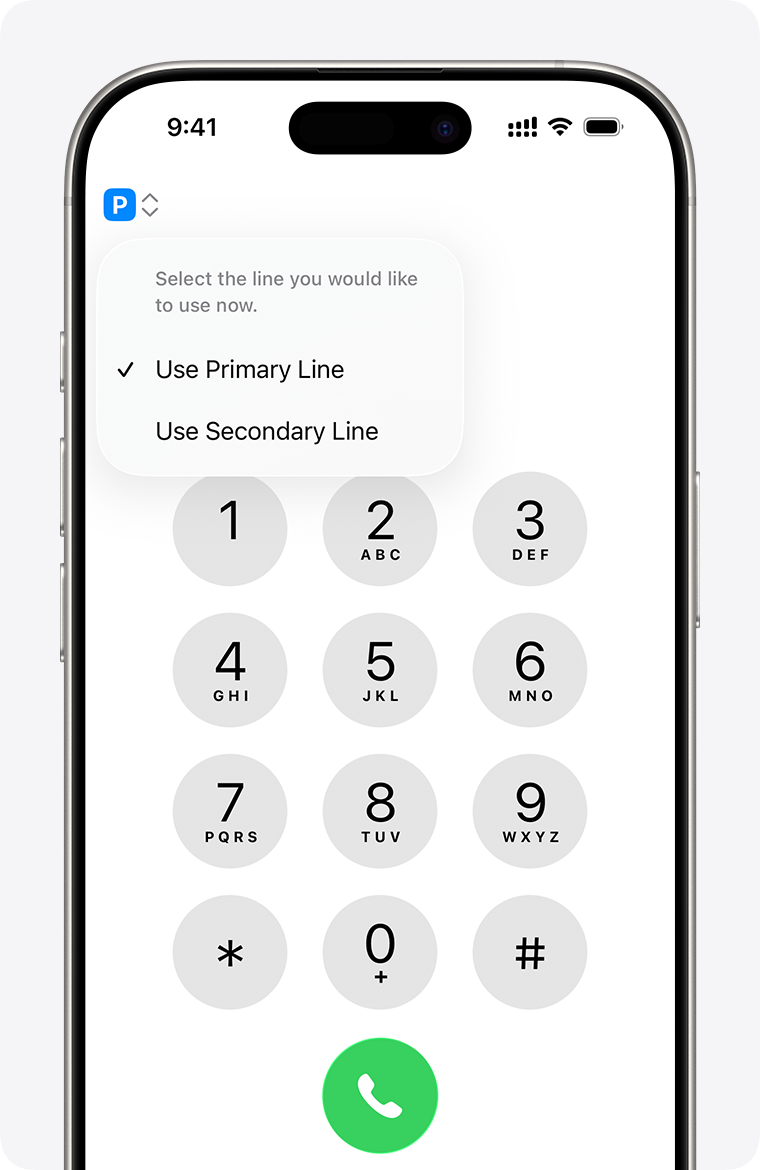
Limitation: Carrier provisioning problems require the carrier; changing the selected line cannot activate an inactive subscription.
Method 4. Restart Your iPhone and Update iOS
If calls started failing after an iOS update, try a normal restart before assuming the installation needs repair.
-
Turn your iPhone off, wait briefly, and turn it on again.
-
Back up, connect to Wi-Fi and power, then open Settings > General > Software Update. Install an available public update.
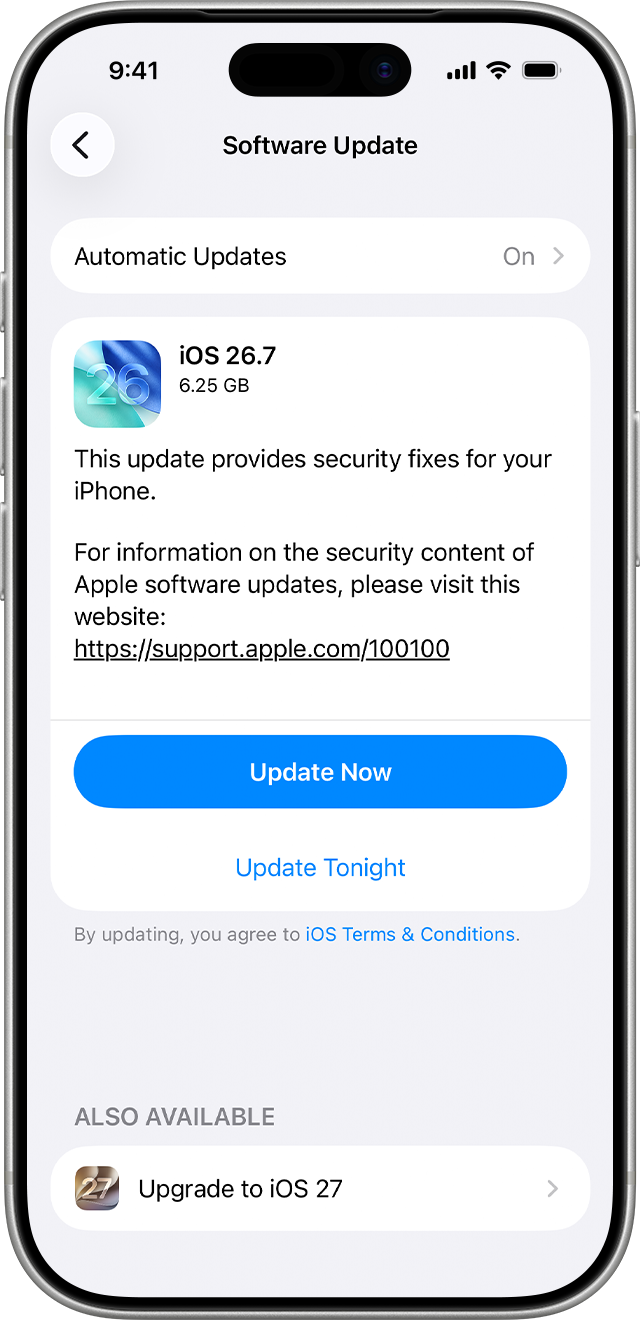
Limitation: An update may address software bugs, but it cannot correct an account restriction or guarantee a calling fix.
Method 5. Test Wi-Fi Calling
Wi-Fi Calling can help indoors when cellular reception is poor, provided your carrier supports it.
-
Open Settings > Cellular, select your line, and open Wi-Fi Calling. Enable it and confirm any required emergency-address details.
-
If it was already enabled, try another reliable Wi-Fi network. You can also test with it off where cellular reception is good.
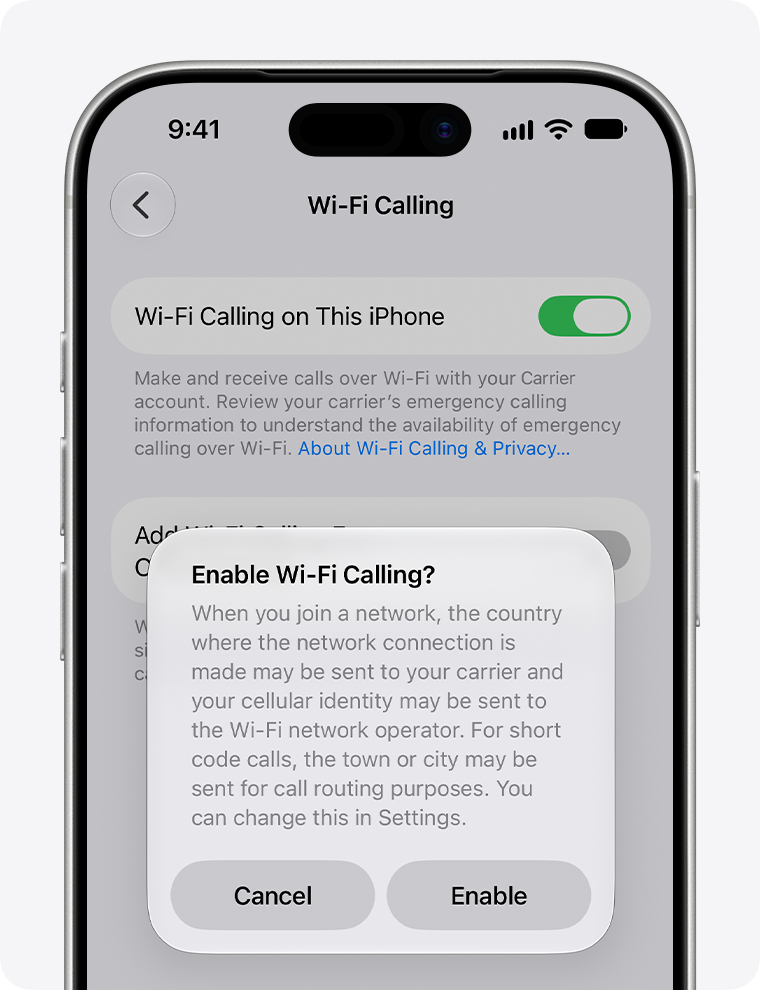
Limitation: This depends on carrier support and a working Wi-Fi connection. It does not remove account-level calling restrictions.
Method 6. Reset Network Settings
Try this after the simpler checks, particularly if failures persist across locations.
-
Save your Wi-Fi passwords. Open Settings > General > Transfer or Reset iPhone > Reset.
-
Choose Reset Network Settings, confirm, reconnect to Wi-Fi, and test calling again.
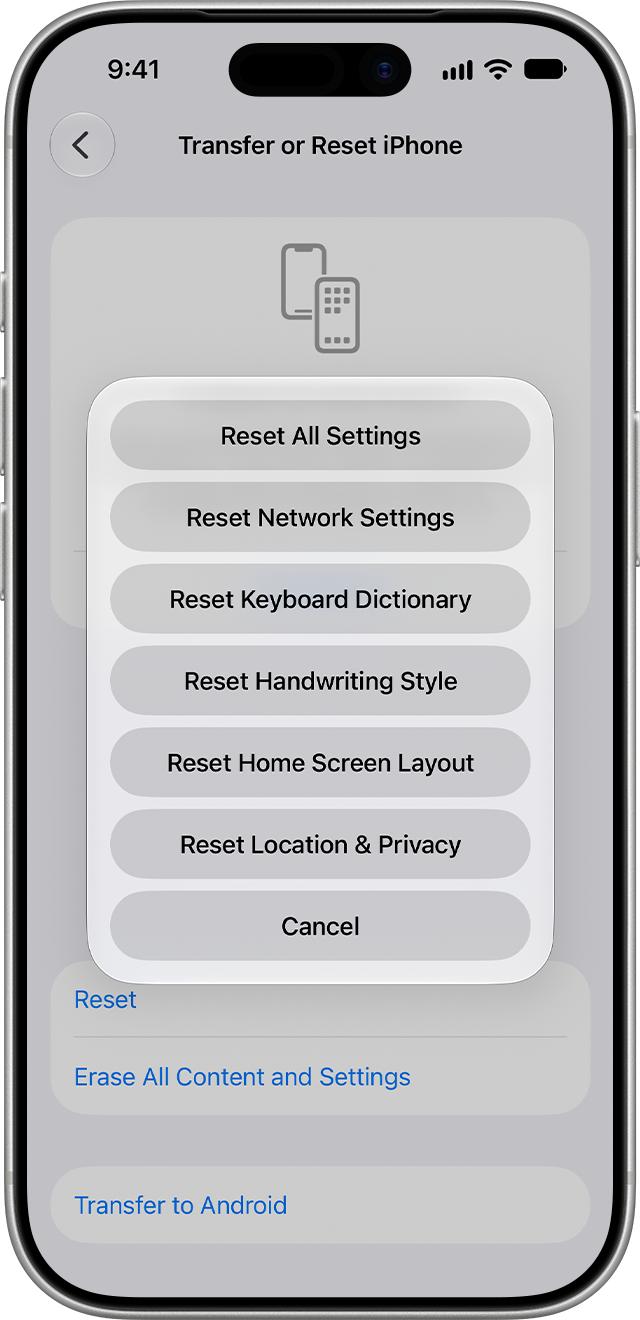
Limitation: Photos and apps remain, but saved network settings and Wi-Fi passwords are removed. Ask IT first if your phone uses managed network settings.
Part 3. FAQs About Call Failed on iPhone
Why Do Calls Fail Even with Full Signal Bars?
Signal bars show reception, not whether your account and voice service are functioning correctly. Your carrier may still have an outage or provisioning issue. Ask it to check voice service before treating full bars as proof of an iPhone software fault.
Does Call Failed Mean Someone Blocked Me?
No. The message alone cannot establish that. If other numbers work, the issue may be specific to that call or recipient. Avoid repeatedly redialing or assuming blocking based on a single error.
Can an iOS Update Cause Call Failures?
A software problem is possible, but a failure after updating is not proof of causation. Restart, check carrier settings, and confirm service status. Persistent failures alongside other system symptoms may justify further software troubleshooting.
Will Reset Network Settings Delete My Photos?
No. It resets network configuration rather than erasing personal content. You will need to reconnect to saved Wi-Fi networks and may need to restore VPN or other network settings. Do not confuse it with erasing the entire iPhone.
When Should I Contact My Carrier or Apple?
Contact your carrier first for activation, account, coverage, or outage checks. If it finds no service issue and calls still fail, contact Apple for diagnostics, especially after physical damage or when other cellular functions also stop working.
Conclusion
To fix call failed on iPhone, check the connection and voice line before making bigger changes. Restarting, updating, or resetting network settings may help with software-related failures. If those checks leave a persistent iOS problem, consider Tenorshare Reiboot’s mode designed to retain data after backing up and confirming compatibility. Carrier and hardware faults need their respective support teams.
