
Updated on 2026-08-25 / iPhone Tips
Haptic feedback makes your iPhone feel more responsive through small vibrations for notifications, typing, and other actions. After updating to iOS 27, some users may notice that these vibrations have stopped working or feel weaker than before.
The iOS 27 haptics not working issue can be annoying, especially when you rely on vibration alerts instead of sound. Try the simple fixes below to restore haptic feedback and get your iPhone vibrating normally again.
- Part 1: Before You Start: Quick Checklist
- Part 2: How to Fix iOS 27 Haptics Not Working Through Settings
- Part 3: How to Fix iOS 27 Haptics After a Temporary Glitch
- Part 4: Fix iPhone System Problems the Smarter Way with ReiBoot \No Data Loss
- Part 5: What to Do When Haptics Work in Some Situations but Not Others
- Part 6: FAQs About iOS 27 Haptics Not Working
Part 1: Before You Start: Quick Checklist
Before moving to the main fixes, take a moment to check these basics:
-
Check that Haptics are turned on in Settings.
-
Make sure Vibrate is enabled for calls and alerts.
-
Restart your iPhone to clear temporary glitches.
-
Remove the case and test the vibration again.
-
Check for any available iOS 27 updates.
-
Test haptics in different areas, such as typing, calls, and notifications.
Part 2. How to Fix iOS 27 Haptics Not Working Through Settings
Before trying advanced fixes, check your iPhone's haptic and vibration settings. A disabled option can make it seem like the Taptic Engine has stopped working, even when the hardware is fine. These settings can also help when haptics are not working on iPhone 27.
Fix 1: Turn On Haptics for Ringtones and Alerts
Your iPhone has a separate setting that controls whether haptic feedback plays with calls and alerts. Make sure it is not set to disable haptics completely.
Steps to fix Ios haptics not working ios 27
Open Settings on your iPhone.
-
Tap Sounds & Haptics.
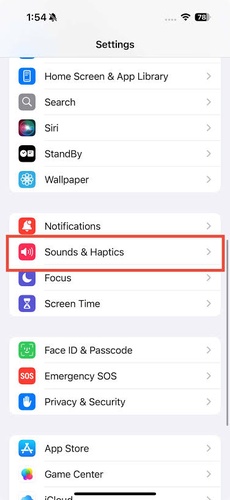
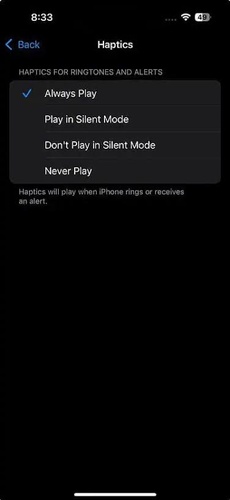
Tap Haptics.
-
Select Always Play or Play in Silent Mode, depending on when you want your iPhone to vibrate.
-
Test the vibration by calling your iPhone or triggering a notification.
Tip: Choose Play in Silent Mode if the main problem is iPhone haptics not working in Silent Mode.
Fix 2: Make Sure Vibration Is Enabled
A system-wide vibration setting can also affect haptic feedback. Check it before moving on to other solutions.
Let's see how to fix iPhone haptics not working in silent mode:
Open Settings and tap Accessibility.
Select Touch to open the touch-related settings.
-
Find Vibration and make sure the switch is turned on.
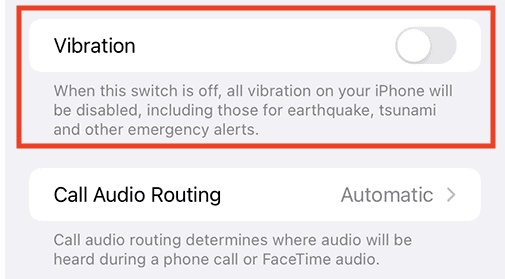
-
Test your iPhone with an incoming call or another vibration-supported alert.
Fix 3: Enable Keyboard Haptics
iOS has a separate setting for keyboard haptic feedback. Turn it on to restore vibration while typing.
Steps to Fix iPhone Haptics Not Working on iOS 27:
Open Settings.
Tap Sounds & Haptics.
Select Keyboard Feedback.
-
Turn on Haptic.
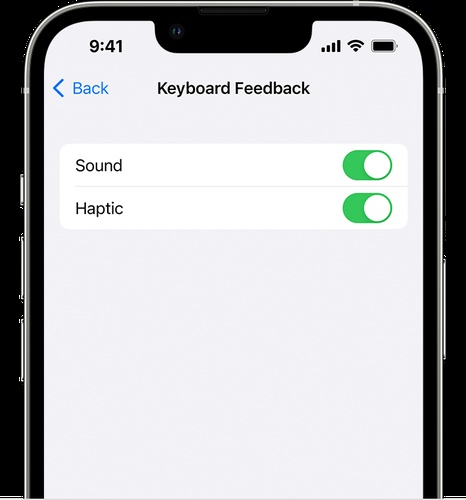
-
Open Messages or Notes and type a few words to test the feedback.
Fix 4: Turn Off Focus or Do Not Disturb
Focus modes can affect how incoming notifications are delivered. Temporarily disabling them can help resolve haptics not working on iPhone 27 when the problem mainly affects calls and alerts.
-
Swipe down from the top-right corner to open Control Center.
Tap Focus.
-
Check whether Do Not Disturb or another Focus mode is active.
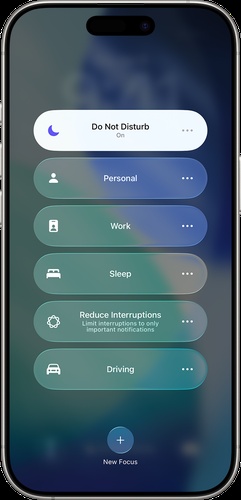
Tap the active mode to turn it of
Part 3: How to Fix iOS 27 Haptics After a Temporary Glitch
A temporary software glitch can sometimes interfere with vibration and haptic feedback, especially after an iOS update. Before assuming there is a hardware problem, work through these fixes in order.
Fix 1: Turn On System Haptics
System Haptics controls the feedback you feel while performing certain actions on your iPhone. Make sure the feature is enabled so iOS can provide feedback during supported interactions.
Steps to fix iOS haptics not working on iPhone 11:
-
Open the Settings app and scroll down to Sounds & Haptics.
-
Scroll to the bottom of the page and look for System Haptics.
-
Turn on the System Haptics switch if it is currently disabled.
Fix 2: Change or Reset Your Haptics Style
A damaged or incorrectly selected vibration pattern can affect individual alerts without disabling all haptic feedback. Switching to another pattern can help refresh the setting and confirm whether the issue is limited to a specific alert.
Here's how to fix haptics not working on iPhone 13:
Open Settings and select Sounds & Haptics.
-
Choose an alert such as Ringtone, Text Tone, or another option under Sounds and Haptic Patterns.
-
Tap Haptics to view the available vibration patterns.
-
Select a different pattern and use the preview to check whether your iPhone responds.
-
Choose your preferred pattern once you find one that produces the expected feedback.
Fix 3: Restart Your iPhone
A simple restart can clear temporary system glitches that may be affecting haptic feedback. This is worth trying on older models too, especially when iOS haptics are not working on iPhone 11 or other supported devices.
How to fix iOS haptics not working on iOS 27:
-
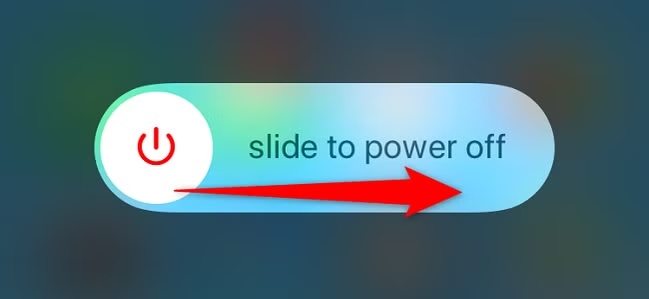
Press and hold the Side button together with either Volume button until the power-off slider appears.
-
Drag the slider to the right and wait for your iPhone to shut down completely.
-
Leave the device off for a few seconds before turning it back on.
-
Press and hold the Side button until the Apple logo appears on the screen.
Fix 4: Check for an iOS 27 Update
An available software update may contain bug fixes that address unexpected system behavior. This step is especially useful when the problem started shortly after installing a new iOS version.
Here's how to fix haptics not working on iPhone 27:
Open Settings and tap General.
-
Select Software Update and allow your iPhone a moment to check for updates.
-
Make sure your iPhone has enough battery and storage to complete the installation.
Tap Update now if a newer version is available.
-
Enter your passcode when requested and let the update finish.
Fix 5: Reset All Settings
Resetting all settings can help when an incorrect system preference is preventing haptic feedback from working properly. Unlike a factory reset, this process does not remove your personal data or installed apps.
Let's see how to fix iPhone haptics not working on iOS 27:
Open Settings and tap General.
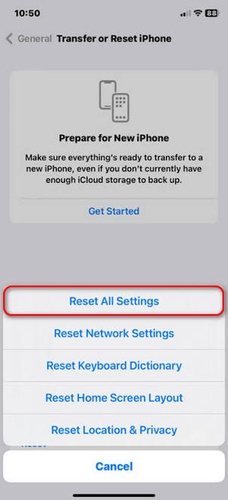
Scroll down and select Transfer or Reset iPhone.
-
Tap Reset, then choose Reset All Settings.
-
Enter your iPhone passcode when prompted to continue.
Confirm the reset and allow the iPhone to restart.
Fix 6: Check for Possible Taptic Engine Hardware Problems
Persistent vibration problems may point to a hardware issue rather than an iOS glitch. This is especially worth considering when haptics stopped working after a drop, liquid exposure, or previous repair.
Test haptics with several features, such as calls, alerts, keyboard feedback, and system interactions.
Part 4: Fix iPhone System Problems the Smarter Way with ReiBoot \No Data Loss
Persistent haptic problems can sometimes be linked to deeper iOS system errors that ordinary settings changes cannot resolve. Tenorshare ReiBoot provides a simple way to repair stubborn iOS problems without jumping straight to a factory reset.
It can fix 150+ common iOS system issues while helping keep your personal data intact. With its clean, beginner-friendly interface and step-by-step guidance, you can repair system problems without dealing with complicated settings.
Why Use ReiBoot?
-
Fix 150+ iOS issues with one repair tool.
-
Preserve your personal data during the repair.
-
Beginner-friendly interface with simple steps.
-
One-click repair for a smoother troubleshooting process.
-
Fix common iOS glitches without a factory reset.
-
Supports multiple iPhone models and iOS versions.
How to fix iOS 27 Haptics Not Working with ReiBoot:
-
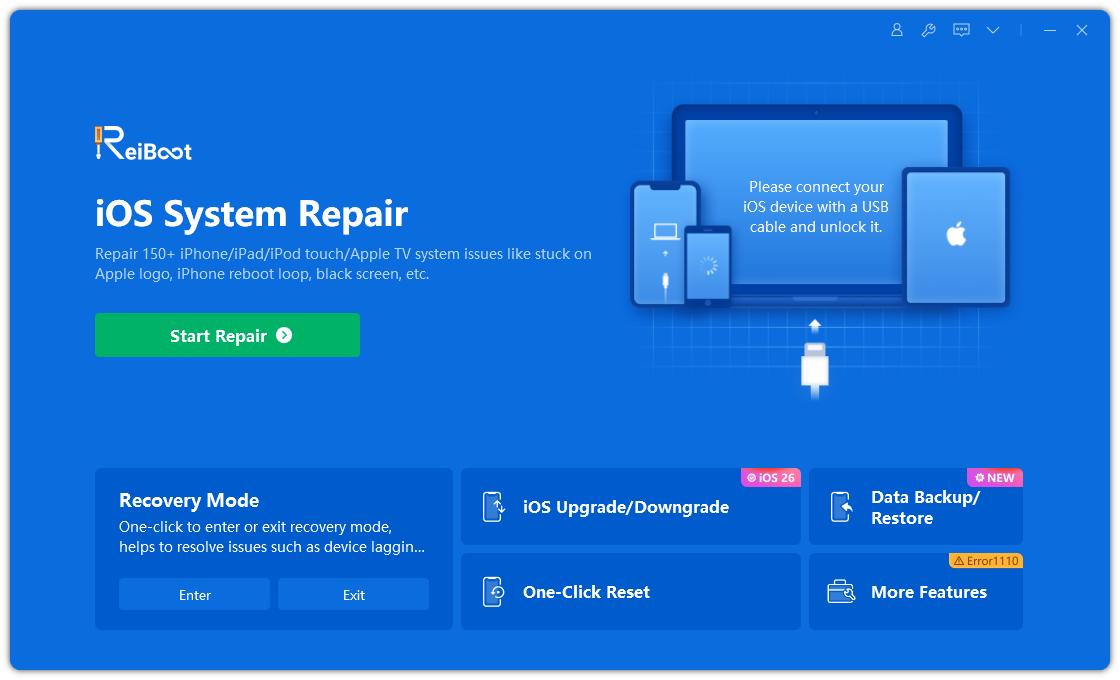
Step 1: Download and install ReiBoot on your computer. Open it and connect your iPhone with a USB cable. Once the device is detected, click Start Repair.
-
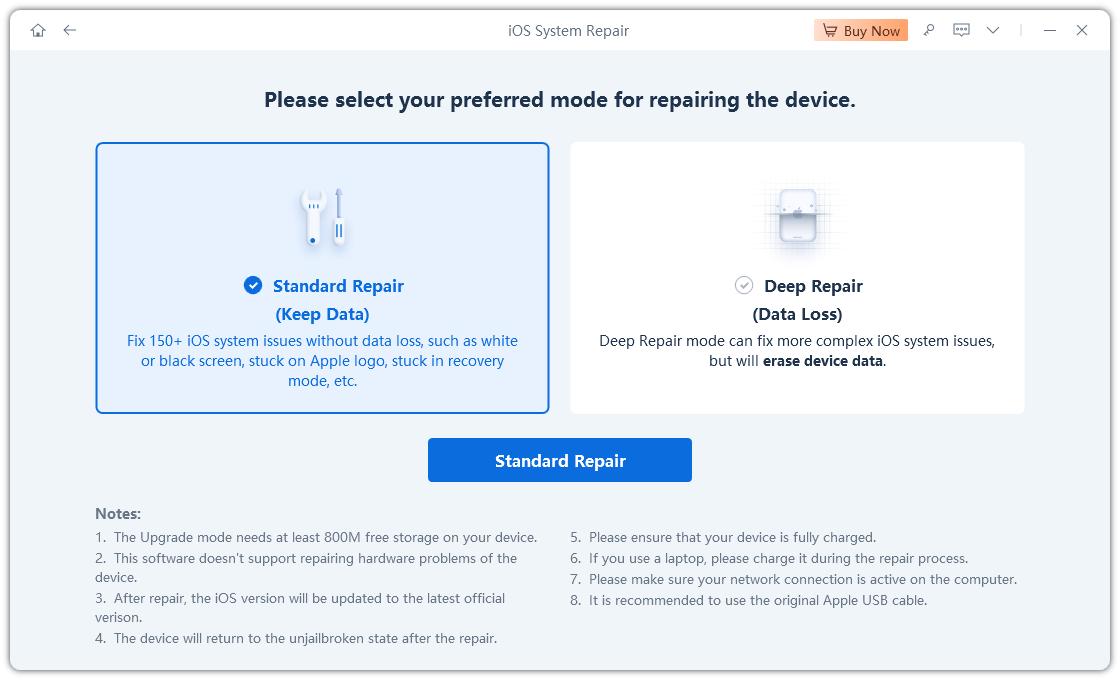
Step 2: Select Standard Repair to fix common iOS system problems while keeping your personal data.
-
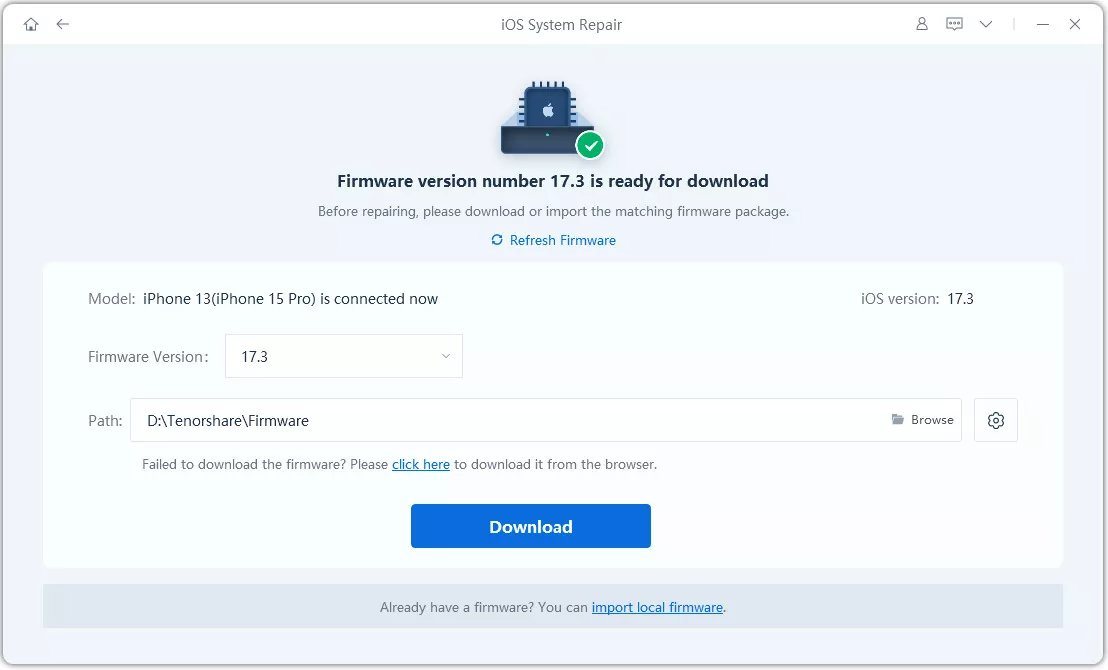
Step 3: ReiBoot will detect the firmware your iPhone needs. Check the details and click Download to get the firmware package.
-
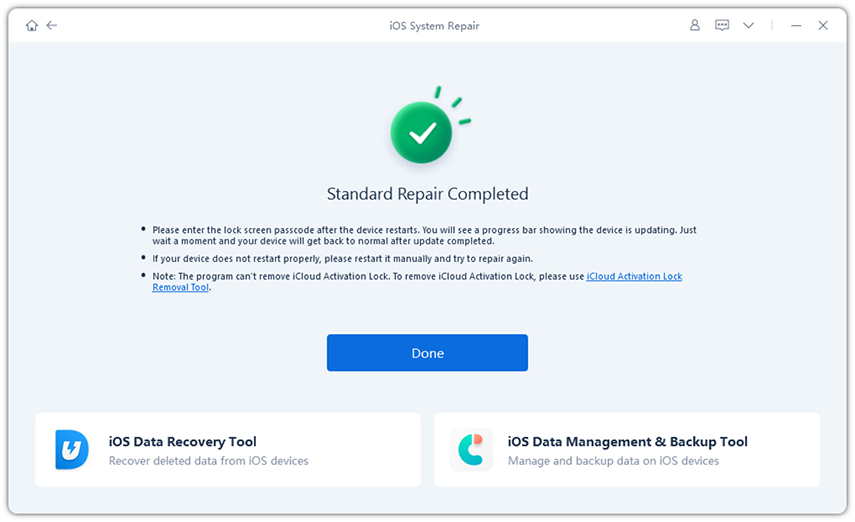
Step 4: Wait for ReiBoot to finish the repair. Your iPhone will restart automatically. Once it turns on, test the haptics to see if the problem is fixed.
Part 5. What to Do When Haptics Work in Some Situations but Not Others
Haptics may work for calls but not typing, notifications, or Silent Mode. Check the setting linked to the feature that is not responding.
-
Silent Mode: Go to Settings > Sounds & Haptics > Haptics and select Play in Silent Mode.
-
Keyboard: Open Settings > Sounds & Haptics > Keyboard Feedback and turn on Haptic.
-
Calls and alerts: Check Settings > Sounds & Haptics > Haptics and choose Always Play or Play in Silent Mode.
-
System feedback: Make sure System Haptics is enabled under Settings > Sounds & Haptics.
-
No haptics anywhere: Restart your iPhone and check for an iOS update.
Part 6. FAQs About iOS 27 Haptics Not Working
1. Why is my iPhone no longer vibrating on Silent Mode?
Go to Settings > Sounds & Haptics > Haptics and select Play in Silent Mode. Also make sure Vibration is enabled under Settings > Accessibility > Touch.
2. How can I test if haptics are working on my iPhone?
Try an incoming call, keyboard haptics, or lock your iPhone. If you feel a response, haptics are working.
3. Are haptics the same as vibration on an iPhone?
No. Vibration refers to the physical movement, while haptics provide feedback during actions like typing, alerts, and system interactions.
4. Why is my iPhone not ringing, just vibrating?
Check the Ring/Silent switch, increase the ringtone volume under Settings > Sounds & Haptics, and turn off any active Focus mode.
Final Words
A missing vibration does not always mean there is a hardware problem with your iPhone. For iOS 27 haptics not working, checking the right settings and restarting your device can often restore haptic feedback. For issues that continue after these basic steps, ReiBoot can help repair deeper iOS system problems while keeping your personal data intact.
