
Updated on 2026-10-21 / iOS 27
If Siri is slow in CarPlay after iOS 27, first notice where the delay happens. Does Siri take too long to hear you, pause before answering, or spend extra time confirming a message that it already understood? Those symptoms feel similar while driving, but they call for different checks.
If requests are slower or message readbacks are more verbose after an update, that does not establish one universal iOS defect or prove that Apple changed where every request is processed. Work through the checks below while parked, keeping the same short test request so comparisons are meaningful.
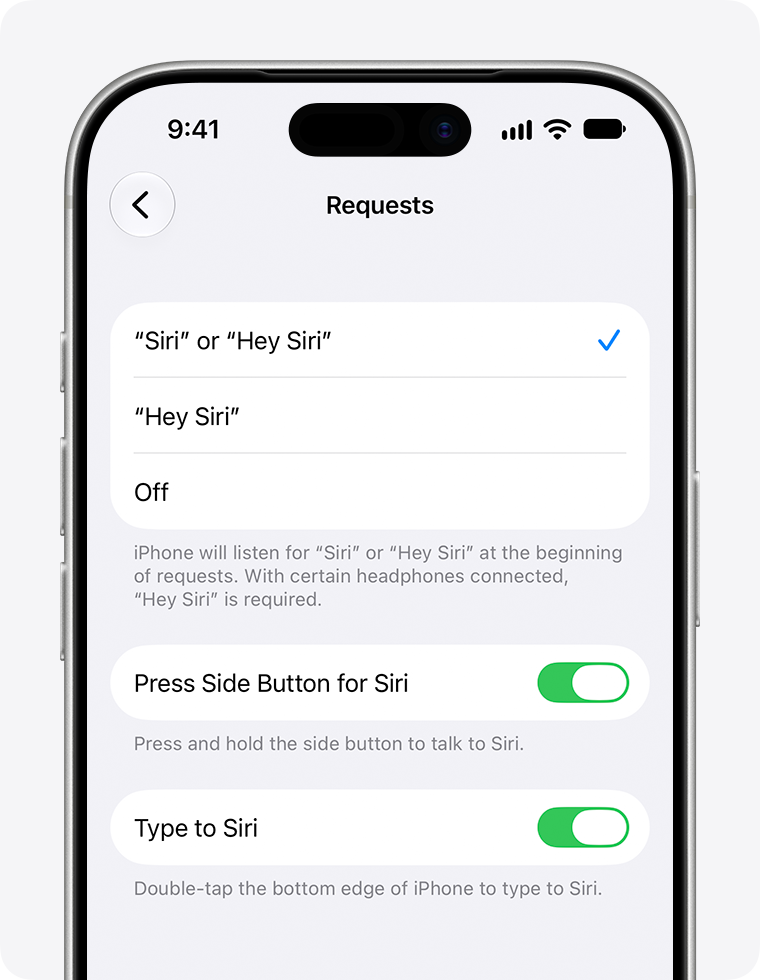
Part 1. Where Does Siri Slow Down in CarPlay?
Notice when Siri slows down. A pause before recognition, a long message readback, and a car-only connection failure need different checks. Use the quick table to choose where to start.
| Where the Delay Happens | Useful Test | Where to Start |
|---|---|---|
| Before Siri responds | Same request outside CarPlay | Connection checks |
| During message readback | Recognition is already prompt | Message-confirmation settings |
| Only in one vehicle | Compare supported connection types | Car software and pairing |
| On the phone too, with freezes | Check after restart and updates | Consider Tenorshare Reiboot for supported iOS faults |
While parked, repeat the same short request on the handset and through CarPlay. This comparison is more useful than changing several settings at once.
If Siri responds normally outside the car, check the vehicle connection before paying for repair. An update alone does not prove the phone’s system is damaged.
Part 2. How to Fix Siri Delays in CarPlay
Begin with a short request outside CarPlay, then repeat it through the car while stationary. Keep notes on connection type, signal, and response time. The aim is to narrow the problem—not to make repeated requests while driving.
Method 1. Test Siri and Reconnect CarPlay
Best for: Delays that may come from the connection, especially when wired and wireless CarPlay behave differently.
-
Disconnect CarPlay and try Siri directly on the iPhone with a working internet connection.
-
Reconnect. For wired CarPlay, try a suitable direct cable and another supported USB port. For wireless CarPlay, check Wi-Fi and Bluetooth.
-
Restart the iPhone and vehicle system, then repeat the same request.
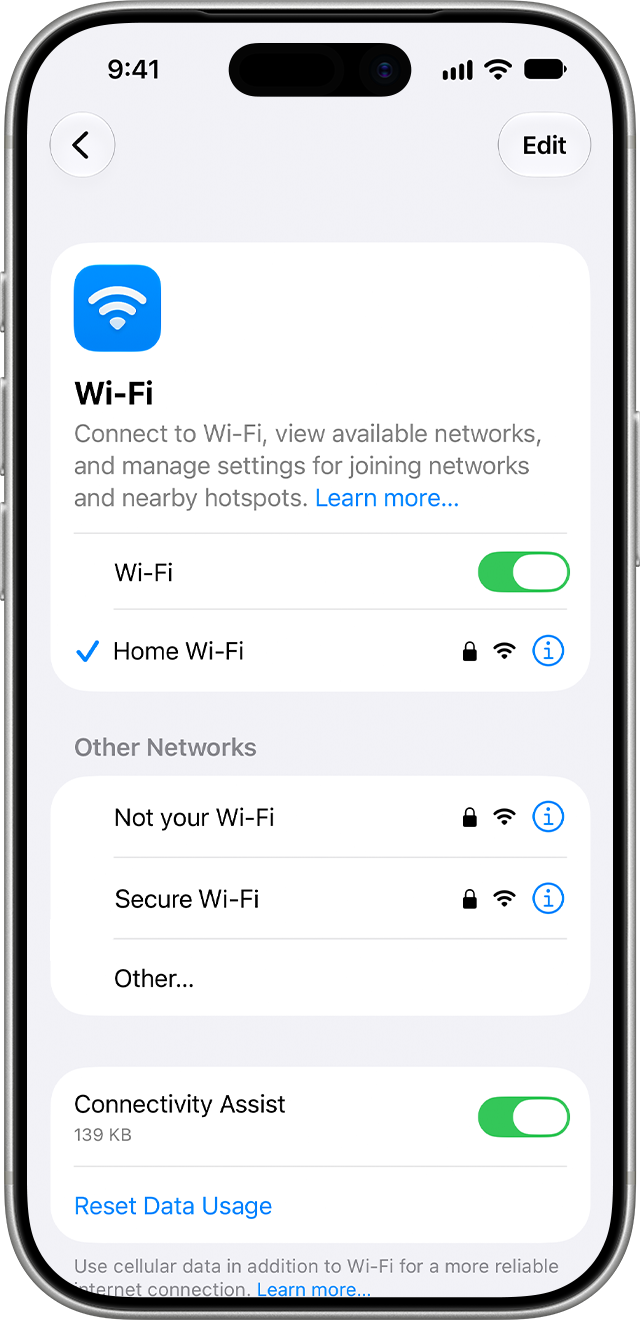
If Siri is slow on the handset too, look beyond CarPlay. Test a different supported cable or connection where relevant. A VPN can also interfere with Siri; do not disable workplace security without permission.
Connection checks will not shorten an intentional message readback. If recognition is prompt, skip to the message-confirmation method instead.
Method 2. Repair Persistent iOS Glitches with Tenorshare Reiboot
If Siri also stalls on the handset and basic checks have not helped, the problem may extend beyond CarPlay. Tenorshare Reiboot offers a guided desktop repair route for supported iOS software problems. It is an option to consider for a suspected system fault, not a guaranteed fix for this particular Siri report.
Its useful features include:
-
A repair mode designed to retain device data while repairing supported system issues.
-
A guided firmware download and repair workflow on Windows or Mac.
-
Separate repair modes, allowing you to identify the data-preserving option before proceeding.
-
Recovery-mode tools for supported devices that develop additional startup problems.
Back up first and confirm device compatibility and the paid repair license. A free installer does not mean free repair.
-
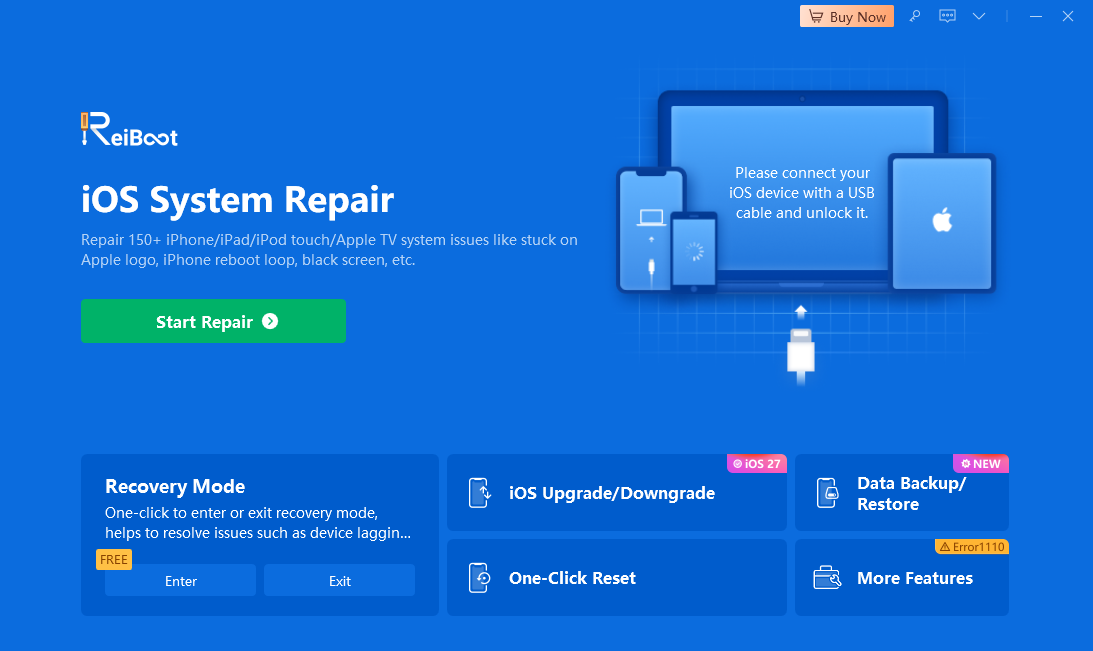
Install Tenorshare Reiboot, connect the iPhone to the computer, and select Start Repair.
-
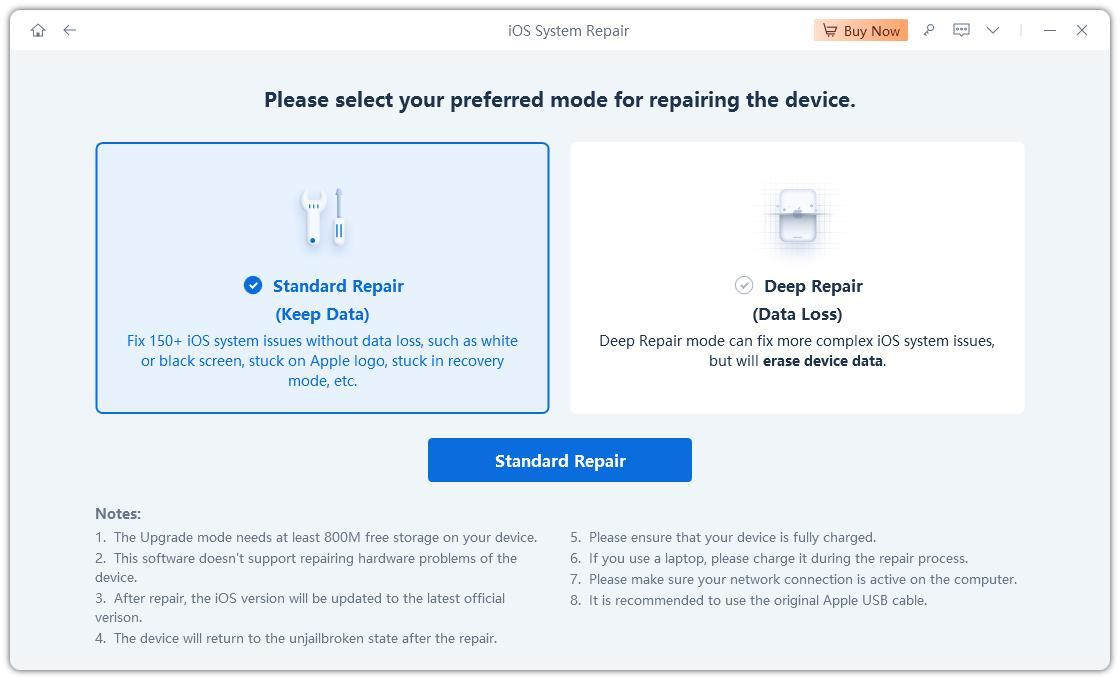
Choose the mode designed to retain data and read the displayed requirements. Do not choose an erasing repair mode.
-
Confirm the detected device and download the compatible firmware offered for this repair. Follow the compatible version offered for your device, not the version pictured.
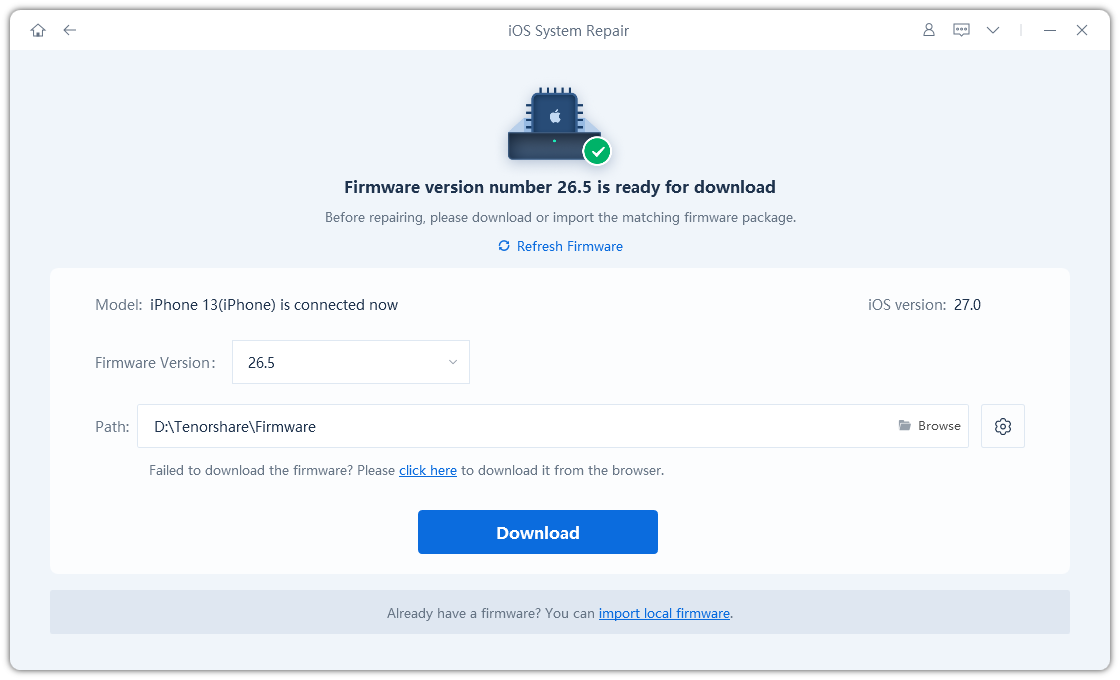
-
Start the repair, keep the cable connected, and retest Siri after the iPhone restarts.
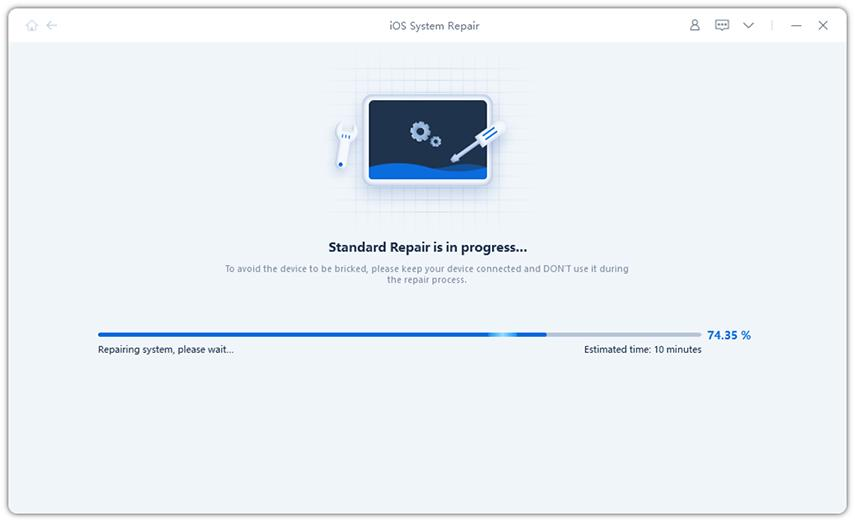
Pros: A repair mode provides a guided, data-preserving approach to supported iOS faults. Cons: It requires a computer and paid repair license; it cannot fix weak coverage, vehicle hardware, or Siri service delays. Deep Repair erases data.
Video Tutorial: Tenorshare Reiboot System Repair
This tutorial shows Tenorshare Reiboot 9.0 with an older interface. It applies only to the phone-side software-repair option above and does not demonstrate a Siri or CarPlay delay fix.
Method 3. Reduce Message Confirmation Friction
If Siri understands you quickly but the exchange drags on afterward, review the message workflow instead of repairing the phone again.
-
In CarPlay Settings, open Siri and review Automatically Send Messages.
-
Enable it if you want the supported automatic-send behavior, then test a harmless message while parked.
-
Check whether the delay occurs before recognition or during the spoken response.
Automatic sending changes message confirmation, not Siri’s processing speed or every announcement. Keep confirmation enabled if you prefer reviewing recipients and wording before sending.
Limitation: This setting concerns message confirmation. It does not solve delays in navigation, music, or other Siri requests.
Method 4. Update and Re-Pair the Phone and Car
-
Back up the iPhone and install an available public update through Software Update.
-
Check the vehicle manufacturer’s instructions for an infotainment firmware update.
-
If needed, open Settings > General > CarPlay, select the vehicle, choose Forget This Car, and set up the connection again.
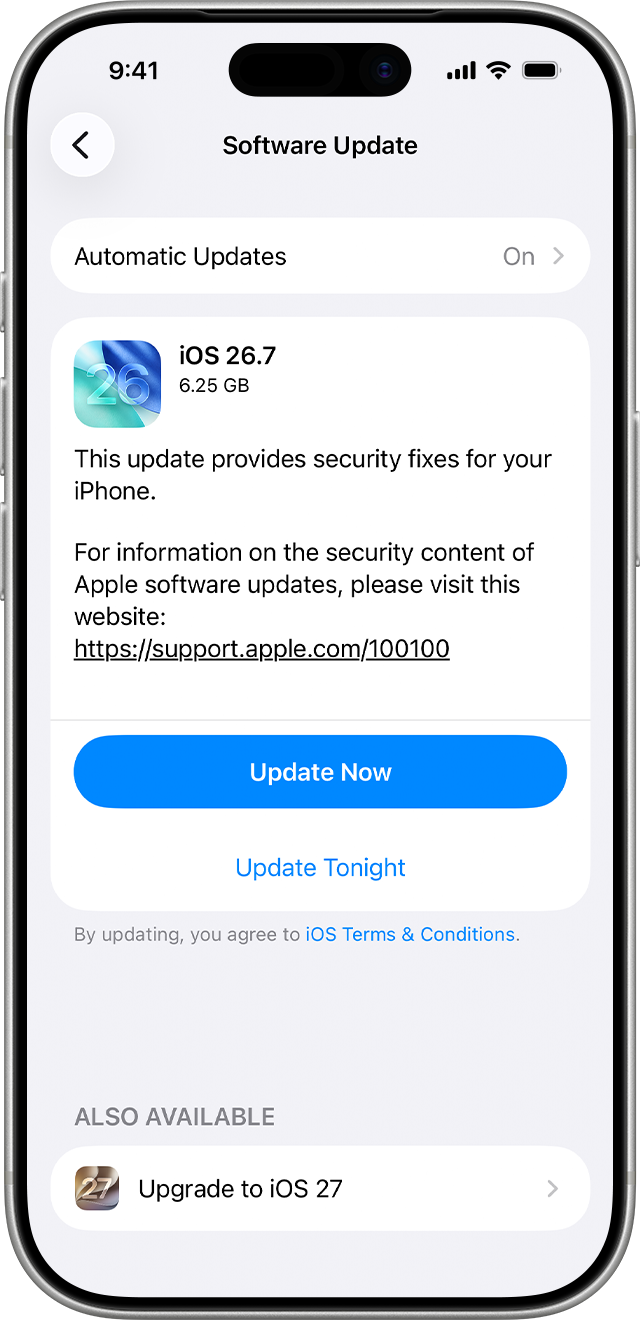
Test before changing more settings. If only one vehicle is affected, tell its support team whether wired and wireless connections differ.
Limitation: Re-pairing removes the existing CarPlay pairing and requires setup again. Updates are not guaranteed to address the specific delay.
Part 3. Tips for Testing Siri After Each Change
Test while parked, using the same short request and a reliable connection. Compare the pause before Siri understands you with the time spent reading its answer: only the first necessarily points to a response delay.
Change one setting at a time, record wired versus wireless behavior, and undo unhelpful changes. If only one vehicle is affected, share that comparison with its support team.
Part 4. FAQs About Siri Being Slow in CarPlay
1. Why Is Siri Faster Outside My Car?
That comparison points toward the CarPlay connection or vehicle system, although it is not a complete diagnosis. Compare wired and wireless operation if supported, and check the car’s software before assuming the iPhone needs repair.
2. Will Automatically Send Messages Stop All Readbacks?
Not necessarily. It changes the confirmation workflow for supported messages. It is not a general mute switch for Siri, and it does not guarantee that names, message content, or other responses will never be spoken.
3. Should I Turn Off Apple Intelligence?
Do not treat that as a proven fix for this symptom. First identify whether the problem concerns connectivity, activation, or message confirmation. Changing a major feature can obscure which smaller change actually helped.
4. Can Poor Mobile Signal Make Siri Slow?
It can affect requests that require online access. Test the same request in a place with reliable connectivity while parked. A strong CarPlay connection alone does not establish that the phone has a reliable internet connection.
5. When Should I Contact Support?
Escalate when the delay remains reproducible after the relevant checks. Provide the iPhone model, iOS version, vehicle model, connection type, and a short example request. Distinguish handset-wide Siri problems from car-only behavior.
Conclusion
To address Siri slow in CarPlay after iOS 27, separate connection delays from lengthy confirmations. Check the phone and car, adjust message behavior if appropriate, and consider Tenorshare Reiboot only for a persistent, supported phone-side software problem. Test each change while parked rather than adding distractions on the road.
