
Updated on 2026-10-19 / iPhone Tips
The Siri Something Went Wrong error occurs when Siri wakes up, listens to your question, then replies, “Something went wrong. Please try again.” Repeating the request may produce exactly the same answer. Before resetting anything, check whether the failure follows a particular network, app, or type of request.
To troubleshoot this error, start with a connection test and restart. If it continues, review Siri settings and install any available update. Consider system repair only when symptoms suggest an iOS fault.
Part 1. Why Does Siri Show This Error?
Siri’s “Something went wrong” message means a request could not finish; it does not confirm one cause. An unreliable connection, network filtering, or a temporary service issue may interrupt online requests.
Activation and voice-recognition failures differ from correctly transcribed requests that return an error. Investigate a failing app or shortcut before changing phone-wide settings.
An iOS fault is more plausible when different requests fail across working networks alongside freezing or unusual behavior. These signs do not prove system damage.
Part 2. How to Fix Siri Something Went Wrong on iPhone
Try the same short request after each change so you can tell what helped. If Siri responds normally again, stop there. You do not need to work through every method.
Method 1. Check the Connection and Restart Your iPhone
Best for: Siri works intermittently, fails on one network, or has only just started returning the error.
-
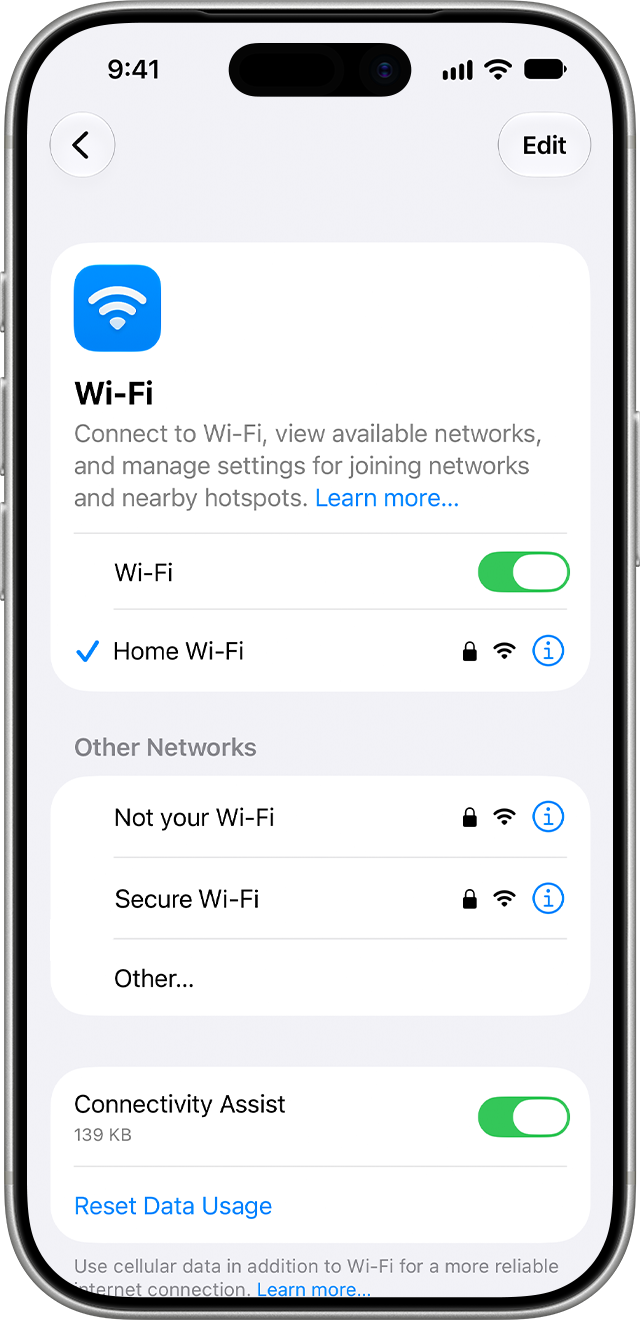
Open a webpage in Safari, switch between Wi-Fi and cellular data, and repeat the same short Siri request.
-
Temporarily pause a personal VPN or network filter and retest. Ask an administrator before changing a managed connection.
-
Restart the iPhone and test again. Check Apple’s System Status for a related outage before considering repair.
If switching networks resolves the error, focus on that connection or its filtering software. A successful webpage load alone does not prove every service Siri needs is reachable.
Method 2. Repair Persistent iOS Problems with Tenorshare Reiboot
If Siri still fails across working networks and the iPhone also freezes or behaves abnormally, an iOS fault is possible. Tenorshare Reiboot offers a guided desktop repair for supported iOS issues. Check for a public iOS update first (Method 4).
Tenorshare Reiboot offers several useful features for software troubleshooting:
-
A repair mode is designed to repair supported iOS issues while retaining personal data.
-
The software addresses problems such as boot loops, a stuck Apple logo, and recovery-mode issues.
-
Its Windows and Mac workflow guides users through firmware download and repair.
-
Separate recovery-mode entry and exit functions are available for supported devices.
Download Tenorshare Reiboot from its official site, confirm support for this iPhone and iOS version, and back up when possible.
-
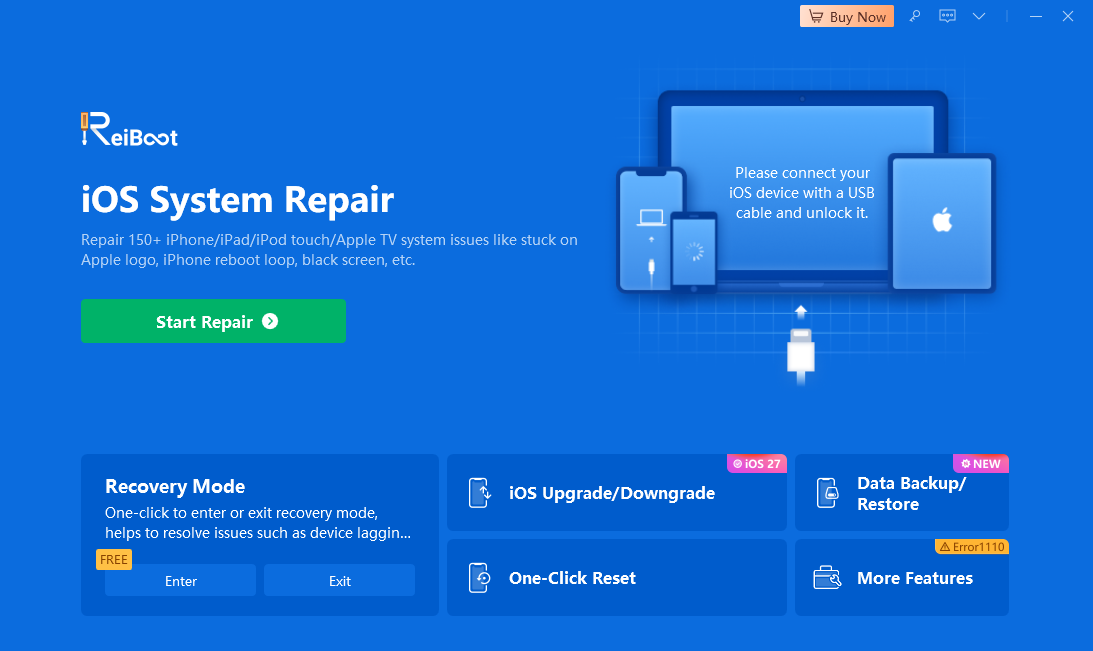
Open Tenorshare Reiboot, connect the iPhone by cable, and select Start Repair.
-
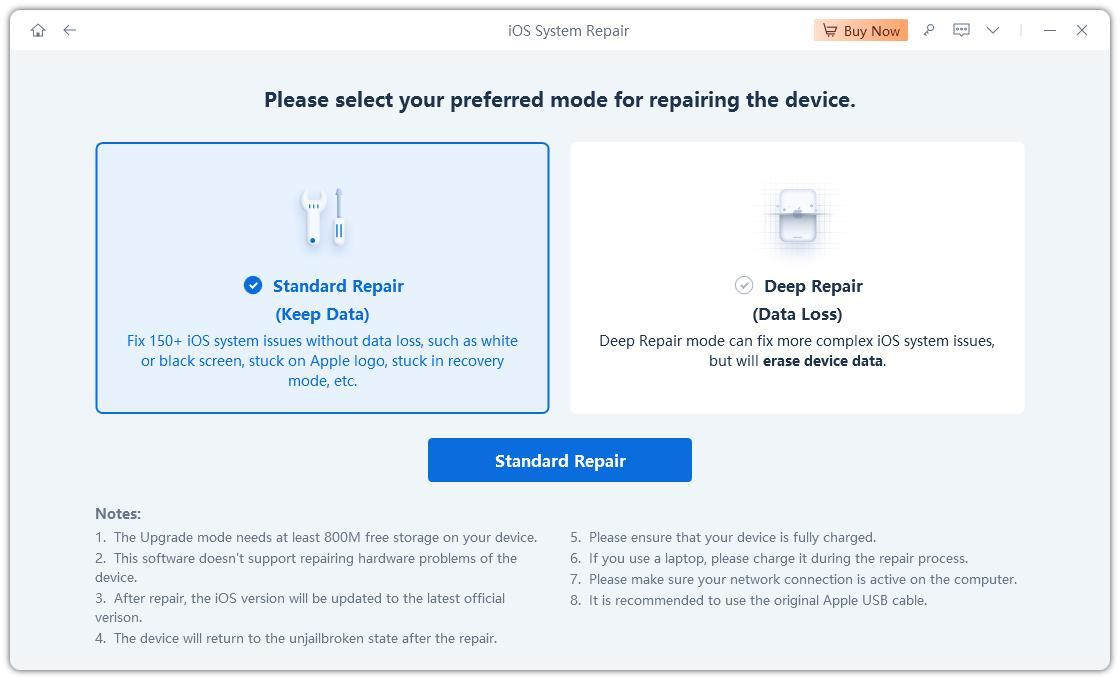
Select the mode designed to retain data and review the requirements.
-
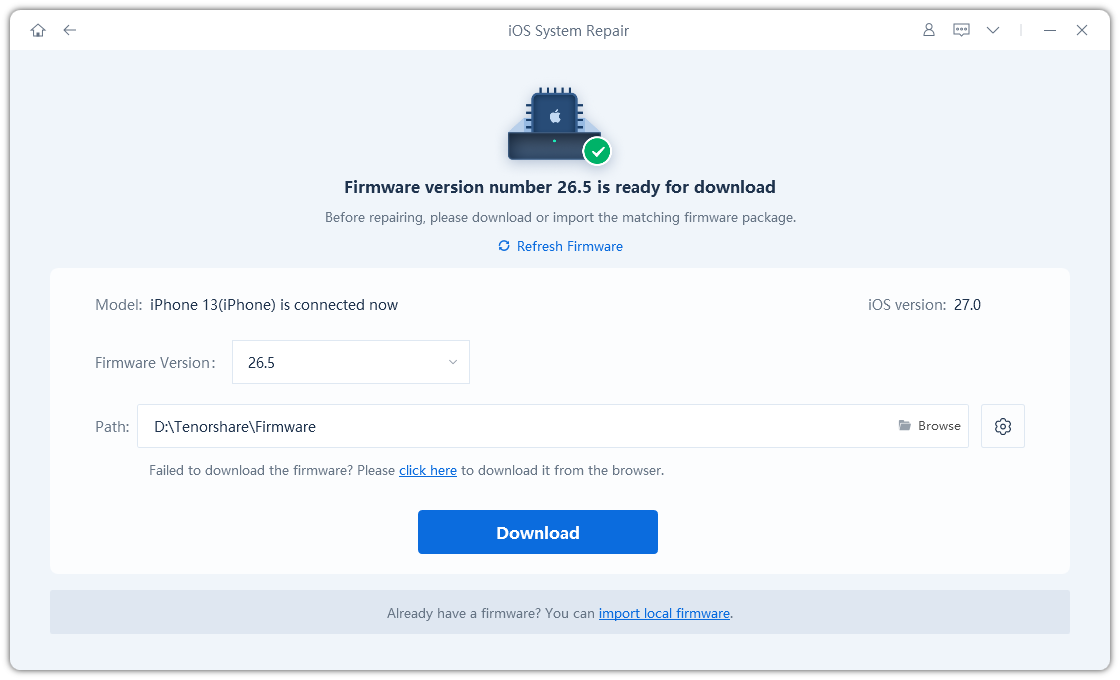
Confirm the detected device and download its compatible firmware.
-
Start the repair in the mode designed to retain data. Keep the iPhone connected until it finishes, then test Siri.
Pros: Guided repair with a mode designed to retain data. Cons: Repair requires a paid license and computer; it cannot fix service outages or hardware faults. Deep Repair erases data and is not a routine next step for this Siri error.
Video Tutorial: Siri AI Not Working on iPhone
Official Siri AI troubleshooting overview; menus and availability vary by iOS version.
Method 3. Reconfigure Siri When Voice Activation Fails
Use this method if Siri does not wake reliably or misunderstands speech. It is unlikely to help when Siri transcribes requests correctly.
-
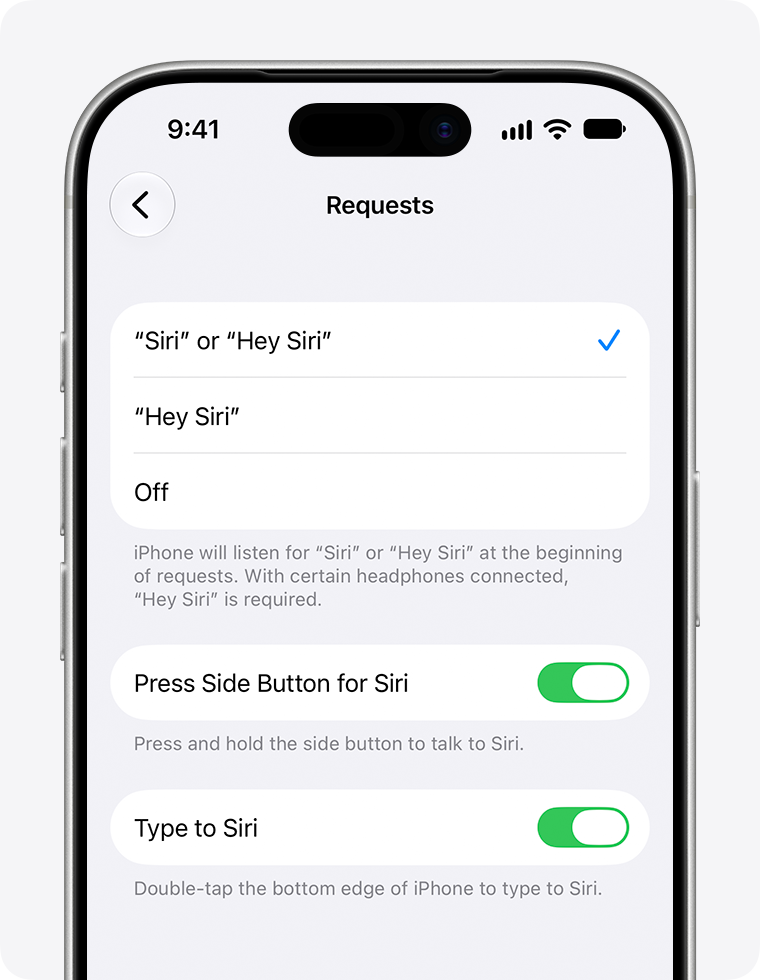
Open Settings > Siri or Apple Intelligence & Siri > Requests or Talk & Type to Siri. Switch voice activation off and back on; complete setup if prompted.
-
Repeat the same request using the Siri button or typing, then compare results.
Limitation: This addresses activation and recognition problems, not every request-processing failure. If typed requests work but spoken requests consistently fail, check microphone input rather than repeatedly resetting Siri.
Method 4. Update iOS and Check the Affected App
Best for: The error started after a software change, or Siri works normally except for one app or action.
-
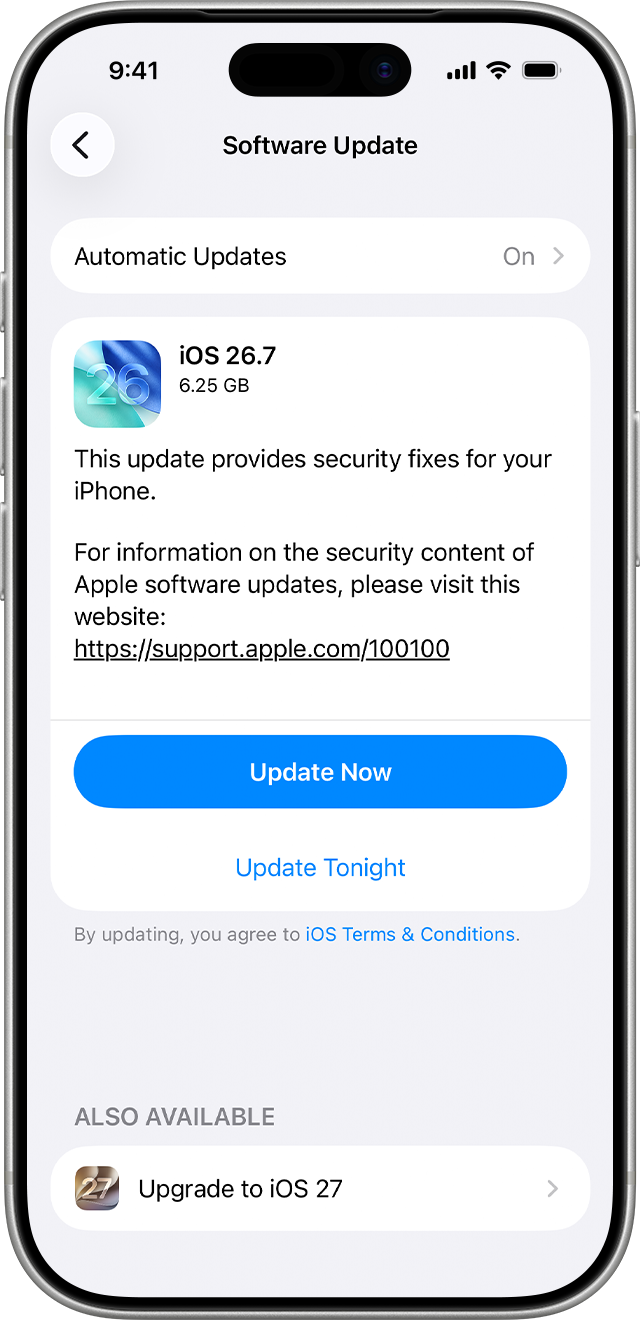
Back up the iPhone, then install an available public update in Settings > General > Software Update. Connect to power and Wi-Fi.
-
Update the affected app, then test the same task in the app. Compare it with an unrelated Siri request; if only the app fails, contact its developer.
An update may help, but it is not guaranteed to fix Siri. Before deleting an app, confirm its local data is backed up.
Part 3. Tips When Siri Still Cannot Complete Requests
Record one failing command, the iPhone model and iOS version, whether switching networks helps, and whether typing works. These details give support a clearer starting point.
For a continuing connection problem, consider Reset Network Settings only after simpler checks fail. It removes saved network settings, including Wi-Fi passwords; it is not the same as erasing the iPhone. Consult IT first on a managed device.
If voice recordings are also unclear, or the phone has physical damage, seek a hardware assessment. Reinstalling software cannot repair a damaged microphone.
Part 4. FAQs About Siri Something Went Wrong
Why Does Siri Fail Even Though Wi-Fi Works?
A Wi-Fi connection does not guarantee that every online service is reachable. Filtering, connection instability, or a remote service issue may still affect requests. Try cellular data or another trusted network and compare the same command.
Can I Fix This Siri Error without a Computer?
Yes, many checks need only the iPhone: restart it, test another network, review Siri activation, and install an available update. Desktop repair is an optional route for persistent software problems, not a requirement for every Siri error.
Will Resetting Siri Delete My Photos or Messages?
Changing Siri’s activation settings does not erase your photo library or messages. However, resetting Siri settings, resetting network settings, and erasing the iPhone are different actions. Read the confirmation screen rather than treating every reset option as interchangeable.
Why Does Siri Work for Some Requests but Not Others?
Different requests can depend on different apps, permissions, accounts, or online services. If a timer works but one app action fails, test that app directly. A single failing action is not enough evidence to justify repairing the entire operating system.
Should I Factory Reset My iPhone to Fix Siri?
Not as an early troubleshooting step. Erasing the phone removes its content and may leave a network or service-side problem unchanged. Finish the targeted checks first, keep a backup, and consult support before choosing a destructive recovery option.
Conclusion
Fixing Siri Something Went Wrong on iPhone starts with identifying what fails: the connection, voice recognition, one app, or broader system behavior. Use the matching checks first. For a persistent supported iOS fault, consider Tenorshare Reiboot’s mode designed to retain data after backing up and confirming compatibility.
