
Updated on 2026-09-10 / iPhone Tips
In most cases, iPhone 18 CarPlay not working is a pairing or software issue, not a hardware fault --- and it's a known pattern: similar CarPlay disruptions appeared after past iOS 18 and iOS 26 updates, affecting cars from Honda, Ford, Mazda, and Audi. The problem may appear after setting up a new iPhone, installing iOS 27, changing Wi-Fi/Bluetooth settings, or plugging in via USB --- some users see the phone charging without CarPlay ever opening, others get repeated disconnections.
We tested every fix below across wired and wireless CarPlay setups to confirm which ones actually resolve the issue. Follow the 11 fixes in order, from quick settings checks to deeper system repair.
Part 1. Why Is iPhone 18 CarPlay Not Working? 3 Real Causes
When iPhone 18 CarPlay not working becomes a problem, the symptom often points directly to the cause. Check this table first before changing multiple settings at random.
Symptom-to-Fix Quick Reference Table
| Symptom | Likely Cause | Fastest Fix |
|---|---|---|
| iPhone charges but the CarPlay icon never appears | USB accessory restriction or cable issue | Jump to Part 2, Fix 2 |
| CarPlay connects, then drops every few minutes | Wi-Fi/Bluetooth interference or an active VPN | Jump to Part 2, Fix 3 |
| Works wired but fails wirelessly, or vice versa | Wireless CarPlay cache conflict | Jump to Part 2, Fix 1 |
| Worked before the update but stopped after iOS 27 | System-level software bug | Jump to Part 3 |
3 Real Causes Behind iPhone 18 CarPlay Failures
-
New-Device First-Time Pairing Failure
A new iPhone doesn't always complete the first CarPlay handshake correctly: old pairing data can stay stored in the car's infotainment system while the iPhone creates a new device profile, causing a conflict even in a car that worked fine with your previous phone. This mainly affects wireless CarPlay, since that connection depends on Bluetooth, Wi-Fi, and the saved CarPlay profile all matching up (see Fix 1).
-
iOS 27 Software Bugs
Software bugs can disrupt the handshake between an iPhone and a car, especially in an early iOS release or point release. This isn't unique to iOS 27 --- iOS 18.4 caused widely reported CarPlay failures across Honda, Ford, Mazda, and Audi vehicles in 2025, with symptoms including failed launches, repeated wireless disconnections, and a phone that charged but never opened CarPlay.
-
Outdated Car Head-Unit Firmware
The iPhone isn't the only side of the connection --- the car's head unit also needs firmware that's compatible with the current CarPlay system, and outdated firmware can cause failures during the USB or wireless handshake. This is why iPhone 18 CarPlay issues sometimes show up in only one car: testing the same iPhone in another compatible vehicle quickly tells you whether the fault is the phone or the head unit.
Part 2. 7 Fixes for iPhone 18 CarPlay Not Working
Start with these settings-level fixes. They solve most pairing, cache, permission, and connection problems without erasing your iPhone.
Fix 1. Reset the CarPlay Pairing
If iPhone 18 CarPlay not working started after moving to a new iPhone or updating iOS, remove the saved connection and pair the devices again.
-
Open Settings > General > CarPlay.
Select your car.
-
Tap Forget This Car.
-
Remove or forget the iPhone from your car's Bluetooth or phone connection list.
Restart both devices.
-
Connect the iPhone again and complete the CarPlay setup.
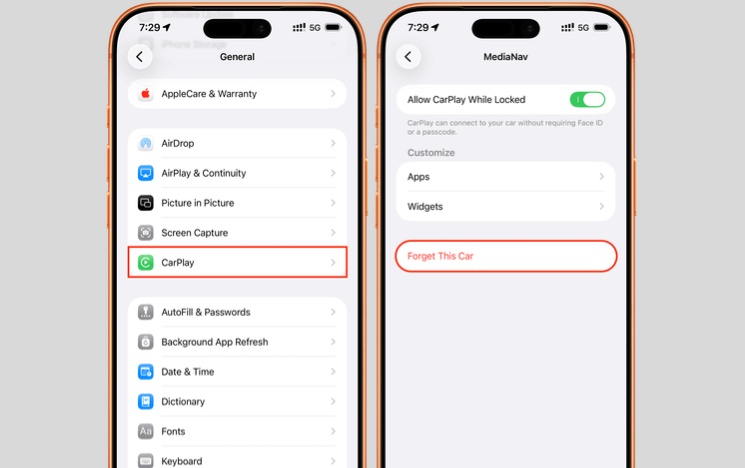
For wireless CarPlay, keep both Bluetooth and Wi-Fi enabled during setup. Apple also recommends putting the vehicle in wireless or Bluetooth pairing mode and selecting it from Available Cars.
Fix 2. Check Siri, Bluetooth & USB Accessory Settings
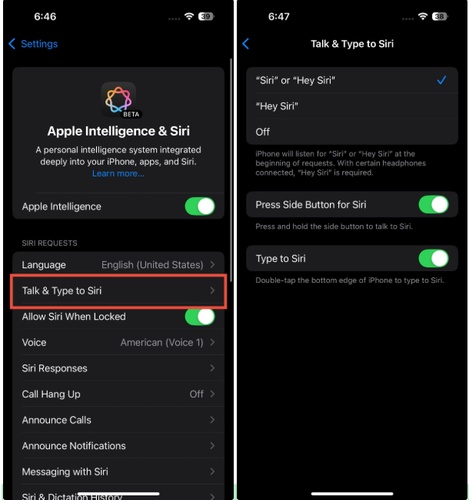
A simple setting can make it look like iPhone 18 wired CarPlay not working, even though the phone still charges. First, check Settings > Apple Intelligence & Siri and make sure Siri is enabled. Then check Bluetooth. For wireless CarPlay, turn on Wi-Fi and Bluetooth. For wired connections, unlock the iPhone before connecting it and check Settings > Privacy & Security > Wired Accessories if the car cannot communicate with the phone. Apple explains that locked-device accessory security settings can block communication with USB accessories.
Fix 3. Disable VPN Before Connecting
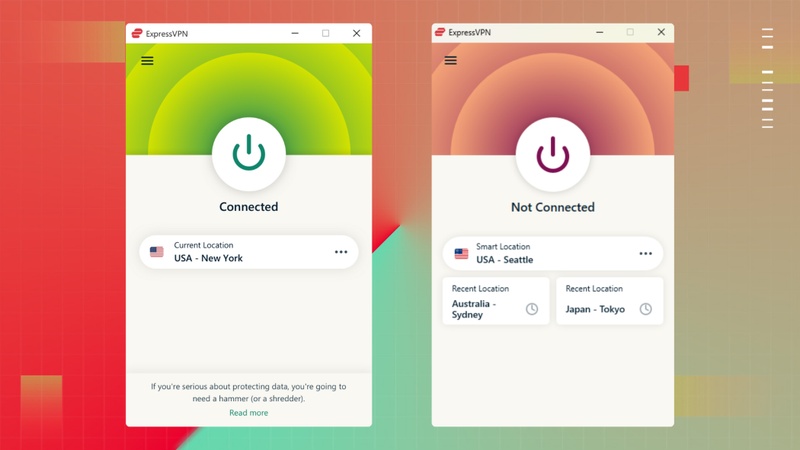
An active VPN can interfere with the network connection used by wireless CarPlay. If carplay keeps disconnecting after update, turn off your VPN completely before testing the connection again.
Go to Settings > VPN, or disconnect the VPN from its app. Then restart the wireless CarPlay connection. Also check whether another Wi-Fi device or hotspot is creating interference.
Users have reported cases where CarPlay started working again after disabling a VPN, although results can vary depending on the service and vehicle.
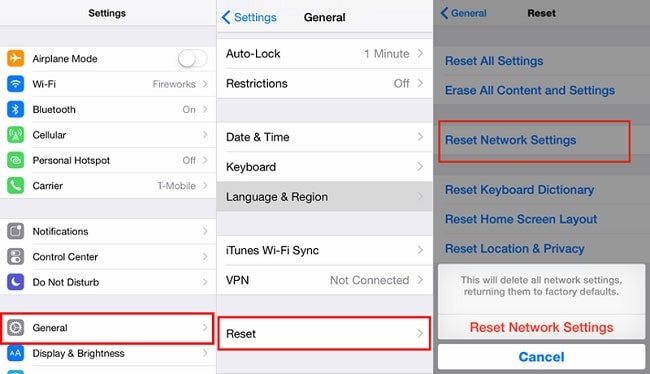
Fix 4. Reset Network Settings
If Bluetooth or Wi-Fi settings became unstable after an update, reset the network configuration.
Go to:
Settings > General > Transfer or Reset iPhone > Reset > Reset Network Settings
This removes saved Wi-Fi networks, Bluetooth connections, VPN settings, and other network preferences. You will need to reconnect to Wi-Fi afterward. This fix can help when iPhone 18 CarPlay work when plugged in but wireless CarPlay refuses to connect. It can also help when the reverse happens and the wireless connection works while the wired connection behaves differently.
Fix 5. Restart iPhone and the Car's Head Unit Together
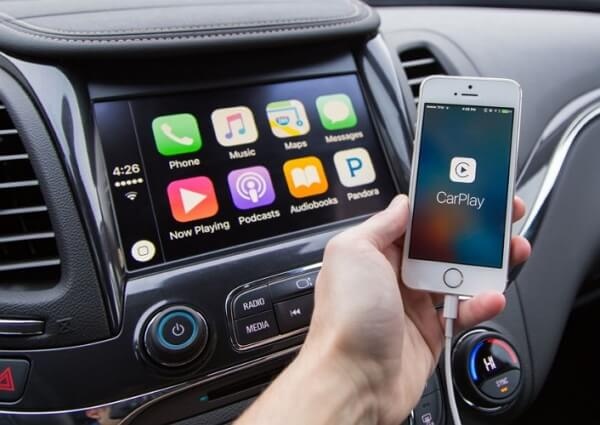
Restarting only the iPhone may not clear the connection problem. The car's head unit also stores temporary information about the phone and CarPlay session.
Turn off or restart your iPhone. Then restart the infotainment system according to the vehicle's instructions. Some vehicles require you to turn the engine or ignition off completely and wait before starting again.
After both systems restart, connect the iPhone again. This simple step can clear temporary problems that cause iPhone 18 CarPlay not working after update.
Fix 6. Test Wired and Wireless CarPlay Separately
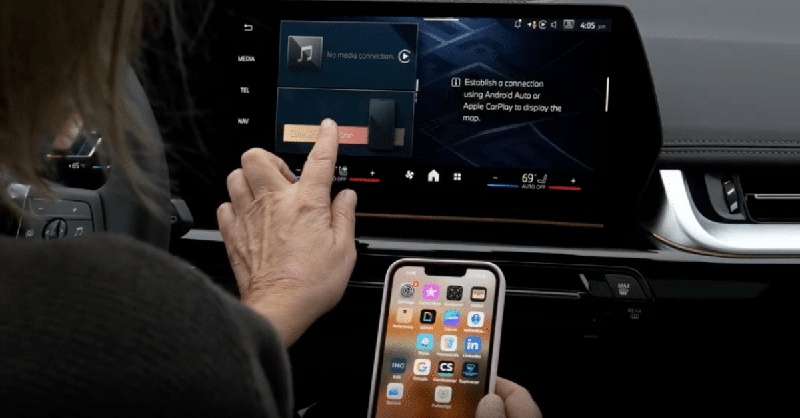
Do not test both connection methods at the same time when troubleshooting. If your vehicle supports wired and wireless CarPlay, test each one separately. Connect the iPhone with a compatible USB cable first. If that works, remove the cable and test wireless CarPlay. If the wired version fails but wireless works, the cable, USB port, or accessory settings may be responsible.
This test helps narrow down iPhone 18 wired CarPlay not working without guessing.
Fix 7. Check Screen Time Restrictions
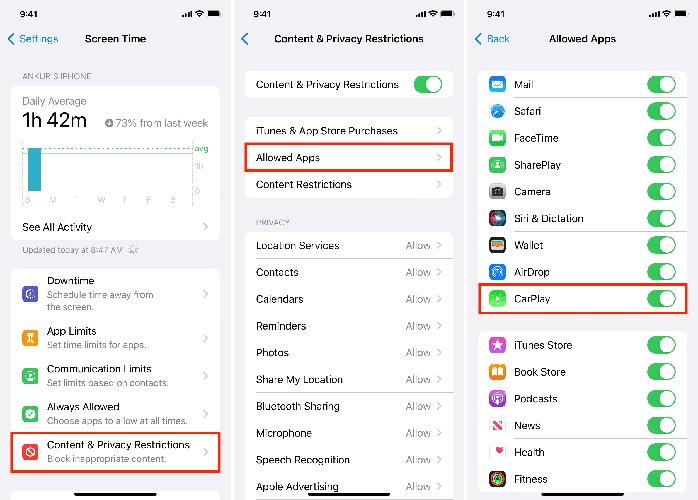
Screen Time can restrict CarPlay. If the setting is disabled, the car may not appear correctly even when the phone connects.
Go to:
Settings > Screen Time > Content & Privacy Restrictions > Allowed Apps & Features
Make sure CarPlay is allowed. Then restart the iPhone and reconnect. This setting has also helped users who reported CarPlay problems after previous iOS updates.
Part 3. When Software Update Breaks CarPlay: System-Level Repair
The settings-level resets in Part 2 can fix pairing and cache problems. However, if CarPlay stopped working immediately after installing an iOS 27 build, the problem may sit deeper in the system files that manage the USB or Wi-Fi accessory handshake.
Tenorshare ReiBoot: System Repair Without Starting With a Full Restore
If apple carplay not working after iOS 27 update continues after basic fixes, a system repair tool such as Tenorshare ReiBoot can be worth considering. It helps fix deeper iOS problems that may affect CarPlay after a software update. Instead of immediately erasing your iPhone and starting with a complete factory restore, ReiBoot offers repair options designed to fix common system issues. You can use it when CarPlay problems appear alongside other update-related errors, freezes, or connection failures. Before running any major repair, back up important data to protect your files and settings.
Key Features:
• Standard iOS System Repair: Helps fix common iOS system problems without immediately requiring a complete factory reset of your iPhone, including issues such as apps keep crashing after iOS 27 update.
• CarPlay Update Issue Support: Can help address software-related problems when iOS 27 CarPlay is not working after basic pairing, network, and connection fixes fail.
• Recovery Mode Control: Lets users enter or exit Recovery Mode when an iPhone needs deeper software troubleshooting.
• iOS Firmware Download: Downloads the required firmware package to help repair damaged or incomplete iOS system files, including when an iPhone is stuck on Preparing Update.
• DFU Mode Assistance: Provides options for deeper troubleshooting when a normal system repair does not solve the issue.
Steps to Use Tenorshare Reiboot
-
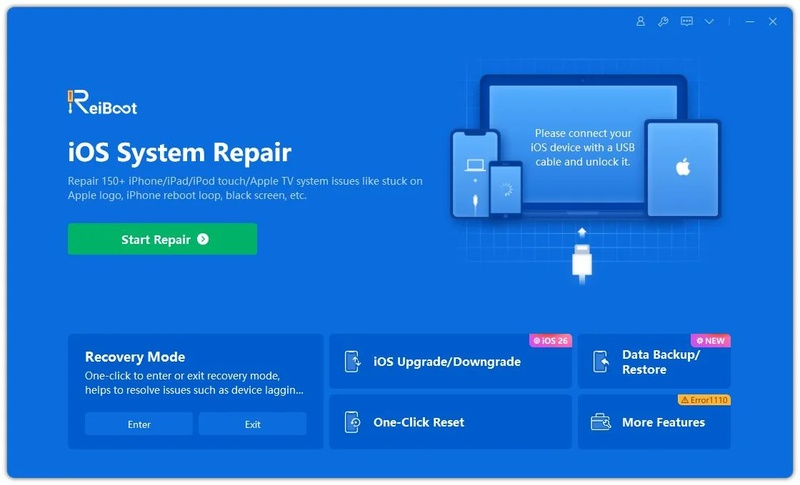
Step 1: Download ReiBoot on your Windows PC or Mac. After installation, open the software and connect your iPhone 18 using a working USB cable.
-
Step 2: Once ReiBoot detects the device, click the Repair Operating System option from the main screen.
-
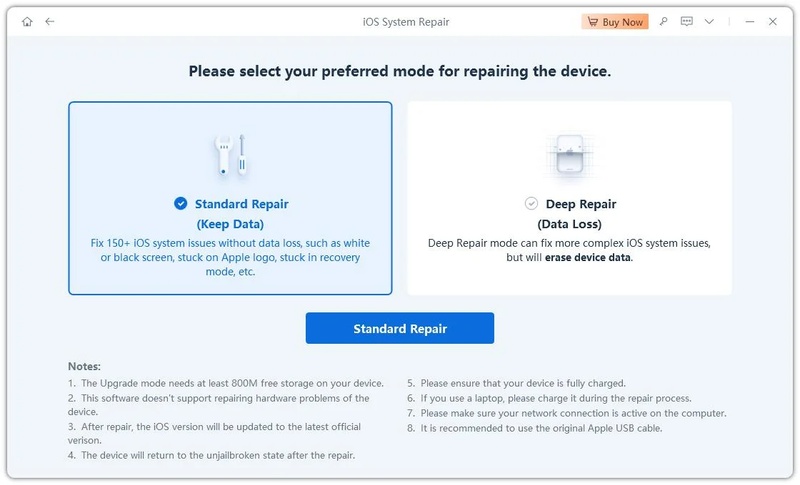
Step 3: Select Standard Repair to fix the iOS 27 stuck on DFU mode issue without deleting your photos, apps, or personal data.
-
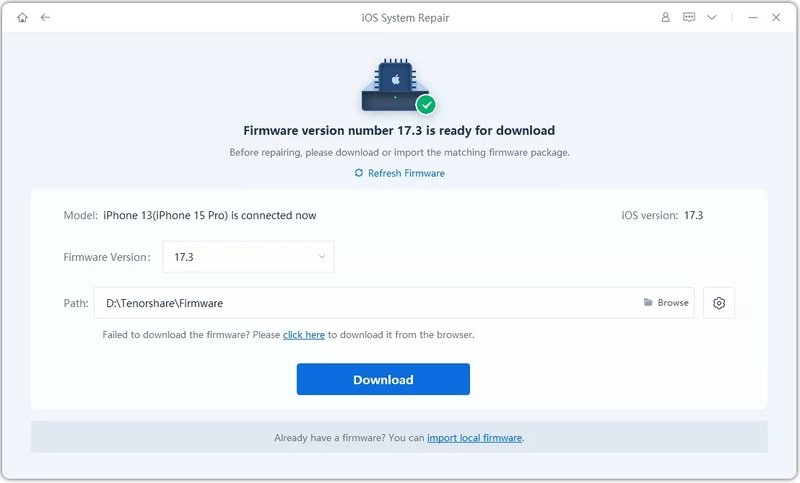
Step 4: ReiBoot will automatically detect the correct iOS firmware for your iPhone. Click Download and wait for the firmware package to finish downloading.
-
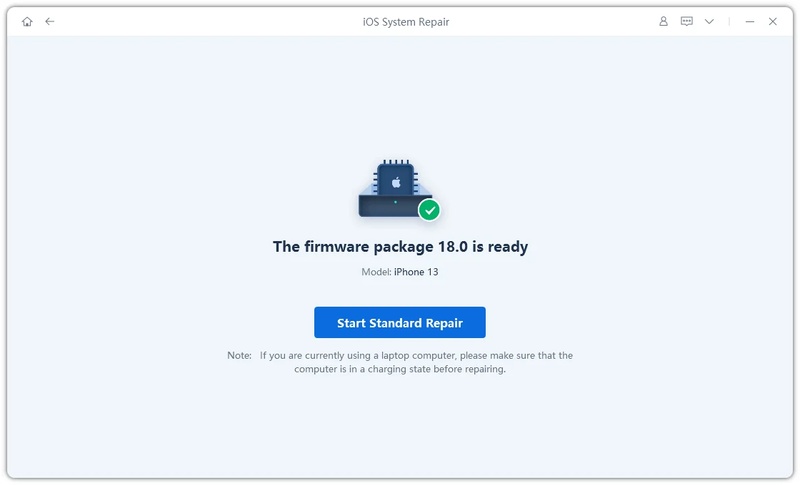
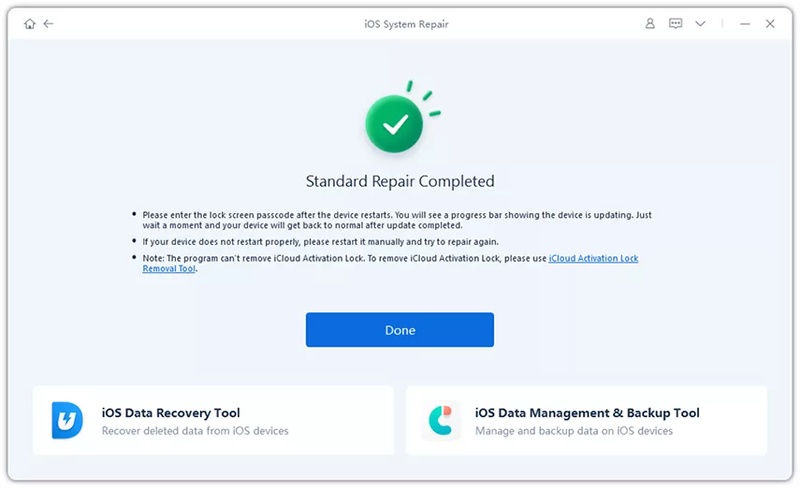
Step 5: Click Start Standard Repair and keep your iPhone connected during the process. ReiBoot will repair the damaged system files and fix the dfu mode iphone stuck problem safely.
-
Step 6: After the repair finishes, your iPhone will reboot normally. Once the Apple logo appears, the device should successfully exit DFU Mode.
Update to the Latest iOS 27 Point Release
Before doing a full restore, check for the latest iOS 27-point release.
Go to:
Settings > General > Software Update
Apple and other developers often fix early connection problems through smaller updates. Previous iOS releases also showed CarPlay problems that affected some users after a software update, so keeping the phone on the latest stable version can remove a known bug.
When to Do a Full DFU Restore
A DFU restore is a deeper troubleshooting step. Consider it only when:
-
CarPlay stopped immediately after an update.
-
Normal settings resets did not help.
-
The problem affects multiple compatible cars.
-
Other iOS functions also behave incorrectly.
-
A system repair attempt did not solve the issue.
Back up the iPhone before a full restore because the process can erase data. After restoring, test CarPlay before immediately restoring every old setting. This approach helps you check whether old settings or data caused the problem.
Part 4. Still Not Working? Car-Side & Cable Checklist
If iPhone 18 CarPlay not working continues after fixing the phone, inspect the car side.
1. Firmware Update on Your Head Unit
Check your vehicle manufacturer's website or dealership for infotainment firmware updates. Some cars receive updates through Wi-Fi, USB, or dealer service. An old head unit may work with an older iPhone but struggle after a new iPhone or iOS update. Update the firmware first, then remove the old CarPlay pairing and reconnect the iPhone.
2. Certified Cable vs. Third-Party Cable
If iPhone 18 Pro CarPlay issues appear only when using a cable, try another high-quality data cable. A damaged or charging-only cable may power the phone but fail to transfer the data required for CarPlay. Use a cable designed for both charging and data transfer. Test another USB port if your vehicle has more than one. The Mac Observer also recommends checking both the cable and available USB ports when CarPlay does not launch.
3. Known Compatibility Reports by Car Brand
Check current reports for your exact vehicle brand, model, model year, and infotainment version. CarPlay problems may affect only certain combinations. Toyota, Honda, Ford, Mazda, Audi, and other brands have appeared in user reports during past iOS-related CarPlay problems. That does not mean every vehicle from those brands has a problem. It simply shows why testing another iPhone or another vehicle can help identify whether the issue comes from the phone or head unit.
Part 5. FAQs About iPhone 18 CarPlay Not Working
1. Did the new Apple update mess up CarPlay?
It can. Some iOS updates have caused temporary CarPlay bugs for certain users. If CarPlay worked before the update and stopped immediately afterward, check for a newer point release and reset the CarPlay connection.
2. Why isn't Apple CarPlay working on my new iPhone?
New-device pairing conflicts are common. If iPhone 18 CarPlay not working on a new phone, forget the car on the iPhone, remove the old phone from the car, and complete a fresh pairing process.
3. Why isn't Apple CarPlay working after the iOS 27 update?
The issue may come from a temporary software bug, damaged system files, changed network settings, or a pairing conflict. Try the seven settings-level fixes first. If apple carplay not working after iOS 27 update remains, update iOS or consider a system repair.
Conclusion
iPhone 18 CarPlay not working is rarely a hardware failure --- it's almost always a pairing conflict, a stuck setting, or a software bug that a reset or update can fix. If the issue started right after setup, reset the CarPlay pairing first. If it started right after updating to iOS 27, install the latest point release before anything deeper. If basic resets don't help and the problem looks system-level, Tenorshare ReiBoot offers a repair path short of a full restore. Work through the fixes in order --- most users solve this without replacing a cable, resetting the whole iPhone, or assuming the car itself is broken.
