Updated on 2026-10-21 / iPhone tips
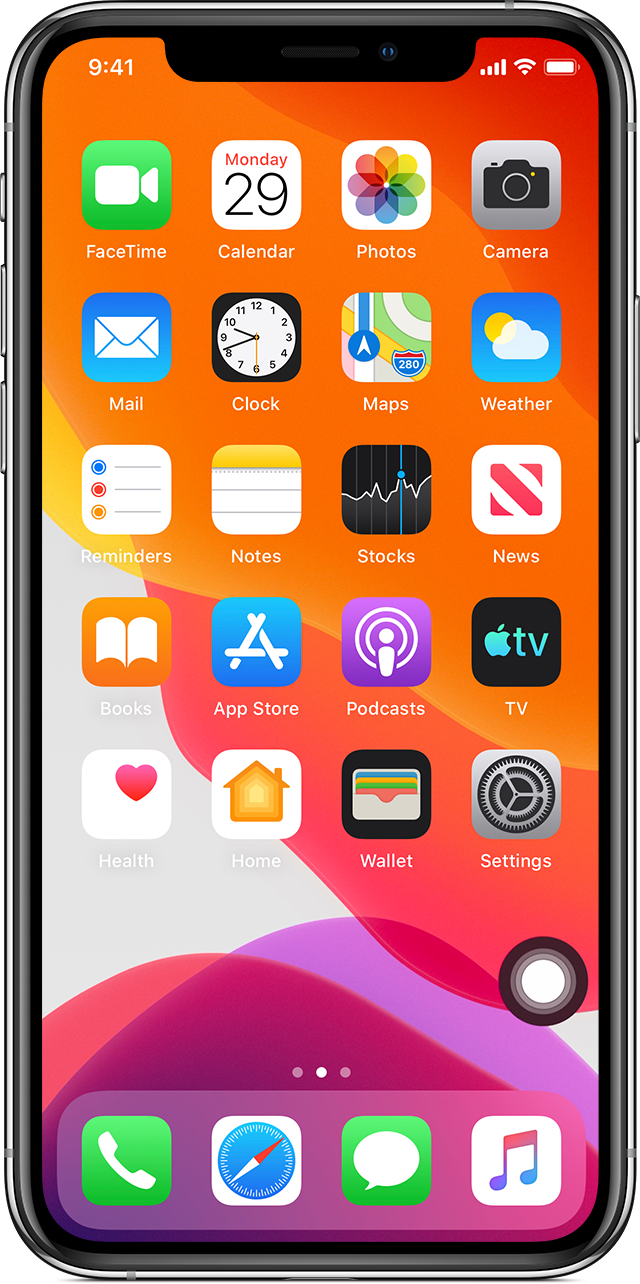
A white dot on an iPhone screen is not always a damaged pixel. A floating button that opens a menu is often an accessibility control; a dot that follows a connected mouse may be a pointer. A fixed bright spot that remains in one place needs a different investigation.
Before resetting anything, notice whether the dot moves, opens a menu, or stays visible across apps. Start with recognizable controls before investigating software or display faults.
Part 1. Identify the White Dot Before Trying a Fix
Identify the dot’s behavior first. A movable control, an accessory pointer, and a fixed bright spot need different checks; appearance alone cannot diagnose damaged hardware.
| Dot Behavior | Possible Explanation | First Check |
|---|---|---|
| Moves and opens a menu | AssistiveTouch control | Review accessibility settings |
| Moves with an accessory | Pointer or interaction indicator | Disconnect the accessory |
| Appears in one app | App content or artifact | Compare another app and restart |
| Fixed in one physical spot | Surface or display issue | Inspect gently; seek service if persistent |
Compare a screenshot on another device, but do not treat it as a definitive hardware test: some overlays are absent from captures. Check the screen while off, too.
After ruling out normal controls and accessories, consider Tenorshare Reiboot for a suspected persistent iOS glitch. It cannot repair a physical display spot; see Part 3 for fixed marks or impact damage.
Part 2. How to Remove a White Dot from an iPhone Screen
Choose the method that matches the dot’s behavior; a normal accessibility button does not need system repair.
Method 1. Turn Off AssistiveTouch if You Do Not Need It
Best for: A movable white button that opens the AssistiveTouch menu. Keep it enabled if you rely on its accessibility functions.
-
Tap the dot to check whether it opens an accessibility menu.
-
Open Settings > Accessibility > Touch > AssistiveTouch and switch it off if you do not use it.
-
If it returns after a button shortcut, review Settings > Accessibility > Accessibility Shortcut.
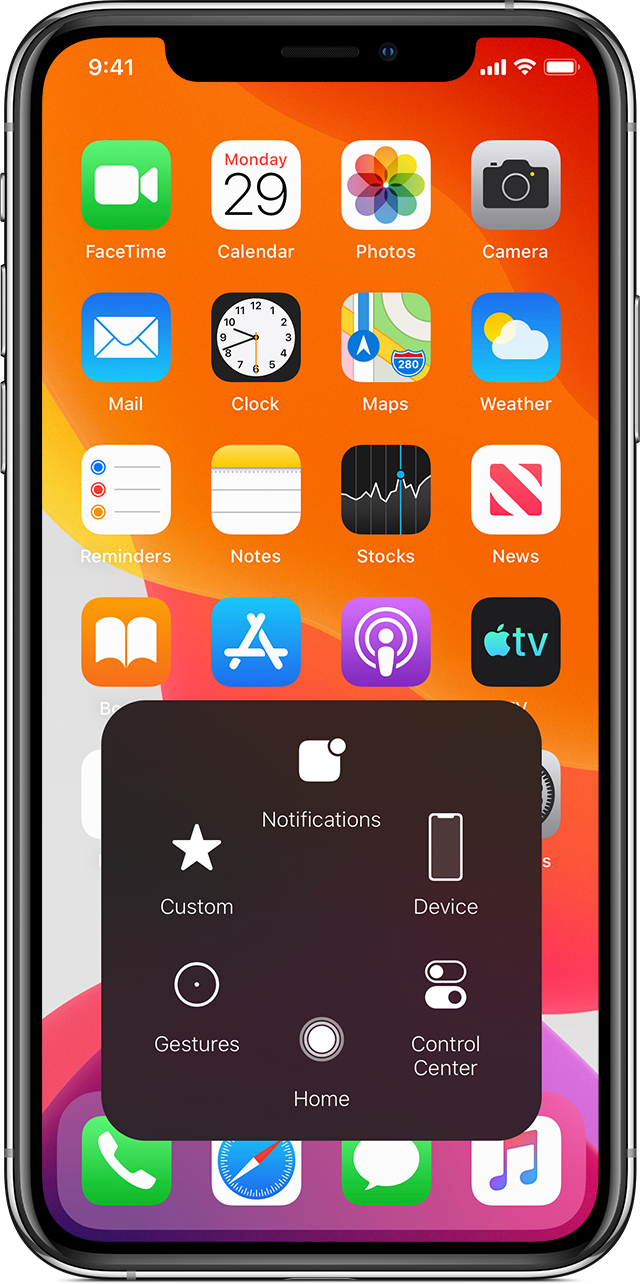
If you rely on AssistiveTouch, consider moving it or adjusting idle opacity instead. A useful accessibility control does not need to be removed.
Turning off AssistiveTouch affects only that control. It does not remove a hardware mark or an unrelated pointer.
Method 2. Repair a Persistent Software Glitch with Tenorshare Reiboot
If the dot behaves like a software overlay across apps and still persists after the accessory checks in Method 3 and the restart and update checks in Method 4, consider Tenorshare Reiboot for supported iOS software faults. It cannot repair dead pixels or physical display damage, and an ordinary AssistiveTouch button does not need system repair.
The product offers:
-
A guided iOS repair process on Windows and Mac.
-
A repair mode designed to retain data on supported devices.
-
In-app firmware downloading for the detected device.
-
Recovery-mode functions for supported startup-related problems.
Back up where possible and check device compatibility and license requirements first. A visible spot alone does not establish that system repair will help.
-
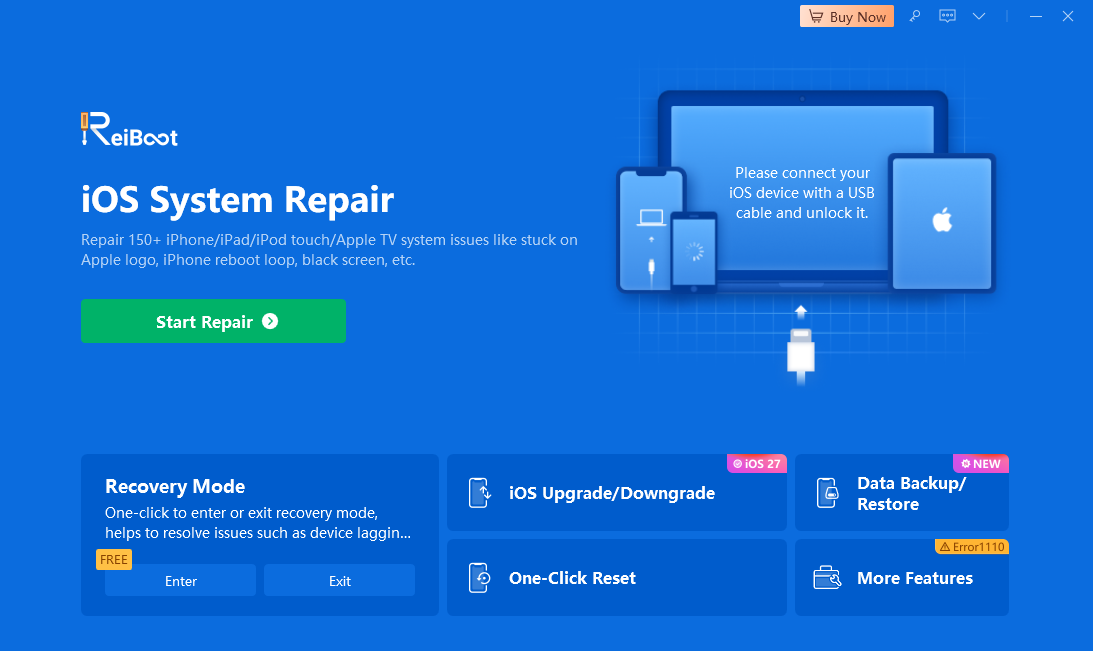
Connect the iPhone, launch Tenorshare Reiboot, and open Start Repair.
-
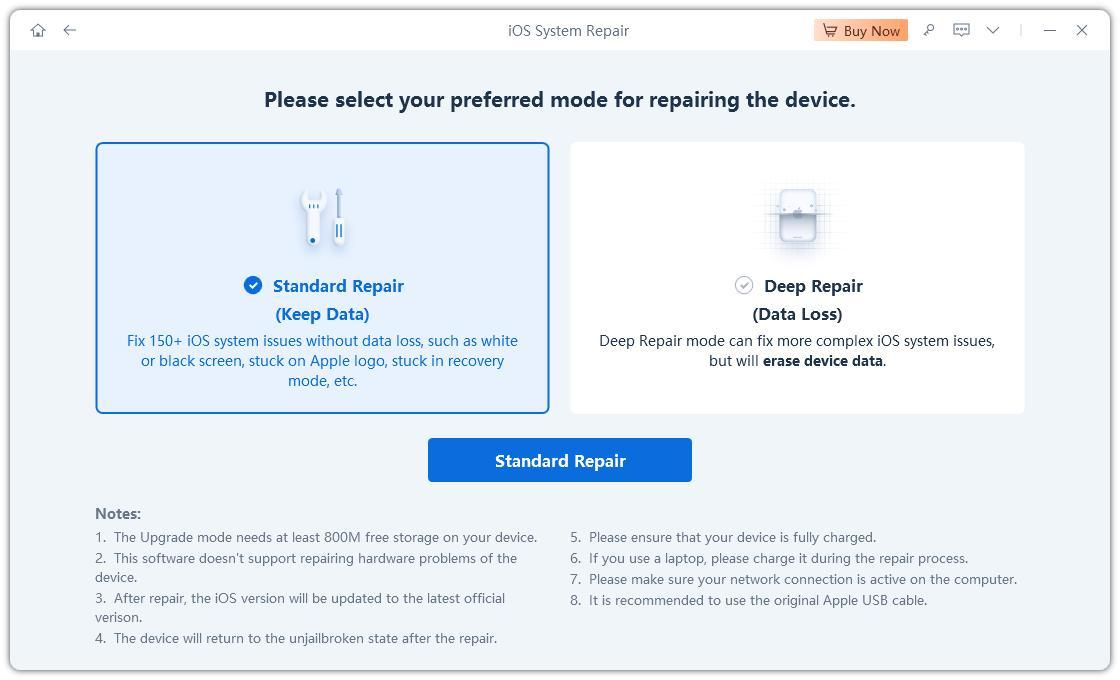
Choose the mode designed to retain data and review the displayed conditions. Do not choose an erasing repair mode.
-
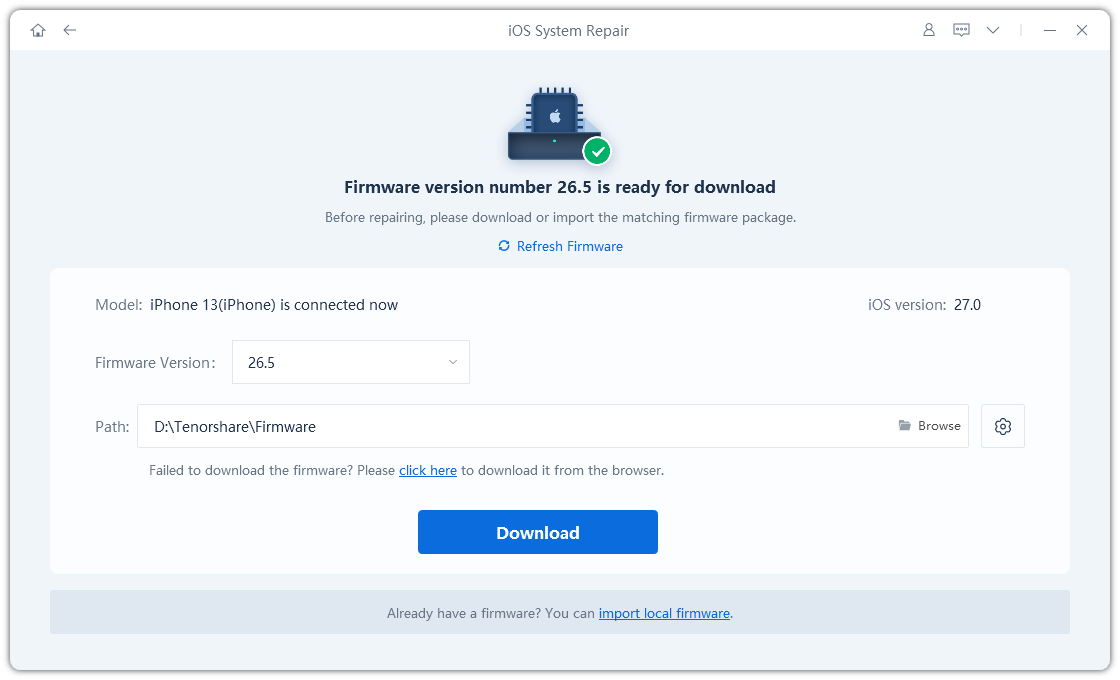
Confirm the model and download the compatible firmware offered by the program. Use the compatible firmware for your actual device, not the version pictured.
-
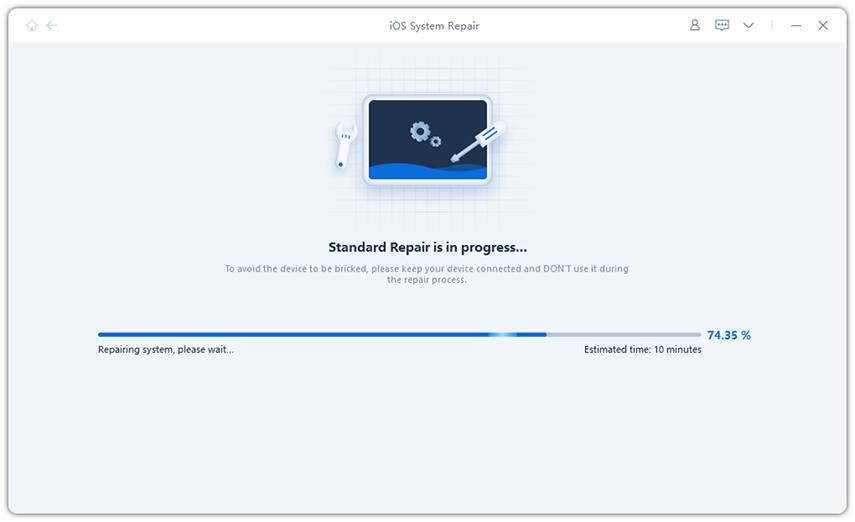
Start repair, keep the device connected, and check the screen after completion.
Pros: Tenorshare Reiboot provides guided repair for supported software faults. Cons: It requires a paid repair license and cannot fix display hardware. Deep Repair erases data.
Method 3. Disconnect Pointing Accessories and Inspect the Surface
-
Disconnect any mouse or trackpad and check whether the dot disappears.
-
Inspect the display with the screen off. Before cleaning, unplug all cables and turn off the iPhone, then gently use a soft, lint-free cloth.
-
If a protector seems involved, inspect it without pressing or scraping the screen.
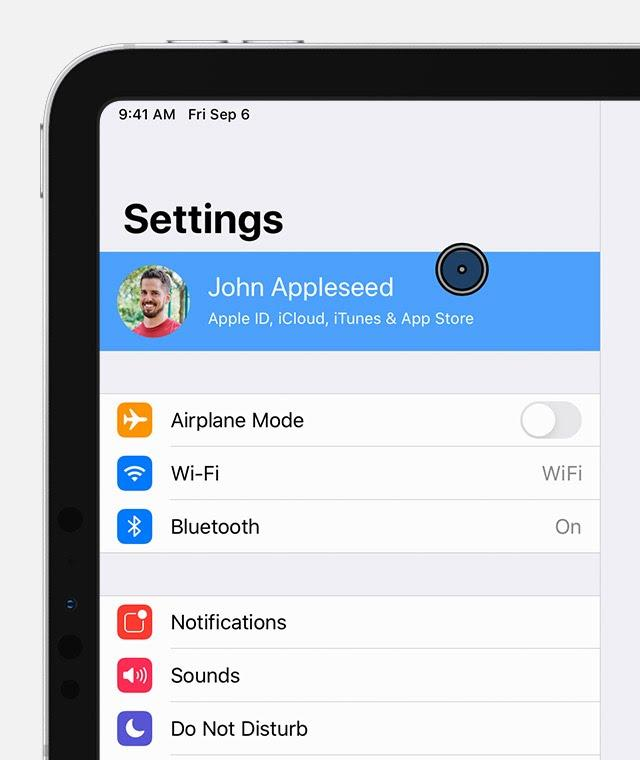
A mark visible with the screen off may be on the surface. Inspect gently; see Part 3 for signs that need service.
Limitation: Removing an accessory helps identify a pointer; cleaning does not repair internal display damage. The illustration shows the pointer concept, not an iPhone-specific menu path.
Method 4. Restart and Check Whether One App Is Responsible
-
Close the affected app and check the Home Screen and another app.
-
Restart the iPhone normally. Use a force restart only if it is unresponsive, following instructions for that model.
-
Back up the phone, then install available app and iOS updates.
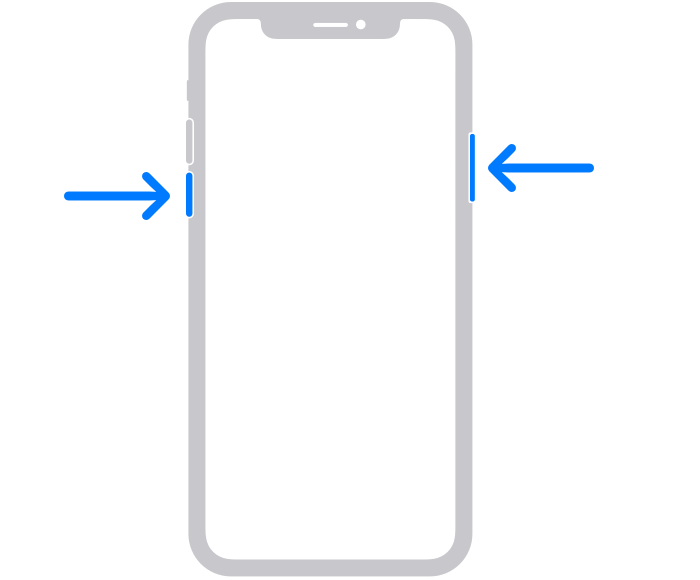
If the dot appears only in one app, investigate that app. After restarting, repeat the activity that triggered it before deciding the problem is resolved.
Pros: Restarting and updating can help isolate a temporary app or system artifact without a factory reset. Cons: They will not repair a damaged display or remove a deliberately enabled control.
Part 3. White Dot Still There? When to Seek Screen Repair
Know when to stop software troubleshooting. If the white dot stays in the same physical position, grows, or appears alongside touch problems after an impact, arrange an inspection with Apple or an authorized service provider. These signs warrant assessment rather than another reset.
Prepare before your appointment. Back up the iPhone while it remains usable. Note when the spot appeared, whether it changes across apps, and which checks you have already tried. Photograph the screen with another device if the mark does not appear in screenshots.
Avoid making the problem worse. Do not press, scrape, or “massage” the display. Repeated factory resets cannot repair physical damage and create unnecessary backup-and-restore work.
Part 4. FAQs About a White Dot on an iPhone Screen
1. Is the Floating White Dot a Virus?
Its appearance alone does not establish malware. A movable dot that opens a control menu is often AssistiveTouch. Identify how it behaves and review accessibility settings before downloading security tools or resetting the phone.
2. Why Does the Dot Come Back After I Disable It?
An assigned accessibility shortcut may enable AssistiveTouch again. Notice whether the dot returns after a particular button action and review the shortcut assignment. Do not disable accessibility features another person relies on without discussing it first.
3. Is a White Dot the Same as the Green or Orange Indicator?
No. The camera and microphone privacy indicators have a different purpose. A white floating control or fixed bright spot should be investigated by its behavior and position rather than treated as the same status indicator.
4. Can a Screenshot Confirm a Broken Screen?
No single screenshot provides a complete diagnosis. Viewing it on another device can help: an image artifact that travels with the file differs from a mark visible only on the original display. However, overlay capture behavior can complicate that comparison.
5. Should I Factory Reset the iPhone?
Not as the first response to a dot. Identify controls, accessories, and app behavior before considering invasive measures. A reset will not mend physical display damage and can create unnecessary data loss or setup work.
Conclusion
The right white dot on iPhone screen fix depends on what the dot is. Disable an unwanted accessibility control, test accessories, and check software before considering Tenorshare Reiboot. A fixed physical bright spot belongs with a hardware technician, not an endless sequence of resets.