
Updated on 2026-09-15 / iPhone Tips
The top of iPhone screen blur is a common issue linked to software glitches, display settings, app errors, or minor screen damage. It can also appear after an iOS 27 update or when features like Zoom or Display Zoom are enabled by mistake.
Many users search why is the top of my iphone screen blurry when facing this problem. This guide explains the main reasons and provides 7 easy fixes to restore clear screen quality quickly and safely.
Part 1. Why Is the Top of My iPhone Screen Blurry?
The top area of an iPhone screen can appear blurry due to small system glitches, display scaling issues, or temporary software errors. It may also happen after an iOS update or when the interface fails to load properly. In some cases, visual settings or app bugs can affect how the status bar looks.
Why is my time and battery blurry on iPhone:
-
iOS software glitch or UI lag
-
After system update or restart issue
-
Display Zoom or accessibility settings enabled
-
App rendering or UI loading bug
-
Temporary cache or memory overload
-
Screen protector causing slight distortion
-
Minor hardware or display panel issue
Part 2. How to Fix the Top of My iPhone Screen Blurry?
The top of an iPhone screen can look blurry due to small software glitches, display settings, or wallpaper issues. It is usually a minor problem and can be fixed easily without repair.
These fixes help with issues like why is the top of my iphone screen blurry iOS 26/27.
1. Quick Fixes to iPhone Screen Blurry at the Top
These are fast solutions that refresh your iPhone and fix temporary display glitches. Here for quick fix why is my time blurry on my iphone lock screen;
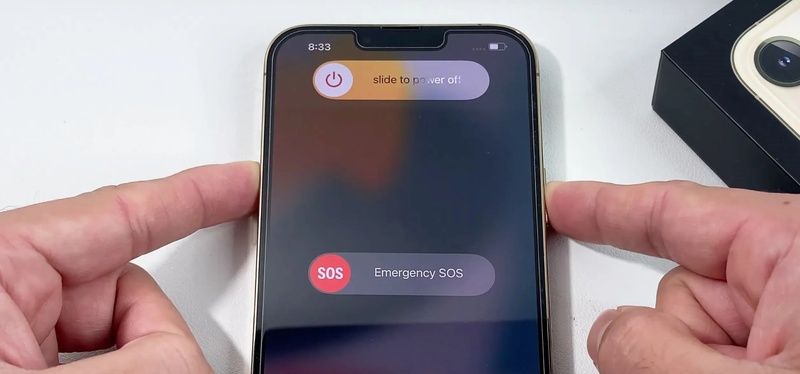
1. Restart Your iPhone to Fix Screen Blur
A restart is the easiest fix. It clears temporary system errors and reloads the display engine. Many users notice the blur disappears right after reboot because the UI is freshly rendered again.
-
Step 1: Press and hold Side + Volume button (or only Side button on older iPhones).
-
Step 2: Slide to power off, wait 20--30 seconds, then turn it back on.
2. Toggle Light/Dark Mode
Switching between Light Mode and Dark Mode forces the system to redraw interface elements like the status bar, time, and battery icons. This can fix soft blur or faded visuals at the top of the screen.
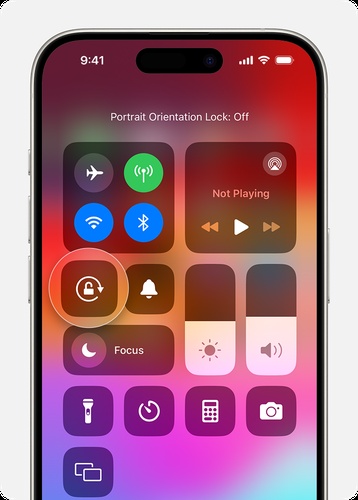
3. Use the Landscape Rotation to Remove Blur
Rotate your iPhone to landscape mode, wait a few seconds, then return to portrait mode. This resets the screen layout and fixes small rendering bugs that affect the top bar area.
2. Fix Blurry Top of iPhone Screen Caused by Wallpaper Issues
Wallpaper settings are one of the most common reasons behind top-screen blur.
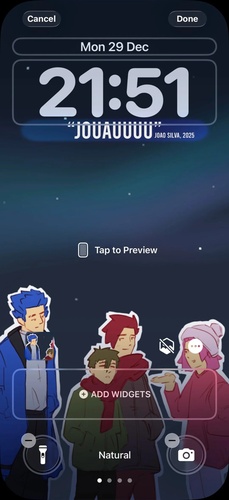
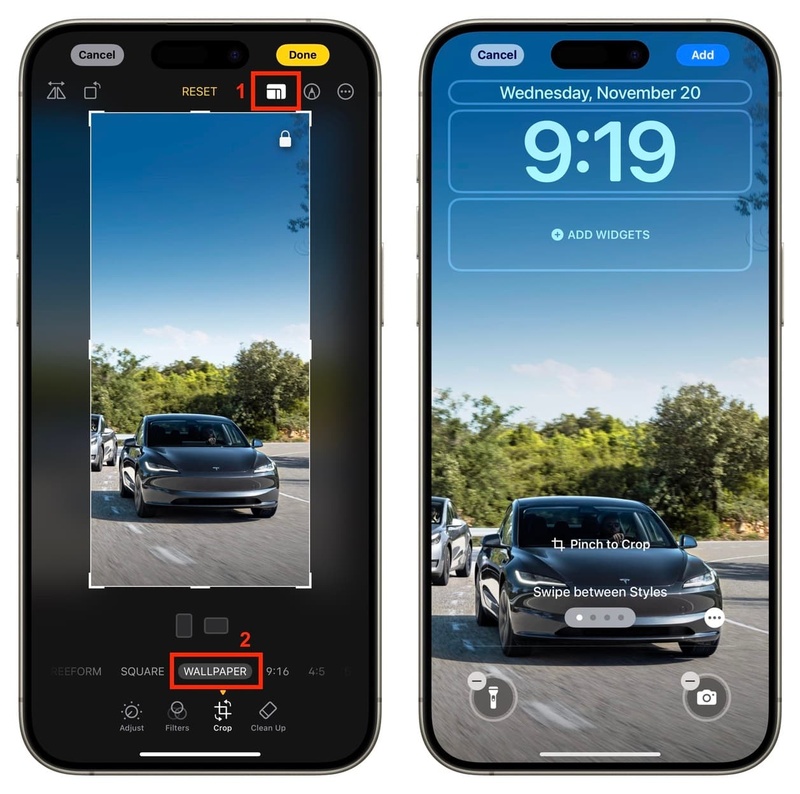
1. Zoom In Wallpaper to Remove Blur
When setting a wallpaper, incorrect zoom levels can stretch or soften the image. Adjusting the zoom properly makes sure the wallpaper fits the screen and removes blur effects at the top.
2. Turn Off Home Screen Blur in Settings
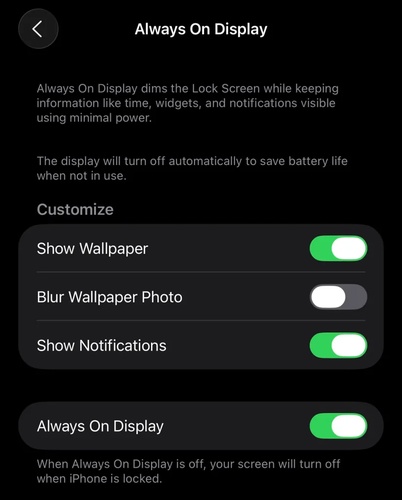
iPhone applies blur effects to wallpapers behind icons and widgets. Turning off blur-related effects helps make the status bar and time area look sharper and more readable.
3. Crop Wallpaper to Fit iPhone Screen
Using an incorrectly sized image can cause distortion. Crop the wallpaper to match your iPhone resolution so it fits perfectly without stretching or soft edges.
3. Advanced Fixes for iPhone Screen Blurry at the Top
If the issue continues, deeper system settings may be causing the problem. Let see advance fixes for iphone status bar blurry:
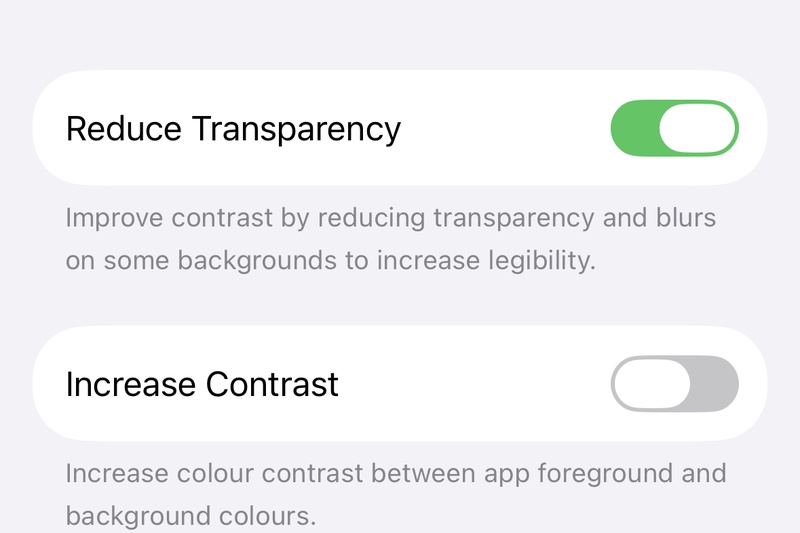
1. Enable Reduce Transparency
This setting reduces the frosted glass effect used across iOS menus, notifications, and backgrounds. When enabled, it removes extra blur layers that can make the status bar, time, and other UI elements look soft or unclear.
-
Step 1: Go to Settings then Accessibility then Display & Text Size.
-
Step 2: Turn ON Reduce Transparency to make the interface clearer and reduce blur effects.
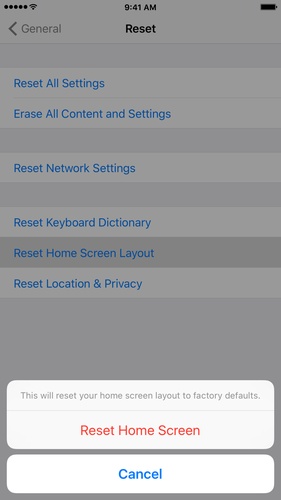
2. Reset Home Screen Layout
Resetting the Home Screen restores default icon positions and removes hidden UI bugs. This helps fix issues where the status bar or time looks blurred or misaligned.
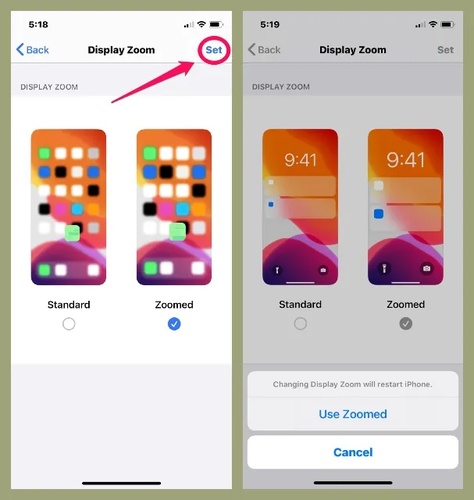
3. Adjust Display Zoom
Zoomed display mode can reduce sharpness and cause UI blur at the top.
-
Step 1: Go to Settings > Display & Brightness > Display Zoom.
-
Step 2: Select Standard mode and restart your iPhone.
Part 3. Fix iPhone Screen Blur Caused by iOS System Issues with ReiBoot
Sometimes the top iPhone screen looks blurry due to small iOS glitches. Normal fixes may not fully work because the issue is inside the iOS system. When manual troubleshooting falls short, ReiBoot offers a specialized approach to restoring your device.
ReiBoot is a simple iOS repair tool that is used to fix different system issues that affect iPhone performance. It helps refresh and repair the iOS system when normal settings changes don't work. Commonly used when the screen looks buggy, frozen, or not displaying correctly after an update or system error.
Key Features of Tenorshare ReiBoot
-
Fixes iOS system glitches causing screen blur or display errors
-
Enters and exits Recovery Mode with one click
-
Repairs frozen or unresponsive iPhone screens
-
Resolves Apple logo stuck or boot loop issues
-
Supports latest iOS versions and devices
-
Standard Repair mode helps fix system issues without data loss
Steps to fix why is the top of my iphone screen blurry iOS 26/27
- Step 1: Install and Launch ReiBoot
Download and install Tenorshare ReiBoot on your computer. Open the software and connect your iPhone using a USB cable. Click on “Start Repair”.

- Step 2: Start Standard Repair
Choose the Standard Repair option. This mode is designed to fix iOS system issues without erasing your data.

- Step 3: Download Firmware Package
ReiBoot will detect your device and ask you to download the latest firmware. Click Download and wait for the process to complete.

- Step 4: Begin Repair Process
After downloading, click “Start Standard Repair” to begin fixing system errors. The tool will repair iOS glitches that may be causing screen blur or UI issues.

- Step 5: Wait for Completion
Keep your device connected until the process finishes. Once done, your iPhone will restart automatically with fixed system performance and clearer display!

Part 4. FAQs on Top of My iPhone Screen Blurry
Q1. Why did my iPhone screen suddenly become blurry?
It usually happens because of a temporary iOS glitch, system lag, or a display rendering issue. Sometimes it appears after an update, restart, or when background processes affect screen performance.
Q2. Why is my home screen blurry?
A blurry home screen is often linked to wallpaper settings, blur or depth effects, or incorrect display scaling. If the wallpaper is not properly fitted or Display Zoom is enabled, it can make icons and background look soft or unclear.
Q3. Why is only the top of my iPhone screen blurry?
The top part is affected more because it shows the status bar like time, battery, and signal. When iOS has small glitches or update issues, this area can not load properly and looks blurry.
Final Words:
A blurry top part on your iPhone screen can be annoying, but don't worry. It is usually a small iOS glitch or display issue. Most of the time, it is not serious and can be fixed easily by restarting your iPhone or changing a few settings. In that case, ReiBoot can help fix iOS problems and refresh your system easily. It can remove hidden glitches and help make your screen clear again, including issues like why is the top of my iphone screen blurry.
