
Updated on 2026-09-15 / iPhone Tips
A locked iPhone stuck in zoom mode can make navigating your device frustrating, with oversized icons and magnified text getting in the way. This guide shows 6 proven solutions to fix an iPhone stuck in zoom mode on the lock screen, covering iPhone 11, 13, and other models.
From simple three-finger gestures to advanced settings, you can quickly fix your screen. After that, your iPhone will work normally and smoothly.
Why Does iPhone Screen Zoom in Stuck?
Reason 1 – Zoom Mode is Enabled
The most common reason your iPhone is stuck in zoom mode on the lock screen is that the Zoom accessibility feature is turned on by mistake. This feature helps visually impaired users enlarge content, but when activated unintentionally, it can cause the entire screen to appear zoomed in and hard to control.
Reason 2 – Minor Software Glitch
Sometimes, a minor software glitch can make your iPhone screen zoom in and get stuck. Temporary system bugs or unresponsive gestures may cause the display to remain enlarged even when you try to pinch out or restart the phone.
Reason 3 – System Software Issues
In some cases, the iPhone stuck in zoom mode on lock screen issue happens due to outdated or corrupted iOS software. If you're running iOS 27, temporary system glitches or an incomplete update may also interfere with accessibility settings and cause the display to remain zoomed in. System errors or incomplete updates can interfere with the accessibility settings, locking the display in zoom mode until the problem is fixed.
How to Fix iPhone Screen Zoomed in Stuck [6 Ways]
Tip 1 – Disable Zoom Mode with Three-Finger Gestures
When your iPhone screen zooms in and won’t move, the quickest fix is to use the built-in three-finger gesture. This gesture is designed to instantly turn off the zoom effect.
- Tap twice with three fingers anywhere on the screen.
- If nothing changes, repeat the gesture gently make sure all three fingers touch at the same time.bad
- Once the screen returns to normal size, you can swipe and unlock your iPhone as usual.
Tip 2 – Turn Off Zoom in Settings
If the three-finger gesture doesn’t work, you can turn off Zoom directly from Settings. This method ensures your iPhone 13 won’t get stuck zoomed in on the lock screen again.
- Unlock your iPhone and open Settings.
- Scroll down and select Accessibility.
- Tap Zoom under the “Vision” section.
- Toggle the Zoom switch off.
Tip 3 – Restart Your iPhone
Sometimes, your iPhone is stuck in zoom mode no Home button due to a minor software glitch. Restarting your iPhone refreshes the system and can fix the zoom problem.
- Press and hold the Side button and either Volume button simultaneously until the power slider appears.
- Drag the slider to turn off your iPhone.
- Wait 10–15 seconds for the device to completely shut down.
Press and hold the Side button again until the Apple logo appears.
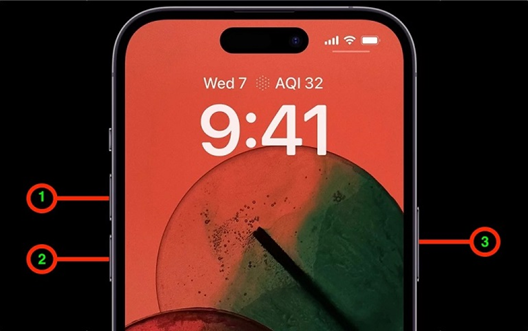
Tip 4: Put iPhone into Recovery Mode
Putting your iPhone into Recovery Mode if you can't get your iPhone out of zoom mode can help. This method is particularly useful for iPhones experiencing system glitches or frozen screens, including the iPhone 11 and other models. Recovery Mode allows you to restore your iPhone safely through iTunes (or Finder on Mac), fixing software problems that may be causing the zoom issue.
For iPhone 11 and newer models (Face ID, no Home button):
- Connect your iPhone to a computer with a USB cable.
- Quickly press and release the Volume Up button, then quickly press and release the Volume Down button.
- Press and hold the Side button until the Recovery Mode screen appears (a computer or iTunes icon).
- On your computer, open iTunes (or Finder on Mac).
Choose Restore to reinstall iOS or Update to fix the device without erasing data.
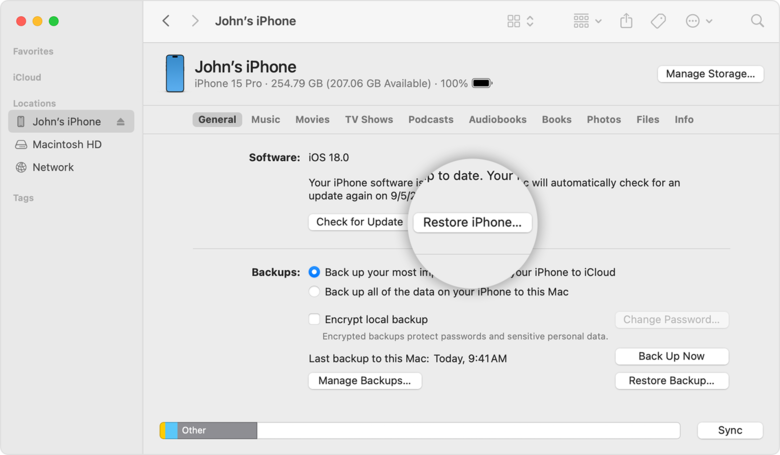
Tip 5 – Reset All Settings
When the zoom mode on your iPhone 11 doesn't work, it might be caused by a misconfigured system setting or an accessibility glitch. Resetting all settings restores default system preferences without deleting your apps, photos, or personal data. This method clears all configurations that may interfere with the Zoom feature.
- Open Settings on your iPhone.
- Navigate to General go to Transfer or Reset iPhone > Reset.
Tap Reset All Settings.
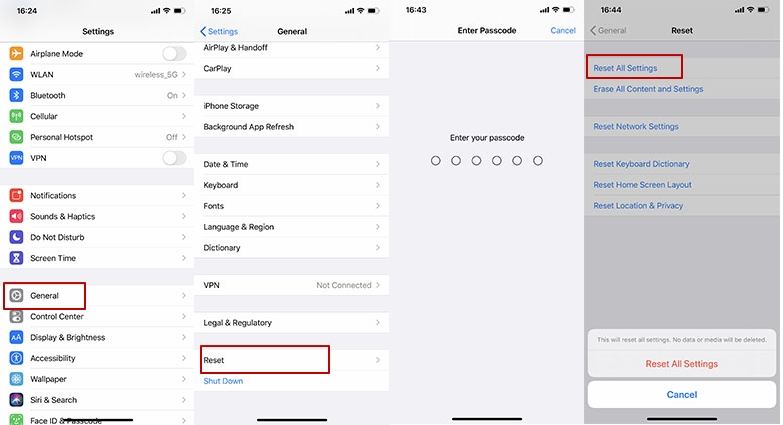
- Enter your passcode when prompted.
- Confirm by tapping Reset All Settings again.
Tip 6 –Use iOS Repair Software to Resolve Stuck Zoom Mode
An iOS repair tool can help if your iPhone is stuck in zoom mode on the lock screen and standard fixes do not work. Tenorshare ReiBoot allows you to resolve the problem safely without losing any data.
ReiBoot is designed to repair iOS system problems safely, including frozen screens, zoom issues, and unresponsive gestures, making it ideal for both beginners and advanced users.
Key Features of Tenorshare ReiBoot:
- Fix iOS system issues without data loss
- Supports all iPhone models, including iPhone 17
- Repair frozen or unresponsive screens
- Resolve Zoom and accessibility glitches
- Enter and exit Recovery/DFU Mode easily
- Compatible with iOS 27 and other supported iOS versions
- Simple, step-by-step user interface
Steps to Use Standard Repair in Tenorshare ReiBoot
- Step 1: Download and Install ReiBoot on PC or Mac
Download and install Tenorshare ReiBoot on your computer. Connect your iPhone using the original Apple lightning cable. Once the device is recognized, click Start Repair to begin the iOS system recovery process.
- Step 2: Choose Standard Repair
Select Standard Repair to fix iOS issues without erasing your data. Read the on-screen instructions to understand the requirements before proceeding.
- Step 3: Download Firmware Package
- Step 4: Start Standard Repair
- Step 5: Reboot and Check iPhone



After the firmware is ready, click Start Standard Repair. Follow any on-screen prompts and wait patiently while the tool repairs your device.

Once the process is complete, your iPhone will automatically restart. Check your device theiPhone stuck in zoom mode on lock screen should now be fixed, and all data will remain intact.
Conclusion
Having your iPhone stuck in zoom mode on lock screen can be annoying, but it’s usually simple to fix. You can try gestures, turn off Zoom in Settings, restart your iPhone, or reset all settings to solve most problems. If your iPhone still won’t return to normal, Tenorshare ReiBoot is a great choice. It safely fixes Zoom issues and other iOS glitches without deleting your data, making it the easiest and most reliable way to get your iPhone back to normal.
