
Updated on 2026-09-15 / iPhone Tips
Annoyed by a permanent flashlight icon on your iPhone screen after updating to iOS 27? You're not alone! This common iOS glitch can appear after updates or app conflicts, but the good news is it's easy to fix.
In this guide, we'll show simple, step-by-step methods to remove the stubborn flashlight icon. You'll also learn how to restore your Lock Screen and Control Center and make your iPhone work smoothly again. These tips work perfectly on iPhone 11, 12, 13, and newer models.
- Part 1: Part 1: Why Is There a Permanent Flashlight Icon on iPhone Screen?
- Part 2: Part 2: How to Remove Permanent Flashlight Icon on iPhone Screen (5 Easy Fixes)
- Part 3: Bonus Tip: Fix Stubborn Flashlight Icon with Tenorshare ReiBoot
- Part 4: Part 3: How to Prevent the Flashlight Icon from Getting Stuck Again
- Part 5: Final Words:
Part 1: Why Is There a Permanent Flashlight Icon on iPhone Screen?
A permanent flashlight icon on iPhone screen not working can be frustrating, especially when it won't turn off or respond. This issue usually appears because of small software glitches, app conflicts, or settings that interfere with the Lock Screen. Understanding the main causes can help you fix it quickly:
-
Software Bugs or iOS Glitches: Updates or system errors sometimes prevent the flashlight icon from updating properly, leaving it stuck on the screen.
-
Camera or Flash in Use: If the Camera app or another app is using the flash, the icon may remain active even after you close the app.
-
Lock Screen or Touch Issues: Unresponsive taps or minor screen glitches can cause the icon to stay visible.
-
Accessibility Settings Interference: Certain features, like AssistiveTouch or guided access, may prevent icons from behaving normally.
-
App Conflicts: Running multiple apps that access the camera or flashlight at the same time can freeze the icon.
Part 2: How to Remove Permanent Flashlight Icon on iPhone Screen (5 Easy Fixes)
A permanent flashlight icon on iPhone screen not working is a common issue for many iPhone users. This problem often occurs after iOS updates, app conflicts, or settings errors. The icon may stay visible on the Lock Screen or fail to respond, making it hard to turn off the flashlight. In most causes can be fixed without professional help. Here's a detailed guide with five effective fixes:
Fix 1: Turn Off Flashlight from Control Center
Sometimes the flashlight is technically still active in iOS memory even when the icon looks stuck. This is usually a minor software bug caused by Control Center not refreshing properly.
-
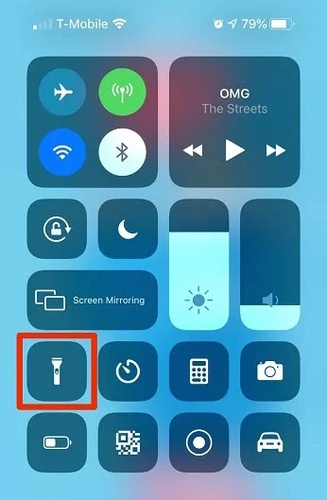
Open Control Center:
iPhone X or later: Swipe down from the top-right corner of the screen.
iPhone 8 or earlier: Swipe up from the bottom.
-
Find the Flashlight icon, which looks like a small torch.
Tap once to turn it off.
-
If the icon remains, tap again or hold for 1--2 seconds to ensure the system registers the action.
-
Lock your phone and check the screen the icon should disappear.
Fix 2: Restart Your iPhone
A frozen flashlight icon can result from temporary iOS memory or system glitches. Apps, background processes, or minor update bugs may cause icons to remain visible even when the function is off. A full restart clears system cache, closes background processes, and resets Control Center functions.
-
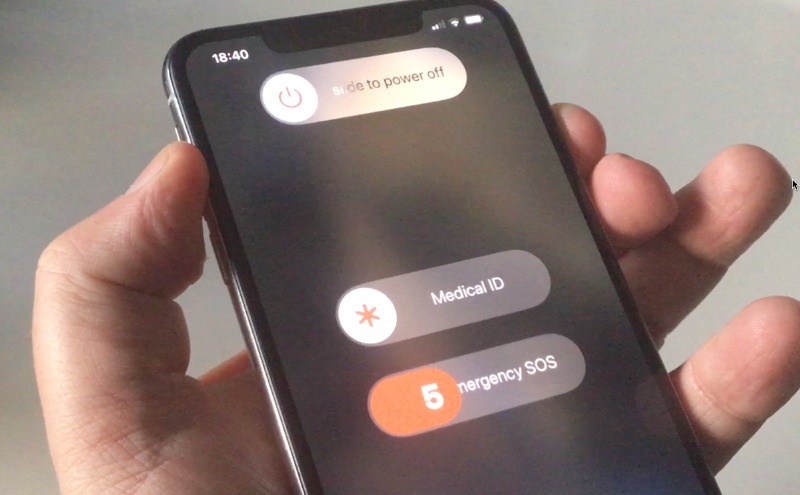
Press and hold Power + Volume Up/Down (iPhone X or later) until the slide to power off slider appears.
Slide to power off completely.
-
Wait 30--60 seconds for the device to fully shut down.
-
Press the Power button again to turn the device back on.
-
Check the Lock Screen the flashlight icon should now be gone.
Fix 3: Force Close the Camera App
The flashlight is linked to the Camera app. Leaving it open or running in the background can prevent the system from updating the flashlight icon status. Other apps using the flash can also cause this. Sometimes third-party apps can leave the flash "active" in the system, even when closed normally.
-
Swipe up from the bottom (or double-click Home button) to open App Switcher.
-
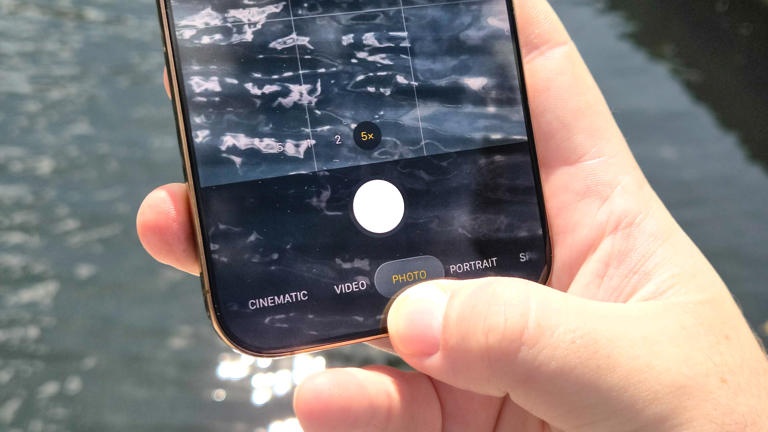
Locate the Camera app or any app that recently used the flash (like Snapchat, TikTok, or QR scanners).
Swipe up to force close the app completely.
-
Lock your iPhone and check the Lock Screen the icon should disappear.
Fix 4: Check Lock Screen and Accessibility Settings
The flashlight icon is part of the Control Center and interacts with the Lock Screen. Accessibility features like AssistiveTouch, VoiceOver, or Guided Access can sometimes prevent icons from refreshing properly. If these features are active, iOS may "freeze" the flashlight icon, making it appear permanently on the screen.
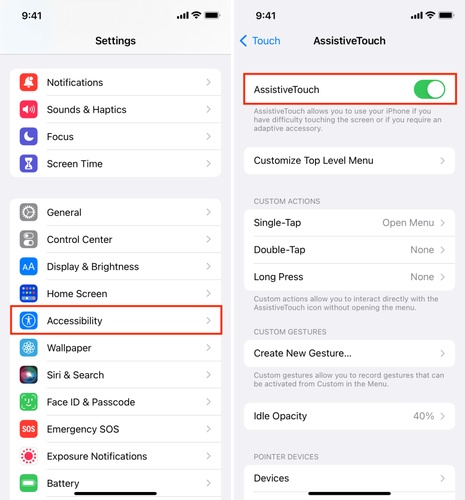
Open the Settings app on your iPhone.
-
Tap Accessibility. Scroll through and temporarily disable AssistiveTouch, VoiceOver, and Guided Access. These features can interfere with how icons update on the Lock Screen.
-
Return to Settings, then tap Face ID & Passcode if your iPhone uses Face ID, or Touch ID & Passcode for older models.
-
Scroll to the section Allow Access When Locked. Make sure Control Center is enabled. This makes sure iOS can manage the flashlight icon even when the iPhone is locked.
-
Lock your iPhone and check the screen. The flashlight icon should now be gone.
Fix 5: Reset All Settings
Persistent flashlight icon issues can be caused by corrupted system settings or conflicts in iOS preferences. No apps or personal data like photos, messages, or contacts will be deleted. Hidden configuration conflicts that were preventing the flashlight icon from disappearing are removed
Open the Settings app on your iPhone.
-
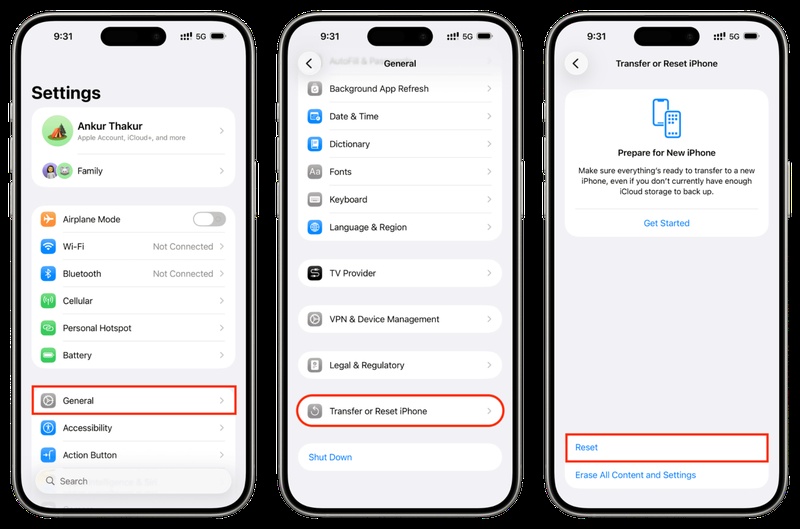
Tap General, then scroll down and tap Transfer or Reset iPhone.
-
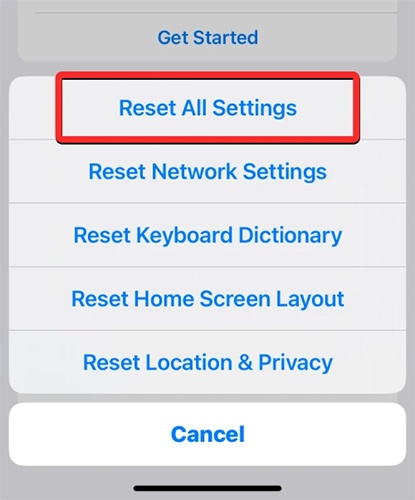
Tap Reset, then select Reset All Settings.
-
Enter your passcode to confirm the action. The iPhone will restart automatically.
-
After the restart, check the Lock Screen. The flashlight icon should no longer appear.
Bonus Tip: Fix Stubborn Flashlight Icon with Tenorshare ReiBoot
iPhones sometimes face minor software glitches that can make icons, like the flashlight, stick or disappear. Tenorshare ReiBoot is a professional iOS repair tool designed to fix these issues safely and efficiently. It works by refreshing the system files, clearing glitches, and restoring normal functionality. This helps the iPhone camera flash icon and other features run smoothly.
ReiBoot is simple to use and compatible with all iPhone models and iOS versions. It has Standard Repair for common glitches and Deep Repair for bigger problems, keeping your iPhone stable and fully working without losing any data.
Key Features of Tenorshare ReiBoot:
-
Standard Repair Mode: Fix common iOS issues like stuck icons, frozen screens, or apps not responding without erasing your data.
-
Deep System Repair: For more complex system problems, including failed updates or persistent glitches.
-
One-Click Enter/Exit Recovery Mode: Quickly put your iPhone in recovery mode without complicated button combinations.
-
User-Friendly Interface: Designed for beginners and experts alike; no technical knowledge required.
-
Supports All iPhone Models: Works with iPhone 6 through iPhone 15 and all iOS versions.
Steps to Fix Permanent Flashlight Icon Using Tenorshare ReiBoot
-
Step 1: Download and Install ReiBoot
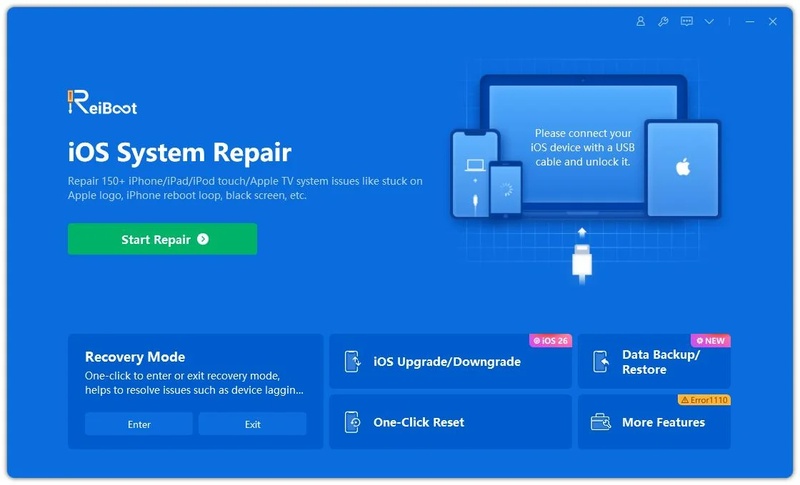
Download Tenorshare ReiBoot and install the software on your PC or Mac. Use a USB cable to connect your iPhone to the computer. Wait for ReiBoot to detect your device. Click Start Repair.
-
Step 2: Choose Standard Repair Mode
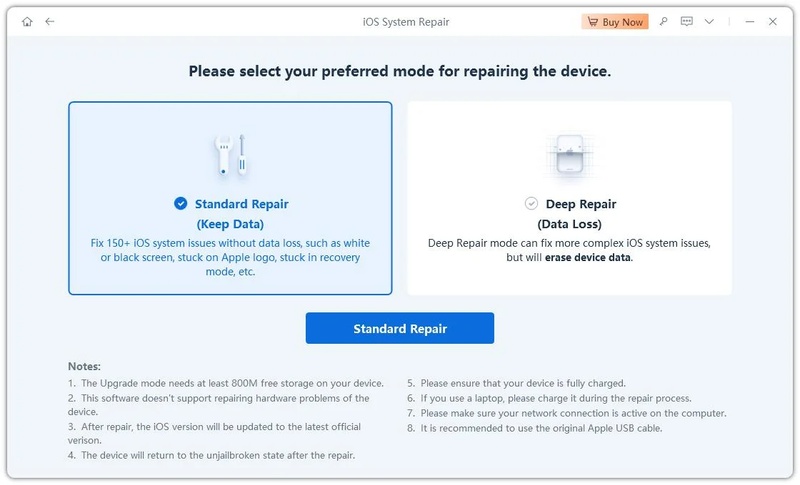
On the main screen, select Standard Repair. This mode fixes common iOS issues like the permanent flashlight icon without deleting apps, photos, or other data.
-
Step 3: Download Firmware
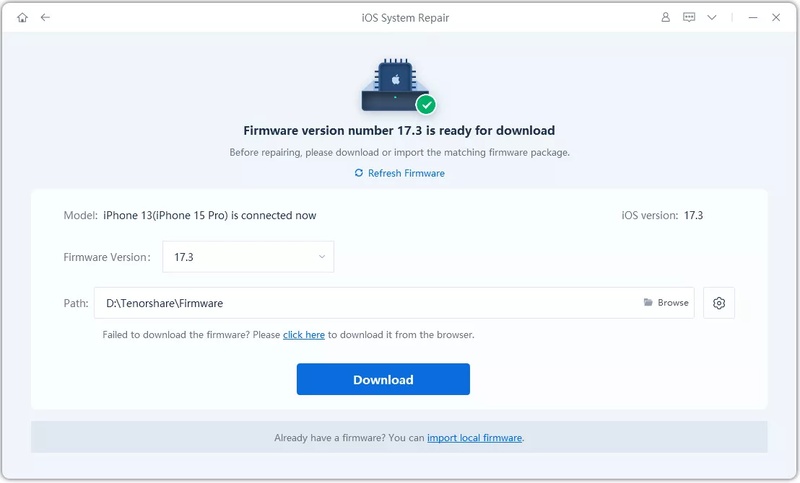
ReiBoot will automatically detect your iPhone model and suggest the correct firmware. Click Download to get the firmware package.
-
Step 4: Start Standard Repair
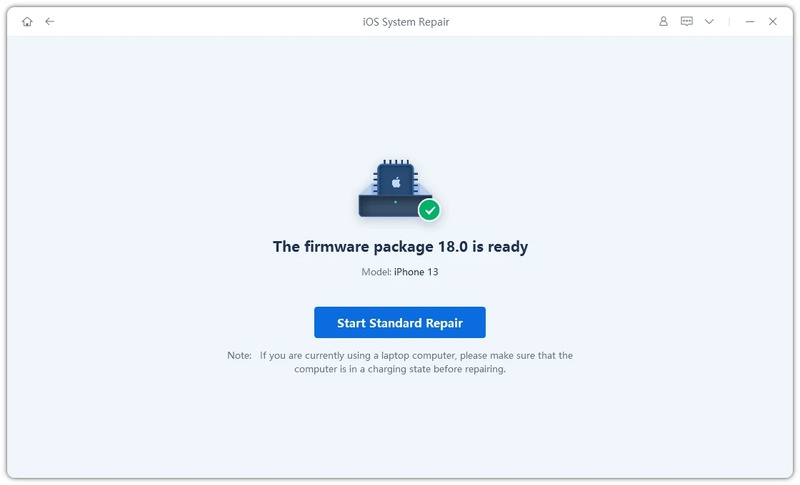
Once the firmware is downloaded, click Start Standard Repair.
Wait while ReiBoot repairs the iOS system. Your iPhone may restart several times.
-
Step 5: Complete the Repair
After the process finishes, your iPhone will reboot normally.
Check the Lock Screen and Control Center the flashlight icon should now be gone.

Part 3: How to Prevent the Flashlight Icon from Getting Stuck Again
Keeping your iPhone running smoothly means avoiding issues like a stuck flashlight icon disappeared on iPhone. Here are some long, detailed points to prevent this problem in the future:
1. Close apps that access the camera or flashlight
Many apps keep the flash "reserved" in the background. Closing apps like Camera, Snapchat, TikTok, QR scanners, or augmented reality games prevents conflicts and ensures the flashlight icon disappears on iPhone correctly when not in use.
2. Avoid rapid toggling of the flashlight
Turning the flashlight on and off multiple times within seconds can overwhelm iOS processes, leaving the icon stuck. Use deliberate taps and short intervals.
3. Keep iOS updated to the latest version
Apple frequently fixes bugs affecting Control Center and Lock Screen icons. Updating ensures your iPhone camera flash icon functions as intended.
4. Monitor accessibility features
Features such as AssistiveTouch, VoiceOver, or Guided Access can interfere with the Control Center. Disable them temporarily if the flashlight icon misbehaves.
5. Turn off the flashlight after use
Continuous use may heat the LED or trigger temporary system freezes. Simple habit of turning it off avoids glitches.
6. Use system repair tools when needed
Persistent issues often result from corrupted iOS settings. Tools like Tenorshare ReiBoot Standard Repair safely refresh the system without deleting apps or data.
7. Clear background processes and cache
iOS manages multiple background tasks; occasionally force closing apps and restarting your device ensures icons like the iPhone camera flash icon update correctly.
Final Words:
A permanent flashlight icon on iPhone screen can be annoying, but it's easy to fix with the right tools. Quick system tweaks often solve the problem, and for stubborn icons, Tenorshare ReiBoot is your best solution. It safely restores your iPhone and keeps your Control Center and flashlight fully functional. It also ensures your device runs smoothly no stress, no data loss, just a perfectly working iPhone.
