
Updated on 2026-09-24 / iPhone Tips
An iPhone 18 Pro keeps restarting for several possible reasons, including iOS 27 bugs, incomplete updates, conflicting apps, battery or thermal stress, Face ID failures, security-related restarts, and hardware problems. Start by watching when the restart happens, then match the pattern to the fixes below.
Does the Apple logo keep looping, does the iPhone shut down before reaching the Lock Screen, or does it work normally for a few minutes before restarting? If the reboot happens right after a failed Face ID attempt, especially when unlocking or signing in to an app, check the Face ID-related troubleshooting step below before assuming the hardware is faulty.
Part 1. Why Does My iPhone 18 Keep Restarting, Rebooting, or Turning Off?
An iPhone 18 keeps restarting for one of six common reasons. Check what changed right before the problem started --- that narrows it down fast.
-
iOS 27 bugs or an incomplete installation. If your iPhone 18 keeps restarting after an iOS 27 update, a failed installation or unstable system files may be responsible. Check for another iOS update or use Recovery Mode if the update cannot complete.
-
Face ID failures followed by unexpected reboots. Some iPhone 18 Pro and Pro Max users have reported freezes and restarts after Face ID fails, particularly when unlocking or signing in to an app. This is an emerging user-reported issue, and its exact cause has not yet been confirmed.
-
A conflicting or outdated app. An outdated app, widget, keyboard, VPN, or security tool can cause instability after an iOS update. Update recently installed apps first, then remove the one associated with the restarts if necessary.
-
Battery health or thermal stress. If your iPhone 18 keeps rebooting while charging, gaming, or recording video, overheating or a battery-related power issue may be involved.
-
A launch-window software bug. Recent iPhone generations have experienced restart bugs that were later addressed through iOS updates. If your iPhone 18 Pro or Pro Max started restarting on an early iOS 27 build, a software bug is one possibility.
-
Hardware problems. A damaged battery, charging component, logic board, or liquid exposure can also cause unexpected shutdowns and restarts. If the problem remains after software troubleshooting, Apple Support should check the device.
-
Not every restart is a problem. An iPhone may automatically restart after several days without being unlocked as part of its security behavior. A single restart after a long period of inactivity does not necessarily indicate a fault.
Quick Self-Check: Boot Loop, Random Restart, or Turning On and Off?
Use this table to confirm which situation am I in?
| What you see | Likely situation | First action |
|---|---|---|
| Apple logo appears again and again | Boot loop | Force restart |
| Phone works for minutes, then restarts | Random restart | Check apps and battery |
| Phone turns on, shuts down, then starts again | Power/system problem | Charge and force restart |
| Problem started directly after iOS 27 | Update problem | Update or repair iOS |
| Face ID fails, the phone freezes, and then restarts | Possible Face ID-related software issue | Check for iOS updates and note the trigger |
| Problem happens with one app | App conflict | Update or remove the app |
| Phone stays hot before restarting | Thermal/battery issue | Stop heavy use and check battery |
| Recovery screen appears | Recovery problem | Use computer-based recovery |
This quick check matters because an iPhone 18 keeps restarting after update problem needs a different approach from a phone that restarts only when you open one specific application.
Part 2. How to Fix iPhone 18 Keeps Restarting After Update (Step-by-Step)
Work through these fixes in order. Start with the steps that do not erase your personal data. If your iPhone 18 keeps restarting after update, do not jump straight to a factory reset unless you have already tried safer options.
1. Force Restart and Re-Insert Your SIM Card
A force restart can clear a temporary system freeze without deleting your photos, messages, or apps. If your iPhone 18 keeps rebooting, this should be your first hardware-button test.
For an iPhone with Face ID, Apple recommends:
Quickly press and release Volume Up.
Quickly press and release Volume Down.
Press and hold the Side button.
Release the Side button when the Apple logo appears.
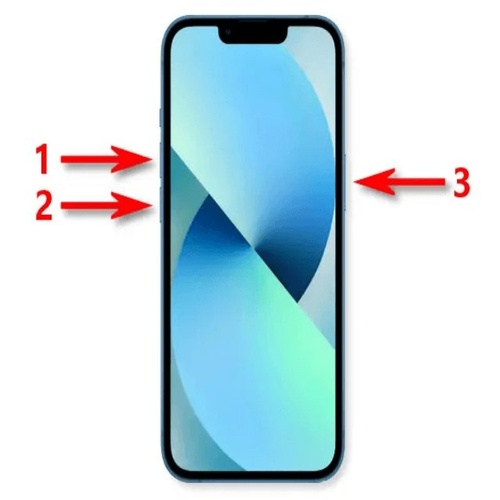
The Apple logo can take more than 10 seconds to appear. If the phone still does not start, Apple recommends charging it and trying again. If your iPhone 18 keeps turning on and off, you can also remove and reinsert a physical SIM card if your model and carrier setup use one. Turn the phone off first, remove the SIM, check it for visible damage, and insert it again.
2. One-Click Repair When Force Restart Doesn't Work
If your iPhone 18 keeps restarting after a force restart, an iOS system repair tool is the next step before a full restore. Tenorshare ReiBoot addresses this exact category of problem --- boot loops, Apple-logo freezes, and recovery-mode errors --- and supports iOS 27 through two repair modes: Standard Repair and Deep Repair.
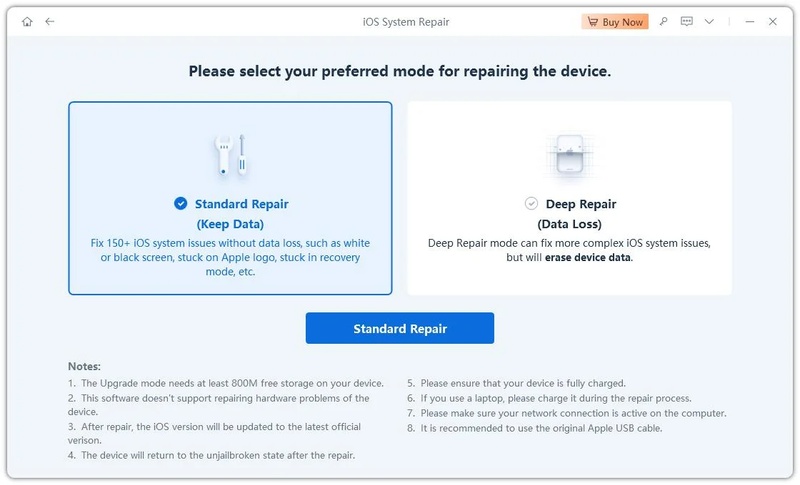
Standard Repair is the safer option when your iPhone 18 keeps rebooting: it targets common iOS system problems without erasing user data. Deep Repair goes further for more serious system-level issues but can erase data, so back up the phone first whenever possible.
Key Features:
-
Standard Repair: Fixes many common iOS system problems, such as iPhone 18 battery draining fast, without deleting your personal data.
-
Deep Repair: Performs a deeper system repair for serious issues but may erase existing device data.
-
Boot Loop Repair: Helps address repeated restarts, including cases where the iPhone gets stuck on the Apple logo or iOS 27 is stuck on Update Requested.
-
iOS 27 Support: Covers iOS 27-related system problems and update issues, such as apps keeping crashing after the iOS 27 update.
-
Easy Repair Process: Connect your iPhone to a computer and follow the guided repair steps without complicated commands.
How to Use Tenorshare ReiBoot
-
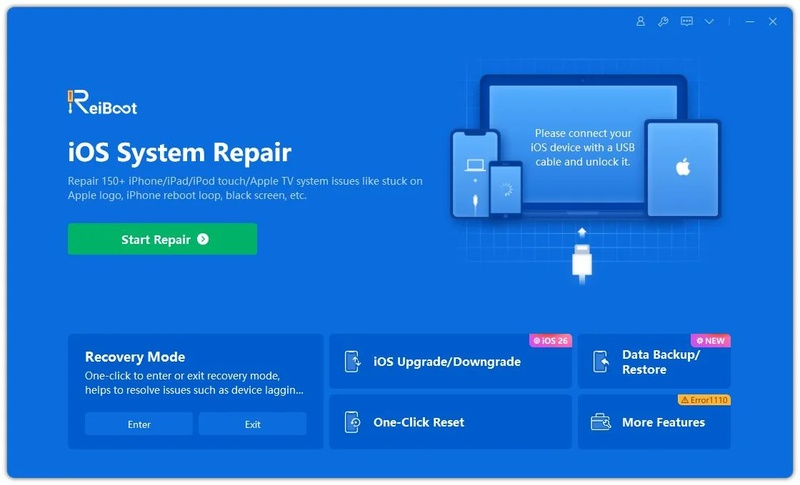
Step 1: Download ReiBoot on your Windows PC or Mac. After installation, open the software and connect your iPhone 18 using a working USB cable.
-
Step 2: Once ReiBoot detects the device, click the Repair Operating System option from the main screen.
-
Step 3: Select Standard Repair to fix the iOS 27 stuck-on-Apple-logo or boot-loop issue without deleting your photos, apps, or personal data.
-
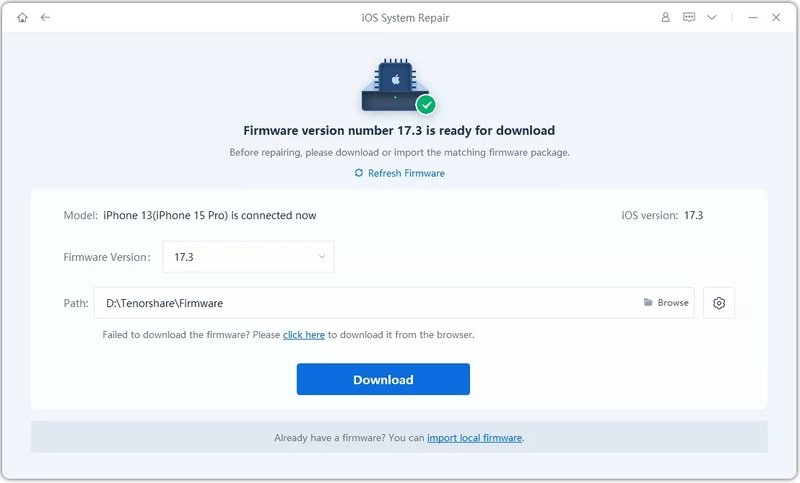
Step 4: ReiBoot will automatically detect the correct iOS firmware for your iPhone. Click Download and wait for the firmware package to finish downloading.
-
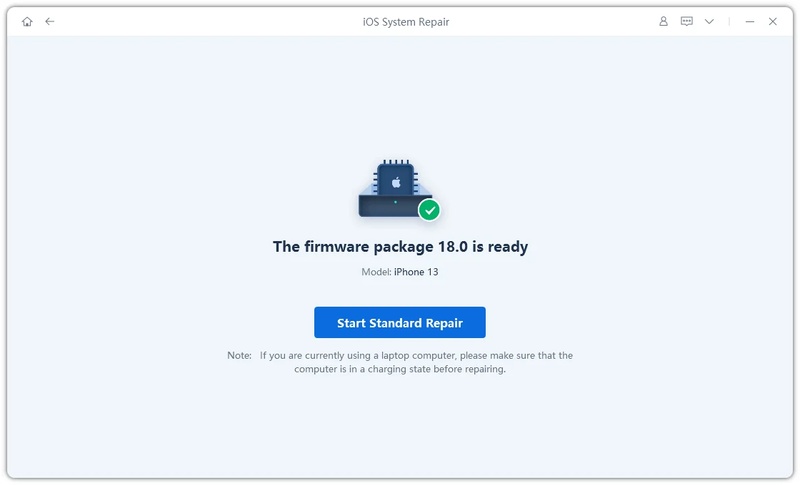
Step 5: Click Start Standard Repair and keep your iPhone connected during the process. ReiBoot will repair the damaged system files and fix the restart-loop problem safely.
-
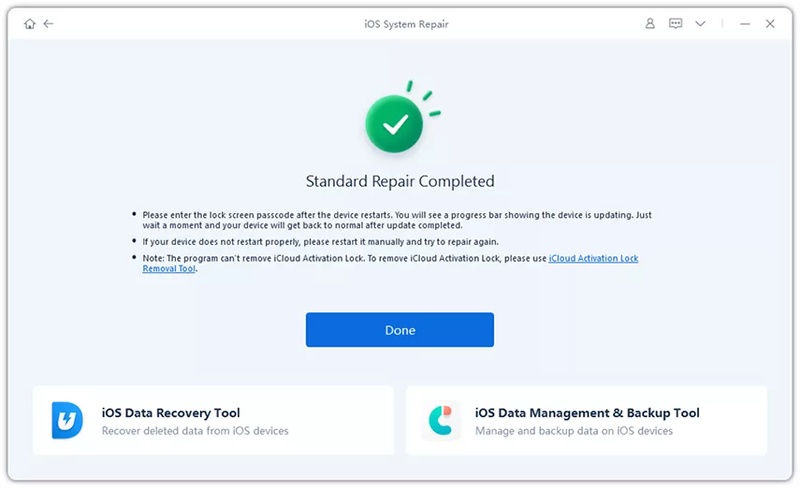
Step 6: After the repair finishes, your iPhone will reboot normally. Once the Apple logo appears, the device should successfully exit DFU Mode.
This option is worth trying specifically when your iPhone 18 keeps restarting after iOS 27 update but hasn't shown any signs of physical damage or overheating --- that pattern usually points to damaged or unstable system files rather than hardware.
3. Check Battery Health
Battery and thermal stress explain a large share of iPhone 18 keeps restarting during heavy use cases. Check these four things in order:
-
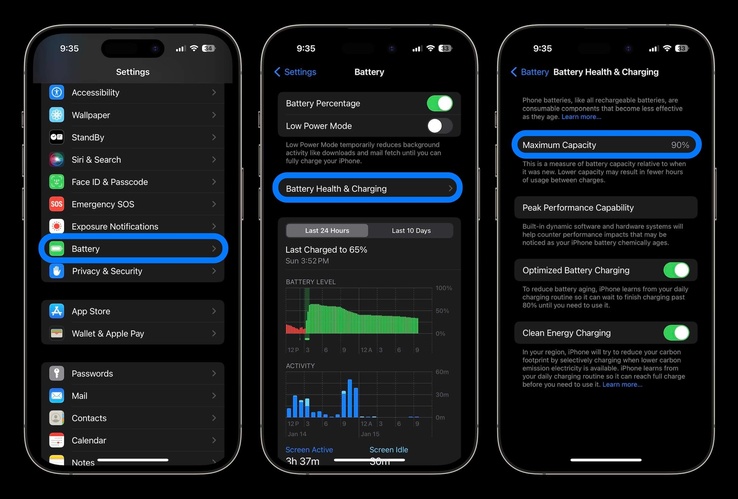
Open Settings > Battery > Battery Health & Charging and look for unusual messages, reduced maximum capacity, or a peak-performance warning.
-
Note the battery percentage when the restart happens --- a restart that repeats near the same percentage points to a battery/power issue rather than software.
-
Watch for heat. If your iPhone 18 Pro / Pro Max keeps restarting while recording video, gaming, or charging, let it cool down before testing again.
-
Don't push through heat. According to Apple's iPhone battery and performance guidance, iPhones are designed to temporarily throttle performance or shut down when internal temperature exceeds a safe range --- this is expected protective behavior, not necessarily a defect on its own.
4. Find and Remove Apps Causing Crashes
If your iPhone 18 keeps rebooting after opening one particular application, update that app first. Open the App Store, check your account updates, and install every available update.
If the problem continues, delete the suspicious app and restart the phone. You can reinstall it later. Pay special attention to apps you installed immediately before the restart problem started. Also update widgets, VPN apps, keyboards, and other apps that interact closely with iOS.
5. Update or Reinstall iOS 27 Without Losing Data
If your iPhone 18 keeps restarting after iOS 27 update, a follow-up patch is often the fix --- Apple typically ships smaller point updates within weeks of a major release to address exactly this kind of bug.
-
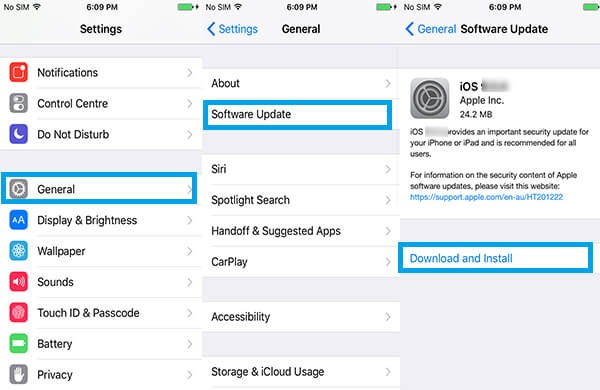
First, check Settings > General > Software Update and install anything available.
-
If the update won't complete, connect the iPhone to a computer and use Recovery Mode.
-
Choose "Update," not "Restore," when prompted --- Update reinstalls iOS and tries to keep your data; Restore erases the iPhone completely.
6. Reset All Settings vs. Erase Everything
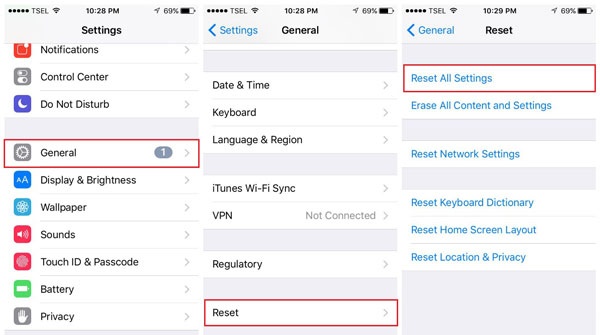
When an iPhone 18 keeps restarting but you can still open Settings, try the least destructive option first.
| Reset All Settings | Erase All Content and Settings | |
|---|---|---|
| What it does | Resets system preferences (network, privacy, keyboard, etc.) | Full factory erase — removes all data |
| Your data | Kept | Deleted |
| Path | Settings > General > Transfer or Reset iPhone > Reset > Reset All Settings | Settings > General > Transfer or Reset iPhone > Erase All Content and Settings |
| Best for | A configuration conflict causing your iPhone 18 to keep turning on and off | A confirmed software-level fault, with a current backup in hand |
Reset All Settings won't fix a hardware problem --- if restarts continue afterward, treat it as a hardware signal rather than repeating the reset.
7. DFU Mode and Full Restore (Last Resort)
Recovery Mode and DFU Mode are not the same thing, and mixing them up wastes time when your iPhone 18 Pro / Pro Max keeps restarting. Try Recovery Mode first; only move to DFU if Recovery Mode won't load.
Recovery Mode (try this first)
-
Connect the iPhone to a Mac or PC and open Finder (Mac) or Apple Devices/iTunes (Windows).
-
Quickly press and release Volume Up, then Volume Down.
-
Hold the Side button until you see the connect-to-computer screen --- not the Apple logo.
-
Choose Update to reinstall iOS while trying to keep your data. Choose Restore only if Update fails --- Restore erases everything.
DFU Mode (only if Recovery Mode fails to load)
-
Connect to a computer with Finder/iTunes open.
-
Quickly press and release Volume Up, then Volume Down.
-
Hold the Side button until the screen goes completely black (about 3--4 seconds) --- do not release yet.
-
While still holding Side, also hold Volume Down for 5 seconds.
-
Release Side only, and keep holding Volume Down for another 5--10 seconds.
-
Success looks like a fully black screen with no logo --- your computer should show a device-detected alert. If the Apple logo appears at any point, you held a button too long; start over.
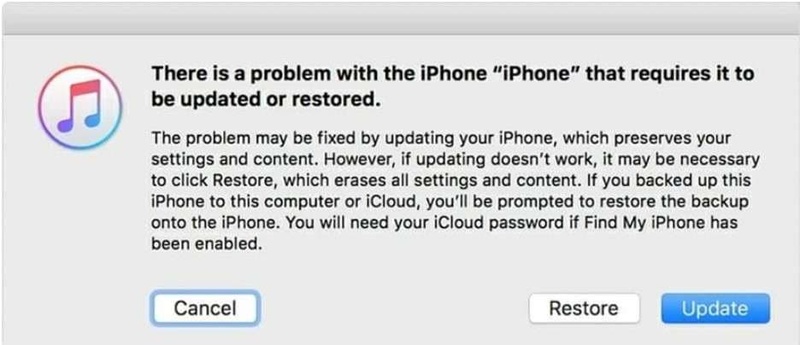
DFU is a firmware-level restore and normally erases the device, so back up first whenever the phone allows it. Treat both modes as a last resort after updates, app checks, and system repair haven't worked.
8. Check Whether Face ID Failure Triggers the Restart
If your iPhone 18 Pro or Pro Max restarts immediately after Face ID fails, check whether the same sequence consistently triggers the problem. A Reddit user reported that an iPhone 18 Pro Max running iOS 27.0 froze and rebooted when Face ID failed while opening an app or signing in. Other users may only see a passcode prompt after Face ID fails, so this behavior should not be treated as a confirmed issue affecting every device.
Try these checks before assuming that the TrueDepth camera or another hardware component is defective:
-
Check for an iOS update. Open Settings > General > Software Update and install any available update. A software update may address system-level problems related to authentication or app compatibility.
-
Test the trigger carefully. Note whether the restart occurs when unlocking the iPhone, opening a particular app, or using Face ID to sign in. Avoid repeatedly forcing the failure if the phone becomes hot or unstable.
-
Check the affected app. If the problem happens only when signing in to one app, update that app and check whether the same behavior occurs elsewhere. This can help distinguish an app-specific problem from a broader iOS issue.
-
Check Face ID settings. Go to Settings > Face ID & Passcode and review the enabled Face ID features. If Face ID repeatedly fails under normal conditions, follow Apple's Face ID troubleshooting guidance rather than repeatedly testing a crash.
-
Record the details. Note the iPhone model, iOS version, affected app, and what happened immediately before the restart. This information can help Apple Support investigate a reproducible issue.
If the iPhone continues to reboot after failed Face ID attempts, try the general software troubleshooting steps above. If the device also restarts during unrelated tasks, becomes unusually hot, or shows other hardware symptoms, contact Apple Support for further diagnosis.
Part 3. How to Stop iPhone 18 From Restarting Again
Fixing the immediate issue is only half the job. These simple habits can reduce the chance that your iPhone 18 keeps restarting again after the next update.
Prevention Checklist for Every iOS Update
Before installing a major iOS update, keep at least one current backup. Make sure your iPhone has enough free storage and charge the battery before starting. After updating, give the phone time to complete background tasks. Then update your apps from the App Store. If your iPhone 18 keeps rebooting after an update, do not install several unknown apps at the same time. That makes it harder to identify the cause.
Use this short checklist:
-
Back up your iPhone before major updates.
-
Keep enough free storage available.
-
Install updates over a stable Wi-Fi connection.
-
Update important apps after iOS updates.
-
Avoid heavy gaming while an update finishes.
-
Watch for unusual heat or battery behavior.
-
Remove apps that repeatedly crash.
-
Keep your computer available for Recovery Mode if needed.
When to Contact Apple Support
Contact Apple if your iPhone 18 Pro / Pro Max keeps restarting after you have completed software troubleshooting, especially if the phone gets very hot, shows physical damage, cannot charge correctly, or restarts even after a clean restore.
Apple also recommends service when you cannot update or restore an iPhone through Recovery Mode or when a required button does not work.
If the device is new and the problem appeared without any clear software cause, keep your purchase information and repair records ready. A repeated hardware fault should receive professional inspection instead of repeated software restores.
Part 4. FAQs About iPhone 18 Keeps Restarting
1. Why does my iPhone keep restarting on its own over and over again?
An iPhone 18 keeps restarting because of software bugs, an incomplete iOS installation, faulty apps, battery problems, overheating, or hardware faults. Start with a force restart and app updates.
2. Why does my iPhone 18 Pro Max restart when Face ID fails?
Reddit users have reported that their iPhone 18 Pro Max freezes and restarts after a failed Face ID attempt, including when opening an app or signing in. A Reddit report describes this behavior on iOS 27.0, but it does not establish the exact cause or confirm that every iPhone 18 Pro Max is affected. Check for iOS updates, note which app or action triggers the restart, and contact Apple Support if the problem continues.
3. How do I fix my iPhone from restarting loop?
If your iPhone 18 keeps restarting after update, force restart it first. If that fails, check battery health, remove suspicious apps, update iOS, and try ReiBoot Standard Repair before a full restore.
4. Can a bad battery cause a boot loop on an iPhone?
Yes. A battery or power problem can cause unexpected shutdowns and repeated restarts. If your iPhone 18 keeps rebooting during heavy use or at a certain battery level, check Battery Health and seek service if needed.
5. How to use Recovery Mode to fix a restart loop?
If your iPhone 18 keeps turning on and off, connect it to a computer, enter Recovery Mode with the Volume Up, Volume Down, and Side button sequence, then choose Update first. Apple says Restore erases your data.
Conclusion
An iPhone 18 keeps restarting problem does not always mean that your phone has a serious hardware defect. Start with a force restart, check the battery, update or remove problem apps, and install the latest iOS version. If your iPhone 18 keeps restarting after iOS 27 update, use Recovery Mode or an iOS system repair option before moving to a complete restore.
If your iPhone 18 Pro / Pro Max keeps restarting because of damaged system files, Tenorshare ReiBoot can provide another repair option. Its Standard Repair mode is designed to fix many iOS system problems without deleting personal data, while deeper repair options require more care.
The safest approach is simple: start with the least destructive fix, protect your backup, and move to a full restore or Apple service only when the easier solutions fail.
