
Updated on 2026-08-21 / iPhone Tips
You tap Download and Install, expecting your iPhone to start updating, but it stays on "Update Requested." The progress bar barely moves, and waiting longer doesn't seem to help.
An iOS 27 stuck on update requested issue can happen, but you don't need to reset your iPhone right away. This guide covers 9 simple fixes to get the update moving again and help you install iOS 27 without unnecessary hassle.
Part 1: Why Is My iOS 27 Update Stuck on Update Requested?
Your iOS 27 update may stay on "Update Request" because of several common issues:
-
Unstable Wi-Fi: A weak connection can interrupt the update process.
-
Low storage: Your iPhone needs enough free space to prepare the update.
-
Busy Apple servers: High update traffic can slow down the process.
-
Temporary iOS glitch: A software bug may prevent the update from moving forward.
-
Corrupted update file: A problem with the downloaded file can cause the update to get stuck.
-
Low battery: Your iPhone may pause the update when the battery is too low.
1.1 Is iOS 27 stuck on Update Requested Common on Older iPhones?
An iOS 27 stuck on update requested iPhone 13 issue can happen even on newer models. Slow Wi-Fi, limited storage, busy Apple servers, or a temporary software glitch can keep the update from moving forward. Older iPhones may take longer to process major updates, but the problem is not limited to older devices.
Part 2: 9 Ways to Fix iOS 27 Stuck on Update Requested
1. Check Your Internet Connection
A weak or unstable Wi-Fi connection can leave your iPhone stuck on Update Requested. Make sure your connection is stable before trying the update again.
Steps:
Open Settings > Wi-Fi.
Check that you are connected to a reliable network.
Move closer to the router if the signal is weak.
Disconnect and reconnect to the Wi-Fi network.
2. Restart Your iPhone and Check for the Update Again
A quick restart clears temporary glitches that can cause the update request to freeze. This simple step fixes the issue for many users without needing anything more advanced.
Steps:
-
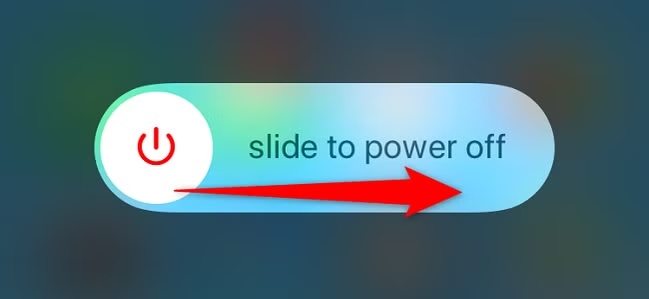
Press and hold the Side button and either Volume button.
-
Drag the slide to power off slider.
-
Wait about 30 seconds, then turn your iPhone back on.
Connect to Wi-Fi and plug in your charger.
-
Go to Settings > General > Software Update and check again.
3. Free Up iPhone Storage
An iOS update needs enough free space to download and prepare its files. Clearing some storage can help when the update refuses to move past Update Requested.
Steps:
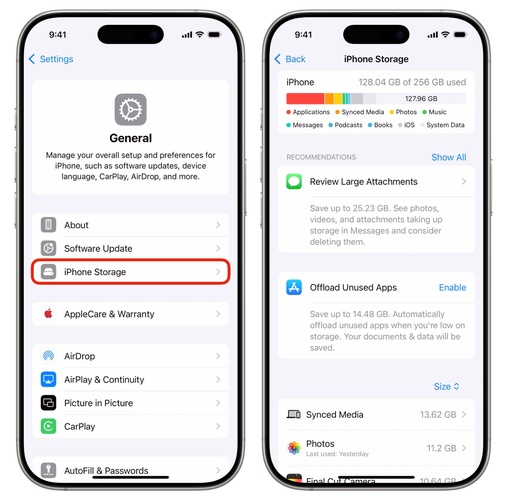
Go to Settings > General > iPhone Storage.
-
Review the list of apps and see what's taking up the most space.
-
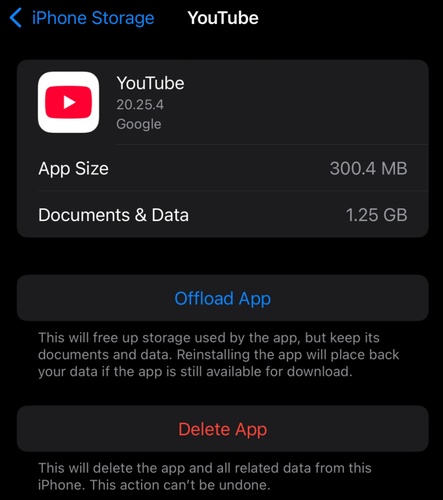
Delete unused apps, large videos, or old downloads.
Free up at least 5 GB, then retry the update.
4. Turn Airplane Mode On and Off
This quick trick resets your iPhone's network connection without needing a full restart. It often clears up connection issues that leave the update stuck on "Requested."
Steps:
Open Control Center and tap the Airplane Mode icon.
-
Wait about 15 seconds.
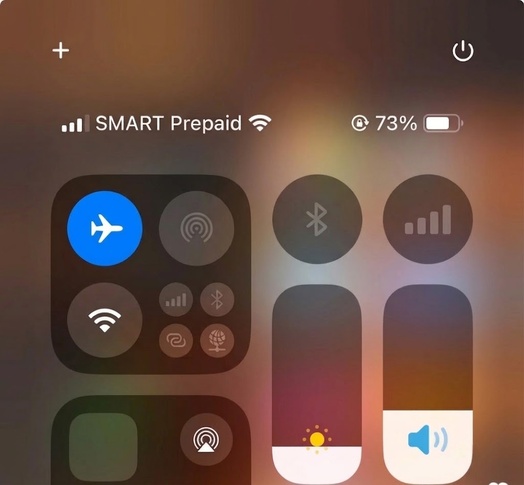
Tap the icon again to turn Airplane Mode off.
5. Turn Off VPN and Switch to Another Wi-Fi Network
A VPN or unreliable Wi-Fi network can interfere with communication between your iPhone and Apple's update servers. Switching networks can also help rule out connection problems, whether you are dealing with iOS 27 or an iOS 26.5 stuck on preparing update issue.
Steps:
Open Settings and disable any active VPN connection.
-
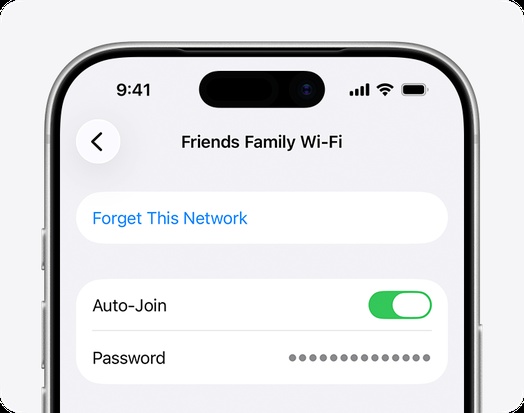
Go to Settings > Wi-Fi and tap the ⓘ next to your current network.
-
Select Forget This Network, then confirm.
-
Connect to another reliable Wi-Fi network with a strong signal.
6. Delete the iOS 27 Update and Download It Again
A failed or incomplete download can leave your iPhone update stuck on Update Requested. Removing the old update file gives your iPhone a fresh copy to work with.
Steps:
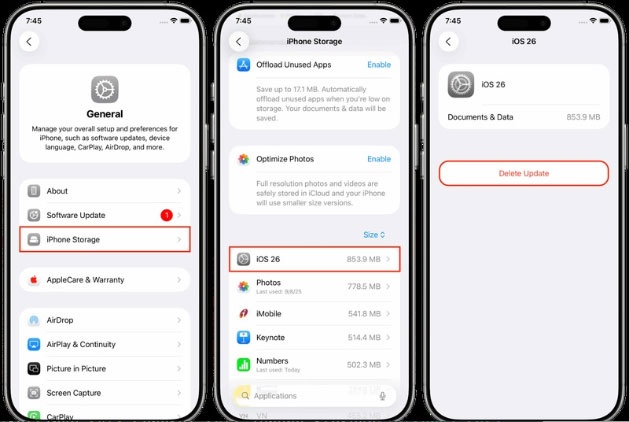
Head to Settings > General > iPhone Storage.
Find and open the downloaded iOS 27 update.
-
Tap Delete Update, then confirm when prompted.
-
Restart your iPhone and reconnect it to a stable Wi-Fi network.
-
Open Settings > General > Software Update and download iOS 27 again.
7. Update Your iPhone Using ITunes
A computer can provide a more reliable way to install the update when your iPhone cannot move past Update Requested. This can be useful for an iOS 27 stuck on update requested iPhone 11 issue.
Steps:
-
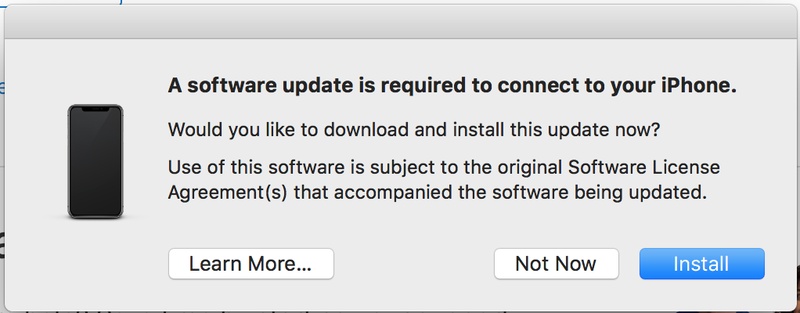
Install the latest version of iTunes on your Windows PC and open it.
-
Connect your iPhone to the computer with a USB cable.
Select your iPhone when it appears in iTunes.
Click Summary > Check for Update.
-
Select Download and Update and keep your iPhone connected until the installation finishes.
8. Fix iOS 27 Update Problems With ReiBoot Without Losing Data
An iOS update can sometimes get stuck because of a system error that normal troubleshooting cannot resolve. That's where Tenorshare ReiBoot comes in handy. Instead of forcing a reset that could wipe your device, this tool targets the update glitch directly and repairs it with just one click.
It's designed to fix over 150 different iOS system issues, from stuck updates to black screens and boot loops. Your photos, messages, and apps remain intact during the repair.
Key Features of ReiBoot
-
iOS system repair: Helps fix update failures, frozen screens, boot loops, and other system issues.
-
No data loss with Standard Repair: Repairs the system without intentionally erasing your personal files.
-
Easy to use: Offers a guided process with clear on-screen instructions.
-
Wide compatibility: Supports a range of iPhone models and iOS versions.
-
Update problem repair: Can help when an iOS update gets stuck or fails to install.
How to Use ReiBoot to Repair the iPhone update stuck on update Requested:
-
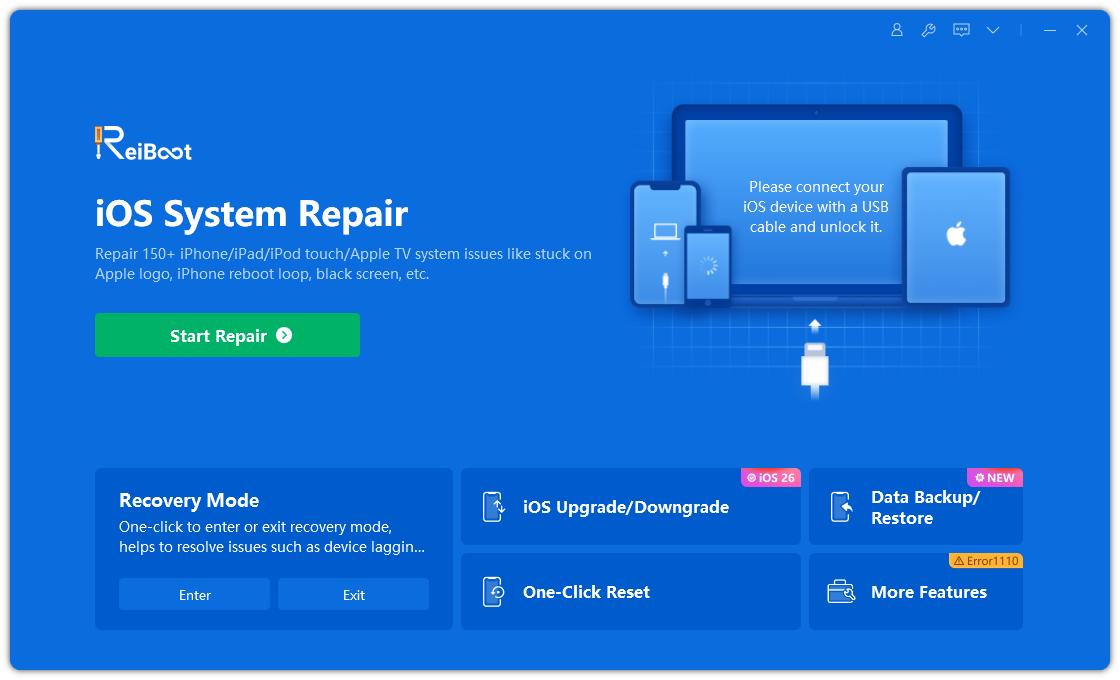
Install and open ReiBoot on your computer, then connect your iPhone using a USB cable. Select Start Repair from the main screen.
-
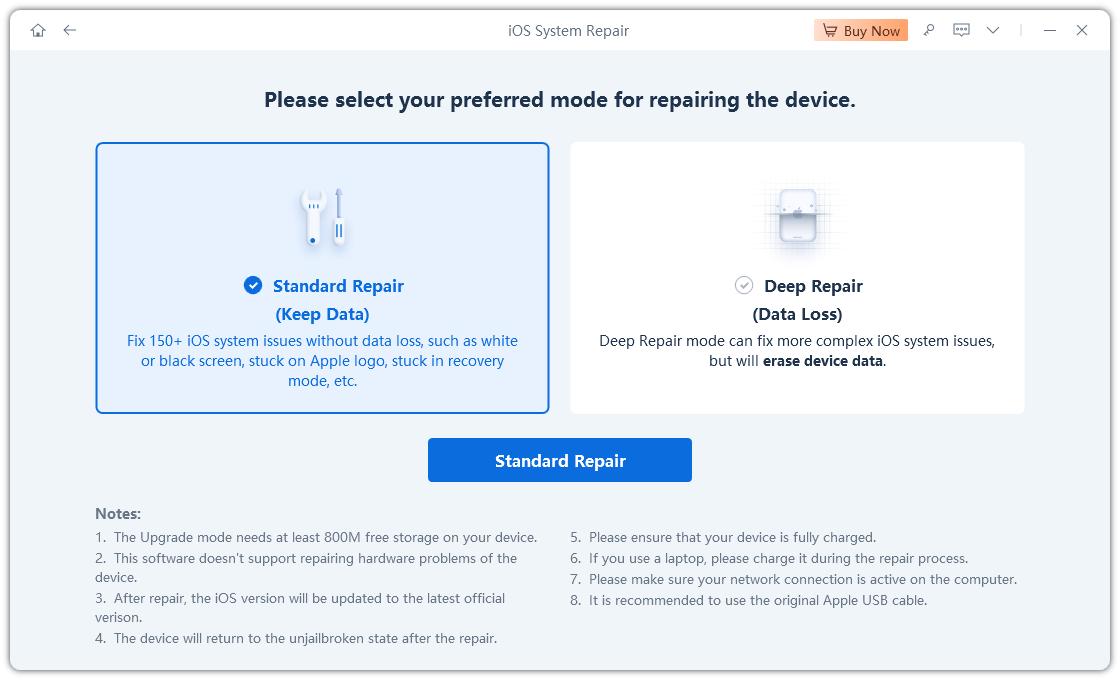
Select Standard Repair to fix the system while keeping your personal data.
-
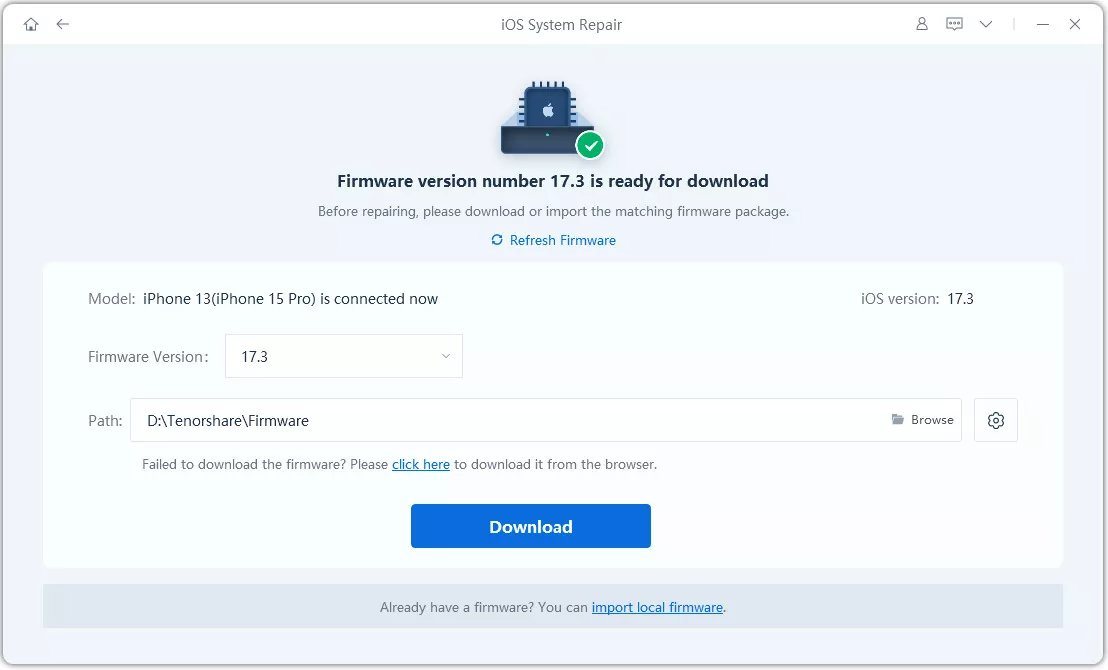
Click Download and wait for ReiBoot to download the firmware package for your iPhone.
-
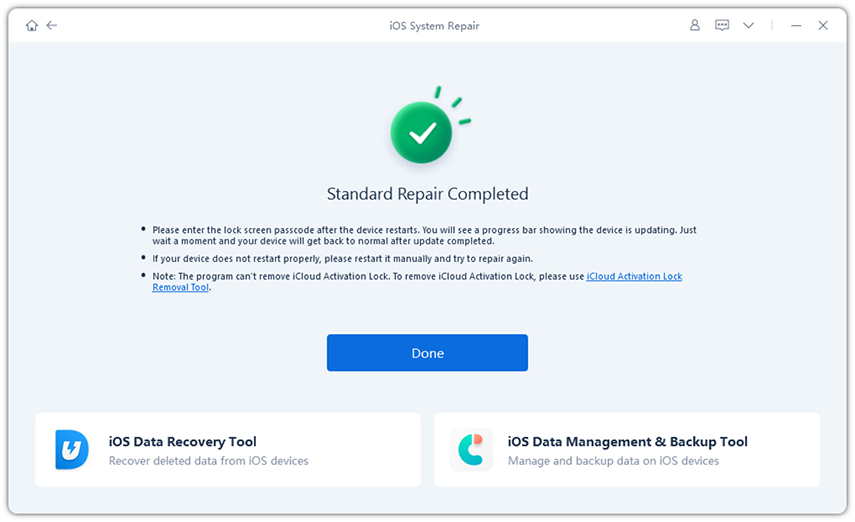
Click Start Standard Repair and keep your iPhone connected until the repair is complete and your device restarts.
9. \Last Resort\ Use Recovery Mode to Fix iOS 27 Update Problems
Recovery Mode is useful when your iPhone won't complete the iOS 27 update and remains stuck despite other fixes. It lets you connect the iPhone to a computer and reinstall or update iOS. Try Update first, as Restore erases the device.
Steps:
-
Plug your iPhone into a Mac or Windows PC with a USB cable and open Finder, Apple Devices, or iTunes.
2. Enter Recovery Mode:
Quickly press and release Volume Up, then Volume Down. Press and hold the Side button until the Recovery Mode screen appears.
-
Find your iPhone on the computer and select Update when the available options appear.
-
Let the computer download and install the iOS software. Keep your iPhone connected throughout the process.
-
If the update fails, you can choose Restore, but remember that this option erases all content and settings from your iPhone.
Part 3: How do I stop an iOS update while it's preparing?
Yes, you can stop an iOS update while it's still preparing. Just go to Settings > General > iPhone Storage, find iOS 27 in your app list, and tap Delete Update. This cancels the process safely and won't affect your files, photos, or apps.
Keep in mind this only works before the update actually starts installing, once installation begins, it's best to let it finish on its own.
Faq About iOS 27 Stuck on Update Requested
1. Can iPhone 6 run iOS 27?
No. The iPhone 6 does not support iOS 27. You need a newer compatible iPhone to install the update.
2. How do I cancel a stuck update request?
Go to Settings > General > iPhone Storage, find the iOS update, and tap Delete Update. You can download it again later.
3. How long should Update Requested take on iOS 27?
It usually takes a few minutes. A busy Apple server, slow Wi-Fi, or limited storage can make it take longer.
4. Can I Cancel an iOS 27 Update While It Says Update Requested?
Yes. While the update is still waiting to download, you can delete it from iPhone Storage. Avoid turning off your iPhone once the installation has started.
Final Words
An iOS 27 Stuck on Update Requested screen doesn't have to put your iPhone on hold. In most cases, a quick restart, a storage check, or a network switch will get things moving again. If the issue keeps coming back, don't risk a full reset. Tenorshare ReiBoot offers a safe, one-click fix that repairs the update glitch. Its Standard Repair mode can fix common iOS issues without erasing your data.
