
Updated on 2026-09-07 / iPhone Tips
A new iPhone should easily get you through the day, but iphone 18 battery draining fast can quickly become frustrating. You may notice the battery percentage dropping unusually quickly, the phone getting warm during normal use, or needing to charge more often than expected.
Battery drain can happen because of background activity, high screen brightness, location services, poor network connections, or apps using too much power. This guide covers the most effective ways to find the cause and improve your iPhone 18 battery life.
Part 1. Why Is My iPhone 18 Battery Draining So Fast?
Before changing settings, it helps to find out what is actually using your battery. A new iPhone battery draining fast does not necessarily mean the battery is defective.
Common Causes of Fast Battery Drain
-
Background app activity
-
High screen brightness
-
Always-On Display and frequent screen activity
-
Location services
-
Weak cellular or Wi-Fi signal
-
Too many notifications
-
Resource-heavy apps
-
Background syncing
-
Recent iOS updates
-
High temperatures
-
Battery health or hardware problems
Part 2. How to Check What Is Draining Your iPhone 18 Battery
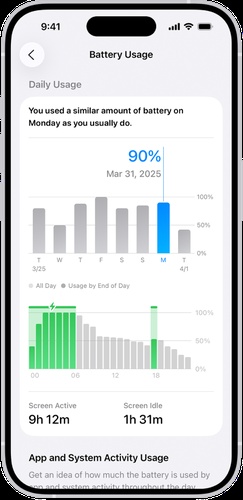
Your iPhone can show exactly which apps and activities are consuming the most power. Checking this information first makes it easier to find the main cause and choose the right fix instead of changing multiple settings unnecessarily.
Check Battery Usage by App
Open Settings on your iPhone 18.
Tap Battery.
Review the battery usage graph at the top.
-
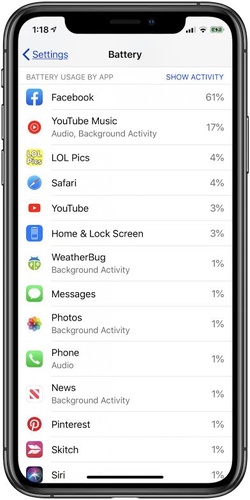
Scroll down to Battery Usage by App.
-
Check which apps have used the most battery.
-
Tap an app to see its On Screen and Background Activity usage.
-
Pay attention to apps with unusually high battery consumption compared with how often you use them.
Part 3. How to Fix iPhone 18 Battery Draining Fast
Once you know what is consuming the most power, you can make targeted changes instead of turning off every useful feature. Try the methods below to improve battery performance while keeping the features you actually need.
Method 1. Reduce Screen Brightness
The display is one of the biggest sources of battery consumption, particularly when brightness stays high for long periods. Lowering the brightness can help extend battery life without affecting other iPhone features.
Steps:
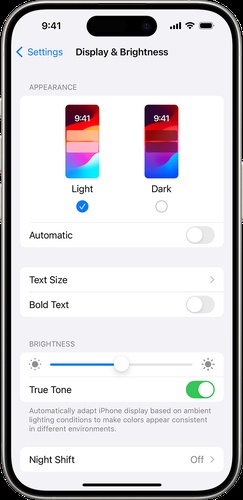
Open Settings > Display & Brightness.
-
Move the brightness slider to a comfortable level.
-
Turn on Automatic under the Night Shift or display options where available.
-
You can also adjust brightness quickly from Control Center.
Method 2. Check and Limit Background App Activity
Apps can continue refreshing content even when you are not actively using them. Limiting unnecessary background activity can help reduce battery consumption and may improve overall iphone 18 battery life.
Steps:
Open Settings.
Tap General.
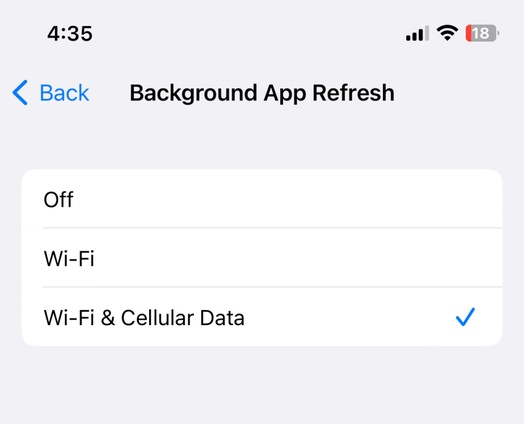
Select Background App Refresh.
-
Turn it off completely or disable it for apps that do not need to refresh in the background.
-
Keep it enabled for apps where background updates are genuinely useful.
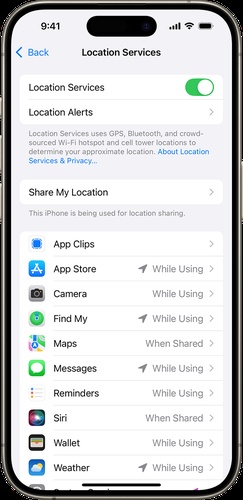
Method 3. Review Location Services
Location services allow apps to use your iPhone's GPS and other location information. Apps that frequently request your location can contribute to battery drain, especially when they do not need constant access.
Steps:
Go to Settings > Privacy & Security.
-
Tap Location Services.
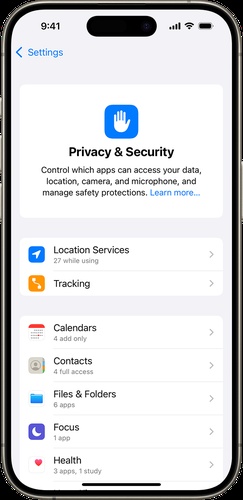
Review the apps listed there.
-
Select an app that does not need continuous location access.
-
Choose Never or While Using the App.
-
Avoid disabling location access for essential services unless necessary.
Method 4. Turn On Low Power Mode
Low Power Mode reduces certain background activities and performance-related processes to help your battery last longer. It is particularly useful when you are away from a charger and need to stretch your remaining battery.
Steps:
Open Settings.
Tap Battery.
-
Turn on Low Power Mode.
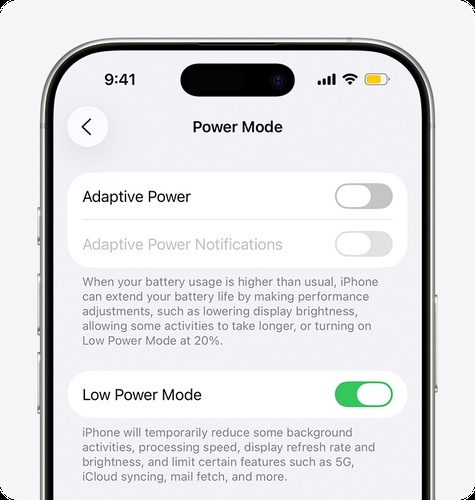
Keep it enabled when you need extra battery life.
-
Turn it off later when you no longer need to conserve power.
Method 5. Check for Apps Causing Excessive Battery Drain
A single poorly optimized or heavily used app can sometimes explain why your iphone 18 battery drains fast. Checking battery usage lets you identify these apps before removing useful system features.
Steps:
Open Settings > Battery.
Check the Battery Usage by App section.
Find apps with unusually high battery consumption.
Update the app through the App Store.
-
If the problem continues, close unnecessary use of the app or reinstall it.
-
Consider removing an app only when its battery usage remains unusually high.
Method 6. Update iOS and Your Apps
Software bugs or outdated apps can sometimes contribute to unusual battery consumption. Keeping iOS and your apps updated ensures you have the latest available bug fixes and performance improvements.
Steps:
Open Settings > General > Software Update.
Check whether a new iOS update is available.
Install the update if one is offered.
Open the App Store.
Tap your profile picture.
Update apps with pending updates.
Method 7. Check Your Cellular Signal
A weak cellular connection can make your iPhone work harder to maintain a network connection. This can be particularly noticeable when traveling through areas with poor coverage and may contribute to faster battery consumption.
Try these steps:
Check the cellular signal shown in the status bar.
-
Move to an area with stronger network coverage when possible.
Connect to a reliable Wi-Fi network when available.
-
Turn on Airplane Mode temporarily in areas where you do not need cellular connectivity.
-
Contact your carrier if you consistently experience unusually weak coverage.
Method 8. Keep Your iPhone Cool
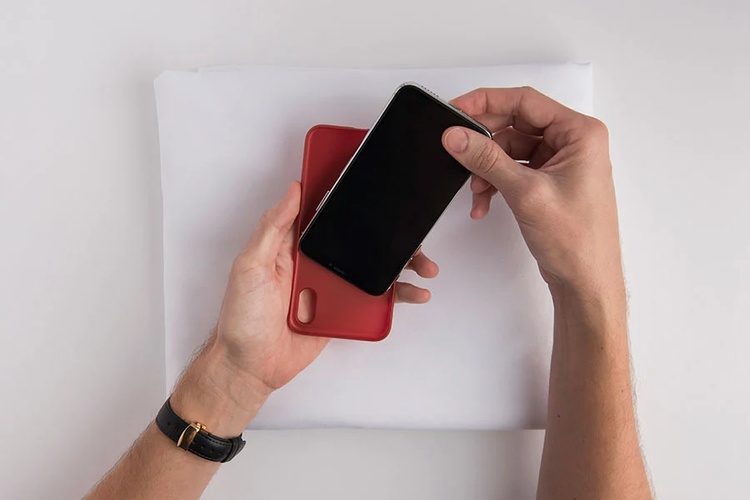
Heat can affect battery performance, and an iphone 18 gets hot and drains battery situation may occur during demanding tasks, charging, or exposure to high temperatures. Keeping the device within a normal temperature range can help protect battery performance.
Steps:
-
Move your iPhone away from direct sunlight or other heat sources.
-
Remove a thick case temporarily if the device becomes unusually hot.
-
Stop demanding games or apps until the iPhone cools down.
Avoid leaving the device in a hot car.
-
Do not use or charge the iPhone in excessively hot conditions.
-
Allow it to cool naturally before continuing heavy use.
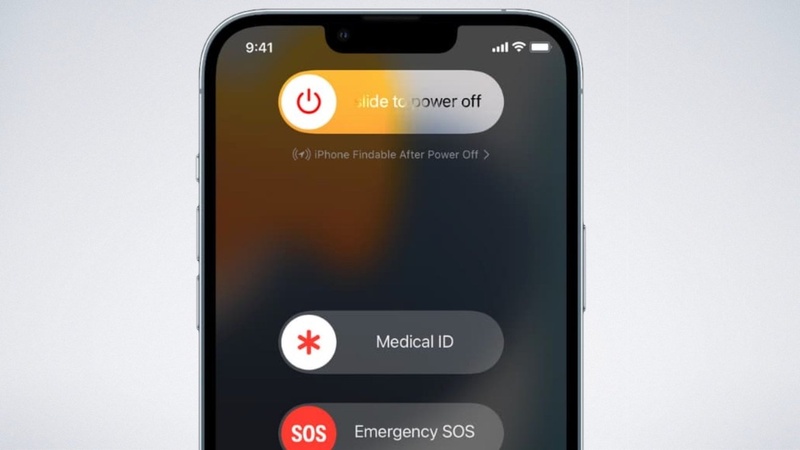
Method 9. Restart Your iPhone 18
A simple restart can clear temporary system processes and minor software glitches that may be affecting battery performance. It is a quick step worth trying before moving on to more advanced troubleshooting.
Steps:
-
Press and hold the Side button and either Volume button.
Wait for the power-off slider to appear.
-
Drag the slider to turn off your iPhone.
Wait around 30 seconds.
Press and hold the Side button again.
Release it when the Apple logo appears.
Part 4: Battery Still Draining Fast? Repair iOS with One-Click ReiBoot \No Data Loss
Unusual battery drain can sometimes point to an iOS software problem rather than a worn-out battery. Tenorshare ReiBoot helps troubleshoot and repair a wide range of iOS system issues that may affect your iPhone's performance and power management.
It offers a simple, guided repair process without complicated technical steps. You can use it to address system freezes, update errors, recovery mode issues, and startup problems. It's a useful option when regular battery-saving fixes fail to improve the issue.
Why Choose ReiBoot?
-
150+ iOS fixes common system glitches, update problems, freezes, and more.
-
Repair iOS system problems while keeping your personal files intact.
-
Easily enter or exit Recovery Mode when needed.
-
No advanced technical knowledge or complicated commands required.
-
Address software issues that may affect device performance and battery behavior.
-
Supports compatible iPhone models and iOS versions.
How to Repair iPhone 18 with ReiBoot
-
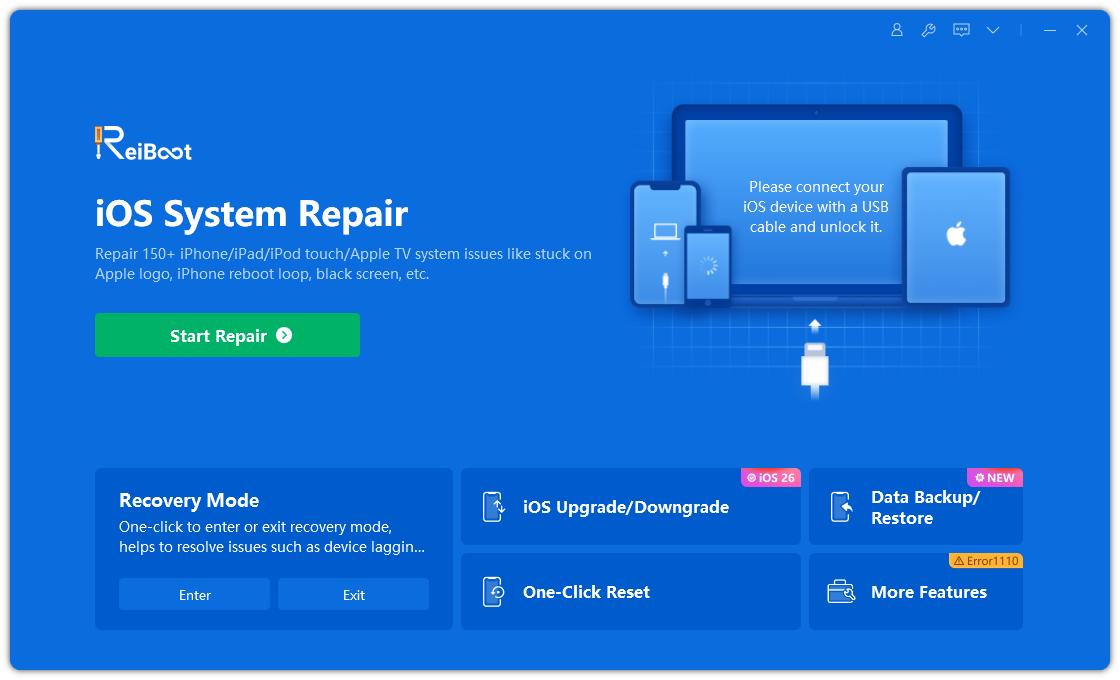
Step 1: Install and launch ReiBoot on your computer, then connect your iPhone 18 with a USB cable. Select Start Repair from the main screen.
-
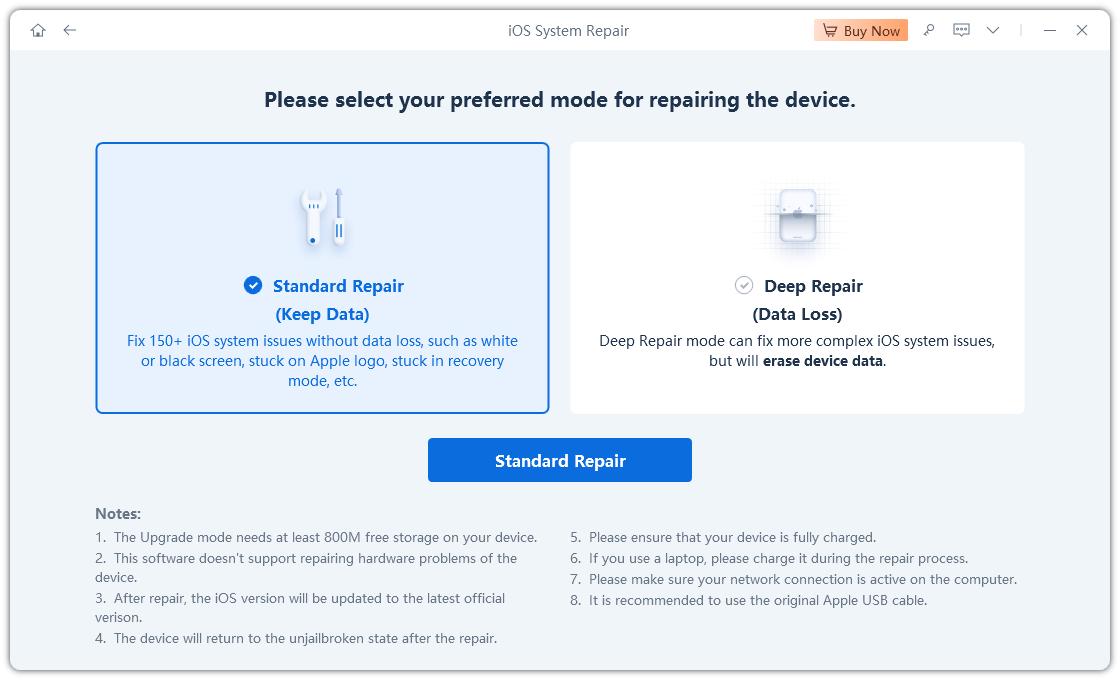
Step 2: Click Start and choose Standard Repair. This repair mode is designed to resolve iOS system issues without erasing your personal data.
-
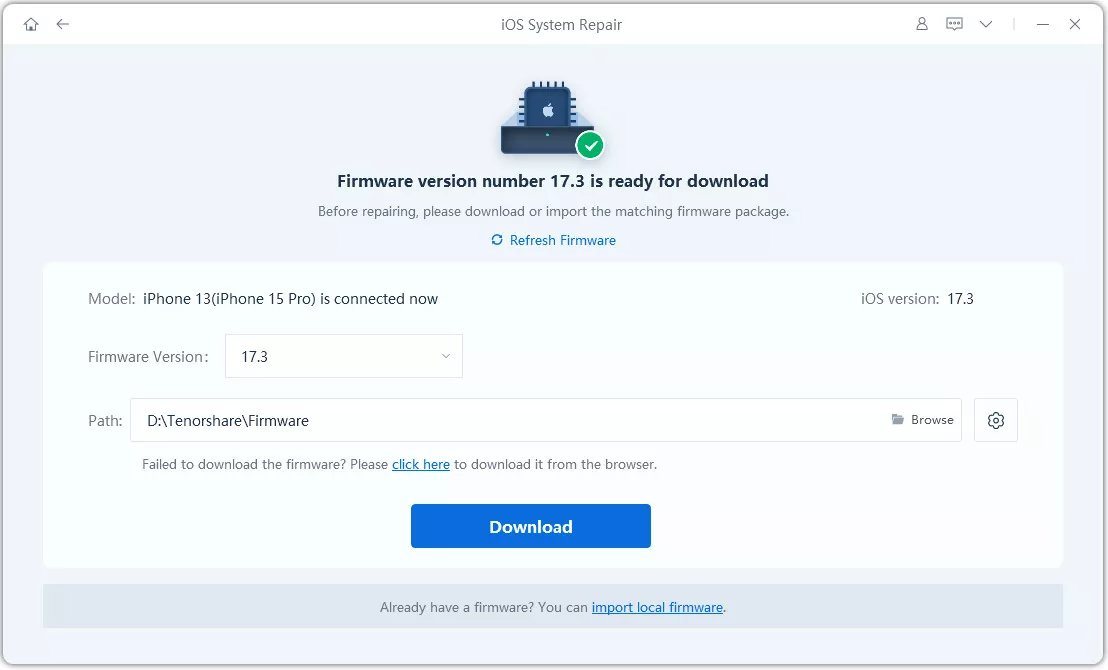
Step 3: ReiBoot will automatically show the suitable firmware package. Click Download and wait until the firmware is downloaded completely.
-
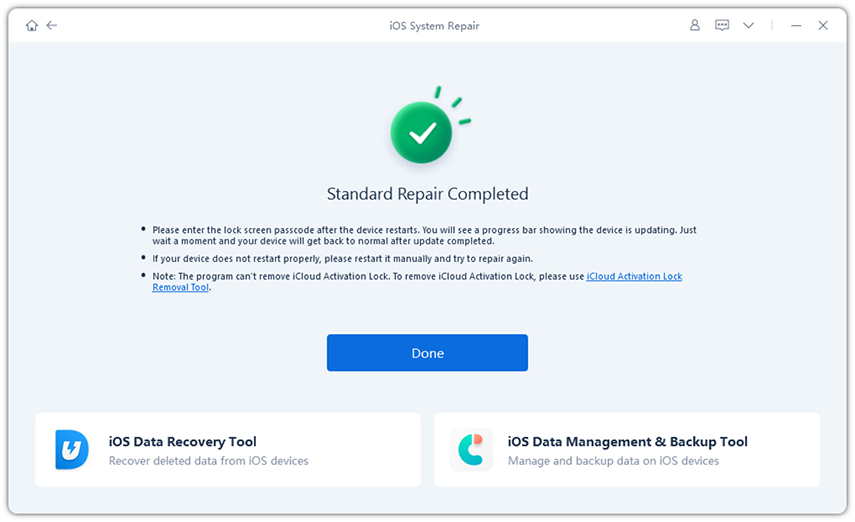
Step 4: Keep your iPhone connected throughout the process. Once the repair is complete, the device will restart automatically. Check your battery performance after the iPhone boots back up.
FAQs About iPhone 18 Battery Drain
1. Why is my iPhone battery draining so fast all of a sudden?
A recent iOS update, background activity, high screen brightness, weak network signal, or a battery-heavy app can cause sudden battery drain. Check Settings > Battery to find the biggest power users.
2. Why is my iPhone battery draining so fast overnight?
Background app activity, location services, notifications, or a weak cellular signal can drain battery while you sleep. Check Battery settings and disable unnecessary background activity or connectivity features.
3. Which apps are draining my iPhone 18 battery the most?
Go to Settings > Battery and review the Battery Usage by App section. It shows which apps have consumed the most battery, helping you identify apps that may be causing excessive drain.
Final Words
Fast battery drain does not always mean your iPhone 18 battery is failing. Checking battery usage and adjusting power-hungry settings can often improve iphone 18 battery draining fast problems. When the issue continues despite these fixes, an iOS system glitch could be involved. Tenorshare ReiBoot can help repair common iOS system issues with a simple, guided process. It gives your iPhone a fresh start without requiring you to jump straight to a factory reset.
