
Updated on 2026-10-19 / iOS 27
An iPhone stuck in recovery mode during an iOS 27 update usually shows a cable and computer symbol instead of the Lock Screen. Tenorshare Reiboot offers a guided exit and repair option. You can also try a force restart or Apple’s Update option before considering Restore. The distinction matters: recovery mode itself does not erase your photos and messages, but a factory restore does. Here are four options, with the data implications explained before you begin.
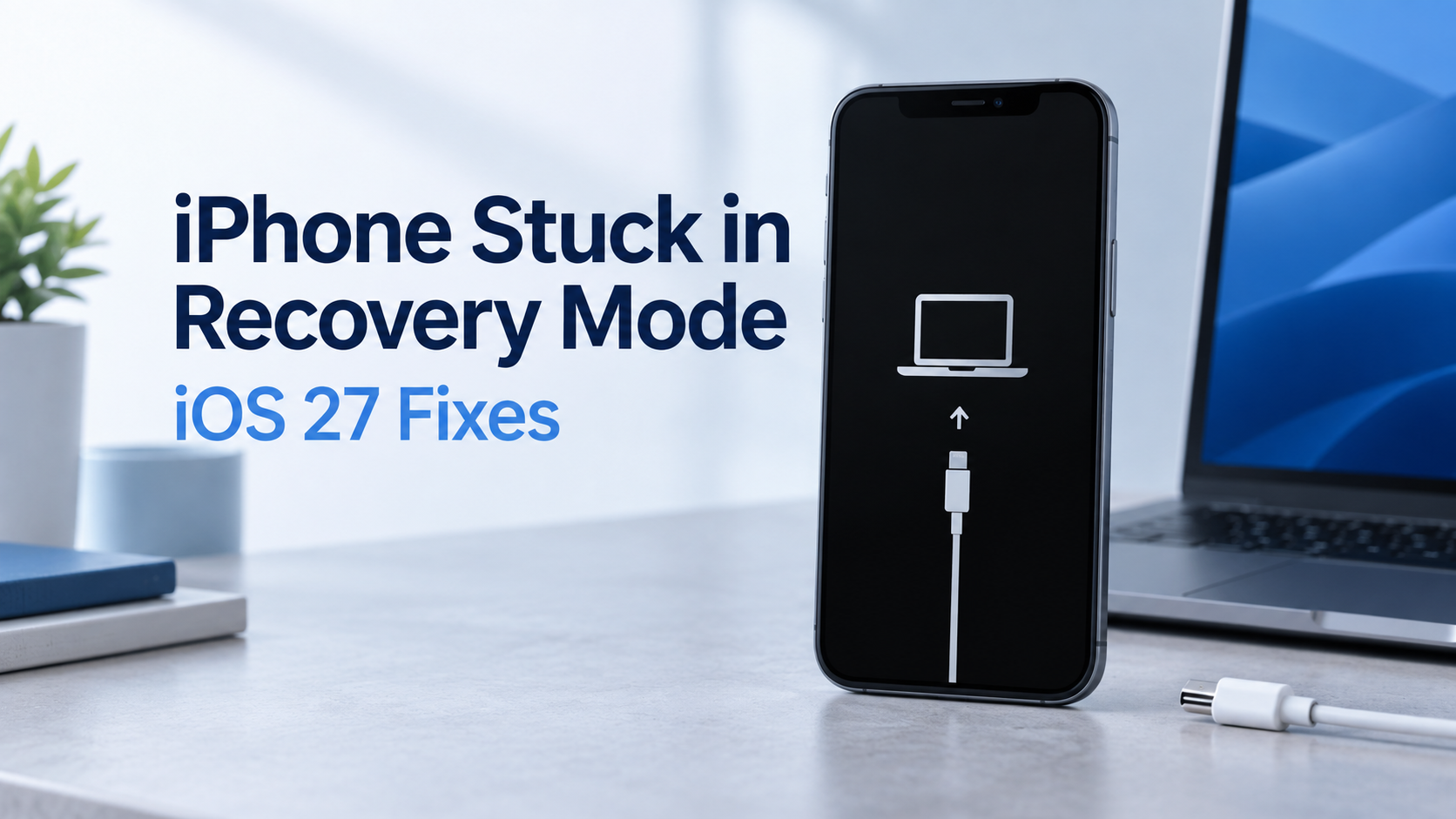
Part 1. Why Is My iPhone Stuck in Recovery Mode After an iOS 27 Update?
Recovery mode lets a computer communicate with an iPhone that cannot start normally. Three possible causes are:
An interrupted update or restore.
A faulty cable, USB port, outdated computer software, or server connection.
A persistent system fault or damaged hardware; software cannot fix damaged components.
The screen does not mean your data is erased; Restore does erase it. A moving progress bar or Recovery Assistant needs its own instructions. Repeated failures, especially after impact or liquid exposure, warrant service. Keep any error codes.
Part 2. How to Get an iPhone out of Recovery Mode on iOS 27
If the phone starts at any point, back it up before continuing. If it remains inaccessible, do not assume you can create a fresh backup from the recovery screen.
Method 1. Exit Recovery Mode and Repair iOS with Tenorshare Reiboot
Best for: A recurring recovery screen where a guided desktop repair is preferable.
If your iPhone is stuck in recovery mode, Tenorshare Reiboot offers an exit function and a separate repair option designed to retain data. Try exiting first; use system repair if the phone cannot stay running. Its practical advantages include:
-
One-click recovery-mode exit, without a manual button sequence.
-
A repair mode for common iOS faults, designed to preserve existing device data.
-
Support for 150+ iOS/iPadOS system issues, including recovery-mode loops, a stuck Apple logo, and black screens.
-
Free recovery-mode entry without using the iPhone's buttons.
-
Tools for common iTunes errors, including error 4013, and device-recognition problems.
-
Guided firmware download and repair on Windows or Mac.
Check support for your exact device and iOS build, plus the current license requirements, before proceeding. Deep Repair erases data and is not the mode used here.
-
Connect your iPhone, open Tenorshare Reiboot, and select Exit under Recovery Mode. Stop if it boots normally.
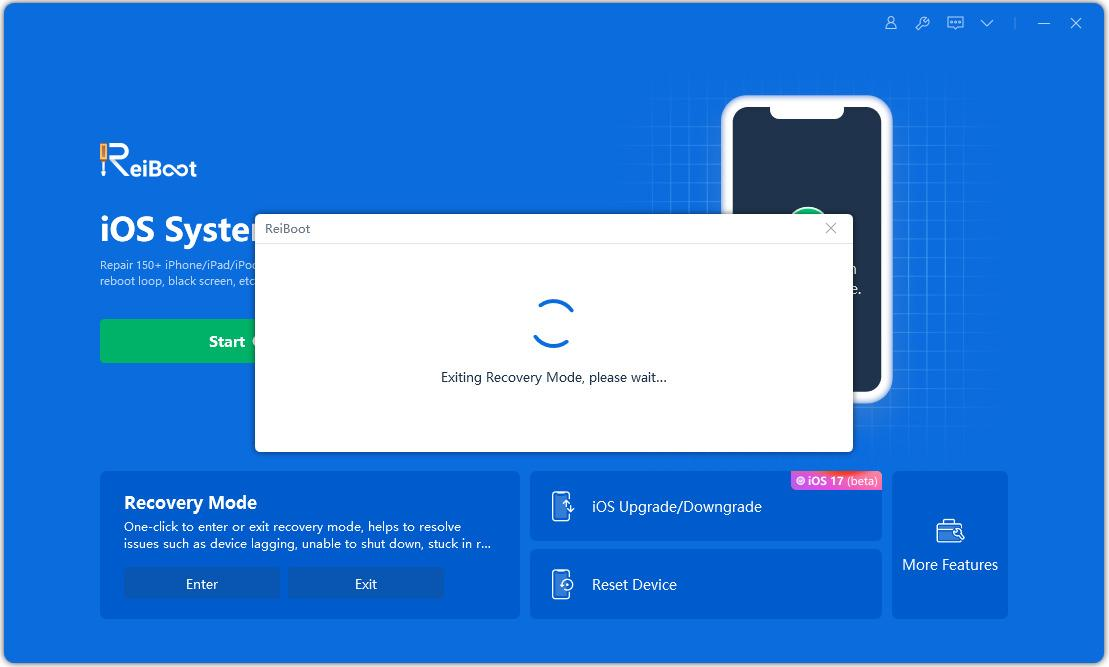
-
If the screen returns, select Start Repair, then the mode designed to retain data.
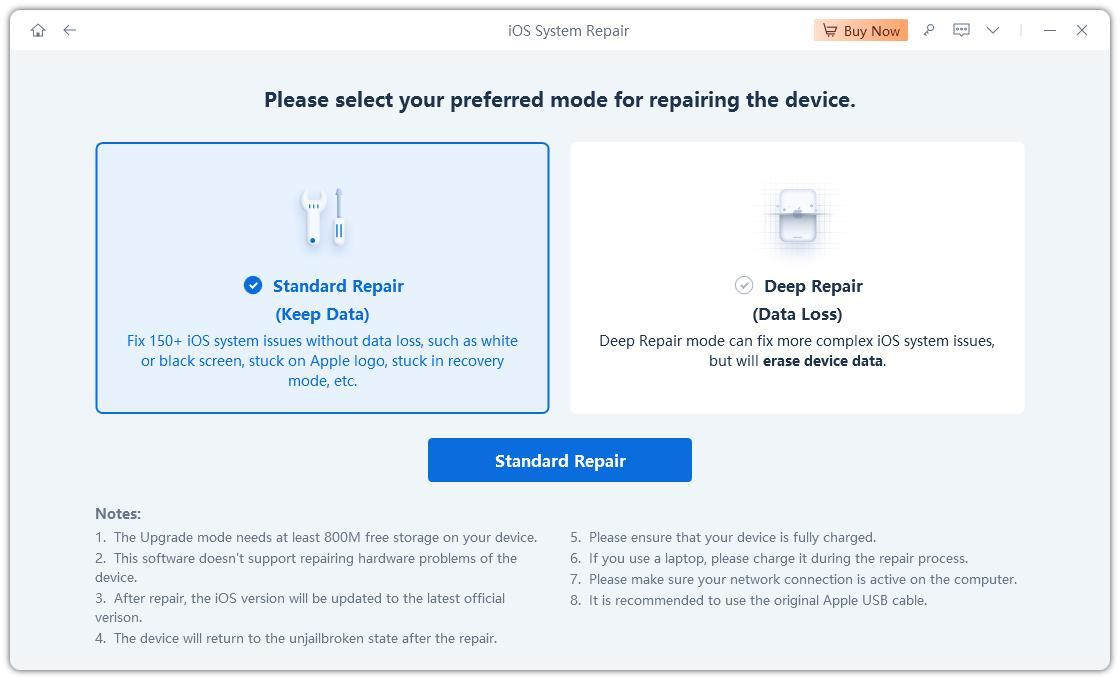
-
Confirm the detected device and download compatible firmware offered for it.
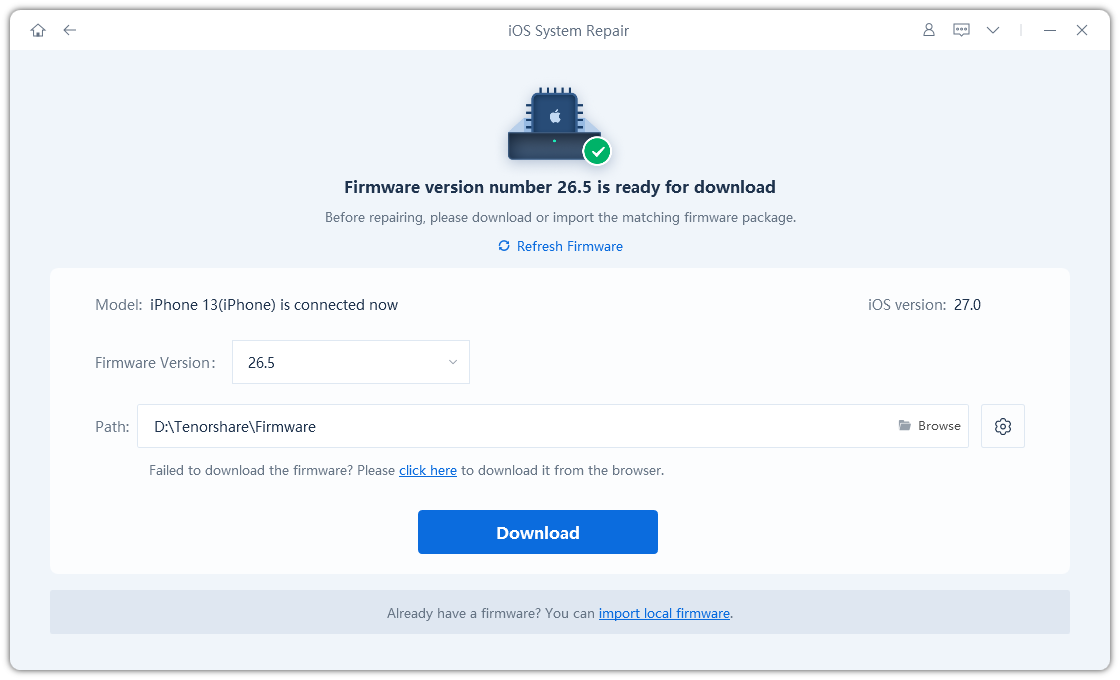
-
Start the repair in the mode designed to retain data and keep the phone connected until the process finishes.
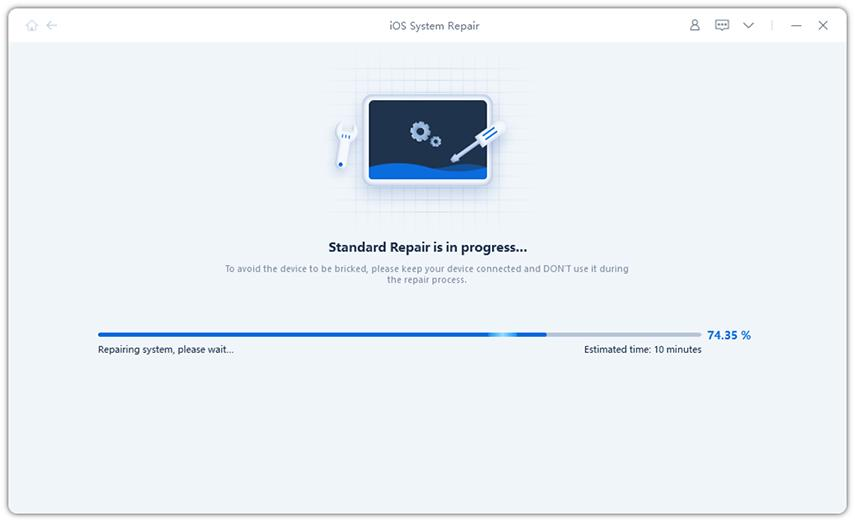
Tenorshare Reiboot addresses supported software issues, not hardware faults. Back up whenever possible; a data-preserving repair design is not a guarantee.
Video Tutorial: iPhone Recovery Mode Options
Method 2. Force Restart Your iPhone
Best for: A temporary startup failure or accidental entry into recovery mode.
-
Quickly press and release Volume Up, then Volume Down.
-
Hold the Side button until the Apple logo appears, then release it.
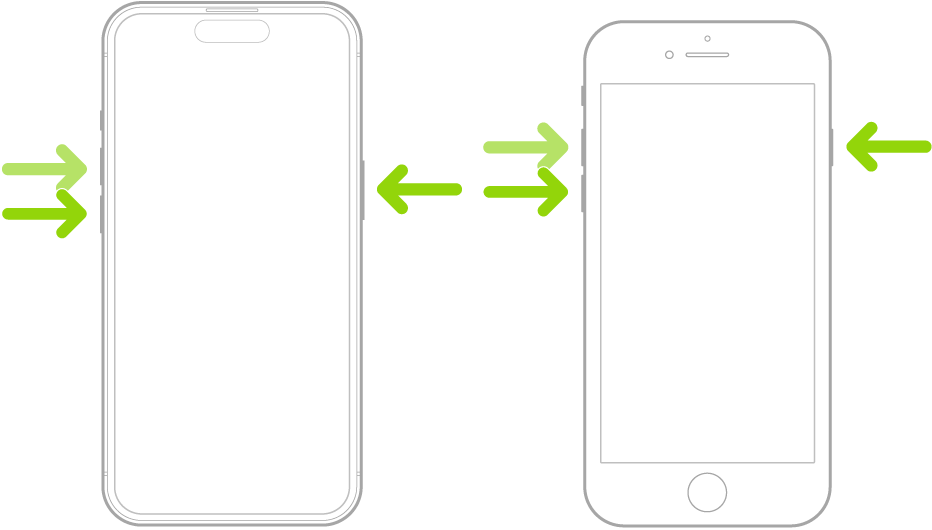
This sequence applies to iPhone 8 and later. If already connected to a computer, keep it connected. A force restart does not erase data; if the recovery screen returns, move on.
Method 3. Reinstall iOS with Finder or Apple Devices
Best for: An official attempt to reinstall iOS while keeping personal data.
For iPhone recovery mode without iTunes, use Finder on a current Mac or Apple Devices on Windows. iTunes applies to older supported setups.
-
Update the computer software, connect the iPhone, and open Finder or Apple Devices.
-
Select the iPhone and choose Update when offered Update or Restore.
-
Leave it connected while the software downloads and installs.
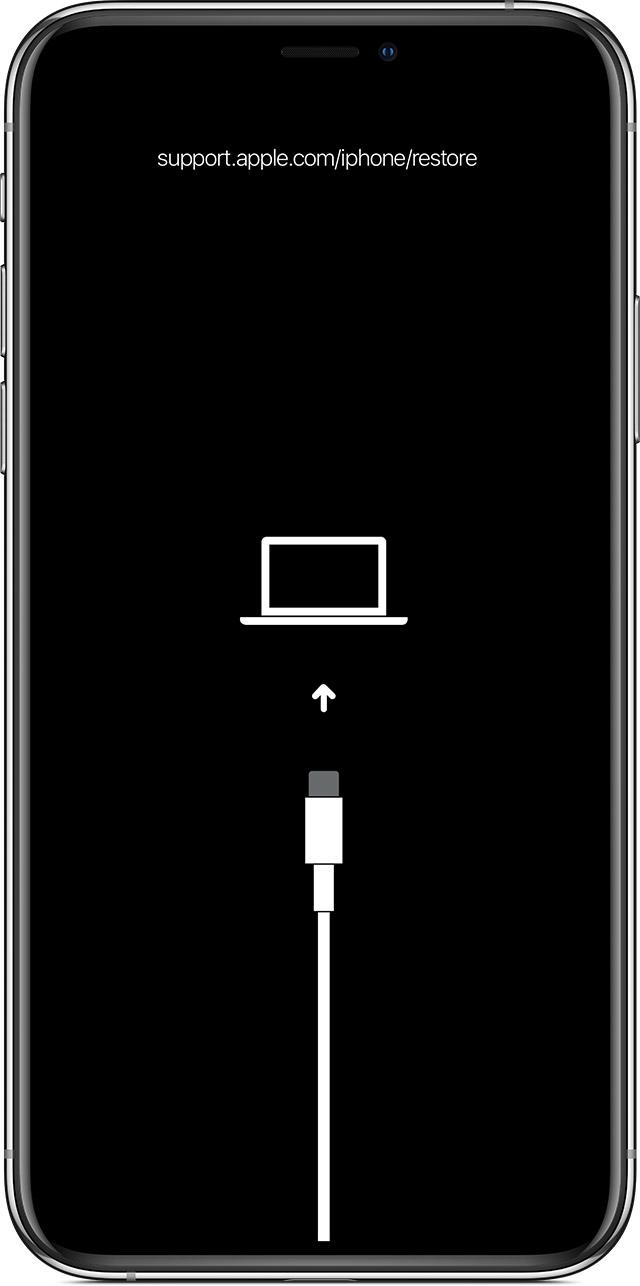
Do not select Restore merely because the phone displays a “restore” web address. Apple distinguishes these options in its recovery instructions.
Method 4. Restore the iPhone as a Last Resort
Best for: Failed repair attempts when you accept erasing the phone.
Check for an existing backup before proceeding. Restoring installs iOS again but removes the device’s current content.
-
Keep the iPhone connected and select Restore in the computer’s recovery prompt.
-
Confirm the warning and wait for installation to finish.
-
Complete setup and recover available content from a compatible backup.
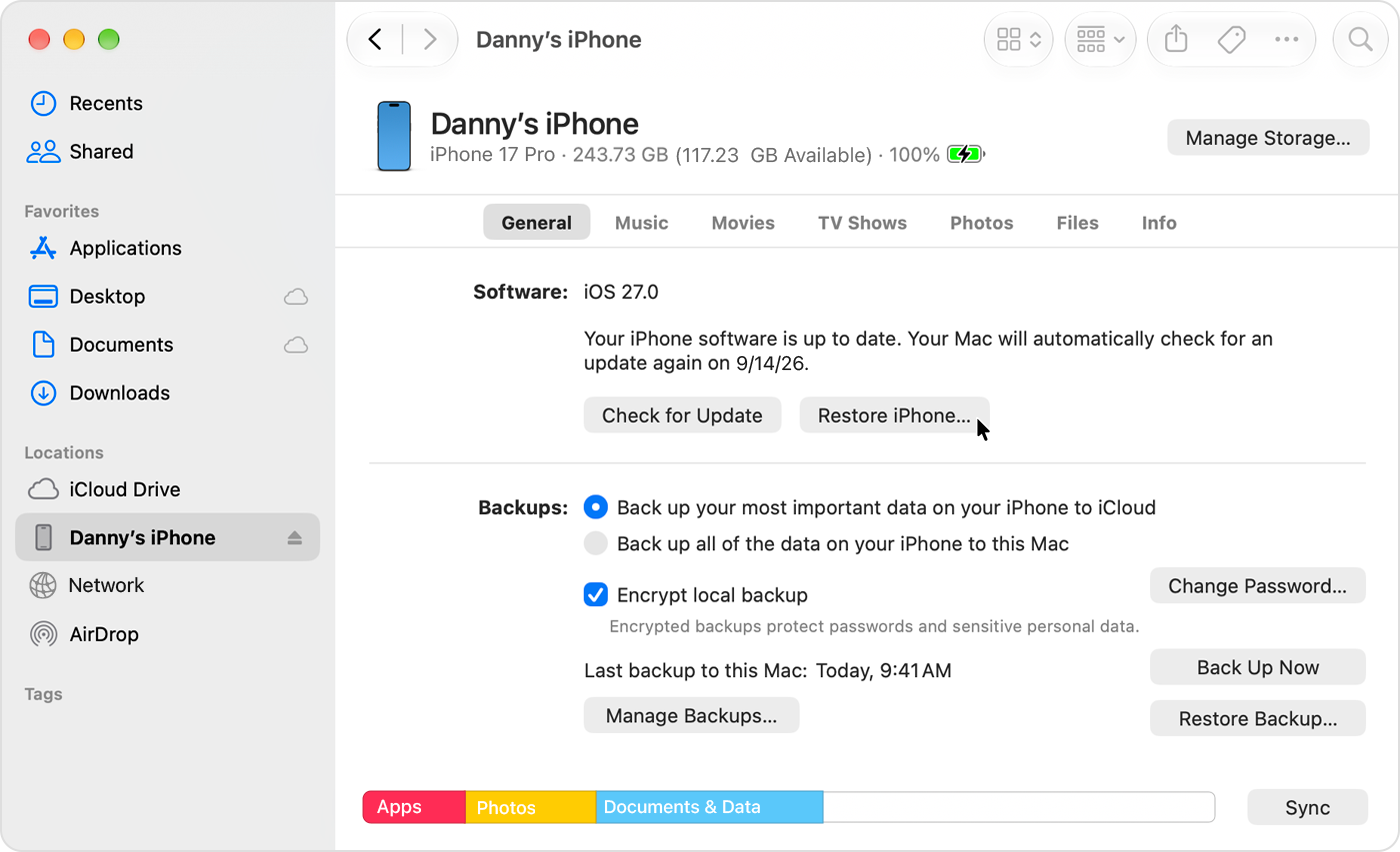
If restoration fails repeatedly, contact Apple rather than repeatedly erasing the phone.
Part 3. FAQs About iOS 27 Recovery Mode
Does Recovery Mode Erase My iPhone Data?
No. Entering recovery mode is different from erasing the phone. The next action matters: Update attempts to preserve data, while Restore deletes it. If important files are not backed up, try non-erasing options first and read each confirmation carefully.
Can I Get My iPhone out of Recovery Mode Without a Computer?
Sometimes. If you want to know how to get an iPhone out of recovery mode without a computer, try a force restart. A persistent connect-to-computer screen usually needs computer-based recovery. If Recovery Assistant appears instead, follow its onscreen instructions.
Why Does My iPhone Keep Returning to Recovery Mode?
The startup problem may still be unresolved. An exit command does not reinstall damaged system software. Check the connection and attempt repair or Update. Repeated failures can also require service; the screen alone cannot identify a hardware defect.
What If My Computer Cannot Detect My iPhone?
Try a data-capable cable and another USB port, then update Finder’s host macOS or Apple Devices. Avoid an unreliable hub. If another computer also fails to detect the phone, have Apple check the connection and device rather than repeatedly buying repair tools.
How Long Does Recovery Mode Take to Fix?
There is no fixed completion time. Firmware size, network speed, and device condition matter. Apple notes that a download exceeding 15 minutes may let the phone leave recovery mode. Let it finish downloading, then re-enter recovery mode if necessary.
Conclusion
An iPhone stuck in recovery mode after an iOS 27 update does not automatically need erasing. Consider Tenorshare Reiboot’s guided exit and data-retaining repair mode, a force restart, or Apple’s Update option. Reserve Restore for the last resort. Review Tenorshare Reiboot’s current compatibility before starting, and seek service if software recovery repeatedly fails.
