
Updated on 2026-07-21 / iPhone Tips
We all love exploring new features early, but profiles always come with risks. If an unexpected update error left your device running the iOS 27 stuck on Apple logo display, take a deep breath.
This annoying freeze is usually just a temporary software loop caused by unstable background code, not a broken phone. To help you fix it fast, we have put together 7 reliable, easy-to-follow solutions. These methods will help bypass the frozen screen and restore your iPhone to perfect health.
Part 1. Why Is iOS 27 Stuck on Apple Logo?
The iOS 27 stuck on Apple logo issue occurs when the iPhone fails to load iOS properly during startup. This usually happens after an update, restart, or system error that interrupts the boot process.
Common reasons include:
-
A failed or incomplete iOS 27 update installation
-
System crash during restart or while applying updates
-
Corrupted or damaged firmware files inside iOS
-
Bugs or instability in the software causing boot failure
-
Incompatible or wrongly installed profile on the device
-
Sudden power loss or shutdown during the update process
-
Errors while verifying system files after installation
-
Conflicts between apps, services, or background processes
-
Incorrect or corrupted iOS installation package downloaded
-
Rare hardware issues that can affect normal system startup
Part 2. Quick Comparison: Best Ways to Fix iOS 27 Stuck on Apple Logo
| Method | Success Rate | Data loss | Ease of Use |
|---|---|---|---|
| Force Restart iPhone | Low | No | Very Easy |
| Wait and Charge iPhone | Low–Medium | No | Very Easy |
| ReiBoot Standard Repair | Very High | No | Very Easy |
| Disconnect Accessories & Check Cable | Low–Medium | No | Medium |
| Update via Finder / iTunes | High | No (Update mode) | Medium |
| DFU Mode Restore | High | Yes | Difficult |
| Downgrade to Stable iOS | High | Yes | Difficult |
Part 3. How to Fix iOS 27 Stuck on Apple Logo (Top 7 Ways)
Fix 1. Force Restart Your iPhone
A force restart cuts power at the hardware level, clearing the frozen memory cache and breaking the software loop caused by the unstable update. It is completely safe and won't delete your data.
Here how to fix iPhone update stuck on Apple logo progress bar:
Quickly press and release the Volume Up button.
Quickly press and release the Volume Down button.
Press and hold the Side button.
-
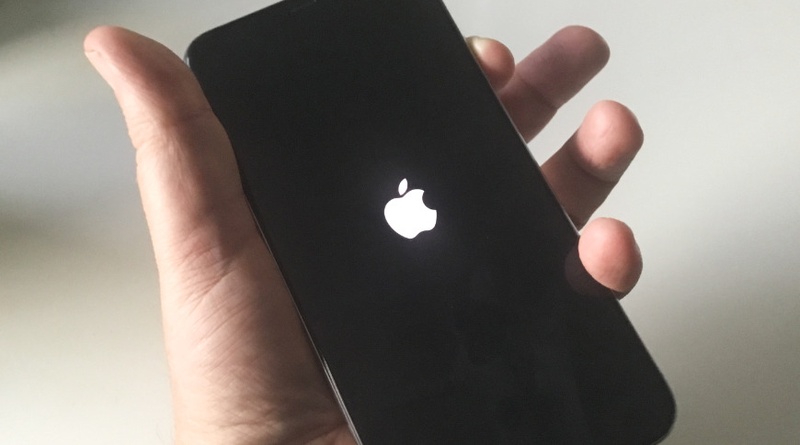
Keep holding until the Apple logo disappears and appears again.
-
Release the button and wait for the device to restart.
Fix 2. Wait and Charge Your iPhone
updates are heavy and can drain your battery mid-process, forcing the phone to freeze on the boot screen. Plug your iPhone into a wall outlet using a certified cable and leave it alone for 30 to 60 minutes. This gives the system enough stable power to finish processing the background update files.
Fix 3. Fix iOS 27 Stuck on Apple Logo Without Data Loss via ReiBoot
Using a dedicated iOS system recovery tool like Tenorshare ReiBoot is a safe and reliable option when normal fixes do not work. It is designed to repair deep iOS system problems without deleting your personal data.
It directly fixes system problems that cause issues like the iPhone update stuck on Apple logo progress bar. It can also detect the device even when it is frozen or stuck in a boot loop. It works by repairing corrupted iOS system files. This makes the recovery process much safer, simpler, and easier for users.
Key Features of ReiBoot:
-
Repairs iOS system issues without data loss using Standard Repair
-
Fixes Apple logo freeze, boot loop, and update stuck problems
-
Easily resolves iPhone update stuck on Apple logo progress bar errors
-
Enters and exits Recovery Mode with one click
-
Supports latest iOS versions and all iPhone models
-
Simple interface with quick repair process
-
No iTunes or technical steps required
Steps for to fix iPhone stuck on Apple logo with loading bar with reiboot:
Fix 4. Disconnect Accessories and Check Charging Cable
Before assuming it is a software issue, check if something connected to your iPhone is causing the iOS 27 stuck on Apple logo problem. A faulty cable, damaged accessory, or dirty charging port can interrupt the boot process and make the iPhone restart again and again.
Remove all connected accessories such as charging cables, headphones, adapters, and cases. Check the charging port carefully using a light and gently clean it if you see dust or lint.
Fix 5. Update iPhone Using Finder or iTunes
Your iPhone can sometimes get stuck on the Apple logo due to a failed or corrupted iOS update. Updating through a computer helps fix the system by reinstalling iOS using Recovery Mode.
Works only when the issue is related to software corruption or failed update. It cannot fix hardware faults, and DFU mode may be required if Recovery Mode does not respond.
Steps to fix iPhone 15 stuck on Apple logo with loading bar:
-
Open Finder (Mac) or iTunes (Windows/older Mac) and ensure it is updated to the latest version.
-
Connect your iPhone to the computer. Put your iPhone into Recovery Mode using the correct button sequence until the recovery screen appears.
-
When the pop-up appears, select Update to reinstall iOS without deleting your data.
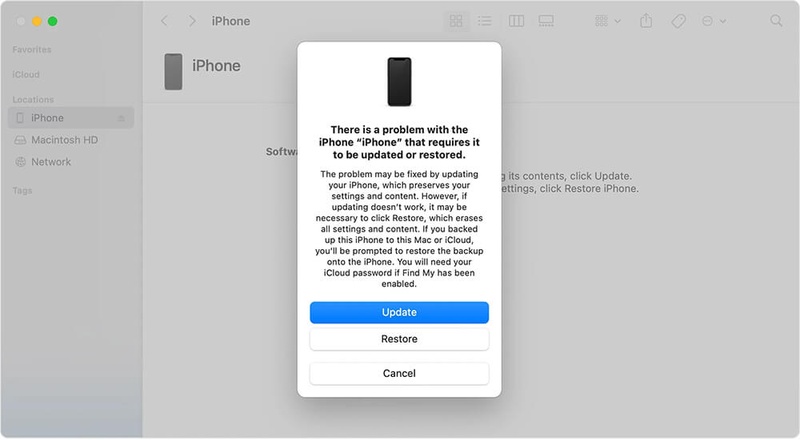
Note: Do not click Restore it will erase everything. Save that as a last resort.
-
Wait while the system downloads and installs iOS, keeping your iPhone connected throughout the process. Once complete, the iPhone will restart and should boot normally if the issue is resolved.
Fix 6. Restore iPhone in DFU Mode
DFU mode is the deepest restore option on an iPhone. It reloads the system at a very basic level and reinstalls iOS completely from scratch. It is used when normal fixes cannot resolve serious issues like iOS 27 stuck on Apple logo iPhone 6.
DFU mode erases all data on the device, including photos, apps, and settings. It should only be used as a last step and will not fix hardware problems like internal damage or faulty components.
Steps to fix Ios 27 stuck on apple logo iphone 11:
-
Open Finder or iTunes and connect your iPhone. Launch Finder (Mac) or iTunes (Windows). Connect your iPhone 6 using a Lightning cable plugged directly into the computer.
-
Enter DFU mode on iPhone 6
-
Hold the Power button for 3 seconds.
-
Still holding Power, also hold the Home button.
-
After 10 seconds, release Power keep holding Home.
-
Hold Home for 5 more seconds.
-
The screen should go completely black. No logo, no text just black.
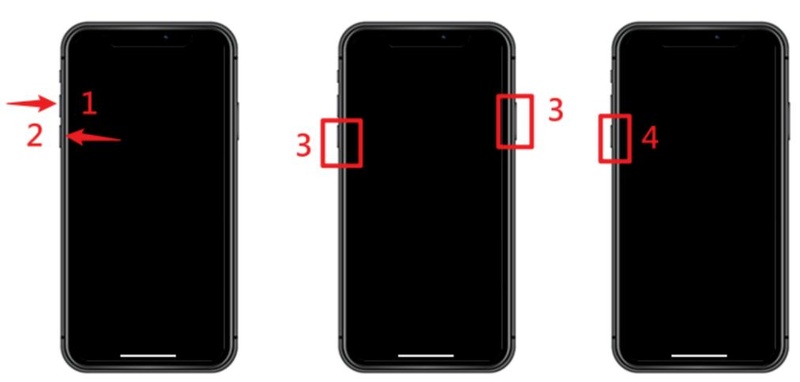
If you see the Apple logo or a recovery screen, the timing was off. Unplug, wait 10 seconds, and try again from step 1.
-
-
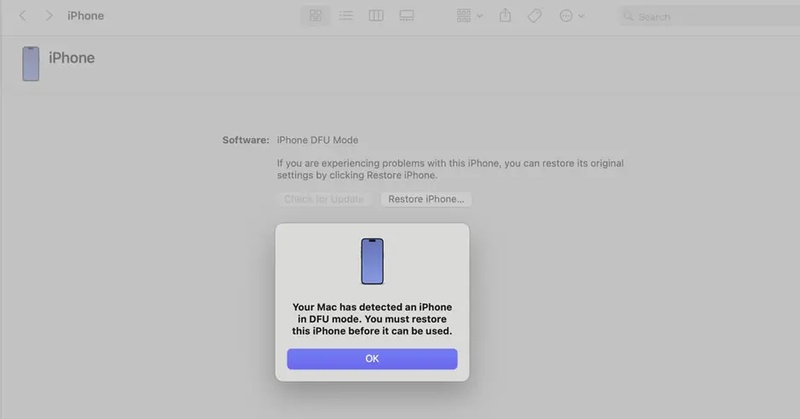
Your computer will show a message: "iTunes/Finder has detected an iPhone in recovery mode." The iPhone screen stays black that confirms DFU mode is active.
-
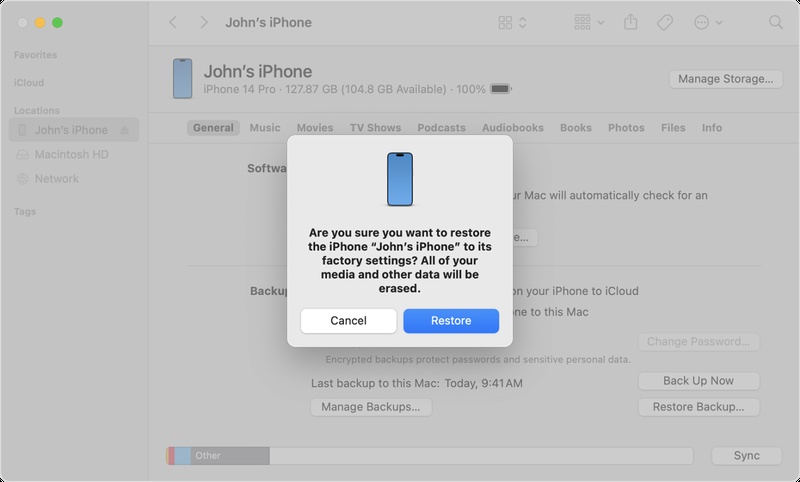
In the dialog on your computer, click Restore. iTunes or Finder will download the latest official iOS and perform a full reinstall, replacing the broken firmware completely.
-
The download and restore takes 20--45 minutes. Keep the iPhone plugged in. It will restart on its own when done.
-
Once your iPhone boots into Setup, choose "Restore from iCloud Backup" or "Restore from iTunes/Finder Backup" to get your data back.
Fix 7. Downgrade from iOS 27 to Stable iOS Version
The iOS 27 stuck on Apple logo issue can sometimes happen because the version is unstable or not working properly on your device. In cases like my iPhone keeps showing the Apple logo and turning off, moving back to a stable iOS version can help fix.
This method may erase your data, and it only works if Apple is still signing the stable iOS version.
Steps to fix iPhone update stuck on Apple logo progress bar:
-
Check whether Apple is still signing a stable iOS version compatible with your iPhone model.
-
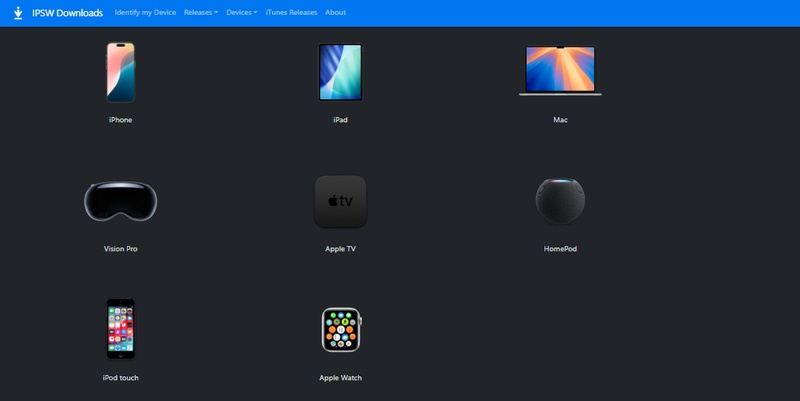
Download the correct stable iOS IPSW file on your computer from a trusted source.
-
Open Finder (Mac) or iTunes (Windows or older macOS) and connect your iPhone using a certified cable.
-
Put your iPhone into Recovery Mode using the correct button combination until the recovery screen appears.
-
Once detected, select your iPhone in Finder or iTunes.
-
Hold Shift (Windows) or Option (Mac) and click Restore iPhone, then choose the downloaded IPSW file.
-
Wait for the downgrade process to complete without disconnecting your device, then set up your iPhone after it restarts.
Part 4. How to Prevent iPhone from Getting Stuck on Apple Logo During iOS 27 Updates
The iOS 27 stuck on Apple logo issue usually happens when an update is interrupted or the system becomes unstable during installation. Most of the time, it can be avoided by preparing your device properly before updating and following safe update practices.
Prevention Tips:
-
Keep your iPhone sufficiently charged or connect it to power during the update
-
Free up storage space before installing iOS 27 updates
-
Install updates only through official Apple channels
-
Do not force restart or disconnect your device while the update is running
-
Avoid installing updates when your phone is overheating or low on battery
-
Remove unstable profiles if you are facing repeated update issues
-
Back up your data before installing any major iOS update
-
Make sure your device model supports the latest iOS 27 version
Conclusion:
Getting your iPhone trapped in an iOS 27 stuck on Apple logo loop is frustrating, but your device is not permanently broken. When standard restart methods fail to clear the glitch, using Tenorshare ReiBoot is your best option. It provides a safe, highly effective way to repair corrupted system files and bypass the boot freeze without wiping away any of your personal data.
