
Updated on 2026-07-21 / iPhone Tips
The Developer iOS 27 has already been launched at WWDC 2026 on June 8, 2026, with a public expected in July 2026. But users could savor the new improvements and features, many of them have started complaining about "iOS 27 software update failed" issues.
They range from errors like "unable to verify update" to download failures, and error 1110. This guide explains why these problems happen and provides 10 simple, targeted fixes to help you install the iOS 27 update successfully.
Part 1. Quick Comparison: Fixes for iOS 27 Software Update Failed
Here's a short comparison of all 10 solutions mentioned to resolve the "unable to verify update" on iOS 27:
| Solutions | Success Rate | Data loss | Ease of Use | Time Required |
|---|---|---|---|---|
| Check WiFi Connection and Try Again | Medium | No | Very Easy | 2–5 Minutes |
| Restart iPhone to Refresh Update Service | Medium | No | Very Easy | 2–3 Minutes |
| Fix with ReiBoot Standard Repair | Very High | No | Easy | 10–15 Minutes |
| Toggle Airplane Mode to Reset Network | Medium | No | Very Easy | 1–2 Minutes |
| Delete iOS Update File and Retry | High | No | Easy | 5–10 Minutes |
| Disable VPN or Security Apps | Medium | No | Easy | 3–5 Minutes |
| Sign Out and Back Into Apple ID | Medium | No | Moderate | 2–5 Minutes |
| Reset Network Settings | High | No | Easy | 5–10 Minutes |
| Remove and Re-add iOS Option | High | No | Moderate | 10–15 Minutes |
| Update iPhone Using Finder or iTunes | High | No | Moderate | 20–30 Minutes |
| Install iOS 27 Using IPSW File | Very High | Possible | Moderate | 30–45 Minutes |
Part 2. Why Did the iOS 27 Software Update Fail?
The iOS 27 software update failed error doesn't always mean the same thing, and the cause depends on where in the process things broke down. Here are the most popular reasons:
-
Apple servers are busy: When a new is released, millions of users download it at once, which can cause temporary update verification errors.
-
Weak internet connection: An unstable Wi-Fi connection can interrupt the download and cause verification failures.
-
Not enough storage: iOS updates need extra free space for downloading, unpacking, and installation.
-
Corrupted update file: A damaged or incomplete download can prevent the update from installing properly.
-
Low battery: Your iPhone may block updates if the battery level is too low.
-
Error 1110: Usually caused by communication issues between your device and Apple's servers when updating through Finder or iTunes.
-
VPN or network restrictions: VPNs, firewalls, or restricted networks can interfere with Apple's update verification process.
-
Unsupported device: Older iPhone models may not be compatible with the latest iOS.
-
Current iOS glitches: Bugs or issues in your existing iOS version can prevent updates from working correctly.
-
iOS 27 profile problems: An outdated or misconfigured profile may stop your device from accessing Apple's servers.
Part 3. 10 Verified Ways to Fix iOS 27 Software Update Failed
Here are 10 verified solutions to resolve the iOS 27 software "update failed" error based on different situations. Most users utilizing them can resolve the issue within the first three or four methods:
1. Free Up Storage Before iOS 27 Update
Storage issues are one of the most frequent reasons an iOS update fails. The update can take up several gigabytes. If you have less than 10 GB of available storage, free up some space before trying again. This fix is especially helpful if you see a "Not Enough Storage" warning or if the update downloads but fails during installation. Here's how to free up storage on your iPhone:
-
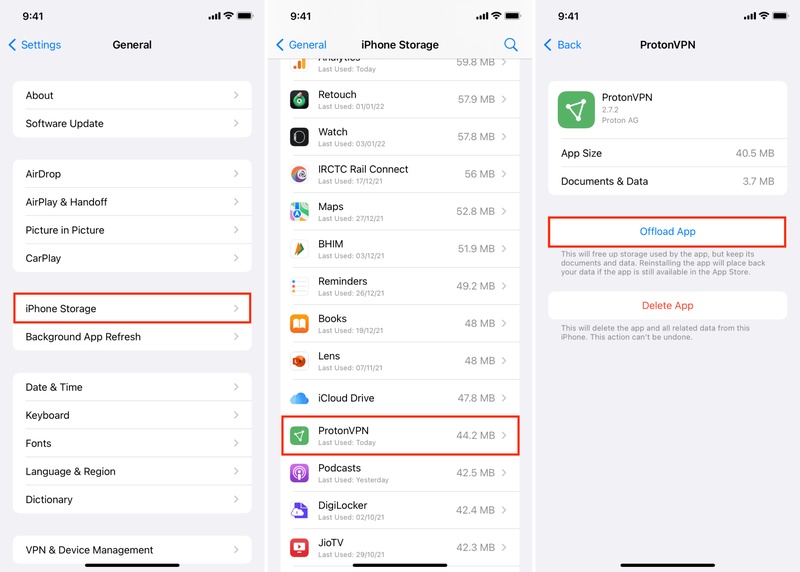
Step 1: Open "Settings" on your iPhone. Choose "General." Tap "iPhone Storage" and check available space.
-
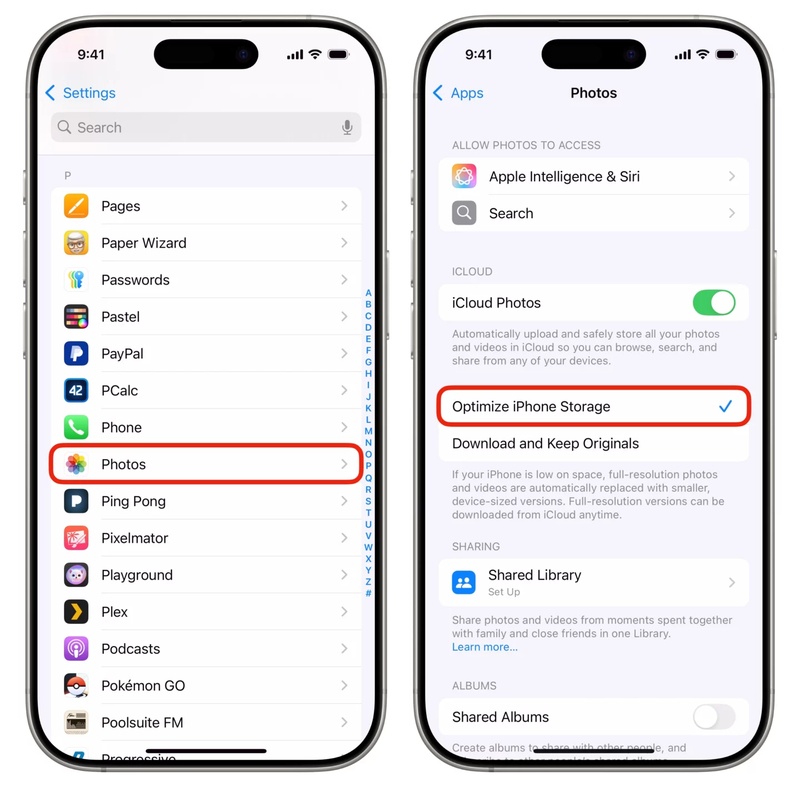
Step 2: Delete or offload apps you no longer use. Next, enable "Optimize iPhone Storage" in "Settings" > "Photos" to save space.
-
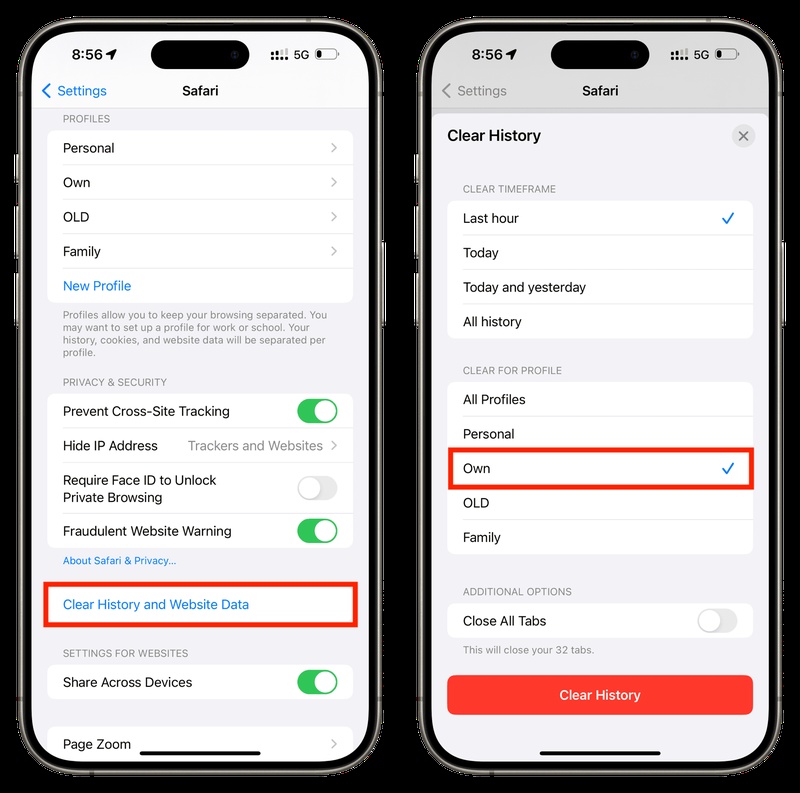
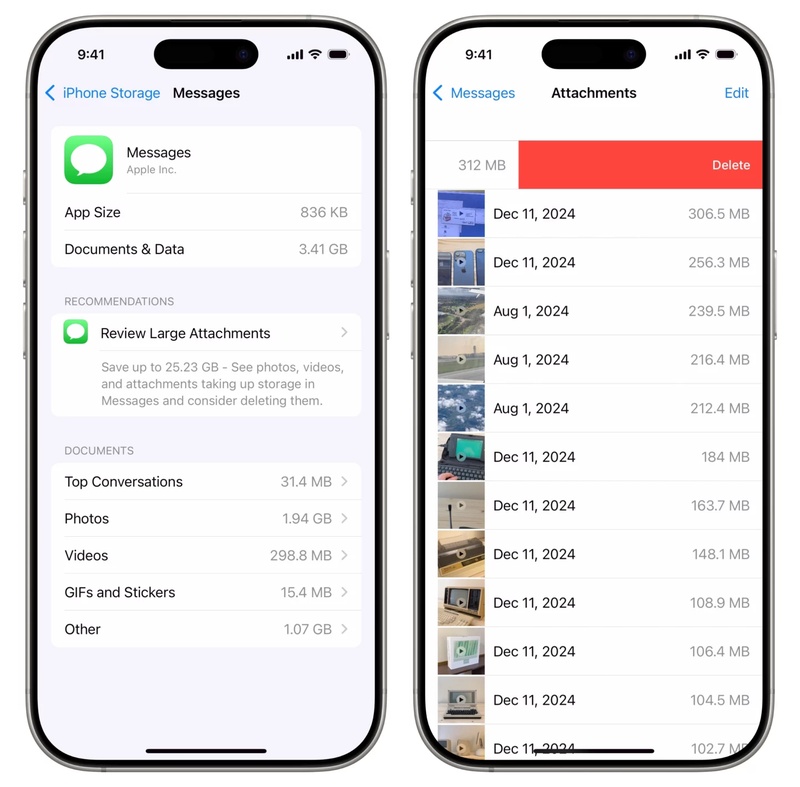
Step 3: Also, clear browsing data and cache in "Safari" > "Settings." Also, delete old messages and large attachments you no longer need.
-
Step 4: Once you've cleared space, try the update again.
2. Update iOS 27 Using Finder or iTunes
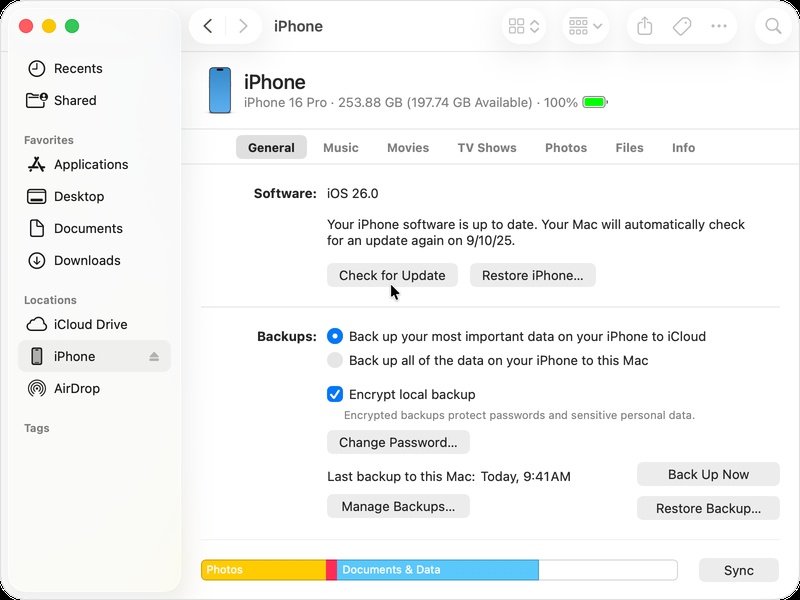
If the iOS 27 update keeps failing over Wi-Fi, try updating through Finder (on newer Macs) or iTunes (on Windows and older Macs). This method downloads the full update to your computer and installs it on your iPhone, helping avoid network and verification issues.
It's especially useful if you're seeing error 1110, repeated update failures, or want a more dependable installation process. Follow the steps beneath to update iOS 27 using Finder/iTunes on your iPhone:
-
Step 1: Connect your iPhone to your Mac or Windows PC using a USB cable. Then, open Finder or iTunes.
-
Step 2: Select your iPhone. Next, click "Check for Update." Choose "Update" and enter your passcode if requested.
-
Step 3: Keep your iPhone connected and wait for the update to finish without disconnecting the device.
3. Solve iOS 27 Software Update Failed Error with ReiBoot (Simple & Fast)
If you keep getting the error "Software update failed. An error occurred while downloading iOS 27," employ Tenorshare ReiBoot. It lets you repair system issues, and update iOS 27 without needing a backup, iTunes, restoration, or complicated steps. ReiBoot is useful when normal update methods don't do the job, or your iPhone seems stuck, and you want to upgrade it without data loss. Here's what it offers:
Main Features of ReiBoot:
-
Upgrades to iOS 27 without iTunes or Apple ID re-verification.
-
Allows you to downgrade to your desired iOS version without iTunes or a jailbreak.
-
Resolves 150+ iOS system issues beyond just update failures without data loss.
-
Allows you to enter/exit Recovery Mode with a single tap.
-
You can reset iDevices without iTunes/passcode or permanently erase data.
-
The tool can resolve frequent iTunes errors, and backup and restore iDevices.
-
Compatible with the iPhone 17 series and all iOS 27 -supported devices.
-
Simple 3-step process requiring no technical knowledge.
Step-By-Step Guide to Use ReiBoot:
- Step 1: Launch ReiBoot on Your Computer
Download and install Tenorshare ReiBoot on your computer. Open the program and connect your iPhone showing the "Unable to Check for Update" error.

- Step 2: Click on "Standard Repair"
Click on "Standard Repair" when ReiBoot detects your device to fix the "Unable to Check for Update" error without affecting your data.

- Step 3: Download Firmware Package
Download the latest firmware package when prompted. ReiBoot will automatically prepare the correct firmware package for your device.

- Step 4: Start Standard Repair
Once the firmware is ready, click “Start Standard Repair” to repair the "Unable to Check for Update" issue. Wait for the repair process to complete.

- Step 5: Update Check Working Again
Your iPhone will restart automatically after repair. Check whether your device can now check for and download iOS updates normally.

4. Delete and Redownload iOS 27 File
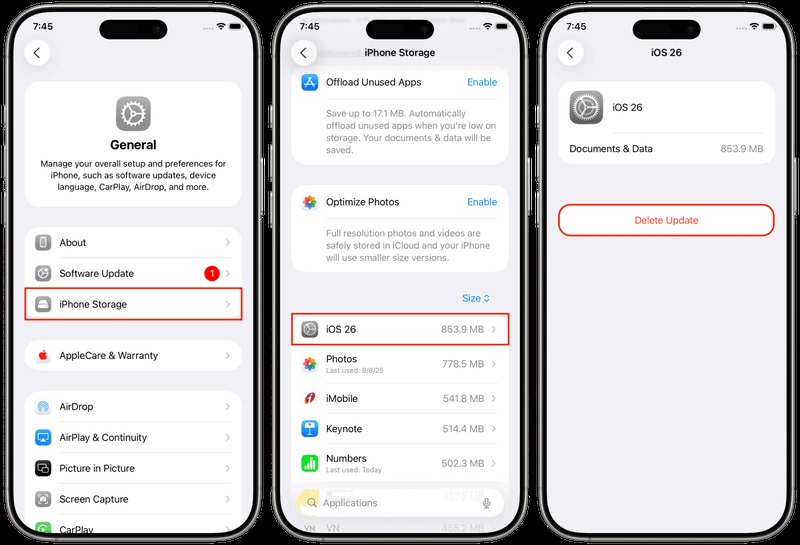
In case your iOS 27 update failed before, your iPhone may be trying to use a broken or incomplete download file. This causes it to fail repeatedly at the same point. To fix it, you need to delete the old update and download it again from scratch.
This is helpful if you keep seeing the same error, like "download failed," the update always stops at the same percentage, or you haven't installed the update. Here's how to delete and redownload iOS 27:
-
Step 1: Head to "Settings." Choose "General." Tap "iPhone Storage." Look for the iOS update file in the list (shown as a system file).
-
Step 2: Click it and choose "Delete Update," then confirm.
-
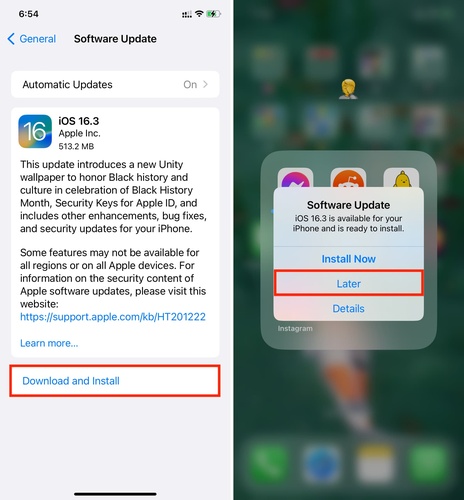
Step 3: Head back and check if an iOS 27 update is now available to download. If yes, hit "Download and Install" to restart the update from scratch.
5. Restart Your iPhone
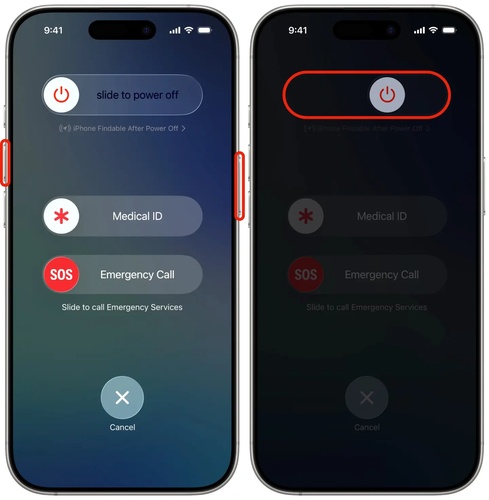
Restarting your iPhone might seem basic, but it often fixes update failure problems. It clears temporary memory, stops background apps, and resets small system glitches that can block the iOS update. This method is best when the update fails right away or shows a general error with no clear reason. Here's how to restart your iPhone:
-
Step 1: Press and hold the "Side" button and either "Volume" button simultaneously. Step 2: Slide the power off slider to the right. Wait 30 seconds.
-
Step 3: Then, press the "Side" button to turn your iPhone back on. Try the update again.
6. Check WiFi and Retry iOS 27 Update
The error "Unable to verify update iOS failed verification because you are no longer connected to the internet" is usually caused by internet problems. Apple needs a strong, stable connection to check and install the update, not just basic browsing access.
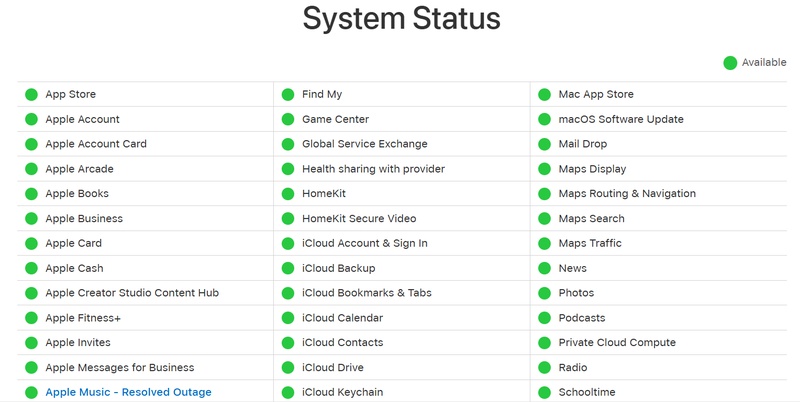
When you keep seeing "Unable to verify update. iOS 27 is temporarily unavailable. Try again later" verification error, here's how to check your internet connection and Apple server:
-
Step 1: Check your Wi-Fi signal and move closer to the router if needed. Open "Safari" to confirm the internet is functioning.
-
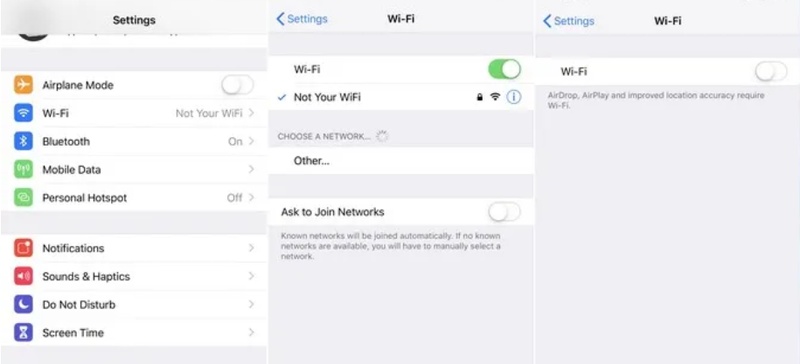
Step 2: Check Apple's system status page to see if update servers are down. Turn "Wi-Fi" off and on again in "Settings."
-
Step 3: Restart your router if possible. Try another Wi-Fi network or a mobile hotspot, and avoid busy hours when Apple servers are crowded.
-
Step 4: Once your internet is stable, try the update again.
7. Use DFU Mode
DFU (Device Firmware Update) mode is the deepest restore option for an iPhone. It completely wipes the device and reinstalls iOS from scratch using a computer, bypassing normal startup processes.
This is usually the last solution for serious update problems, like repeated failures, system corruption, or error 1110, and it will erase all data. But before using it, make sure you back up your iPhone using iCloud or a computer. Follow the instructions beneath to restore your iPhone using DFU Mode:
-
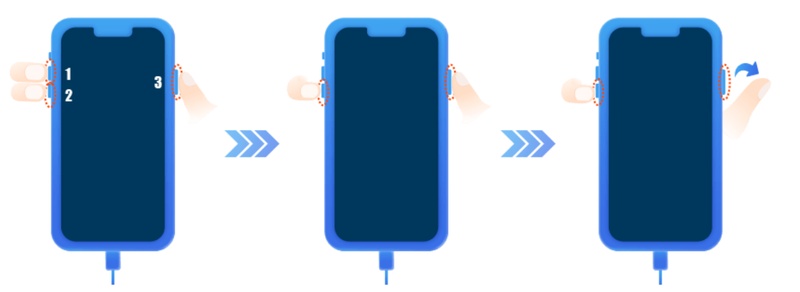
Step 1: Connect your iPhone to your Mac or PC and open Finder or iTunes. Then, quickly press and release "Volume Up," on your phone.
-
Step 2: Do the same with "Volume Down." Next, press and hold the "Side" button until the screen goes black.
-
Step 3: While still holding the "Side" button, press and hold "Volume Down" for 5 seconds.
-
Step 4: Release the "Side" button but keep holding "Volume Down" for another 10 seconds.
-
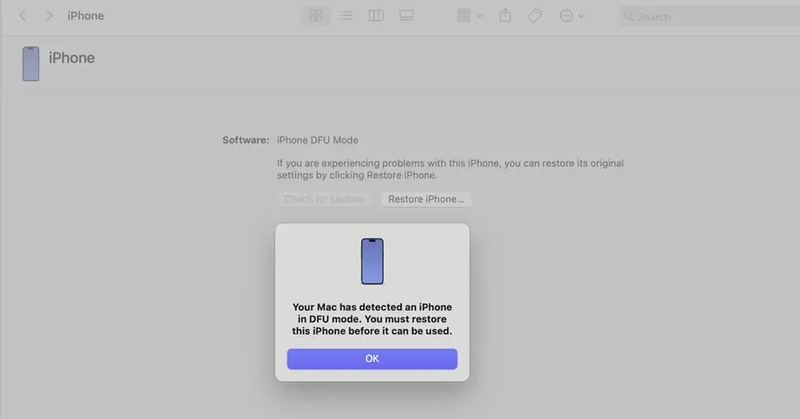
Step 5: If the screen stays black, you're in DFU mode. Finder or iTunes should show a prompt to restore.
-
Step 6: Click "Restore" and follow the prompts to install a fresh copy of iOS.
8. Charge iPhone During Installation
Apple requires your iPhone to have at least about 50% battery before installing an update. If the battery is too low, the update may stop or fail to protect your device from damage. So, charge the phone during installation, and keep it on the charger until the update finishes and the device restarts.
9. Disable VPN
A VPN sends your internet traffic through another server, which can sometimes block or disrupt Apple's update check process. This can cause errors like "unable to verify update" or iOS update error 1110, even if the VPN normally operates fine. So, you can simply disable the VPN. To do so:
-
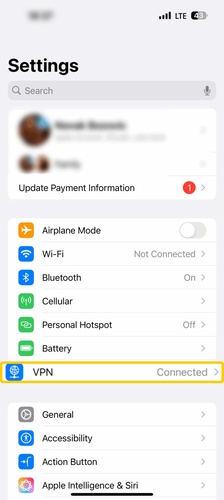
Step 1: Head to "Settings." Choose "VPN." Then, turn off the VPN.
-
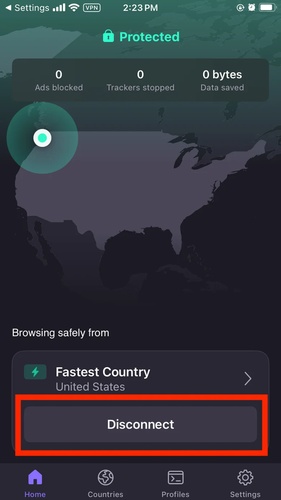
Step 2: If you use a VPN app (like NordVPN or ExpressVPN), disconnect it there too.
-
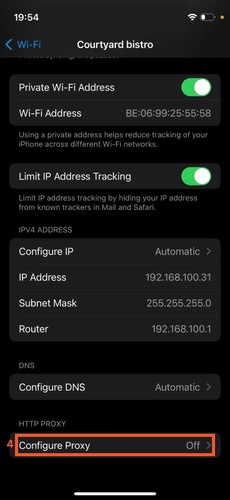
Step 3: Check your Wi-Fi settings and make sure "Configure Proxy" is disabled. After turning everything off, try the update again.
-
Step 4: You can turn the VPN back on after the update finishes.
10. Remove the Profile and Reinstall It
Your iOS is controlled by a special profile on your device. If that profile is old, expired, or linked to an old account, it can result in an error like the "iOS 27 software update failed" on iPhone 17.
Removing and reinstalling it refreshes your access. This is best when you keep getting "unable to verify update" errors even with good internet, or you recently changed your Apple developer account. Here's how to remove and reinstall the profile on your iPhone:
-
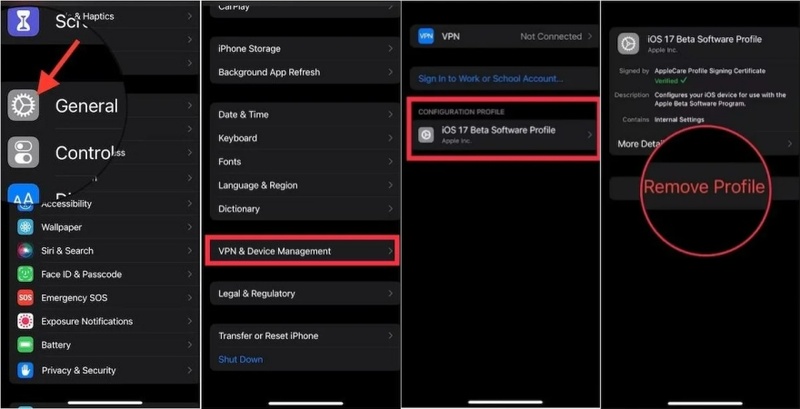
Step 1: Head to "Settings." Choose "General." Then, select "VPN & Device Management." Click "VPN."
-
Step 2: Find the "iOS Profile" and tap it. Choose "Remove Profile" and confirm with your passcode.
-
Step 3: Restart your iPhone. After this, head to Apple Support in Safari and sign in to reinstall the profile.
-
Step 4: Follow the steps to re-enroll your device. Then, head to "Settings." Choose "Software Update." Install the iOS again.
Conclusion
The iOS 27 software "update failed" error can materialize for reasons such as, low storage, weak internet, VPN issues, corrupted update files, battery limits, or profile problems. Most of these can be fixed by freeing up space, restarting your iPhone, checking Wi-Fi, updating with Finder/iTunes, or restoring with DFU mode.
But if you want to avoid data loss or complicated steps, or don't have a backup, employ Tenorshare ReiBoot. It can both repair the update errors and upgrade your iPhone to iOS 27 in no time at all.
