
Updated on 2026-09-10 / iPhone Tips
If your iPhone 18 touch screen not working, the display may look normal while taps, swipes, and typing get no response. This can happen right after an iOS update, while the phone is charging, in one section of the screen, or even after a hard reset.
Quick Answer: Disconnect the charger, remove the case and screen protector, and clean the display. Force restart the phone, then check for an iOS update. If the iPhone 18 screen not responding to touch after these steps, the cause is likely a damaged iOS system file rather than the accessory or a temporary freeze --- a repair tool like Tenorshare ReiBoot can fix this without a full factory reset. If one exact area stays dead, hardware is the more likely cause.
- Part 1: Why Is My iPhone 18 Touch Screen Not Responding?
- Part 2: iPhone 18 Touch Screen Not Working: 6 Quick Fixes to Try First
- Part 3: iPhone 18 Touch Screen Still Not Working? Advanced Software Fixes
- Part 4: When Is It a Hardware Problem, Not Software?
- Part 5: FAQs About iPhone 18 Touch Screen Not Working
Part 1. Why Is My iPhone 18 Touch Screen Not Responding?
Before trying every available fix, look at how the problem started. The pattern often tells you whether you are dealing with a software issue, an accessory problem, or damaged hardware.
Quick Diagnosis Table
| Symptom | Possible Cause | Recommended Action |
|---|---|---|
| Entire screen does not respond | Temporary iOS freeze | Force restart the iPhone |
| Touch fails after an update | iOS installation problem | Update or repair iOS |
| Touch fails while charging | Charger or accessory interference | Disconnect and test again |
| One area does not respond | Digitizer or display damage | Perform the Notes drawing test |
| Touch works after restart, then freezes | System or app problem | Check apps and repair iOS |
| Phone is badly damaged or swollen | Hardware or battery problem | Stop troubleshooting and seek service |
Match your symptom to the likely cause:
-
Screen is on, but touch does nothing: Usually a temporary iOS freeze from an app crash or heavy use. If the same exact spot fails every time instead, the digitizer may be physically damaged --- restart and remove accessories before assuming hardware failure.
-
Started right after an iOS update: The update likely didn't finish correctly, or an iOS file was corrupted mid-install. Apps may open normally, but taps and gestures stop responding. Check for a follow-up iOS update first --- Apple often ships a quick fix.
-
Only happens while charging: Points to a damaged cable, low-quality adapter, or electrical interference --- not the screen itself. Disconnect everything and retest; if touch returns immediately, the accessory is the cause, not the display.
-
Only one area doesn't respond: Likely a damaged digitizer, though software can occasionally cause this too. Test it: open a blank Notes page and draw lines across the entire screen. If every line breaks at the same exact point, hardware is the more likely cause.
Part 2. iPhone 18 Touch Screen Not Working: 6 Quick Fixes to Try First
Try these solutions in order. Start with the simple checks because they take only a few minutes and may solve the problem without using a computer.
1. Disconnect the Charger and USB-C/MagSafe Accessories
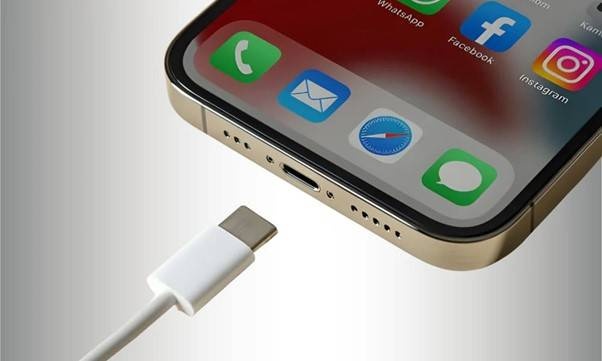
Start by disconnecting all accessories. Remove the charging cable, USB-C device, MagSafe accessory, hub, or other connected equipment.
If your iPhone 18 touch screen not working while charging, wait a few seconds after unplugging the device and test the screen again. If touch immediately returns, the charger or accessory likely caused the issue. Try another compatible charging setup and avoid damaged or unreliable accessories.
2. Remove the Case and Screen Protector
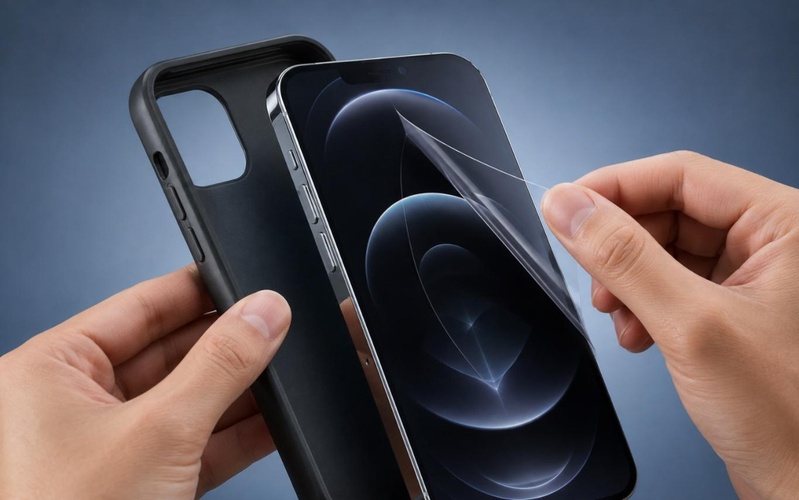
A damaged, poorly fitted, or very thick screen protector can sometimes interfere with touch sensitivity. A case may also place pressure around the screen if it does not fit correctly.
Remove both and test the phone without them. This step is especially useful when the iPhone 18 screen not responding to touch near the edges. If touch returns after removing the protector, replace it rather than reinstalling the same one.
3. Clean and Dry the Screen and Your Hands
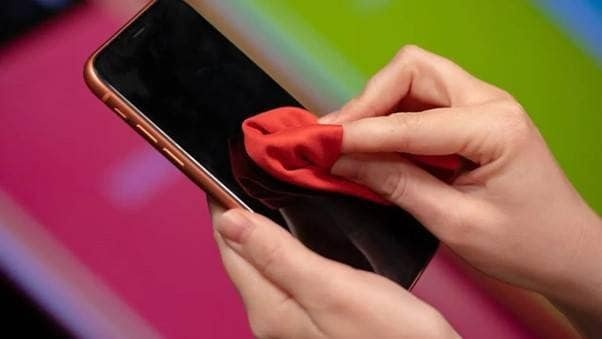
Water, oil, dirt, and moisture can affect how the screen detects touch. Wipe the display gently with a clean, dry, soft cloth. Also dry your hands before testing again.
Do not apply liquids directly to the display. If your iPhone 18 touch screen frozen after contact with water or another liquid, do not repeatedly charge or restart the device. Liquid exposure requires more careful handling.
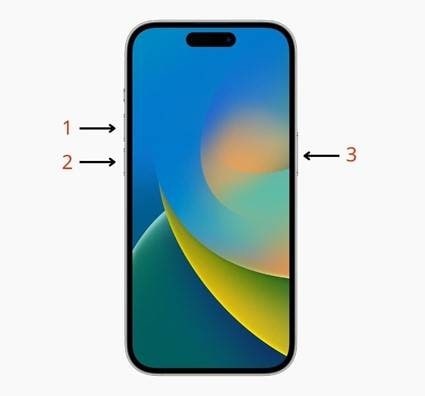
4. Force Restart the iPhone 18
A force restart can remove a temporary system freeze when the iPhone 18 will not respond to touch.
Follow the standard sequence:
-
Quickly press and release the Volume Up button.
-
Quickly press and release the Volume Down button.
-
Press and hold the Side button.
-
Keep holding it until the Apple logo appears.
A force restart does not erase your data. It only forces the device to restart.
What If the iPhone 18 Touch Screen Is Not Working Even After Hard Reset?
An iPhone 18 touch screen not working even after hard reset usually means the problem is more than a simple temporary freeze. The restart has already reloaded the operating system, so you should move to software repair and hardware checks. First, determine whether the problem affects the entire system or only one app. Then connect the phone to a computer and check whether the computer can detect it. If your iPhone 18 touch screen not working even after hard reset, the advanced methods in Part 3 can help you decide whether damaged iOS files are causing the issue.
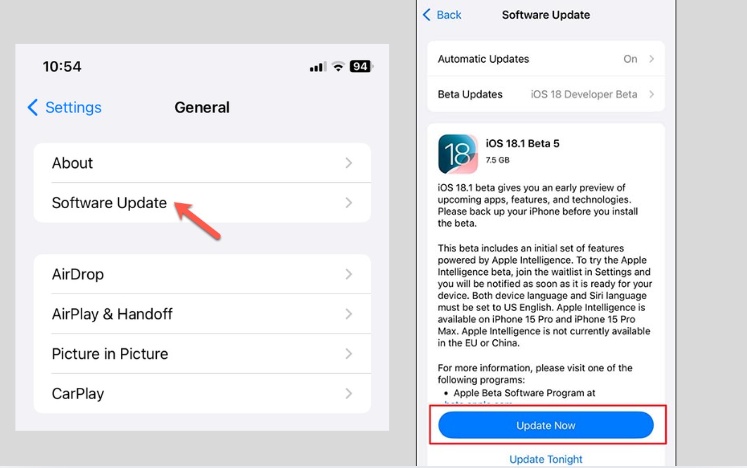
5. Check for the Latest iOS Update
If you started having problems recently, check for an available iOS update. This step matters when you have an iPhone 18 touch screen not working after update, because a later update may correct the issue.
Go to Settings > General > Software Update if the touch screen allows you to navigate. Install the update and test the screen again after the phone restarts.
If the screen does not allow normal navigation, use a computer-based recovery or repair method instead. Do not keep installing and restarting the same update repeatedly.
6. Free Up iPhone Storage Space
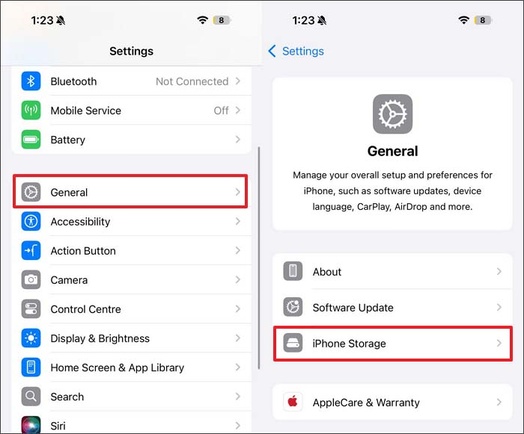
Very low storage can cause apps and iOS to behave poorly. It does not usually create a permanent dead area on the screen, but it can make the iPhone 18 touch screen frozen during normal use.
If touch works occasionally, go to Settings > General > iPhone Storage and remove unused apps, large downloads, or unnecessary files. Restart the phone after freeing space and test touch response again.
Part 3. iPhone 18 Touch Screen Still Not Working? Advanced Software Fixes
If the iPhone 18 touch screen not working after the quick fixes, you need to check whether the problem comes from a specific app or the iOS system itself.
Diagnose: Is the Issue System-Wide or App-Specific?
Test several parts of the iPhone. Try the Home Screen, Lock Screen, Settings, and different apps. If the iPhone 18 will not respond to touch only inside one app, close the app, update it, or reinstall it.
If the iPhone 18 screen not responding to touch everywhere, the problem is more likely related to iOS or hardware. A system-wide problem also becomes more likely if the issue started immediately after an update or a failed restart.
Fix It With Tenorshare ReiBoot
Tenorshare ReiBoot is an iOS system repair tool that helps fix common iPhone software problems through a computer. It can help when the iPhone 18 touch screen not working even after hard reset and a normal restart does not solve the issue. ReiBoot supports Recovery Mode and provides options for repairing iOS without making a full factory restore the first step. It can also help with certain update and downgrade problems. Connect your iPhone to a computer, let ReiBoot detect the device, and follow the repair instructions. Always back up important data first when your iPhone remains accessible.
Key Features
-
iOS System Repair: Helps fix common iOS problems that can cause freezing, failed updates, and touch response issues.
-
Recovery Mode Support: Helps you Enter/Exit iPhone Recovery Mode Free when your iPhone cannot start normally, gets stuck, or does not respond as expected.
-
No Immediate Factory Reset: Standard Repair provides another option before you erase the device and restore it completely, helping resolve common system problems while keeping your personal data intact in supported repair scenarios.
-
Update and Downgrade Tools: Provides options for handling certain iOS update problems and lets you Flash iPhone Safely when the normal update or restore process fails. It can also help with supported iOS upgrades and downgrades.
-
Computer-Based Repair: Connect your iPhone to a Windows PC or Mac and follow the on-screen steps to start the repair process.
Basic Repair Steps
-
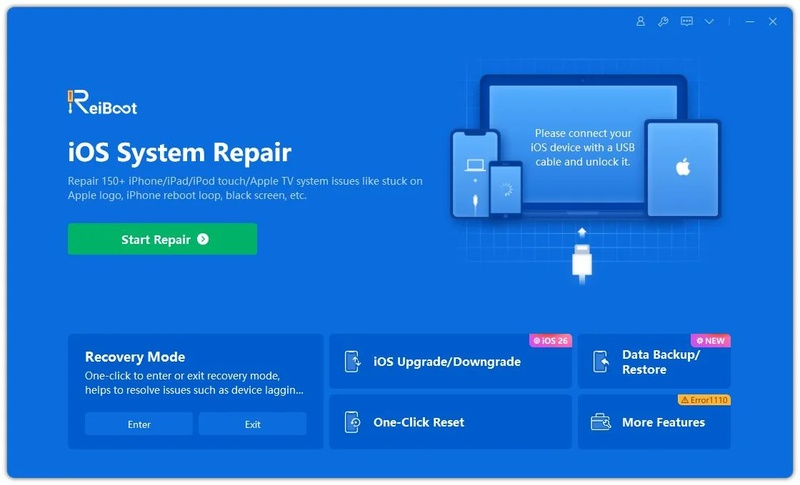
Download ReiBoot on your Windows PC or Mac. After installation, open the software and connect your iPhone 18 using a working USB cable.
-
Once ReiBoot detects the device, click the Repair Operating System option from the main screen.
-
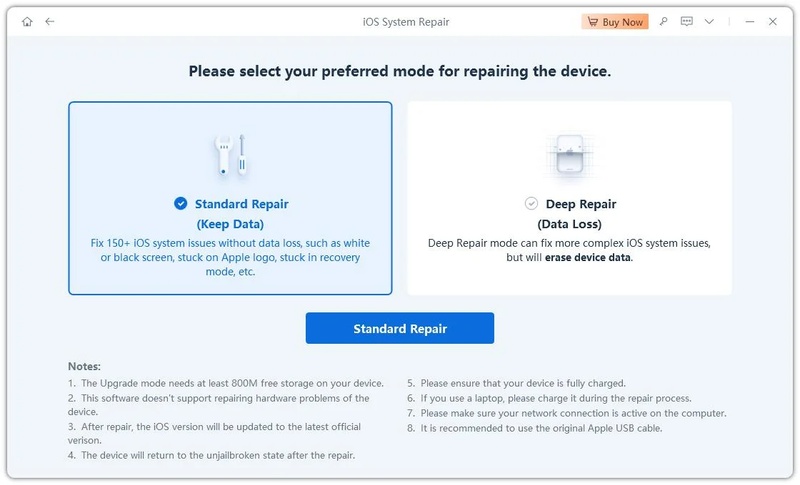
Select Standard Repair to fix corrupted iOS system files that may be causing the touch response issue, without deleting your photos, apps, or personal data.
-
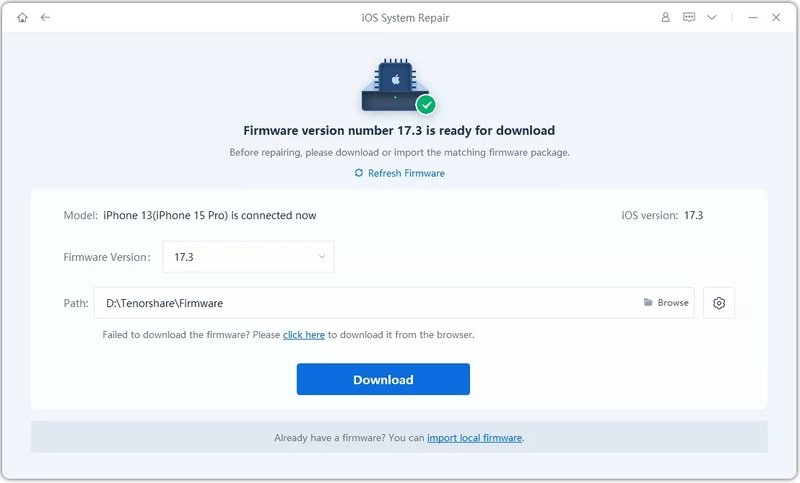
ReiBoot will automatically detect the correct iOS firmware for your iPhone. Click Download and wait for the firmware package to finish downloading.
-
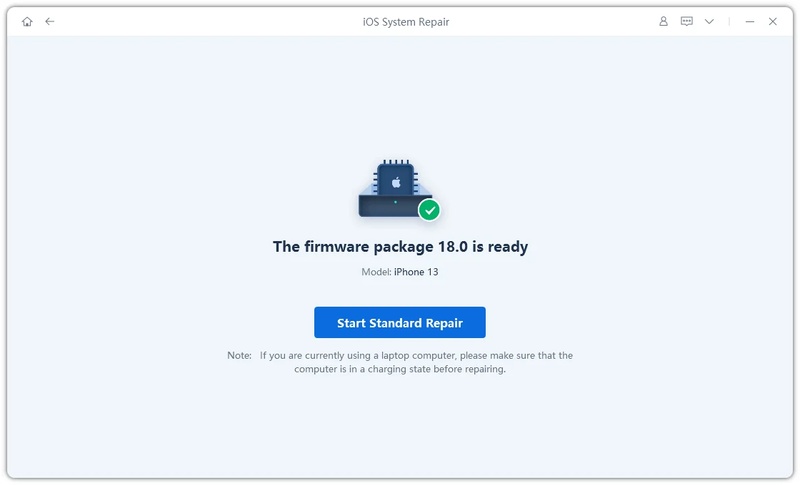
Click Start Standard Repair and keep your iPhone connected during the process. ReiBoot will repair the damaged system files that can affect touch input.
-
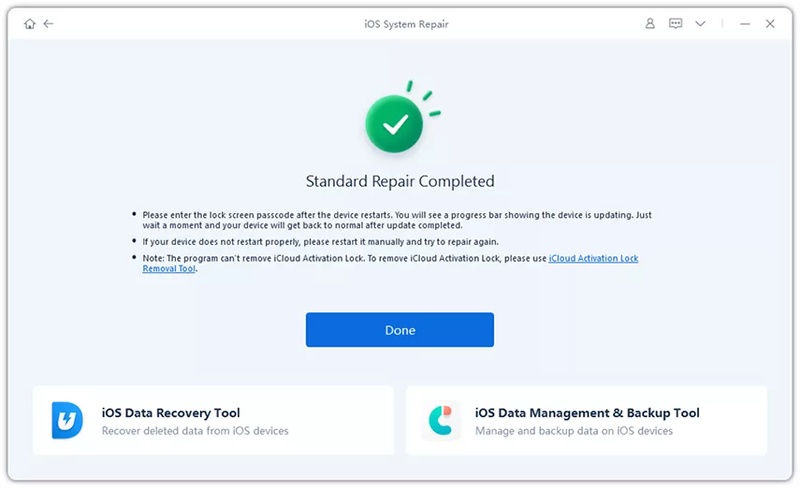
After the repair finishes, your iPhone will restart automatically. Once you reach the Lock Screen, test whether the touch screen responds normally again.
The repair process aims to fix iOS problems before you move to a full erase and restore. If the iPhone 18 touch screen not working after update, this approach can be more suitable than immediately wiping the device.
Check Whether a Computer Can Detect Your iPhone
Connect the phone to a Mac or Windows computer. If the computer detects the device while the screen remains unresponsive, the phone itself is still communicating. This result can suggest that the problem may involve the display, touch system, or iOS rather than a completely dead phone. However, detection does not rule out hardware damage.
If the computer cannot detect the iPhone and the iPhone 18 touch screen frozen with other signs of malfunction, try another cable and port. Then move to Recovery Mode if necessary.
Try Recovery Mode Repair Before a Full Restore
Recovery Mode can help when normal restarting does not solve the problem. A full restore can erase your data, so try repair or update options before choosing a complete restore when possible. If the iPhone 18 touch screen not working continues after a repair attempt and the same screen area remains dead, stop repeating software fixes. Repeated failures increase the chance that hardware is responsible.
Which Fix Should You Try First? Quick Decision Guide
-
Touch fails only while charging: Disconnect the charger and test another compatible charging setup.
-
Touch stopped after an update: Check for a newer iOS version, then try system repair.
-
The whole screen is frozen: Force restart the iPhone first.
-
Touch works in some apps only: Update, close, or reinstall the affected app.
-
Touch fails even after a hard reset: Try advanced iOS repair before a full restore.
-
One exact area never responds: Test the display and prepare for hardware service.
-
The phone has liquid or severe damage: Stop software troubleshooting and seek service.
Part 4. When Is It a Hardware Problem, Not Software?
Software fixes cannot repair a physically damaged display. You should look for signs that the touch problem comes from the screen, digitizer, battery, or another internal component.
Signs of a Display or Digitizer Problem
The digitizer detects your taps and gestures. When it becomes damaged, the screen may remain visible while the iPhone 18 screen not responding to touch.
Common warning signs include:
-
The same area fails every time.
-
The display flickers or shows lines.
-
Touch begins failing after a drop.
-
The problem remains after restarting and repairing iOS.
-
The screen lifts away from the phone body.
These signs do not guarantee one exact fault, but they suggest that software is less likely to solve the problem.
When the Same Area Stays Unresponsive
Open a blank Notes page and draw horizontal and vertical lines across the entire display. Move slowly from one side to the other. If the line repeatedly breaks in the same location, that area may have a digitizer problem. This test is also useful when the iPhone 18 touch screen frozen only in a strip or corner while other areas work normally.
Do not press harder on the display. Extra pressure will not repair the digitizer and may cause further damage.
When to Stop Troubleshooting
Stop and seek professional service if you notice:
-
Liquid exposure
-
A swollen device
-
Severe physical damage
-
The display visibly separating from the phone
-
Repeated hardware failure
-
Overheating combined with touch or display problems
Do not charge or keep using a swollen phone. If the display is separating from the body, the battery may be expanding, and you should seek service promptly.
Part 5. FAQs About iPhone 18 Touch Screen Not Working
1. How Can I Back Up an iPhone When the Touch Screen Won't Respond?
If the computer can still recognize the phone, you may be able to create a backup without normal touch input, depending on whether the computer was already trusted. Tenorshare iCareFone can also help manage and back up supported iPhone data through a computer. If the phone asks you to unlock or trust the computer and touch does not work, your backup options may be limited until you repair the screen.
2. How Can I Use Siri to Back Up Data If Touch Is Broken?
If Siri was already enabled, you may be able to use voice commands to perform certain tasks. Ask Siri to open Settings or start relevant backup options where supported. However, voice commands may not complete every backup step, especially if the phone requires authentication or confirmation. A computer backup remains a useful option when the device is already trusted.
3. How Much Does It Cost to Fix an Unresponsive Touch Screen on an iPhone?
The cost depends on the cause, your location, warranty coverage, service provider, and whether the issue involves only the display or additional internal damage. A screen replacement costs more than a simple software fix, while water damage or battery problems can increase the repair cost. Check the official service estimate for your exact iPhone 18 model before approving a repair.
4. What Should I Do If a Force Restart Does Not Work?
If the iPhone 18 touch screen not working even after hard reset, check whether the phone is detected by a computer. Then try an iOS update, Recovery Mode repair, or a system repair tool such as Tenorshare ReiBoot before considering a full restore. If the screen remains unresponsive in the same area, inspect the phone for physical damage.
5. Why Is My iPhone Not Responding to Touch When Locked?
A system freeze, temporary iOS problem, dirty screen, moisture, accessory interference, or hardware problem can stop touch input on the Lock Screen. First disconnect accessories, clean the screen, and force restart the phone. If the iPhone 18 will not respond to touch after restarting, continue with software diagnosis and hardware checks.
6. Why Is My iPhone Not Responding to Touch but the Screen Is On?
This usually means the display still works, but the phone is not processing touch input correctly. A software problem can cause this, but a damaged digitizer can also produce the same result. If the iPhone 18 screen not responding to touch after an update, restart and repair iOS first. If one fixed area stays unresponsive, hardware is more likely.
Conclusion
Most cases of iPhone 18 touch screen not working trace back to something simple --- an accessory, a dirty display, or a temporary iOS freeze --- and clear up with the six quick fixes. If the screen is still unresponsive after a hard reset, the cause is more likely a damaged iOS file than a permanent hardware fault.
If a hard reset didn't fix it, then try an iOS repair tool like Tenorshare ReiBoot before erasing the phone. If the same exact area stays dead or the phone shows liquid damage, swelling, or overheating, then stop troubleshooting and book a hardware repair instead.
