
Updated on 2026-09-15 / iPhone Tips
Nothing is more annoying than seeing your iPhone 15 stuck on “unable to check for update iPhone 15”. Whether you just upgraded to iOS 26/27 or are running older versions like iOS 15 or 17, system glitches, network issues, or corrupted files can block updates.
Don’t panic this guide breaks down simple, effective steps to get your iPhone updating smoothly again. From basic network tweaks to the powerful Tenorshare ReiBoot tool, you’ll learn easy ways to fix the problem. All solutions are safe and won’t put your data at risk.
Part 1: Why Does It Say “Unable to Check for Update” on iPhone 15?
The message “Unable to Check for Update” on iPhone 15 often appears due to network issues, system glitches, or software conflicts. Understanding the main causes helps solve the problem quickly. Here are the most common reasons:
1. Apple Servers Are Overloaded or Temporarily Down
Millions of users updating iPhones simultaneously can cause server congestion.
High traffic or temporary outages may prevent the iPhone 15 from checking for updates.
2. Weak or Unstable Internet Connection
A strong and stable Wi-Fi connection is required to verify updates.
Slow or interrupted networks often block the update process.
3. Low Battery Level
iOS updates need at least 50% battery to start.
Insufficient charge prevents the iPhone from initiating the update check.
4. Insufficient Storage Space
Updates require free storage to download and install properly.
Apps, videos, photos, and cached files can block the update if storage is nearly full.
5. Temporary System Bugs or iOS Glitches
Minor software glitches can sometimes prevent an iPhone from communicating with Apple's update servers, especially when checking for a newer iOS release such as iOS 27.
Restarting or force restarting the device often resolves these temporary bugs.
6. VPN or Proxy Interference
VPNs or proxy connections can disrupt Apple server access.
This may cause the iPhone 15 to fail in checking for updates.
7. Corrupted or Incomplete Previous Update File
Partially downloaded or failed updates can prevent future updates.
Deleting the corrupted file and redownloading the update usually solves the issue.
8. Incorrect Date & Time Settings
Apple servers require accurate date and time for validation.
Wrong settings can block the update verification process.
9. Beta iOS Profile Conflicts
Devices running iOS beta versions may not detect standard updates.
Beta profiles can sometimes prevent official updates from appearing.
Part 2: Basic Fixes iPhone 15 Stuck On Verifying Update Before Trying Advanced Solutions
Before attempting advanced solutions, it’s important to follow some basic troubleshooting steps. These steps often resolve the unable to check for update iPhone 15 pro max issue without losing data or requiring technical expertise.
2.1 Charge Your iPhone Properly
Updating iOS requires sufficient battery power. The iPhone 15 needs at least 50% charge to start downloading updates. Low battery can trigger the unable to check for update iPhone 15 ios 15 message or cause the device to stall on verifying updates. Always plug in your iPhone while updating, and enable automatic updates to install updates overnight.
2.2 Restart or Force Restart iPhone
Temporary system glitches often prevent the iPhone from connecting to Apple servers. Restarting the device resolves most minor issues:
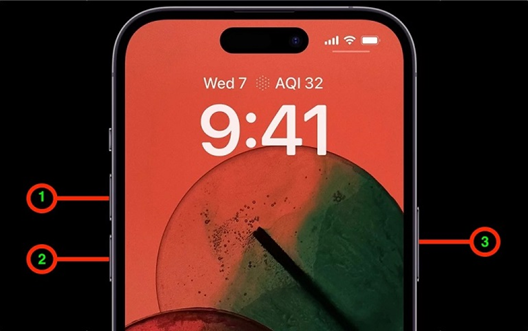
Restart: Press and hold the side button, then slide to power off. Turn on after 10 seconds.
Force Restart: Press Volume Up → Volume Down → hold Side Button until Apple logo appears.
2.3 Make Sure You Have Enough Storage
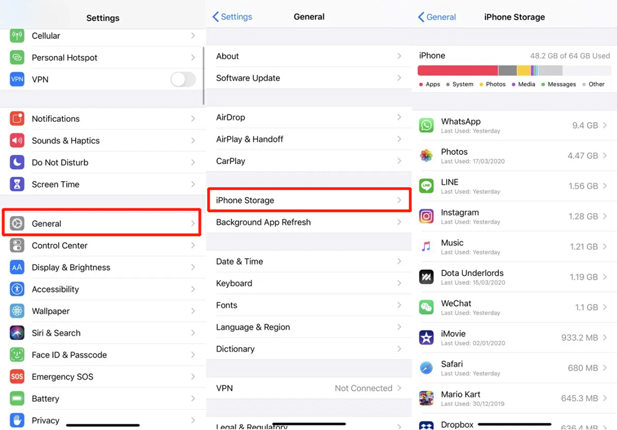
Lack of sufficient storage can prevent an iPhone from downloading and installing an iOS update. If you're trying to install iOS 27, make sure your device has enough free space before checking for the update again. Check Settings > General > iPhone Storage, delete unnecessary apps, large videos, or cached data, and then retry the update. Updates require temporary space to download and unpack files, so freeing storage ensures smooth installation.
2.4 Check Network Connection
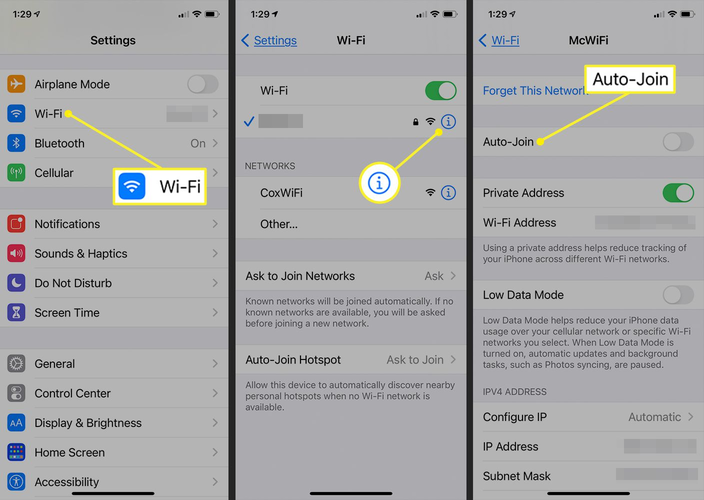
A stable internet connection is essential for checking and verifying updates. Poor connectivity can trigger Unable to check for update iPhone 15 iOS 15 errors.
- Make sure your iPhone is connected to a reliable Wi-Fi network.
Toggle Wi-Fi off and on to refresh the connection.
- Avoid running other apps that consume bandwidth during the update.
- Retry checking for updates via Settings > General > Software Update.
2.5 Make Sure Apple Servers Are Reachable
If Apple servers are down or overloaded, your device may fail to verify updates. This is a common cause of Unable to check for update iPhone 15 iOS 15 issues.
- Open a web browser and visit the Apple System Status page.
- Look for the Software Update server; green indicates normal operation, yellow indicates issues.
- If the server is down, wait a few hours for Apple to fix it.
- If the server is functioning, continue with other troubleshooting methods.
2. 6 Turn Off VPN or Proxy
VPNs or proxy connections can interfere with your iPhone’s ability to communicate with Apple servers. This is a frequent reason for iPhone 15 stuck on verifying update errors.
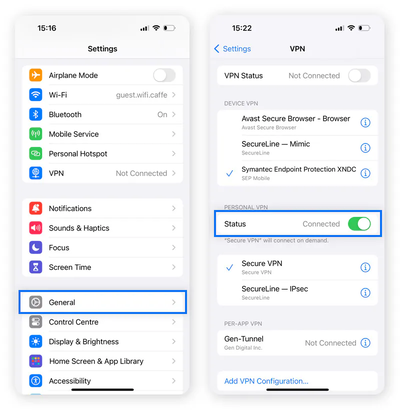
- Open Settings > VPN and turn off any active VPN.
Disable any proxy configuration in Settings > Wi-Fi > [Your Network] > Configure Proxy.
- Restart your iPhone to ensure settings are applied.
2.7 Reset Network Settings
Corrupt network configurations may prevent your iPhone from verifying updates, resulting in Unable to check for update iPhone 15 iOS 15 errors.
Resetting network settings clears Wi-Fi passwords, VPN configurations, and cached network data, which often resolves connectivity issues.
Open Settings > General > Transfer or Reset iPhone > Reset > Reset Network Settings.

- Enter your device passcode to confirm.
- Reconnect to your Wi-Fi network.
2.8 Check & Correct Date and Time
Wrong date or time settings can prevent your iPhone from connecting properly to Apple’s update servers, causing errors like Unable to check for update iPhone 15 Pro Max. Ensuring the correct date, time, and time zone can often fix the issue quickly.
- Launch the Settings app on your iPhone.
- Navigate to General > Date & Time.
- Turn on Set Automatically so your device uses the correct local time.
Confirm that the displayed Time Zone matches your current location.
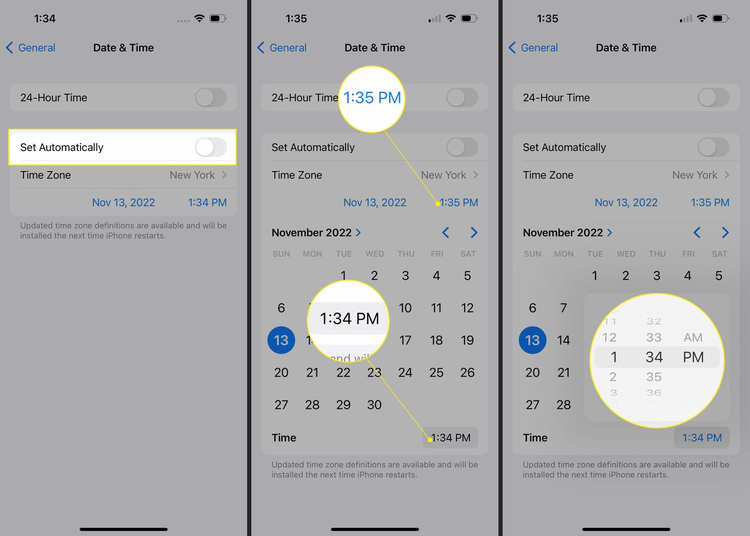
- Power off and turn your iPhone back on to apply the changes.
- Go to Settings > General > Software Update and try updating again.
Part 3: Advanced Fix – One-Click Solution for iOS Update Errors (No Data Loss)
iPhone users sometimes see the “Unable to Check for Update” error, usually caused by system glitches that stop the device from connecting properly to Apple’s update servers.
Tenorshare ReiBoot is designed to address these exact issues. It fixes system errors, restores update functionality, and lets your iPhone update safely without losing any data. The tool works for both older iOS versions and the latest iOS 26/27, fixing errors quickly and safely. With ReiBoot, even stubborn update problems can be resolved in just a few clicks, making the process stress-free for any iPhone user.
Key Features of Tenorshare ReiBoot:
- Standard Repair: Resolves system bugs, such as stuck updates or verification errors, without deleting any apps, photos, or settings.
- iOS Upgrade/Downgrade: Safely installs the latest iOS version 27 or allows rolling back to a previous iOS version when needed.
- Automatic Firmware Detection: Identifies and downloads the correct firmware for your specific iPhone model to prevent installation errors.
- Data-Safe Repair: All repair processes are designed to keep your personal data intact while fixing system issues.
- Safe & Reliable: Trusted tool that protects all your personal data while repairing your device.
Here how to fix unable to check for update error with tenorshare reiboot:
Step 1: Download and Launch ReiBoot
Download Tenorshare ReiBoot on your Windows or Mac computer and open the program. On the main interface, select “iOS Upgrade/Downgrade.”

Step 2: Choose Upgrade
To install iOS 26, click “Upgrade” on the interface. This ensures your device will receive the latest firmware.

Step 3: Download Firmware
Click “Download” to start downloading the correct iOS 26 firmware. ReiBoot will automatically detect your iPhone model and fetch the compatible package.

Step 4: Begin the Upgrade
Once the download is complete, click “Initiating Upgrade.” The process will take a few minutes, so keep your device connected and do not interrupt.

Step 5: Complete Installation
After the upgrade finishes, click “Done.” Your iPhone will automatically reboot with iOS 26 installed and fully functional.
Faq About Unable to Check for Update iPhone 15
Q1: Why is my iPhone not letting me update to iOS 15?
Your iPhone may not update due to low storage, weak Wi-Fi, or system glitches. Free up space, connect to a stable network, and charge your phone. If it still doesn’t work, tools like Tenorshare ReiBoot can fix system issues without losing data.
Q2: How do I fix iPhone 15 stuck on verifying update?
Restart or force restart your iPhone first. Make sure Wi-Fi works, Apple servers are reachable, and VPN is off. If it’s still stuck, ReiBoot can repair the system and allow the update to complete.
Q3: What do I do if my iPhone is stuck updating?
Keep your iPhone connected to power and Wi-Fi and wait a few minutes. If it doesn’t move, force restart. For persistent problems, ReiBoot can safely finish the update without losing data.
Final Words:
Update roadblocks on iPhone 15 can be a real hassle, especially when seeing unable to check for update iphone 15. This error often comes from minor system glitches or corrupted files that stop your device from connecting to Apple’s servers. Tenorshare ReiBoot fixes these issues safely, letting your iPhone update smoothly without losing any data, making update problems disappear for good.
