
Updated on 2026-10-19 / iPad
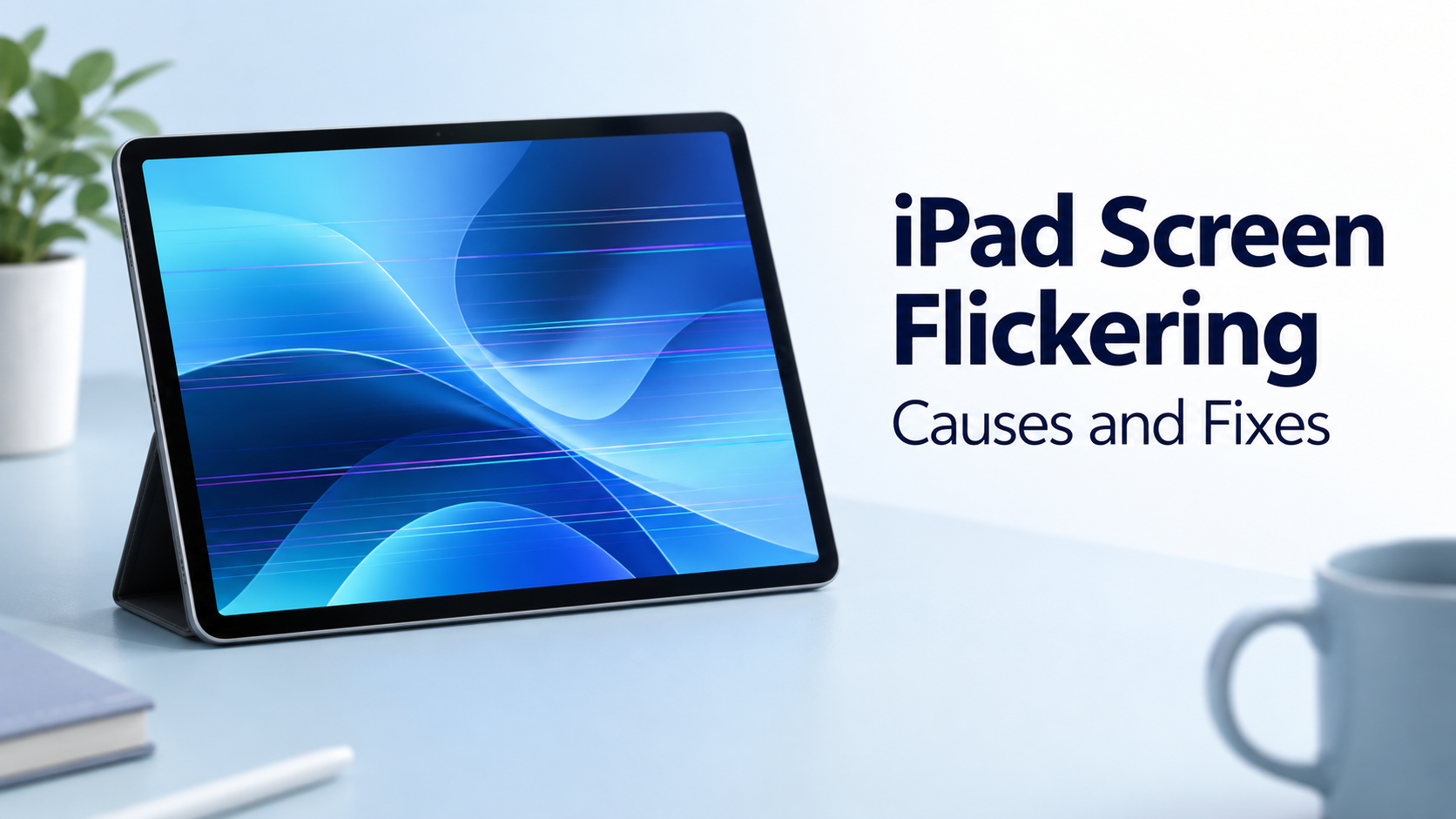
iPad screen flickering can appear as flashes while you read, unexpected brightness changes, or flickering lines. It does not always mean you need a new screen. The first step is to work out whether the problem follows an app, a display setting, or the hardware itself. This guide covers five fixes, including a software-repair option, and explains when further DIY attempts are unlikely to help.
Part 1. Why Is My iPad Screen Flickering?
Check these three possible causes:
-
App or system issues: Flickering in one app suggests an app problem; issues across apps may point to iPadOS.
-
Display settings: Auto-Brightness and True Tone can cause brightness or color shifts.
-
Hardware damage: Flickering after impact, liquid exposure, or screen repair, especially with lines or touch failure, needs inspection.
Back up your iPad if possible, then disconnect accessories and check whether flickering continues.
Part 2. Compare the iPad Screen Flickering Fixes
Choose the method that matches the symptom. Try free checks first; Tenorshare Reiboot is our recommended software-repair option when those checks fail and there are no signs of physical damage.
| Method | Best For | Computer | Data Impact |
|---|---|---|---|
| Restart | Sudden glitch or freeze | No | No erase |
| Tenorshare Reiboot | Persistent software faults | Yes | Designed to retain data |
| Display settings | Brightness or color shifts | No | No erase |
| App and iPadOS updates | App-specific or update-related issues | No | Normally retains data |
| Recovery-mode Update | Startup failure or failed update | Yes | Attempts to retain data |
For an on-device update. Backup is advisable before any system repair or update; Restore and Deep Repair erase data.
Part 3. How to Fix iPad Screen Flickering
Use the relevant checks below, then test the same screen or app again. There is no need to perform every method if the problem stops.
Method 1. Restart or Force Restart Your iPad
Best for a sudden glitch or an unresponsive screen. A restart does not erase saved content.
-
If the screen responds, open Settings > General > Shut Down, power off, then turn the iPad on again.
-
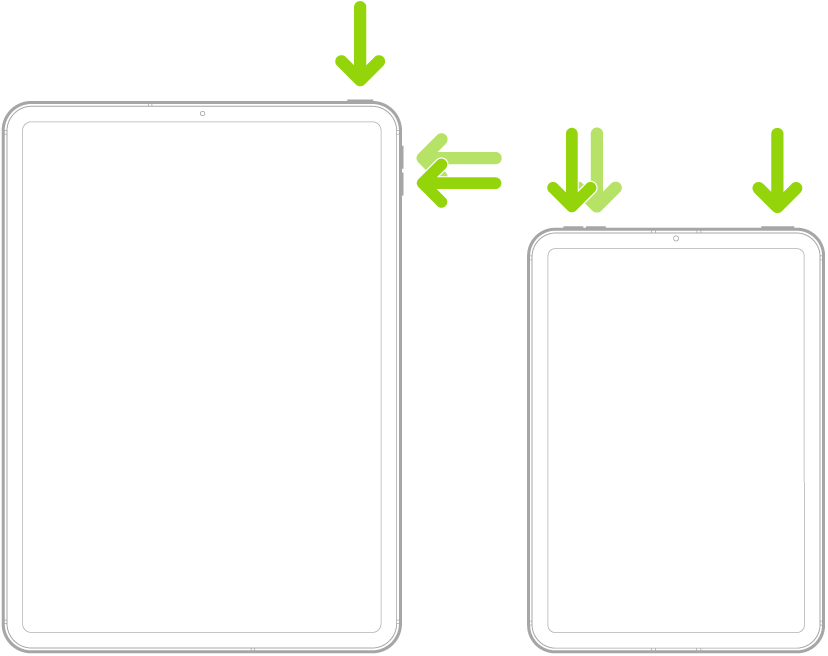
If it is frozen and has no Home button, quickly press and release the volume button nearest the top button, then the farthest one. Hold the top button until the Apple logo appears.
-
On a Home-button iPad, hold Home and the top button together until the Apple logo appears.
Method 2. Repair Software Issues with Tenorshare Reiboot
Best for persistent system problems after basic checks. If iPad screen flickering continues alongside freezes or failed updates, Tenorshare Reiboot offers a guided repair route on Windows or Mac. It addresses software faults, not a damaged display.
Download and install Tenorshare Reiboot for Windows or Mac, then connect your iPad with a compatible USB cable. System-repair features require a license; check current compatibility before proceeding.
-
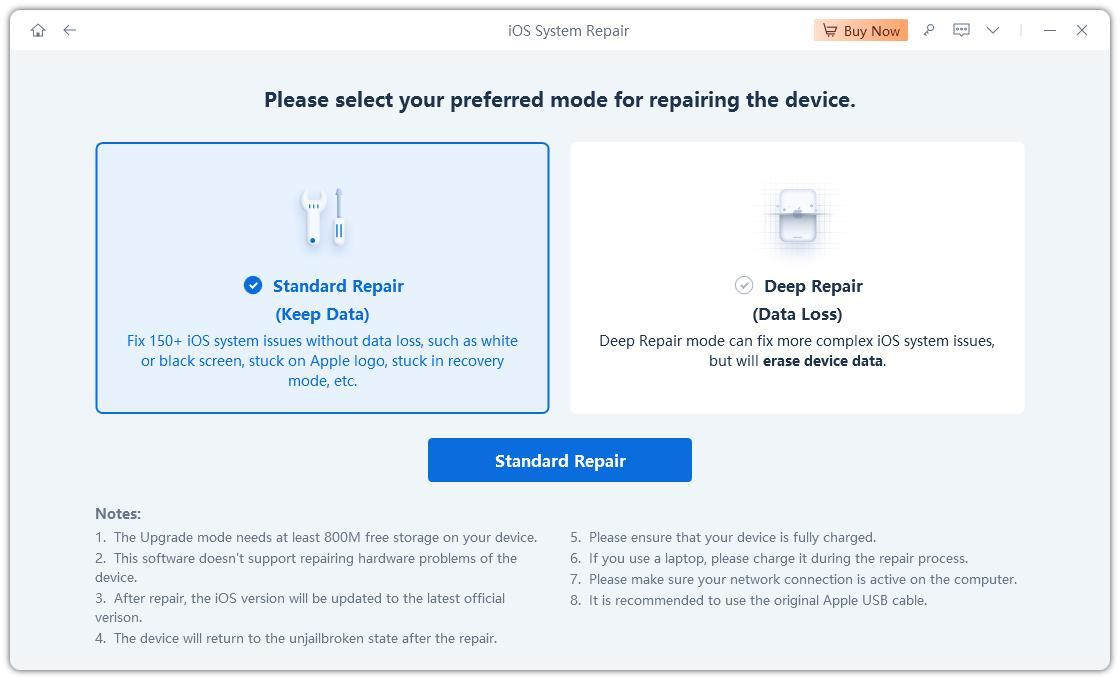
A repair mode designed to retain existing device data is available.
-
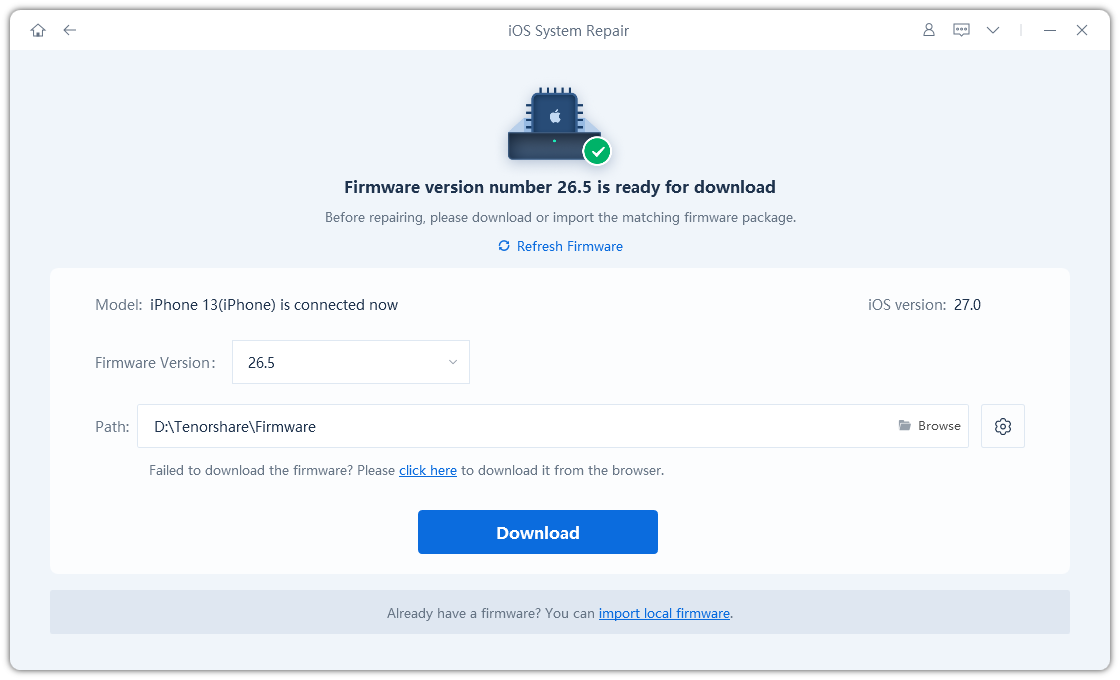
On-screen guidance helps with device detection and firmware download.
-
It also handles supported system problems such as boot loops and recovery-mode issues.
Back up if possible and check compatibility and license requirements first. Deep Repair is a separate, data-erasing option.
-
Connect the iPad to your computer, open Tenorshare Reiboot, choose Start Repair, then select the mode designed to retain data.
-
Confirm the detected iPad and download its matching firmware package. Follow detection prompts if needed.
-
Start the repair and leave the iPad connected until it restarts. Test the display afterward.
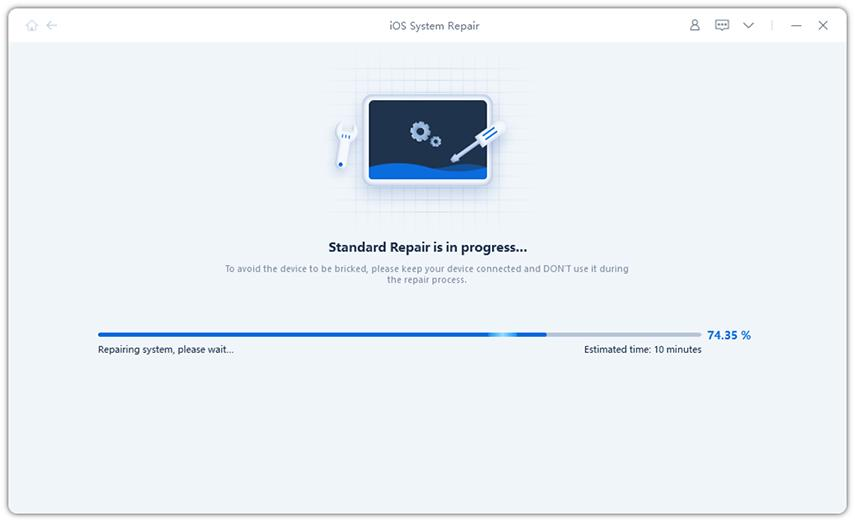
Video Tutorial: See the Tenorshare Reiboot Repair Workflow
Method 3. Test Brightness and Color Settings
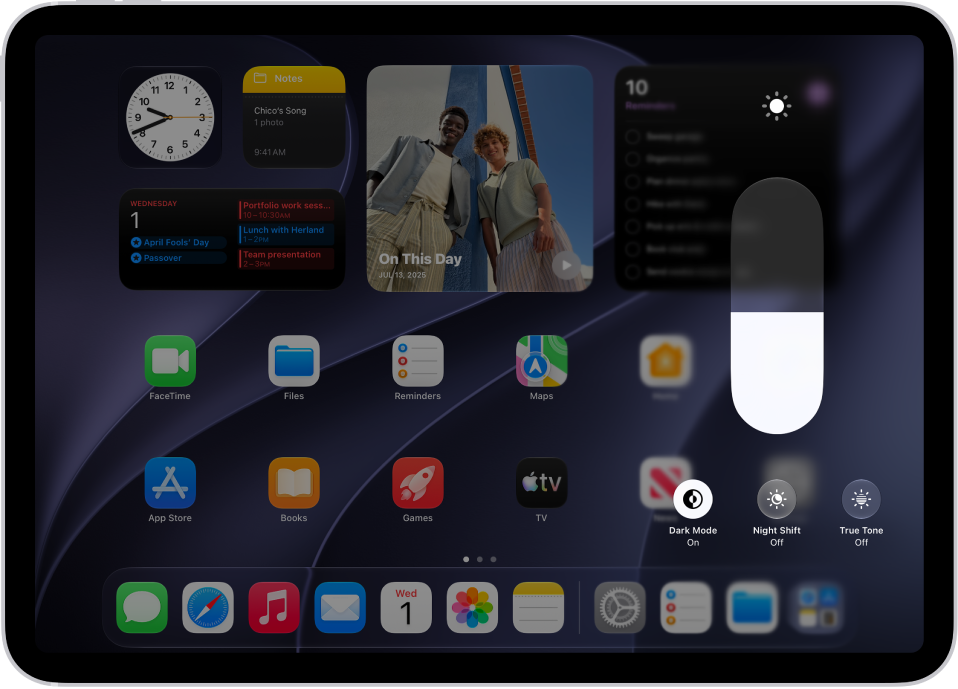
Best when the screen changes brightness or color rather than showing fixed lines. Treat this as a test, not a hardware repair.
-
Open Settings > Accessibility > Display & Text Size and temporarily turn off Auto-Brightness.
-
Set a comfortable fixed brightness in Control Center. Under Settings > Display & Brightness, test with True Tone and Night Shift off, where available.
-
Observe the screen in steady lighting. Restore settings that make no difference.
Method 4. Update the Affected App and iPadOS
Best when flickering follows one app or begins after a software change.
-
Close and reopen the affected app. If the issue returns, check the App Store for its latest update.
-
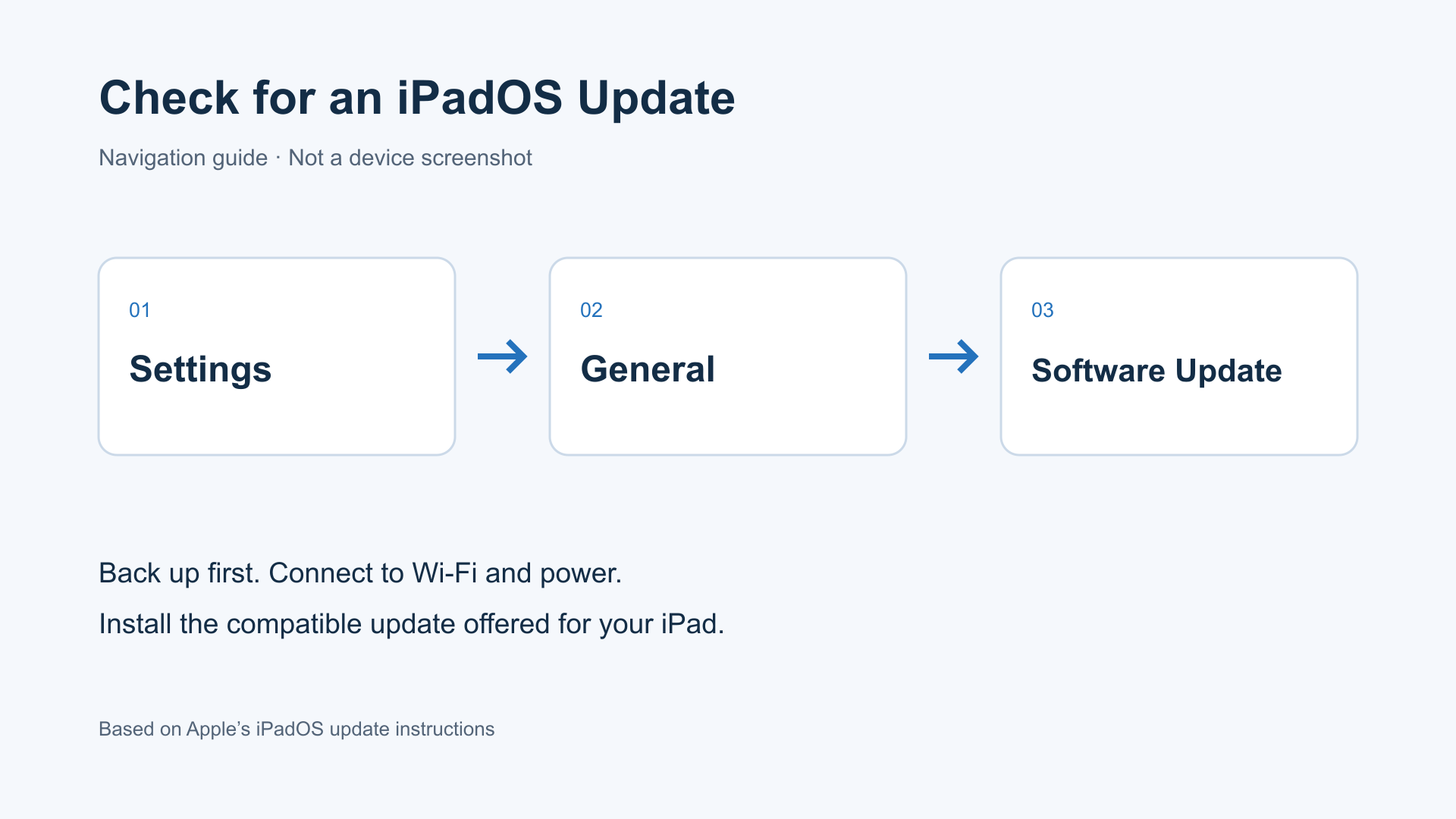
Back up, connect to Wi-Fi and power, then open Settings > General > Software Update. Install an available compatible update.
-
Test again. If only that app still flickers, contact its developer before deleting it, which can remove locally stored data.
Method 5. Try a Recovery-Mode Update on a Computer
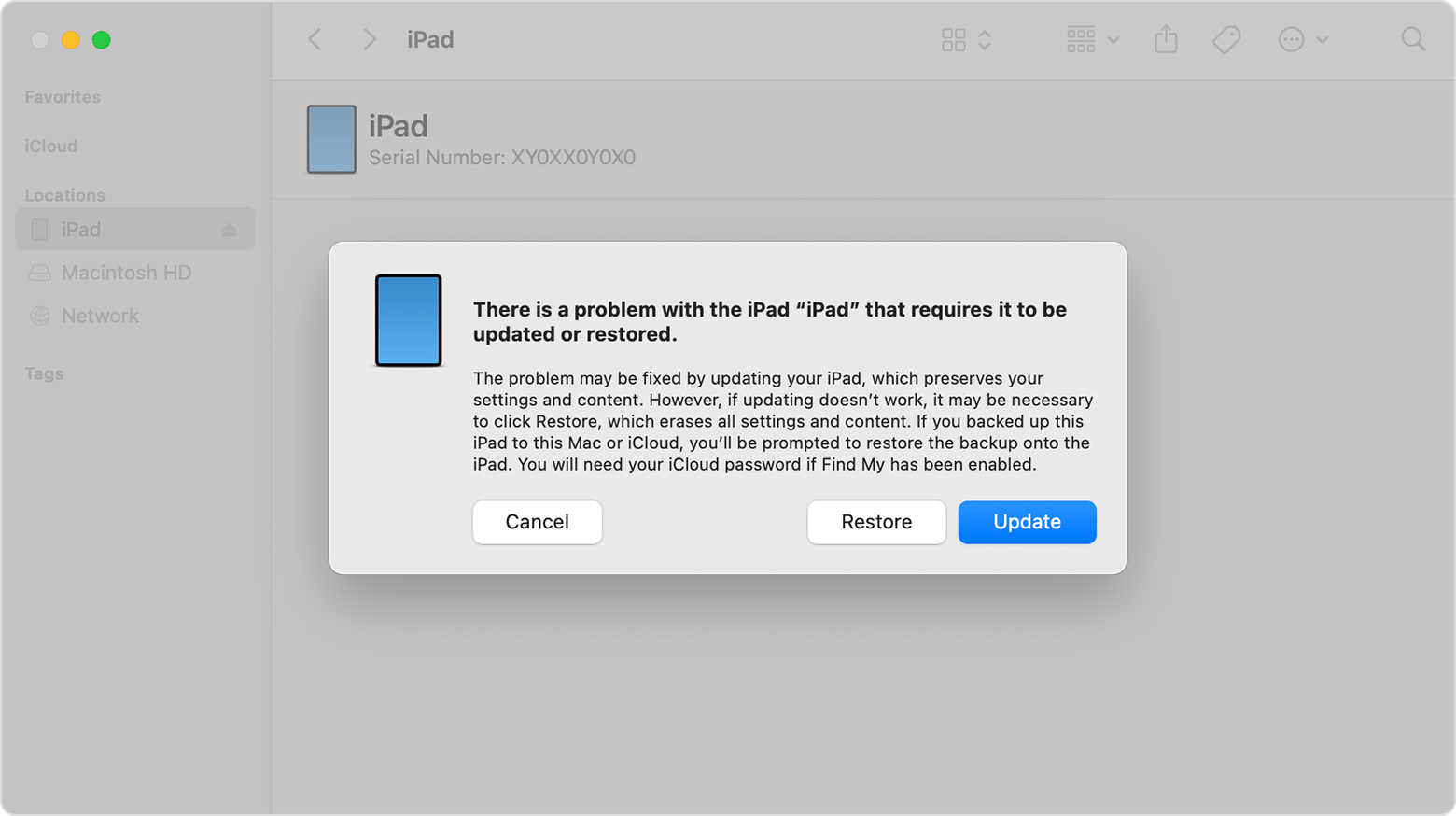
Best if flashing accompanies startup failure or an unsuccessful update. This is not the first choice for an otherwise working iPad.
-
Connect to Finder on a current Mac or Apple Devices on Windows. Use iTunes on older supported systems.
-
Use your model’s button sequence from Method 1, but keep holding the required button or buttons past the Apple logo until the recovery screen appears.
-
Choose Update first to attempt a software reinstall without erasing data. Restore erases the iPad; do not select it unless you accept that consequence.
Part 4. Tips for Persistent Flickering and Hardware Warning Signs
Arrange service if flickering follows damage, includes persistent lines or touch failure, or remains after software troubleshooting. Record a short video with another device for the technician. Do not press, twist, or open the iPad to test a connection. If the screen lifts or the battery appears swollen, stop using and charging it and contact Apple or an authorized service provider.
Part 5. FAQs About iPad Screen Flickering
Can I Fix a Flickering iPad Screen without Losing Data?
Often, if software is responsible. Restarts and display adjustments do not erase saved files. Updates and a repair mode designed to retain data are options to consider, but back up first. A factory restore erases the device.
Why Is My iPad Screen Flickering after an Update?
The timing can suggest a software problem, but it does not confirm one. Check whether the issue affects one app or the whole interface. Update affected apps and look for an available iPadOS fix.
Why Does My iPad Screen Flicker While Charging?
Disconnect the charger and accessories to compare. If the problem disappears, try a known-good compatible cable, adapter, and outlet. Stop using damaged accessories; persistent symptoms still need inspection.
Do Flickering Lines Mean I Need a New Screen?
Not necessarily, but persistent lines, especially after impact or alongside touch failure, justify hardware diagnostics. A technician can identify the fault before you pay for a replacement. Software cannot repair a physically damaged panel.
Should I Factory Reset My iPad to Stop Flickering?
Not as your first step. Try targeted checks and a non-erasing update or repair first. Resetting will not fix physical damage. Only proceed with an erasing restore after backing up and understanding what you will lose.
Related Reading
Conclusion
To address iPad screen flickering, start with the symptom rather than a factory reset. For persistent software faults, Tenorshare Reiboot is worth considering after basic checks. Brightness shifts and app-specific problems need narrower fixes, while damaged screens need professional assessment. Back up before escalating to repair.
