
Updated on 2026-06-05 / iPhone Tips
After two months of beta testing, Apple recently released iOS 27 in September. The new update features a revamped Control Center, Lock Screen, Home Center, a new Passwords app, an improved Calculator with Math Notes, and an updated Photos app.
However, the real problem arises when your iPad won’t update to iOS 27, due to reasons unknown. This is so exasperating, especially when you want to enjoy new features offered by latest iOS 27 update. But don’t worry, though. In this article, we’ll discuss why your iPad won’t update and offer 3 solutions to help you upgrade it to latest iOS 27 update.
Part 1. Why Won’t My iPad Verify the Update?
If your iPad is not updating to iOS 27, there could be several reasons behind it such as following:
- Unstable Network: One of the most common reasons your iPhone won’t update to iOS 27 is a lack of available storage.
- iPhone Not Supported: A weak or intermittent internet connection can cause problems during the update process.
- Apple Server Issues or Bugs: Occasionally, software glitches or bugs can lead to iOS 27 unable to check for update.
- Bugs in Update: If your device is older, it may not support the latest iOS version, leading to a situation where iOS 27 is not even showing up in your settings.
- Insufficient Storage: During peak times, Apple’s servers can become overwhelmed with the number of users trying to download the update simultaneously.
Part 2: How Do I Force My iPad to Update to the Latest iOS?
If your iPad will not update, here are 3 ways to force update it to latest iOS 27. Choose a method based on the situation your iDevice is stuck in:
Solution 1: Fix iPad Won’t Update to iOS 27 in One-Click
When your iPad won’t update to iOS 27 it could be because of corruption in iOS files. In such an event, a tool like Reiboot can fix update issue and also upgrade your iPad to latest iOS 27 with one click. It can also downgrade iOS. Have a look at this tool’s functions:
Why choose ReiBoot?
- One-Click Downgrade & Upgrade: ReiBoot offers a simple and straightforward solution to downgrade iOS 27 to iOS 17 and Upgrade to iOS 27 with just one click.
- All-in-one professional software: Fix 150+ iOS/iPadOS/tvOS/macOS system issues on your iDevice: iOS 27 White Screen After Update, iOS 27 stuck in recovery mode, iOS 27 battery drain and iPhone developer mode not showing...
- Safe and Secure: ReiBoot ensures a safe and secure downgrade process, minimizing the risk of data loss and other potential issues.
- Compatibility: ReiBoot is compatible with a wide range of iPad models and iOS versions, making it suitable for various devices and situations.
- Data Retention: Most importantly,with ReiBoot, users won't lose any data during the downgrade process, ensuring that their important files, photos, and settings remain intact.
Follow steps below to iPad 4 update to iOS 27 or any other version of iPad to latest iOS 27 with aid of Tenorshare ReiBoot:
Step 1: Download and install ReiBoot on your computer and connect your iPad to the computer using a USB cable.
Step 2: Launch the Reiboot software on your computer.
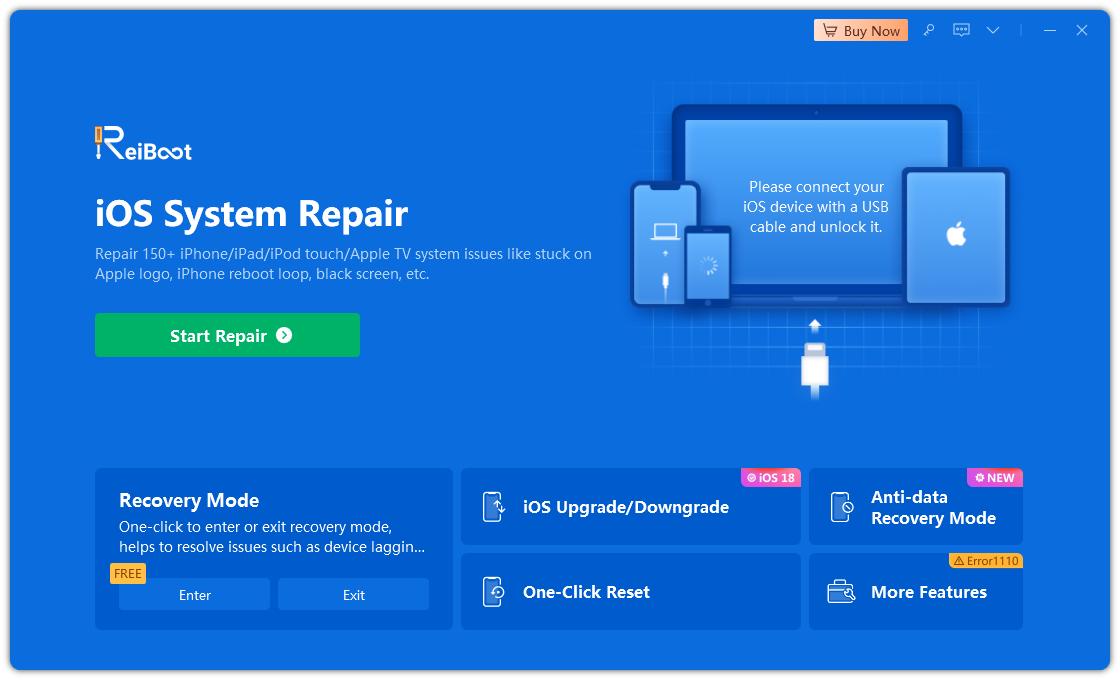
Step 3: Once the devices are connected, click “iOS Upgrade” at the bottom left of the panel.
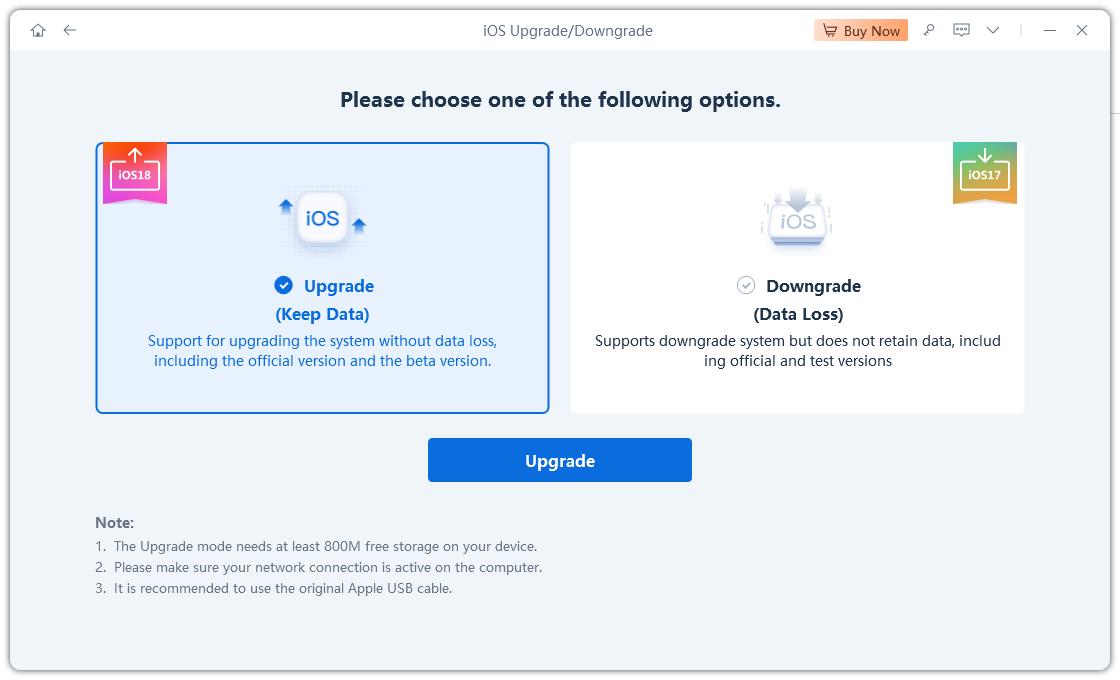
Step 4: No matter beta version or final version, you should choose "Upgrade" mode. Then, click the button below.
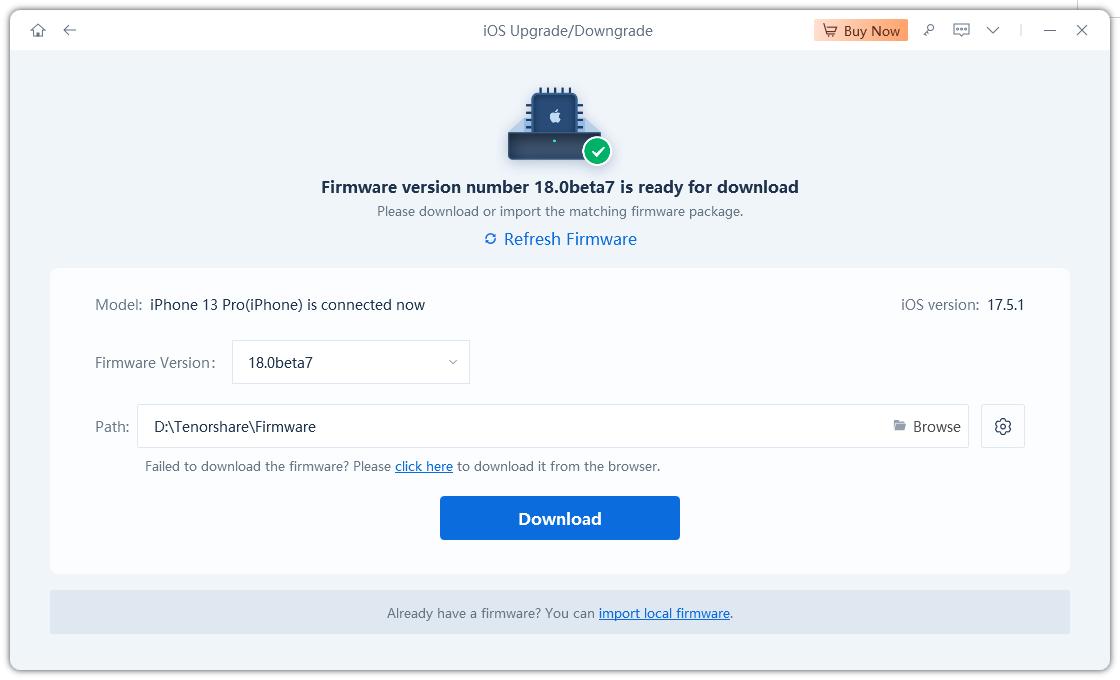
Step 5: ReiBoot will detect your iOS version automatically and display the upgradable iOS 27 firmware. Click “Download” to get the package.
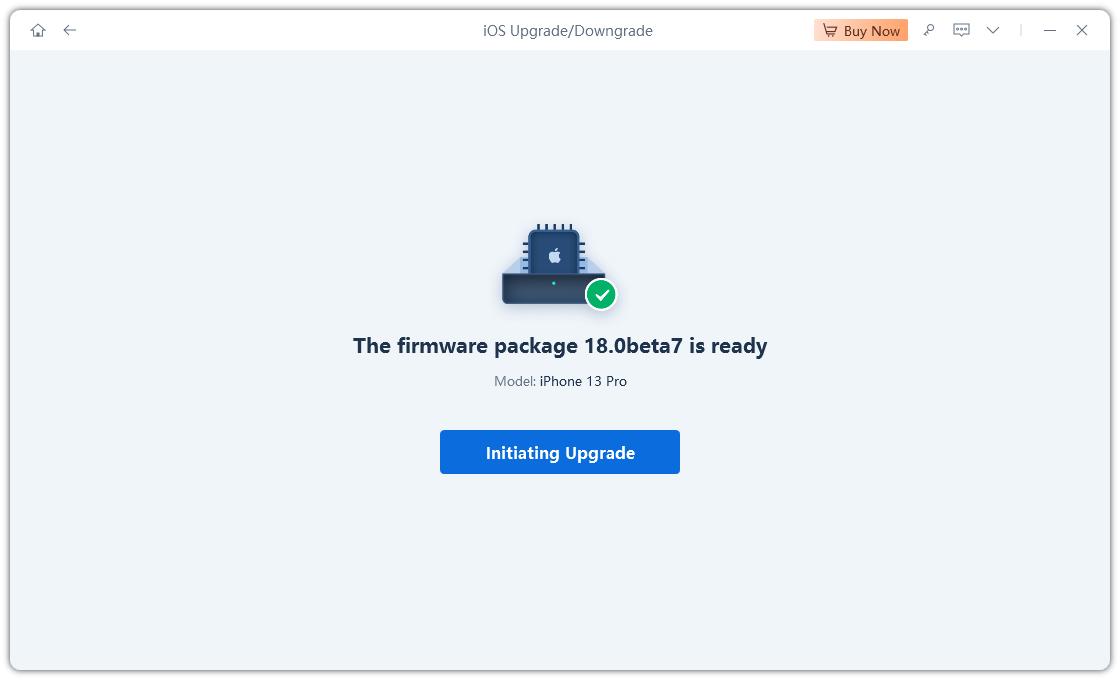
Step 6: Once the firmware package is downloaded on your computer, you can click 'Initiating Upgrade' to update iOS. Then the program starts to update iOS 27.
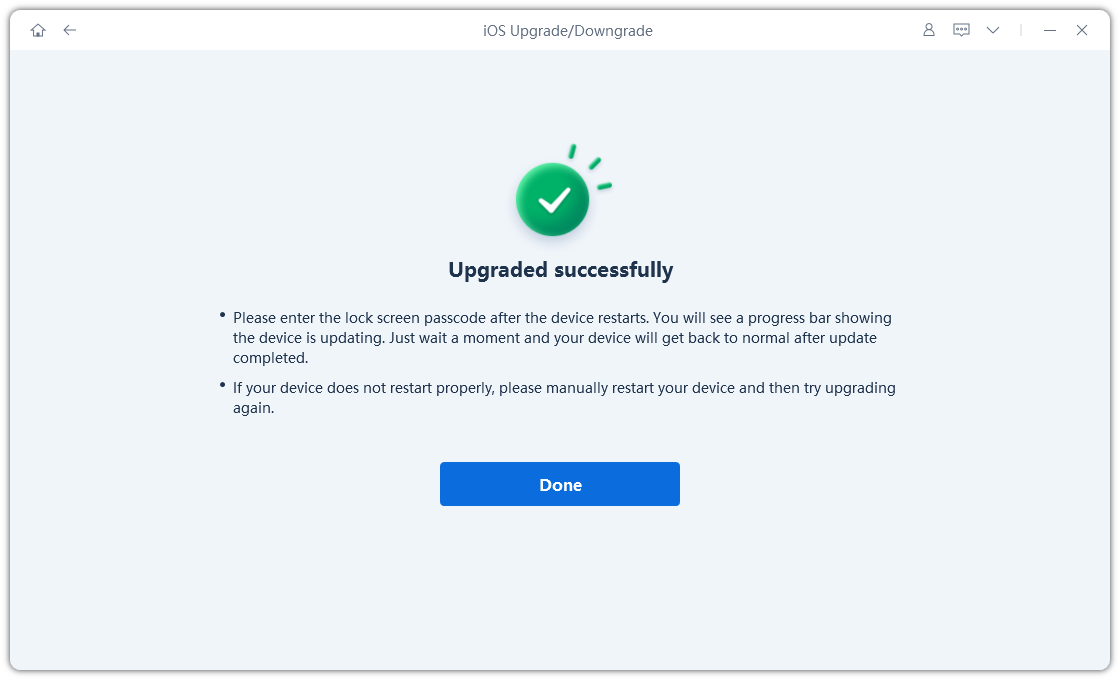
Step 7: When the upgrade is completed, you will see the completed page and your devices will be the newest version.
Solution 2: Update an Old iPad to iOS 27 Without a Computer
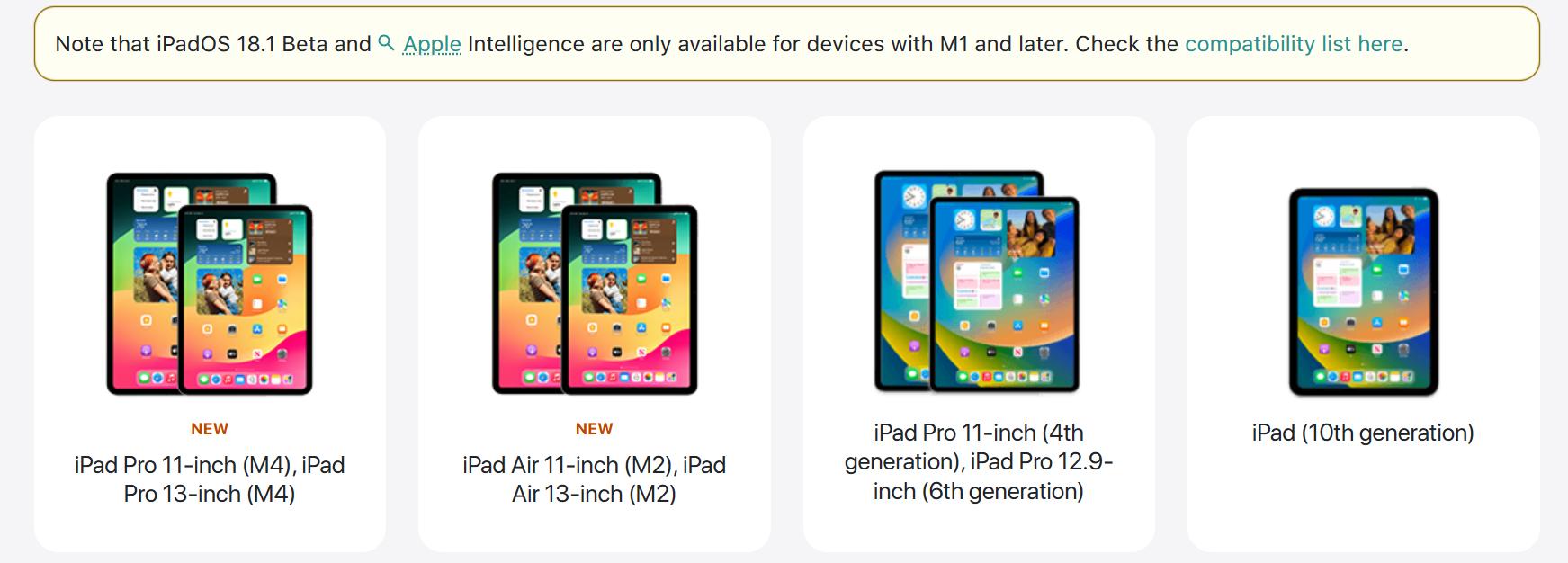
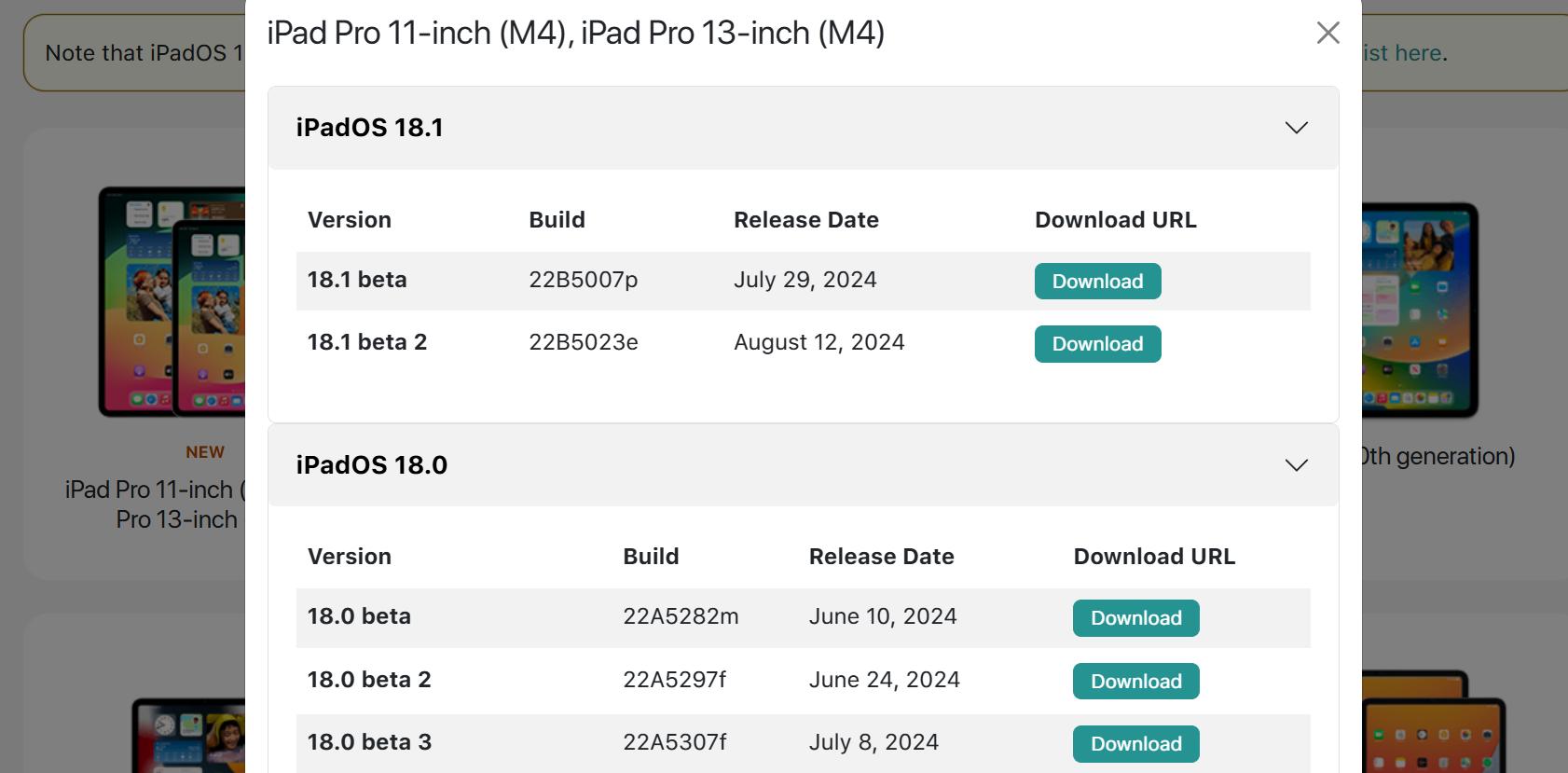
If you have an old iPad which won’t update to latest iOS 27, get an iOS 27 IPSW download through a configurations profile. You don’t need a computer, however, your iDevice must be part of “Apple Software Program,” which will allow you to download public iOS sofwtare. Here’s how to update an old iPad to iOS 27 with a configurations profile:
Step 1: Open browser on your iPad and visit iOS 27 IPSW. Then, download a configuration profile that’s compatible with your iDevice model.
Step 2: Head to “Settings” and install iOS 27 profile on your iPad. After this, restart your iPad, then, head to “Settings” again.
Step 3: Pick “General.” Next, choose “Software Update.” Then, tap “Download and Install.” This will get you current iOS 27 update on your iPad.
Solution 3. Update an iPad to iOS 27 Using iTunes/Finder
The above method is risky for fixing "iPad air not updating to iOS 27" issue, if you’re downloading a configuration profile from an untrusted source. This could introduce malicious software into your iDevice. Therefore, to avoid this, you can update your iPad to latest iOS 27 via iTunes/Finder. To do so:
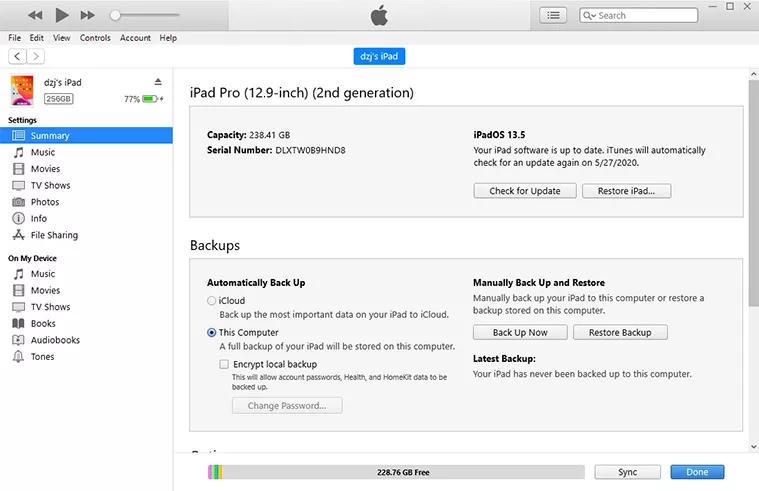
Step 1: Attach your iPad that won’t update to iOS 27 to your computer. Run iTunes.
Step 2: Choose your iPad from device icon at left. Then, press and hold “Shift” key on Windows or “Option” key on Mac and tap “Check for Updates.”
Step 3: Select from a list of available iOS 27 updates and install latest one.
Part 3. People Also Ask about iPad Won't Update to iOS 27
Q1. How do I ensure that my apps will be compatible with iOS 27 after the update?
Most apps made after iOS 11 should work with iOS 27. For older apps, check with developer to see if they’ve updated them for iOS 27 compatibility.
Q2. Can I roll back to a previous iOS version if I can’t update to iOS 27?
Yes. You can roll back to a previous iOS version if you can’t update to iOS 27 with help of ReiBoot. It’s a user-friendly tool that can downgrade your iDevice in a single click and can also solve an issue like not being able to update with high success.
Q3: How long does it take to update an iPad to iOS 27?
The time it takes to update an iPad to iOS 27 depends on factors like internet speed, update size, and your iDevice’s performance. But on average, it can take anywhere from a few minutes to over an hour.
Conclusion
If your iPad won’t update to iOS 27, chances are it’s due to network connectivity problems, device compatibility, Apple server outages, or software bugs. To resolve these issues and successfully update your iPad, consider using a reliable tool like ReiBoot. This software can efficiently fix various iOS problems, including update issues, and upgrade your iPad to latest iOS 27 version in a single click.
