
Updated on 2026-09-15 / iPhone Tips
The iPhone stuck on white screen issue is one of the most common display problems faced by users in 2025. It usually appears after an update, app crash, or hardware glitch, leaving your screen completely blank.
This guide explains the real causes behind it and provides reliable fixes for all iPhone models, including iPhone 13, 14, and 15 Pro Max, so you can get your device back to normal in no time.
Part 1: Things to Know: Why Is My iPhone Stuck on a White Screen
Sometimes, your iPhone stuck on white screen with Apple logo due to simple software issues or minor hardware problems. It can look scary, but in most cases, it’s fixable. Knowing the common causes makes it easier to solve the issue quickly.
Here are the main reasons this happens:
- Software glitch: A small system error or crash during normal use can freeze your iPhone on a white screen.
- Failed iOS update: If an update stops halfway or doesn’t install properly, the screen may turn white.
- Jailbreaking mistakes: Changing the system settings or jailbreaking your iPhone can lead to instability.
- Loose or damaged parts: A drop or hit can loosen the screen connection and cause display issues.
- Low storage or overheating: When your phone is full or gets too hot, it may freeze and show only white.
- Water damage: Moisture inside the phone can damage display parts and make the screen go white.
Part 2: How to Fix iPhone Stuck on White Screen (All Models)
Solution 1: Use the Three-Finger Tap Trick
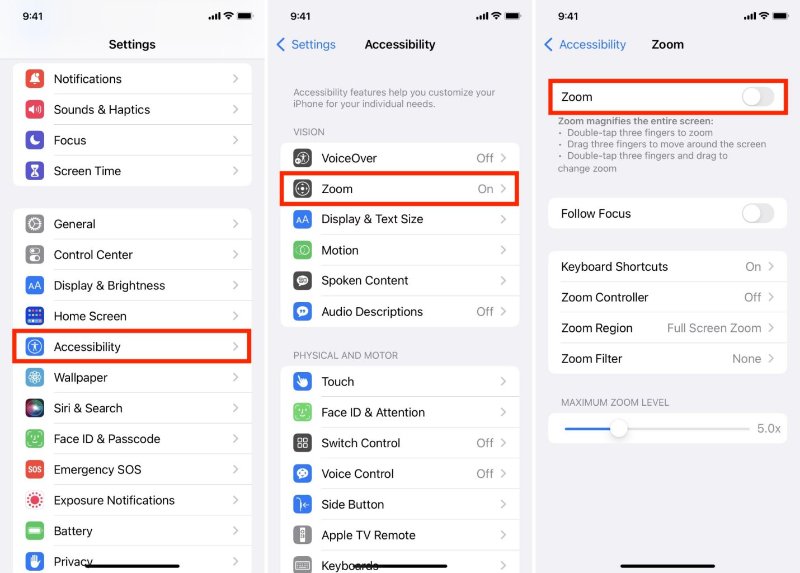
Before assuming your iPhone is stuck on a white screen, it’s worth checking if your screen is simply zoomed in. Sometimes, the display gets magnified so much that it looks completely white.
Here’s what to do:
- Tap your iPhone screen twice using three fingers together.
- If the screen was zoomed in, it will instantly return to normal view.
Next, open Settings, go to Accessibility, then select Zoom, and turn the Zoom toggle off to stop it from happening again.
Solution 2: One-Click Fix with iOS Repair Tool (Recommended)
An iPhone stuck on a white screen and refusing to turn on usually means there’s a system issue that needs deeper repair. Tenorshare ReiBoot provides a reliable fix for this problem without erasing your data.
It’s designed to resolve complex iOS glitches in minutes and supports all iPhone models, including iPhone 15, 16, and 17 Pro Max.
Why Choose Tenorshare ReiBoot?
- Repairs over 150+ iOS system errors , including white or black screen, frozen Apple logo, and boot loops.
- Keeps your data safe no deletion or reset required.
- Offers a clean and easy-to-use interface suitable for beginners.
- Fully supports the latest iOS 26/27 and earlier versions.
- Compatible with all iPhone and iPad models.
How to fix a white screen on iPhone 13 and others using Tenorshare Reiboot:
- Step 1: Launch ReiBoot and Connect Your iPhone
Install and open Tenorshare ReiBoot on your computer. Connect your iPhone using a USB cable and select Start Repair to begin the process.

- Step 2: Choose Standard Repair Mode
Click “Standard Repair” to fix the white screen issue without losing your data. Read the on-screen instructions carefully before moving ahead.

- Step 3: Download Latest iOS Firmware
ReiBoot will automatically detect your device and show the right firmware version. Download it the process may take a few minutes depending on your internet speed.

After the download completes, click “Start Standard Repair.” The program will repair your system and remove the white screen problem.

Solution 3: Hard Reset iPhone
A hard reset can quickly refresh your iPhone and clear out small software errors that might be causing the white screen problem. It’s one of the easiest and most effective ways to bring your device back to normal, especially if you see the Apple logo stuck on the white screen.
For iPhone 8 and later (including iPhone 17):
Quickly press and release Volume Up, then Volume Down. Next, press and hold the Side button until the Apple logo appears (this may take 10–15 seconds). Once you see the logo, release the button and wait for your iPhone to restart.
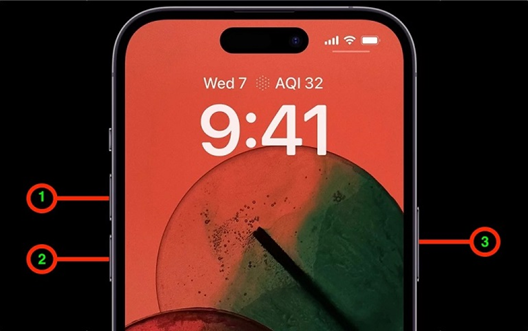
For iPhone 7 and iPhone 7 Plus: Press and hold both the Volume Down button and the Power button at the same time. Keep holding them until the Apple logo appears on the screen. Release the buttons once you see it.
For iPhone 6s and earlier models: Press and hold the Home button and the Power button together. Keep holding until the Apple logo appears, then release both buttons.
Solution 4: Turn Off Auto Brightness
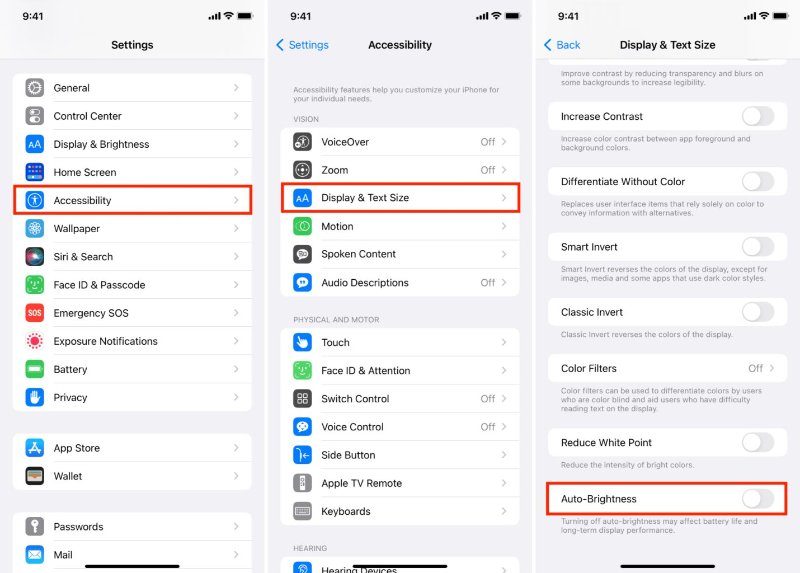
When your iPhone screen keeps flashing or turning completely white, the Auto-Brightness feature could be one of the reasons. This setting automatically adjusts your screen brightness based on surrounding light, but sometimes it malfunctions and causes display issues.
You can turn it off by going to Accessibility settings, then selecting Display & Text Size to disable Auto-Brightness.
Solution 5: Enter Recovery Mode
Recovery Mode is a reliable way to fix iPhone stuck on white screen issues caused by software glitches. It allows your iPhone to safely communicate with your computer so you can repair or restore it without losing important data.
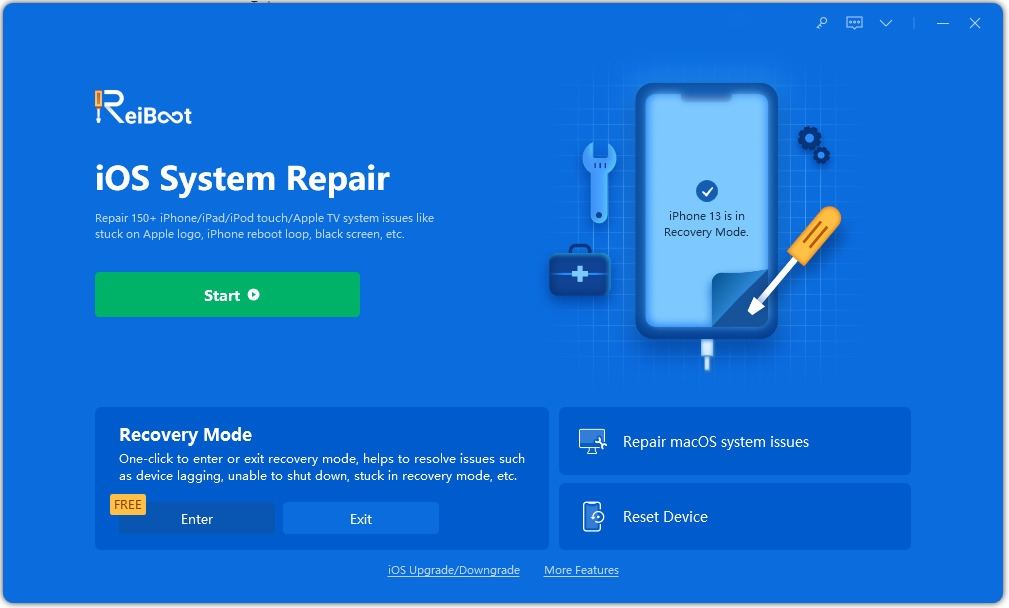
Tenorshare ReiBoot makes entering and exiting Recovery Mode free, simple, and quick, even for models like iPhone 13, iPhone 14, and iPhone 15 Pro Max.
Steps to Enter Recovery Mode to fix iPhone 15 Pro Max white screen solution:
- 1.Install Tenorshare ReiBoot on your Windows or Mac computer. Connect your iPhone to the computer using a USB cable.
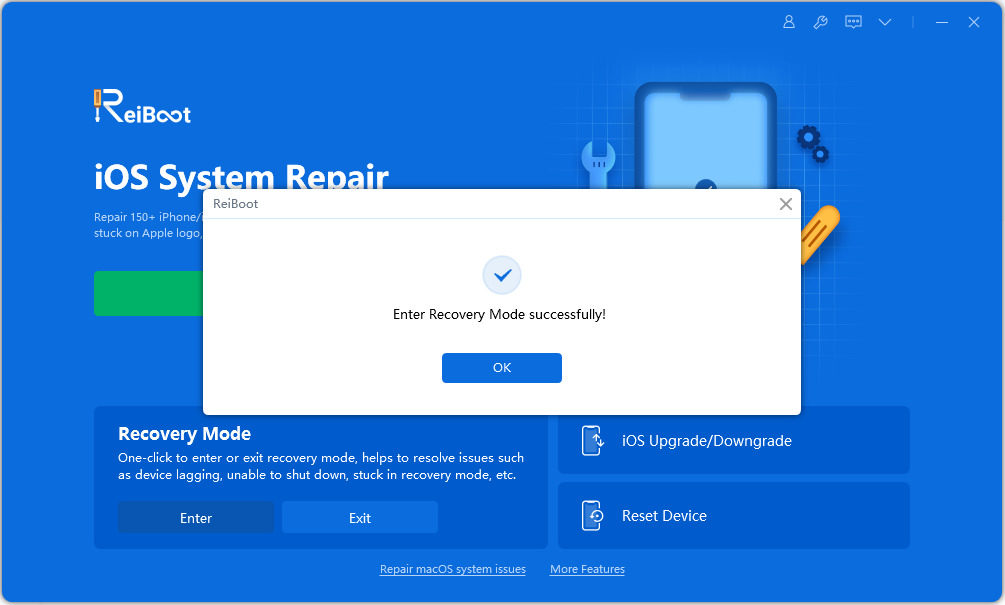
- 2.Once ReiBoot recognizes your device, click the Enter Recovery Mode button. The software will guide your iPhone safely into Recovery Mode.
- 3.In less than a minute, your iPhone will display the “connect to iTunes or Computer” logo, indicating it is successfully in Recovery Mode and ready for repair.
Solution 6: Check for Water Damage or Loose Connections
Water exposure can cause your Iphone stuck on white screen and won t turn on. Even a small amount of moisture inside the device can lead to the dreaded white screen. Loose internal connections, like the display cable, can also prevent your screen from working properly.
For a Water damage white screen iPhone, carefully inspect your device for signs of moisture or corrosion. Gently dry it with a soft cloth and avoid using it until fully dry.
Part 3: How to Prevent iPhone White Screen in the Future
Preventing the iPhone white screen of death requires consistent care and attention to both software and hardware. Here are reliable, fact-based strategies:
- Keep iOS Updated: Apple releases iOS updates to fix bugs, security issues, and system glitches that can lead to a white screen. Updating regularly makes sure your device has the latest patches.
- Protect from Water Exposure: Liquid intrusion is one of the most common hardware causes of the white screen. Use waterproof cases or avoid moisture contact to prevent Water damage white screen iPhone issues.
- Handle Your Device Carefully: Physical shocks from drops or pressure can loosen internal connections, causing the Apple logo or white screen errors. Use protective cases and avoid bending your device.
- Monitor Storage and Performance: Running out of storage or overloading your iPhone with large apps and media can trigger software crashes. Maintain at least 10–15% free storage for optimal performance.
- Use Certified Accessories: Non-certified chargers and cables can damage internal components or interrupt system stability. Apple-certified accessories prevent hardware-related issues.
- Frequent Backups: Back up your iPhone regularly via iCloud or tools like Tenorshare ReiBoot.
Part 4: Conclusion:
An iPhone stuck on white screen can disrupt your day, but understanding the causes and following proper fixes makes recovery simple. Regular updates and careful handling help prevent this issue in the future. For a fast, safe, and reliable solution, Tenorshare ReiBoot stands out. It resolves white screen problems on all iPhone models without causing any data loss, making it the best choice for a stress-free fix.
