
Updated on 2026-04-30 / iPhone Tips
Few things are more alarming than picking up your iPhone and seeing a cascade of vivid, shifting colors frozen across the display. It's a phenomenon widely known as the iPhone rainbow screen of death (RSOD). But don't panic.
Whether you own an iPhone 13, 14, 15, 16, or the brand-new iPhone 17, this guide will share the reasons for the rainbow screen and the most effective, up-to-date methods to fix it according to those reasons. You'll also learn some preventative measures to avoid this issue from cropping up in the future!
Part 1. Why Is My iPhone Showing a Rainbow Screen?
Before jumping to solutions, it helps to understand what is actually going wrong. The iPhone rainbow screen of death typically signals a breakdown in the pipeline between your iPhone's processor and its OLED/Super Retina display. Here are the most frequent reasons for this issue:
- Physical damage: Even a small drop can damage the display or its connector, causing distorted or scrambled colors.
- Loose/damaged cable: A worn or partially disconnected display ribbon can lead to rainbow lines or artifacts.
- Moisture exposure: Water entering the device can corrode internal parts, affecting display output.
- Overheating: Excess heat may disrupt the display driver or GPU, causing temporary visual issues.
- Software issues: Faulty updates or corrupted system files can interfere with screen rendering.
- Poor screen replacement: Non-original or improperly installed screens may show color errors.
- Hardware failure: Issues with the GPU or logic board can send incorrect signals to the display.
- Battery problems: A swollen or degraded battery can press on components and disrupt the display signal.
Part 2. 6 Ways to Fix iPhone Rainbow Screen of Death
Here's how to fix rainbow screen on iPhone in 6 ways, according to the reasons for this issue:
1. Fix iPhone Rainbow Screen of Death with ReiBoot
If you're sure the rainbow screen on your iPhone is not caused by physical damage but a software issue, you can try iOS repair. Tenorshare ReiBoot is the best solution for that. It can fix severe iOS problems that might be causing the rainbow screen without resetting or erasing your iPhone. You also don't have to manually place your iPhone into Recovery or DFU Mode.
Besides, ReiBoot can resolve not one but 150+ iOS issues. It can troubleshoot an iPhone not switching on, stuck in a boot loop, or on the Apple logo or blue/black screen. The tool is best for users who are short on time or lack the technical skills to fix software issues on their iPhone. Here's what more ReiBoot offers:
Main features of ReiBoot:
- iOS Upgrade/Downgrade: Install or remove iOS versions easily without jailbreak or iTunes.
- Recovery Mode: Enter or exit Recovery Mode with one click.
- Backup & Restore: Back up and restore your iPhone without iTunes or iCloud.
- Reset Device: Reset your iPhone to factory settings without a passcode or iTunes.
- Permanent Data Erase: Fully wipe data before selling your device.
- Fix iTunes Errors: Quickly fix common iTunes errors like 4013 and 1110.
Here's how to fix the iPhone rainbow screen with Tenorshare ReiBoot:
-
Step 1: Launch ReiBoot and Connect iPhone
Download and install Tenorshare ReiBoot on your computer. Open the program and connect your iPhone using a USB cable. Click "Start Repair" on the main interface.

-
Step 2: Choose Standard Repair
When ReiBoot detects your device, click on "Standard Repair" to proceed without data loss.

-
Step 3: Download Firmware Package
Download the latest firmware package when prompted. ReiBoot will automatically match the correct version for your device.

-
Step 4: Start Standard Repair
Once the firmware is ready, click "Start Standard Repair" to fix the iPhone rainbow screen issue. Wait a few minutes for the process to complete.

-
Step 5: Repair Completed
Your iPhone will restart automatically, and the rainbow screen of death issue should be resolved without data loss.

2. Force Restart Your iPhone
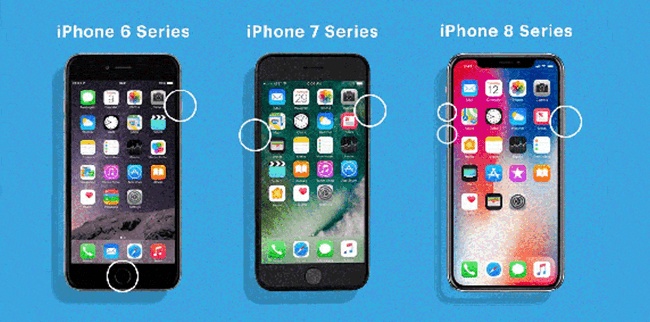
A force restart quickly refreshes your iPhone by clearing memory, stopping all functioning apps, and restarting the display system. It's a fast and easy first step that often fixes the rainbow screen on iPhone 16/iPhone 17 or earlier versions caused by minor software glitches or temporary GPU problems.
It doesn't delete any data, takes only a few seconds, and requires no tools, but it may not help if there's serious hardware damage or major software corruption. Here's how to force restart your iPhone based on its model:
- iPhone 8 or later (incl. SE 2nd/3rd gen): Press the "Volume Up," then "Volume Down" buttons. Then, press and hold the "Side" button until the Apple logo materializes.
- iPhone 7 / 7 Plus: Press and hold the "Volume Down" + "Side" buttons together until you see the Apple logo.
- iPhone 6s or earlier (incl. SE 1st gen): Press and hold the "Home" + "Power (Top/Side)" buttons together until the Apple logo appears.
3. Inspect & Reseat the Display Connector
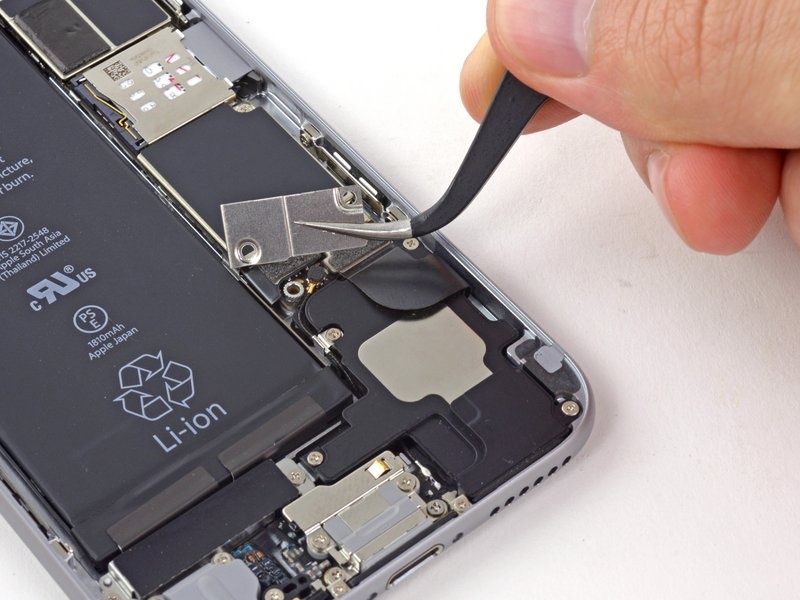
If the iPhone rainbow screen appeared after a drop, impact, or recent repair, a loose display cable is likely the issue. So, carefully open the phone and reconnect the cable to fix it without replacing parts.
But it should only be done if you're experienced, as it requires special tools and may void your warranty. This method can solve the root problem and keep your data safe, but there's a risk of causing more damage if managed improperly.
4. Update or Restore iOS via Finder / iTunes
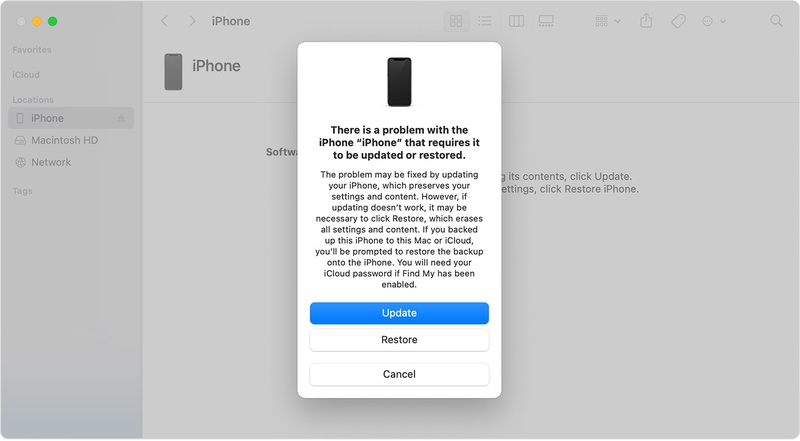
In case the iPhone screen showing rainbow lines is caused by software corruption, Finder/iTunes lets you update iOS or perform a full factory restore. This will reinstall both the system and firmware to fix the iOS issue. But try the Update option first to keep your data, and use Restore only if the issue continues. However, this method may erase all data and won't help with hardware damage. Follow the instructions beneath to update or restore iOS via Finder/iTunes:
- Step 1: Attach your iPhone with rainbow lines to a computer using a USB cable. Then, open iTunes/Finder on your computer.
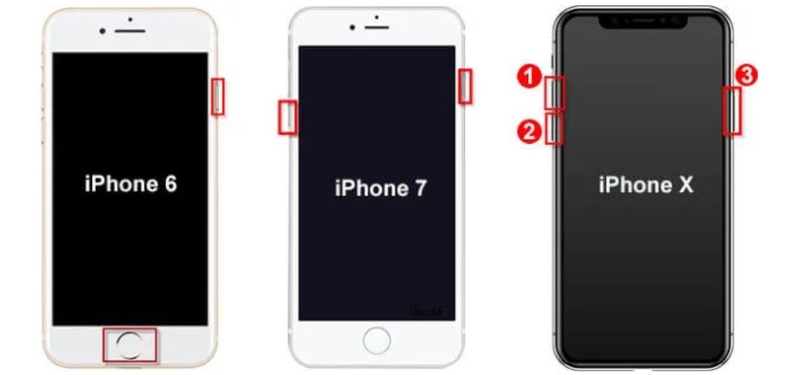
- Step 2: Place your iPhone into Recovery Mode (don't release buttons until you see the recovery screen):
- iPhone 8 or later: Press the "Volume Up" and "Volume Down" buttons. Then, press and hold the "Side" button.
- iPhone 7 / 7 Plus: Press and hold the "Volume Down" + "Side" buttons.
- iPhone 6s or earlier: Press and hold the "Home" + "Side/Top" buttons.
-
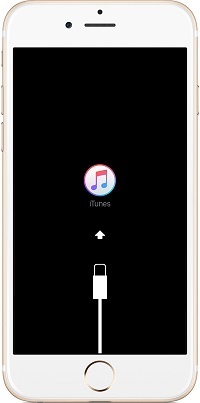
Step 2: When the iTunes/Finder detects your
iPhone in Recovery Mode, you'll see "Update" and "Restore"
options.
-
Step 3: Try "Update" first to reinstall iOS without deleting data. If it doesn't do the job, choose "Restore," which erases everything and installs a fresh iOS version.
5. Use DFU Mode to Restore your iPhone
In case iTunes/Finder can't detect your iPhone in Recovery Mode, you can place it in the DFU Mode to resolve the rainbow screen. It's the deepest software repair option for resolving severe iOS issues. In DFU mode, the computer can reinstall both the firmware and iOS without loading the system first, allowing a full reset of the device software. However, this process completely erases all data. Follow the steps beneath to place your iPhone into the DFU Mode:
-
Step 1: Attach your iPhone with rainbow lines to a computer using a USB cable. Then, open iTunes/Finder on your computer.
-
Step 2: Next, place your iPhone into DFU Mode:
-
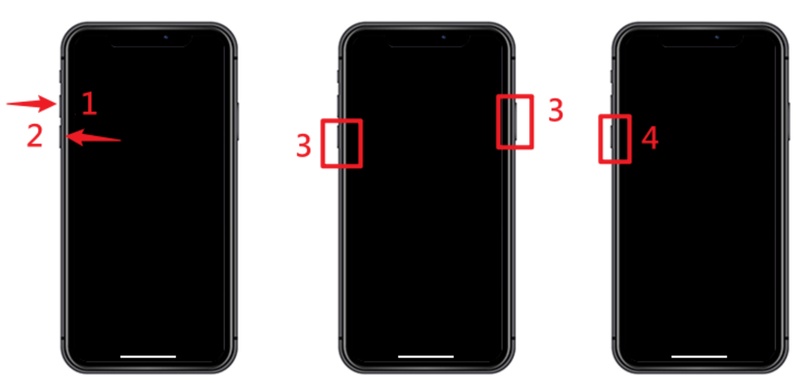
iPhone 8 or later (SE 2nd/3rd gen): Press the "Volume Up" and "Volume Down" buttons. Then, press and hold the "Side" button. When the screen goes black, press and hold the "Side" + "Volume Down" buttons. After 5 seconds, release the "Side" button. But keep holding the "Volume Down" button for 5--10 more seconds.
-
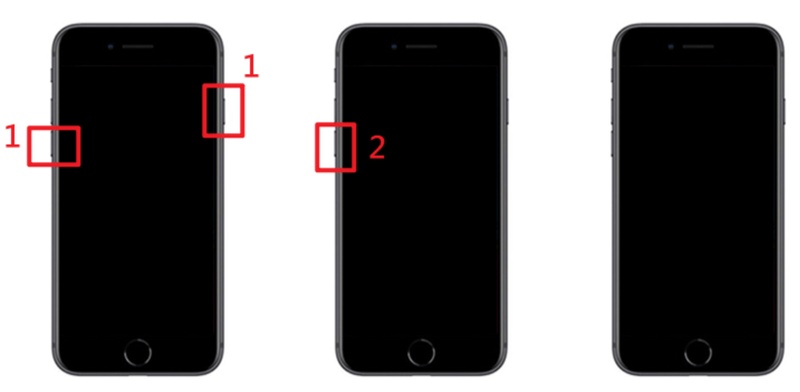
iPhone 7 / 7 Plus: Press and hold the "Side" + "Volume Down" button for 8--10 seconds. Then, press and release the "Side" button. But keep holding the "Volume Down" button for 5 more seconds.
-
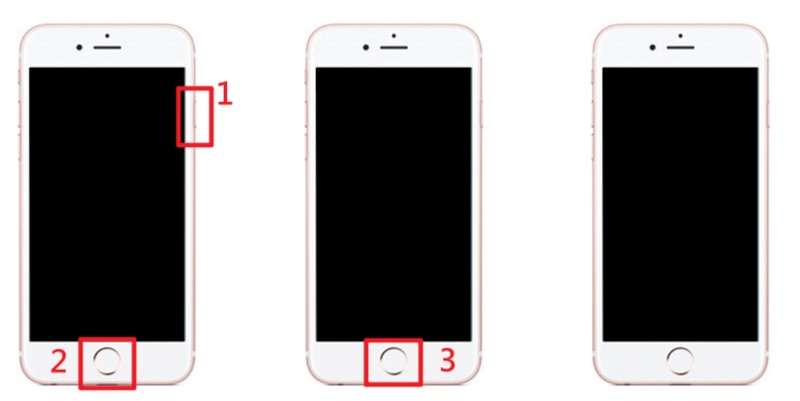
iPhone 6s or earlier (SE 1st gen): Press and hold the "Home" + "Power" buttons for 8 seconds. Then, release the "Power" button. But keep holding Home for 5 more seconds.
-
-
Step 3: The iPhone screen should stay completely black (this confirms DFU mode). If you see the Apple logo or recovery screen, try again.
-
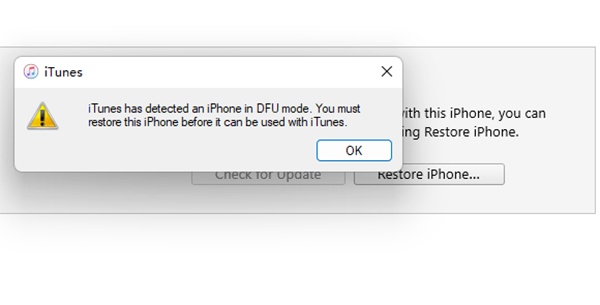
Step 4: iTunes/Finder will detect the iPhone and say it's in DFU Mode and needs restoring.
-
Step 5: Follow the on-screen instructions to restore iOS, which downloads and reinstalls the system.
-
Step 6: Keep the iPhone linked to your computer until the restoration procedure finishes.
6. Contact Apple Support or Visit an Apple Store
If not, a single iPhone13/iPhone 14 rainbow screen solution seems to do the job, or if the screen damage is physical, try professional Apple repair. Apple Stores and authorized service providers can run advanced diagnostics and fix hardware issues using genuine parts.
In some regions, Apple's Self Service Repair also allows users to access official tools and manuals. If you have AppleCare+, the repair may be low-cost or even free depending on coverage. While this is the most dependable fix and keeps your warranty valid, it can be expensive without AppleCare+ and may take a few days depending on availability.
Part 3. How to Prevent Rainbow Screen Issues on iPhone?
Prevention is always helpful and far cheaper than repair. So, follow these practices to reduce the risk of ever seeing the rainbow screen on your iPhone again.
- Use a strong case and screen protector: Helps absorb shock and protect the display from damage.
- Keep iOS updated: Updates fix bugs and improve screen stability. Turn on automatic updates.
- Avoid extreme heat or cold: High or low temperatures can weaken internal display parts.
- Be careful with water exposure: Water resistance weakens over time, so avoid unnecessary moisture.
- Check battery health: Replace the battery if it drops below 80% or shows swelling.
- Use official repair services: Genuine Apple parts reduce the risk of screen issues after repair.
- Back up your data regularly: Ensures your data is safe if hardware fails.
- Use certified chargers: Apple-approved chargers help prevent power-related damage.
Conclusion
The iPhone rainbow screen of death may look serious, but it's often easy to fix without paying anything. Start with a force restart, then try Recovery or DFU restore through Finder or iTunes if needed.
While simple hardware issues, like a loose display cable, may be fixed by experienced users, major damage is best managed by Apple technicians. For serious iOS problems that might be causing the rainbow screen, employ a tool like Tenorshare ReiBoot. It can fix 150+ severe software issues without data loss or manual steps.
