
Updated on 2026-09-17 / iPhone Tips
Your iPhone Messages screen suddenly goes black, and just like that, your chats, photos, and conversations feel out of reach. It can even make you miss important messages or updates. But don't worry, though. This article shares the reasons for the "iPhone Messages black screen" issue, and shows you exactly how to fix it based on those reasons. We'll also tell you some simple tips to prevent this issue from coming back again. So, keep reading till the end!
- Part 1: Why Is My iPhone Messages Screen Black?
- Part 2: How to Fix iPhone Messages Black Screen?
- Part 3: How to Prevent Messages Black Screen on iPhone?
- Part 4: Conclusion
Part 1. Why Is My iPhone Messages Screen Black?
If you're wondering, "Why is my message screen with a black background," this issue rarely has a single cause. Here are the confirmed reasons behind it:
-
iOS software glitch or crash during a Messages update.
-
Corrupted app cache or Messages data files.
-
Insufficient RAM is forcing iOS to black out background processes.
-
Failed or interrupted iOS update, leaving the system unstable.
-
An incompatible or buggy third-party keyboard is installed.
-
iMessage sync conflict between iCloud and on-device storage.
-
Dark Mode or display accessibility settings are conflicting with the app UI.
-
Low storage (under 1 GB free) is preventing the app from rendering.
-
Hardware-level display connector issue (rare, usually after a drop).
-
A specific conversation with a large media attachment overloads the thread renderer.
Part 2. How to Fix iPhone Messages Black Screen?
Here's how you can fix the Messenger black screen on iPhone in 10 ways, according to the reason behind the issue:
1. Fix iPhone Messages Black Screen with Reiboot Simply
The black screen on your iPhone's Messages app could be because of a system-level corruption. So, rather than trying manual solutions or restoring your iPhone, which will erase data, you can employ an iOS repair solution, like Tenorshare ReiBoot. It can resolve severe iOS corruption without data loss and also offers other functions as well, such as:
Main features of ReiBoot:
- Fix 150+ iOS Issues: Solve problems like an iPhone stuck on the Apple logo, in a boot loop, or on a black/blue screen.
- iOS Upgrade/Downgrade: Install or remove iOS versions easily without jailbreak or iTunes.
- Recovery Mode: Enter or exit Recovery Mode with one click.
- Backup & Restore: Back up and restore your iPhone without iTunes or iCloud.
- Reset Device: Reset your iPhone to factory settings without a passcode or iTunes.
- Permanent Data Erase: Fully wipe data before selling your device.
- Fix iTunes Errors: Quickly fix common iTunes errors like 4013 and 1110.
Here's how to fix the iPhone Messages black screen with Tenorshare ReiBoot:
-
Step 1: Launch ReiBoot and Connect iPhone
Download and install Tenorshare ReiBoot on your computer. Open the program, connect your iPhone using a USB cable, and click "Start Repair" on the main interface.

-
Step 2: Choose Standard Repair and Download Firmware
Click on "Standard Repair" after your device is detected. Then select "Download" to get the required firmware package and proceed.

-
Step 3: Download Firmware Package
Wait for the firmware package to download completely. ReiBoot will prepare everything needed for the repair process.

-
Step 4: Start Standard Repair
Once the firmware is ready, click "Start Standard Repair" to fix the Messages black screen issue on your iPhone.

-
Step 5: Repair Completed
Wait for the process to complete. Your iPhone will restart automatically, and the Messages black screen issue should be resolved.

2. Force Restart Your iPhone
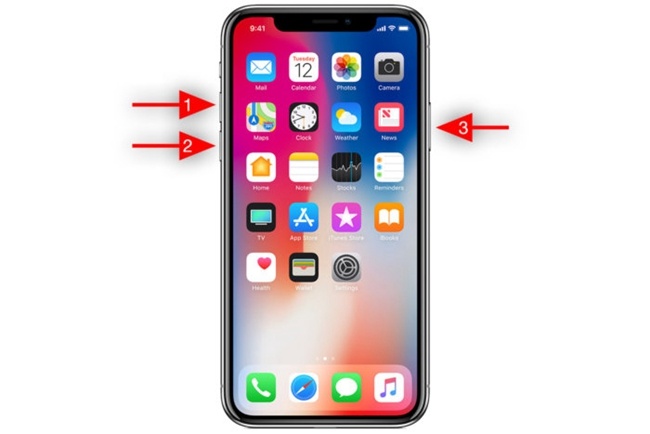
Force restarting your iPhone can fix the iPhone Messages black screen problem most of the time if it's caused by temporary glitches or frozen processes. It's a quick way to deal with frequent Apple bugs. However, it's a temporary measure and won't resolve system-level corruption. Besides, the issue may return if the root cause remains. Here's how to restart the iPhone:
-
Step 1: Quickly press and release the "Volume Up" button. Do the same with the "Volume Down" button.
-
Step 2: Press and hold the "Side" (power) button until the screen turns black and the Apple logo shows up.
3. Update iOS to the Latest Version
An obsolete iOS can also result in the "Messages app black screen" issue on your iPhone, as it may lack the latest bug fixes and security patches. But updating iOS to the latest version can resolve this issue. However, new updates may sometimes bring new bugs, and you'll need Wi-Fi and enough storage space to install them. Here's how to update iOS to the latest version on your iPhone:
-
Step 1: Open "Settings." Then, tap "General." Head to "Software Update." Let your iPhone check for available updates
-
Step 2: If an update appears, hit "Download and Install" and follow the instructions to get the latest iOS update.
4. Offload and Reinstall the Messages App
Offloading and reinstalling the Messages app can also fix the "iPhone message screen black background" issue if it's caused by damaged app data without deleting your chats. It helps clean up app files while keeping your message history, but your app settings will be reset. Follow the instructions beneath to offload and reinstall the Messages app on your iPhone:
-
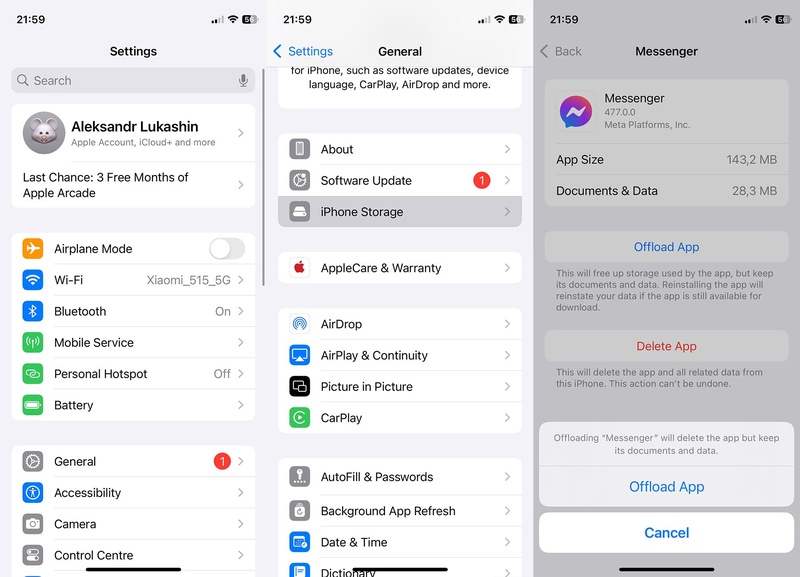
Step 1: Head to "Settings." Then, choose "General." Click "iPhone Storage."
-
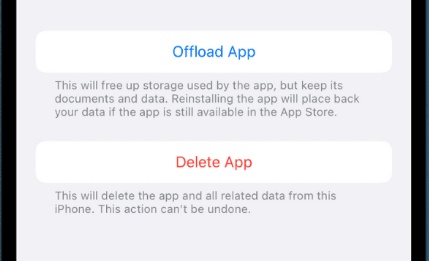
Step 2: Move down. Next, click "Messages" in the app list. Tap the "Offload App" and confirm.
-
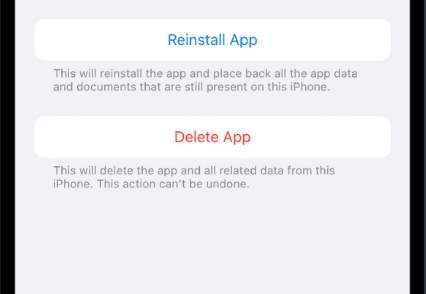
Step 3: Your message history is preserved. Click "Reinstall App" on the same screen to re-download it fresh from Apple.
5. Toggle iMessage Off and Back On
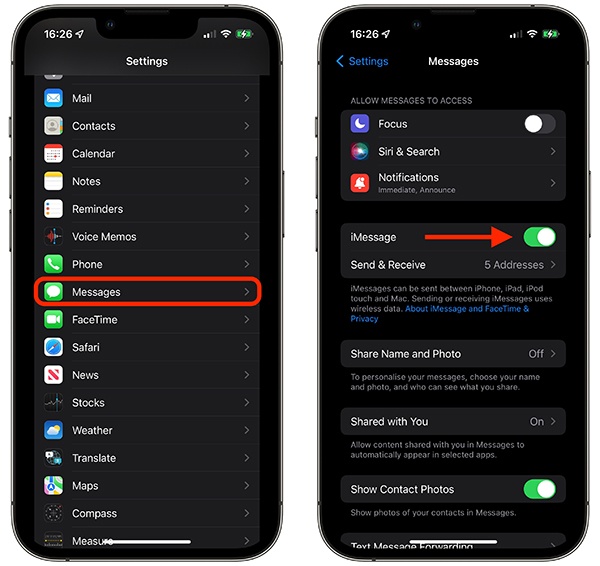
Many times, turning iMessage off and then back on can fix the "text messages black screen on iPhone" issue by refreshing its connection with Apple's servers. But messages may be sent as SMS while it's off, and reactivation can take a few minutes on slower networks. Follow the steps beneath to toggle iMessage off and back on your iPhone:
-
Step 1: Open "Settings" on your iPhone. Then, choose "Messages." Next, toggle the "iMessage" switch off. Wait 30 seconds.
-
Step 2: Toggle "iMessage" back on. Wait for activation to complete. Then, restart the app and check if the screen renders correctly.
6. Free Up iPhone Storage Space
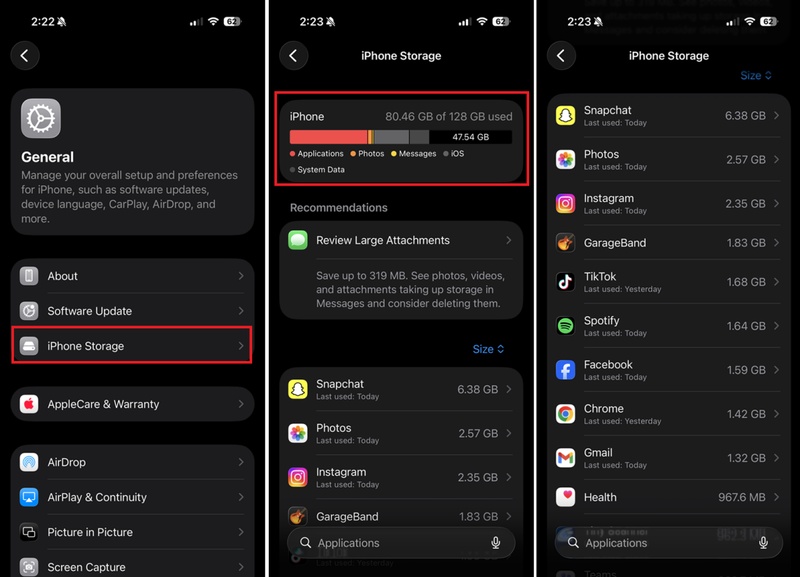
Insufficient iPhone storage might also turn the Messages screen black. So, freeing up space will give more headroom to render conversations. However, it's a time-consuming process, and erasing old message threads removes media permanently. Here's how to free up iPhone storage space:
-
Step 1: Head to "Settings." Then, choose "General." Click "iPhone Storage" and check your free space.
-
Step 2: If it's under 2 GB free, delete large apps, duplicate photos, or downloaded videos.
-
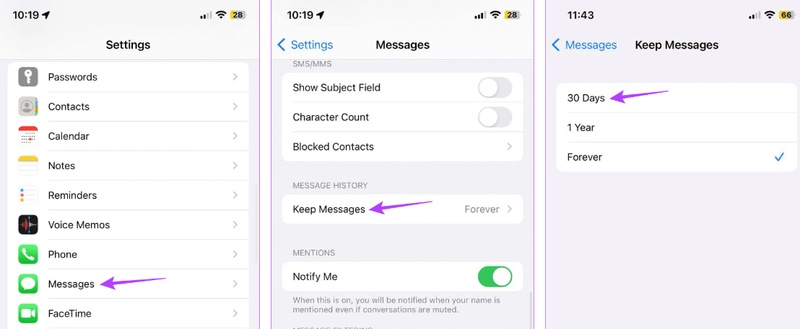
Step 3: In "Messages," delete conversations with many photos/videos. Next, head to "Settings." Tap "Messages."
-
Step 4: Click "Keep Messages." Set to "30 Days" to auto-delete old ones. Restart your iPhone and reopen Messages.
7. Disable Third-Party Keyboards
If you're using keyboard extensions, they can block the Messages UI from loading, resulting in an "iPhone Messages black screen" issue. But you can disable the extension to pinpoint which keyboard caused the issue. However, you'll have to re-add and reconfigure the keyboards afterward. Here's how to disable third-party keyboards on your iPhone:
-
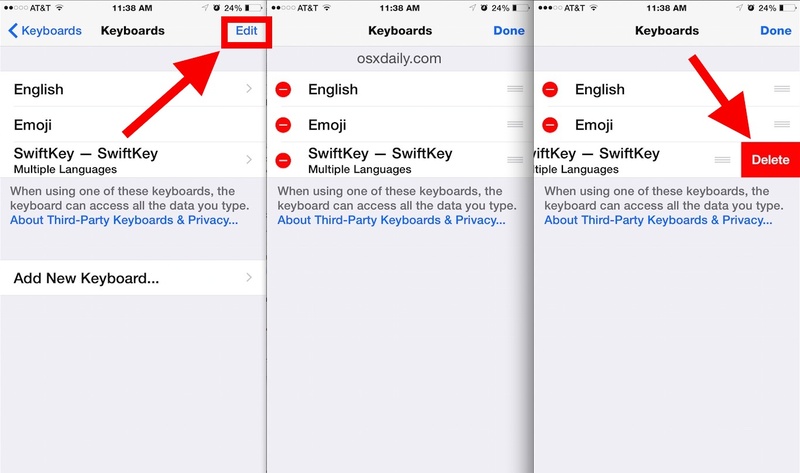
Step 1: Open "Settings." Then, choose "General." Tap "Keyboard." Next, click "Keyboards." Choose "Edit."
-
Step 2: Hit the "minus" button next to the keyboard you wish to delete (Gboard, SwiftKey, etc.). Confirm deletion. Leave only English (or your language).
-
Step 3: Force-quit and reopen "Messages." If it functions, re-add keyboards one at a time to identify the culprit.
8. Reset All Settings
If you're unable to fix the iPhone Messages black screen issue because of incorrect system and display settings, then reset all settings. It can solve many UI issues, but it will remove saved Wi-Fi passwords and custom settings, so you'll need to set everything up again afterward. Follow the instructions beneath to reset all settings on your iPhone:
-
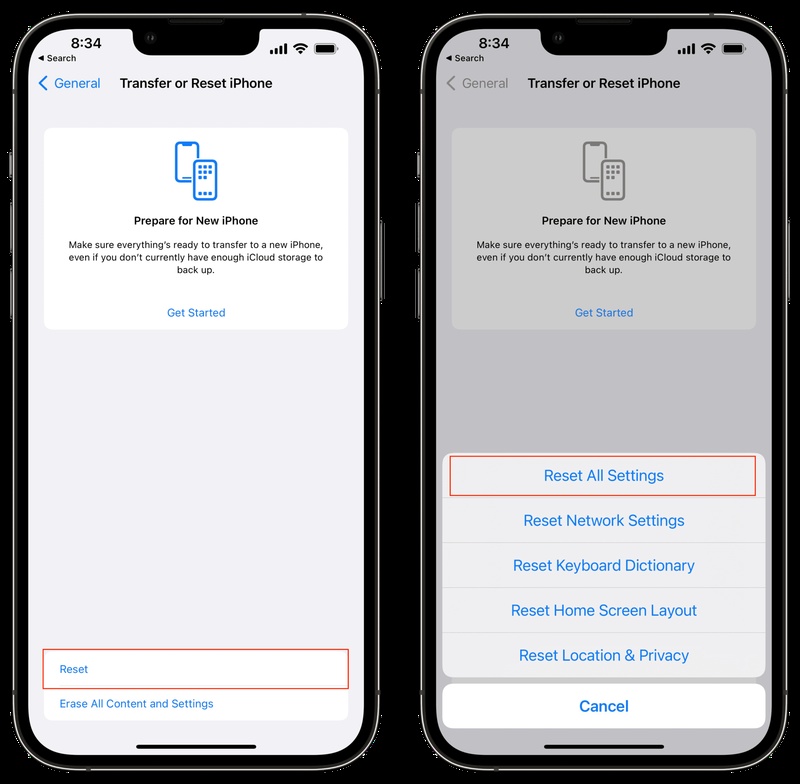
Step 1: Head to "Settings." Then, choose "General." Tap "Transfer or Reset iPhone." Click "Reset."
-
Step 2: Select "Reset All Settings." Enter your passcode and confirm. Your iPhone restarts in about 2 minutes.
-
Step 3: Reconnect Wi-Fi and check Messages. Your apps and data remain untouched.
9. Restore iPhone via iTunes/Finder
In case iPhone Messages is still not working, as a last resort, restore your iPhone via iTunes/Finder. It will fix system-level iOS corruption. However, it's time-intensive and will erase all data. Instead, you can try using Tenorshare ReiBoot to resolve the issue without erasing data. But if you have a backup and don't want to use any software, here are the steps to restore your iPhone via iTunes/Finder:
-
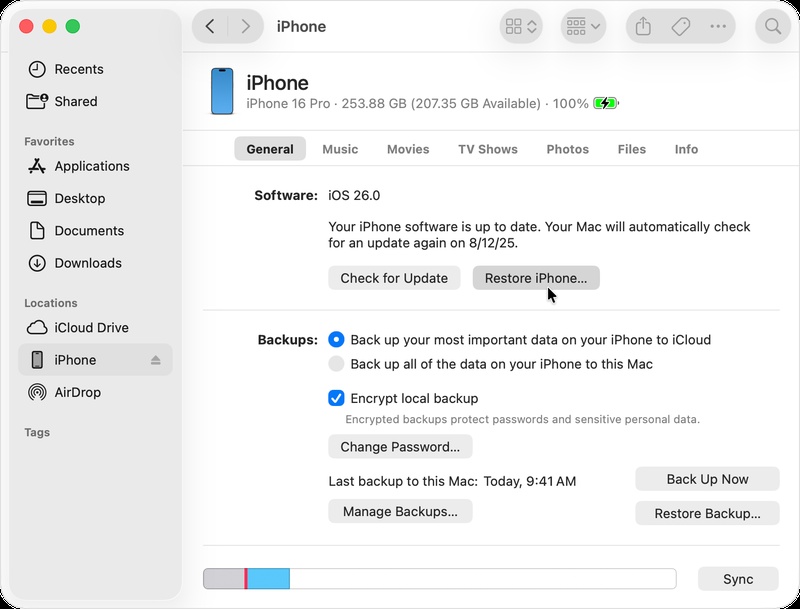
Step 1: Attach your iPhone to a Mac (Finder) or PC (iTunes). Trust the computer on your iPhone.
-
Step 2: In Finder or iTunes, select your iPhone. Then, click "Restore iPhone."
-
Step 3: Confirm the restore. iOS will be erased and reinstalled (takes 20--40 min).
-
Step 4: Set up your iPhone from your backup. Next, open "Messages" and verify.
10. Contact Apple Support or Visit an Apple Store
If all software solutions have failed to fix the Messages black screen on your iPhone, the issue may be a loose display connector or OLED panel fault. In such a scenario, you'll need to contact Apple Support or visit your nearby Apple store. To do so:
-
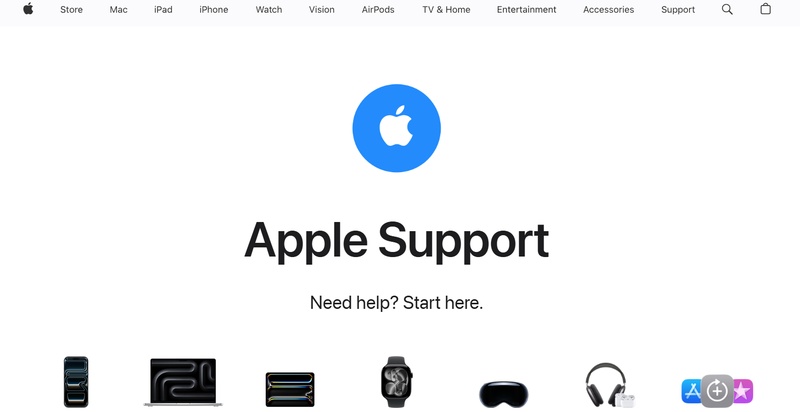
Step 1: Head to http://apple.com/support and start a repair request, or book a Genius Bar appointment.
-
Step 2: Bring proof of purchase. If your iPhone is under warranty or AppleCare+, the repair may be free.
-
Step 3: Describe the exact issue, like when it started, what triggers it, and all fixes you've already attempted.
Part 3. How to Prevent Messages Black Screen on iPhone?
You can actually prevent your iPhone's Messages app from displaying a black screen in the future by following some preventative measures, such as the following:
-
Keep your iPhone up to date with the latest iOS version,such as iOS 27.
-
Restart your iPhone regularly to avoid glitches.
-
Keep enough storage space free on your device.
-
Avoid installing unknown or risky apps.
-
Use a stable internet connection for iMessage.
-
Turn iMessage off and on if it starts displaying issues.
-
Back up your iPhone periodically to prevent data loss.
-
Don't overload Messages with too many large files or media.
Conclusion
The "iPhone Messages black screen" issue can manifest due to software glitches, low storage, or app conflicts. But in most cases, it can be resolved by restarting your device, updating iOS, or adjusting settings. But if manual methods don't do the job, employ a credible iOS Repair tool, like Tenorshare ReiBoot. It can fix deeper iOS problems without deleting your data and save you time.
